1
Celestia User’s Guide
33 of 40
Celestia FILE menu, navigate to (look in) the location of the script file, and open it. For example, to open the
Demo script, navigate to C:/Program Files/Celestia, and it will be listed as a file in that Directory.
71) NOTE: When a script is running, it not only controls where you go in Celestia, but it also changes some of
the “Render” options that we discussed earlier. For example, a script may turn off the clouds, or turn on
Constellation labels in order to explain some particular point. When the script is done, it may … or may not
restore your Render options to the way you wanted them. We recommend that after a script has run, you go
back to the Render menu and make sure your preferred options are set just the way you like them.
FILE MENU - Saving Images, Movies and Locations
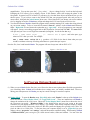
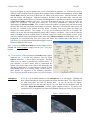
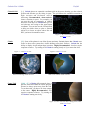
72) Celestia gives you the opportunity to capture and save an image on your screen as an individual graphic file
(such as the figures seen in this User’s Guide). You can also save a series of images as a movie file and play
it back later in your computer. Thirdly, if you like a particular location and would like to return to that exact
spot and time quickly, Celestia can save your location internally within the program as a “bookmark” or as an
external “hyperlink” which can be pasted into another software program.
Save Image [F10]
73) To save a graphic file (in .jpg or .png format), simply set up the screen exactly as you want it, pull down the
“File” Menu and select “Capture Image” (or press the [F10] key). A menu will appear. Choose the folder
you wish to put the file into, name the file, decide if it is to be saved as a jpg or png file and click “SAVE”.
JPG files are common graphic files that have good quality and occupy less computer memory because they
are first compressed by the program into a “smaller” size for storage. Compression, however, always results
in some small loss of image quality, in exchange for smaller file size. Thus, jpg images can be convenient to
use in e-mails, websites and documents where quality is not overly critical, and too large an image size might
slow down the software or make it difficult to transfer over the internet. Note, however, that before you can
view a jpg file, your computer must first uncompress it, which takes a bit of time. PNG files are also
somewhat compressed graphic files but they maintain a higher image quality due to the way they save data.
As a result, they do require much more computer memory. For example, an image save by Celestia would
use about 60 KB of RAM memory in jpg format, and 360 KB of RAM if saved as a png file. If you wish to
use a Celestia image in a high quality presentation requiring the best image, save the file in png format.
74) To view a jpg or png image, click on it and your default graphic image viewer or browser in your computer
will open it. You do not need Celestia running. You can paste and view images anywhere you wish.
Save Movie
75) Celestia gives you the opportunity to create an animation/movie of anything you experience in the program’s
universe. For example, if you wish to position yourself beyond Jupiter and fly past it at high speed with the
planet whizzing by, you can record that maneuver in a movie. You can record a rare solar eclipse as it
happens or demonstrate the occultation of a star by a planetary limb. You can execute any command you
wish while taping a movie. For example, you can accelerate in your spaceship, move the screen with your
mouse, zoom in or out, speed up time, etc. In this manner, you can set up your own movie “demo” of
celestial places or events for others to see.
76) To save a movie file (in .avi format), set up the screen as you want it and set the time moving forward at the
speed you desire. We suggest you then temporarily pause time with the [Spacebar] key while you complete
the movie preparations. Pull down the “File” Menu and select “Capture MovieImage”. Choose the folder
you wish to put the movie into, and type a file name for the movie. Then choose the size of the video.