1
Celestia User’s Guide
35 of 40
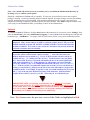
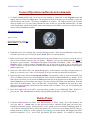
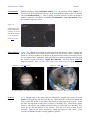
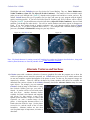
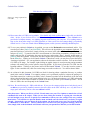
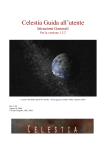
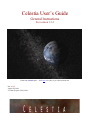
Click here for a ticket to Mars
Figure 32 – image captured via
cel://URL
81) Please note that cel://URLs are hyperlinks. You should only click on them once (single-click, not doubleclick). In fact, if you click one twice, it will launch two copies of Celestia at once. Since Celestia uses a
great deal of computer memory, two running programs could lock up your computer. If everything seems to
stop or slow down after using a cel://URL hyperlink, or if the screen view does strange things, you probably
clicked it twice. Close one or both of the Celestia programs, reclick just once, and things should improve.
82) To save your position in Celestia as a hyperlink, you can use the Bookmarks menu mentioned earlier. You
can also press either [Ctrl+C] or [Ctrl+INS]. This will save the hyperlink to your computer clipboard. To
paste that link into a web browser, simply position your cursor in the address field at the top of the browser
and press [Ctrl+V]. To paste the link into a text document or a PowerPoint presentation, you may be able to
simply paste the link by positioning the cursor on the page and pressing “Paste” from the toolbar menu, or
[Ctrl+V] from the keyboard. If successful, the link will paste into your document and change color when you
hit the Enter key. Clicking on it will launch Celestia. If that doesn’t work, you may have to paste the link by
“inserting a hyperlink”. See your application software for directions on how to do that. You can also link a
Cel://URL to an image. For example, right-clicking on graphic images in word processing and presentation
software will usually offer you the option to insert a hyperlink. If you select it, paste the Cel://URL into the
hyperlink address. Clicking on the picture itself will then launch Celestia. To see this in action, return to
figure 32 above and this time, click once on the image, not on the text above it. You will be taken to Mars.
83) As evidenced in this document, Cel://URLs are ideal for showing others a particular discovery or position
made in the world of Celestia. For example, perhaps you’ve positioned yourself to witness the passing of a
Near-Earth asteroid as it whizzes past Earth, or have assumed a position off the North Pole of the Sun with
orbits selected and the entire solar system orbiting below you. Saving that location to a cel://URL and pasting
it on the web or in an e-mail for others to activate is an ideal way to share your Celestia experience. You’ll
find cel:// URLs also used frequently in the Celestia forum.
84) Note: Be careful using cel:// URLs with add-ons. If you save the camera position near a body that is part of
an add-on you previously installed, someone who later clicks on the URL will likely see a very dull view of
empty space unless they also have the same add-on installed.
Also please note: When you click a cel://url, Celestia must reset your View Options to match the cel://url
commands (the same as in scripts). When you are done visiting the location or enjoying the view that the
cel://url brought you to, there is no quick reset command to return your view settings to the way you had
them before. You will have to open the Render menu and make sure the check boxes you desire are again
selected. Alternatively, you can choose all of the options you desire and create your own cel:url hyperlink
as a Bookmark. Call it “Reset”. Then, if someone else’s cel:/url resets your program to settings you do not
want, simply click on the bookmark and Celestia will reset your parameters and take you to that location.