1
3
Fingerprint Authentication
This chapter provides information on fingerprint authentication in the Classic Client.
Fingerprint authentication can be used as an alternative to PIN authentication.
Fingerprint authentication is supported in the tasks mentioned in “Chapter 4 - Tasks”.
About Fingerprints
For cards that contain the IAS Classic Applet V3 and the Match On Card (MoC) applet,
fingerprints can be used as an alternative to presenting a PIN. For fingerprint
authentication, you must have a fingerprint scanner connected to the computer.
(Please refer to the Classic Client Release Note to know which fingerprint scanners are
supported.) To authenticate, place a finger on the sensor of the reader. Classic Client
compares the digital fingerprint of the finger with the corresponding fingerprint stored in
the MoC applet.
Caution: As with PINs, the number of attempts to perform a fingerprint authentication
is limited. After a pre-defined number of failed attempts, you can no longer perform
operations that require fingerprint authentication. YOU CANNOT UNBLOCK
FINGERPRINT AUTHENTICATION USING CLASSIC CLIENT.
Requirements
For fingerprint authentication to work, the fingerprints must already be present on the
smart card. The smart card must have the MoC (Match on Card) algorithm loaded on it.
Authentication Process
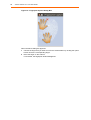
If the requirements are fulfilled and the applications are configured properly, the
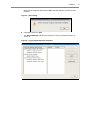
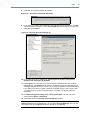
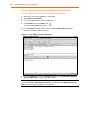
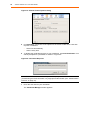
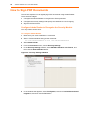
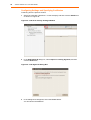
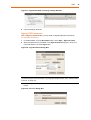
applications should prompt the user to authenticate with a fingerprint as shown below.