1
20
Classic Client 6.1 for Linux User Guide
Sending Digitally Signed E-mail with Mozilla Thunderbird
To send a signed e-mail to yourself with Mozilla Thunderbird
1
Make sure your smart card/token is connected.
2
Start Mozilla Thunderbird.
3
Enter your password if you are prompted for it.
4
In Thunderbird, click the Write icon
.
This opens the Compose window.
5
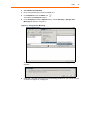
In the Compose window, write a short message addressed to yourself.
Be sure to include a subject heading.
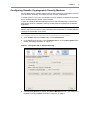
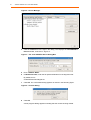
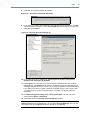
Figure 17 - New Msg Composition Window
6
From the Options menu in the Compose window, choose Security > Digitally
Sign this Message in order to sign the message.
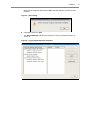
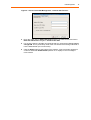
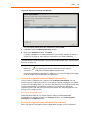
Note: You can check the security settings for your message in the Compose window
by choosing View > Message Security Info. This displays the Message Security
Info window as shown in “Figure 18” on page 21.