1
ChemBio3D 14.0
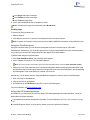
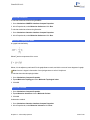
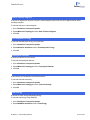
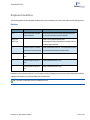
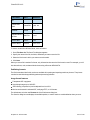
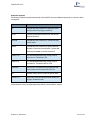
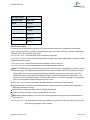
Run Frequency
Predict IR/Raman Spectra
Predict NMR Spectra
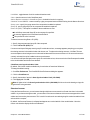
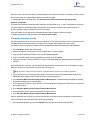
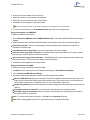
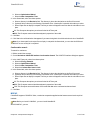
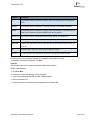
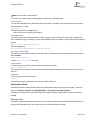
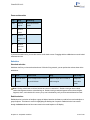
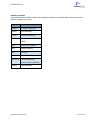
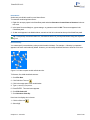
When you choose one of these options, The CS GAMESS interface dialog box appears, with the recommended
default parameters for that computation chosen. You may change parameters on any of the tabbed pages of the dialog
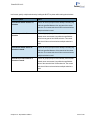
box before running the computation. If you know what parameter settings you want to use, you can run any computation using any of the options as a starting point. If you are familiar with the CS GAMESS keywords, you can
choose Use Advanced Mode and get a GUI version of the command line interface.
Viewing spectra
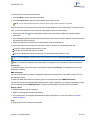
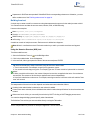
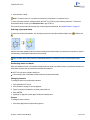
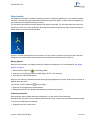
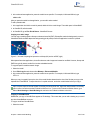
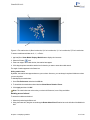
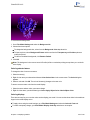
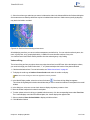
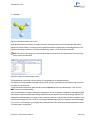
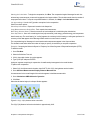
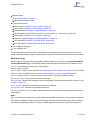
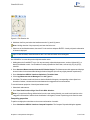
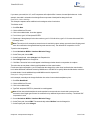
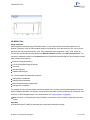
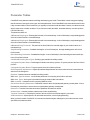
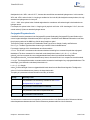
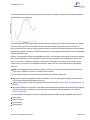
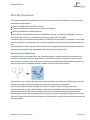
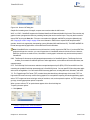
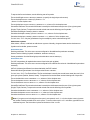
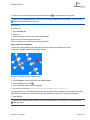
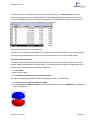
To view the predicted spectra, Go to View>Spectrum Viewer. A a new tab will open in the Spectrum Viewer for each
prediction that you run on a given compound.
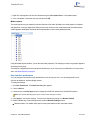
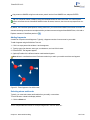
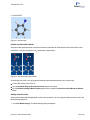
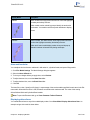
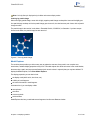
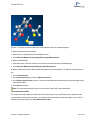
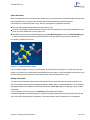
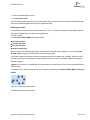
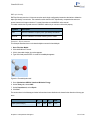
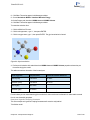
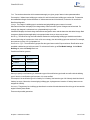
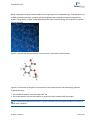
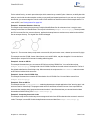
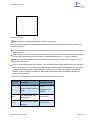
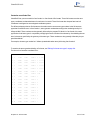
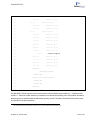
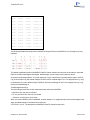
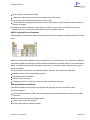
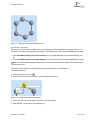
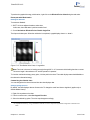
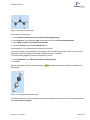
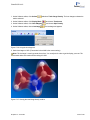
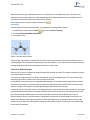
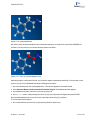
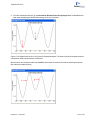
Figure 6.11: Predicting an UV-Vis spectrum for chlorobenzene using GAMESS.
Viewing UV-Vis peaks
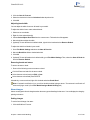
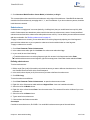
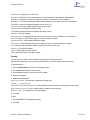
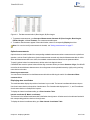
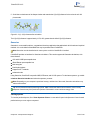
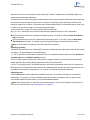
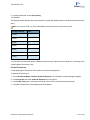
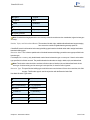
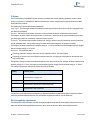
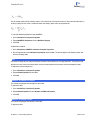
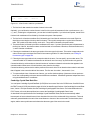
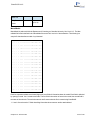
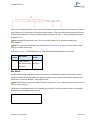
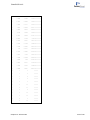
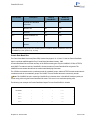
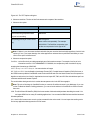
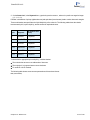
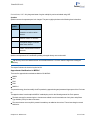
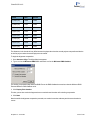
Use the UV-Vis Peaks table to view the intensity and position of the peaks in the GAMESS UV-Vis spectrum. To
view the table, go to View>UV-Vis peaks. Click a row in the table to highlight the corresponding peak in the spectrum.
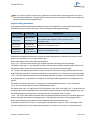
Tip: Using the spectrum viewer, you can view spectra produced by computational engines besides GAMESS.
Minimizing energy
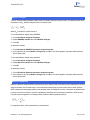
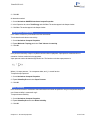
To perform a CS GAMESS Minimize Energy computation on a model:
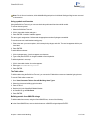
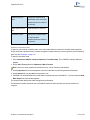
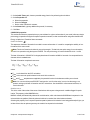
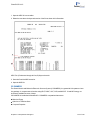
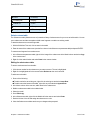
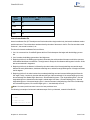
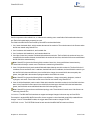
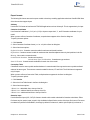
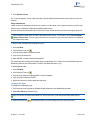
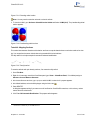
1. Go to Calculations>GAMESS>Minimize Energy. The GAMESS Interface dialog box appears with the Job &
Theory tab displayed.
2. Use the tabs to customize your computation. See the following sections for details.
3. Click Run.
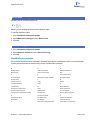
Specifying calculation settings
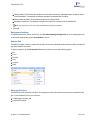
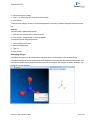
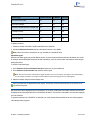
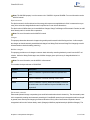
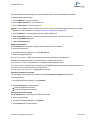
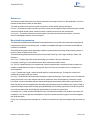
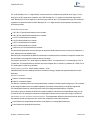
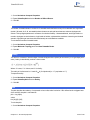
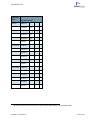
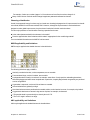
You can specify the combination of basis set and particular electronic structure theory using the Job & Theory tab.
By default, the settings on this tab are optimized for ab initio computations.
Chapter 6: Computational Engines
134 of 318