1
3
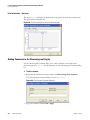
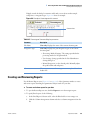
Exploring the Data
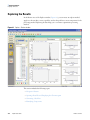
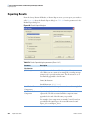
Exploring the Results
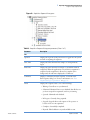
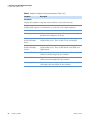
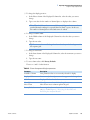
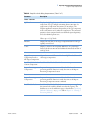
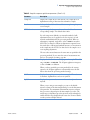
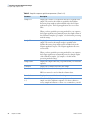
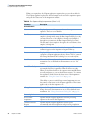
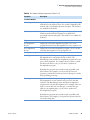
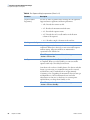
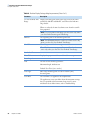
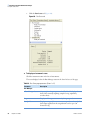
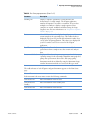
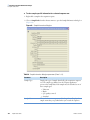
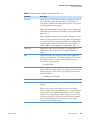
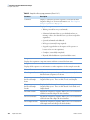
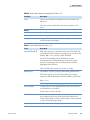
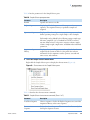
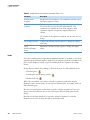
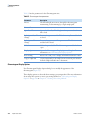
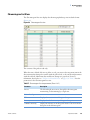
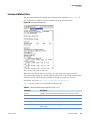
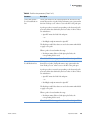
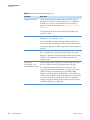
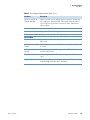
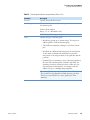
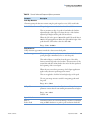
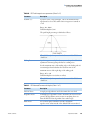
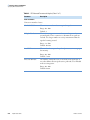
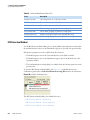
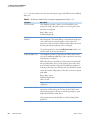
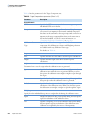
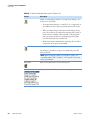
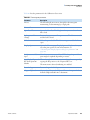
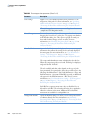
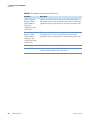
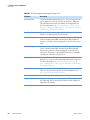
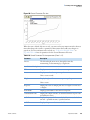
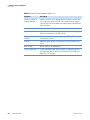
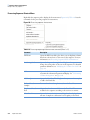
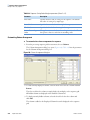
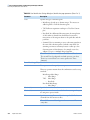
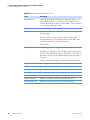
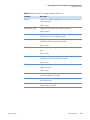
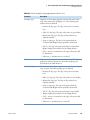
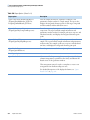
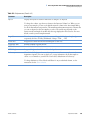
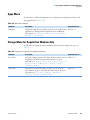
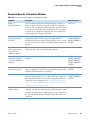
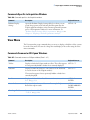
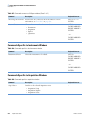
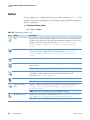
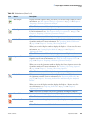
Table 51. Sample Selector shortcut menu commands (Sheet 2 of 2)
Command
Description
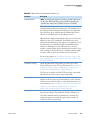
Rename Active
Sequence
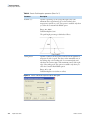
Renames the selected sequence. The command is effective only if
the Explore Sequence is active.
Replace Active
Sequence
Replaces the currently selected sequence, A file selection dialog
box opens where you can select the replacement file. This
command is not available when any of the sequences under
Quantitate Sequence or Acquisition Sequence History are
selected.
The contents of the sequence are replaced, but the name does not
change.
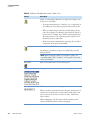
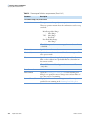
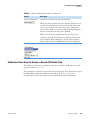
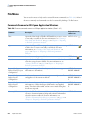
Show Sequence Items
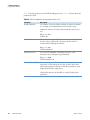
Collapses the currently selected sequence to display the sequence
name only.
Show
Info/Level/Sample
Items
Expands the currently selected sequence to display the sample
names.
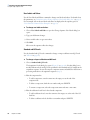
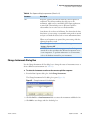
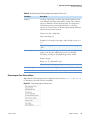
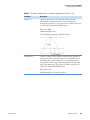
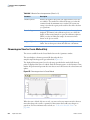
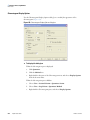
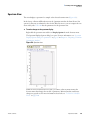
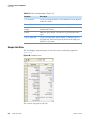
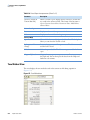
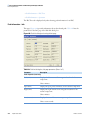
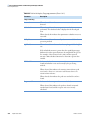
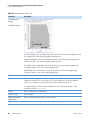
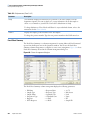
Locks
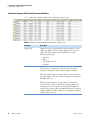
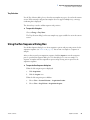
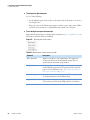
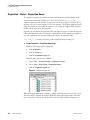
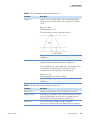
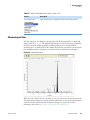
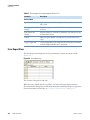
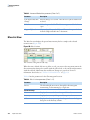
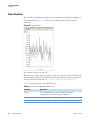
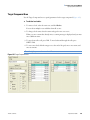
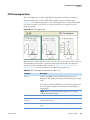
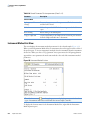
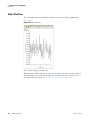
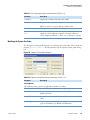
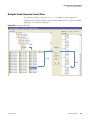
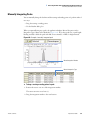
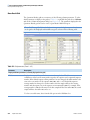
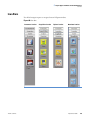
Use locks to simultaneously compare data from different raw files, for example, to see how the
acquisition progressed from sample to sample. You can compare a plot from one sample to the
plots of other samples by locking one plot and clicking down the sequence in the sample
selector.
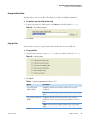
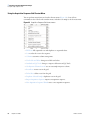
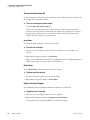
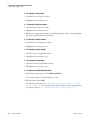
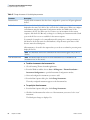
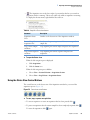
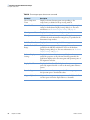
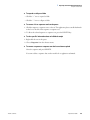
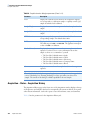
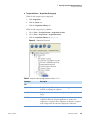
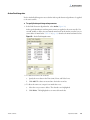
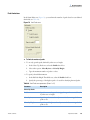
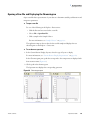
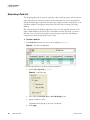
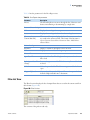
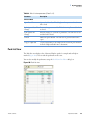
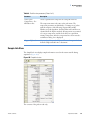
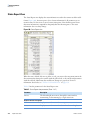
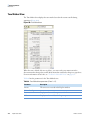
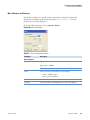
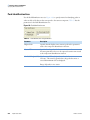
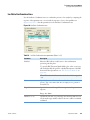
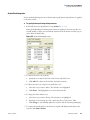
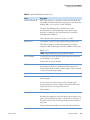
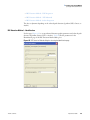
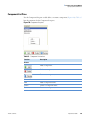
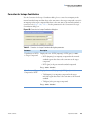
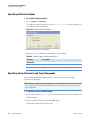
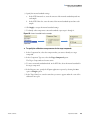
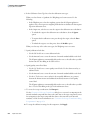
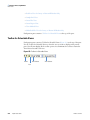
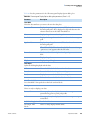
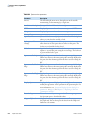
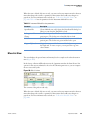
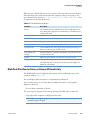
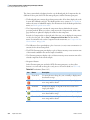
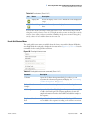
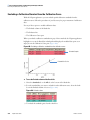
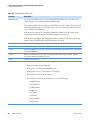
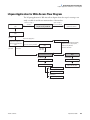
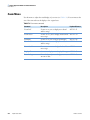
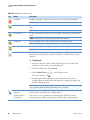
Change the state of the lock by clicking it. The lock can be in one of three different states:
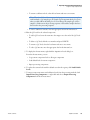
• Unlocked (green),
• Locked against raw file change (yellow),
• Absolute lock (red),
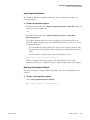
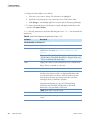
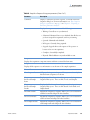
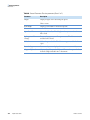
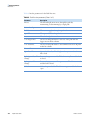
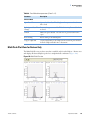
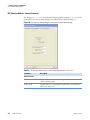
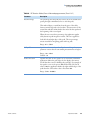
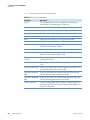
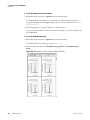
When a plot is unlocked, every change of raw file or parameter is reflected in the plot.
Parameters, such as retention time, are sent out from unlocked plots, for example, when you
click a chromatogram.
Plots that are locked against raw file change respond to changes in parameters, but not to a
change of raw file. Parameters are not sent out from plots that are locked against raw file
change.
Plots that are absolutely locked do not respond to changes in parameters or raw files.
Parameters are not sent out from plots that are absolutely locked.
142
LCquan User Guide
Thermo Scientific