1
5
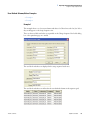
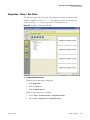
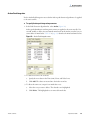
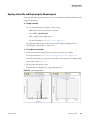
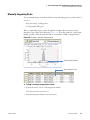
Creating a Processing Sequence
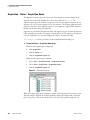
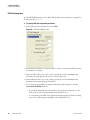
Editing a Processing Sequence
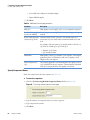
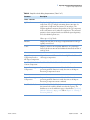
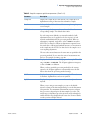
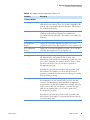
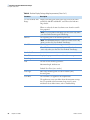
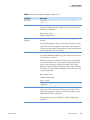
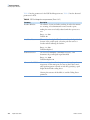
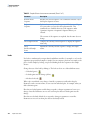
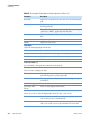
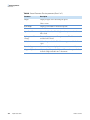
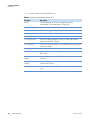
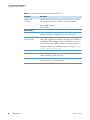
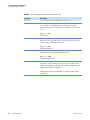
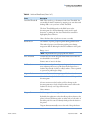
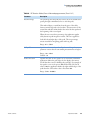
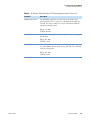
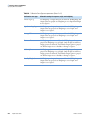
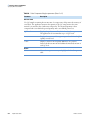
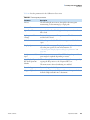
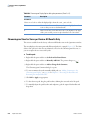
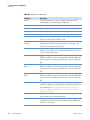
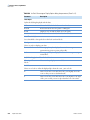
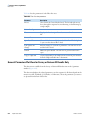
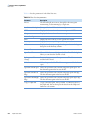
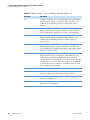
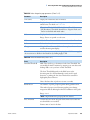
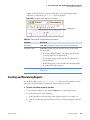
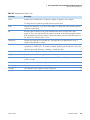
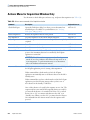
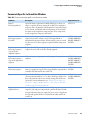
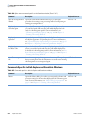
Table 121. Processing sequence grid column parameters (Sheet 3 of 3)
Parameter
Description
Comment
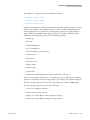
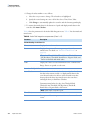
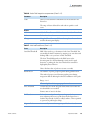
Displays the comment entered for this sample.
Barcode
Displays the barcode for this sample.
Fill Down cannot be used on Barcode column values.
Barcode Status
Displays the status of the barcode reading.
User Columns
1–5
(User-defined) Displays information pertinent to the active
sample row in the acquisition sequence. Use these columns to
convey sample information to others or as a reminder to yourself.
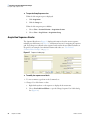
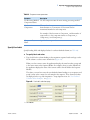
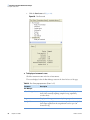
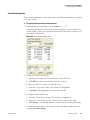
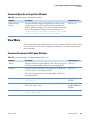
Modifying the Column Sort Order
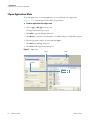
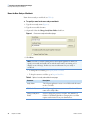
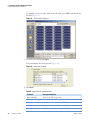
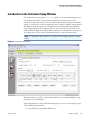
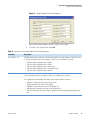
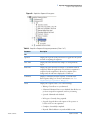
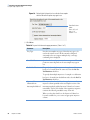
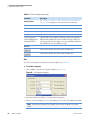
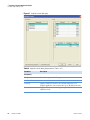
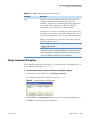
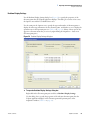
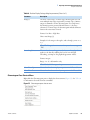
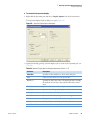
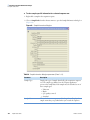
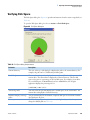
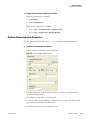
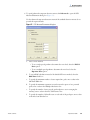
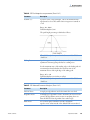
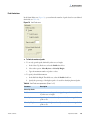
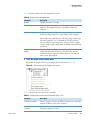
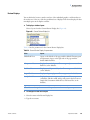
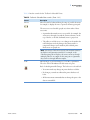
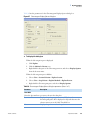
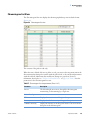
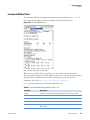
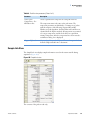
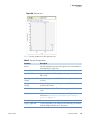
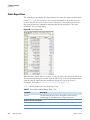
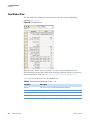
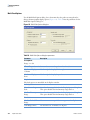
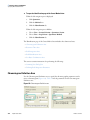
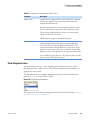
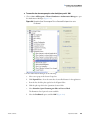
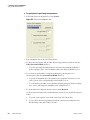
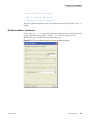
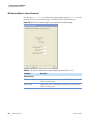
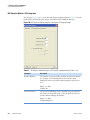
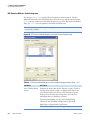
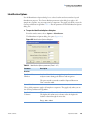
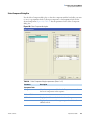
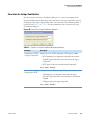
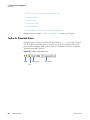
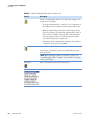
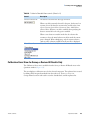
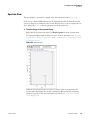
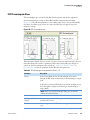
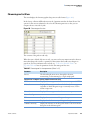
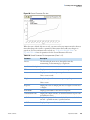
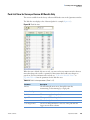
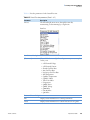
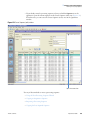
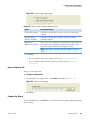
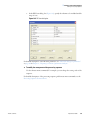
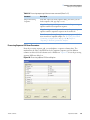
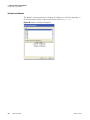
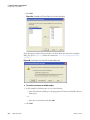
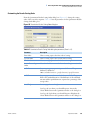
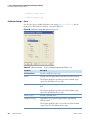
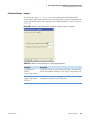
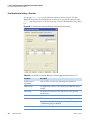
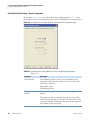
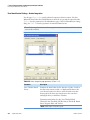
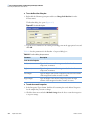
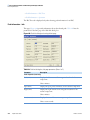
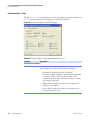
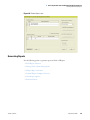
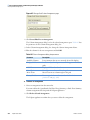
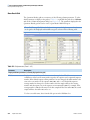
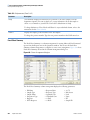
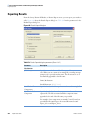
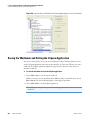
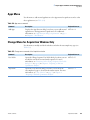
Use the Sequence Sorting Order dialog box to can change the sorting order of the rows in the
sequence (Figure 187). Table 122 lists the parameters for the Sequence Sorting Order dialog
box.
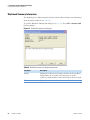
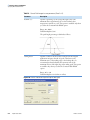
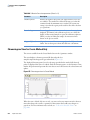
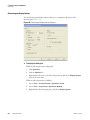
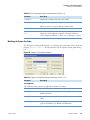
Figure 187. Sequence Sorting Order dialog box
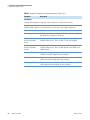
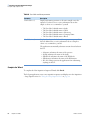
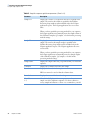
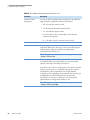
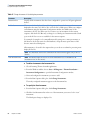
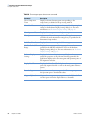
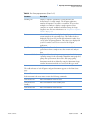
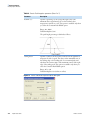
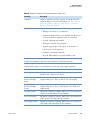
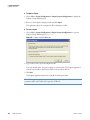
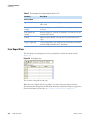
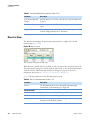
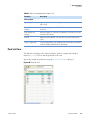
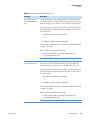
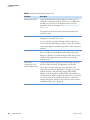
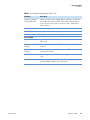
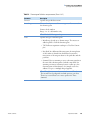
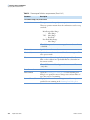
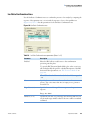
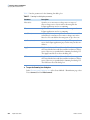
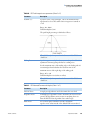
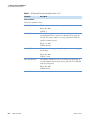
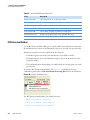
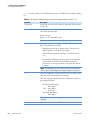
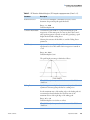
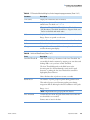
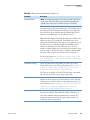
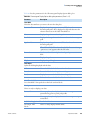
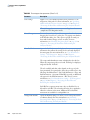
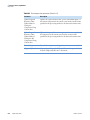
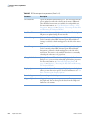
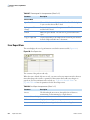
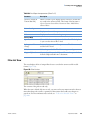
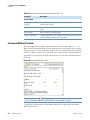
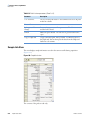
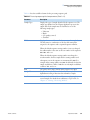
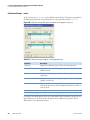
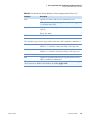
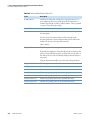
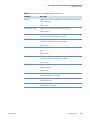
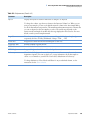
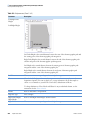
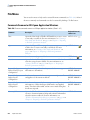
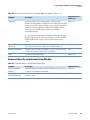
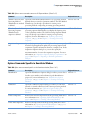
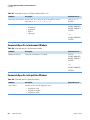
Table 122. Sequence Sorting Order dialog box parameters (Sheet 1 of 2)
Parameter
Description
Sorting Options
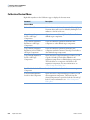
The following sorting options are applicable to all three sort orders.
Thermo Scientific
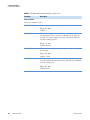
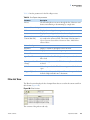
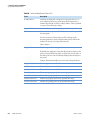
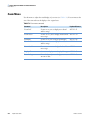
File Name
Sorts the list so the file names are in alphabetical order.
Level Name
Sorts the list so the calibration standard and QC level names are in
alphabetical order.
Sample ID
Sorts the list so the sample IDs are in alphabetical or numerical
order.
Sample Type
Sample types are not sorted alphabetically. In ascending order, the
types are: Standards, QCs, Blanks, and Unknowns.
LCquan User Guide
319