1
C
LCquan Application Menu and Toolbar Reference
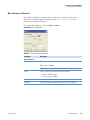
Actions Menu for Acquisition Window Only
Actions Menu for Acquisition Window Only
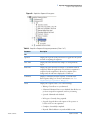
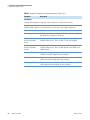
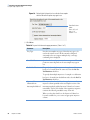
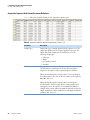
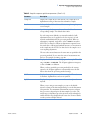
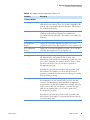
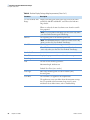
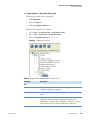
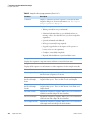
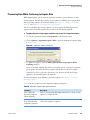
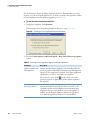
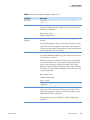
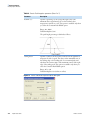
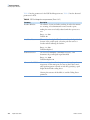
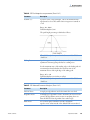
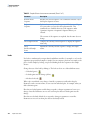
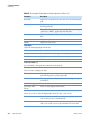
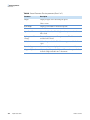
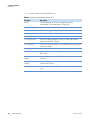
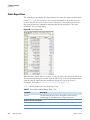
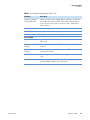
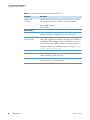
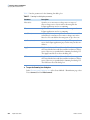
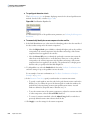
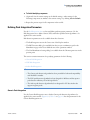
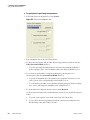
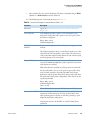
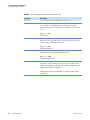
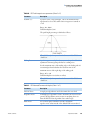
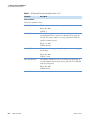
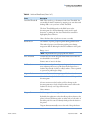
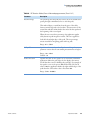
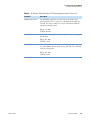
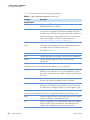
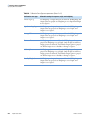
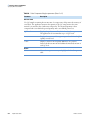
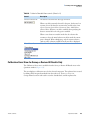
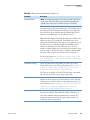
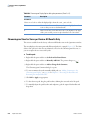
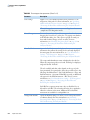
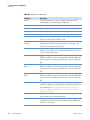
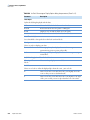
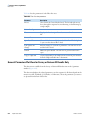
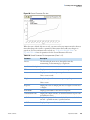
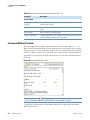
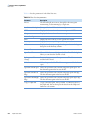
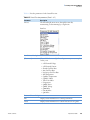
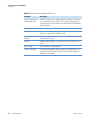
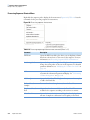
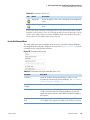
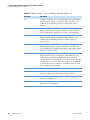
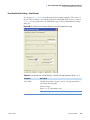
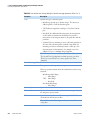
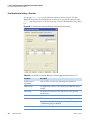
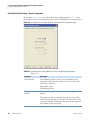
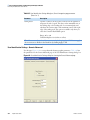
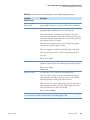
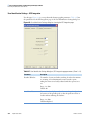
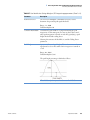
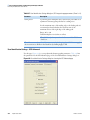
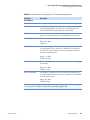
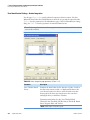
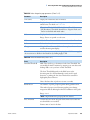
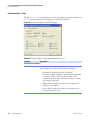
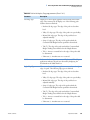
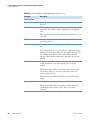
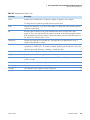
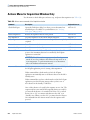
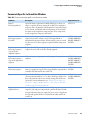
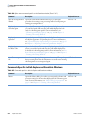
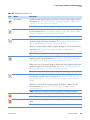
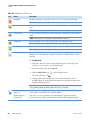
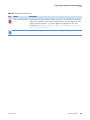
Use this menu to check disk space and start, stop, and pause data acquisition (see Table 153).
Table 153. Actions menu commands of the Acquisition window
Command
Description
Keyboard shortcut
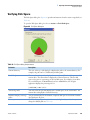
Check Disk Space
Opens the Disk Space dialog box where you can determine how
much disk space is available on your disk drives (see “Verifying
Disk Space” on page 109).
ALT+A > D
Restart Acquisition
Restarts an acquisition that has been paused.
ALT+A > R
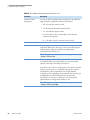
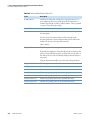
Stop Acquisition
Stops the acquisition of the current sample and pauses.
ALT+A > T
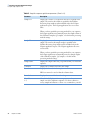
Pause Acquisition
Pauses the acquisition after the current sample has been completely ALT+A > P
acquired.
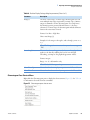
Devices On
Puts all devices in the On state.
ALT+A > O
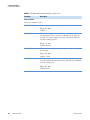
Devices Standby
Puts all devices in the Standby state.
ALT+A > A
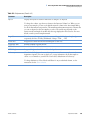
Devices Off
Puts all devices in the Off state. The Off state indicates that all
power to the instrument that can be controlled by the LCquan
application is turned off.
ALT+A > F
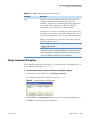
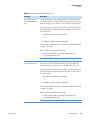
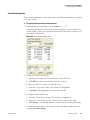
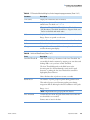
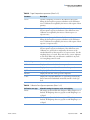
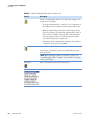
CAUTION The Off state does not guarantee that all voltages are
turned off, nor does it indicate that all heated components are at
room temperature. To perform maintenance on an instrument,
refer to the hardware maintenance manual.
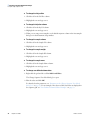
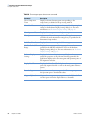
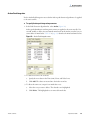
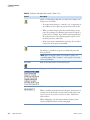
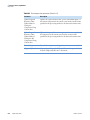
Automatic Devices On
Use this option to automatically turn on all devices controlled by
the LCquan application prior to starting a data acquisition.
ALT+A > U
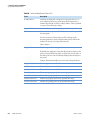
If this command has a check mark to its left, the LCquan
application automatically turns on all devices that are in the Off or
Standby states.
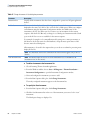
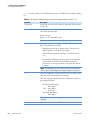
If this command does not have a check mark to its left, the LCquan
application posts the following message when you have one or
more devices in the Standby or Off states:
One or More devices to be used by this sequence are not ‘On’. The
sequence will not start until all the requested devices are ready. Do
you want all the devices to be switched ‘On’? Press ‘Yes’ to switch
devices On, or ‘No’ to continue with devices in the ‘Off ’ or in
‘Standby’ state. When you select ‘No’, you must select the Devices
On command from the Actions menu before the sequence will
proceed.
426
LCquan User Guide
Thermo Scientific