1
4
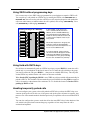
Adding SWCA keys to your telephone
Your system administrator can assign SWCA keys to a group of telephones.
Also, users can assign these keys on their own telephones:
1
Enter FEATURE *3
2
Select a memory button with an indicator
3
Enter a SWCA code (FEATURE *521 to FEATURE*536)
Managing calls using SWCA keys
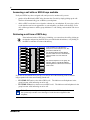
Receiving a call and assigning it to a SWCA key
Your system administrator can tell you how your system works.
The system may be programmed the following ways:
1
An incoming call is associated with a SWCA key in one of three ways:
•
•
•
manually, for the life of the call
manually, while parked
automatically, for the life of the call
2
When you press HOLD, the call parks on an available SWCA key.
Answering a second call: When the system answers a second call, the original call is
automatically parked on an available SWCA key. For this to occur, your system must be set to Full
Autohold (FEATURE 73). Note that to turn Full Autohold off, enter FEATURE 73 again.
You can also do one of the following to park the call:
1
While the call is active, you enter the SWCA code that corresponds to the key where you want
to park the call. Refer to “Adding SWCA keys to your telephone” on page 4.
2
While the call is active, you enter FEATURE *520‚to search for the next available SWCA code
(assigned to your telephone).
•
•
•
NN40010-101
If the system finds an available code, the call is associated with the code.
Press Hold or the assigned SWCA key to park the call.
If no code is available, the call remains active on your telephone, only. Put the call on
Hold until a SWCA key becomes available.
If the call was already associated with a SWCA code (for the life of the call), the call is
reparked on that code.