1
Getting Started with Excel
Make Editing Changes
To correct a mistake on ledger paper, you have
to use an eraser, or you have to reconstruct the
entire worksheet. With Excel, you can overwrite
data in any cell in your worksheet. You can also
delete data quickly, in one cell or a group of
cells. And, when you accidentally make
mistakes that overwrite original data while
using Excel, you do not have to retype or
reconstruct information. Instead, you can just
restore the data using the Undo button.
Check Spelling
No more manually proofreading your work.
When you use Excel’s AutoCorrect feature,
Excel corrects commonly made mistakes as you
type — and you can add your own personal set
of “common typos” to the list. In addition,
before you print, you can run a spell check to
search for misspellings. If you are a poor typist,
this feature enables you to concentrate on
calculating your numbers while Excel catches
spelling errors.
1
signs, commas, and decimal points. You can
experiment with the settings until the
worksheet appears the way that you want it;
then you can print it. You can boldface,
italicize, and underline data, and change fonts
and font sizes. Excel also lets you shade cells,
add borders, and apply styles to improve the
appearance of a worksheet.
PART I
View Data
When working with a large worksheet on
ledger paper, such as a financial statement, you
might have to use a ruler to compare figures on
a far portion of the worksheet. You might even
find yourself folding the ledger paper to bring
the columns you want to compare close
together. In Excel, you can split the worksheet
into two or four panes to view distant figures
side by side. That way, you can easily see the
effects of asking “what happens when I change
this value?” to project changes. You can also
temporarily hide intermediary columns so that
distant figures appear right next to each other
as you work.
chapter
Preview Before Printing
You can preview your worksheet to see how it
will look when you print it. You also can add
headers and footers and adjust page breaks
before you print.
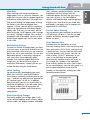
Chart Numeric Data
Numbers form the foundation of charts.
Manually creating charts is time-consuming and
takes some artistic skill. In Excel, creating charts
is quick and easy. You can track the sales trends
of several products with a chart. You also can
make as many “what if?” projections as you
want in the worksheet by increasing and
decreasing the numbers used in the chart; as
you change the numbers in the worksheet,
Excel instantly updates the chart. Excel’s charts
let you simultaneously view the sales trends in a
picture representation on-screen and the
numbers in the worksheet, making your sales
forecasting more efficient.
Make Formatting Changes
Excel easily enables you to align data in cells;
center column headings across columns; adjust
column width; and display numbers with dollar
5