1
26
Part I: Where’s the Beef?
If you want to filter the grocery list to show only the most expensive items
that you purchase at Sams Grocery, for example, you might first filter the
table to show items from Sams Grocery only. Then, working with this filtered
table, you would further filter the table to show the most expensive items or
only those items with the price exceeding some specified amount.
The idea of filtering a filtered table seems, perhaps, esoteric. But applying several sets of filters often reduces a very large and nearly incomprehensible table
to a smaller subset of data that provides just the information that you need.
Building on the earlier section “Using the custom AutoFilter,” I want to make
this important point: Although the Custom AutoFilter dialog box does enable
you to filter a list based on two criteria, sometimes filtering operations apply
to the same field. And if you need to apply more than two filtering operations
to the same field, the only way to easily do this is to filter a filtered table.
Using advanced filtering
Most of the time, you’ll be able to filter table records in the ways that you
need by using the Data➪Filter command or that unnamed table menu of filtering options. However, in some cases, you might want to exert more control
over the way filtering works. When this is the case, you can use the Excel
advanced filters.
Writing Boolean expressions
Before you can begin to use the Excel advanced filters, you need to know how
to construct Boolean logic expressions. For example, if you want to filter the
grocery list table so that it shows only those items that cost more than $1 or
those items with an extended price of more than $5, you need to know how to
write a Boolean logic, or algebraic, expression that describes the condition in
which the price exceeds $1 or the extended price exceeds or equals $5.
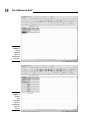
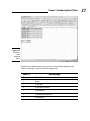
See Figure 1-15 for an example of how you specify these Boolean logic expressions in Excel. In Figure 1-15, the range A13:B14 describes two criteria: one in
which price exceeds $1, and one in which the extended price equals or
exceeds $5. The way this works, as you may guess, is that you need to use
the first row of the range to name the fields that you use in your expression.
After you do this, you use the rows beneath the field names to specify what
logical comparison needs to be made using the field.