1
108
Working with Text
Putting text on a path
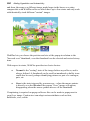
"Ordinary" straight-line artistic text is far from ordinary—but you can extend its
creative possibilities even further by flowing it along a curved path.
The resulting object has all the properties of artistic text, plus its path is a Bézier
curve that you can edit with the Pointer Tool as easily as any other line! In
addition, text on a path is editable in some unique ways, as described below.
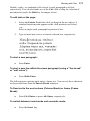
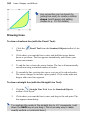
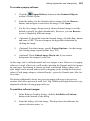
To apply a preset curved path to text:
1.
Create an artistic text object.
2.
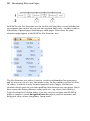
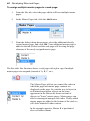
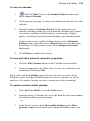
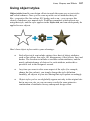
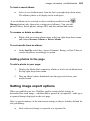
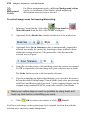
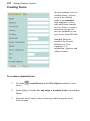
With the text selected, click the
Path flyout on the Text
context toolbar and choose a preset path.
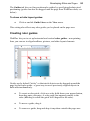
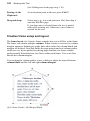
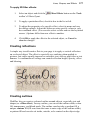
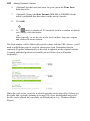
The text now flows along the specified path, e.g. for "Path - Top Circle".
To add artistic text along an existing line or shape:
1.
Create a freehand, straight, or curved line (see Drawing and editing
lines on p. 167) or a shape (see Drawing and editing shapes on p. 172).
2.
Choose the
flyout.
Artistic Text Tool from the Tools toolbar's Text