1
Colour, Fills, and Transparency
245
Working with gradient and bitmap fills
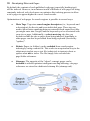
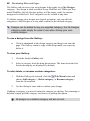
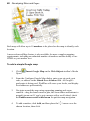
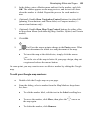
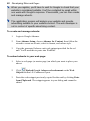
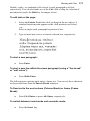
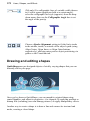
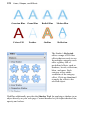
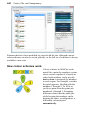
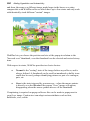
Gradient fills provide a gradation or spectrum of colours spreading between two
or more points on an object. A gradient fill has an editable path with nodes that
mark the origin of each of these key colours. A bitmap fill uses a named
bitmap—often a material, pattern, or background image—to fill an object.
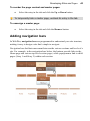
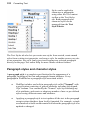
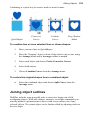
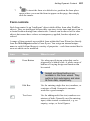
Linear
Elliptical
Conical
Bitmap
You can apply preset gradient and bitmap fills from the Swatches tab to shapes,
text frames, table cells, and to any artistic, creative frame, and creative table text
(but not to HTML frame text or HTML table text). Using the Fill Tool from the
Tools toolbar's Fill flyout (or from Format>Fill), you can vary the fill's path on
an object for different effects (see online Help).
Applying different transparency effects (using the Transparency tab)
won't alter the object's fill settings as such, but may significantly
alter a fill's actual appearance.
Applying a gradient or bitmap fill
There are several ways to apply a gradient or bitmap fill: using the Swatches tab,
Fill Tool, or a dialog.
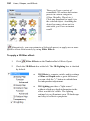
The easiest way to apply a gradient or bitmap fill is to use one of a range of presupplied swatch thumbnails in the Swatches tab's Gradient or Bitmap palettes.
The Fill Tool and a Fill dialog are alternative methods for creating gradient fills
(these are covered in online Help).
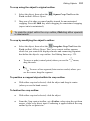
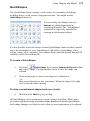
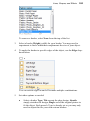
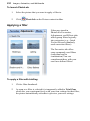
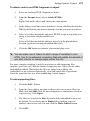
To apply a gradient or bitmap fill using the Swatches tab:
1.
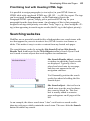
Click the Swatches tab and ensure the
Fill button is selected.
Note that the colour of the underline reflects the colour of your
selected object.