1
5.1
5.2
5.3
5.4
Configuring Host File................................................................................... 32
Printing by LPD/LPR ................................................................................... 32
Using the Server on BSD UNIX/Linux.......................................................... 32
Using the Server on RedHat Linux (Fedora Core)....................................... 33
CHAPTER6
FILE SERVER FUNCTION.......................................................................................40
6.1
Preliminary ................................................................................................... 40
6.2
Storage Names .............................................................................................. 40
6.3
Connecting USB Mass Storage to the Server ............................................... 40
6.4
Supported Codepages ................................................................................... 41
6.5
Adding Your USB Mass Storages to Network with Security ......................... 43
6.5.1 Setting up File Server Using Control Center................................................ 43
6.5.2 Setting up File Server Using Web Pages ......................................................... 45
6.5.3 Use Shared Storages by SMB/CIFS Method for Windows............................ 46
6.5.4 Use Shared Storage by FTP Methods for Windows ...................................... 47
6.6
Formatting Disk............................................................................................ 48
CHAPTER7
7.1
7.2
7.2.1
7.2.2
7.3
7.3.1
Connecting HP All-in-one MFP to the Server.............................................. 50
Using the Shared Scanner in Windows ......................................................... 50
Using Control Center.................................................................................... 50
Using Windows Applications ........................................................................ 52
Using the Shared Scanner in Linux .............................................................. 53
Using XSane in Redhat Linux ....................................................................... 53
CHAPTER8
8.1
8.2
8.2.1
8.2.2
8.2.3
CONTROL CENTER..................................................................................................55
Installing Control Center.............................................................................. 55
Using Control Center.................................................................................... 55
Use Tools of Control Center ......................................................................... 55
Display Server’s Status ................................................................................. 56
Set up Server’s Configuration....................................................................... 56
CHAPTER9
9.1
9.2
9.2.1
9.2.2
SCAN SERVER FUNCTION .....................................................................................50
SERVER’S WEB PAGES ...........................................................................................63
Introduction .................................................................................................. 63
Using Server’s Web Pages ............................................................................ 63
Display Server Status.................................................................................... 63
Set up Server Configuration ......................................................................... 64
CHAPTER10
EMAIL ALERTING ....................................................................................................70
CHAPTER11
SNMP ............................................................................................................................70
CHAPTER12
TROUBLESHOOTING ..............................................................................................71
12.1
12.2
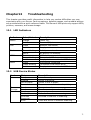
LED Indicators ............................................................................................. 71
USB Device Status ........................................................................................ 71
CHAPTER13
13.1
13.2
13.3
13.4
RESTORE FACTORY DEFAULTS ..........................................................................72
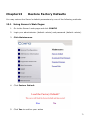
Using Server’s Web Pages ............................................................................ 72
Using Control Center.................................................................................... 73
Using Init Button........................................................................................... 73
Default Parameters List................................................................................ 73
CHAPTER14
UPGRADE NEW FIRMWARE .................................................................................75
CHAPTER15
INIT BUTTON .............................................................................................................79
3