1
Section 3
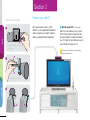
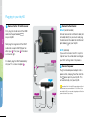
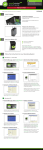
telyHD remote
Skype and telyHD
Selection button
Navigation
buttons
Menu button
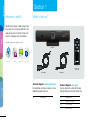
You need a Skype account to use telyHD.
You can either sign in to an existing Skype
account or create a new account. It’s easy
to add and manage multiple accounts
on your telyHD.
Menu
For the initial set up, we recommend signing
in with your current Skype account if you
have one. Using this method will give you
instant access to your existing contacts.
Sign In
End call button
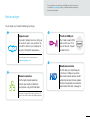
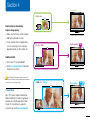
To sign in to Skype, select the card titled
“Sign In” and press the button on
your telyHD remote.
Picture This.
or
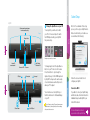
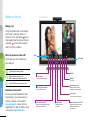
Basic remote functions
Sign Up
The following summarizes the key remote functions.
Create Skype account: Select the card
titled “Sign Up” and press the button
on your telyHD remote. You will need
to create a unique Skype Name. It
may take several attempts to find an
available Skype Name.
Contacts Screen
Move through the carousel
Turn over a card for more information
See or hide menu
Place calls or select the highlighted option
In-Call Screen
See or hide menu
Move through the menu
Select the highlighted option from the menu
End call
Button actions
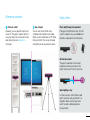
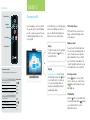
The Contacts Screen
The Contacts Screen shows all of your
Skype contacts and their Skype status
(online, away, etc).
Adding a contact
If needed, select the Add Contact card,
then enter a full or partial Skype name to
search. You may also search by name,
and/or email address. Once you find the
person, invite them to be added to your
contacts. Typically, they will need to accept
your invitation before you can call them.
Selecting a contact
Use the
buttons on your telyHD
remote to browse your contacts. Select
an
online contact and press the select
button to call.
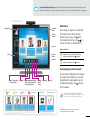
The Menu Bar
Select the button on your telyHD remote
to view the Menu Bar. Use the
buttons
on your telyHD remote to view the
different menu options.