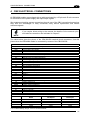
1
RAPID CONFIGURATION
1
Auto Setup (Optional)
At the end of the Auto Learn procedure, you have the possibility to follow the Auto Setup
procedure to set up the reading parameters.
1. Enter the Auto Setup function by holding the X-PRESS™ push button pressed until the
SETUP LED is on.
2. Release the button to enter the Auto Setup function.
3. Once entered, if a barcode label is positioned in front of the scanline, the scanner
automatically performs the optimal setup of the reading parameters for that specific
barcode.
READY
SETUP
LEARN
TEST
GOOD
TRIGGER
COM
STATUS
green
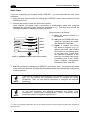
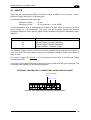
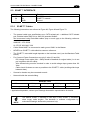
The procedure is as follows:
green
yellow
yellow
red
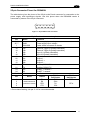
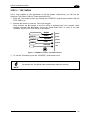
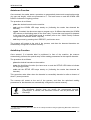
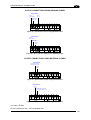
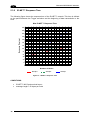
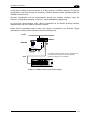
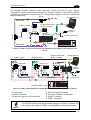
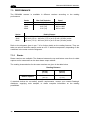
Figure 7 – X-PRESS™ Interface: Auto Setup Function
A) place the desired barcode on
the scanline.
B) enter the AutoSetup function
(the laser turns on and the
SETUP LED blinks to indicate
the ongoing process)
C) wait until the SETUP LED
stays steady on (indicating the
reader has detected the
barcode)
This procedure ends either when the barcode is successfully decoded or after a timeout of
about 7 (seven) seconds.
The scanner will restart at the end of the process, and then the optimized reading
parameters for that barcode are automatically configured in scanner memory.
If your application has been configured using X-PRESS™, go to STEP 5.
NOTE
Reset Scanner to Factory Default (Optional)
If it ever becomes necessary to reset the scanner to the factory default values, you can
perform this procedure by holding the X-PRESS™ push button pressed while powering up
the scanner. At the end of the procedure (about 5-6 seconds), the Configuration and
Environmental parameters are reset, and all LEDs blink simultaneously 3 times. If connected
through a CBX500 with display module, the message "Default Set" is shown on the display.
7