1
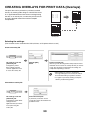
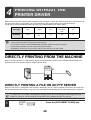
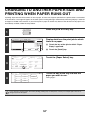
CREATING OVERLAYS FOR PRINT DATA (Overlays)
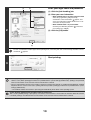
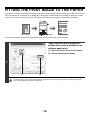
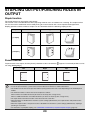
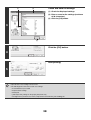
The print data can be printed in a previously created
overlay. By creating table rulings or a decorative frame
in an application different from the text and registering
the data as an overlay file, an attractive print result can
be easily obtained without the need for complex
manipulations.
XXXX
XXX
XXXX
XXX
XXXX
XXXX
1
10
0
10
100
150
120
250
XXX
XXXX
XXX
XXXX
1
10
0
10
100
150
120
250
aaabbbccc 1-2-3
aaabbbccc 1-2-3
Overlay file
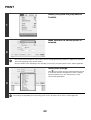
Selecting the settings:
(This function can be used when the PCL6, PCL5c, or PS printer driver is used.)
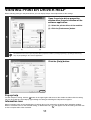
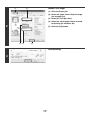
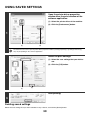
Create an overlay file
The settings are on the
[Advanced] tab.
Configure the printer
driver settings from the
software application used
to create the overlay file.
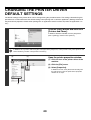
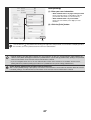
Click the [Edit]
button.
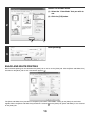
Create an overlay file.
Click the [Create Overlay] button and specify the name
and folder to be used for the overlay file that you wish to
create. The file will be created when the settings are
completed and printing is started.
• When printing is started, a confirmation
message will appear. The overlay file will not
be created until the [Yes] button is clicked.
• To register a previously existing overlay file,
click the [Load Overlay] button.
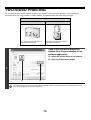
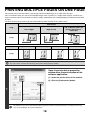
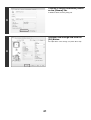
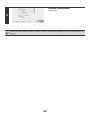
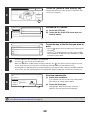
Print with an overlay file
The settings are on the
[Advanced] tab.
Configure the printer driver
settings from the
application that you wish to
use to print using the
overlay file.
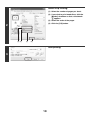
Select the overlay file.
A previously created or stored
overlay file can be selected from the
pull-down menu.
30