1
Back
USB Memory
File Name
1/2
file-01.tiff
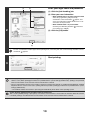
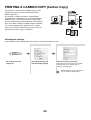
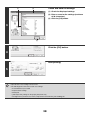
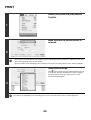
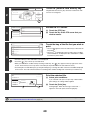
Touch the key of the file that you wish to
print.
A maximum of 100 printable files in the USB memory device
can be displayed.
file-02.tiff
file-03.tiff
5
file-04.tiff
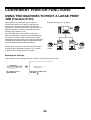
• To return to the screen of step 4, touch the [Back] key.
• Files in a folder in a USB memory device will not appear.
• To change the order of display of the files on the screen, touch the [File Name] key. The order switches between
ascending order and descending order each time you touch the key.
Cancel
Print
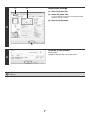
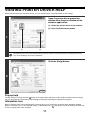
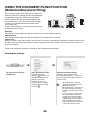
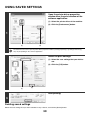
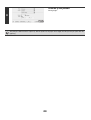
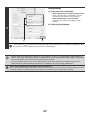
(1) Select print conditions.
file-01.tiff
Auto
Paper Select
B/W Print
(1 999)
Quick File
2-Sided
6
If you selected a file (PCL or PS) in step 5 that includes
print settings, the settings will be applied.
Number of Prints
1
Output
Print the selected file.
Print
(1)
(2) Touch the [Print] key.
Printing begins after the selected file is transferred.
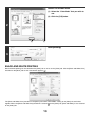
When the message "Job stored. ..." appears in the touch
panel, touch the [OK] key.
(2)
To cancel printing...
To cancel printing while the file is being transferred, touch the [Cancel] key in the message screen that appears in the
touch panel.
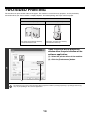
Remove the USB memory device from
the machine.
7
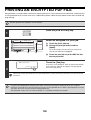
When you select a PDF file that has a password, you must enter the password in the job status screen to begin printing.
☞ PRINTING AN ENCRYPTED PDF FILE (page 54)
51