1
Wave IP 2.0 SP1
Wave Contact
Center Administrator
Guide
Release 2.0 Service Pack 1
April 2011
Vertical Communications, Inc. reserves the right to revise this publication and to make changes
in content without notice.
© 2011 by Vertical Communications, Inc. All rights reserved.
This publication contains proprietary and confidential information of Vertical Communications,
Inc. The contents of this document may not be disclosed, copied or translated by third parties,
in any form, or by any means known, or not now known or conceived, without prior explicit
written permission from Vertical Communications, Inc.
LIMIT OF LIABILITY/DISCLAIMER OF WARRANTY
Vertical Communications, Inc. makes no representation or warranties with respect to the
accuracy or completeness of the content of this publication and specifically disclaims any
implied warranty of merchantability or fitness for any particular purpose, and shall not be liable
for any loss of profit or any other commercial damage, including but not limited to, special,
incidental, or consequential.
TRADEMARKS
Vertical Communications and the Vertical Communications logo and combinations thereof and
Wave Global Administrator, Wave ViewPoint, Wave IP2500, Wave Fax Manager, Wave Service
Response, Wave Voice Server are trademarks of Vertical Communications, Inc. All other brand
and product names are used for identification only and are the property of their respective
holders.
Release 2.0 Service Pack 1
April 2011
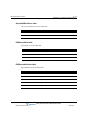
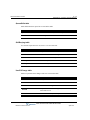
Revision History
Release
2.0 SP1
2.0
Date
Documentation Changes
Page No.
04/11 SERVICE PACK RELEASE
09/10
A warning is now displayed if you try to delete a queue that is currently
being used as a target location of any kind.
2-90
Updated description of how not answering a queue call when it rings
an agent’s phone may adversely affect the agent’s performance
statistics.
5-3
GENERAL RELEASE
Expanded section “Privacy issues with queue call recording”.
2-22
Multiple music-on-hold sources are now supported to further
customize the caller experience. In addition to a system-wide default
music-on-hold source, you can now specify a music-on-hold source for
an individual queue.
2-56
Added note that to supervise a call, at least one party in the call must
be from the local Wave system.
6-18
In the Call Transfer report, filtering calls by all users or by a ViewPoint
Group is now supported, in addition to the previous options (individual
user or queue). Also, the new Inbound Calls column on the Data tab
allows you to compare the number of calls received by vs. transferred
to each target during the reporting period.
7-42
A password is now required when logging on to the Wave database in
order to create a custom report. Also, the name of the Wave database
has been changed.
A-1
In section “The PartyLog table”, the numeric values for the Role
column now correctly identify the role a party plays in a call.
A-5
Deleted section “The TrunkLog table” from Appendix A as this table is
not used in Wave.
1.5 SP3
09/09
---
SERVICE PACK RELEASE
Initial Release.
Release 2.0 Service Pack 1
---
April 2011
Release 2.0 Service Pack 1
April 2011
Contents
Chapter 1
Introduction
About Wave Contact Centers - - - - - - - - - - - - - - - - - - - - - - 1-1
Contact Center queue features - - - - - - - - - - - - - - - - - - - - - - - 1-2
Using the Call Classifier with Wave Contact Centers - - - - - - 1-5
Using the audio controls - - - - - - - - - - - - - - - - - - - - - - - - - - 1-5
Importing audio files - - - - - - - - - - - - - - - - - - - - - - - - - - - - - - - 1-6
Related reading - - - - - - - - - - - - - - - - - - - - - - - - - - - - - - - - - - 1-6
Support services - - - - - - - - - - - - - - - - - - - - - - - - - - - - - - - 1-7
Web site - - - - - - - - - - - - - - - - - - - - - - - - - - - - - - - - - - - - - 1-7
System security - - - - - - - - - - - - - - - - - - - - - - - - - - - - - - - - 1-8
Chapter 2
Creating a Contact Center Queue
About Contact Center queues - - - - - - - - - - - - - - - - - - - - - - 2-2
When agents receive queue calls - - - - - - - - - - - - - - - - - - - - Basic Contact Center queue terminology - - - - - - - - - - - - - - - Agents, call forwarding and routing lists - - - - - - - - - - - - - - - - Viewing queue configuration and setup - - - - - - - - - - - - - - - - -
2-2
2-4
2-4
2-5
Creating a Contact Center queue - - - - - - - - - - - - - - - - - - - 2-5
Licenses and permissions - - - - - - - - - - - - - - - - - - - - - - - - - - - 2-5
Overview of creating a queue - - - - - - - - - - - - - - - - - - - - - - - - 2-6
The Queues view - - - - - - - - - - - - - - - - - - - - - - - - - - - - - - - - - 2-7
Entering general information about a queue - - - - - - - - - - - 2-10
Closing a queue - - - - - - - - - - - - - - - - - - - - - - - - - - - - - - 2-11
Queue status when closed - - - - - - - - - - - - - - - - - - - - - - - - - 2-12
Defining call logging for a queue - - - - - - - - - - - - - - - - - - Setting external Caller ID for outbound queue calls - - - - - Including a queue in the dial-by-name directory - - - - - - - Defining agents for a queue - - - - - - - - - - - - - - - - - - - - - -
Wave Contact Center Administrator Guide
Release 2.0 Service Pack 1
April 2011
2-12
2-13
2-15
2-16
Contents-2
Changing wrap-up time and permission defaults - - - - - - - - - Adding agents to a queue - - - - - - - - - - - - - - - - - - - - - - - - - Changing the order of agents - - - - - - - - - - - - - - - - - - - - - - Using remote agents - - - - - - - - - - - - - - - - - - - - - - - - - - - - Using roaming agents, or hot-desking - - - - - - - - - - - - - - - - When you have finished defining agents - - - - - - - - - - - - - - -
2-16
2-19
2-27
2-28
2-28
2-29
Configuring call distribution - - - - - - - - - - - - - - - - - - - - - - - 2-29
Specifying how queue calls are distributed to agents - - - - - - - 2-29
Using Last Agent Routing - - - - - - - - - - - - - - - - - - - - - - - - - - 2-32
Placing agents on break if they do not answer calls - - - - - - - - 2-34
Defining how calls are scored - - - - - - - - - - - - - - - - - - - - - 2-35
Choosing by how much to increase a call’s score - - - - - - - - Basing a call’s score on time in queue or time in system - - - Giving some calls higher priority - - - - - - - - - - - - - - - - - - - - Increasing a call’s score for skill matches - - - - - - - - - - - - - - -
2-35
2-36
2-37
2-40
Setting up overflow agents - - - - - - - - - - - - - - - - - - - - - - - 2-41
Assigning an overflow tier to agents - - - - - - - - - - - - - - - - - - - 2-42
Setting up the overflow wait time and options - - - - - - - - - - - - 2-43
Configuring expected wait time - - - - - - - - - - - - - - - - - - - - 2-45
About the expected wait time estimate - - - - - - - - - - - - - - - - Expected wait time and overflow tier levels - - - - - - - - - - - - - Improving the expected wait time estimate - - - - - - - - - - - - - Correcting expected wait time inaccuracies - - - - - - - - - - - - Announcing expected wait time in minutes and seconds - - - -
2-45
2-46
2-46
2-48
2-49
Configuring a queue to redirect calls - - - - - - - - - - - - - - - - 2-49
Redirecting calls when a queue is too busy - - - - - - - - - - - - Defining a maximum wait time - - - - - - - - - - - - - - - - - - - - - - Redirecting calls when a queue is closed - - - - - - - - - - - - - - Redirecting calls when there are no matching skills - - - - - - - -
2-49
2-52
2-53
2-54
Setting up the caller's hold experience - - - - - - - - - - - - - - - 2-56
Setting up hold music - - - - - - - - - - - - - - - - - - - - - - - - - - - - Configuring hold and park ringback - - - - - - - - - - - - - - - - - - Offering options while a caller is waiting on a queue - - - - - - Creating Hold prompts - - - - - - - - - - - - - - - - - - - - - - - - - - - -
2-56
2-57
2-59
2-60
Setting up a queue’s voice mailbox - - - - - - - - - - - - - - - - - 2-65
Setting up caller data entry - - - - - - - - - - - - - - - - - - - - - - - - - 2-67
Wave Contact Center Administrator Guide
Release 2.0 Service Pack 1
April 2011
Contents-3
Validating caller data entry - - - - - - - - - - - - - - - - - - - - - - - - - 2-71
Managing a queue’s password security - - - - - - - - - - - - - - 2-73
Managing a queue’s audio recordings - - - - - - - - - - - - - - - 2-74
Choosing the language for a queue’s phone prompts - - - - - Recording a voice title for a queue - - - - - - - - - - - - - - - - - - - Creating a Welcome prompt for a queue - - - - - - - - - - - - - - Creating voicemail greetings for a queue - - - - - - - - - - - - - - Enabling callers to leave a callback phone number - - - - - - - -
2-75
2-76
2-77
2-78
2-80
Automatically recording queue calls - - - - - - - - - - - - - - - - - 2-80
Collecting queue statistics - - - - - - - - - - - - - - - - - - - - - - - 2-83
Defining the statistics period - - - - - - - - - - - - - - - - - - - - - - - - 2-83
Defining shifts for statistics display - - - - - - - - - - - - - - - - - - - - 2-84
Directing calls to a queue - - - - - - - - - - - - - - - - - - - - - - - - 2-86
Setting up a menu choice for a queue - - - - - - - - - - - - - - - - - 2-86
Managing custom data variables - - - - - - - - - - - - - - - - - - - 2-88
Creating a custom data variable - - - - - - - - - - - - - - - - - - - - - 2-89
Deleting a queue - - - - - - - - - - - - - - - - - - - - - - - - - - - - - - 2-90
Chapter 3
Using Skills-Based and Custom Routing
About skills-based and custom routing - - - - - - - - - - - - - - - - 3-2
Do I need to use skills-based or custom routing? - - - - - - - - - - 3-2
Overview of skills-based routing - - - - - - - - - - - - - - - - - - - - 3-3
How skills-based routing works - - - - - - - - - - - - - - - - - - - - - - - 3-3
Setting up skills-based routing - - - - - - - - - - - - - - - - - - - - - - - - 3-3
Tools to prepare for and analyze skills-based routing - - - - - - - 3-4
Defining skills - - - - - - - - - - - - - - - - - - - - - - - - - - - - - - - - - 3-4
Assigning skills and attributes to users - - - - - - - - - - - - - - - - 3-5
The skill value scale - - - - - - - - - - - - - - - - - - - - - - - - - - - - - - - 3-5
Assigning skills to a user - - - - - - - - - - - - - - - - - - - - - - - - - - - - 3-5
Assigning attributes to users - - - - - - - - - - - - - - - - - - - - - - - - - 3-6
Adding skill requirements to calls - - - - - - - - - - - - - - - - - - - 3-7
Selecting and weighting relevant skills for a queue - - - - - - - 3-8
Setting up skills-based routing for a queue - - - - - - - - - - - - - 3-9
Configuring skills-based routing for a queue - - - - - - - - - - - - - 3-10
Wave Contact Center Administrator Guide
Release 2.0 Service Pack 1
April 2011
Contents-4
Defining how skills are used in routing calls to queues - - - - - - 3-12
Redirecting calls when no agents have matching skills - - - - - 3-15
Viewing an agent’s skills within a queue - - - - - - - - - - - - - - 3-16
Reducing wait time for calls with skill requirement matches 3-17
Using custom agent scoring - - - - - - - - - - - - - - - - - - - - - - 3-18
Configuring custom agent scoring - - - - - - - - - - - - - - - - - - - - 3-20
The agent scoring formula - - - - - - - - - - - - - - - - - - - - - - - - - 3-21
Viewing agent and call scoring decisions - - - - - - - - - - - - - - - 3-22
Chapter 4
Using Contacts and Call Rules with a Queue
About using contacts and call rules with a queue - - - - - - - - 4-1
Benefits of using contacts with a queue - - - - - - - - - - - - - - - - - 4-2
Benefits of applying call rules to queue calls - - - - - - - - - - - - - - 4-2
Setting up a utility user for a queue - - - - - - - - - - - - - - - - - - 4-2
Creating the utility user - - - - - - - - - - - - - - - - - - - - - - - - - - - - - 4-3
Creating the utility user’s routing list - - - - - - - - - - - - - - - - - - - - 4-7
Creating queue contacts - - - - - - - - - - - - - - - - - - - - - - - - - - 4-9
Setting up call rules for a queue - - - - - - - - - - - - - - - - - - - - 4-9
Chapter 5
Working as an Agent in a Contact Center Queue
Starting and ending your shift, and taking breaks - - - - - - - - 5-1
Starting your shift - - - - - - - - - - - - - - - - - - - - - - - - - - - - - - - - - 5-2
Ending your shift - - - - - - - - - - - - - - - - - - - - - - - - - - - - - - - - - 5-2
Taking a break - - - - - - - - - - - - - - - - - - - - - - - - - - - - - - - - - - - 5-3
What Contact Center agents need to know - - - - - - - - - - - - 5-3
Agents, call forwarding and routing lists - - - - - - - - - - - - - - - - - 5-3
Working at different phones - - - - - - - - - - - - - - - - - - - - - - - - - 5-4
Signing in and out of a queue - - - - - - - - - - - - - - - - - - - - - - 5-5
Receiving and handling queue calls - - - - - - - - - - - - - - - - - - 5-6
Viewing your position in the queue - - - - - - - - - - - - - - - - - - - - Being monitored or coached by a supervisor - - - - - - - - - - - - Using the Call Monitor tabs - - - - - - - - - - - - - - - - - - - - - - - - - Wrap-up time - - - - - - - - - - - - - - - - - - - - - - - - - - - - - - - - - - - Viewing queue activity - - - - - - - - - - - - - - - - - - - - - - - - - - - - -
Wave Contact Center Administrator Guide
Release 2.0 Service Pack 1
April 2011
5-6
5-7
5-8
5-9
5-9
Contents-5
Placing calls from a queue vs. calling as user - - - - - - - - - - - 5-9
Determining who you are calling as - - - - - - - - - - - - - - - - - - - 5-10
Popping up caller information - - - - - - - - - - - - - - - - - - - - - 5-11
Working remotely - - - - - - - - - - - - - - - - - - - - - - - - - - - - - - 5-11
Chapter 6
Supervising a Contact Center Queue
About supervising queues - - - - - - - - - - - - - - - - - - - - - - - - 6-1
Exempting supervisors from receiving queue calls - - - - - - - - - 6-2
Viewing current queue calls - - - - - - - - - - - - - - - - - - - - - - - 6-2
Monitoring queue statistics - - - - - - - - - - - - - - - - - - - - - - - - 6-2
Viewing queue statistics in the Queue Monitor folder - - - - - - - - 6-3
When statistics are reset - - - - - - - - - - - - - - - - - - - - - - - - - - - 6-12
When statistics are refreshed - - - - - - - - - - - - - - - - - - - - - - - 6-13
About agents’ personal status and state - - - - - - - - - - - - - - - - 6-14
Monitoring the position of agents in the queue - - - - - - - - - - - 6-14
Monitoring queue statistics using the phone - - - - - - - - - - - - - 6-17
Supervising other agents’ calls - - - - - - - - - - - - - - - - - - - - 6-18
Viewing when agents are being monitored - - - - - - - - - - - - - - 6-20
Managing agents’ status - - - - - - - - - - - - - - - - - - - - - - - - - 6-21
Signing agents in or out of a queue - - - - - - - - - - - - - - - - - - - 6-21
Changing an agent’s personal status - - - - - - - - - - - - - - - - - - 6-24
Managing a queue’s voice mailbox - - - - - - - - - - - - - - - - - 6-25
Managing queue voice messages on the phone - - - - - - - - - - 6-25
Chapter 7
Running Contact Center Reports
About the Contact Center Reporter - - - - - - - - - - - - - - - - - - 7-1
Contact Center Reporter requirements - - - - - - - - - - - - - - - - - - 7-2
Running a report - - - - - - - - - - - - - - - - - - - - - - - - - - - - - - - 7-3
About report templates - - - - - - - - - - - - - - - - - - - - - - - - - - - - - 7-3
Backups of original reports - - - - - - - - - - - - - - - - - - - - - - - - - - 7-3
Using the Contact Center Reporter toolbar in Excel - - - - - - - - - 7-4
Viewing report results - - - - - - - - - - - - - - - - - - - - - - - - - - - - 7-6
Using Excel tabs to view report results - - - - - - - - - - - - - - - - - - 7-6
Viewing report headers and footers - - - - - - - - - - - - - - - - - - - - 7-7
Wave Contact Center Administrator Guide
Release 2.0 Service Pack 1
April 2011
Contents-6
Setting Reporter options - - - - - - - - - - - - - - - - - - - - - - - - - - 7-8
Setting general Reporter options - - - - - - - - - - - - - - - - - - - - - - 7-8
Setting individual report options - - - - - - - - - - - - - - - - - - - - - - 7-10
Customizing Contact Center Reporter - - - - - - - - - - - - - - - 7-11
Making a report Shared or Local - - - - - - - - - - - - - - - - - - - - - 7-11
Reporting on outbound Contact Center calls - - - - - - - - - - - - - 7-12
Printing and scheduling reports with the Report Runner - - 7-13
Running the Report Runner without a command line statement 7-16
Available reports overview - - - - - - - - - - - - - - - - - - - - - - - 7-16
Activity History by Agent report - - - - - - - - - - - - - - - - - - - - 7-21
Setting options: Activity History by Agent report - - - - - - - - - - 7-21
Reading the Activity History by Agent report - - - - - - - - - - - - - 7-21
Activity History by Queue report - - - - - - - - - - - - - - - - - - - 7-23
Setting options: Activity History by Queue report - - - - - - - - - - 7-23
Reading the Activity History by Queue report - - - - - - - - - - - - 7-23
Agent by Queue and Skill Configuration report - - - - - - - - - 7-25
Setting options: Activity History by Queue report - - - - - - - - - - 7-25
Reading the Activity History by Queue report - - - - - - - - - - - - 7-25
Agent Call Trends report - - - - - - - - - - - - - - - - - - - - - - - - 7-26
Reading the Agent Call Trend report - - - - - - - - - - - - - - - - - - 7-26
Agent Performance Trends by Queue report - - - - - - - - - - 7-28
Reading the Agent Performance Trends by Queue report - - - 7-28
Agent Performance by Skill report - - - - - - - - - - - - - - - - - - 7-29
Reading the Agent Performance by Skill report - - - - - - - - - - - 7-29
Agent State Summary report - - - - - - - - - - - - - - - - - - - - - - 7-30
Reading the Agent State Summary report - - - - - - - - - - - - - - 7-30
Agent State Summary by Queue report - - - - - - - - - - - - - - 7-32
Reading the Agent State Summary by Queue report - - - - - - - 7-32
Average Wait Time and Call Volume by Time of Day report 7-33
Reading the Avg Wait Time/Call Volume by Time of Day report 7-33
Call Distribution by Skill and Agent report - - - - - - - - - - - - - 7-34
Reading the Call Distribution by Skill and Agent report - - - - - 7-35
Call Distribution by Skill and Queue report - - - - - - - - - - - - 7-36
Reading the Call Distribution by Skill and Queue report - - - - - 7-36
Wave Contact Center Administrator Guide
Release 2.0 Service Pack 1
April 2011
Contents-7
Call Log report - - - - - - - - - - - - - - - - - - - - - - - - - - - - - - - - 7-37
Setting options: Call Log report - - - - - - - - - - - - - - - - - - - - - - 7-37
Reading the Call Log report - - - - - - - - - - - - - - - - - - - - - - - - 7-37
Call Result by Skill report - - - - - - - - - - - - - - - - - - - - - - - - 7-39
Reading the Call Result by Skill report - - - - - - - - - - - - - - - - - 7-39
Call Summary report - - - - - - - - - - - - - - - - - - - - - - - - - - - 7-40
Reading the Call Summary report - - - - - - - - - - - - - - - - - - - - 7-41
Call Transfer report - - - - - - - - - - - - - - - - - - - - - - - - - - - - 7-42
Setting options: Call Transfer report - - - - - - - - - - - - - - - - - - - 7-42
Reading the Call Transfer report - - - - - - - - - - - - - - - - - - - - - 7-43
Call Trends report - - - - - - - - - - - - - - - - - - - - - - - - - - - - - 7-44
Reading the Call Trends report - - - - - - - - - - - - - - - - - - - - - - 7-45
Call Volume by Account Code report - - - - - - - - - - - - - - - - 7-46
Reading the Call Volume by Account Code report - - - - - - - - - 7-46
Call Volume by Identified Caller report - - - - - - - - - - - - - - - 7-47
Contact Center Queue Information report - - - - - - - - - - - - - 7-48
Reading the Contact Center Queue Information report - - - - - 7-48
Cumulative Calls and Average Talk Time by Agent report - 7-49
Reading the Cumulative Calls/Avg Talk Time by Agent report
7-49
Custom Data report - - - - - - - - - - - - - - - - - - - - - - - - - - - - 7-51
Setting options: Custom Data report - - - - - - - - - - - - - - - - - - 7-51
Reading the Custom Data report - - - - - - - - - - - - - - - - - - - - - 7-52
Grouped Service Level report - - - - - - - - - - - - - - - - - - - - - 7-53
Setting options: Grouped Service Level report - - - - - - - - - - - 7-53
Reading the Grouped Service Level report - - - - - - - - - - - - - - 7-54
Inbound Call Outcome Trends report - - - - - - - - - - - - - - - - 7-55
Setting options: Inbound Call Outcome Trends report - - - - - - 7-55
Reading the Inbound Call Outcome Trends report - - - - - - - - - 7-55
Inbound Call Volume Trends report - - - - - - - - - - - - - - - - - 7-57
Reading the Inbound Call Volume Trends report - - - - - - - - - - 7-57
Outbound Call Comparison report - - - - - - - - - - - - - - - - - - 7-58
Setting options: Outbound Call Comparison report - - - - - - - - 7-58
Reading the Outbound Call Comparison report - - - - - - - - - - - 7-59
Outbound Calls by Phone Number report - - - - - - - - - - - - - 7-60
Wave Contact Center Administrator Guide
Release 2.0 Service Pack 1
April 2011
Contents-8
Setting options: Outbound Calls by Phone Number report - - - 7-60
Reading the Outbound Calls by Phone Number report - - - - - - 7-61
Outbound Long Distance Summary report - - - - - - - - - - - - 7-62
Before running the Outbound Long Distance Summary report 7-62
Setting options: Outbound Long Distance Summary report - - 7-62
Reading the Outbound Long Distance Summary report - - - - - 7-63
Queue Call History Detail report - - - - - - - - - - - - - - - - - - - 7-65
Reading the Queue Call History Detail report - - - - - - - - - - - - 7-65
Queue Comparison report - - - - - - - - - - - - - - - - - - - - - - - - - - 7-66
Reading the Queue Comparison report - - - - - - - - - - - - - - - - 7-66
Queue Performance Summary by Agent report - - - - - - - - 7-68
Service Level report - - - - - - - - - - - - - - - - - - - - - - - - - - - - 7-69
Reading the Service Level report - - - - - - - - - - - - - - - - - - - - - 7-69
Service Level by Skill report - - - - - - - - - - - - - - - - - - - - - - 7-71
Reading the Service Level by Skill report - - - - - - - - - - - - - - - 7-71
Skill Assignment by Agent report - - - - - - - - - - - - - - - - - - - 7-72
Setting options: Skill Assignment by Agent report - - - - - - - - - 7-72
Reading the Skill Assignment by Agent report - - - - - - - - - - - - 7-72
Trunk Performance report - - - - - - - - - - - - - - - - - - - - - - - - 7-72
Setting options: Trunk Performance report - - - - - - - - - - - - - - 7-73
Reading the Trunk Performance report - - - - - - - - - - - - - - - - 7-74
Trunk Usage report - - - - - - - - - - - - - - - - - - - - - - - - - - - - 7-75
Reading the Trunk Usage report - - - - - - - - - - - - - - - - - - - - - 7-76
Unanswered Calls During Business Hours report - - - - - - - 7-77
Setting options: Unanswered Calls During Business Hours report - 7-77
Reading the Unanswered Calls During Business Hours report 7-78
User Activity report - - - - - - - - - - - - - - - - - - - - - - - - - - - - 7-79
Setting options: User Activity report - - - - - - - - - - - - - - - - - - - 7-79
Reading the User Activity report - - - - - - - - - - - - - - - - - - - - - 7-79
User Call Trends report - - - - - - - - - - - - - - - - - - - - - - - - - 7-80
Reading the User Call Trends report - - - - - - - - - - - - - - - - - - 7-81
Wait by Outcome report - - - - - - - - - - - - - - - - - - - - - - - - - 7-82
Wave Contact Center Administrator Guide
Release 2.0 Service Pack 1
April 2011
Contents-9
Appendix A
Creating Custom Reports
About custom reports - - - - - - - - - - - - - - - - - - - - - - - - - - - - A-1
Connecting to the Wave database - - - - - - - - - - - - - - - - - - - A-1
Wave database schema - - - - - - - - - - - - - - - - - - - - - - - - - - A-2
The CallLog table - - - - - - - - - - - - - - - - - - - - - - - - - - - - - - - - - A-3
The PartyLog table - - - - - - - - - - - - - - - - - - - - - - - - - - - - - - - - A-5
The QueueEncounter table - - - - - - - - - - - - - - - - - - - - - - - - - - A-8
The AgentStateChange table - - - - - - - - - - - - - - - - - - - - - - - - A-9
The UserStateChange table - - - - - - - - - - - - - - - - - - - - - - - - A-10
The PhoneBookEntry table - - - - - - - - - - - - - - - - - - - - - - - - - A-10
The ExtensionSettings table - - - - - - - - - - - - - - - - - - - - - - - - A-11
Agent table - - - - - - - - - - - - - - - - - - - - - - - - - - - - - - - - - - - - A-11
QueueSkillDefinitions table - - - - - - - - - - - - - - - - - - - - - - - - - A-12
PBEQueueSkills table - - - - - - - - - - - - - - - - - - - - - - - - - - - - A-12
PBEQueueAttributes table - - - - - - - - - - - - - - - - - - - - - - - - - A-12
PersonalStatus table - - - - - - - - - - - - - - - - - - - - - - - - - - - - - A-13
Queue table - - - - - - - - - - - - - - - - - - - - - - - - - - - - - - - - - - - - A-13
QueueSkills table - - - - - - - - - - - - - - - - - - - - - - - - - - - - - - - - A-14
SkillReqLog table - - - - - - - - - - - - - - - - - - - - - - - - - - - - - - - - A-14
UserPSChange table - - - - - - - - - - - - - - - - - - - - - - - - - - - - - A-14
Appendix B
Troubleshooting Contact Center Queues
Troubleshooting queue behavior using queue logs - - - - - - - B-1
Enabling queue logging - - - - - - - - - - - - - - - - - - - - - - - - - - - - B-1
About queue log files - - - - - - - - - - - - - - - - - - - - - - - - - - - - - - B-2
Viewing queue logs - - - - - - - - - - - - - - - - - - - - - - - - - - - - - - - B-2
Troubleshooting agent issues - - - - - - - - - - - - - - - - - - - - - - B-3
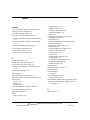
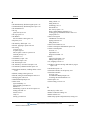
Index
Wave Contact Center Administrator Guide
Release 2.0 Service Pack 1
April 2011
Release 2.0 Service Pack 1
April 2011
Chapter 1
Introduction
CHAPTER CONTENTS
About Wave Contact Centers. . . . . . . . . . . . . . . . . . . . . . . . . . . . . . . . . . . . . . . 1-1
Using the Call Classifier with Wave Contact Centers. . . . . . . . . . . . . . . . . . . . . 1-5
Using the audio controls. . . . . . . . . . . . . . . . . . . . . . . . . . . . . . . . . . . . . . . . . . . 1-5
Related reading . . . . . . . . . . . . . . . . . . . . . . . . . . . . . . . . . . . . . . . . . . . . . . . . . 1-6
Support services . . . . . . . . . . . . . . . . . . . . . . . . . . . . . . . . . . . . . . . . . . . . . . . . 1-7
Web site . . . . . . . . . . . . . . . . . . . . . . . . . . . . . . . . . . . . . . . . . . . . . . . . . . . . . . . 1-7
System security . . . . . . . . . . . . . . . . . . . . . . . . . . . . . . . . . . . . . . . . . . . . . . . . . 1-8
About Wave Contact Centers
You can set up a Wave Contact Center to automatically distribute incoming calls to a group of
agents. Examples of Contact Centers include a sales workgroup, a customer support
department, or any department in which multiple agents answer calls to a single number.
Contact Center queues provide full-featured call distribution. A Contact Center queue
automatically answers calls, puts them in a queue, and then distributes them to ready agents.
With Contact Center queues you can customize the caller’s waiting experience, play single or
repeating prompts, prompt callers to enter data, configure call priority, grant specialized
supervisor permissions such as the ability to monitor calls, and use the Wave Contact Center
Reporter to run a variety of reports on Contact Center activity.
For a detailed list of the available features, see the table beginning on page 1-2.
Contact Center queue creation, configuration, and management tasks are described in Chapter
through Chapter . For instructions for agents who participate in Contact Center queues, see
Chapter .
Wave Contact Center Administrator Guide
Release 2.0 Service Pack 1
April 2011
1-2
Chapter 1: Introduction
About Wave Contact Centers
Contact Center queue features
Feature
Administration
Single-point interface to create and manage queues
Take a queue off-line and send its calls to voicemail
Automatically take a queue off-line when all agents are unavailable
Choice of language for system prompts
E-mail and pager notification of new voicemail
Voice titles for Contact Center extensions
Overflow groups of agents for times when primary agents are busy
Overflow agents with individual overflow levels
Overflow agents only called after all agents are busy for a time you configure
Agents automatically placed on break if they let queue calls ring unanswered
Callers redirected if the queue is too busy, callers are waiting too long, there are not enough
agents, or there are no agents with matching skills
Individual permissions for whether an agent can use personal status to make himself or herself
unavailable
View Contact Center and personal Call Log in the same ViewPoint application
Queue logs for troubleshooting
Separate licensing required per agent
Caller Experience
Contact Center automatically answers incoming calls
Hold music
Different hold music for each queue
Extension or DID number to dial queues
Wave Contact Center Administrator Guide
Release 2.0 Service Pack 1
April 2011
1-3
Chapter 1: Introduction
About Wave Contact Centers
Feature
Contact Center extensions listed in the dial-by-name directory
Greetings to welcome callers
Repeating messages for waiting callers
Conditional messages for waiting callers
Priority for individual callers that reduces wait time
Messages that tell callers their expected wait times
Messages that tell callers how many callers are ahead of them
Caller options to stop waiting and leave voicemail or transfer out of the queue to an extension
Ability to prompt callers to enter data
Agent Experience
Call Monitor tabs for agents
Agents can answer any call using ViewPoint
Agents can work from home or any remote location
Contact Center listed in Extensions folder in ViewPoint
Individually configurable agent wrap-up time
Agents can manually end their wrap-up time early
System-wide wrapup time
Special personal statuses for agents: Available (Queue only), Available (Non-Queue) and On
Break
Agents can make themselves ready or unavailable to receive calls using ViewPoint or phone commands
Agents can sign in and out of individual queues using ViewPoint or phone commands
Visual indication of which agent will get the next call
Agents can place calls as the queue, enabling supervision and reporting of outbound calls
Wave Contact Center Administrator Guide
Release 2.0 Service Pack 1
April 2011
1-4
Chapter 1: Introduction
About Wave Contact Centers
Feature
Supervision
Changing an agent’s personal status
Signing an agent in or out of a queue
Comprehensive Queue Monitor to view real-time queue and agent statistics
Customizable shift periods for comparative statistic display
Critical queue statistics available by phone in audio format
Coaching and monitoring of agents
Viewing agents who are being monitored
Automatically setting absent agents to On Break status
Automatically recording of agent and Contact Center calls on a periodic basis
Call Distribution
Sequentially by agent order
Round robin (each agent in turn)
Simultaneously (ring all agents)
To longest idle agent
To agent with fewest calls
To agent with least talk time
To agent with best matching skills
To agent via custom routing method
Reports
Separate licensing required for reports
User Activity Report for agents includes personal status breakdown and Contact Center details
section
All other reports
Wave Contact Center Administrator Guide
Release 2.0 Service Pack 1
April 2011
Using the Call Classifier with Wave Contact Centers
1-5
Chapter 1: Introduction
Using the Call Classifier with Wave Contact Centers
The Wave Call Classifier can greatly improve the productivity of Contact Centers by identifying
callers, intelligently routing calls, and presenting Contact Center agents with scripts and related
caller information before they take the call.
For more information about using the Call Classifier, see Chapter 26 in the Wave Global
Administrator Guide.
Using the audio controls
This manual describes how to use various recordings—greetings, prompts, and so forth—to
customize the behavior of your Contact Center queues. Wave’s audio controls make it easy to
create and modify recordings of all types. The following controls appear in Wave wherever you
can create and listen to recordings.
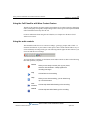
To create and play recordings, use the buttons on the audio controls as shown in the following
table and speak into your phone.
Record
Play
Stop
Fast
Forward
Rewind
When you are ready to record, pick up your phone,
and then click this button. A beep signals that
recording has begun.
Click to listen to the recording.
When you are done recording, you can either hang
up or click this button.
Click to skip ahead while listening to the recording.
Click to skip back while listening to the recording.
Wave Contact Center Administrator Guide
Release 2.0 Service Pack 1
April 2011
1-6
Chapter 1: Introduction
Using the audio controls
To move forward and backward within the recording, drag the slider bar.
Importing audio files
You can import an audio file in WAV format to use for any Wave recording (greetings, voice
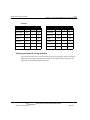
titles, and so on). Wave can import WAV files with a frequency of 8Khz, 11.025 Khz, 22.05 Khz,
or 44.1 Khz., as shown in the following table.
To import an audio file, click the Import audio control.
Related reading
For information about this version of Wave ISM, including new features, known issues, and
other late-breaking information, see the Wave Contact Center Release Notes, available on
VConnect.
The following additional documents are included with the Wave Server in Acrobat format, and
can be found on VConnect.
Manuals
Wave Global Administrator Guide—Provides detailed instructions for all aspects of
configuring and managing the Wave Server and Wave ISM.
Wave Server Installation Guide—Provides detailed instructions for physically installing the
Wave Server and Wave ISM and performing initial system configuration.
Wave ISM System Recovery Guide—Describes how to use the Wave ISM System Recovery
Disk to restore your Wave Server to its original factory settings for emergency recovery.
Wave ViewPoint User Guide—Provides task-based instructions on how to use ViewPoint,
including call control, working from remote locations, participating in a contact center, and so
forth.
Wave Contact Center Administrator Guide
Release 2.0 Service Pack 1
April 2011
1-7
Chapter 1: Introduction
Support services
Wave Phone User Guide—Describes how to use SIP phones, digital phones, analog phones,
and SIUP softphones with Wave.
Wave Server Hardware Reference Guide—Provides detailed technical information about the
Wave Server hardware components.
Quick Reference Guides
Wave Analog Phone Quick Reference Guide—Provides instructions for using analog phones
with Wave.
Wave Digital Phone Quick Reference Guide—Provides instructions for digital phones with
Wave.
Wave SIP Phone Quick Reference Guide—Provides instructions for using SIP phones with
Wave.
Wave Voice Mail Quick Reference Guide—Provides instructions for using Wave ISM Voice
Mail features.
Support services
Vertical Communications has worked diligently to produce the highest quality communications
system possible. In the course of installing or customizing a system customers may require
personal attention.
For technical support contact your Wave provider.
Web site
For more information about Vertical Communications, Inc. and the Wave product line, contact
your Wave provider, call 1-877-VERTICAL, or visit the Vertical corporate Web site:
The Vertical Communications Web site provides information about Vertical Communications
and the Wave product line.
http://www.vertical.com
Wave Contact Center Administrator Guide
Release 2.0 Service Pack 1
April 2011
1-8
Chapter 1: Introduction
System security
System security
You are responsible for the security of your Wave system. Unauthorized use of the Wave system
could result in toll fraud. Your system administrator must read all system administration
documentation to understand which configuration options can introduce the risk of toll fraud
and which configuration options can be activated or deactivated to prevent it.
For more information, see Appendix A, “Protecting Your System Against Toll Fraud” in the
Wave Global Administrator Guide.
Vertical Communications, Inc. does not warrant that the configuration software is immune from
or will prevent unauthorized use of common-carrier telecommunications facilities and services
accessed through or connected to the Wave Server. Vertical Communications, Inc. is not
responsible for any charges resulting from unauthorized use.
Wave Contact Center Administrator Guide
Release 2.0 Service Pack 1
April 2011
Chapter 2
Creating a Contact Center Queue
CHAPTER CONTENTS
About Contact Center queues . . . . . . . . . . . . . . . . . . . . . . . . . . . . . . . . . . . . . . 2-2
Creating a Contact Center queue. . . . . . . . . . . . . . . . . . . . . . . . . . . . . . . . . . . . 2-5
Entering general information about a queue . . . . . . . . . . . . . . . . . . . . . . . . . . 2-10
Closing a queue . . . . . . . . . . . . . . . . . . . . . . . . . . . . . . . . . . . . . . . . . . . . . . . . 2-11
Defining call logging for a queue . . . . . . . . . . . . . . . . . . . . . . . . . . . . . . . . . . . 2-12
Setting external Caller ID for outbound queue calls . . . . . . . . . . . . . . . . . . . . . 2-13
Including a queue in the dial-by-name directory. . . . . . . . . . . . . . . . . . . . . . . . 2-15
Defining agents for a queue . . . . . . . . . . . . . . . . . . . . . . . . . . . . . . . . . . . . . . . 2-16
Configuring call distribution . . . . . . . . . . . . . . . . . . . . . . . . . . . . . . . . . . . . . . . 2-29
Defining how calls are scored . . . . . . . . . . . . . . . . . . . . . . . . . . . . . . . . . . . . . 2-35
Setting up overflow agents . . . . . . . . . . . . . . . . . . . . . . . . . . . . . . . . . . . . . . . . 2-41
Configuring expected wait time . . . . . . . . . . . . . . . . . . . . . . . . . . . . . . . . . . . . 2-45
Configuring a queue to redirect calls . . . . . . . . . . . . . . . . . . . . . . . . . . . . . . . . 2-49
Setting up the caller's hold experience. . . . . . . . . . . . . . . . . . . . . . . . . . . . . . . 2-56
Setting up a queue’s voice mailbox . . . . . . . . . . . . . . . . . . . . . . . . . . . . . . . . . 2-65
Managing a queue’s password security . . . . . . . . . . . . . . . . . . . . . . . . . . . . . . 2-73
Managing a queue’s audio recordings . . . . . . . . . . . . . . . . . . . . . . . . . . . . . . . 2-74
Automatically recording queue calls. . . . . . . . . . . . . . . . . . . . . . . . . . . . . . . . . 2-80
Collecting queue statistics . . . . . . . . . . . . . . . . . . . . . . . . . . . . . . . . . . . . . . . . 2-83
Directing calls to a queue . . . . . . . . . . . . . . . . . . . . . . . . . . . . . . . . . . . . . . . . . 2-86
Managing custom data variables . . . . . . . . . . . . . . . . . . . . . . . . . . . . . . . . . . . 2-88
Deleting a queue . . . . . . . . . . . . . . . . . . . . . . . . . . . . . . . . . . . . . . . . . . . . . . . 2-90
Wave Contact Center Administrator Guide
Release 2.0 Service Pack 1
April 2011
2-2
Chapter 2: Creating a Contact Center Queue
About Contact Center queues
About Contact Center queues
Contact Center queues provide a full-featured system for distributing calls to agents.
This chapter describes creating and maintaining a Contact Center queue. For information about
working as an agent in a Contact Center queue, see 5. For information about working as a
supervisor or manager in a Contact Center queue, see 6.
When agents receive queue calls
For an agent to receive calls from a queue, the following four conditions must be true:
•
The agent is defined as a member of the queue. A Wave user who is not a member of a
queue can see no part of that queue in ViewPoint, and never receives calls from that
queue. The queue administrator adds and deletes agents as members of a queue.
•
The agent is signed in to the queue. This setting determines whether the agent receives
calls from this particular queue. Agents must be signed in to the queue to receive calls
from it. An agent who is signed out does not receive calls from that queue, but can still
see and monitor the queue in ViewPoint—a useful state for supervisors. An agent might
be signed into some queues and signed out of others at any given time. The queue
administrator determines which agents are signed in or out of each queue. You can also
give individual agents permission to sign themselves in and out.
•
The agent is in an available personal status. To receive queue calls, an agent must be in
the personal status Available, Available (Queue Only), or any personal status with the
Queue calls field set to Yes. Agents in any personal status with Queue calls set to No—
for example, Available (Non Queue) or Do Not Disturb—do not receive calls from any
queue. Agents can change their own personal status if they have permission to do so, and
it can also be changed by others if they have permission to do so.
•
The agent is ready. This agent state, viewable in the Queue Monitor (see “The Agents pane”
on page 6-4), determines whether the agent is currently eligible to receive queue calls. Agents
are ready when they are signed into at least one queue, are in an available personal status, and
are not currently in a call or the wrap-up period following a call.
Wave Contact Center Administrator Guide
Release 2.0 Service Pack 1
April 2011
2-3
Chapter 2: Creating a Contact Center Queue
About Contact Center queues
What agents experience
Agents can work in a queue using the phone alone or in conjunction with Wave ViewPoint.
Agents can change their personal status to begin their shifts, take breaks, and end their shifts.
After finishing each call, agents have a wrap-up time to complete paperwork before they receive
the next call.
By default agents have permission to change their own personal status, enabling them to control
their own workflow. You can revoke this permission for individual agents, so that a supervisor
must change their personal status for them. See “Preventing agents from changing their personal
status” on page 2-26.
What callers experience
Callers reach the queue either by dialing its extension directly or choosing it from your
company’s auto attendant (for example, “for Technical Support, press 2”). They hear an initial
message, called a Welcome prompt, that introduces them to the queue. You can also have the
queue prompt them to enter data at this point, such as a customer number, that can optionally
modify their waiting experience. If no agents are ready, the callers are then placed on the queue
to wait.
While waiting, callers hear hold music. Occasionally they hear other messages called Hold
prompts. These are messages that you record to assure callers that their calls will be answered,
to play them an advertisement, and so on. You can define Hold prompts that play only once, play
on a repeating basis, or change based on how close the call is to being answered. Instead of
waiting, callers can choose to leave a voice message or transfer out of the queue to an extension
you define, such as an Operator or your auto attendant.
When an agent becomes ready, the caller is transferred to that agent.
Wave Contact Center Administrator Guide
Release 2.0 Service Pack 1
April 2011
2-4
Chapter 2: Creating a Contact Center Queue
About Contact Center queues
Basic Contact Center queue terminology
To work in a Contact Center queue as an administrator, supervisor, or agent, you should be
familiar with the following Contact Center queue terms:
•
Agent. A Wave user who answers incoming calls to the Contact Center.
•
Queue. A Contact Center that is set up at a single extension. Callers to that extension who
are waiting are said to be “in the queue.”
A Contact Center can have more than one queue. For example, a technical support
department can have one queue for Product A and another queue for Product B. Each
queue has its own list of agents who answer calls and its own method of distributing calls
to agents. A user can be an agent for more than one queue.
•
Supervisor. An agent who has special permissions. An agent with full supervisory
permissions can perform any of the following tasks. (Agents can be configured with
varying levels of permission to perform some but not all supervisory tasks.)
•
Monitor, coach, and join other agents’ calls.
•
Perform administrative maintenance on a queue, for example, add and remove
agents from a queue, sign agents in or out of a queue, change an agent’s personal
status, manage a queue’s voice mailbox, and so forth.
•
View current queue statistics in ViewPoint.
These supervisory functions are described in Chapter .
•
Overflow agent. A user who answers calls to a queue only when all the queue’s regular
agents are busy (standby or unavailable).
•
Personal calls. Any calls directly to an agent’s extension, as opposed to calls the agent
receives from a queue.
Agents, call forwarding and routing lists
Queue calls to agents do not use the agents’ routing lists or call rules, so they cannot try an agent
at multiple locations. Queue calls do follow the agents’ call forwarding / Where I Am settings.
Wave Contact Center Administrator Guide
Release 2.0 Service Pack 1
April 2011
2-5
Chapter 2: Creating a Contact Center Queue
Creating a Contact Center queue
Viewing queue configuration and setup
The Contact Center Queue Information report shows general information about each queue in your
system, including a list of agents and their current settings. You can use this report to get a snapshot
of a queue’s setup. For more information, see 7.
Creating a Contact Center queue
The queue is the backbone of a Contact Center. A queue defines the primary and overflow
agents who receive Contact Center calls, the method by which calls are distributed to those
agents, what callers experience while they are waiting, and so forth.
Licenses and permissions
To create a Contact Center queue, you must have the appropriate licenses installed and
supervisor permissions set.
Agent licenses
To create a queue, you must first purchase and enter one Contact Center Agent license for each
Contact Center agent. Only one license is required for each agent, even if agents are members
of multiple queues. See Chapter 24 in the Wave Global Administrator Guide for more
information about entering licenses.
Queue folder permission
To create or edit a queue, you must have the general Wave permission Access Queues Folder set
to View and Edit. You do not need other Administrator permissions, so you can manage queues
without being a full Wave system administrator. To set permissions, use the Users view in the
User/Group Management applet in the Wave Global Administrator Management Console. See
Chapter 11 in the Wave Global Administrator Guide for more information about setting user
permissions.
Wave Contact Center Administrator Guide
Release 2.0 Service Pack 1
April 2011
2-6
Chapter 2: Creating a Contact Center Queue
Creating a Contact Center queue
Overview of creating a queue
You create a queue via the Queues view in the User/Group Management applet, available on the
Wave Global Administrator Management Console. The sections in this chapter describe the
following tasks:
•
Entering general information about a queue. See page 2-10.
•
Entering general information about a queue. See page 2-10.
•
Closing a queue. See page 2-11.
•
Defining call logging for a queue. See page page 2-12.
•
Setting external Caller ID for outbound queue calls. See page 2-13.
•
Including a queue in the dial-by-name directory. See page 2-15.
Once you have created a queue, you are ready to perform the following tasks:
•
Defining agents for a queue. See page 2-16.
•
Configuring call distribution. See page 2-29.
When you have finished creating a queue, you can then set up one or more methods of directing
calls to it. You can:
•
Create an auto attendant menu choice that sends callers to the queue. See “Setting up a
menu choice for a queue” on page 2-86.
•
Give the queue a DID number (see “Entering general information about a queue” on page
2-10), or route a trunk directly to the queue (see Chapter 5 in the Wave Global
Administrator Guide.)
•
Create a utility user that receives calls and automatically routes them to the queue. By
doing this you can use Wave’s advanced call-handling features with a queue, for example
contact identification, intelligent call routing, time scheduling, and more. By using a
utility user you can give your VIP callers special treatment. See 4 for more about creating
and using a utility user.
After you have set up a method of directing calls to the queue, the queue is complete and
available.
Wave Contact Center Administrator Guide
Release 2.0 Service Pack 1
April 2011
2-7
Chapter 2: Creating a Contact Center Queue
Creating a Contact Center queue
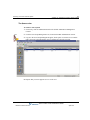
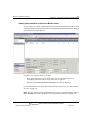
The Queues view
To create or edit a queue
1 If necessary, click the Administration tab in the Global Administrator Management
Console.
Click
2 Click the User/Group Management icon, located in the PBX Administration section.
3 Log on to the User/Group Management applet, which opens in a remote access window.
Once you log on, open the Queues view by clicking its icon in the view bar.
Each queue that you create appears as a row in the view.
Wave Contact Center Administrator Guide
Release 2.0 Service Pack 1
April 2011
Creating a Contact Center queue
2-8
Chapter 2: Creating a Contact Center Queue
The following table shows the information that is displayed for each queue.
Column
Description
Name
Name of the queue
Extension
Extension dialed to reach the queue from the auto attendant or
when transferring a call
DID
Direct Inward Dial—Phone number dialed to reach the queue
directly
Distribution
Algorithm used to distribute calls to agents
Status
Whether the queue is currently distributing calls to agents. The
possible statuses are:
Open. The queue is distributing its calls to ready agents as normal.
Closed. The queue is closed. No calls are being distributed to
agents.
Closed - No agents. All agents in the queue are currently signed
out, so the queue is automatically sending its calls directly to
voicemail.
Number of Agents
Total number of agents who are members of the queue.
Record Nth Call
If checked, the queue is set to record its calls.
Change Hold Music To
The name of the music-on-hold source being used for the queue’s
hold music, if any.
Hold Callback
The amount of time that the queue waits before ringing back an
agent who leaves a call on hold or parked. “Off” indicates that
ringback is not being used.
Priority
If checked, the queue has a priority variable that can be used for
assigning some callers a higher priority than others.
Overflow
If checked, the queue is using overflow agents.
Redirect
Separate columns for Too Busy, Maximum Wait, and Queue
Closed. If checked, the queue is set to redirect callers when the
circumstance occurs.
Mail Usage
Percentage of allocated voicemail space currently used.
Greeting Usage
Percentage of allocated space for greetings currently being used.
Wave Contact Center Administrator Guide
Release 2.0 Service Pack 1
April 2011
2-9
Chapter 2: Creating a Contact Center Queue
Creating a Contact Center queue
Column
Description
Disk Usage
Amount of disk space (in megabytes) used by the queue’s audio
files, including voicemail and greetings.
Mailbox size
How much space (in minutes) the queue’s voice mailbox has.
Greeting size
How much space (in minutes) is allocated to the queue for greetings.
Comments
Any comments about the queue
4 To edit an existing queue, double-click its row in the Queues view. To create a new queue,
choose File > New > Queue.
5 The Queue dialog opens.
The tasks that you can perform on the tabs in the Queue dialog are described in the rest of
the sections in this chapter.
Wave Contact Center Administrator Guide
Release 2.0 Service Pack 1
April 2011
Entering general information about a queue
2-10
Chapter 2: Creating a Contact Center Queue
Entering general information about a queue
To enter general information about a queue
1 Click the Queue tab in the Queue dialog.
2 Enter the following information for the queue:
•
Name. Give the queue a short name that will easily identify it, such as “Sales queue.”
•
Extension. Enter an extension for the queue. Users can then transfer calls to the queue
When users transfer a call to this queue using ViewPoint, they will select it by name.
by phone. The extension is generally not used by callers to dial the queue from an
auto attendant. Callers should reach the queue either by dialing a Direct Inward Dial
number or by making a choice on the auto attendant menu. See “Setting up a menu
choice for a queue” on page 2-86.
•
Password. Give the queue a unique numeric password. You will need to log in with
the password if you want to change the queue configuration or check the queue’s
voice messages when you are at a remote phone. For example, on a day when your
business is closed unexpectedly, you can call, log in, and change the queue’s
voicemail greeting so that callers are aware of the situation.
Reenter the password in the Confirmation field.
Wave Contact Center Administrator Guide
Release 2.0 Service Pack 1
April 2011
2-11
Chapter 2: Creating a Contact Center Queue
Closing a queue
•
DID number. Optionally, you can give the queue a Direct Inward Dial number from
the block of numbers provided by your phone company. Callers can then dial the
queue directly, without going through an auto attendant.
To assign multiple DID numbers to a queue, separate each number by a comma. For
example, enter 1234,1235,1236.
•
Operator. Select the extension to which callers will be transferred if they press 0 while
they are leaving voicemail for the queue.
•
Comments. Enter any descriptive information about the queue.
•
Queue is closed. See “Closing a queue” on page 2-11.
•
Trace queue and agent activity to queue logs. Check to create queue logs that record
detailed agent and queue activity for troubleshooting purposes. See Appendix for details.
3 Click OK to save the queue as you have defined it so far or go to the next section, “Closing a
queue.”
Closing a queue
You can close a queue and prevent new incoming calls from being routed to agents, for example
after business hours when your department is closed. When a queue is closed, incoming calls to
it are automatically handled according to the selections you make on the Redirect tab (see
“Redirecting calls when a queue is closed” on page 2-53).
To close a queue
1 Click the Queue tab of the Queue dialog.
2 Select the Queue is closed checkbox.
3 Click OK to save the queue as you have defined it so far or go to “Defining call logging for a
queue” on page 2-12.
Note: You can have the queue close itself automatically when there are no agents signed in. See
“Redirecting calls when a queue is closed” on page 2-53.
Wave Contact Center Administrator Guide
Release 2.0 Service Pack 1
April 2011
2-12
Chapter 2: Creating a Contact Center Queue
Defining call logging for a queue
Queue status when closed
Queue status displays in ViewPoint’s Extensions List in the Personal Status Name column, and
lets you see at a glance whether the queue is currently accepting calls or not. The queue statuses
are:
•
Open. The queue is distributing to its calls to ready agents as normal.
•
Closed. The queue is redirecting calls as specified on the Redirect tab.
•
Closed - No agents. All agents in the queue are currently signed out or unavailable, so the
queue is automatically redirecting calls as specified on the Redirect tab.
For more about ViewPoint’s Extensions List, see Chapter 4 in the Wave ViewPoint User Guide.
Defining call logging for a queue
To define call logging for a queue
1 Click the Queue \ Call Log tab.
Wave Contact Center Administrator Guide
Release 2.0 Service Pack 1
April 2011
Setting external Caller ID for outbound queue calls
2-13
Chapter 2: Creating a Contact Center Queue
2 Enter the following information:
•
Log this queue’s calls. Specify which of this queue’s calls appear in the Call Log. You
can log inbound calls, outbound calls, both, or none. To log no calls, uncheck the
field.
Important: If you turn off call logging for the queue, you cannot run reports on this
queue.
•
Organization. If you are using Organizations, check to associate this queue with the
Organization you select from the drop-down list. Click to create a new Organization.
Inbound calls to the queue that did not reach an agent will be logged as belonging to the
selected Organization (for example, abandoned calls and calls where the caller left a voice
message).
Organizations are a means to represent different companies or tenants that share a
Wave Server. For more about Organizations, see Chapter 20 in the Wave Global
Administrator Guide.
Note: Outbound calls made by users calling as the queue are not associated with the
queue’s Organization. They are always associated with the user’s Organization, even
if the user has no associated Organization.
3 Click OK to save the queue as you have defined it so far or go to the next section, “Setting
external Caller ID for outbound queue calls.”
Setting external Caller ID for outbound queue calls
Agents can place outbound calls that are marked as being from the queue rather than their
personal extension (see “Placing calls from a queue vs. calling as user” on page 5-9). For
outbound queue calls, you can determine the Caller ID information that accompanies the call.
Note the following:
•
Caller ID information entered here will be overridden by any external Caller ID that is
specified for the outbound trunk. For more about how Caller ID is specified in Wave,
including the hierarchy of external Caller ID settings, see Chapter 16 in the Wave Global
Administrator Guide.
•
On trunk types other than ISDN, outbound Caller ID is always set by the phone company.
Wave Contact Center Administrator Guide
Release 2.0 Service Pack 1
April 2011
Setting external Caller ID for outbound queue calls
2-14
Chapter 2: Creating a Contact Center Queue
To set external Caller ID for a queue
1 Click the Queue \ External Caller ID tab.
2 Select one of the following:
• Use external caller ID from General Settings. External Caller ID as specified via the
General Settings applet is sent as Caller ID number for outbound calls from the
queue. (See Chapter 16 in the Wave Global Administrator Guide for more about
configuring system-wide Caller ID settings via the General Settings applet.)
•
Send company name and main number. Company name and main number (as
specified via the General Settings applet) is sent as Caller ID number for outbound
calls from the queue. (See Chapter 3 in the Wave Global Administrator Guide for
more about entering basic system information via the General Settings applet.)
•
Send station name and this number. The name associated with the station as well as
the number that you specify is sent as Caller ID number for outbound calls from the
queue.
Wave Contact Center Administrator Guide
Release 2.0 Service Pack 1
April 2011
Including a queue in the dial-by-name directory
2-15
Chapter 2: Creating a Contact Center Queue
•
Do not send caller ID. Caller ID is blocked on outbound calls from the queue. Note that
the system still sends Caller ID information even though it is blocked—this is a
requirement, because some institutions have the right to read blocked Caller ID, for
example emergency services and 800 numbers.
•
Send organization name. Organization Name is sent as Caller ID number for outbound
calls from the queue. (See Chapter 20 in the Wave Global Administrator Guide for
more about using Organizations with Wave.)
3 Click OK to save the queue as you have defined it so far or go to the next section, “Including a
queue in the dial-by-name directory.”
Including a queue in the dial-by-name directory
You can include the queue in the dial-by-name directory so that, for example, a caller could dial
SALES to reach your Sales queue.
If you include the queue in the dial-by-name directory, you should record its voice title. See
“Recording a voice title for a queue” on page 2-76.
To include a queue in the dial-by-name directory
1 Click the Dial-by-name Directory tab in the Queue dialog.
Wave Contact Center Administrator Guide
Release 2.0 Service Pack 1
April 2011
Defining agents for a queue
2-16
Chapter 2: Creating a Contact Center Queue
2 Select the List in dial-by-name directory checkbox.
3 To play a user's extension along with the user's name when callers choose the user from the
dial-by-name directory, and then select the Play extension to the caller checkbox.
4 Click OK to save the queue as you have defined it so far or go to the next section, “Defining
agents for a queue.”
Defining agents for a queue
Use the Agents tab in the Queue dialog to define agents for the queue. Both primary agents and
overflow agents must be defined as agents on this tab.
•
Primary agents are agents whose primary task is answering queue calls.
•
Overflow agents are agents whose primary task is not answering queue calls, but who
receive them when all primary agents are busy. See page 2-41 for further information
about defining overflow agents for your queue.
For an agent to work in more than one queue, you must add the agent separately to each of the
queues.
Agents must be Wave users before you can add them to a queue (see Chapter 11 in the Wave
Global Administrator Guide for more about creating Wave users).
Changing wrap-up time and permission defaults
You can set defaults for agent wrap-up time and permissions. There are two benefits to doing
this:
•
To save time when adding agents. Before adding agents, set the defaults to the way you
want them to be for a typical agent. The default settings will then appear as each new
agent’s settings, which you can then modify for an individual agent if necessary.
•
To change a permission for several agents at once. When you change a default agent
permission, you change it for all existing agents except agents for whom you have specified
an unchanging permission. For example, you might give your agents the Queue Sign In/Out
permission, and then later decide to disallow it. This effect works only for permissions, not
wrap-up time.
Wave Contact Center Administrator Guide
Release 2.0 Service Pack 1
April 2011
Defining agents for a queue
2-17
Chapter 2: Creating a Contact Center Queue
To set a default wrap-up time for agents in a queue
1 Click the Agents tab.
2 Enter a number of seconds in Default wrap-up for new agents in seconds.
Wave Contact Center Administrator Guide
Release 2.0 Service Pack 1
April 2011
2-18
Chapter 2: Creating a Contact Center Queue
Defining agents for a queue
To set default agent permissions
1 Click the Agents \ Permission tab in the Queue dialog.
2 To set a default permission, click the Value column in its row in the list, then select the
permission level you want from the drop-down list. For a description of the permissions
and permission levels, see “Agent permissions” on page 2-24.
3 Click OK to save the queue as you have defined it so far or go to the next section, “Adding
agents to a queue.”
Wave Contact Center Administrator Guide
Release 2.0 Service Pack 1
April 2011
2-19
Chapter 2: Creating a Contact Center Queue
Defining agents for a queue
Adding agents to a queue
To add agents to a queue
1 Click the Agents tab in the Queue dialog.
2 Click Add. The Agent dialog opens at the General tab.
3 For This agent is the following user, select a user from the drop-down list. Agents must be
Wave users before you can add them to a queue. (See Chapter 11 in the Wave Global
Administrator Guide for more about creating Wave users. For Wrap up time in seconds,
accept the default or enter a different wrap-up time.
Agents can terminate their wrap-up period early and make themselves ready to receive
calls. See 5 for complete instructions on being a Contact Center queue agent.
4 For Overflow tier, leave the default value of 0 unless you want the agent to be an overflow
agent. See “Setting up overflow agents” on page 2-41.
Wave Contact Center Administrator Guide
Release 2.0 Service Pack 1
April 2011
Defining agents for a queue
2-20
Chapter 2: Creating a Contact Center Queue
5 For This agent is an observer, not shown in Queue Monitor, check to make this agent an
observer who can monitor queue activity without being seen by other agents in the queue. If
checked:
•
Other agents cannot see the agent in ViewPoint in the Agents pane in the Queue
Monitor (see “Viewing queue statistics in the Queue Monitor folder” on page 6-3) or
the queue’s tab in the Extensions list.
•
The agent is automatically signed out and cannot sign in, so that the agent does not
receive calls from the queue (see the next step).
•
The agent cannot be given the permission Queue Sign In/Out.
The observer agent can view queue activity in the Queue Monitor and Call Monitor,
supervise other agents’ calls and perform other supervisory actions. The observer agent can
also take queue calls manually by using the Take Call command in the Call Monitor.
If the checkbox is cleared, the agent appears in the Agents pane in the Queue Monitor, and
can be signed in or out.
6 For This agent is signed in, select the check box if the agent receives calls from the queue
when the agent is ready. Clear the check box to define a supervisor who can monitor the queue
but does not receive calls from the queue.
When the check box is cleared, calls from this queue are not sent to the agent, even when
the agent is ready. However, the agent still sees the tab for this queue in the Call Monitor
and can answer queue calls using the Take Call command.
Note: To receive calls from a queue, an agent must be both signed in, available for queue
calls, and ready. See “When agents receive queue calls” on page 2-2.
You can use this check box to switch an agent from one queue to another, by signing the
agent in for one queue and out for the other queue.
You can also give agents the permission to sign themselves in and out of a queue. See
“Agent permissions” on page 2-24 and “Signing in and out of a queue” on page 5-5.
Wave Contact Center Administrator Guide
Release 2.0 Service Pack 1
April 2011
Defining agents for a queue
2-21
Chapter 2: Creating a Contact Center Queue
7 To change the agent’s permissions from the queue’s default permissions, click the Permissions
tab.
8 Click the permission, click the arrow in the Value column, and then select a value for the
permission. If you choose “Use Default,” the value for this user will change whenever you
change the default permission for the queue (see “Changing wrap-up time and permission
defaults” on page 2-13). For an explanation of permissions, see “Agent permissions” on
page 2-18
Note: You do not need to use the Skills tab unless you are using skills-based routing,
described in 3.
9 To set automatic call recording for this agent, check Automatically record this agent’s
calls. See the next section, “Automatically recording an agent’s calls” for details.
10 When you have finished defining the agent, click OK. The Agent dialog closes and you return to
the Agents tab in the Queue dialog.
Wave Contact Center Administrator Guide
Release 2.0 Service Pack 1
April 2011
2-22
Chapter 2: Creating a Contact Center Queue
Defining agents for a queue
Automatically recording an agent’s calls
You can have Wave automatically record an agent’s queue calls on a periodic basis. The
recorded calls appear as new voice messages in the voice mailbox that you select. The system
records both inbound and outbound queue calls.
If you want to record all user calls, use system call recording instead. For more about system
call recording, see Chapter 19 in the Wave Global Administrator Guide.
Privacy issues with queue call recording
Caution: It is the license-holder’s responsibility to comply with any federal, state, or
other applicable statutes regarding the recording of phone calls. Vertical
Communications, Inc. disclaims any responsibility for failing to comply with such
regulations.
Some countries, states, or other locations require that you announce to callers that their calls
may be or are being recorded.
•
If you are using Wave in such a location and record some or all calls, your queue’s
Welcome prompt should inform callers that their calls may be recorded. See “Using the
Welcome prompt to inform callers that their calls may be recorded” on page 2-78.
•
Wave includes a system prompt, MayBeMonitored.wav, that says, “Your call may be
monitored or recorded,” which you can play as needed (for example, by using an auto
attendant or Contact Center queue greeting).
•
Wave allows you to play a regular “reminder beep” while recording queue calls which
alerts agents and callers that their calls are being recorded. See “Including a reminder
beep on queue call recordings” in Chapter 19 in the Wave Global Administrator Guide.
Important: Be sure that all Contact Center queue understand how to comply with call recording
privacy requirements.
To automatically record an agent’s inbound queue calls
1 Click the Agents tab in the Queue dialog.
2 Click the General tab in the Agent dialog.
Wave Contact Center Administrator Guide
Release 2.0 Service Pack 1
April 2011
2-23
Chapter 2: Creating a Contact Center Queue
Defining agents for a queue
3 Check Automatically record this agent’s calls.
4 In Record 1 call out of every, enter a number. Enter 1 to record every call to this agent, 2 to
record every other call, 3 to record every third call, and so on.
Note: All calls that an agent handles count for purposes of counting that agent’s calls.
5 From the Recording direction drop-down list, select whether to record inbound calls only,
outbound calls only, or both. Selecting both means that you get one recording per n calls
regardless of the calls’ direction.
6 From the Send agent call recordings to drop-down list, select the mailbox that will receive
the call recordings as new voice messages.
7 From the When mailbox is full drop-down list, select what happens if the destination mailbox is
full when Wave attempts to store a new call recording there:
•
Discard new call recording. Wave deletes the new call recording instead of storing it.
•
Delete oldest call recording. Wave deletes the oldest call recording in the mailbox to
make room for the new recording. Only call recordings can be deleted by this method.
Wave never deletes voice messages in this way.
8 Click OK. The Agent dialog closes.
Note: You can also record a general sampling of calls to the queue, regardless of which agent
answers them. See “Automatically recording queue calls” on page 2-80.
Wave Contact Center Administrator Guide
Release 2.0 Service Pack 1
April 2011
2-24
Chapter 2: Creating a Contact Center Queue
Defining agents for a queue
Agent permissions
You can give agents the following permissions:
Agent Permissions
Permission
Description
Default value
Change the Personal
Status of another user
The agent can manage other agents’ workflow by changing their personal status. See
“Changing an agent’s personal status” on
page 6-24.
Disallow
If agents are prevented from changing their
own personal status, you must create a
supervisor with this permission to manage
their workflow is. See “Preventing agents
from changing their personal status” on
page 2-26.
Join another agent’s call
The agent can enter another agent’s call,
such that all parties in the call hear each
other. See “Supervising other agents’ calls”
on page 6-18.
Disallow
Coach an agent
The agent can enter another agent’s call and
be heard by the coached agent but not by
the caller. See “Supervising other agents’
calls” on page 6-18.
Disallow
Monitor Agent calls
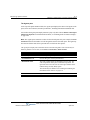
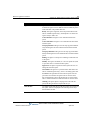
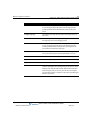
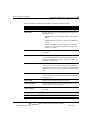
The agent can listen in on other agents’
calls without being heard by the monitored
agent or the callers. See “Supervising other
agents’ calls” on page 6-18.
Disallow
Monitor Queue statistics
The agent can view real-time queue statistics in ViewPoint’s Queue Monitor folder
or listen to statistics using the phone command *55. See “Monitoring queue statistics” on page 6-2.
Disallow
Wave Contact Center Administrator Guide
Release 2.0 Service Pack 1
April 2011
2-25
Chapter 2: Creating a Contact Center Queue
Defining agents for a queue
Agent Permissions
Queue Sign In/Out
The agent can sign in or out of individual
queues. See “Signing in and out of a
queue” on page 5-5.
Disallow
Note: If an agent has the general Wave permission Access Queues folder set to
“View and Edit,” and is not an observer
agent, the agent can sign in and out of all
queues regardless of how this queue permission is set.
Sign In/Out other agents
The agent can sign other agents in and out
of queues from the Queue Monitor.
Disallow
View agents being
monitored
The agent can see when agents’ calls—
including their own—are being monitored.
With this permission, agents whose calls
are being monitored display in the Call
Monitor with the monitoring party attached
as an indented line. See “Viewing when
agents are being monitored” on page 6-20.
Disallow
Access Queue call log
The agent can view a record of calls to the
queue. With “View and Edit,” the agent can
perform all actions in the folder. See the
Wave ViewPoint User Guide.
No access
Access Queue call monitor
The agent can see queue calls on a tab in
ViewPoint’s Call Monitor folder. With
“View and Edit,” the agent can perform all
actions in the folder. See “Using the Call
Monitor tabs” on page 5-8.
No access
Access Queue mailbox
The agent can view and play voice messages in the queue’s voice mailbox. With
“View and Edit,” the agent can perform all
actions in the folder. See “Managing queue
voice messages on the phone” on page
6-25.
View and Edit
Wave Contact Center Administrator Guide
Release 2.0 Service Pack 1
April 2011
Defining agents for a queue
2-26
Chapter 2: Creating a Contact Center Queue
Permissions are granted to Contact Center agents using the following levels:
•
Use default. The agent’s permission level is whatever the default is for that permission.
The current default is shown in parentheses. If the default changes, the agent’s permission
changes with it. See “Changing wrap-up time and permission defaults” on page 2-16.
•
Allow. The agent can perform the specified operation.
•
Disallow. The agent cannot perform the specified operation.
•
No access. The agent cannot view this part of the ViewPoint interface.
•
View only. The agent can view the information in ViewPoint, but cannot perform any
commands on an item. For example, if Access queue call monitor is set to View only, the
agent can see queue calls but cannot answer or transfer them.
•
View and Edit. The agent can view the information and perform all commands.
Preventing agents from changing their personal status
By default, Wave allows agents (and all users) to change their own personal status. If you want,
you can prevent agents from changing their personal status by setting their user permission
Change Personal Status to Disallow (see Chapter 11 in the Wave Global Administrator Guide
for more about setting user permissions). When on duty, such agents are unable to select a
personal status to stop receiving queue calls, for example Do Not Disturb or On Break.
Supervisors can still change the agents’ personal status to start and end their workday and let
them take breaks.
Note: When you prevent users from changing their personal status, they cannot use any of the
personal status features described in the Wave ViewPoint User Guide.
About the Skills tab
The Skills tab in the Agent dialog is used only if you are using skills-based routing. See Chapter
3.
Wave Contact Center Administrator Guide
Release 2.0 Service Pack 1
April 2011
2-27
Chapter 2: Creating a Contact Center Queue
Defining agents for a queue
Changing the order of agents
Once you have added agents to a queue, you can reorder them. If you are using the top down or
round robin algorithms to distribute calls to agents, the order of agents in the queue is especially
important, because it determines the order in which agents receive calls.
The order of agents can also be important when using other distribution algorithms. For
example, if you are using the fewest calls algorithm, and three agents are tied for the fewest
calls, the topmost of those agents in the order gets the next call. Note that at the end of a shift
all statistics are reset to zero, so all agents are tied in statistical categories, and agent order
briefly becomes the method of distributing calls, until new statistics are accumulated.
For a description of the distribution algorithms, see “Configuring call distribution” on page
2-29.
To change the order of agents in a queue
1 Click the Agents tab in the Queue dialog.
2 Click an agent name, and click the up and down arrows to move the agent to a different
place in the queue.
3 Click OK to save the queue as you have defined it so far.
Wave Contact Center Administrator Guide
Release 2.0 Service Pack 1
April 2011
2-28
Chapter 2: Creating a Contact Center Queue
Defining agents for a queue
Using remote agents
If you have Contact Center agents who work primarily at a remote phone (for example, from
their home or cell phone, or from a SIP phone), you should assign each of them a mobile
extension. If they mostly work on a internal office station but occasionally work from home,
you should assign them an internal station but make sure they use the “Imitate a station” feature
and turn on call forwarding while working at home.
See the Wave ISM Release Notes for instructions on assigning mobile extensions to users, and
the Wave ViewPoint User Guide for more about using a remote phone with Wave.
Using roaming agents, or hot-desking
If your Contact Center agents frequently move from desk to desk, or take calls at whatever
internal phone happens to be nearest, you can set up your Contact Center to ensure the accuracy
of statistics and reports, as follows:
•
Give all agents a station ID of 0.
•
For each desk, create a placeholder user with the station ID of the desk’s phone. Name the
user after the desk, for example, “Cube 101” or “Desk 5.”
•
Tell agents to add the following steps to their routine for beginning and ending their
shifts. Following these steps ensures that Wave correctly displays and reports on agent
activity no matter what phones they use.
•
When agents first sit down at a new phone to receive calls, before they mark
themselves as ready, they should log in and forward their calls to their current
location. They can use either of the following methods:
•
To use the phone commands, pick up the phone and log in by pressing #
<extension> # <password> #. Once logged in, press 5 1 to forward calls to
their current location.
•
•
To use ViewPoint, start ViewPoint. The Select Station dialog appears. Select
the second login option, Use station <x> to place and answer calls as <name>.
Check Forward my calls to this station.
When agents are finished using a phone, log out from it. This ensures that
subsequent calls from that phone are not added to the agent’s record. To log out
from a phone, either pick up the phone and press *0 0, or choose the ViewPoint
command File > Exit and Log Off.
For more information, see “Working at different phones” on page 5-4.
Wave Contact Center Administrator Guide
Release 2.0 Service Pack 1
April 2011
2-29
Chapter 2: Creating a Contact Center Queue
Configuring call distribution
When you have finished defining agents
Click OK in the Queue dialog to save the queue as you have defined it so far or go to the next section,
“Configuring call distribution.”
Configuring call distribution
This section describes the ways in which you can distribute incoming queue calls to agents:
•
Specifying how queue calls are distributed to agents. See the next section.
•
Using Last Agent Routing. See page 2-32.
•
Placing agents on break if they do not answer calls. See page 2-34.
•
Giving some calls higher priority. See page 2-37.
Specifying how queue calls are distributed to agents
You can use any of the following methods to distribute incoming queue calls to agents:
•
Top down. The call moves through the list of agents—from the top of the list
downward—until it reaches a ready agent. For this algorithm, the order of agents in the
queue is important. (See “Changing the order of agents” on page 2-27.)
•
Round robin. Agents receive calls in the same sequence as with Top Down, but starting
with a different agent each time. Each call starts with the agent after the one who
answered the previous call.
•
Longest idle agent. The ready agent who has waited the longest time for a call receives
the next call. This algorithm is calculated by determining which agent has gone the
longest period of time without being in an Active state. Non-queue calls count as being
“idle,” because they put an agent in the Standby state. (See the Agent State column under
“Agents Pane Information” on page 6-4.)
•
Fewest calls. The ready agent who has answered the fewest calls from this queue since
beginning the agent’s work shift receives the next call.
Wave Contact Center Administrator Guide
Release 2.0 Service Pack 1
April 2011
Configuring call distribution
•
2-30
Chapter 2: Creating a Contact Center Queue
Least talk time. The ready agent who has spent the least amount of time on calls from this
queue since beginning the agent’s work shift receives the next call. This agent may be
someone other than the agent who has handled the fewest calls.
•
Simultaneous ring. All agents’ phones ring at the same time. The agent who answers first
takes the call. This feature is especially useful for small offices or departments.
•
Skills-based or custom routing. This option lets you construct your own distribution
algorithm, using agent skills and other attributes. It is more complex to set up, but can be more
flexible. See 3 for more about how to define skills and setting up skills-based routing for a
queue.
Note: No matter what method you specify, calls are distributed only to agents who are both
signed in and ready. (See “When agents receive queue calls” on page 2-2 and “Starting your
shift” on page 5-2.)
To specify how queue calls are distributed to agents
1 Click the Distribution \ Agent Scoring tab in the Queue dialog.
Wave Contact Center Administrator Guide
Release 2.0 Service Pack 1
April 2011
2-31
Chapter 2: Creating a Contact Center Queue
Configuring call distribution
2 From the Agent scoring algorithm drop-down list, select one of the following methods. For a
description of each method, see page 2-29.
If you select any of the following methods, no further configuration is required here—go to
step 4.
•
Top down.
•
Round robin.
•
Simultaneous ring.
If you select any of the following methods, go to step 3.
•
Longest idle agent.
•
Fewest calls.
•
Least talk time.
•
Skills-based or custom routing.
3 Choose the following options under Distribution calculations are based on...
•
Time period. Choose whether to distribute calls based on totals for the current Shift or
the current Day (since midnight). For more information about shifts, see “Collecting
queue statistics” on page 2-83.
•
Direction. Choose whether the algorithm counts Inbound only calls, or both Inbound
and Outbound calls.
4 Click OK to save the queue as you have defined it so far or go to “Using Last Agent Routing” on
page 2-32.
Call distribution when the score is tied
When two or more agents tie for the same score (for example, with the “Fewest calls” algorithm,
three agents have 0 calls each), the call always goes to the longest idle of the tied agents.
Wave Contact Center Administrator Guide
Release 2.0 Service Pack 1
April 2011
2-32
Chapter 2: Creating a Contact Center Queue
Configuring call distribution
About simultaneous ring
Simultaneous ring does not ring the phones of overflow agents unless the overflow wait time
has been exceeded. At that point it rings the phones of all agents. See “Setting up overflow
agents” on page 2-41.
When an agent answers a call with simultaneous ring, it does not count as an unanswered call
for the other agents, for purposes of putting the agent automatically in On Break status.
However, if all agents fail to answer the call while it is ringing, it counts as an unanswered call
for all of them. See “Placing agents on break if they do not answer calls” on page 2-34.
About the longest idle agent
The algorithm treats newly logged in agents as being idle since the beginning of the day or shift.
This may result in those agents receiving calls ahead of agents who have been idle longer.
Using Last Agent Routing
With Last Agent Routing, callers are routed straight to the agent who last handled their call, as
long as:
•
The caller is calling from the same Caller ID as before.
•
The agent is signed in and available. If the agent is signed in but unavailable, you can
have the call wait a specified amount of time for him or her. If the wait time expires with
the agent still unavailable, or if the agent has signed out, the call is routed according to
the queue’s normal distribution algorithm.
•
The agent has remained signed in since the caller’s previous call. Once an agent signs
out, his or her history of previous calls is reset.
Note: Last Agent Routing overrides skill requirements and overflow levels. For example, if a
tier 3 overflow agent took a caller’s first call, he or she will receive the caller’s second call even
if primary agents are available.
Wave Contact Center Administrator Guide
Release 2.0 Service Pack 1
April 2011
2-33
Chapter 2: Creating a Contact Center Queue
Configuring call distribution
To enable Last Agent Routing:
1 Click the Distribution \ Last Agent Routing tab in the Queue dialog.
2 Check Enable Last Agent Routing.
3 Choose any of the following Last Agent Routing options:
•
Interrupt if last caller calls back during wrap-up. If checked, the queue interrupts an
agent’s wrap-up period only if the caller he or she is wrapping up calls back.
•
Wait __ seconds for last agent if agent is busy. This checkbox determines what
happens if the last agent is signed in but unavailable (for example, on another call)
when the caller calls back. If unchecked, the call is immediately routed according to
the queue’s distribution algorithm as selected in “Specifying how queue calls are
distributed to agents” on page 2-29.
If checked, the caller waits for the number of seconds you enter. If the agent becomes
available during that time, the call is routed is routed to the agent. If the wait times
expires without the agent becoming available, the call is then routed according to the
queue’s normal distribution algorithm.
4 Click OK.
Wave Contact Center Administrator Guide
Release 2.0 Service Pack 1
April 2011
2-34
Chapter 2: Creating a Contact Center Queue
Configuring call distribution
Last Agent Routing and Expected Wait Time
With Last Agent Routing enabled, the queue’s Expected Wait Time prompt will often be
inaccurate (see “Configuring expected wait time” on page 2-45). A caller who is waiting for a
last agent will jump to the “head of the queue” if that agent becomes available, making other
callers wait longer than advertised by the prompt. For that reason, queues with Last Agent
Routing enabled should avoid using the Expected Wait Time prompt.
Placing agents on break if they do not answer calls
You can have Wave automatically place agents in the On Break personal status if they fail to
answer one or more consecutive queue calls. Placing a missing agent On Break ensures that the
queue does not send calls to that agent and provides the caller with a smoother waiting
experience. This feature is a safeguard against agents leaving their phones and forgetting to
place themselves in the On Break personal status.
To automatically place missing agents on break
1 Click the Agents tab in the Queue dialog.
Wave Contact Center Administrator Guide
Release 2.0 Service Pack 1
April 2011
Defining how calls are scored
2-35
Chapter 2: Creating a Contact Center Queue
2 Check If an agent does not answer, set that agent to On Break.
3 In After how many unanswered calls, enter the number of consecutive unanswered queue
calls that must occur for Wave to automatically place an agent in the On Break personal
status.
4 Click OK to save the queue as you have defined it so far or go to the next section, “Defining how
calls are scored.”
You can keep track of how often the queue automatically puts agents into On Break status, using
the Queue Monitor statistics Away, No Answer, and Forced Break. See “The Agents pane” on
page 6-4.
Note: Supervisors can also manually place agents in the On Break personal status or in any
other personal status. See “Changing an agent’s personal status” on page 6-24.
See Chapter 3 in the Wave ViewPoint User Guide for more information about using personal
statuses.
Defining how calls are scored
When several calls are waiting in the queue, the queue scores each call to determine the order
in which they will be sent to agents. The call with the highest score is the next one sent when an
agent becomes available.
By default, a call’s score is the number of seconds it has been waiting in the queue. The call with
the highest score is the one that has been waiting the longest and will be the next one sent to an
agent. However, you can manipulate call scoring to give certain calls a higher score, bumping
them closer to the front of the queue so that they will be answered sooner.
Choosing by how much to increase a call’s score
A call’s score is based on its wait time in seconds, so it’s helpful to think in terms of seconds
when deciding by how much to increase a call’s score. For example, if you want a high-priority
call to jump ahead of a call that has been waiting for a minute, you would want to add 60 to its
score. To have it jump ahead of a call that has been waiting 5 minutes, you would want to add
300.
Wave Contact Center Administrator Guide
Release 2.0 Service Pack 1
April 2011
Defining how calls are scored
2-36
Chapter 2: Creating a Contact Center Queue
You can increase a call’s score using the following methods:
•
Basing a call’s score on the length of time that the call has spent in queue or time in the
Wave system. See page 2-36
•
Giving some calls higher priority. See page 2-37.
•
Increasing a call’s score for skill matches. See page 2-40.
Basing a call’s score on time in queue or time in system
You can choose whether a call’s score is based on the length of time (in seconds) it has spent in
that queue or in the Wave system as a whole. If based on time in queue, then a call transferred
between queues starts waiting in the new queue with a score of 0. You may want to base call
score on time in system if calls are often moved from queue to queue, or are returned to the
queue after talking to an agent or leaving voicemail.
To base a call’s score on time in queue or time in system
1 Click the Distribution \ Call Scoring tab in the Queue dialog.
2 Click Time in this queue, in seconds or Time in the system, in seconds.
Wave Contact Center Administrator Guide
Release 2.0 Service Pack 1
April 2011
2-37
Chapter 2: Creating a Contact Center Queue
Defining how calls are scored
Giving some calls higher priority
You can give some queue calls a higher priority than other queue calls. Calls with higher priority
get a higher call score and advance to the head of the queue quicker than other calls.
To assign priority to calls, perform the following tasks:
1 Define a custom data variable to use for call priority (the “priority variable”), and set a
“priority multiple” that determines the weight priority carries in the call score. See
“Configuring a queue to use call priority” on page 2-38.
2 Identify high-priority calls when they enter the queue and assign priority appropriately
using the priority variable, as described in “Assigning priority to calls” on page 2-40.
The value of a call’s priority variable is multiplied by the priority multiple and the result is added to
the call’s score. The higher the priority multiple, the greater the effect of a high priority number. For
example, if the priority multiple is 60, each unit of priority is worth a minute, so a call with priority
5 is equal to 5 minutes of wait time. If the priority multiple is 480, each unit of priority is worth 8
minutes, so a call with priority 5 is equal to 40 minutes of wait time.
Examples
The following tables illustrate how priority changes the order in which calls are answered.
Priority Multiple = 120 (Each unit of priority = 120 seconds or 2 minutes)
Order
received
Base Wait
Time (sec.)
Priority
Priority score
Call score
Queue order
First
900
0
0
900
Second
Second
600
0
0
600
Fourth
Third
300
5
600
900
Third
Fourth
60
2
240
300
Fifth
Fifth
30
10
1200
1230
First
Sixth
10
1
120
130
Sixth
Wave Contact Center Administrator Guide
Release 2.0 Service Pack 1
April 2011
2-38
Chapter 2: Creating a Contact Center Queue
Defining how calls are scored
Priority Multiple = 500 (Each unit of priority = 500 seconds or 8 minutes 20 seconds
Order
received
Base Wait
Time (sec.)
Priority
Priority score
Call score
Queue order
First
900
0
0
900
Fourth
Second
600
0
0
600
Fifth
Third
300
5
2500
2800
Second
Fourth
60
2
1000
1060
Third
Fifth
30
10
5000
5030
First
Sixth
10
1
500
510
Sixth
Note: Redirection overrides caller priority. If the queue is currently redirecting callers based on
the criteria you defined (see “Configuring a queue to redirect calls” on page 2-49), then calls are
redirected no matter how high their priority would have been.
Configuring a queue to use call priority
To configure a queue for call priority, you must specify the custom data variable to use for
priority (or create a new one) and specify the priority multiple.
Wave Contact Center Administrator Guide
Release 2.0 Service Pack 1
April 2011
2-39
Chapter 2: Creating a Contact Center Queue
Defining how calls are scored
To configure a queue to use call priority
1 Click the Distribution \ Call Scoring tab in the Queue dialog.
1 Select the Certain calls have a higher priority than other calls checkbox.
2 Under Priority is stored in custom variable, specify the queue’s priority variable by doing
one of the following:
•
Select an existing custom data variable from the drop-down list.
•
Click
to create a new custom data variable. For instructions see “Creating a
custom data variable” on page 2-89.
The custom variable that you specify must be a variable of Data Type Long and must have
a Default value of 0.
3 In For each unit of the variable’s value add __ to the call’s score, enter the priority
multiple. This number is multiplied by the value of a call’s priority variable to determine by
how much the call’s score is increased.
4 Click OK to save the queue as you have defined it so far or go to the next section, “Assigning
priority to calls.”
Wave Contact Center Administrator Guide
Release 2.0 Service Pack 1
April 2011
2-40
Chapter 2: Creating a Contact Center Queue
Defining how calls are scored
Assigning priority to calls
You assign priority to an incoming call by assigning a value to the custom data variable that you
selected in the previous procedure. You can assign value to the variable using any of the
following methods:
•
With an auto attendant. Callers receive priority based on the phone number that they dial
or menu choice they select. You could have a special phone number that you give out to
your premier customers that gives them a high priority when they call that number.
You can also use the Call Classifier as part of auto attendant configuration to benefit
Contact Centers in many ways. For example, you can automatically assign priority to calls
based on issue number, Caller ID, or caller identification against your company database.
For more information about the Call Classifier, see Chapter 26 in the Wave Global
Administrator Guide.
•
With queue data entry. The queue can assign priority directly from a number that the
caller enters (for example, you could give out customer numbers that range from 1 to 10
and have the queue prompt callers to enter them). See “Setting up caller data entry” on
page 2-67 for more information.
Increasing a call’s score for skill matches
If you are using skill-based routing, you can increase a call’s score based on the available
agents’ appropriate skills. See “Reducing wait time for calls with skill requirement matches” on
page 3-17.
Wave Contact Center Administrator Guide
Release 2.0 Service Pack 1
April 2011
Setting up overflow agents
2-41
Chapter 2: Creating a Contact Center Queue
Setting up overflow agents
Overflow agents receive calls from a queue only if the queue’s primary agents are all busy for
a certain number of minutes. Overflow agents can be users whose main focus is another task,
but who are available to take queue calls if needed. You can set up multiple tiers of overflow
agents, so that tier 1 agents receive calls only when all primary agents are busy, tier 2 agents
receive calls only when all primary agents and tier 1 agents are busy, and so on.
Calls are distributed among each tier of overflow agents according to the queue’s distribution
algorithm. For example, if the algorithm is Top Down, the call rings the topmost ready primary
agent. If all primary agents are busy, the call rings the topmost ready tier 1 agent. If all primary
and tier 1 agents are busy, the call rings the topmost ready tier 2 agent, and so on.
Note: With the Simultaneous Ring algorithm, if the overflow wait time has been exceeded, the
phones of all primary and overflow agents ring regardless of overflow level.
Setting up overflow agents consists of the following tasks:
•
Assigning an overflow tier to agents, as described in the next section.
•
Setting up the overflow wait time and options for the queue, as described on page 2-43.
Wave Contact Center Administrator Guide
Release 2.0 Service Pack 1
April 2011
2-42
Chapter 2: Creating a Contact Center Queue
Setting up overflow agents
Assigning an overflow tier to agents
To assign an overflow tier to agents
1 First, add the overflow agents to the queue the same way that you add normal agents (see
“Adding agents to a queue” on page 2-19).
2 On the Agents tab in the Queue dialog, click the Overflow tier value for the agent, and then
enter the agent’s tier level.
Note: Tier 0 identifies a primary agent. You do not have to number overflow tier levels
sequentially—only the order is important. For example, you could have overflow tier levels 1,
5, 6, and 10. See the Note on page 2-44 for more about how you can use overflow tier values to
control when calls are sent to overflow tiers.
Wave Contact Center Administrator Guide
Release 2.0 Service Pack 1
April 2011
2-43
Chapter 2: Creating a Contact Center Queue
Setting up overflow agents
Setting up the overflow wait time and options
Before you can use overflow agents, you must configure the queue according to the following
steps:
To set up overflow wait time and options for a queue
1 Click the Distribution \ Agent Filtering (Overflow) tab in the Queue dialog.
2 Select the Certain agents are only called when other agents are busy checkbox.
Note: If this checkbox is not selected, overflow tiers are ignored and all agents are treated
as primary agents.
3 Set any of the following overflow options:
•
Calls are distributed to overflow agent tiers after waiting __ seconds. This field
determines how long (in seconds) calls wait for a primary agent before being sent to
an overflow agent. B default a call must wait for 5 minutes (300 seconds) without
being answered by a primary agent before it is sent to an overflow agent.
You use the Calls should wait... options (described below) to specify how the wait
time is applied to different overflow tiers.
Wave Contact Center Administrator Guide
Release 2.0 Service Pack 1
April 2011
2-44
Chapter 2: Creating a Contact Center Queue
Setting up overflow agents
•
If no agents in the current tier are signed in and available then immediately offer calls
to the next tier. If checked, the queue bypasses the overflow wait time if no primary
agents are signed in and available, and calls are sent immediately to overflow agents.
Note that in this case, a primary agent in On Break status is considered to be
available. For the bypass to occur, primary agents must all be either signed out or
signed in with a personal status other Available, Available (Queue Only), or On
Break.
The bypass also occurs between overflow tiers. For example, if all primary and tier 1
agents are signed out, calls are immediately sent to tier 2 agents. If all primary, tier 1,
and tier 2 agents are signed out, calls are immediately sent to tier 3 agents.
If this checkbox is not selected, the wait time will be used in all cases, even when a
tier is signed out. For example, in the changeover between shifts there might be a
moment when all primary agents are signed out, but you might still want calls to wait
rather than ringing overflow agent phones.
•
Calls should wait... This choice determines whether the overflow wait time is applied
once, or applied differently for each overflow tier. Choose one of the following:
•
Calls should wait a fixed amount of time for any available agent. Select this option
to apply the overflow wait time only once. If no primary agents answer during the
wait time, the call is sent to the lowest-tier ready overflow agent, regardless of
what tier that might be. For example, if all tier 1 agents are On Break when the
overflow wait time expires, the call is sent to a tier 2 agent.
•
Calls should wait longer for agents with higher skill values. Select this option to
have calls wait longer before being sent to higher overflow tiers. With this option
selected, the wait time is multiplied by the tier level to determine how long a call
must wait before being sent to that tier. For example, if the wait time is 5 minutes,
a call must wait 5 minutes before being sent to tier 1, 10 minutes before being sent
to tier 2, 15 minutes before being sent to tier 3, and so on.
Note: By changing the overflow tier value, you can increase the wait time for a tier,
allowing you to fine-tune when an overflow tier will be pulled into queue activity.
For example, if you define three overflow tiers with tier values of 1, 2, and 3, then
the wait times for the tiers would be 5 minutes, 10 minutes, and 15 minutes. If you
define three overflow tiers with tier values of 1, 3, and 10, then the wait times for
the tiers would be 5 minutes, 15 minutes, and 50 minutes.
4 Click OK.
Wave Contact Center Administrator Guide
Release 2.0 Service Pack 1
April 2011
2-45
Chapter 2: Creating a Contact Center Queue
Configuring expected wait time
Configuring expected wait time
The queue continuously calculates the expected wait time for each caller. You can use expected
wait time in the following ways:
•
Announce the expected wait time as a courtesy to callers. See “Creating Hold prompts”
on page 2-60.
•
Use expected wait time to determine whether or not a conditional Hold prompt is played
to a caller. See “Creating conditional Hold prompts” on page 2-63.
•
Automatically redirect new callers when the expected wait time is too high. See
“Redirecting calls when a queue is too busy” on page 2-49.
About the expected wait time estimate
Expected wait time is an estimate based on how many agents are currently ready to take queue
calls and the average length of a call. The formula is as follows:
6 + MinWaitTime + AvgCallLnth * (CallerPosition -1) / (max(AgentsAvailable,
MinimumAgents))
Note: The formula uses whichever is larger, AgentsAvailable or MinimumAgents.
Parameter
Description
MinWaitTime
Minimum wait time
AvgCallLnth
Estimated average call length
CallerPosition
Position of the caller in the queue (includes priority)
AgentsAvailable
Number of agents currently signed in and in the personal status Available or
Available (Queue Only).
MinimumAgents
Minimum agent count
Wave Contact Center Administrator Guide
Release 2.0 Service Pack 1
April 2011
2-46
Chapter 2: Creating a Contact Center Queue
Configuring expected wait time
Example: For a queue with 10 available agents and an estimated average call length of 300
seconds, with MinWaitTime of 60, the expected wait time for the fifth caller would be:
6 + 60 + 300 * (4 / 10) = 186 seconds (about 3 minutes).
This calculation is most reliable for a Contact Center with many agents and short calls, and in which
agents take calls from only one queue at a time. Though you can improve the estimate (see
“Improving the expected wait time estimate” on page 2-46), you should consider not using
expected wait time if your Contact Center has very few agents and long calls, or if most of your
agents work in multiple queues at once.
Expected wait time and overflow tier levels
When calculating the expected wait time, Wave includes overflow tiers if the wait time among
primary agents only is longer than the overflow wait time. For example, if the expected wait
time among primary agents is 5 minutes, and tier 1 overflow agents are activated after 3
minutes, Wave recalculates the expected wait time including primary and tier 1 agents. The
process is then repeated for each overflow tier until the expected wait time is less than an
overflow wait time or until all overflow tiers are included. The final expected wait time is then
presented to the caller.
Improving the expected wait time estimate
You can improve the expected wait time estimate, and fine-tune queue behavior based on the
expected wait time estimate.
Wave Contact Center Administrator Guide
Release 2.0 Service Pack 1
April 2011
2-47
Chapter 2: Creating a Contact Center Queue
Configuring expected wait time
To improve the expected wait time estimate for a queue
1 Choose the Distribution \ Expected Wait Time tab in the Queue dialog.
2 Enter the following parameters:
•
Minimum agent count. If you enter a minimum agent count, the expected wait time
estimate will never be based on fewer available agents than this number, even if there
are in fact fewer available agents. A minimum agent count makes the calculation
more accurate over brief drops in agent availability.
For example, if the queue is redirecting calls based on expected wait time, it can be
vulnerable to agents taking short breaks or a general shift changeover. With fewer
available agents, even for a moment, the expected wait time rises and incoming calls
may be redirected when there would have been agents available in a few minutes to
take them. Entering a minimum agent count overcomes that problem.
•
Estimated average call length. This number is crucial to the accuracy of the expected
wait time calculation. Enter the average length of a call in this queue, in seconds.
Include only the talk time plus wrap-up time, not the wait time.
Wave Contact Center Administrator Guide
Release 2.0 Service Pack 1
April 2011
2-48
Chapter 2: Creating a Contact Center Queue
Configuring expected wait time
To get the best estimate, use the Queue Monitor’s Avg. Talk Time statistic at the end
of a period or shift (see “The Queue Statistics pane” on page 6-8), and the Activity
History by Queue report (see “Activity History by Queue report” on page 7-23). More
importantly, base the number on your overall experience with the queue.
If you have agents who work in multiple queues, make this number higher to account
for the time they spend in calls from other queues. In general, you can adjust this
number to correct for expected wait time inaccuracies, as described in“Correcting
expected wait time inaccuracies” on page 2-48.
•
Minimum wait time. If you enter a minimum wait time, the calculated expected wait time
will never be less than this number, even when it otherwise would have been. Using a
minimum wait time can avoid inaccurate results for the first callers into a queue. Note that
if an agent is ready when a call enters the queue, the expected wait time is still 0 and the
call is sent immediately to that agent.
3 Click OK to save the queue as you have defined it so far or go to the next section, “Correcting
expected wait time inaccuracies.”
Correcting expected wait time inaccuracies
Various factors may cause the expected wait time calculation to consistently be too high or too
low. For example, agents working in multiple queues at once can cause it to be too low.
You can easily adjust the expected wait time result by adjusting the Estimated average call
length number. See the previous section, “Improving the expected wait time estimate” on page
2-46. Raising this number makes the expected wait time result higher; lowering it makes the
result lower.
You can also adjust the 6 seconds that is added to the expected wait time (displayed at the
beginning of the expected wait time calculation on page 2-45). To do so:
1 Add the following registry key to the Wave Server:
HKEY_LOCAL_MACHINE\SOFTWARE\Artisoft\Televantage\Server\Settings\E
xpWaitRingCycleLength
2 Specify the added time in milliseconds.
Wave Contact Center Administrator Guide
Release 2.0 Service Pack 1
April 2011
2-49
Chapter 2: Creating a Contact Center Queue
Configuring a queue to redirect calls
Announcing expected wait time in minutes and seconds
By default, the expected wait time prompt announces the wait time in minutes only. To have
Wave announce the expected wait time in minutes and seconds:
1 Add the following registry key to the Wave Server:
HKEY_LOCAL_MACHINE\SOFTWARE\Artisoft\TeleVantage\Server\Settings\P
layExpWaitTimeInSeconds
2 Set the value to 1.
Configuring a queue to redirect calls
You can define how incoming calls to the queue are handled in the following situations:
•
When the queue is too busy (see page 2-49)
•
When a call exceeds the maximum wait time (see page 2-52)
•
When the queue is closed (see page 2-53)
•
When there are no agents with matching skills (see page 2-54)
Note: You can follow how many calls a queue is redirecting using the Redirection statistic in
the Queue Monitor. See “The Queue Statistics pane” on page 6-8.
Redirecting calls when a queue is too busy
You can have the queue automatically divert new calls out of the queue when the queue hits a
certain level of traffic that you define. For example, if the expected wait time is longer than 30
minutes, you can play a message to callers telling them that the queue is currently too busy to
accept new calls, then transfer them to another destination such as voicemail or your auto
attendant.
Wave Contact Center Administrator Guide
Release 2.0 Service Pack 1
April 2011
Configuring a queue to redirect calls
2-50
Chapter 2: Creating a Contact Center Queue
To define redirect options when a queue is too busy
1 Click the Redirection \ Queue Too Busy tab in the Queue dialog.
2 Select the Redirect callers if queue is too busy checkbox.
Note: If this checkbox is not selected, all incoming calls enter the queue regardless of how
busy the queue is.
3 To define the “too busy” threshold at which the queue begins to redirect new calls, choose
any combination of the following options. New calls are redirected if any of the specified
thresholds are met.
•
If the number of waiting callers would exceed __. Check this option to redirect new
calls if they would cause the number of calls in the queue to exceed the number you
enter. Calls in the queue include those connected with agents as well as those waiting.
•
If the expected wait time is more than __ seconds. Check this option to redirect calls
when the expected wait time meets or exceeds the number of seconds you enter. For
information on how the expected wait time is calculated and how to improve its
accuracy, see “Configuring expected wait time” on page 2-45.
Wave Contact Center Administrator Guide
Release 2.0 Service Pack 1
April 2011
Configuring a queue to redirect calls
•
2-51
Chapter 2: Creating a Contact Center Queue
If the number of queued callers exceeds __ times the available agents. Check this
option to redirect calls when the number of calls waiting in the queue is greater than the
number of available agents by the factor you enter. For example, if you enter 2 then
redirection begins when there are twice as many calls waiting in the queue as available
agents. Available agents are signed-in agents in the personal status Available or Available
(Queue Only).
4 To play a message to callers who are about to be redirected, select the Play this prompt
before redirection checkbox. Use the audio controls to record or import the prompt. See
“Using the audio controls” on page 1-5 for instructions.
5 To define how calls are redirected, choose one of the following options under Perform this
action:
•
Transfer the call to. Redirected calls are transferred to the extension you select.
•
Send to voicemail. Redirected calls are transferred directly to the voicemail of the
extension you select.
Note: If you chose to play a redirection message in step 4, the caller will hear the redirection
message followed by the voicemail greeting. You can use the combination to create full
messages. For example, the redirection message can say “I’m sorry, we’re temporarily
closed,” and the voicemail greeting can add, “Please leave a message.”
•
Hangup. Redirected calls are disconnected.
6 Click OK to save the queue as you have defined it so far or go to the next section, “Defining a
maximum wait time.”
Wave Contact Center Administrator Guide
Release 2.0 Service Pack 1
April 2011
2-52
Chapter 2: Creating a Contact Center Queue
Configuring a queue to redirect calls
Defining a maximum wait time
You can automatically redirect individual calls after the calls have waited on the queue for a
length of time that you specify.
To define a maximum wait time for a queue
1 Click the Redirection / Maximum Wait Time tab in the Queue dialog.
2 To redirect calls that meet the maximum wait time, select the Redirect callers when they
have waited too long checkbox. If unchecked, the specified maximum wait time has no
effect.
3 Enter the Maximum wait time (in seconds).
4 To play a message to callers who are about to redirected, check Play this prompt before
redirection. Use the audio controls to record or import the prompt. See “Using the audio
controls” on page 1-5 for instructions.
Wave Contact Center Administrator Guide
Release 2.0 Service Pack 1
April 2011
2-53
Chapter 2: Creating a Contact Center Queue
Configuring a queue to redirect calls
5 To define how calls are redirected, choose an option under Perform this action:
•
Transfer the call to. Redirected calls are transferred to the extension you select.
•
Send to voicemail. Redirected calls are transferred directly to the voicemail of the
extension you select.
•
Hangup. Redirected calls are disconnected.
6 Click OK to save the queue as you have defined it so far or go to the next section, “Redirecting
calls when a queue is closed.”
Redirecting calls when a queue is closed
This section describes how to redirect incoming calls when the queue is closed. To close the queue,
use the Queue is closed checkbox on the Distribution tab (see “Closing a queue” on page 2-11). You
can also have the queue close automatically whenever there are no agents signed in, as described in
the following steps.
To redirect calls when a queue is closed
1 Click the Redirection \ Queue Closed tab in the Queue dialog.
Wave Contact Center Administrator Guide
Release 2.0 Service Pack 1
April 2011
Configuring a queue to redirect calls
2-54
Chapter 2: Creating a Contact Center Queue
2 To have the queue close automatically when no agents are signed in, select the Close queue
if no agents are signed in checkbox.
Note: Agents in the On Break status will not cause the queue to close. For the queue to close,
all agents must be either signed out, or in a personal status other than Available, Available
(Queue Only), and On Break.
If the queue closes because no agents are signed in, the queue will reopen automatically
when an agent signs in. You can also reopen it manually by deselecting this checkbox.
Note: This field does not affect the Queue is closed checkbox on the Distribution tab. For
example, if that checkbox is selected, the queue remains closed regardless of how many
agents are signed in or out.
3 To play a message to callers who are about to redirected, check Play this prompt before
redirection. Use the audio controls to record or import the prompt. See “Using the audio
controls” on page 1-5 for instructions.
4 To define how calls are redirected, choose an option under Perform this action:
•
Transfer the call to. Redirected calls are transferred to the extension you select.
•
Send to voicemail. Redirected calls are transferred directly to the voicemail of the
extension you select.
•
Hangup. Redirected calls are disconnected.
5 Click OK to save the queue as you have defined it so far or go to the next section, “Redirecting
calls when there are no matching skills.”
Redirecting calls when there are no matching skills
This section describes how to redirect incoming calls when none of the signed-in agents in the
queue have skills that match that call’s skill requirements. For more about using skills-based
routing, see 3.
Note: If you have set the queue to reduce calls’ skill requirements over time (see “Adjusting
skill requirements over time” on page 3-12), then calls are not redirected for lack of matching
skills.
Wave Contact Center Administrator Guide
Release 2.0 Service Pack 1
April 2011
Configuring a queue to redirect calls
2-55
Chapter 2: Creating a Contact Center Queue
To redirect calls when there are no matching skills
1 Click the Redirection \ No Matching Skills tab in the Queue dialog.
2 To have the queue redirect callers for whom no agents with matching skills are signed in,
select the Redirect call if all signed-in agents do not meet the call’s skill requirements
checkbox.
3 To play a message to callers who are about to redirected, check Play this prompt before
redirection. Use the audio controls to record or import the prompt. See “Using the audio
controls” on page 1-5 for instructions.
4 To define how calls are redirected, choose an option under Perform this action:
•
Transfer the call to. Redirected calls are transferred to the extension you select.
•
Send to voicemail. Redirected calls are transferred directly to the voicemail of the
extension you select.
•
Hangup. Redirected calls are disconnected.
5 Click OK to save the queue as you have defined it so far or go to the next section, “Setting up
the caller's hold experience.”
Wave Contact Center Administrator Guide
Release 2.0 Service Pack 1
April 2011
2-56
Chapter 2: Creating a Contact Center Queue
Setting up the caller's hold experience
Setting up the caller's hold experience
You can configure the following aspects of the caller’s experience while waiting on the queue:
•
Setting up hold music. See page 2-56.
•
Configuring hold and park ringback. See page 2-57.
•
Offering options while a caller is waiting on a queue. See page 2-59.
•
Creating Hold prompts. See page 2-60.
Setting up hold music
By default, callers waiting on this queue hear the hold music that you have specified for the
system as a whole (see “Configuring MUsic on Hold” in Chapter 16 in the Wave Global
Administrator Guide for instructions). Optionally, you can have each queue play hold music
from a different music-on-hold source.
To set up hold music for callers on hold
1 Click the Hold tab in the Queue dialog.
Wave Contact Center Administrator Guide
Release 2.0 Service Pack 1
April 2011
2-57
Chapter 2: Creating a Contact Center Queue
Setting up the caller's hold experience
2 Select the Music on hold source you want to use for this queue from the drop-down list.
•
(Use system default)—Use the system-wide hold music source as specified in the
General Settings applet.
•
Disabled—Do not play music to callers on hold.
Hint: It is highly recommended that you specify a music-on-hold source or use the
system default so that a caller does not hear extended ringing or silence, which may
result in a hang-up.
•
External (Audio Input Jack)—Play hold music from an external device, typically a CD
player, radio, or specialized music-on-hold device.
•
Song n (<song title>)—Play the selected WAV file to callers on hold.
Note: The system default music-on-hold source (if specified) as well as the other items
listed in this drop-down list are set up via the General Settings applet. For more information,
see “Configuring Music On Hold” in Chapter 16 in the Wave Global Administrator Guide.
3 Click OK to save the queue as you have defined it so far or go to the next section, “Configuring
hold and park ringback.”
Configuring hold and park ringback
If an agent places a queue call on hold or parks it, you can have Wave automatically ring the
agent’s phone after a certain amount of time to reconnect him or her with the call. To do so:
Wave Contact Center Administrator Guide
Release 2.0 Service Pack 1
April 2011
2-58
Chapter 2: Creating a Contact Center Queue
Setting up the caller's hold experience
To hold and park ringback for a queue
1 Click the Hold tab in the Queue dialog.
2 Check Ring back if an agent leaves a call on hold or parked for over __ seconds, and enter
the number of seconds before ringback occurs.
3 Click OK to save the queue as you have defined it so far or go to the next section, “Offering
options while a caller is waiting on a queue.”
Wave Contact Center Administrator Guide
Release 2.0 Service Pack 1
April 2011
Setting up the caller's hold experience
2-59
Chapter 2: Creating a Contact Center Queue
Offering options while a caller is waiting on a queue
You can give waiting callers the ability to redirect themselves out of the queue to another
extension or voicemail.
To offer options while a caller is waiting on a queue
1 Click the Hold \ Special Keys tab in the Queue dialog.
2 Choose any of the following options to offer them to callers on hold.
Note: If you offer callers these options, you should mention them in your queue’s Welcome
prompt or in a Hold prompt.
•
Leave voice-mail key. Available only if the queue has a voice mailbox (see “Setting up
a queue’s voice mailbox” on page 2-65). Callers can press a key to stop waiting and
be transferred to the queue’s voice mailbox. Select the key that you want callers to
press from the drop-down list.
Wave Contact Center Administrator Guide
Release 2.0 Service Pack 1
April 2011
2-60
Chapter 2: Creating a Contact Center Queue
Setting up the caller's hold experience
•
Transfer out of queue key. Callers can transfer out of the queue to a destination you
specify. This destination can be a supervisor’s voice mailbox, an auto attendant,
another queue, or any other extension. Select the key that you want callers to press
from the drop-down list, and then select the transfer destination from The caller will
be transferred to drop-down list.
•
Conserve voice resources on supported telephony boards. This option is not
currently supported.
3 Click OK to save the queue as you have defined it so far or go to the next section, “Creating
Hold prompts.”
Creating Hold prompts
You can make one or more recordings for callers to hear while waiting, for example, to reassure
them that they are still in the queue. You can choose to have a Hold prompt play only once, play
on a repeating basis, or play only when a certain condition has been met. A Hold prompt might
say, “Your call is very important to us. Please wait for the next available representative.”
Hold prompts are listed on the Hold tab under Hold prompts. They are listed in the order that
they play to callers. While the caller is waiting, Wave plays the Hold prompts from the top to
the bottom of the list—with customizable pauses between them—and then repeats the cycle,
starting at the top again. The cycle of Hold prompts repeats as long as the caller remains waiting.
You can choose whether a Hold prompt is part of the repeat cycle or whether it is played to the
caller only once. If it is played only once, Wave plays it the first time through the cycle and then
skips it on subsequent cycles.
For instructions on recording a Welcome prompt, which is played to callers once when they first
enter the queue, see “Creating a Welcome prompt for a queue” on page 2-77.
Wave Contact Center Administrator Guide
Release 2.0 Service Pack 1
April 2011
2-61
Chapter 2: Creating a Contact Center Queue
Setting up the caller's hold experience
To create a Hold prompt
1 Click the Hold \ Prompts tab in the Queue dialog. The tab shows existing Hold prompts in
the order that they play to the caller.
2 Click Add. The Hold Prompt dialog opens.
Wave Contact Center Administrator Guide
Release 2.0 Service Pack 1
April 2011
Setting up the caller's hold experience
2-62
Chapter 2: Creating a Contact Center Queue
3 Under General, enter the following information about the Hold prompt:
•
Prompt name. A descriptive name for the prompt.
•
Seconds before this prompt. The amount of time between the end of the previous
prompt and the playing of this prompt. If you set this to 0, callers will not hear hold
music before this prompt, even if it is the first prompt.
•
Play this prompt every repeat cycle. Select this checkbox to have this prompt play every
time in the repeat cycle. Deselect it to have the prompt play only once. If deselected, the
prompt will play only the first time through the cycle, unless it is a conditional prompt that
does not play at all because the required condition has not been met.
4 Under Play this audio, choose one of the following options for the Hold prompt recording:
•
Prompt. Choose this option to record a prompt to play to callers on hold. Record the
Hold prompt using the audio controls. See “Using the audio controls” on page 1-5 for
instructions. Enter the text of the prompt or a description in the text field for
reference.
Note: If you are offering special-key options in this queue, with the special keys active
only during prompts, then you should record a few seconds of silence at the end of each
Hold prompt to give callers time to press the special keys before they become inactive.
See “Offering options while a caller is waiting on a queue” on page 2-59.
•
Sentence. Choose this option to play a pre-recorded message to callers on hold.
Select one of the following from the Sentence drop-down list:
•
Queue length. Choose this option to play the prerecorded message: “There are
<number> callers waiting ahead of you,” where <number> is the number of
callers that Wave detects are ahead of a caller in the queue. If there is no one ahead
of the caller in the queue, the message changes to: “Your call will be handled by
the next available agent.”
•
Sentence: Wait time. Choose this option to play the prerecorded message: “The
expected wait time is <number> minutes” where <number> is the number of
minutes that Wave estimates will elapse before the call is answered. For
information on how Wave calculates this number, and how to make it more
accurate, see “Configuring expected wait time” on page 2-45.
Note: You can announce the expected wait time in minutes and seconds, instead of just
minutes. See “Announcing expected wait time in minutes and seconds” on page 2-49.
Wave Contact Center Administrator Guide
Release 2.0 Service Pack 1
April 2011
2-63
Chapter 2: Creating a Contact Center Queue
Setting up the caller's hold experience
5 Optionally, select or create a condition under which this Hold prompt plays, as described in
“Creating conditional Hold prompts” on page 2-63.
6 Click OK to add the Hold prompt to the list on the Hold \ Prompts tab.
7 Click OK to save the queue as defined so far or go to the next section, “Creating conditional
Hold prompts.”
Creating conditional Hold prompts
You can create Hold prompts that play only when a certain condition is met. For example, if the
estimated wait time on the queue is 10 minutes or longer, you could play a prompt that says,
“We are currently experiencing a heavy volume of calls. We recommend that you call back later
or leave a voice message.”
Conditional Hold prompts can either repeat in the repeat cycle or play only once. If they repeat,
the condition is checked each time through the cycle. For example, a prompt that played when
the estimated wait time was over 10 minutes would repeat until the wait time dropped below 10
minutes and then stop playing.
To create a conditional Hold prompt
1 On the Hold \ Prompts tab in the Queue dialog, click Add. The Hold prompt dialog opens.
2 Enter the general information and create the audio for the Hold prompt as shown in the
previous section, “Creating Hold prompts” on page 2-60.
3 Select the Use the following condition checkbox
Wave Contact Center Administrator Guide
Release 2.0 Service Pack 1
April 2011
Setting up the caller's hold experience
2-64
Chapter 2: Creating a Contact Center Queue
4 From the Condition variable drop-down list, select the custom data variable whose value the
system will use to determine if the prompt plays.
Wave comes with two predefined custom data variables that can be used as Hold prompt
conditions:
•
Expected Wait Time. Returns the estimated number of seconds until the call is
answered. For information on how Wave calculates this number, and how to make it
more accurate, see “Configuring expected wait time” on page 2-45.
•
Number of people ahead. Returns the number of waiting callers who entered the
queue before the current caller.
You can also create your own condition variable by clicking
next to the Condition variable
field. See the next section, “Using custom data variables to play conditional Hold prompts.”
5 In Minimum variable or value and Maximum variable or value, enter the minimum and
maximum values that will cause the prompt to play. The prompt plays if the value is >= the
minimum and <= the maximum.
For example, to play the prompt when the expected wait time is 10 minutes or more, select
Expected wait time and set Minimum variable or value to 600 (600 seconds=10 minutes). If
you are using a custom variable of Account Number (see the example in the next section),
you could set the prompt to play for callers with a Account Number value within a specific
range.
6 Click OK to save the queue as defined so far or go to the next section, “Setting up a queue’s
voice mailbox.”
Using custom data variables to play conditional Hold prompts
Whatever variable you select in the Condition variable field of the Hold prompt dialog is the one
whose value is used to determine whether the prompt plays. You can create your own custom
data variables and use them to trigger Hold prompts. For instructions on creating a custom data
variable, see “Creating a custom data variable” on page 2-89.
Example: By creating a variable called Account Number, you can play a Hold prompt only for
certain customers, such as your newest customers. First, you prompt callers to enter their
account numbers, which you store in the Account Number variable (see “Setting up caller data
entry” on page 2-67). Then you create a conditional Hold prompt that plays only if Account
Number is within a certain range. A range of 1000 to 2000 might represent your newest
customers, and you could specify that range for your Hold prompt, which would play only for
your newest customers.
Wave Contact Center Administrator Guide
Release 2.0 Service Pack 1
April 2011
2-65
Chapter 2: Creating a Contact Center Queue
Setting up a queue’s voice mailbox
Note: Text variables are sorted alphabetically and so can have a “range,” for example A-E. A
range of A-E means that the Hold prompt will play if the variable value begins with an A, B, C,
D, or E.
You can also use auto attendant menu choices to pass custom variables to a queue and use those
variables as Hold prompt condition variables.
Setting up a queue’s voice mailbox
The queue can have its own voice mailbox and can receive voice messages if you give callers
the option of leaving voicemail instead of waiting in the queue (see “Configuring call
distribution” on page 2-29).
With the proper permissions, agents can see the queue’s voice mailbox, in addition to their own
mailboxes, using ViewPoint’s voicemail folders. (See the Wave ViewPoint User Guide for more
about setting permissions for voicemail folders.) Users can also log on to the queue’s account
over the phone by using the phone commands.
To access the queue’s voice mailbox, agents must have the Access queue mailbox privilege. See
“Agent permissions” on page 2-24.
Setting up a voice mailbox for a queue is optional—if you do not need to provide a way for queue
callers to leave voice messages, select No mailbox on the Voice Mail tab according to the instructions
below.
Important: Voicemail and call recordings take up disk space on the Wave Server. Once
available disk space becomes scarce, system performance can suffer. To avoid this problem,
archive your queues’ voice messages (and call recordings that are saved in the queue’s mailbox)
regularly. For more about archiving voicemail and call recordings, see Chapter 22 in the Wave
Global Administrator Guide.
Wave Contact Center Administrator Guide
Release 2.0 Service Pack 1
April 2011
2-66
Chapter 2: Creating a Contact Center Queue
Setting up a queue’s voice mailbox
To set up a queue’s voice mailbox
1 Click the Voice Mail tab in the Queue dialog.
2 To give the queue a voice mailbox, click Mailbox with __ minutes max size, and enter the
size of the mailbox in minutes. Note that a minute of voice recording occupies roughly .5
MB of disk space. If the voice mailbox is full, it cannot accept new voice messages.
Note: If you expect to keep thousands of voice messages in the queue's mailbox you should
configure Wave to automatically archive the recordings in the queue mailbox, and use the
Archived Recording Browser instead of ViewPoint to manage and listen to the recordings.
See Chapter 19 in the Wave Global Administrator Guide for instructions on how to archive
recordings, and Appendix A in the Wave ViewPoint User Guide for instructions on how to
use the Archived Recording Browser.
To have a queue without a voice mailbox, click No mailbox.
3 Enter the Maximum message length (seconds) for an individual voice message. When a
voice message reaches the maximum length specified, message recording is cut off and the
caller hears the message option prompts. The maximum message length is 999 seconds
(about 16 minutes).
Wave Contact Center Administrator Guide
Release 2.0 Service Pack 1
April 2011
2-67
Chapter 2: Creating a Contact Center Queue
Setting up a queue’s voice mailbox
4 Select the following options:
•
Allow voice mail logon during greeting by pressing 9. Select this option to allow a
caller to go directly to voice mail by pressing 9 while listening to the voice mailbox
greeting.
•
Periodically remove items older than ___ days. Select this option, to automatically
delete items (voice messages and call recordings) after the number of days that you
specify.
Note: If these items are important to you, be sure to archive them before the specified
time period elapses.
•
Synchronize with Exchange server mailbox. This feature is not currently supported.
5 Click OK to save the queue as defined so far or go to the next section, “Setting up voicemail
notifications.”
Setting up voicemail notifications
Wave can automatically send a notification you by e-mail, pager, or call whenever the queue
receives a new voice message. Click the Voicemail \ Notification tabs to set up notification of
new queue voice messages.
Voicemail notification works the same way for queues as the notification feature for users’ voice
messages does (see Chapter 11 in the Wave Global Administrator Guide or Chapter 7 in the
Wave ViewPoint User Guide for more information about setting up notifications.)
Setting up caller data entry
You can set up the queue to prompt callers to enter data by using the keys on their phones. Data
entry prompts play immediately after the Welcome prompt. You can, for example, prompt
callers to enter their customer identification numbers. The data entered is stored in a custom data
variable that you define. The data accompanies the call (if it is transferred, for example), and
you can use the data in the following ways:
•
As a condition for a Hold prompt to play. See “Using custom data variables to play
conditional Hold prompts” on page 2-64.
•
As a column displayed in agents’ Call Monitors.
Wave Contact Center Administrator Guide
Release 2.0 Service Pack 1
April 2011
Setting up a queue’s voice mailbox
2-68
Chapter 2: Creating a Contact Center Queue
You can create as many caller data entry prompts as you want. They play in the order that they
are listed on the Caller Entry tab in the Queue dialog. To move a data entry prompt up or down
in the list, select it and then click the Up and Down arrows to the right of the list.
Wave Contact Center Administrator Guide
Release 2.0 Service Pack 1
April 2011
2-69
Chapter 2: Creating a Contact Center Queue
Setting up a queue’s voice mailbox
To prompt the caller to enter data
1 Click the Caller Entry tab in the Queue dialog.
2 Click Add. The Queue Entry dialog opens.
Wave Contact Center Administrator Guide
Release 2.0 Service Pack 1
April 2011
Setting up a queue’s voice mailbox
2-70
Chapter 2: Creating a Contact Center Queue
3 Enter a Name for the data that you are collecting, for example Customer ID or Account
Number.
4 Under Prompt that explains the digits to enter, type the text of the prompt or a description
of it.
5 Using the audio controls, record a prompt that tells the caller to enter data, for example,
“Please enter your customer ID number followed by the pound key. If you don’t have a
customer ID number, just press the pound key.” See “Using the audio controls” on page 1-5
for instructions.
Note: While callers are entering data, they can press * and they will return to the previous
data entry prompt. If callers press * during the first data entry prompt, they can choose to end
the call or stay on the line. If they choose to stay on the line, they are transferred either to
the auto attendant (if they started there) or to the queue operator (if they dialed the queue
directly). You can optionally describe these options in your data entry prompts.
6 Specify the following optional information about the caller data entry:
•
Terminate after an exact number of digits. If the data must be an exact length, check
this box and enter the number of digits.
•
The following digit will terminate input. To speed up data entry, check this box and
select a key for callers to press when they have finished entering digits. The terminate
key is usually #. Be sure to mention this key in the prompt that you record. If you do
not specify a terminate key, Wave assumes the data is complete whenever the caller
exceeds the Maximum number of seconds between digits setting.
•
Number of seconds allowed for input. Specify the length of time within which the
caller can enter the data. If the caller does not complete data entry within that time,
Wave attempts to validate the data. If you are not validating the data (see “Validating
caller data entry” on page 2-71), the call proceeds into the queue without any data.
•
Maximum number of seconds between digits. Specify how long callers can pause while
entering digits. If the caller exceeds that pause, Wave assumes that the data entry is
complete.
7 Store digits in custom variable. Select the custom variable to hold the data entered by
callers from the drop-down list. To create a new custom variable, click
next to the list.
For instructions see “Creating a custom data variable” on page 2-89.
Wave Contact Center Administrator Guide
Release 2.0 Service Pack 1
April 2011
2-71
Chapter 2: Creating a Contact Center Queue
Setting up a queue’s voice mailbox
8 Click the Validation tab to set up data validation for this caller data entry. For details, see
the next section.
9 Click OK to return to the Caller Entry tab in the Queue dialog.
10 Click OK to save the queue as defined so far or go to the next section, “Validating caller data
entry.”
Validating caller data entry
The queue can validate the data or accept it exactly as the caller enters it. When you validate
data, you are checking it for accuracy.
To set up validation for data entry
1 Click the Caller Entry tab in the Queue dialog.
2 Click Add to add a new caller data entry, or select an existing caller data entry and then
click Edit to add validation criteria.
3 Click the Validation tab in the Queue Entry dialog.
Wave Contact Center Administrator Guide
Release 2.0 Service Pack 1
April 2011
2-72
Chapter 2: Creating a Contact Center Queue
Setting up a queue’s voice mailbox
4 Select the Ask the caller to confirm the digits entered checkbox to have Wave repeat the
caller’s entry back to them and prompt the caller to confirm that the entry is correct. If the
entry is incorrect, the caller can reenter it.
5 Enter the Minimum number of digits that the caller must enter. If the length of the data that
the caller enters is less than the number specified here, the caller will be prompted to
reenter the data.
6 Enter the Maximum number of retries, the maximum number tries that the caller has to
enter the data successfully.
7 Select the Validate digits according to range checkbox to compare the data entered by the
caller to an acceptable range of values, then define the range of values:
•
The minimum value allowed is. Enter the minimum acceptable value.
•
The maximum value allowed is. Enter the maximum acceptable value.
If the data entered falls within the range, it is validated. If it falls outside the range, the
caller is prompted to enter it again.
8 Specify how to handle callers whose data does not validate successfully After the maximum
number of retries that you specified in step 6. Choose one of the following options:
•
Continue. Continue with the next data entry prompt. If this is the last data entry
prompt, place the caller on the queue without any data associated with the call.
•
Hangup. Terminate the call.
•
Transfer to. Select the destination to which the caller is transferred.
9 Click OK to return to the Entry tab in the Queue dialog.
10 Click OK to save the queue as defined so far or go to the next section, “Managing a queue’s
password security.”
Note: If you need more validation or data entry options, use the Wave Call Classifier, which
can prompt callers for any numeric information, validate it based on any ODBC database, then
send the resulting profile information to the agent. See Chapter 26 in the Wave Global
Administrator Guide for details.
Wave Contact Center Administrator Guide
Release 2.0 Service Pack 1
April 2011
2-73
Chapter 2: Creating a Contact Center Queue
Managing a queue’s password security
Managing a queue’s password security
Use the options on the Security tab in the Queue dialog to protect the queue’s account and your
Wave system from unauthorized access and toll fraud. For more information about protecting
your system from toll fraud, see Appendix A in the Wave Global Administrator Guide.
To configure password security for a queue
1 Click the Security tab in the Queue dialog.
2 Specify security options:
•
Password never expires. If checked, the queue’s password does not expire, although
you can always manually change it or force it to be changed. If unchecked, the
password may expire as determined by your system settings (see “Enforcing strong
password security” in Chapter 4 in the Wave Global Administrator Guide).
Important: Checking this field is a security risk, as long-standing passwords are easier
to guess.
Wave Contact Center Administrator Guide
Release 2.0 Service Pack 1
April 2011
2-74
Chapter 2: Creating a Contact Center Queue
Managing a queue’s audio recordings
•
Password must be changed on next logon. If checked, the system requires the
password to be changed the next time someone logs on to the queue’s account, using
any workstation application or the phone commands.
•
Queue is locked out. If checked, the queue’s account cannot log on to the system, even
with the correct username and password. Depending on your system settings, lockout can
occur automatically if someone repeatedly tried and failed to log on to the account.
Deselect the checkbox to unlock the account and permit normal logging on.
Managing a queue’s audio recordings
In addition to Hold prompts (see “Creating Hold prompts” on page 2-60), you can configure and
record the following audio messages for the queue:
•
Phone prompts. You can specify the language used for phone prompts played to
callers to the queue.
Important: The list of languages that you may select from for telephone prompts is
determined by the languages that have been installed on the Wave Server. U.S. English
is installed by default. French, German, Spanish, and UK English are available in
General Hotfix 1005. Note that this HotFix installs system and auto attendant voice
prompts, but does not affect the text that appears on a phone’s LED display. To obtain
General HotFix 1005, contact your Wave provider.
•
Voice title. A queue can have a voice title the same as a user can. Wave plays the voice
title to callers during call transfers and other operations.
•
Welcome prompt. A Welcome prompt is a message played once to each caller when
the caller first reaches the queue.
•
Greetings. You can record greetings for the queue’s voice mailbox.
Wave Contact Center Administrator Guide
Release 2.0 Service Pack 1
April 2011
2-75
Chapter 2: Creating a Contact Center Queue
Managing a queue’s audio recordings
Choosing the language for a queue’s phone prompts
To choose a language for a queue’s phone prompts
1 Click the Audio tab in the Queue dialog.
2 From the Telephone prompts drop-down list, choose the language in which the phone
prompts play to callers in the queue. The list shows the languages that you have installed
with Wave.
3 Click OK to save the queue as defined so far or go to the next section, “Recording a voice
title for a queue.”
Wave Contact Center Administrator Guide
Release 2.0 Service Pack 1
April 2011
2-76
Chapter 2: Creating a Contact Center Queue
Managing a queue’s audio recordings
Recording a voice title for a queue
To record a voice title for a queue
1 Click the Audio \ Voice Title tab in the Queue dialog.
2 Use the audio controls to record the voice title. The voice title should be a short recording
of the queue’s name only. See “Using the audio controls” on page 1-5 for instructions.
3 Click OK to save the queue as defined so far or go to the next section, “Creating a Welcome
prompt for a queue.”
Wave Contact Center Administrator Guide
Release 2.0 Service Pack 1
April 2011
2-77
Chapter 2: Creating a Contact Center Queue
Managing a queue’s audio recordings
Creating a Welcome prompt for a queue
Callers hear the Welcome prompt once when they reach the queue. It might say, “Thank you for
calling Julep technical support. Please hold. The next available agent will be with you shortly.”
To create a Welcome prompt for a queue
1 Click the Audio \ Welcome Prompt tab in the Queue dialog.
2 Type the text of the prompt or a description of it.
3 Record the Welcome prompt using the audio controls. See “Using the audio controls” on
page 1-5 for instructions.
4 Click OK to save the queue as you have defined it so far or go to the next section, “Creating
voicemail greetings for a queue.”
Wave Contact Center Administrator Guide
Release 2.0 Service Pack 1
April 2011
2-78
Chapter 2: Creating a Contact Center Queue
Managing a queue’s audio recordings
Using the Welcome prompt to inform callers that their calls may be recorded
Wave provides a professionally-recorded prompt, MayBeMonitored.wav, that you can import as
a Welcome prompt. It says, “Your call may be monitored or recorded.” By default the prompt
is in the following location:
C:\Program Files\Televantage Server\vfiles\EN00\MayBeMonitored.wav
If you decide to use this prompt, you do not need to record a Welcome prompt as described
above.
Creating voicemail greetings for a queue
You can create and store as many different voicemail greetings as you want, and you can easily
change the active greeting, which is the one played to callers who reach the queue’s voicemail.
The greetings appear on the Audio \ Greetings tab in the Queue dialog. The active greeting
appears in bold.
Wave Contact Center Administrator Guide
Release 2.0 Service Pack 1
April 2011
2-79
Chapter 2: Creating a Contact Center Queue
Managing a queue’s audio recordings
To create a voicemail greeting for a queue
1 Click the Audio \ Greetings tab in the Queue dialog.
2 Optionally, enter the Maximum size of greetings (minutes) for all voicemail greetings created
for the queue.
3 Click Add. The Greeting dialog opens.
Wave Contact Center Administrator Guide
Release 2.0 Service Pack 1
April 2011
2-80
Chapter 2: Creating a Contact Center Queue
Automatically recording queue calls
4 Enter a Name for the greeting.
5 Under Contents, type the text of the greeting or a description of it.
6 Record the greeting using the audio controls. See “Using the audio controls” on page 1-5
for instructions.
7 Click OK to save the greeting, which now appears in the list on the Audio \ Greetings tab.
To make this greeting the active greeting, click Set Active on the Audio \ Greetings tab.
8 Click OK to save the queue as you have defined it so far or go to the next section,
“Automatically recording queue calls.”
Enabling callers to leave a callback phone number
While leaving voicemail, callers can press 7 and then enter a phone number at which an agent
can call them back. If callers use this feature, agents can call them back quickly by selecting the
message in any Voice Messages folder and choosing Speed Dial. This method of getting
callback numbers is often a better alternative than asking callers to record their own phone
numbers on the voice message.
If you want callers to enter a callback phone number, record instructions for how to do so in
your voicemail greeting. For example, your greeting might say, “We’re sorry no one was
available to take your call. To leave a message and have an agent call you back, press 7." Callers
can press 7 during your greeting, while recording their message, or after recording their
message.
Note: Entering a callback number while recording the message ends the message. However, the
caller can then add more to the message by pressing 4.
Automatically recording queue calls
You can have Wave automatically record a queue’s calls on a periodic basis. The recorded calls
appear as new voice messages in the voice mailbox that you select. The system records both
inbound and outbound queue calls.
To automatically record all calls (including queue calls) in the Wave system, use system call
recording as described in Chapter 19 in the Wave Global Administrator Guide.
Wave Contact Center Administrator Guide
Release 2.0 Service Pack 1
April 2011
2-81
Chapter 2: Creating a Contact Center Queue
Automatically recording queue calls
Note the following important information:
•
In some locations, it is illegal to record a call without notifying the caller. If you are using
Wave in such a location, your queue’s Welcome prompt should inform callers that their
calls may be recorded. See “Using the Welcome prompt to inform callers that their calls
may be recorded” on page 2-78.
•
If you expect to keep thousands of voice messages in the queue's mailbox you should
configure Wave to automatically archive call recordings out of the queue mailbox, and
then use the Archived Recording Browser instead of ViewPoint to manage and listen to
them. See Chapter 19 in the Wave Global Administrator Guide for instructions on
archiving recordings, and Appendix A in the Wave ViewPoint User Guide for instructions
on using the Archived Recording Browser.
To record a queue’s calls
1 Click the Recording tab in the Queue dialog.
2 Check Automatically record queue calls.
Wave Contact Center Administrator Guide
Release 2.0 Service Pack 1
April 2011
2-82
Chapter 2: Creating a Contact Center Queue
Automatically recording queue calls
3 In Record 1 call out of every, enter how frequently to record queue calls. Enter 1 to record
every call, 2 to record every other call, 3 to record every third call, and so on.
Note: A call is considered a “queue call” for counting purposes only if the call was placed
or answered by an agent in that queue. Calls transferred into the queue, for example, are not
counted.
4 Select the Recording direction from the drop-down list. You can record inbound calls only,
outbound calls only, or both. Selecting both means that you get one recording per n (the
value that you entered in step 3), calls regardless of the direction of the calls.
5 From the Send queue call recordings to drop-down list, select the voice mailbox where
call recordings will be sent as new voice messages.
6 From the When mailbox is full drop-down list, select the action to occur if the destination
mailbox is full when Wave attempts to store a new call recorded there:
•
Discard new call recording. Wave deletes the new call recording instead of storing it.
•
Delete oldest call recording. Wave deletes the oldest call recording in the mailbox to
make room for the new recording. Only call recordings will be deleted by this
method—voice messages are never deleted this way.
7 Click OK to save the queue as you have defined it so far or go to the next section, “Stopping
recording for calls transferred out of a queue.”
You can also automatically record an individual agent’s calls. See “Automatically recording an
agent’s calls” on page 2-22.
Stopping recording for calls transferred out of a queue
By default, when the queue is set to record calls, incoming queue calls that are then transferred
out of the queue continue to be recorded. You can change this behavior so that recording stops
as soon as the call leaves the queue.
To stop recording calls when they leave a queue
1 On the Wave Server, add the following new (DWORD) registry key:
HKEY_LOCAL_MACHINE\SOFTWARE\Artisoft\TeleVantage\Server\Settings\6E23WK
2 Set the value of this key to 1.
3 Restart the Wave Server.
Wave Contact Center Administrator Guide
Release 2.0 Service Pack 1
April 2011
2-83
Chapter 2: Creating a Contact Center Queue
Collecting queue statistics
Collecting queue statistics
Wave records a wide variety of Contact Center statistics that measure caller experience and
agent effectiveness. Agents with the required permission can view real-time queue statistics by
using ViewPoint’s Queue Monitor. See “Monitoring queue statistics” on page 6-2.
This section describes how to set the following options for how statistics are displayed:
•
Statistics period
•
Shifts
Both are used for display purposes only, to compare previous performance with current performance.
The Queue Monitor displays statistics for the previous and the current periods, and for the previous
and current shifts.
Defining the statistics period
The statistics period defines a length of time that you use to compare performance throughout
the day. For example, if you set the statistics period to one hour, the Queue Monitor displays
totals for the previous hour and the current hour.
Wave Contact Center Administrator Guide
Release 2.0 Service Pack 1
April 2011
2-84
Chapter 2: Creating a Contact Center Queue
Collecting queue statistics
To define the statistics period
1 Click the Statistics tab in the Queue dialog.
2 Select the Statistics period from the drop-down list.
3 Click OK to close the Queue dialog.
Defining shifts for statistics display
ViewPoint displays agent statistics for the current shift and the previous shift. These shifts are
arbitrary divisions of the workday that you define for the sole purpose of grouping statistics for
display. For example, you can break the workday into a morning shift and an afternoon shift.
During the afternoon you can then view the statistics for the ongoing afternoon shift and
compare them to the statistics for the morning shift.
Note: Defining shifts is unrelated to scheduling agent work periods, which is something you do
outside of Wave. It may be helpful to define shifts that govern statistics display according to the
following instructions so that they match your company’s actual work schedules, but it is not
required.
Wave Contact Center Administrator Guide
Release 2.0 Service Pack 1
April 2011
2-85
Chapter 2: Creating a Contact Center Queue
Collecting queue statistics
To define shifts for statistics display
1 Click the Statistics \ Shifts tab in the Queue dialog.
2 Click Add. The Shift dialog opens.
3 Enter the Start time and End time for the shift.
Note: The duration of a shift must be greater than the statistics period of the queue.
4 Click OK.
Wave Contact Center Administrator Guide
Release 2.0 Service Pack 1
April 2011
2-86
Chapter 2: Creating a Contact Center Queue
Directing calls to a queue
5 Repeat to add as many shifts per day as you need, for example to cover particularly busy
periods during your workday.
Note: If you define multiple shifts, you should configure one shift to begin on the same
minute that another one finishes, for example a 9:00 AM - 12:00 PM shift followed by a
12:00 PM - 5:00 PM shift. If you leave a gap between shifts, calls that begin and end in the
gap will not be included in the Queue Monitor totals.
6 When you are done defining shifts, click OK to close the Queue dialog.
Directing calls to a queue
Before your queue is ready to be opened for calls, you must create a means by which callers can
reach the queue.
•
Define a menu choice that transfers callers to the queue from your company’s main auto
attendant, for example, “For Sales, press 2." For instructions, see below.
•
Give the queue a full phone number, so that callers can dial it directly. To do so, do either
of the following:
•
Give the queue a DID number on the General tab in the Queue dialog (see “Entering
general information about a queue” on page 2-10). Note that your phone lines must
support DID to use this option.
•
Direct a trunk line to the queue (see the Wave Global Administrator Guide).
Setting up a menu choice for a queue
If you have multiple auto attendants, perform the following steps for each auto attendant from
which you want to offer callers the choice of transferring to the queue.
Wave Contact Center Administrator Guide
Release 2.0 Service Pack 1
April 2011
Directing calls to a queue
2-87
Chapter 2: Creating a Contact Center Queue
To set up a menu choice in an auto attendant for a queue
1 In ViewPoint, open the Auto Attendants view and double-click the auto attendant from
which you want to offer callers a menu choice for a queue.
2 In the Auto Attendant dialog, click the Menu Choices tab.
3 Click Add. The Edit Menu Choice dialog opens.
Wave Contact Center Administrator Guide
Release 2.0 Service Pack 1
April 2011
2-88
Chapter 2: Creating a Contact Center Queue
Managing custom data variables
4 Record the prompt that you want callers to hear, for example, “For the Sales department,
press 2.” See “Using the audio controls” on page 1-5 for instructions.
5 From the When Caller Presses drop-down list, select the key that callers press to be
transferred to the queue.
6 Do one of the following in the Perform Action drop-down list:
•
Select Transfer to Queue and select the queue to which you want to transfer callers.
•
If you are using a utility user to transfer calls to the queue, select Transfer to user and
select the utility user. See 4 for instructions on using a utility user.
7 Click OK in the Edit Menu Choice dialog.
8 Click OK in the Auto Attendant dialog.
Managing custom data variables
Custom data variables let you attach any kind of information to incoming calls. Each custom
data variable represents a different field of information—for example, caller priority—and the
value of that variable can be set individually for each incoming call—for example, each call can
have a different priority value.
You can use custom data variables with a Contact Center queue in the following ways:
•
To determine whether a Hold prompt plays. See “Creating conditional Hold prompts” on
page 2-63.
•
To give high-priority callers less wait time. See “Giving some calls higher priority” on
page 2-37.
•
To prompt callers to enter information that is then displayed to agents. See “Setting up
caller data entry” on page 2-67.
Note: For more about using custom data variables with Wave, see Chapter 20 in the Wave
Global Administrator Guide.
Wave Contact Center Administrator Guide
Release 2.0 Service Pack 1
April 2011
2-89
Chapter 2: Creating a Contact Center Queue
Managing custom data variables
Creating a custom data variable
Use the following procedure to create a custom data variable for any of the purposes listed
above:
To create a custom variable
1 Choose Tools > System Settings. The System Settings dialog opens.
2 Choose the Call Data \ Custom Data tab. The tab shows any existing variables.
Note: Wave comes with two pre-defined custom data variables, Expected wait time and
Number of people ahead. For instructions on using them with conditional Hold prompts, see
“Creating conditional Hold prompts” on page 2-63.
Wave Contact Center Administrator Guide
Release 2.0 Service Pack 1
April 2011
2-90
Chapter 2: Creating a Contact Center Queue
Deleting a queue
3 Click Add. The Custom Data dialog opens.
4 Enter the following information:
•
Name. Enter the variable’s name. Variable names are case-sensitive.
•
Description. Enter a description that helps you remember the purpose of the variable.
•
Data type. Choose one of the following:
•
Long. The variable holds integer numbers only. If you are creating a custom data
variable to set caller priority, select data type Long.
•
•
Double. The variable can hold integer numbers or decimal point numbers.
•
Boolean. The variable can hold the numbers 0 or 1 only.
•
String. The variable holds text.
Default value. The variable will be set to the value you enter for every caller that
enters the queue, if it has not received a value elsewhere.
5 Click OK. The new custom variable appears in the list.
6 Click OK to close the System Settings dialog.
Deleting a queue
To delete a queue, in the User/Group Management applet, right-click the queue and then select
Delete.
Important: A warning is displayed if you try to delete queue that is currently being used as a
target location of any kind, for example “This queue is currently being used as a routing list
target: [Name] (extension). Edit or delete these locations before deleting this queue.”
Wave Contact Center Administrator Guide
Release 2.0 Service Pack 1
April 2011
2-91
Chapter 2: Creating a Contact Center Queue
Deleting a queue
This warning is displayed if you try to delete a queue that is currently being used as any of the
following:
•
Forward-to extension: [Name] (extension)
•
Intercept destination: [Name] (Trunk Group)
•
Also ring extension: [Name] (Trunk Group)
•
Call notification: [Name] (extension, Cascading Notification Rule: [Rule Name])
•
Call notification: [Name] (extension)
•
Routing List target: [Name] (extension)
•
Menu choice for Auto Attendant: [AA Name] extension)
•
ViewPoint group member: [Group Name]
•
Operator: [Name] (extension)
Wave Contact Center Administrator Guide
Release 2.0 Service Pack 1
April 2011
Release 2.0 Service Pack 1
April 2011
Chapter 3
Using Skills-Based and Custom Routing
CHAPTER CONTENTS
About skills-based and custom routing. . . . . . . . . . . . . . . . . . . . . . . . . . . . . . . . 3-2
Overview of skills-based routing. . . . . . . . . . . . . . . . . . . . . . . . . . . . . . . . . . . . . 3-3
Defining skills . . . . . . . . . . . . . . . . . . . . . . . . . . . . . . . . . . . . . . . . . . . . . . . . . . . 3-4
Assigning skills and attributes to users . . . . . . . . . . . . . . . . . . . . . . . . . . . . . . . 3-5
Adding skill requirements to calls . . . . . . . . . . . . . . . . . . . . . . . . . . . . . . . . . . . . 3-7
Selecting and weighting relevant skills for a queue . . . . . . . . . . . . . . . . . . . . . . 3-8
Setting up skills-based routing for a queue . . . . . . . . . . . . . . . . . . . . . . . . . . . . 3-9
Viewing an agent’s skills within a queue . . . . . . . . . . . . . . . . . . . . . . . . . . . . . 3-16
Reducing wait time for calls with skill requirement matches . . . . . . . . . . . . . . 3-17
Using custom agent scoring . . . . . . . . . . . . . . . . . . . . . . . . . . . . . . . . . . . . . . . 3-18
Wave Contact Center Administrator Guide
Release 2.0 Service Pack 1
April 2011
3-2
Chapter 3: Using Skills-Based and Custom Routing
About skills-based and custom routing
About skills-based and custom routing
Skills-based and custom routing let you go beyond the predefined algorithms for distributing
calls to agents. You can define your own system for how a queue chooses an agent for a given
call, based on any combination of the following:
•
Skills. Calls have varying skill requirements attached and are routed to agents with the
matching skills. For example, Spanish callers within a queue are routed to
Spanish-speaking agents. Skills are a powerful way to maximize your Contact Center
resources by making sure calls go to the agents who are best equipped to handle them.
•
Cost. You can factor the cost of an agent into call distribution. For example, you may
want your most expensive agents to take fewer calls, freeing them to work on other tasks.
Alternatively, you may want your most expensive agents to take the most calls, since they
have the most expertise.
•
Other agent attributes. You can define custom attributes for agents that affect call
distribution. For example, you can have an attribute that represents “Time with company”
so that your newest agents take fewer calls, giving them space to learn the workflow.
•
Predefined distribution algorithms. You can blend your custom distribution choices with the
predefined algorithms. For example, you can use the Least talk time algorithm while factoring
in Cost.
Do I need to use skills-based or custom routing?
The predefined distribution algorithms are easier to use and in many cases will be sufficient for
your Contact Center needs. You should use skills-based or custom routing only if you want to
distribute calls based on the following characteristics:
•
Two or more caller requirements within a single queue. For example, Spanish and
English calls are all sent to one queue, where your Spanish-speaking agents are mixed in
with your English-speaking agents. If you use different queues, you do not need to use
skills-based routing because each queue can be staffed by the appropriately skilled
agents, and you can use an auto attendant to send the caller to the right queue for that
skill.
•
Two or more relevant agent skills or attributes within a single queue. For example, some
callers require either Spanish-speaking agents, or experts in South American travel, or
both. If only one skill was relevant—for example, South American travel—you could
create a separate queue for South American travel that uses the top-down distribution
algorithm to reflect agents’ skill.
Wave Contact Center Administrator Guide
Release 2.0 Service Pack 1
April 2011
3-3
Chapter 3: Using Skills-Based and Custom Routing
Overview of skills-based routing
Overview of skills-based routing
How skills-based routing works
When a call arrives, you can attach skill requirements to it at the auto-attendant level before
sending the call to the queue. The queue then tries to route the call to the available agent with
the best matching skill. You define to what degree skill is emphasized in the routing algorithm—
you can have the call wait indefinitely for an agent with the right skill, or be eventually routed
to a less-skilled or unskilled agent.
You can attach multiple skill requirements to calls, and agents can have multiple skills at
different values. You define how important each skill is in routing calls.
Example: Your queue routes calls based on two skills: Spanish and Product Expertise. Your
auto attendant has menu prompts separating Spanish from English callers; calls that choose the
Spanish prompt have a Spanish skill requirement attached to them. Also, all calls start with a
high Product Expertise requirement. You have defined that calls requiring Spanish can never be
routed to an agent without the Spanish skill. However, the longer a call waits, the lower the
Product Expertise requirement becomes, so that after 15 minutes of waiting a call can be sent to
agents with the lowest Product Expertise skill.
Setting up skills-based routing
Setting up skills-based routing involves the following tasks:
1 Define one or more skills. See page 3-3.
2 Assign skills and attributes to users. See page 3-5.
3 Set up an auto attendant to define skill requirements for incoming calls. See “Adding skill
requirements to calls” on page 3-7.
4 Select which skills are relevant to the queue. See page 3-8.
5 Configure the queue to use skills-based routing based on settings you define. See “Setting
up skills-based routing for a queue” on page 3-9.
Wave Contact Center Administrator Guide
Release 2.0 Service Pack 1
April 2011
3-4
Chapter 3: Using Skills-Based and Custom Routing
Defining skills
Tools to prepare for and analyze skills-based routing
Wave provides an Excel spreadsheet that you can use to quickly see the impact of using different
skills and weights, and calculate what would happen to calls in various scenarios.
Wave’s easy-to-read queue logs show the routing and scoring decisions queues make while they
are handling calls. See Appendix .
Defining skills
As the first step to using skills-based routing you must define a set of skills, that you can then
assign to users, calls, and queues.
To define skills
1 Choose Tools > System Settings, and go to the Queue \ Agents Skills tab.
2 Click Add. The Agent Skill dialog opens.
3 Under Name, enter the name of the skill. Spaces and colons (:) are not legal characters.
Letters, numbers, and other characters are legal as long as a letter is the first character. Skill
names are not case sensitive, so you cannot use the same skill name twice with different
case.
Wave Contact Center Administrator Guide
Release 2.0 Service Pack 1
April 2011
3-5
Chapter 3: Using Skills-Based and Custom Routing
Assigning skills and attributes to users
4 If necessary, enter any Comments to help identify the skill.
5 Click OK.
Note: You cannot delete a skill from that list if that skill is assigned to a user or queue.
6 When you are done entering skills, click OK to close the System Settings dialog.
Assigning skills and attributes to users
Skills can be defined at the queue level or the user level. When a user has a skill, it overrides the
queue's default value for that skill. If a queue uses a skill that the agent does not have, the agent
is treated as though he or she had the skill at the queue’s default value. For example, if a queue
uses Spanish with a default value of 50, then an agent without the Spanish skill is treated as
though he or she had a Spanish skill of 50. To represent an agent with no skill in Spanish, you
should add the Spanish skill to the user with a value of 0.
You can also assign attributes other than skills to users, for example the cost of the agent, and
have them factor into a custom routing algorithm.
The skill value scale
The scale for skills and attributes is 0-100, where 0 represents no skill and 100 represents the
highest possible skill. This scale balances skills with other factors if you use custom routing (see
“Using custom agent scoring” on page 3-18).
Assigning skills to a user
To assign skills to a user
1 Double-click the user in the User’s view to open the User dialog, and go to the Queue \
Skills tab.
2 Click Add. The Queue Skill dialog opens.
Wave Contact Center Administrator Guide
Release 2.0 Service Pack 1
April 2011
3-6
Chapter 3: Using Skills-Based and Custom Routing
Assigning skills and attributes to users
3 Select the skill from the Skill drop-down list. To add another skill at the system level, click
the star icon, and see the previous section, “Defining skills” on page 3-4.
4 Under Proficiency, enter the user’s skill value (0-100).
5 Click OK.
Assigning attributes to users
You can assign users the following non-skill attributes for call routing purposes:
•
Cost. A measure of how expensive an agent is to you. For example, you may want your
most expensive agents to take fewer calls, freeing them to work on other tasks.
Alternatively, you may want your most expensive agents to take the most calls, since they
have the most expertise.
•
Custom attributes. You can define up to three custom attributes for agents and have them
affect call distribution. For example, you can define an attribute that represents “Time with
company” so that your newest agents take fewer calls, giving them space to learn the
workflow.
To assign attributes to users
1 Double-click the user in the User’s view to open the User dialog, and go to the Queue \
Attributes tab.
2 To define the user’s level in Cost and any of the Custom attributes, enter a value (0-100).
3 Click OK.
For the queue to route calls based on an attribute, you must configure the queue to use it in agent
scoring. See “Configuring custom agent scoring” on page 3-20.
Wave Contact Center Administrator Guide
Release 2.0 Service Pack 1
April 2011
3-7
Chapter 3: Using Skills-Based and Custom Routing
Adding skill requirements to calls
Adding skill requirements to calls
This section describes configuring an auto attendant to add skill requirements to incoming calls.
An auto attendant can attach skill requirements to a call in the following ways:
•
To all callers who enter the auto attendant.
•
To callers who select a particular menu choice.
Note: You can also attach skill requirements to a call using the Wave Call Classifier. See
Chapter 26 in the Wave Global Administrator Guidefor more about using Call Classifier.
To have an auto attendant attach skill requirements to calls
1 Edit the auto attendant by double-clicking it in the Auto Attendants view to open the Auto
Attendant dialog.
2 Do one of the following:
•
To attach skill requirements to all callers who enter the auto attendant, click the
Advanced tab in the Auto Attendant dialog.
•
To attach skill requirements based on a particular menu choice, go to the Menu
Choices tab, Add or Edit that menu choice, and click the Advanced tab in the Menu
Choice dialog.
3 Click Add. The Custom Data / Skill Requirement dialog opens.
4 Click Agent skill, and select the skill that you want to attach as a requirement to the call.
You can click the star icon to create a new skill at the system level (see “Defining skills” on
page 3-4).
Wave Contact Center Administrator Guide
Release 2.0 Service Pack 1
April 2011
Selecting and weighting relevant skills for a queue
3-8
Chapter 3: Using Skills-Based and Custom Routing
5 Under Minimum value and Maximum value, enter the range (from 0 to 100) that an agent’s
skill value must be within to qualify for taking the call.
Note: You can set up skills-based routing to ignore Maximum value, so that no agent is
considered “overqualified” for a call. You can also set up skills-based routing to gradually
relax the minimum requirements as the caller’s wait increases. See “Defining how skills are
used in routing calls to queues” on page 3-12.
6 Click OK.
7 When you are done adding skill requirements, click OK to close all dialogs and return to the
Auto Attendants view.
For complete instructions on setting up and using auto attendants, see Chapter 13 in the Wave
Global Administrator Guide.
Selecting and weighting relevant skills for a queue
For each queue that will use skills-based routing, you must select which skills are relevant to
the queue, and define the relative weight of those skills in selecting agents for a call. Skills in
your system that are not assigned to the queue play no part in routing the queue’s calls, even if
calls require these skills and agents have them.
To select and weight a queue’s skills
1 Edit the queue by double-clicking it in the Queues view to open the Queue dialog, and go
to the Skills tab.
2 Click Add. The Queue Skill dialog opens.
Wave Contact Center Administrator Guide
Release 2.0 Service Pack 1
April 2011
Setting up skills-based routing for a queue
3-9
Chapter 3: Using Skills-Based and Custom Routing
3 Select the skill from the Skill drop-down list. To add another skill at the system level, click
the star icon, and see “Defining skills” on page 3-4.
4 Under Default proficiency, enter a default value for this skill in this queue. Agents without
the skill will be treated as though they had the skill at this value. Agents with this skill
override the default.
The best value scale is 0-100, where 0 represents no skill and 100 represents the highest
possible skill. This scale balances skills with other factors if you use custom routing (see
“Using custom agent scoring” on page 3-18).
5 Under Proficiency weight, enter a number to define how important this skill is relative to
other skills and factors when routing calls to matching agents in this queue. The agent’s
skill value is multiplied by this number and added to the agent’s total score (see “The agent
scoring formula” on page 3-21).
Example: By giving Spanish a weight of 1 and Expertise a weight of 5, you make Expertise
five times as valuable when selecting an agent for a call. An agent with Spanish 50 and
Expertise 20 will get 50 points for Spanish and 100 points (20 * 5) for Expertise.
Weight can have a range from -1000 to 1000. With a negative weight, the agent’s skill is
multiplied by the weight and then subtracted from the agent’s score, meaning aptitude
makes the agent less eligible to receive matching calls.
6 Click OK.
7 When you are done adding the relevant skills for the queue, click OK to close the Queue dialog.
Setting up skills-based routing for a queue
Before setting up a queue for skills-based routing, you should have already defined skills and
assigned them to the queue, as well as to the users who will be agents in the queue. For
instructions, see the previous sections in this chapter.
To set up skills-based routing for a queue, you perform the following tasks:
•
Choose skills-based or custom routing as the distribution algorithm. See the next section.
•
Define how skills are used in routing. See page 3-12.
Wave Contact Center Administrator Guide
Release 2.0 Service Pack 1
April 2011
Setting up skills-based routing for a queue
3-10
Chapter 3: Using Skills-Based and Custom Routing
Configuring skills-based routing for a queue
To configure skills-based routing for a queue
1 Click the Distribution \ Agent Scoring tab in the Queue dialog.
2 Select “Skills-based or custom routing” from the Agent scoring algorithm drop-down list.
Wave Contact Center Administrator Guide
Release 2.0 Service Pack 1
April 2011
Setting up skills-based routing for a queue
3-11
Chapter 3: Using Skills-Based and Custom Routing
When you select this option, additional fields are displayed on the Distribution \ Agent
Scoring tab:
3 Under Distribution calculations are based on queue calls occurring in, specify the
following:
• Time period. Choose whether to distribute calls based on totals for the current Shift or the
current Day (since midnight).
• Direction. Choose whether the algorithm only counts Inbound calls, or both Inbound
and Outbound calls.
4 In the Determine which agent gets the next call using the following attributes table, select
the Use checkbox for Proficiency in call skills to enable skills-based routing. For more
information on Weight and the rest of this table, see “Using custom agent scoring” on page
3-18.
5 Click OK.
Wave Contact Center Administrator Guide
Release 2.0 Service Pack 1
April 2011
Setting up skills-based routing for a queue
3-12
Chapter 3: Using Skills-Based and Custom Routing
Defining how skills are used in routing calls to queues
To define how Wave uses the skills you define to identify agents who are qualified to take a call,
you specify the following:
•
Minimum and maximum skill requirements. A skill requirement on a call includes a
minimum and maximum required value (see “Adding skill requirements to calls” on page
3-7). You can choose whether the queue filters out agents who are underqualified (agents
who fail to meet the minimum skill requirement), or whether it also filters out
overqualified agents (agents who exceed the maximum skill requirement).
•
If and how skill requirements change over time. Based on how long a call remains
unanswered in the queue, you can reduce the minimum skill requirements so that the call
does not remain unanswered for too long.
Adjusting skill requirements over time
You can define whether minimum skill requirements get reduced as the caller waits, so that
eventually the call may be sent to a less-skilled or unskilled agent. If you are using maximum
skill requirements (see the previous section, “Defining how skills are used in routing calls to
queues” on page 3-12), you can have those increase over time, allowing more highly-skilled
agents to take the call. Choose one of the following:
Wave Contact Center Administrator Guide
Release 2.0 Service Pack 1
April 2011
Setting up skills-based routing for a queue
3-13
Chapter 3: Using Skills-Based and Custom Routing
To define how skills are used in routing calls to the queue
1 Click the Distribution \ Agent Filtering (Skills) tab in the Queue dialog.
2 To specify the minimum and maximum skill requirements, select one of the following
Send calls to agents options:
•
If the agent meets the minimum skill requirements. Calls will be routed only to agents
whose skill values meet or exceed the calls’ minimum proficiency requirements for
those skills. Calls’ maximum proficiency requirements are ignored, so no agents are
considered “overqualified” for a call.
•
If the agent’s skills are between the minimum and maximum requirements. Calls will
be routed only to agents whose skill values are within the range of the calls’ minimum
and maximum proficiency requirements for those skills.
Note: Selecting Ignoring the call’s skill requirements disables the filtering step. If you select
this option, calls are distributed to agents whether or not the agents meet the call's skill
requirements. Routing is then based entirely on non-skill factors, such as the weight of agents’
attributes and the queue’s standard agent scoring algorithms (see “Using custom agent scoring”
on page 3-18).
Wave Contact Center Administrator Guide
Release 2.0 Service Pack 1
April 2011
Setting up skills-based routing for a queue
3-14
Chapter 3: Using Skills-Based and Custom Routing
3 Depending on the option you selected in the previous step, specify how adjust skill
requirements over time.
•
Wait indefinitely for a matching agent. Calls with skill requirements wait indefinitely
until an appropriately skilled agent is available. They are never sent to agents who do
not meet those requirements.
•
Reduce call’s skill requirements after __ seconds. Enter a time (in seconds) to define
an initial threshold of waiting, during which the call’s skill requirements remain
intact. As soon as the initial threshold is passed, skill requirements are adjusted once.
•
Change them again every __ seconds. Enter an interval (in seconds) to determine
how often the skill requirements are adjusted, after the first adjustment following the
initial waiting threshold.
Wave Contact Center Administrator Guide
Release 2.0 Service Pack 1
April 2011
Setting up skills-based routing for a queue
3-15
Chapter 3: Using Skills-Based and Custom Routing
4 In the table, define by how much each skill requirement is adjusted whenever the system
makes an adjustment pass. You can have the system adjust different skill requirements at
different rates.
For each skill, click the Reduce minimum by column to enter a number by which the skill
minimum will be reduced. If you are using skill maximums (see the previous section,
“Defining how skills are used in routing calls to queues” on page 3-12), then you can click
the Increase maximum by column and enter a number by which the skill maximum will be
increased.
Note: Entering a value of 0 means that skill requirement is never adjusted, and the call waits
indefinitely for an agent who has the required skill value. (Setting all skills to 0 is equivalent to
selecting Wait indefinitely for a matching agent above).
5 Click OK.
Redirecting calls when no agents have matching skills
You can have the queue automatically redirect calls when there are no signed-in agents with
skills that match the call’s skill requirements. See “Redirecting calls when there are no matching
skills” on page 2-54 for instructions.
Note: If you have set the queue to reduce calls’ skill requirements over time (see the previous
section), then calls will not be redirected for lack of matching skills.
Wave Contact Center Administrator Guide
Release 2.0 Service Pack 1
April 2011
3-16
Chapter 3: Using Skills-Based and Custom Routing
Viewing an agent’s skills within a queue
Viewing an agent’s skills within a queue
To view an agent’s skills within a queue
1 Edit the agent (see “Adding agents to a queue” on page 2-19) and then click the Skills tab.
2 The Skills tab lists all the agent’s skills that are relevant within this queue. This user may
have other skills, but they do not appear if they are not relevant to the queue. To view or
edit a complete list of the user’s skills, click Edit User’s Skills, and see “Assigning skills
and attributes to users” on page 3-5.
3 To change which skills are relevant to the queue, see “Selecting and weighting relevant
skills for a queue” on page 3-8.
The source of an agent’s skill value
In the Agent dialog \ Skills tab, the Proficiency column displays the agent's ability in that skill. It
also indicates whether the agent’s skill value comes from his or her own native skill set at the user
level (“user”), or the queue’s default value for that skill (“queue”). A user’s native skill value always
overrides the queue default value. Queue default values are used only if the user does not have a skill
that is relevant to the queue.
Wave Contact Center Administrator Guide
Release 2.0 Service Pack 1
April 2011
Reducing wait time for calls with skill requirement matches
3-17
Chapter 3: Using Skills-Based and Custom Routing
Reducing wait time for calls with skill requirement matches
By default, calls are routed to agents in the order received, regardless of skill requirements. In
fact, calls with skill requirements may wait longer, since they are waiting on a smaller pool of
agents who have the required skills. You can counterbalance this by sending a call ahead in the
queue when an appropriately skilled agent for that call becomes available. In essence, you are
giving calls higher priority when their skill requirements are met by an available agent.
For example, your queue uses the skills Spanish, Japan Travel, and China Travel. Only one
agent has all three skills, so that by default a call requiring all three skills would have to wait in
the queue for that one agent, while in the meantime the agent might be taking calls that could
be handled by other agents. If you reduce wait time based on skill, then as soon as the matching
agent became available, the call would jump ahead in the queue, increasing the efficiency of
your queue.
To reduce wait time for calls with skill requirement matches
1 Click the Distribution \ Call Scoring tab in the Queue dialog.
Wave Contact Center Administrator Guide
Release 2.0 Service Pack 1
April 2011
Using custom agent scoring
3-18
Chapter 3: Using Skills-Based and Custom Routing
2 Check Add the agent’s average proficiency times __ to the call’s score. Enter a number
that determines how much a call moves ahead in the queue when one or more of its skill
requirements find a matching available agent. When an agent with a matching skill
becomes available, his or her skill value is multiplied by that number and added to the
call’s score. The higher the multiplier, the more matching calls are advanced in the queue.
In cases where the call has multiple skill requirements, the agent’s applicable skill values
are averaged, and that average value is multiplied by the number you enter.
Note: This setting applies only when comparing calls with skill requirements to calls with
no skill requirements. In cases where different calls have different skill requirements, this
setting is ignored, and skills change the call’s score based only on their weight in the queue
(see “Selecting and weighting relevant skills for a queue” on page 3-8).
3 Click OK.
Using custom agent scoring
A queue uses agent scoring when a call arrives and several agents are available to take it, to
determine which agent gets the call. For each incoming call with more than one agent available,
the queue does the following:
1 Filters out those agents who are unable to take the call, for example, because they do not
meet the call’s skill requirements.
2 Calculates scores for the remaining agents.
3 Sends the call to the agent with the highest score.
Note: When two or more agents tie for the highest score, the call always goes to the longest idle
of the tied agents.
When you use a predefined routing algorithm, agent scores are calculated from 0 to 100. For
example, when using the “Top down” algorithm, the topmost agent gets a score of 100, the
bottom agent gets a score of 0, and those in between get percentage scores representing how
close they are to the top.
Wave Contact Center Administrator Guide
Release 2.0 Service Pack 1
April 2011
Using custom agent scoring
3-19
Chapter 3: Using Skills-Based and Custom Routing
You can create your own customized agent scoring system that scores agents according to a
variety of factors. You determine how much weight each factor carries in determining the
agents’ scores. With custom agent scoring you can do the following:
•
Blend two or more predefined algorithms. For example, you could blend “Round robin”
and “Longest idle,” so that the randomness of round-robin distribution doesn’t leave an
agent waiting too long.
•
Incorporate agents’ skill values. If a call requires Spanish and several agents with
Spanish are available, the agent with the highest Spanish skill will get a higher score. You
can weight individual skills differently, for example, a 20 skill in Kazakhstan Travel
could increase the agent’s score by more than a 100 skill in Spanish.
•
Incorporate agents’ cost and custom attributes. See “Assigning attributes to users” on page
3-6. After assigning cost and custom attributes to agents, you can weight them appropriately
and use them in routing. For example, you could blend “Least talk time” with a negative
“Cost,” so that your most expensive agents take fewer calls, freeing them for other tasks.
Wave Contact Center Administrator Guide
Release 2.0 Service Pack 1
April 2011
3-20
Chapter 3: Using Skills-Based and Custom Routing
Using custom agent scoring
Configuring custom agent scoring
To set up custom agent scoring
1 Click the Distribution \ Agent Scoring tab in the Queue dialog.
2 Select Skills-based or custom routing from the Agent scoring algorithm drop-down list.
3 In the Determine which agent gets the next call using the following agent attributes table,
expand the categories and do the following:
•
Check Use for each factor that you want to include in the agent’s score. Note that
checking “Proficiency in call’s skills” makes all skills a factor. To adjust the weight of
individual skills, see “Selecting and weighting relevant skills for a queue” on page
3-8.
•
To change the weight of a factor, click the Weight column for that factor and enter the
new number. The factor’s value will be multiplied by that number and added to the
agent’s score. Weight has a range of -1000 to 1000. To choose a negative weight,
meaning the value will be subtracted from the agent’s score, use the minus sign to
enter a negative number (for example, “-1”). Setting Weight to 0 is equivalent to
deselecting Use, as it will always add 0 to an agent’s score.
4 Click OK.
Wave Contact Center Administrator Guide
Release 2.0 Service Pack 1
April 2011
3-21
Chapter 3: Using Skills-Based and Custom Routing
Using custom agent scoring
The agent scoring formula
Agents are scored as follows:
Required skill proficiency weighted average (see below) * skill factor weight
plus Cost * cost weight
plus Custom 1 * custom 1 weight
plus Custom 2 * custom 2 weight
plus Custom 3 * custom 3 weight
plus Idle time algorithm rank * idle time weight
plus Talk time algorithm rank * talk time weight
plus Number of calls algorithm rank * number of calls weight
plus Top down algorithm order * top down weight
plus Round robin algorithm order * round robin weight
equalsAgent score
The Required skill proficiency weighted average is as follows:
Required skill 1 proficiency * that skill’s proficiency weight
plus Required skill 2 proficiency * that skill’s proficiency weight
plus ... the same for each skill required by the interaction
over The sum of all proficiency weights
Wave Contact Center Administrator Guide
Release 2.0 Service Pack 1
April 2011
3-22
Chapter 3: Using Skills-Based and Custom Routing
Using custom agent scoring
Example
Agent 1
Factor
Agent 2
Value
Weight
Score
Round robin
100
1
100
Longest Idle
33
2
Spanish
50
Kazakhstan
Cost (neg)
Value
Weight
Score
Round robin
0
1
0
66
Longest Idle
100
2
200
1
50
Spanish
100
1
100
20
10
200
Kazakhstan
0
10
0
50
1
-50
Cost (neg)
100
1
-100
366
Total
Total
Factor
200
Viewing agent and call scoring decisions
You can use the queue logs to review and analyze the step-by-step logic used by the queue to
route calls to your agents, including how it followed your custom agent scoring setup. See
Appendix for more about using the queue logs.
Wave Contact Center Administrator Guide
Release 2.0 Service Pack 1
April 2011
Chapter 4
Using Contacts and Call Rules with a Queue
CHAPTER CONTENTS
About using contacts and call rules with a queue . . . . . . . . . . . . . . . . . . . . . . . 4-1
Setting up a utility user for a queue . . . . . . . . . . . . . . . . . . . . . . . . . . . . . . . . . . 4-2
Creating queue contacts . . . . . . . . . . . . . . . . . . . . . . . . . . . . . . . . . . . . . . . . . . 4-9
Setting up call rules for a queue. . . . . . . . . . . . . . . . . . . . . . . . . . . . . . . . . . . . . 4-9
About using contacts and call rules with a queue
This chapter describes how to use contacts and call rules with a queue. This procedure is
optional—you can run a Contact Center queue without using contacts and call rules.
For complete information about creating and using contacts and call rules, see the Wave
ViewPoint User Guide.
To use contacts and call rules with a queue, you create a utility user, which is a dummy user
whose routing list contains only a final action of transferring calls to the queue. The utility user
does not represent a real person. Its function is to receive queue calls, identify the callers if
possible, apply call rules when appropriate, and then transfer the calls to the queue for
distribution to agents. Callers are not aware of the utility user.
Wave Contact Center Administrator Guide
Release 2.0 Service Pack 1
April 2011
4-2
Chapter 4: Using Contacts and Call Rules with a Queue
Setting up a utility user for a queue
Benefits of using contacts with a queue
By setting up public contacts for the queue that represent important customers or business
contacts, you can enjoy the following benefits:
•
Wave can identify the queue’s contacts when they call, so that calls appear in the agents’
Call Monitors labelled with the contact’s name.
•
All agents in the queue can view the queue’s contacts and place calls to them if necessary.
•
After a call, an agent can update a contact’s record with notes that all other agents can
see.
Benefits of applying call rules to queue calls
By applying call rules to incoming queue calls, you can handle individual calls based upon the
caller and the time of day. For example, you can:
•
Have the queue automatically take itself offline at 5:00 pm, sending all calls directly to
voicemail or playing a message explaining the department hours.
•
Greet important customers with a special message before they enter the queue.You can
record a Welcome message that gives callers a code for a special discount, and you can
play the message only to favored customers.
•
Change greetings and automatically transfer calls based upon the time of day. For
example, instead of using the manual Queue is closed field (see “Closing a queue” on
page 2-11), you can use your Business Hours schedule to have the queue automatically
play a “We’re closed” greeting and route calls to a voice mailbox when your business is
closed. You can use different schedules for different queues.
You can use an auto attendant as well as a utility user to play greetings and transfer calls
based on time of day. For more about using auto attendants with Wave, see Chapter 13 in
the Wave Global Administrator Guide.
Setting up a utility user for a queue
To set up a utility user for a queue, you must complete the following tasks, which are described
in detail in the next two procedures in this section:
•
Creating the utility user
•
Editing the utility user’s routing list
Wave Contact Center Administrator Guide
Release 2.0 Service Pack 1
April 2011
Setting up a utility user for a queue
4-3
Chapter 4: Using Contacts and Call Rules with a Queue
Creating the utility user
For more about creating users, see Chapter 11 in the Wave Global Administrator Guide.
To create a utility user
1 If necessary, click the Administration tab in the Global Administrator Management
Console.
Click
2 Click the User/Group Management icon, located in the PBX Administration section.
3 Log on to the User/Group Management applet, which opens in a remote access window.
Once you log on, the Users view opens.
4 Choose File > New > User. The User dialog opens.
5 Give the user a Last Name that identifies the queue for anyone transferring calls to it. For
example, “Sales.” Users who transfer calls to the queue will do so by transferring them to
this user’s extension.
6 Give the user an Extension and Password.
You do not need to specify anything in the Associated device section, since the utility user
does not have an associated phone.
Wave Contact Center Administrator Guide
Release 2.0 Service Pack 1
April 2011
4-4
Chapter 4: Using Contacts and Call Rules with a Queue
Setting up a utility user for a queue
7 Click the Voice Mail tab.
8 Select the No Mailbox checkbox. Voice messages for the queue will be stored in the queue’s
voice mailbox, so the utility user does not need one.
9 Click the Audio \ Voice Title tab.
Wave Contact Center Administrator Guide
Release 2.0 Service Pack 1
April 2011
Setting up a utility user for a queue
4-5
Chapter 4: Using Contacts and Call Rules with a Queue
10 Use the audio controls to record the queue’s name, for example, “Sales queue.” See “Using
the audio controls” on page 1-5 for instructions.
11 Click the Phone \ Call Handling tab.
12 Deselect all options.
Wave Contact Center Administrator Guide
Release 2.0 Service Pack 1
April 2011
Setting up a utility user for a queue
4-6
Chapter 4: Using Contacts and Call Rules with a Queue
13 Click the Dial-by-Name Directory tab.
14 Check List in dial-by-name directory if you want callers and users to be able to find the
queue by name.
Note: If you list the utility user in the dial-by-name directory, you should deselect this
option for the queue itself, so that callers who reach the dial-by-name directory do not hear
two entries for the queue.
15 Click OK.
Wave Contact Center Administrator Guide
Release 2.0 Service Pack 1
April 2011
Setting up a utility user for a queue
4-7
Chapter 4: Using Contacts and Call Rules with a Queue
Creating the utility user’s routing list
For more about how routing lists work, see Chapter 9 in the Wave ViewPoint User Guide.
1 Log on to ViewPoint as the utility user.
2 Choose File > New > Routing List. If you see the Welcome to the Routing List Wizard
screen, click Routing List Editor. The Routing List dialog opens.
3 Give the Routing List a Name to help you identify it with the queue, such as “To Sales.”
4 If there are any actions listed (for example, “Call my Preferred Location”), select each one
and then click Delete.
Wave Contact Center Administrator Guide
Release 2.0 Service Pack 1
April 2011
Setting up a utility user for a queue
4-8
Chapter 4: Using Contacts and Call Rules with a Queue
5 Click the If not answered or busy tab.
6 Under Final action if the call is not answered or the station is busy, do the following:
•
Deselect the Play greeting checkbox.
•
Select Transfer to an extension from the Final action drop-down list.
•
From the Transfer to drop-down list that appears, select the queue to which you want
the utility user to send calls.
7 On the Actions tab, select the Use this routing list as the default for incoming calls.
8 Click OK to save the new routing list and exit the dialog.
When you are finished editing the utility user’s routing list, make sure the utility’s user’s personal
status is set to Available. See Chapter 3 in the Wave ViewPoint User Guide for instructions on how
to select a personal status.
Wave Contact Center Administrator Guide
Release 2.0 Service Pack 1
April 2011
4-9
Chapter 4: Using Contacts and Call Rules with a Queue
Creating queue contacts
Creating queue contacts
You create contacts for the queue by creating public contacts for the utility user. For more about
how contacts are used in Wave, see Chapter 10 in the Wave ViewPoint User Guide.
To create queue contacts
1 Log on to ViewPoint as the utility user.
2 Choose File > New > Contact to add a contact.
3 Select Contacts (Public) from the Create new contact in folder drop-down list.
4 Enter contact information, and then click OK to save the new contact and exit the dialog.
Setting up call rules for a queue
You set up call rules for a queue by creating call rules for the utility user. For more about how
call rules are used in Wave, see Chapter 11 in the Wave ViewPoint User Guide.
Each call rule that you define for a queue must handle calls by using a particular routing list.
Wave Contact Center Administrator Guide
Release 2.0 Service Pack 1
April 2011
4-10
Chapter 4: Using Contacts and Call Rules with a Queue
Setting up call rules for a queue
Example: To define a call rule that plays certain callers (contacts) a special Welcome message
before they enter the queue, you would create a call rule that sends calls to a custom routing list
(a routing list created for the utility user) that has the following features:
•
No actions
•
A greeting that plays the Welcome message before the final action
•
A final action of Transfer to Extension that transfers calls to the queue
To set up call rules for a queue
1 Log on to ViewPoint as the utility user.
2 Choose Tools > Call Rules. The Call Rules dialog opens.
3 Click New Rule. The Call Rule Wizard starts. Follow the on-screen instructions to define
the new call rule.
Use only the call rule’s Routing List field and custom non-active routing lists to determine
how calls are handled. Do not use the call rule’s Personal Status or Taking Calls fields—if
you use these fields, calls may be lost.
To activate call rules based on individual callers, define those callers as contacts for the
utility user. See “Creating queue contacts” on page 4-9.
4 Make sure that Enable this call rule is checked.
5 Click OK. Repeat this procedure to create other call rules for the queue.
Wave Contact Center Administrator Guide
Release 2.0 Service Pack 1
April 2011
Chapter 5
Working as an Agent in a Contact Center Queue
CHAPTER CONTENTS
Starting and ending your shift, and taking breaks . . . . . . . . . . . . . . . . . . . . . . . 5-1
What Contact Center agents need to know . . . . . . . . . . . . . . . . . . . . . . . . . . . . 5-3
Signing in and out of a queue . . . . . . . . . . . . . . . . . . . . . . . . . . . . . . . . . . . . . . 5-5
Receiving and handling queue calls. . . . . . . . . . . . . . . . . . . . . . . . . . . . . . . . . . 5-6
Placing calls from a queue vs. calling as user . . . . . . . . . . . . . . . . . . . . . . . . . . 5-9
Popping up caller information. . . . . . . . . . . . . . . . . . . . . . . . . . . . . . . . . . . . . . 5-11
Working remotely . . . . . . . . . . . . . . . . . . . . . . . . . . . . . . . . . . . . . . . . . . . . . . . 5-11
Starting and ending your shift, and taking breaks
Important: Do not use this section if you are not allowed to change your own personal status.
In that case, a supervisor will control your workflow. Talk to your queue manager or Wave
system administrator about how to work in the queue.
As a Contact Center agent, you control your workday by changing your personal status. At the
beginning of your shift, you make yourself ready. At the end of your shift, you make yourself
unavailable. While you are ready, you receive calls from all queues for which you are signed in.
When you make yourself unavailable, queues stop sending calls to you.
Note: If you have to temporarily leave your phone during your shift, choose Wave’s On Break
personal status.
The following sections describe which personal statuses to use to make yourself ready and
unavailable. For instructions on changing your personal status, see Chapter 3 in the Wave
ViewPoint User Guide.
Wave Contact Center Administrator Guide
Release 2.0 Service Pack 1
April 2011
Starting and ending your shift, and taking breaks
5-2
Chapter 5: Working as an Agent in a Contact Center Queue
Starting your shift
To start your shift and begin receiving queue calls, make yourself ready by doing either of the
following:
•
•
Using your phone keypad, press either of the following at a dial tone:
•
* 50. This selects the Available personal status.
•
* 51. This selects the Available (Queue Only) personal status.
In ViewPoint, select either of the following personal statuses:
•
Available. You receive personal calls (calls to your extension) as well as queue calls.
•
Available (Queue Only). You receive only queue calls. Personal calls are sent
directly to your voicemail.
If you will be making outgoing calls from the queue, see “Placing calls from a queue vs. calling as
user” on page 5-9.
Ending your shift
Important: Use this procedure at the end of your shift only. To take a break during your shift,
use the On Break personal status to ensure the integrity of Contact Center statistics. See the next
section, “Taking a break.”
To end your shift and stop receiving queue calls, make yourself unavailable by doing either of
the following:
•
Using your phone keypad, press *52 at a dial tone. This selects the personal status
Available (Non-Queue).
•
In ViewPoint, select any personal status whose Queue calls preference is set to No, other
than On Break. For example, select the Personal status Available (Non-Queue) to receive
personal calls without receiving queue calls.
Note: If you have marked your outbound calls as being from the queue, you must switch back
to calling as yourself. Otherwise your outbound calls will continue to be marked as coming from
the queue (and may be monitored), even though you have ended your shift. See “Placing calls
from a queue vs. calling as user” on page 5-9.
Wave Contact Center Administrator Guide
Release 2.0 Service Pack 1
April 2011
What Contact Center agents need to know
5-3
Chapter 5: Working as an Agent in a Contact Center Queue
Taking a break
To take a break from answering queue calls during your shift, do one of the following:
•
Pick up the phone and press *53.
•
In ViewPoint, select the personal status On Break.
Note: Select the On Break personal status whenever you leave your phone during your shift,
even for a short time. If you leave your phone without selecting On Break, queue calls might be
sent to your phone, and callers will hear an interval of ringing before they are placed back on
the queue.
When you finish your break and are ready to receive calls again, make yourself ready again. Press
*51 on your phone or select the personal status Available or Available (Queue Only).
What Contact Center agents need to know
If you are working as a Contact Center agent, be aware of the following:
•
While you are ready, always take queue calls that are sent to you. If a queue call rings
your phone and you do not answer, the caller will continue to hear music on hold as the
system offers the call to the next agent.
Also, your performance statistics will indicate a missed call and, depending on how your
system was set up, your phone may automatically be put into the On Break personal status
after one or more missed calls which could then adversely affect your performance
statistics.
•
Use the On Break personal status only to leave your phone during your shift. Making
yourself unavailable by using other statuses, such as Available (Non-Queue) or Do Not
Disturb, signals Wave that you are ending your shift (these statistics are reset daily).
•
Your personal status can be changed by others. If you do not answer queue calls that
ring your phone, the queue can automatically place you in the On Break personal status.
Also, a supervisor can change your personal status at any time.
Agents, call forwarding and routing lists
Queue calls sent to you do not use your routing list, so they cannot try you at multiple locations.
Queue calls do follow your call forwarding / Where I Am settings.
Wave Contact Center Administrator Guide
Release 2.0 Service Pack 1
April 2011
What Contact Center agents need to know
5-4
Chapter 5: Working as an Agent in a Contact Center Queue
Working at different phones
If you need to work at a phone other than your default station, or if you have no default station
and always work at a variety of phones, add the following steps to your routine:
1 When you first sit down at a new phone to receive calls, before marking yourself as
Available, log on and forward your calls to your current location. Otherwise, your Contact
Center performance might be logged under another agent’s name. Use either of the
following methods:
•
Pick up the phone and log in by pressing # <extension> # <password>. After about 2
seconds you will be logged in. Press 5 1 to forward calls to your current location.
•
Start ViewPoint. The Select Your ViewPoint Phone dialog opens. Select the second
logon option, Use station <x> to place and answer calls as <your name>. Check
Forward my calls to this station.
2 After you have logged on, make yourself ready as described in “Starting your shift” on
page 5-2.
3 When you are finished using a phone, log off by either picking up the phone and pressing
*0 0, or by exiting ViewPoint.
Note: When you are logged in at a station other than your own, voice message indicators
apply to you. For example, if you hear stutter dial tone or see a message waiting light on the
phone, it means you have new voice messages.
See page B-3 for steps to resolve a potential issue that may occur when you log off via *0 0
from a phone that is not your own.
Wave Contact Center Administrator Guide
Release 2.0 Service Pack 1
April 2011
Signing in and out of a queue
5-5
Chapter 5: Working as an Agent in a Contact Center Queue
Signing in and out of a queue
You can be either signed in or signed out of each queue to which you belong. Only when you
are signed in do you receive calls from the queue. When you are signed out of a queue, you can
see and affect its calls in the Call Monitor, but the queue does not send calls to your phone.
As an agent, you might be signed out for the following reasons:
•
You are a supervisor who wants to observe a queue and manually take calls if necessary,
but you do not want queue calls to ring your phone.
•
You are an agent who is a member of multiple queues, and you periodically change which
queue you receive calls from. You receive calls only from the queues to which you are
signed in.
Note: Other agents with permission can sign you in or out of a queue.
You must have permission to sign yourself in or out of queues. If you do not have permission,
talk to your Wave system administrator about procedures for signing in and out.
To see if you are signed in or out of a queue
In the ViewPoint Queue Monitor and Call Monitor views, the tab for a queue displays an
asterisk (*) if you are signed out from that queue.
To sign in or out of a queue using ViewPoint
1 In the ViewPoint Call Monitor, right-click a Queue tab at the bottom of the screen.
2 Click Sign me into queue or Sign me out of queue.
To sign in or out of a queue using the phone
Using your phone keypad, press *56 at a dial tone. Enter the extension of the queue for which you
want to sign in or out followed by #, for example, “*56 102 #”.
Wave Contact Center Administrator Guide
Release 2.0 Service Pack 1
April 2011
Receiving and handling queue calls
5-6
Chapter 5: Working as an Agent in a Contact Center Queue
Receiving and handling queue calls
You can receive and handle queue calls by using either the phone commands or ViewPoint.
When the queue sends a call to you, your phone rings and the call appears in ViewPoint’s Call
Monitor folder. Queue calls ignore your routing list and only ring your “Where I Am” location
(your station or call forwarding number).
To answer a call, do either of the following:
•
Pick up the phone.
•
Click the incoming call in the Call Monitor and choose Actions > Take Call. If your phone
is on-hook, it rings to connect you to the call.
After you are connected to a queue call, you can use most Wave call-handling features such as
transfer, park, mute, and so forth. For instructions on handling calls using ViewPoint, see the
Wave ViewPoint User Guide. For instructions on handling calls using the phone, see (depending
on your phone type) the Wave Analog Phone Quick Reference Guide, Wave Digital Phone Quick
Reference Guide, or Wave SIP Phone Quick Reference Guide.
Note the following:
•
You cannot use the Hold command on a ringing queue call. You can only put a queue call
on hold after answering it.
•
Your queue calls are not shared, even if you are sharing your Call Monitor folder.
Viewing your position in the queue
If you have permission to see ViewPoint’s Queue Monitor folder, you can use it to monitor your
position in the queue, and determine when you are likely to receive the next call. See
“Monitoring the position of agents in the queue” on page 6-14.
Wave Contact Center Administrator Guide
Release 2.0 Service Pack 1
April 2011
Receiving and handling queue calls
5-7
Chapter 5: Working as an Agent in a Contact Center Queue
Being monitored or coached by a supervisor
Contact Center supervisors have the ability to supervise your queue calls on the following
levels:
•
Monitoring. A supervisor may listen in on any of your calls without you or the caller
hearing. You will be unaware of the monitoring unless you have the permission View
agents being monitored. If you do, the monitor appears in the Call Monitor as an
indented line under the call.
•
Coaching. A supervisor may speak to you during a call without the caller hearing.
Coaching appears in the Call Monitor as a separate line under the call. If you are being
coached, try not to speak to the coach, as the caller will not be aware of the coach’s
presence on the line.
•
Joining. A supervisor may join your call, essentially creating a three-way conference call
in which all parties can hear each other. For more about participating in conference calls,
see the Wave ViewPoint User Guide.
By default, only queue calls can be supervised, not your personal calls. This includes inbound queue
calls and outbound calls that you have associated with a queue (see “Placing calls from a queue vs.
calling as user” on page 5-9).
Having your calls recorded
The queue may be configured to record some or all of your queue calls. You receive no
indication that a call is being recorded. The queue may be configured to place call recordings in
your Inbox as new voice messages.
Your non-queue calls will not be recorded unless the Wave system has been configured to record
all calls.
Wave Contact Center Administrator Guide
Release 2.0 Service Pack 1
April 2011
5-8
Chapter 5: Working as an Agent in a Contact Center Queue
Receiving and handling queue calls
Using the Call Monitor tabs
When you are an agent in a Contact Center queue, your Call Monitor folder displays the
following tabs:
•
A tab that shows the queue’s calls, with the name of the queue on it. If the tab name
appears with an asterisk, it means that you are signed out from that queue.
Note: You must have permission to see this tab. If you do not see it, see your Wave system
administrator.
•
The My Phone tab, which shows all the calls that are being handled by your phone,
including any queue calls you have taken.
•
The All tab, which shows all your queue and personal calls together.
If you are an agent in multiple queues, the Call Monitor displays a tab for each queue.
Click the My Phone tab or a queue tab to view only the calls for that tab. Click the All tab to
view all calls at once.
Note: Your Call Monitor folder may display other tabs than the ones described in this section.
See Chapter 5 in the Wave ViewPoint User Guide for a full description of the Call Monitor.
Wave Contact Center Administrator Guide
Release 2.0 Service Pack 1
April 2011
Placing calls from a queue vs. calling as user
5-9
Chapter 5: Working as an Agent in a Contact Center Queue
Wrap-up time
After you finish a queue call, you are given wrap-up time to complete any work relating to the
call. During your wrap-up time you will not receive any queue calls. Your Wave system
administrator sets how much wrap-up time you have.
While you are in wrap-up time,
appears in the ViewPoint status bar.
Terminating your wrap-up time early
To terminate your wrap-up time early and mark yourself as ready to take queue calls again, do
either of the following:
•
Click
in the ViewPoint status bar.
•
Using your phone keypad, press *54 at a dial tone.
Viewing queue activity
The Queue Monitor in ViewPoint displays a list of agents in the queue and up-to-date queue
statistics. You can use it to see the status of other agents in the queue and your current position
in the queue, among other things.
To see the Queue Monitor folder in your ViewPoint, you must have the appropriate permission.
For a description of the Queue Monitor folder, see “Monitoring queue statistics” on page 6-2.
Placing calls from a queue vs. calling as user
If you are a Contact Center agent and you place a call at your desk using the phone or ViewPoint,
by default Wave treats the call as one made by you. You can choose instead to place calls as a
queue, which may be necessary for your work as a Contact Center agent. When you place calls
as a queue, Wave treats the call as if the queue placed it. Other agents can see it in their Call
Monitors, it can be monitored by supervisors, and statistics and reports can accurately reflect
queue activity.
Wave Contact Center Administrator Guide
Release 2.0 Service Pack 1
April 2011
Placing calls from a queue vs. calling as user
5-10
Chapter 5: Working as an Agent in a Contact Center Queue
When calling as a queue, your calls appear on both the My Phone tab and the queue tab in your
Call Monitor. The calls are logged both in your personal Call Log and the queue’s Call Log, with
the queue name in the From column.
Note: In the Call Monitor, Owner is who you are logged in as, while User is who you are calling
as.
Important: When you are done placing calls as a queue, be sure to switch back to calling as
yourself. If you don’t, your personal calls will be treated as queue calls, meaning they will be
seen by all agents and will throw off queue statistics.
To place calls as a queue using ViewPoint
On the ViewPoint status bar, your name and extension are a drop-down list. Pull down the list
and select the queue as which you want to place calls.
To switch back to calling as yourself, select yourself from the drop-down list.
To place calls as a queue using the phone
Pick up your phone and press *14<queue’s extension># at a dial tone.
To switch back to calling as yourself, press *14# at a dial tone.
Determining who you are calling as
ViewPoint’s status bar displays whether the system is treating outbound calls from its station as
being from you or from someone else.
Wave Contact Center Administrator Guide
Release 2.0 Service Pack 1
April 2011
Popping up caller information
5-11
Chapter 5: Working as an Agent in a Contact Center Queue
You can also learn from whom a station is placing outbound calls by picking up the station and
pressing *0. The station information recording includes the line, “The current extension is <Ext.>
calling as <Queue>.”
•
<Ext.> is the extension of the last user who logged in at the station.
•
<Queue> is the name of the queue that outbound calls are marked as being from.
For example, the recording might say, “The current extension is 555, calling as Sales Queue.”
Popping up caller information
You can use the Wave Contact Manager Assistant to pop up information about callers that you
have in another contact manager application. Callers must be contacts in one of the following
contact manager or customer relationship management applications:
•
Act! 3.0, 4.0, 6.0, and 2000
•
Goldmine 4.0 and 5.0, and Goldmine Business Contact Manager 5.7
•
Goldmine FrontOffice 2000
•
Microsoft Outlook 98, 2000, 2003, and XP
For instructions on configuring the Wave Contact Manager Assistant, see its online Help.
Act! can pop up contact information on its own, without the Contact Manager Assistant.
Note: Your office might also use a custom screen pop application created with the ViewPoint
API. If this is the case, see your Wave system administrator for instructions on using it.
Working remotely
If you have a mobile extension, you can work remotely using that phone. You can work at
remote phone that is not a mobile extension by forwarding your calls to another number. For
instructions on using a remote phone with or without ViewPoint, see “Using a remote phone”
in Chapter 6 in the Wave ViewPoint User Guide.
Wave Contact Center Administrator Guide
Release 2.0 Service Pack 1
April 2011
Release 2.0 Service Pack 1
April 2011
Chapter 6
Supervising a Contact Center Queue
CHAPTER CONTENTS
About supervising queues . . . . . . . . . . . . . . . . . . . . . . . . . . . . . . . . . . . . . . . . . 6-1
Viewing current queue calls . . . . . . . . . . . . . . . . . . . . . . . . . . . . . . . . . . . . . . . . 6-2
Monitoring queue statistics. . . . . . . . . . . . . . . . . . . . . . . . . . . . . . . . . . . . . . . . . 6-2
Supervising other agents’ calls. . . . . . . . . . . . . . . . . . . . . . . . . . . . . . . . . . . . . 6-18
Managing agents’ status . . . . . . . . . . . . . . . . . . . . . . . . . . . . . . . . . . . . . . . . . 6-21
Managing a queue’s voice mailbox . . . . . . . . . . . . . . . . . . . . . . . . . . . . . . . . . 6-25
About supervising queues
You can assign agents any number of queue permissions that give them the ability to supervise
a queue. Supervisors are merely agents with extra permissions. Supervisory tasks include the
following:
•
Configuring the queue, including the which agents belong to the queue
•
Signing agents in or out of the queue
•
Viewing real-time queue statistics in ViewPoint
•
Changing an agent’s personal status
•
Managing a queue’s voice mailbox
•
Supervising agent conversations by monitoring or coaching
You assign permissions separately for each queue. To give an agent supervisor permissions in
more than one queue, you must edit the agent separately in each queue.
For instructions on adding agents to a queue and setting their permission levels, see “Defining
agents for a queue” on page 2-16. For a list of queue permissions, see “Agent permissions” on
page 2-24.
Wave Contact Center Administrator Guide
Release 2.0 Service Pack 1
April 2011
Viewing current queue calls
6-2
Chapter 6: Supervising a Contact Center Queue
Exempting supervisors from receiving queue calls
Because supervisors are agents in the queue, by default they receive queue calls when they are
ready, just as other agents do. To exempt an agent from receiving calls from a queue, sign the
agent out for that queue, or configure the agent as an Observer (see “Adding agents to a queue”
on page 2-19).
When supervisors are signed out from a queue, the queue does not send calls to them. However,
supervisors can watch queue calls in the Call Monitor folder and answer them if necessary using
the Take call command. They can also perform all other queue monitoring and managing tasks
when they are signed out.
For instructions on signing a supervisor out, see “Signing agents in or out of a queue” on page
6-21.
Viewing current queue calls
Agents with the permission Access Queue call monitor can view all current queue activity on
the queue’s tab in ViewPoint’s Call Monitor folder. Note that only calls associated with the
queue appear in the queue’s tab. If the agent is on a personal call or a call from another queue,
it does not appear in the queue tab.
For more information, see “Using the Call Monitor tabs” on page 5-8.
Monitoring queue statistics
Agents who have the permission Monitor queue statistics set to Allow can monitor a queue’s
performance via the Queue Monitor folder in ViewPoint.
Wave Contact Center Administrator Guide
Release 2.0 Service Pack 1
April 2011
Monitoring queue statistics
6-3
Chapter 6: Supervising a Contact Center Queue
Viewing queue statistics in the Queue Monitor folder
To view statistics for a queue, open that queue in the ViewPoint Queue Monitor. To do so, in the
ViewPoint Call Monitor click on the queue in the navigation pane. Queue statistics are displayed
at the bottom of the Queue Monitor.
In order to view a queue’s statistics, you must:
•
Be an agent in that queue. If you do not want to receive calls from the queue, see
“Exempting supervisors from receiving queue calls” on page 6-2.
•
Have the permission Access Queue call monitor set to allow for the queue.
For a detailed description of when Queue Monitor statistics reset to zero, see “When statistics
are reset” on page 6-12.
Note: You can continue to use the Call Monitor while you are in the Queue Monitor. Choose
View > Calls Pane to add the Call Monitor to the Queue Monitor folder as a separate pane.
Wave Contact Center Administrator Guide
Release 2.0 Service Pack 1
April 2011
Monitoring queue statistics
6-4
Chapter 6: Supervising a Contact Center Queue
The Agents pane
At the top of the Queue Monitor folder, the Agents pane displays the names of all agents in the
queue, their current statuses, and their performance, including inbound and outbound calls.
You can have the Agents pane display statistics by day or by shift. Choose Actions > Show agent
statistics by day/shift. For information about shifts, see “Defining shifts for statistics display”
on page 2-84.
Note: The Agents pane’s statistics are those for the selected queue only. For example, the Calls
answered field shows the number of calls an agent has answered for this queue. The agent may
have answered other calls such as personal calls or calls from other queues.
The Agents pane displays the information shown in the following table. Some columns may be
hidden by default. To show them, choose View > Current View > Show Columns.
Agents Pane Information
Availability
Icon showing the agent’s phone as on-hook or off-hook.
Personal Status icon
Icon for the agent’s current personal status.
Distribution Order
The order in which agents are scheduled to receive calls. The
order is dependent on the queue’s distribution algorithm. The
agent who will receive the next call is the agent with the lowest
number among currently Ready agents.
This column may be disabled. See “Enabling and disabling the
Distribution Order column” on page 6-16.
Name
Agent’s name.
Wave Contact Center Administrator Guide
Release 2.0 Service Pack 1
April 2011
Monitoring queue statistics
6-5
Chapter 6: Supervising a Contact Center Queue
Agents Pane Information
Agent State
Agent’s current level of availability to take calls from this queue.
Note than an agent can be in different states for different queues
at the same time. The possible states are:
Ready. The agent is signed in, and in the personal status Available or Available (Queue Only), and the phone is on-hook. The
agent is ready to take a call.
Active Inbound. The agent is on an inbound call from this
queue.
Active Outbound. The agent is on an outbound call associated
with this queue.
Wrap-up Inbound. The agent is in the wrap-up period immediately following the end of an inbound call associated with this
queue.
Wrap-up Outbound. The agent is in the wrap-up period immediately following the end of an outbound call associated with this
queue.
Dialing. The agent is in the process of dialing an outbound call
as the queue.
Standby. The agent is On Break, or is in a non-queue call (such
as a personal call or a call from another queue.)
Signed out. The agent is signed out of this queue and so is not
taking calls from this queue.
Unavailable. The agent is in a personal status other than Available or Available (Queue Only), and so is not taking queue calls.
No answer. The agent did not answer the last queue call. The
queue does not send calls to agents in the No Answer status.
Wave automatically removes the agent from No Answer status
after a certain time based on what caused the No Answer status.
Offering. The agent's phone is ringing with a call from this
queue, but the agent has not accepted the call yet.
Time in State
The length of time that the agent has been in the current state for
this queue. Times are displayed in the following format: days:
hours:minutes:seconds.
Wave Contact Center Administrator Guide
Release 2.0 Service Pack 1
April 2011
Monitoring queue statistics
6-6
Chapter 6: Supervising a Contact Center Queue
Agents Pane Information
Calls answered
Number of incoming calls from this queue that the agent has
answered since the beginning of the queue’s current display
period. Does not include calls the agent participated in but did
not answer (see Total Calls - All)
Calls placed
Number of outbound calls associated with this queue that the
agent has placed since the beginning of the queue’s current display period. Does not include calls the agent participated in but
did not place (see Total Calls - All)
Time on calls
The total time the agent has spent on this queue’s calls since the
beginning of the shift.
You can show this column separately for inbound calls, outbound
calls, and all calls.
Longest call
The length of time of the longest queue call (including wrap-up
time) that the agent handled since the beginning of the shift.
You can show this column separately for inbound calls, outbound
calls, and all calls.
Avg. call
Average length of the agents' queue calls (including wrap-up
time) since the beginning of the shift.
You can show this column separately for inbound calls, outbound
calls, and all calls.
Longest talk
The length of time of the longest single call the agent handled
(not including wrap-up time).
You can show this column separately for inbound calls, outbound
calls, and all calls.
Away
A check mark indicates that the agent has been automatically
placed in On Break status by the queue for having let his or her
most recent queue calls ring unanswered. See “Placing agents on
break if they do not answer calls” on page 2-34.
Forced Break
Number of times the queue has automatically placed the agent in
On Break status for letting queue calls ring unanswered, since the
beginning of the current display period. See “Placing agents on
break if they do not answer calls” on page 2-34.
Wave Contact Center Administrator Guide
Release 2.0 Service Pack 1
April 2011
Monitoring queue statistics
6-7
Chapter 6: Supervising a Contact Center Queue
Agents Pane Information
Inbound Calls
Number of incoming queue calls that the agent has participated
in since the beginning of the queue's current display period,
including inbound calls transferred from other agents in the
queue.
Longest wrap-up
The length of time that the agent spent in the longest wrap-up
after a call.
No Answer
Number of queue calls to the agent that rang unanswered, since
the beginning of the current display period.
Outbound Calls
Number of outbound queue calls that the agent has participated
in since the beginning of the queue's current display period,
including outbound bound calls placed by other agents in the
queue and then transferred to this agent.
Overflow
The agent’s overflow tier. If no number is listed the agent is a primary agent (assuming the overflow skill default is set to 0).
Personal Status Name
Name of the agent’s current personal status.
Queue
Name of the agent’s queue.
Signed in
A check mark indicates that the agent is signed in to this queue.
Total calls - All
The total number of calls associated with this queue in which the
agent has participated since the beginning of the queue’s current
display period. Includes inbound and outbound calls, and calls
where the agent did not answer or place the call (for example,
joining another agent in a conference call or having another agent
transfer a call to him)
Wave Contact Center Administrator Guide
Release 2.0 Service Pack 1
April 2011
6-8
Chapter 6: Supervising a Contact Center Queue
Monitoring queue statistics
The Queue Statistics pane
At the bottom of the Queue Monitor folder, the Queue Statistics pane displays statistics for the
queue as a whole. To show or hide the Queue Statistics pane, choose View > Queue Statistics
Pane.
You can display queue statistics for inbound calls only, outbound calls only, or all calls, by
clicking the appropriate button above the Queue statistics by day section.
For outbound calls to appear in the Outbound Statistics section, agents must place calls as the
queue. See “Placing calls from a queue vs. calling as user” on page 5-9.
The Queue Statistics pane is divided into the following sections:
•
Current status. Statistics for the number of agents and calls currently in the queue.
•
Queue statistics by day. Statistics for calls since the beginning of the current day. These
statistics automatically reset to zero at midnight.
•
Queue statistics by period and shift. Statistics for calls during the current period and
shift, compared to the previous period and shift. When the current period or shift ends,
the current statistics automatically reset to zero, and the totals that had accumulated are
moved into the Previous column.
For instructions on defining the statistics period and shifts, see “Collecting queue statistics” on
page 2-83. For detailed descriptions of when day, period, and shift statistics reset to zero, see
“When statistics are reset” on page 6-12.
Note: Queue statistics by shift are not updated during gaps between shifts. For example, if one
shift ends at noon and the next shift begins at 12:30, queue activity between 12:00 and 12:30 is
not reflected in the shift totals.
Wave Contact Center Administrator Guide
Release 2.0 Service Pack 1
April 2011
Monitoring queue statistics
6-9
Chapter 6: Supervising a Contact Center Queue
The Queue Statistics pane displays the statistics shown in the following table.
Queue Statistics Pane
Current Status
Queue status
Whether the queue is currently distributing calls to agents. The
possible statuses are:
Open. The queue is distributing its calls to ready agents as
normal.
Closed. The queue is closed. No calls are being distributed
to agents.
Closed - No agents. All agents in the queue are currently
signed out, so the queue is automatically sending its calls
directly to voicemail.
Agents on break
Number of agents currently signed in and in the On Break personal status.
Agents ready
Number of agents waiting to receive queue calls. Ready agents
are those who are signed in, have their personal statuses set to
Available or Available (Queue Only), and are not currently off
hook or in a wrap-up period.
Signed in and available
Number of agents eligible to receive queue calls, including those
currently on a call or in wrap-up period. To receive queue calls
an agent must be signed in and in a personal status whose Queue
calls field is set to “Yes,” such as Available or Available (Queue
Only.)
% agents ready
The percentage of agents eligible to receive queue calls who are
currently waiting for a call. The others are either off hook or in a
wrap-up period.
Calls waiting
Number of calls currently waiting on the queue.
Calls being placed
Number outbound calls in the process of being placed. (Connected outbound calls are not counted.)
Agents wrap-up
Number of agents currently in the wrap-up period following a
queue call.
Inbound Statistics
Calls answered
Number of calls answered by an agent.
Wave Contact Center Administrator Guide
Release 2.0 Service Pack 1
April 2011
Monitoring queue statistics
6-10
Chapter 6: Supervising a Contact Center Queue
Queue Statistics Pane
Calls transferred out
Number of calls transferred out of the queue without being handled by an agent, as a result of callers pressing the transfer key.
(See “Offering options while a caller is waiting on a queue” on
page 2-59.)
Calls received
Total number of calls received, including abandoned calls.
Calls abandoned
Number of callers who hung up without talking to an agent.
Calls completed
Number of completed calls in which a caller finished talked with
an agent. Completed calls are calls that ended by hanging up or
transferring.
Avg. talk time
Length of the average time that callers spent talking with agents.
Calls to voice mail
Number of calls that went to voicemail without being handled by
an agent, as a result of callers pressing the key to leave voicemail. (See “Offering options while a caller is waiting on a queue”
on page 2-59.)
Total talk time
Total number of minutes that callers have spent talking with
agents.
Longest time
Length of the longest time in each of the following categories (by
day only):
Talk time. Time spent talking with an agent.
Wait time. Time spent waiting on the queue.
Average wait time
Average length of time callers waited on the queue for each of
the following categories:
All calls. All inbound calls to the queue.
Answered calls. All calls to the queue in which the caller
spoke with an agent.
Abandoned calls. All calls to the queue in which the caller
hung up or left a voice message.
Wave Contact Center Administrator Guide
Release 2.0 Service Pack 1
April 2011
Monitoring queue statistics
6-11
Chapter 6: Supervising a Contact Center Queue
Queue Statistics Pane
Redirection
Number of calls that have been automatically redirected by the
queue, for each of the following categories:
Maximum hold. Calls that reached the maximum wait time
without being answered (see page 2-52).
Queue busy. Calls that were redirected because the queue
was too busy (see page 2-49).
Queue closed. Calls that were redirected because the queue
was closed (see page 2-53).
Outbound Statistics
Calls placed
Number of outbound calls placed by this queue.
Calls completed
Number of connected calls that are now over.
Calls connected
Number of calls that have connected with the called party.
Longest time*
Length of the longest time by one call.
Average time*
Length of the average time over all calls.
Total time*
Total number of minutes from all calls.
* Talk time = Time spent talking with an agent.
Combined Statistics
Calls attempted
Total number of inbound calls received and outbound calls
placed.
Calls completed
Total number of inbound and outbound calls completed.
Calls connected
Total number of inbound calls that were answered and outbound
calls that were connected with the called party.
Longest time*
Longest talk time counting both inbound and outbound calls.
Average time*
Average talk time counting both inbound and outbound calls.
Total time*
Total talk time adding inbound and outbound calls.
* Talk time = Time spent talking with an agent.
Wave Contact Center Administrator Guide
Release 2.0 Service Pack 1
April 2011
Monitoring queue statistics
6-12
Chapter 6: Supervising a Contact Center Queue
When statistics are reset
Statistics are reset to zero at the following times:
Statistic type
When reset
Statistics by day
At midnight, or when the Server is restarted.
Statistics by period
On 15, 30, or 60 minute intervals, depending on your configuration for Statistics period interval (see “Defining the statistics
period” on page 2-83). The intervals are counted from midnight,
so a 15-minute interval would reset at 12:15, 12:30, 12:45, etc.
All queues that share the same statistics period interval reset at
the same clock time.
Note: Period statistics are always reset counting from midnight,
not from the time of a Server restart. This could result in a short
period. For example, if the Server was started at 9:50, the period
would still end at 10:00, resulting in a 10-minute period.
Statistics by shift
At the end of the shift, as you defined it (see “Defining shifts for
statistics display” on page 2-84).
Note: When a call overlaps a reset time, some statistics for it will appear in the first grouping,
some in the second, depending on when the statistic is counted. For example, Calls Answered
is counted as soon as the call is answered, while Calls Completed is counted when the call ends.
Therefore, if a call lasts from 11:58 PM to 12:20 AM, it would be counted as a Call Answered
in Day 1, and a Call Completed in Day 2.
Wave Contact Center Administrator Guide
Release 2.0 Service Pack 1
April 2011
6-13
Chapter 6: Supervising a Contact Center Queue
Monitoring queue statistics
When statistics are refreshed
By default the Queue Monitor folder refreshes with new statistics as soon as they become
available, providing a real-time picture of queue activity. You can enter a slower refresh rate to
improve the responsiveness of agents’ ViewPoint applications. You should change this setting
if you find that agents’ ViewPoint applications are responding too slowly.
To change the Queue Monitor refresh rate
1 If necessary, click the Administration tab in the Management Console.
Click
2 Click the User/Group Management icon, located in the PBX Administration section.
3 Log on to the User/Group Management applet, which opens in a remote access window.
Once you log on, the Users view opens.
4 Choose Tools > System Settings. The System Settings dialog opens.
5 Click the Queue tab.
6 Enter the new refresh rate (in milliseconds) in Queue statistics refresh interval.
7 Click OK.
Wave Contact Center Administrator Guide
Release 2.0 Service Pack 1
April 2011
6-14
Chapter 6: Supervising a Contact Center Queue
Monitoring queue statistics
About agents’ personal status and state
When working with the Queue Monitor, it is important to distinguish between an agent’s
personal status and state.
•
Personal status. Determines whether the agent receives queue calls. An agent's personal
status is the same across all queues.
•
State. Displays the agent's current activity, for example, whether the agent is currently in
a queue call. An agent's state can be different in different queues. For example, if an agent
is a member of Queue A and Queue B, and the agent is currently in a call for Queue A,
his state would be Active in Queue A and Standby in Queue B.
For a description of agent states, see the Agent State column in the Agents pane table on page 6-4.
Monitoring the position of agents in the queue
The Queue Monitor’s Distribution Order column—displayed as in the Agents pane—shows the
order in which ready agents are scheduled to receive calls. The agent with a 1 in the column is
scheduled to receive the next call, followed by the agent with a 2 in the column, and so on.
Unavailable agents do not receive a position number. Unavailable agents include agents who are
signed out or in a personal status that makes them unavailable such as Do Not Disturb or
Available (Non-Queue).
Note: You can enable or disable the Distribution Order column. See page 6-16.
The agent with a 1 in the distribution order will not necessarily receive the next call. The
distribution order reflects the scheduled order according to the queue’s distribution algorithm,
but it does not reflect which agents are currently Ready. A Ready agent might have 5 in the
Distribution Order column and yet receive the next call because all other agents are busy at the
moment. The agent who will receive the next call is the agent with the lowest distribution order
number among Ready agents.
Distribution order numbers for overflow agents follow those for primary agents. For example,
if a queue has 10 ready primary agents, the first scheduled overflow agent will display 11 in the
Distribution Order column. The distribution order of overflow agents is determined first by tier,
and then within each tier by the queue’s distribution algorithm. For more about overflow agents,
see “Setting up overflow agents” on page 2-41.
Wave Contact Center Administrator Guide
Release 2.0 Service Pack 1
April 2011
6-15
Chapter 6: Supervising a Contact Center Queue
Monitoring queue statistics
The following table shows how agent positions are calculated for each distribution algorithm.
The descriptions apply separately to primary agents and to each tier of overflow agents.
Algorithm
Agent positions
Top down
Agents’ positions are ordered by their order in the queue and do
not change.
Round robin
Agents’ positions are reordered according to which agent
answered the previous queue call. Whenever an agent answers a
queue call, the next agent down in the list becomes 1, the agent
after that becomes 2, and so on. When the bottom of the queue is
reached, the order continues from the top down until it meets the
agent who answered the most recent call.
Longest idle agent
Agent positions are ordered according to the length of time without being in an Active state. The agent who has gone the longest
without being Active inbound is in position 1.
Note that talking on non-queue calls and being in the On Break
personal status place an agent in the Standby state, so that the
time since the agent was Active continues to increase. Likewise,
Wrap-up is not an Active state, so agents' wrap-up time also
increases their “idle” time. Only receiving a queue call makes an
agent Active and resets the agent's “idle” time.
An agent's position is reduced by 1 whenever an agent with a
longer time since being Active receives or places a queue call.
The only way for an agent's position to increase is for the agent
to receive a queue call.
Fewest calls
Agent positions are ordered according to which agent has
received the fewest queue calls during the current display period.
The agent who has received the fewest queue calls since the
beginning of the shift is at position 1.
Note that the length of time spent on a queue call is not significant for adjusting position, only the number of queue calls participated in.
Wave Contact Center Administrator Guide
Release 2.0 Service Pack 1
April 2011
6-16
Chapter 6: Supervising a Contact Center Queue
Monitoring queue statistics
Algorithm
Least talk time
Agent positions
Agent positions are ordered according to which agent has spent
the least time on inbound queue calls during the current display
period. The agent who has spent the least time on inbound queue
calls since the beginning of the shift is at position 1.
Note that only calls from a queue count as talk time in that queue.
An agent working in two queues will have a different talk time in
each.
Simultaneous ring
Agents have no position, as each call rings all agents’ phones
simultaneously.
Skills-based or custom rout- Agent positions are ordered according to their agent score, to
ing
select the best-qualified agent for each call. See “Using custom
agent scoring” on page 3-18.
Note: The distribution algorithms Longest idle, Fewest calls, Least talk time count inbound
queue calls only.
Enabling and disabling the Distribution Order column
You can enable or disable the Distribution Order column in the Agents pane in the Queue
Monitor. Disabling the column can speed up system performance.
To enable or disable the Distribution Order column
1 In the User/Group Management applet, choose Tools > System Settings. The System
Settings dialog opens.
2 Click the Queue tab.
Wave Contact Center Administrator Guide
Release 2.0 Service Pack 1
April 2011
Monitoring queue statistics
6-17
Chapter 6: Supervising a Contact Center Queue
3 Select or deselect the Update Agent Distribution Order column in Queue Monitor checkbox.
4 Click OK.
Monitoring queue statistics using the phone
Agents who have permission to monitor queue statistics can hear the current statistics for a
queue at any time by picking up a Wave phone and dialing *55. The system prompts them to
select the queue for which they want to hear statistics.
Dialing *55 plays the queue statistics shown in the following table. Statistic totals are kept since
midnight at the beginning of the current day.
*55 Queue Statistics
Callers waiting
Number of callers waiting on the queue.
Expected wait time
Rough estimate of how long callers can expect to wait if they
called right now. The formula used is <total wait time of all
answered calls so far this day> / <number of answered calls so
far this day>.
Active agents
Number of agents currently available. This includes all agents
who are signed in and in the personal status Available or Available (Queue Only).
Wave Contact Center Administrator Guide
Release 2.0 Service Pack 1
April 2011
6-18
Chapter 6: Supervising a Contact Center Queue
Supervising other agents’ calls
*55 Queue Statistics
Total calls
Total number of calls received today (since the last midnight).
Abandon rate
Abandoned calls as a percentage of total calls.
Supervising other agents’ calls
You can assign agents permission to supervise other agents’ calls in the following ways:
•
Monitoring an agent’s call. The supervisor can listen to another agent’s call without being
heard by the other agent or the caller.
•
Coaching an agent on a call. The supervisor can coach another agent without being heard
by the caller. The agent hears the supervisor but the caller does not. The supervisors can
hear all parties.
•
Joining an agent’s call. The supervisor can be conferenced in to another agent’s call as a
full participant and be heard by both parties.
Supervising Contact Center calls is a separate feature from supervising personal calls, and the
two are controlled by different permissions, as follows:
•
Supervising personal calls. Supervising personal calls requires Wave user permissions
set up by your system administrator. Users with only these permissions cannot supervise
Contact Center calls.
•
Supervising Contact Center calls. To supervise Contact Center calls, you must be a
Contact Center agent with agent permissions set up per queue by your queue
administrator. As a Contact Center supervisor, you can supervise only other agents in
your queue, and only their queue calls, not their personal calls.
Note the following:
•
You can supervise an agent’s outbound queue calls only if the agent has associated his or
her outbound calls with the queue. See “Placing calls from a queue vs. calling as user” on
page 5-9.
•
If the agent whose call you are supervising transfers the call to another party, or parks it
and it is unparked by another party, you are disconnected.
•
To coach, monitor, or join a call, at least one party in the call must be from the local Wave
system. For example, monitoring a call between two Gateway users (a Wave user whose
“home” is another node in the WaveNet network) is not supported.
Wave Contact Center Administrator Guide
Release 2.0 Service Pack 1
April 2011
6-19
Chapter 6: Supervising a Contact Center Queue
Supervising other agents’ calls
How supervised calls appear in the Call Monitor
When you join another agent’s call, the call appears in your Call Monitor as a normal
conference call.
When you monitor or coach an agent on a call, the call appears in your Call Monitor showing
all three parties to the call. Your row—the top row in the call—is labelled “Monitoring” or
Coaching”. The following example shows a call being monitored.
•
If you are coaching an agent, the agent sees you as a party in the call.
•
If you are monitoring an agent, the agent does not see you as a party, unless that agent has
the permission View agents being monitored set to Allow. See the next section, “Viewing
when agents are being monitored.”
To supervise another user’s call using ViewPoint
1 In ViewPoint, select one of the following:
•
A call in the Call Monitor
•
A user in the Extensions list who is currently on a call
2 Choose Actions > Supervise, and select the supervisor mode you want to use—Coach,
Monitor, or Join. The Supervise option is available only if both you and the other users in
the call permit that supervisor mode.
To supervise another user’s call using the phone
1 Pick up the phone and enter one of the following commands at the dial tone:
•
*57 (Join)
•
*58 (Coach)
•
*59 (Monitor)
2 Enter the extension of the user whose call you want to join, coach, or monitor, followed by
#.
3 Press 1 to confirm the extension, or press * to enter a different extension.
Wave Contact Center Administrator Guide
Release 2.0 Service Pack 1
April 2011
Supervising other agents’ calls
6-20
Chapter 6: Supervising a Contact Center Queue
Note: You can enter the complete digit string rapidly without waiting for the prompts. For
example, to coach extension 102, you can enter *58 102# 1.
4 Once connected to the call, you can use the following phone command options:
•
To change the supervisor mode—for example, from monitoring to coaching—press
Flash, then enter the code for the new mode.
•
To supervise a different user, press Flash # to return to the dial tone, then begin again.
Viewing when agents are being monitored
Agents who have the permission View agents being monitored set to Allow can see when an
agent is being monitored by another agent. The monitoring agent appears in the Call Monitor as
another party in the call, identified by the Status “Monitoring”.
Agents who have the permission set to Disallow (the default) cannot see when they or other
agents are being monitored.
Note the following:
•
When a supervisor begins supervising a queue call, any call notes disappear from the Call
Monitor. This is because the notes are stored for the queue, not the agents. To see the call
notes, look at the queue’s Call Log. Agent notes made after the call will show in the
agent’s Call Log.
•
The Call Log does not keep a record of whether agents were monitored.
Wave Contact Center Administrator Guide
Release 2.0 Service Pack 1
April 2011
6-21
Chapter 6: Supervising a Contact Center Queue
Managing agents’ status
Managing agents’ status
With supervisor permissions, agents can directly control the status of other agents in the queue
in the following ways:
•
Signing agents in or out of a queue
•
Changing an agent’s personal status
Signing agents in or out of a queue
An agent who is signed in to a queue receives calls from that queue when ready. When signed
out, the agent is still a member of the queue, but does not receive queue calls. An agent who is
signed out can still view queue calls in the Call Monitor folder and answer them if necessary by
using the Take Call command.
Supervisors with the Sign In/Out other agents permission can use sign other agents in or out of
a queue. You can use this feature to move agents among queues without having to delete them
from one queue and add them to another. For example, if Kim works as an agent in the Sales
queue in the morning and in the Support queue in the afternoon, a supervisor can sign Kim out
for the Sales queue at midday and sign her in for the Support queue.
Note: Agents with the Queue Sign In/Out permission can sign themselves in and out of the
queue. See “Signing in and out of a queue” on page 5-5.
You can sign agents in or out via ViewPoint or the User/Group Management applet in the Global
Administrator Management Console.
Signing agents in or out via ViewPoint
Note: To perform the following steps, you must have the agent permission Sign In/Out other
agents (see “Agent permissions” on page 2-24) and the general Wave permission Access
Queues folder. (See Chapter 11 in the Wave Global Administrator Guide for more information
about setting general Wave permissions.)
Wave Contact Center Administrator Guide
Release 2.0 Service Pack 1
April 2011
6-22
Chapter 6: Supervising a Contact Center Queue
Managing agents’ status
To sign an agent in or out via ViewPoint
1 In ViewPoint, open the Queue Monitor folder by clicking its icon in the Folder List.
2 If there are tabs for more than one queue, click the tab of the queue for which you want to
sign the agent in or out.
3 In the Agents pane, select the agent.
4 Choose Actions > Sign this agent into queue or Sign this agent out of queue. The command
signs the agent in or out.
Signing agents in or out via the Global Administrator Management Console
Note: To perform the following steps, you must have the general Wave permission Access
Queues Folder. (See Chapter 11 in the Wave Global Administrator Guide for more information
about setting general Wave permissions.)
To sign an agent in or out via the Queue dialog
1 If necessary, click the Administration tab in the Global Administrator Management
Console.
Click
2 Click the User/Group Management icon, located in the PBX Administration section.
3 Log on to the User/Group Management applet, which opens in a remote access window.
Once you log on, the Users view opens.
Wave Contact Center Administrator Guide
Release 2.0 Service Pack 1
April 2011
Managing agents’ status
6-23
Chapter 6: Supervising a Contact Center Queue
4 Double-click the queue in the Queues view to open the Queue dialog, and then click the
Agents tab.
5 Double-click the agent’s name in the Agents in this queue list. The Agent dialog opens.
Wave Contact Center Administrator Guide
Release 2.0 Service Pack 1
April 2011
6-24
Chapter 6: Supervising a Contact Center Queue
Managing agents’ status
6 Select or deselect the This agent is signed in checkbox.
7 Click OK to close the Agent dialog.
8 Click OK to close the Queue dialog.
Changing an agent’s personal status
A agent who has the permission Change an agent’s personal status set to Allow can directly
change the personal statuses of agents in the queue. A supervisor can use this feature in the
following situations:
•
When agents are prevented from changing their own personal status. In this case you
must manage their workflow for them, changing their personal status to begin and end
their workday and to let them take breaks.
•
When agents leave their phones and forget to change their personal statuses themselves.
In this case, you can set the personal statuses of the agents to On Break.
•
When the queue is configured to automatically place agents On Break if they let calls
from the queue go unanswered. In this case, you ensure that agents become ready when
they return to their desks.
•
When agents leave for the day and are still ready. In this case, you can change their
personal statuses to make the agents unavailable.
Important: If agents leave at the end of their workday without making themselves unavailable,
you must make them unavailable before the start of the next workday, or the reports data will
be inaccurate.
To change an agent’s personal status
1 In ViewPoint, select the agent on the appropriate tab in any of the following locations:
•
The Extensions folder
•
The Extensions pane in the Call Monitor folder
•
The Agents pane in the Queue Monitor folder
2 Choose Actions > Apply Personal Status, and then select a personal status.
For more information about how to use personal statuses, see Chapter 3 in the Wave ViewPoint User
Guide.
Wave Contact Center Administrator Guide
Release 2.0 Service Pack 1
April 2011
6-25
Chapter 6: Supervising a Contact Center Queue
Managing a queue’s voice mailbox
Managing a queue’s voice mailbox
Agents who have the permission Access queue mailbox set to View and Edit can manage voice
messages that callers leave in the queue’s voice mailbox. They can listen to messages, reply to
them, and delete them. They also can create voice mailbox folders and move messages among
those folders.
Agents who have the permission set to View Only can see and listen to voice messages, but not
perform any other commands on them.
To access the queue’s voice mailbox in ViewPoint, click voicemail in the navigation bar, then
click the folder with the queue’s name in the Favorite Folders list.
For complete instructions on managing voice messages using ViewPoint, see Chapter 7 in the
Wave ViewPoint User Guide.
Managing queue voice messages on the phone
You can also manage a queue’s voicemail using the phone by logging in as the queue. When
logging in, use the queue’s extension and password.
For instructions on logging in and managing voice messages using the phone commands, see
the Wave Voice Mail Quick Reference Guide.
Wave Contact Center Administrator Guide
Release 2.0 Service Pack 1
April 2011
Release 2.0 Service Pack 1
April 2011
Chapter 7
Running Contact Center Reports
CHAPTER CONTENTS
About the Contact Center Reporter . . . . . . . . . . . . . . . . . . . . . . . . . . . . . . . . . . 7-1
Running a report . . . . . . . . . . . . . . . . . . . . . . . . . . . . . . . . . . . . . . . . . . . . . . . . 7-3
Viewing report results. . . . . . . . . . . . . . . . . . . . . . . . . . . . . . . . . . . . . . . . . . . . . 7-6
Setting Reporter options . . . . . . . . . . . . . . . . . . . . . . . . . . . . . . . . . . . . . . . . . . 7-8
Customizing Contact Center Reporter . . . . . . . . . . . . . . . . . . . . . . . . . . . . . . . 7-11
Printing and scheduling reports with the Report Runner . . . . . . . . . . . . . . . . . 7-13
Available reports overview . . . . . . . . . . . . . . . . . . . . . . . . . . . . . . . . . . . . . . . . 7-16
Individual report descriptions . . . . . . . . . . . . . . . . . . . . . . . . . . . . beginning on 7-21
About the Contact Center Reporter
The Contact Center Reporter allows you to run detailed reports on Wave call activity and phone
usage. By carefully tracking the relevant call activity, you can quickly identify how effectively
your phone system is being used by agents, queues, or trunks.
With the Contact Center Reporter, you can report on queue call activity and non-queue call
activity, as well as analyze general system data such as general user and trunk usage.
You can configure each report to show information over any time period, from a single day to
months or even years.
Wave Contact Center Administrator Guide
Release 2.0 Service Pack 1
April 2011
7-2
Chapter 7: Running Contact Center Reports
About the Contact Center Reporter
Contact Center Reporter requirements
To run the Contact Center Reporter, you need the following:
•
Microsoft Excel 2003 SP3 or higher must be installed on the ViewPoint PC.
•
Wave permission to run reports. You must have the permission Access Contact Center
Reporter set to “Allow”. See Chapter 11 in the Wave Global Administrator Guide for
instructions on setting permissions.
•
A Contact Center Reporter license is required to run all reports except those listed below.
The following reports are available with no licensing requirements on all systems:
•
•
Call Log report
•
Grouped Service Level report
•
Outbound Call Comparison report
•
Outbound Calls By Phone Number report
•
Outbound Long Distance Summary report
•
Call Transfer report
•
Unanswered During Business Hours report
•
User Call Trends report
To avoid a potential error when running reports, you must obtain the following updates
from the Microsoft Download Center (www.microsoft.com/downloads) and install them
on the ViewPoint PC:
•
KB955466 (Excel 2003 update)
•
KB907417 (Office 2003 update)
Wave Contact Center Administrator Guide
Release 2.0 Service Pack 1
April 2011
7-3
Chapter 7: Running Contact Center Reports
Running a report
Running a report
This section describes how to start the Contact Center Reporter and run a report.
Note the following:
•
You cannot run reports on time periods for which you have archived the Call Log.
Archiving removes information from the Wave database and makes it unavailable for
reports.
•
If you are running the Contact Center Reporter on a computer other than the Wave Server
(for example, on a ViewPoint PC), make sure that the clocks on the two computers are
synchronized. All report times and dates are based on the clock of the local PC where you
run the report.
•
To run some reports, you must first define general Reporter Options. See “Setting general
Reporter options” on page 7-8.
About report templates
Each report is based on a report template (XLT) file stored on the ViewPoint PC and reserved
for the Contact Center Reporter’s own use. When you run a report, you make changes to the
template’s options.
Important: Do not modify Contact Center report template files directly! If you modify
report templates in any way, your changes will be lost, because Wave regularly overwrites the
templates. If you want to permanently modify a report template, save the XLT file with a
different name so that it is not automatically overwritten by the Contact Center Reporter.
Backups of original reports
Because a user may accidentally overwrite a shared report (see “Making a report Shared or
Local” on page 7-11) by sharing one of his own reports with the same name, backup copies of
the original Wave report templates are provided in the Reports_backup directory in the Wave
Server directory.
Wave Contact Center Administrator Guide
Release 2.0 Service Pack 1
April 2011
7-4
Chapter 7: Running Contact Center Reports
Running a report
Using the Contact Center Reporter toolbar in Excel
Wave makes Contact Center Reporter options available to you from within Excel on the
Reporter toolbar. To display the Contact Center Reporter Toolbar, in Excel, choose View >
Toolbars > Contact Center Reporter Toolbar.
Note: The Contact Center Reporter toolbar is only available in Excel if you open a report from
the Contact Center Reporter dialog, as described in the steps starting on page 7-5. (The Reporter
Toolbar is not available if you open a report directly in Excel.)
The Contact Center Reporter toolbar offers buttons for the commands listed in the following
table.
Contact Center Reporter toolbar buttons
New Wave Report. Opens the Reporter dialog or brings it to the front if it is
already open, so that you can select a report to run. See “Running a report” on
page 7-3.
Export without Macros. Saves the report so that it can be opened in Excel on
any PC. Reports saved with macros can be opened only on PCs with Wave
applications installed.
Report Options. Opens the Report Options dialog for the report currently
showing, so that you can change the report parameters and run the report
again.
Refresh Report. Runs the report again with the same options as were used to
generate the current report. Use to update the report with the latest data.
Help. Opens the Contact Center Reporter online Help.
Wave Contact Center Administrator Guide
Release 2.0 Service Pack 1
April 2011
7-5
Chapter 7: Running Contact Center Reports
Running a report
To run a Contact Center report
1 In ViewPoint, choose Tools > Reports. The Contact Center Reporter dialog opens.
2 Double-click the name of the report that you want to run. The report template for that
report opens in Microsoft Excel and shows the options most recently selected for that
report.
If the following prompt regarding macros appears while Excel is opening, check Always
trust macros from this source. Then click Enable Macros.
Wave Contact Center Administrator Guide
Release 2.0 Service Pack 1
April 2011
7-6
Chapter 7: Running Contact Center Reports
Viewing report results
3 The Options dialog for the selected report opens. If it does not, click
on the
Excel Reporter toolbar. (See “Using the Contact Center Reporter toolbar in Excel” on page
7-4 if you do not see the Contact Center Reporter toolbar.)
4 In the Options dialog, modify the report parameters to focus on the time period or other
criteria that you are interested in. See “Setting individual report options” on page 7-10 for
more information.
5 Click OK. The report runs and the results are displayed in Excel. See the next section for
more information about viewing report results.
The Contact Center Reporter dialog remains open after you run a report. You can have
multiple reports open at once. To run another report, double-click another report name.
Viewing report results
This section describes the following:
•
Using Excel tabs to view report results. See page 7-6.
•
Viewing report headers and footers. See page 7-7.
For details about viewing a specific report, see “Available reports overview” on page 7-16.
Using Excel tabs to view report results
Most Wave reports contain the following tabs when the results are displayed in Excel:
•
Report tab. A graphical presentation of the data, for example a bar or pie graph.
•
Data tab. A numerical presentation of the data, for example totals or averages for various
statistics.
Wave Contact Center Administrator Guide
Release 2.0 Service Pack 1
April 2011
7-7
Chapter 7: Running Contact Center Reports
Viewing report results
Note: Sometimes totals on the Data tab may appear to be incorrect. This is usually due to
the way Excel presents numbers by rounding them to the number of displayed digits. The
displayed total is always formed by taking the sum of the complete numbers, then rounding,
as in the following example:
Numbers as displayed
Totals
Unrounded numbers
6.47
5.87
6.4650
5.8699
12.33
12.3349
•
Totals tab. A summary of the totals for the statistics counted in the report.
•
Report Options tab. A worksheet showing the options currently selected for the report.
The Report Options tab in Excel is for users who want to print out the full workbook,
including a record of the options selected. Macro writers and other skilled spreadsheet
users can also use the tab to generate reports without using the Report Options dialog.
Most users—who simply want to run a report and then review or print the results—should
instead click Report Options on the Reporter toolbar and change report options via the
Options dialog, as described in “Setting Reporter options” on page 7-8.
Viewing report headers and footers
You must have a printer installed on your PC in order to view the headers and footers on reports.
The headers and footers include such data as report title, agent and queue name, date range, date
printed, and the days of the week for the report.
If you do not have a printer (local or network) configured on your PC, the headers and footers
will be blank.
Wave Contact Center Administrator Guide
Release 2.0 Service Pack 1
April 2011
7-8
Chapter 7: Running Contact Center Reports
Setting Reporter options
Setting Reporter options
You set Reporter options in the following ways:
•
Setting general Reporter options. See page 7-8.
•
Setting individual report options. See page 7-10.
Setting general Reporter options
Some reports will not run unless you have first set general Reporter options. To do so, you must
have Administrator permissions.
To set general Reporter options
1 From the Reporter, choose Tools > Options. The Options dialog opens.
Wave Contact Center Administrator Guide
Release 2.0 Service Pack 1
April 2011
7-9
Chapter 7: Running Contact Center Reports
Setting Reporter options
2 Under Toll-free options, enter the prefixes of phone numbers that can be dialed for free
from the local Wave Server. These prefixes include your local area code as well as any
toll-free area codes such as “800” and “888”. Separate entries with commas. You do not
need to enter long-distance prefix digits, such as the “1” used in the U.S.
If your entire local area code (for example, “508”) cannot be dialed for free, you can enter
each free exchange within the area code as area code plus exchange, for example “508452,
508673”.
3 Under In-state options, use the following fields to define how in-state calls appear on the
outbound call reports:
•
Label for in-state category. Type the name for in-state calls that will appear on the
x-axis of reports that use this option.
•
Enter in-state... Enter a list of area code and exchanges that are in your State but not
free, for example area codes in your State other than your local one. You do not need
to enter long-distance prefix digits, such as the “1” in the U.S.
4 Under Criteria for counting outbound calls, use the following fields to define which calls
are counted in various report categories:
•
Minimum outbound number length. In North America this field should be left at 10 so
that the reports pick up all long-distance calls. Further filtering, for example for the
Outbound Long Distance Summary report, will be provided by the toll-free and
in-state fields above.
•
Minimum inbound/outbound call duration. These two fields ensure that the reports
count only calls that were connected. You can adjust the setting as desired. A setting
of 1 second is generally sufficient to include all connected calls.
•
Short call duration. Enter the number of seconds at or below which a call is
considered a “short call” by various reports, such as the Agent Performance by Skill
report.
5 Click OK.
Wave Contact Center Administrator Guide
Release 2.0 Service Pack 1
April 2011
7-10
Chapter 7: Running Contact Center Reports
Setting Reporter options
Setting individual report options
The Options dialog opens automatically whenever you run a report so you can specify the report
parameters. You can also click Report Options on the Reporter toolbar to change a report’s
parameters and run it again, for example, with a different date range.
Different reports offer different options. For example, the following example shows the Options
dialog for the Call Transfer report.
Other reports have different or additional options. See the individual report descriptions starting
on page 7-21 for a description of the available options for each report.
When you are done specifying options for a report, click OK in the Options dialog to run the
report.
Wave Contact Center Administrator Guide
Release 2.0 Service Pack 1
April 2011
7-11
Chapter 7: Running Contact Center Reports
Customizing Contact Center Reporter
Customizing Contact Center Reporter
This section describes the following:
•
Making a report Shared or Local. See page 7-11.
•
Reporting on outbound Contact Center calls. See page 7-12.
•
Reporting on internal calls. See page 7-12.
Making a report Shared or Local
Reports can be either shared or local, as follows:
•
Shared reports are stored on the Wave Server and can be run from any ViewPoint PC.
Shared reports are indicated in the Reporter dialog by
data) in the Shared/Data column.
(blank report) or
(report with
The default path for shared reports on the Wave Server is:
C:\Program Files\Vertical Wave Server\Reports
•
Local reports are stored on the ViewPoint PC itself, and can only be run from that PC.
Local reports are indicated in the Reporter dialog by
in the Shared/Data column.
The default path for local reports is:
C:\Program Files\Vertical Wave\ViewPoint\Reporter\Reports
The reports that come with Wave are all shared reports.
To share a local report
1 Select the report in the Reporter dialog.
2 Choose File > Share.
After sharing a report, click the Refresh button
shared report in the Reporter dialog.
on the Reporter dialog toolbar to see the
Wave Contact Center Administrator Guide
Release 2.0 Service Pack 1
April 2011
7-12
Chapter 7: Running Contact Center Reports
Customizing Contact Center Reporter
Reporting on outbound Contact Center calls
For an agent’s outbound calls to appear in reports, the agent must mark his or her outbound calls
as calls that are placed from the Contact Center. See “Placing calls from a queue vs. calling as
user” on page 5-9.
Reporting on internal calls
To include internal (station-to-station) call data in your reports, turn on internal call logging in
the Call Log.
To turn internal call logging on or off
1 In the Administrator, choose Tools > System Settings.
2 Click the Call Log tab.
3 To log internal calls, select the Log internal calls checkbox. To stop logging internal calls,
deselect the check box.
4 Click OK.
Wave Contact Center Administrator Guide
Release 2.0 Service Pack 1
April 2011
Printing and scheduling reports with the Report Runner
7-13
Chapter 7: Running Contact Center Reports
Printing and scheduling reports with the Report Runner
The Report Runner enables you to create a desktop shortcut for running and printing a report.
You can then run the report just by clicking the shortcut. You can choose whether to send the
report to a printer or save it as a file.
You can also use the Windows Task Scheduler to run the Report Runner at any time and interval
you choose. See your Windows documentation for the Task Scheduler for more information.
Before you can run a report using the Report Runner, you must perform the following tasks:
•
Prepare the report manually and save it as an XLS file.
•
Create a Report Runner shortcut to run the report.
•
Configure Report Runner options for the report.
To prepare the report
1 Run the report manually using the desired criteria for the user you want and for the period
you want, according to the steps starting on page 7-5.
2 When the report results are displayed, clear all tabs except for the Report Options tab. To
do so, click the top left cell on each tab to select all of the cells, and then press Delete.
3 To set report options, such as queue name or selected hours, use the Report Options tab in
your saved XLS spreadsheet file.
4 On the Report Options tab, do the following:
•
Clear the date range in the “Period” row (column B).
•
Clear the data in the “Days” row (columns B and C).
•
In “Days” row (column B) enter 1,2,3,4,5,6,7.
•
In the “Days” row (column C) enter Sunday, Monday, Tuesday, Wednesday,
Thursday, Friday, Saturday.
5 Set any additional report options
6 Save the report with a descriptive name, for example “User Daily Activity Template.xls”.
Wave Contact Center Administrator Guide
Release 2.0 Service Pack 1
April 2011
Printing and scheduling reports with the Report Runner
7-14
Chapter 7: Running Contact Center Reports
To create a Report Runner shortcut to run the report
7 Create a desktop shortcut to the Report Runner, Tvrrun.exe. The default location for the
Report Runner is:
C:\Program Files\Vertical Wave\ViewPoint\Reporter\TVRRun\Tvrrun.exe
For instructions on how to create a shortcut, see your Windows documentation.
To configure Report Runner options for the report
8 Right-click the new shortcut and choose Properties.
9 In the Target field, enter the pathname of the XLS file you created previously after the
pathname of the Report Runner itself. (See page 7-15 for examples of how to use the Target
field.)
10 Optionally, enter one or more of the following parameters:
•
-C. Sends the charted report results displayed on the Report tab to your default
printer.
•
-T. Sends the tabularized report results displayed on the Data tab to your default
printer.
•
-S <output file>. Prints the report to a file with the name and path that you
specify. If you enter -S but do not specify an output filename and path, the new report
will overwrite the source XLS file each time the report is run.
Note: Do not use quotes around the output file path.
11 Click OK.
To run the report using the Report Runner, click its desktop shortcut.
Note the following:
•
If a report generates no data, the existing report will be cleared anyway, so you will no
longer see the data from the last time the report was run.
•
The “Days” option in the template will be ignored if the period is “Today” or
“Yesterday.” In that case the day used will be the appropriate one for the period chosen.
Wave Contact Center Administrator Guide
Release 2.0 Service Pack 1
April 2011
Printing and scheduling reports with the Report Runner
7-15
Chapter 7: Running Contact Center Reports
Examples: Report Runner shortcut Target fields
This example sends the charted results of the Wait by Outcome1 report to the printer:
C:\Program Files\Vertical Wave\ViewPoint\Reporter\TVRRun\
Tvrrun.exe C:\Program Files\Vertical Wave\ViewPoint\Reporter\
Reports\Wait by Outcome1.xls -C
This example sends both the charted and tabularized results of the Trunk Performance report to
the printer:
C:\Program Files\Vertical Wave\ViewPoint\Reporter\TVRRun\
Tvrrun.exe C:\Program Files\Vertical Wave\ViewPoint\Reporter\
Reports\Trunk Performance.xls -C -T
In this example, the source XLS file of the User Activity report is overwritten with the new
report results.
C:\Program Files\Vertical Wave\ViewPoint\Reporter\TVRRun\
Tvrrun.exe C:\Program Files\Vertical Wave\ViewPoint\Reporter\
Reports\User Activity.xls -S
In this example, the User Activity report is written to the file Fred_Sanders.xls in the Reports
directory. (Note that there are no quotes around the output file path.)
C:\Program Files\Vertical Wave\ViewPoint\Reporter\TVRRun\
Tvrrun.exe C:\Program Files\Vertical Wave\ViewPoint\Reporter\
Reports\User Activity.xls -S C:\Program Files\Vertical
Wave\ViewPoint\Reporter\Reports\Fred_Sanders.xls
Wave Contact Center Administrator Guide
Release 2.0 Service Pack 1
April 2011
7-16
Chapter 7: Running Contact Center Reports
Available reports overview
Running the Report Runner without a command line statement
If you run the file Tvrrun.exe without modifying its command line, the system opens a Help
topic that explains the Report Runner commands.
Available reports overview
You can produce the reports listed in the following table. For detailed examples of the reports, see
the sections referenced in the table.
Contact Center Reports
Name
Description
Activity History by Agent
report
(see page 7-21)
Shows an agent's activity history by displaying a row for every change in agent
state and personal status, and how long the agent spent in each state and personal
status, for all the queues to which the agent belongs.
Activity History by Queue
report
(see page 7-23)
Shows a history of all of the agent activity in a queue by displaying a row for every
change in agent state and personal status, and how long each agent in the queue
spent in each state and personal status. Shows data for all agent activity in the
queue.
Agent by Queue and Skill
Configuration report
(see page 7-25)
Lists each agent, showing to which queues he or she belongs and which skills he or
she possesses.
Wave Contact Center Administrator Guide
Release 2.0 Service Pack 1
April 2011
Available reports overview
7-17
Chapter 7: Running Contact Center Reports
Contact Center Reports
Name
Description
Agent Call Trends report
(see page 7-26)
Shows the number of calls an agent made or received and the agent’s average talk
time.
Agent Performance Trends
by Queue report
(see page 7-28)
By hour, day, or any time interval, shows number of calls an agent made or received
while working in a queue and average talk time.
Agent Performance by Skill
report
(see page 7-29)
Provides summary data showing how each agent in a queue performed in a given
period by skill
Agent State Summary report By hour, day, or any time interval, shows the amount of time an agent spent in each
(see page 7-30)
state for each queue to which he or she belonged.
Agent State Summary by
Queue report
(see page 7-32)
By hour, day, or any time interval, shows the amount of time each agent spent in
each state for a queue.
Average Wait Time and Call
Volume by Time of Day
report
(see page 7-33)
By hour, shows average wait time and inbound call volume for a queue or ViewPoint Group.
Call Distribution by Skill
and Agent report
(see page 7-34)
Provides a summary of how many calls were answered per selected agents and
selected skills.
Call Distribution by Skill
and Queue report
(see page 7-36)
Provides a summary of how many calls were answered per selected queues and
selected skills.
Call Log report
(see page 7-37)
By any time interval, shows all the information that appears in the Call Log for the
entire system or the selected user or queue, in a spreadsheet form that is easy to sort
or filter.
Call Result by Skill report
(see page 7-39)
Shows comparative call results for all calls with skill requirements.
Call Summary report
(see page 7-40)
By extension or workgroup, shows the total number of calls and the average duration of calls placed.
Wave Contact Center Administrator Guide
Release 2.0 Service Pack 1
April 2011
7-18
Chapter 7: Running Contact Center Reports
Available reports overview
Contact Center Reports
Name
Description
Call Transfer report
(see page 7-42)
By any time interval, reports on all of the calls transferred to another entity by a
user, Contact Center queue, or ViewPoint Group.
Call Trends report
(see page 7-44)
By hour, day, or any time interval, shows total outbound calls made by agents in a
queue.
Call Volume by Account
Code report
(see page 7-46)
By account code, shows the number of inbound and outbound calls made using
each account code and the total talk time, for a user, queue, workgroup, or all calls
in the system.
Call Volume by Identified
Caller report
(see page 7-47)
By Wave contact, shows total calls a user, queue, or workgroup received and average talk duration. For example, if you created 5 contacts, each to track a different
promotional advertisement code (using PIN numbers to identify each contact), this
report would show how many people called for each promotion.
Contact Center Queue InforLists all general information for each queue in your system, including a list of all
mation report
agents and their settings.
(see page 7-34)
Contact Center Queue InforBy agent, shows total calls made and received and average talk time for any queue
mation report
or workgroup.
(see page 7-48)
Custom Data report
(see page 7-51)
Total calls and average talk time associated with calls from a user, queue, or all system calls, that are identified by a specific custom data variable. For example, an
auto attendant could be configured to set the “Product” custom variable to “Apples”
or “Oranges” based on the menu choice selected. This report would show how
many callers selected Apples versus Oranges, and the average length of those calls.
Grouped Service Level
report
(see page 7-53)
By five-second increments, shows wait time for all calls that were answered by a
user.
Inbound Call Outcome
Trends report
(see page 7-55)
By hour, day, or any time interval, shows total calls handled by one agent, multiple
agents, abandoned, sent to voicemail, and the total number of calls for any queue.
Inbound Call Volume Trends
report
(see page 7-57)
By hour, day, or any time interval, shows the total calls a queue received, average
wait time, and longest wait time.
Wave Contact Center Administrator Guide
Release 2.0 Service Pack 1
April 2011
Available reports overview
7-19
Chapter 7: Running Contact Center Reports
Contact Center Reports
Name
Description
Outbound Call Comparison
report
(see page 7-58)
Shows the number and duration of outbound calls in the following categories:
In-state, Toll-free, and Other.
Outbound Calls by Phone
Number report
(see page 7-58)
Shows the number and duration of outbound calls placed to prefixes that you specify, for example 800 or 212.
Outbound Long Distance
Summary report
(see page 7-62)
By any time interval, shows your outbound long-distance phone traffic and estimates your phone bill.
Queue Call History Detail
report
(see page 7-65)
Shows the call history for a selected queue, including the skill requirements for
each call.
Queue Comparison report
(see page 7-66)
Compares all queues on total number of calls, average wait time, and total calls
handled, abandoned, and sent to voicemail. For example, you can see how well
your sales queue performs compared to your technical support queue.
Queue Performance Summary by Agent report
(see page 7-68)
Lists performance information for each agent in a queue, including inbound, outbound, and internal call statistics, as well as the percentage of time spent in each
agent state.
Service Level report
(see page 7-69)
By wait time, shows the percentage of calls answered, abandoned, or sent to voicemail during a time range for a queue.
Service Level by Skill report
(see page 7-71)
By wait time, shows the percentage of calls with a single skill requirement in a single queue that were answered, abandoned, or sent to voicemail.
Skill Assignment by Agent
report
(see page 7-72)
Shows which agents have which skills within which queues.
Trunk Performance report
(see page 7-72)
By hour, shows the average number of inbound and outbound calls handled by the
trunks you specify and the percentage of these trunks in use. Tells you if you need
to add or remove trunks from your Wave system, and can also help you predict
future trunk performance.
Trunk Usage report
(see page 7-75)
By any time interval, reports on all trunks within a dialing service in terms of the
amount of time the trunks were busy.
Wave Contact Center Administrator Guide
Release 2.0 Service Pack 1
April 2011
7-20
Chapter 7: Running Contact Center Reports
Available reports overview
Contact Center Reports
Name
Description
Unanswered Calls During
Business Hours report
(see page 7-77)
By any time interval, shows inbound calls during your Wave business hours that
were not answered by a user.
User Activity report
(see page 7-79)
Pie charts showing the percentage of an agent's time spent in active versus other
statuses. Shows the kinds of calls that make up the active calls.
User Call Trends report
(see page 7-80)
Shows the number of calls a user made or received and the user’s average talk time.
Wait by Outcome report
(see page 7-82)
By hour, day, or any time interval, shows how long callers waited before their calls
were handled, abandoned, or sent to voicemail.
Wave Contact Center Administrator Guide
Release 2.0 Service Pack 1
April 2011
7-21
Chapter 7: Running Contact Center Reports
Activity History by Agent report
Activity History by Agent report
The Activity History by Agent report displays a row for every change in agent state and personal
status, and how long the agent spent in each state, for all the queues to which the agent belongs.
Setting options: Activity History by Agent report
Important: This report can return a very large amount of data, so you should run it only for the
date range required to avoid negatively impacting system performance.
Reading the Activity History by Agent report
Report tab
There is no Report tab for this report.
Data tab
The Data tab displays the following information:
•
Time. Date/time at which the agent changed state.
•
Personal Status. The agent’s history of personal status changes.
•
Time in personal status. The amount of time spent in each instance of a personal status.
•
Queue. Name of the queue in which this state change was made. A blank cell indicates
that the change applied to all queues in which the agent was a member.
•
State. The state to which the agent changed. For an explanation of states see “The Agents
pane” on page 6-4.
•
Duration. How long the agent remained in the state.
Filtering the Activity History by Agent report
To view all the entries of one type only, click the arrow button in any column header and select
the element you want to view. The report is filtered to display only the records for that element.
For example, you could filter the State column for “Standby” to see how many times the agent
was checking voicemail, or filter the Personal Status column for “On Break.”
Wave Contact Center Administrator Guide
Release 2.0 Service Pack 1
April 2011
7-22
Chapter 7: Running Contact Center Reports
Activity History by Agent report
Totals tab
The Totals tab displays the following statistics for the agent for each date in the date range:
•
Calls answered. Total inbound calls answered.
•
Calls placed. Total outbound calls placed.
•
Inbound calls. Total number of inbound calls
•
Outbound calls. Total number of outbound calls.
•
Total calls. Total number of calls including inbound and outbound.
•
Time on calls. Total time on queue calls for inbound, outbound, and all calls.
•
Avg. call. The average length of a call, for inbound, outbound, and all calls.
•
First Activity. Time of the agents’ first state change that day.
•
Last Activity. Time of the agents’ last state change that day.
•
First Queue Call. Time of the agent’s first queue call that day.
•
Last Queue Call. Time of the agent’s last queue call that day.
Wave Contact Center Administrator Guide
Release 2.0 Service Pack 1
April 2011
7-23
Chapter 7: Running Contact Center Reports
Activity History by Queue report
Activity History by Queue report
The Activity History by Queue report shows a row for every change in agent state and personal
status, and how long each agent in the queue spent in each state.
Setting options: Activity History by Queue report
Important: This report can return a very large amount of data, so you should run it only for the
date range required to avoid negatively impacting system performance.
Reading the Activity History by Queue report
Report tab
There is no Report tab for this report.
Data tab
The Data tab displays the following information:
•
Time. Date/time at which the agent changed state or personal status.
•
Agent. Agent’s name. The first and last activity of each day is displayed in bold face for
each agent.
•
Personal status. The personal status that the agent selected.
•
Time in personal status. The length of time the agent spent in that iteration of the
personal status.
•
State. The state to which the agent changed. For an explanation of states see “The Agents
pane” on page 6-4.
•
Time in state. The length of time the agent spent in that iteration of the state.
•
Signed in/out. Displays when an agent signed in or out of the queue.
Wave Contact Center Administrator Guide
Release 2.0 Service Pack 1
April 2011
7-24
Chapter 7: Running Contact Center Reports
Activity History by Queue report
Filtering the Activity History by Queue report
To view all the entries of one type only, click the arrow button in any column header and select
the element you want to view. The report is filtered to display only the records for that element.
For example, you could filter by The Agent column for “Melody Altan” to see the activity of
that agent only.
Totals tab
To view performance subtotals for each agent and totals for the queue as a whole, click the
Totals tab at the bottom of the report.
The Totals sheet for the Activity History by Queue report displays the following statistics for
each agent and for the queue as a whole:
•
Calls answered. Total inbound calls answered.
•
Calls placed. Total outbound calls placed.
•
Total calls. Total number of calls including inbound and outbound.
•
Time on calls. Total time on queue calls for inbound, outbound, and all calls.
•
Avg. call. The average length of a call, for inbound, outbound, and all calls.
Wave Contact Center Administrator Guide
Release 2.0 Service Pack 1
April 2011
Agent by Queue and Skill Configuration report
7-25
Chapter 7: Running Contact Center Reports
Agent by Queue and Skill Configuration report
The Agent by Queue and Skill Configuration report lists each agent, the queues each agent
belongs to, and the skills the agent possesses
Setting options: Activity History by Queue report
There are no report options for this report, which reports on all agents, all queues, and all skills.
Reading the Activity History by Queue report
Wave Contact Center Administrator Guide
Release 2.0 Service Pack 1
April 2011
7-26
Chapter 7: Running Contact Center Reports
Agent Call Trends report
Agent Call Trends report
The Agent Call Trends report displays the number of inbound and outbound calls an agent
handled, with the average talk time for each category.
Reading the Agent Call Trend report
Report tab
The Report tab displays the following information in a stacked bar chart:
•
Interval. Each interval in the reporting period is labeled along the x-axis of the report.
•
Calls. Total number of Inbound Calls and Outbound Calls per interval. Displayed as
stacked bars, and read against the left y-axis of the report.
•
Talk Time. Average Talk Time Inbound (minutes) and Average Talk Time Outbound
(minutes) per interval. Displayed as two lines, and read against the right y-axis of the
report.
Wave Contact Center Administrator Guide
Release 2.0 Service Pack 1
April 2011
7-27
Chapter 7: Running Contact Center Reports
Agent Call Trends report
Data tab
The Data tab displays the following information:
The following fields appear in this report:
•
Time interval. Displays as the x-axis of the report.
•
Calls. The number of calls. Displays as the y-axis of the report.
•
Inbound calls / Outbound calls. Displays as different-colored bars.
•
Average talk time Inbound/Outbound. In minutes. Displays as two lines.
Wave Contact Center Administrator Guide
Release 2.0 Service Pack 1
April 2011
Agent Performance Trends by Queue report
7-28
Chapter 7: Running Contact Center Reports
Agent Performance Trends by Queue report
The Agent Performance Trends by Queue report shows the number of calls a user made or
received for a particular queue and the average talk time. Personal calls—those sent directly to
or made from the user’s extension—are not included. Station-to-station calls are not included in
this report unless the Administrator selects the Log Internal Calls option.
Reading the Agent Performance Trends by Queue report
Report tab
The Report tab displays the following information in a stacked bar chart:
•
Interval. Each interval in the reporting period is labeled along the x-axis of the report.
•
Calls. Total number of Inbound Calls and Outbound Calls per interval. Displayed as
stacked bars, and read against the left y-axis of the report.
•
Talk Time. Average Talk Time Inbound (minutes) and Average Talk Time Outbound
(minutes) per interval. Displayed as two lines, and read against the right y-axis of the
report.
Wave Contact Center Administrator Guide
Release 2.0 Service Pack 1
April 2011
7-29
Chapter 7: Running Contact Center Reports
Agent Performance by Skill report
Agent Performance by Skill report
The Agent Performance by Skill report provides summary data showing how each agent in a
queue performed in a given period by skill. This report allows setting various thresholds on
Report Options tab in Excel that are colored on the Report and Data tabs if those values exceed
the thresholds you specify.
Reading the Agent Performance by Skill report
This report is in data form only. For each skill, it shows the queue performance of each agent
with that skill as follows:
•
Short Calls Answered. A call is considered short call if wait time is less or equal to the
short call threshold (see “Setting general Reporter options” on page 7-8).
•
Answered. The number of calls answered including short calls.
Wave Contact Center Administrator Guide
Release 2.0 Service Pack 1
April 2011
7-30
Chapter 7: Running Contact Center Reports
Agent State Summary report
•
Wrap Up Time. The time between calls to finish up paper work.
•
Talk Time. The total talk time on the answered calls.
•
Average Talk Time. Talk Time / (Answered + Short Calls Answered).
•
Work Time. Talk Time + Wrap Up Time.
Agent State Summary report
The Agent State Summary report shows how much time an agent spent in each state, with
separate displays for each queue to which the agent belonged. For an explanation of agent states,
see page 6-4.
Reading the Agent State Summary report
Wave Contact Center Administrator Guide
Release 2.0 Service Pack 1
April 2011
7-31
Chapter 7: Running Contact Center Reports
Agent State Summary report
Report tab
The Report tab displays the following information in a stacked bar chart:
•
Queue. Each queue of which the agent is a member is labeled along the x-axis of the
report.
•
Total Duration (minutes). Total amount of time the agent spent in each of the following
agent states per queue. Displayed as stacked bars, and read against the left y-axis of the
report.
•
Signed out
•
Ready
•
Standby
•
Wrap-up inbound
•
Wrap-up outbound
•
Offering
•
No answer
•
Active inbound
•
Active outbound
•
Dialing
For the exact breakdown of the time the agent spent in various agent states per queue, click
the Data tab.
Wave Contact Center Administrator Guide
Release 2.0 Service Pack 1
April 2011
7-32
Chapter 7: Running Contact Center Reports
Agent State Summary by Queue report
Agent State Summary by Queue report
The Agent State Summary by Queue report shows how much time each agent in a queue spent
in each state. For an explanation of the various agent states, see page 6-4.
Reading the Agent State Summary by Queue report
Report tab
The Report tab displays the following information in a stacked bar chart:
•
Agent. Each agent in the queue is labeled along the x-axis of the report.
•
Total Duration (minutes). Total amount of time spent in each of the following agent states
per agent. Displayed as stacked bars, and read against the left y-axis of the report.
•
Signed out
•
Ready
•
Standby
•
Wrap-up inbound
•
Wrap-up outbound
Wave Contact Center Administrator Guide
Release 2.0 Service Pack 1
April 2011
Average Wait Time and Call Volume by Time of Day report
•
7-33
Chapter 7: Running Contact Center Reports
Offering
•
No answer
•
Active inbound
•
Active outbound
•
Dialing
For the exact breakdown of the time each agent spent in various agent states, click the Data
tab.
Average Wait Time and Call Volume by Time of Day report
The Average Wait Time and Call Volume by Time of Day report shows the average time that
callers waited and the average call volume for all inbound calls to a queue or workgroup,
displayed by time of day.
Reading the Avg Wait Time/Call Volume by Time of Day report
Wave Contact Center Administrator Guide
Release 2.0 Service Pack 1
April 2011
7-34
Chapter 7: Running Contact Center Reports
Call Distribution by Skill and Agent report
Report tab
The Report tab displays the following information in a bar chart:
•
Time of Day. Each hourly time period is labeled along the x-axis of the report.
•
Call Volume. Average Call Volume (number of inbound calls) for each hourly time period.
Displayed as bars, and read against the left y-axis of the report.
•
Wait Time. Average Wait Time (minutes) from the time the call arrived on the Wave
Server until it was answered by an agent. Displayed as a line, and read against the right
y-axis of the report.
Note: A call is logged in the hourly time period during which it arrives on the Wave Server, not
the hourly period during which it is answered. For example, if a call arrives at 1:59 PM and is
answered at 2:01 PM, it is included in the 1:00 PM period.
Call Distribution by Skill and Agent report
The Call Distribution by Skill and Agent report provides a summary of how many calls were
answered per agent and per skill. In the Options dialog you can select one or more agents, one
or more skills, and the report period. This report allows setting various thresholds on the Report
Options tab in Excel that are colored on the Report and Data tabs if those values exceed the
thresholds you specify.
Wave Contact Center Administrator Guide
Release 2.0 Service Pack 1
April 2011
Call Distribution by Skill and Agent report
7-35
Chapter 7: Running Contact Center Reports
Reading the Call Distribution by Skill and Agent report
Report tab
The Report tab displays the following information in a side-by-side bar chart:
•
Agent. Each agent is labeled along the x-axis of the report.
•
Calls. Total number of calls with a skill requirement answered per agent. Displayed as
side-by-side bars, and read against the left y-axis of the report. Colored bars
Note: If a call has more than one skill requirement, that call is counted multiple times, once for
each skill.
Wave Contact Center Administrator Guide
Release 2.0 Service Pack 1
April 2011
7-36
Chapter 7: Running Contact Center Reports
Call Distribution by Skill and Queue report
Call Distribution by Skill and Queue report
The Call Distribution by Skill and Queue report provides a summary of how many calls were
answered per queue and per skill. In the Options dialog you can select one or many queues, one
or many skills, and the report period. This report allows setting various thresholds on the Report
Options tab in Excel that are colored on the Report and Data tabs if those values exceed the
thresholds you specify.
Reading the Call Distribution by Skill and Queue report
Report tab
The Report tab displays the following information in a side-by-side bar chart:
•
Queue. Each queue is labeled along the x-axis of the report.
•
Calls. Total number of calls with a skill requirement answered per queue. Displayed as
side-by-side bars, and read against the left y-axis of the report.
Note: If a call has more than one skill requirement, that call is counted multiple times, once for
each skill.
Wave Contact Center Administrator Guide
Release 2.0 Service Pack 1
April 2011
7-37
Chapter 7: Running Contact Center Reports
Call Log report
Call Log report
The Call Log report shows all the information that appears in the Call Log for a user or a queue,
in a spreadsheet form that is easy to sort or filter. Using Microsoft Excel’s drop-down filtering
tools, you can filter by any column to see just the calls you want.
This report should only be run for a small number of days due to the quantity of data that may
be produced.
Setting options: Call Log report
The following options are available for this report:
•
One of the following:
•
Queue. Select the queue to report on from the drop-down list.
•
User. Select the user to report on from the drop-down list.
•
All calls. Select this option to report on all calls, including calls involving agents in
queues.
•
Period. Select the time frame to report on from the drop-down list. If you select Custom
Date Range, select the range’s Start and End dates.
Reading the Call Log report
Note: By default you can report only on your Call Log and all Call Logs that are visible to you
in ViewPoint (for example, a queue’s Call Log if you have permission to view it, and any Call
Logs that have been shared with you). To report on any Call Log, you must have the Wave
permission Report on all call logs set to Allow. See Chapter 11 in the Wave Global
Administrator Guide for more about setting general Wave permissions.
Wave Contact Center Administrator Guide
Release 2.0 Service Pack 1
April 2011
7-38
Chapter 7: Running Contact Center Reports
Call Log report
For a description of the Call Log columns, see Chapter 8 in the Wave ViewPoint User Guide.
Filtering Call Log data by column
To filter the report by column, click the arrow on any column header. From the drop-down list,
select the column entry that you want to display. The report shows only calls with that column
entry. Alternately, select Custom to filter by more complex criteria.
Examples of using the filter include viewing the following:
•
All calls with account code 55 (Account Code column)
•
All inbound or all outbound calls (Direction column)
•
All calls longer than 30 minutes (Duration column, select Custom)
•
All abandoned calls (Result column)
•
All calls that were automatically recorded by the queue (Recorded by Queue column)
Wave Contact Center Administrator Guide
Release 2.0 Service Pack 1
April 2011
7-39
Chapter 7: Running Contact Center Reports
Call Result by Skill report
Call Result by Skill report
The Call Result by Skill report shows comparative call results for all calls with skill
requirements. In the Report Options dialog you can select which skills to report on, and which
queues to include in the totals, in addition to the report period. This report allows setting various
thresholds on the Report Options tab in Excel that are colored on the Report and Data tabs if
those values exceed the thresholds you specify.
Reading the Call Result by Skill report
Wave Contact Center Administrator Guide
Release 2.0 Service Pack 1
April 2011
7-40
Chapter 7: Running Contact Center Reports
Call Summary report
Report tab
The Report tab displays the following information in side-by-side bar chart:
•
Skill. Each selected skill is labeled along the x-axis of the report.
•
Calls. Total number of Abandoned, Voice Mail, and Answered calls per skill. Displayed
as side-by-side bars, and read against the left y-axis of the report.
•
Average Wait Time (sec). Average Abandoned Wait Time, Average Voice Mail Wait
Time, and Average Answered Wait Time per skill. Displayed as three lines, and read
against the right y-axis of the report.
Each selected skill appears as a grouping along the x-axis. Colored bars corresponding to
different call results show how many calls had each result per skill.
Call Summary report
This report shows the total number of calls and the average duration of calls placed from an
extension or a ViewPoint Group. You can choose whether the report shows internal or external
calls.
Note: When internal calls is selected, the report includes users who are calling from trunks,
such as users with IP phones or users calling from remote phones and logging in.
Wave Contact Center Administrator Guide
Release 2.0 Service Pack 1
April 2011
7-41
Chapter 7: Running Contact Center Reports
Call Summary report
Reading the Call Summary report
Report tab
The Report tab displays the following information in a bar chart:
•
User. Each user who placed a call from an extension or a ViewPoint Group is labeled
along the x-axis of the report.
•
Number of calls. Total number of calls placed per user. Displayed as bars, and read
against the left y-axis of the report.
•
Average Duration (minutes). Average duration of each call. Displayed as a line, and read
against the right y-axis of the report.
Data tab
The Data tab displays the following information:
The Data tab of this report shows Total Duration.
Wave Contact Center Administrator Guide
Release 2.0 Service Pack 1
April 2011
7-42
Chapter 7: Running Contact Center Reports
Call Transfer report
Call Transfer report
This report shows how many calls were transferred during the reporting period, and to whom
the calls were transferred. You can report on all transferred calls, or on calls transferred by an
individual user, queue, or ViewPoint Group.
Setting options: Call Transfer report
The following options are available for this report:
•
•
One of the following:
•
Queue. Queue to report on.
•
User. User to report on.
•
ViewPoint Group. Group to report on.
•
All calls. Report on all transferred calls.
Period. Time frame to report on. If you select Custom Date Range, you must also specify
the range’s Start and End dates.
Wave Contact Center Administrator Guide
Release 2.0 Service Pack 1
April 2011
7-43
Chapter 7: Running Contact Center Reports
Call Transfer report
Reading the Call Transfer report
Report tab
The Report tab displays the following information in a bar chart:
•
Transfer Target. Each party to whom a call was transferred is labeled along the x-axis of
the report.
•
Number of Transfers. Total number of transfers per transfer target. Displayed as bars, and
read against the left y-axis of the report.
Wave Contact Center Administrator Guide
Release 2.0 Service Pack 1
April 2011
7-44
Chapter 7: Running Contact Center Reports
Call Trends report
Data tab
The Data tab contains the following columns:
•
Transfer Target. Each party to which a call was transferred is displayed as a row in the
report.
•
Number of Transfers. Total number of calls transferred to the transfer target.
•
Inbound Calls. Total number of inbound calls received by the transfer target.
Totals tab
There is no Totals tab for this report.
Call Trends report
The Call Trends report shows total number of inbound and outbound calls for a Contact Center
queue by its agents. The agents must place calls as the queue for outbound calls to be reported
(see “Placing calls from a queue vs. calling as user” on page 5-9). This report is useful for
tracking calls made to customers or calls made during marketing campaigns. It does not include
personal calls (calls made when the outbound queue-calling feature was not activated).
Wave Contact Center Administrator Guide
Release 2.0 Service Pack 1
April 2011
7-45
Chapter 7: Running Contact Center Reports
Call Trends report
Reading the Call Trends report
Report tab
The Report tab displays the following information in a stacked bar chart:
•
Interval. Each interval in the reporting period is labeled along the x-axis of the report.
•
Calls. Total number of Inbound Calls and Outbound Calls per interval. Displayed as
stacked bars, and read against the left y-axis of the report.
•
Talk Time. Average Talk Time Inbound (min) and Average Talk Time Outbound (mins)
per interval. Displayed as two lines, and read against the right y-axis of the report.
Note: The entire call length is included in Talk Time, regardless of when during the call the
account code was entered.
Wave Contact Center Administrator Guide
Release 2.0 Service Pack 1
April 2011
7-46
Chapter 7: Running Contact Center Reports
Call Volume by Account Code report
Call Volume by Account Code report
The Call Volume by Account Code report shows the inbound calls, total calls (inbound and
outbound), and talk time for all calls for which an agent entered an account code. This report is
useful for billing customers for service given to them over the phone or for tracking marketing
campaigns.
You can report on calls that used account codes from any of the following categories:
•
All calls handled by a particular agent or other user
•
All calls handled by a queue, regardless of the agent involved
•
All calls system-wide
Reading the Call Volume by Account Code report
Wave Contact Center Administrator Guide
Release 2.0 Service Pack 1
April 2011
7-47
Chapter 7: Running Contact Center Reports
Call Volume by Identified Caller report
Report tab
The Report tab displays the following information in a stacked bar chart:
•
Account code. Each account code is labeled along the x-axis of the report.
•
Calls. Total number of Inbound Calls and Outbound Calls per account code. Displayed as
stacked bars, and read against the left y-axis of the report.
•
Talk Time. Talk Time Inbound (minutes) and Total Talk Time (minutes) per account code.
Displayed as two lines, and read against the right y-axis of the report.
Note: The entire call length is included in Talk Time, regardless of when during the call the
account code was entered.
Call Volume by Identified Caller report
The Call Volume by Identified Caller report shows the number of calls a user or queue received
from each identified contact and the average talk time. For example, if you created 5 contacts,
each to track a different promotional advertisement code (using PIN #s to identify each contact)
this report would show how many people called for each promotion.
Note the following:
•
When reporting on a queue, only calls from public contacts are listed, since the queue has
no personal contacts.
•
When reporting on a Contact Center queue agent, all personal calls sent to the agent are
listed, even if someone else answered the call. Calls sent to other agents are not reported
on, even if the agent answered them.
Report tab
The following fields appear in this report:
•
Contacts. Displays on the x-axis of the report. Public and private contacts are both listed.
•
Calls. The total number of calls from each contact. Displays as a bar for each contact.
Read against the left y-axis of the report.
•
Average Talk Time. The average time the agent spent talking with each contact. Displays
as a line. Read against the right y-axis of the report.
Wave Contact Center Administrator Guide
Release 2.0 Service Pack 1
April 2011
7-48
Chapter 7: Running Contact Center Reports
Contact Center Queue Information report
Contact Center Queue Information report
The Contact Center Queue Information report shows general information about each queue in
your system, including a list of agents and their current settings. Use this report to get a snapshot
of a queue’s setup without using the Administrator.
Reading the Contact Center Queue Information report
This report is in data form only. For each queue, it shows general information about the queue
on the top line. Below the queue line, it shows the following information for each agent in the
queue:
•
Extension. The agents’ extension.
•
Signed in. Whether or not the agent can receive calls from the queue. See “Signing in and
out of a queue” on page 5-5.
•
Observer. Whether or not the agent is an observer. Observer agents can monitor the queue
without being seen by other agents. See “Adding agents to a queue” on page 2-19.
•
Record Nth Call. How often Wave automatically records the agent’s queue calls.
Wave Contact Center Administrator Guide
Release 2.0 Service Pack 1
April 2011
Cumulative Calls and Average Talk Time by Agent report
7-49
Chapter 7: Running Contact Center Reports
•
Permissions. The agent’s permissions. See “Agent permissions” on page 2-24.
•
Overflow tier. The agent’s overflow tier. See “Configuring expected wait time” on page
2-45. A value of 0 indicates a primary agent.
•
Skills. A list of the agent’s skills.
Cumulative Calls and Average Talk Time by Agent report
The Cumulative Calls and Average Talk Time by Agent report shows the total queue or
workgroup calls an agent received and made (inbound and outbound) and the average talk time.
The agent’s personal calls are not included in this report.
Reading the Cumulative Calls/Avg Talk Time by Agent report
Wave Contact Center Administrator Guide
Release 2.0 Service Pack 1
April 2011
Cumulative Calls and Average Talk Time by Agent report
7-50
Chapter 7: Running Contact Center Reports
Report tab
The Report tab displays the following information in a stacked bar chart:
•
Agents. Each agent in the queue is labeled along the x-axis of the report. There are two
additional labels:
•
Unknown Agent(s). Used for calls involving agents who have been deleted from
Wave.
•
Directly to Voice Mail. Used for calls that the queue sent directly to Voice Mail
without ringing any agent’s phone.
•
Total Calls. Total number of Inbound Calls and Outbound Calls per agent. Displayed as
stacked bars, and read against the left y-axis of the report.
•
Talk Time. Average Talk Time Inbound (minutes) and Average Talk Time Outbound
(minutes) per agent. Displayed as two lines, and read against the right y-axis of the
report.
Data tab
The Data tab displays the following information:
•
Agents. Displays on the x-axis of the report.
•
Unknown agents. Calls involving users who have been deleted from Wave.
•
Directly to voicemail. Calls that the queue sent directly to voicemail without ringing any
agent’s phone.
•
Inbound and outbound calls. Displays as stacked bars for each agent. Read against the
left y-axis of the report.
•
Average Talk Time for Inbound and Outbound Calls. Displays as two lines. Read against
the right y-axis of the report.
Wave Contact Center Administrator Guide
Release 2.0 Service Pack 1
April 2011
7-51
Chapter 7: Running Contact Center Reports
Custom Data report
Custom Data report
The Custom Data report shows the total number and average talk time of inbound calls
involving a specific custom data variable for a user, queue, or for all calls.
For example, you could configure an auto attendant to set the “Product” custom variable to
“Apples” or “Oranges” based on the menu choice selected. You could then run this report to
show how many callers selected Apples versus Oranges, and the average length of those calls.
Setting options: Custom Data report
The following options are available for this report:
•
One of the following:
•
Queue. Queue to report on.
•
User. User to report on.
•
All calls. Report on all calls, including calls involving agents in queues.
•
Custom Data. Custom data variable to report on.
•
Period. Time frame to report on from the drop-down list. If you select Custom Date
Range, you must also specify the range’s Start and End dates.
Wave Contact Center Administrator Guide
Release 2.0 Service Pack 1
April 2011
7-52
Chapter 7: Running Contact Center Reports
Custom Data report
Reading the Custom Data report
Report tab
The Report tab displays the following information in a stacked bar chart:
•
Variable setting. Each possible setting for the specified custom data variable is labeled
along the x-axis of the report.
•
Calls. Total number of calls that involved the specified custom data variable. Displayed
as bars, and read against the left y-axis of the report.
•
Talk Time. Average Talk Time (minutes) for calls that involved the specified custom data
variable. Displayed as a line, and read against the right y-axis of the report.
Wave Contact Center Administrator Guide
Release 2.0 Service Pack 1
April 2011
7-53
Chapter 7: Running Contact Center Reports
Grouped Service Level report
Grouped Service Level report
This report shows wait time for all external calls, displayed in five-second groupings. Wait time
includes the amount of time that the caller waited between the extension being dialed and the
user picking up, plus any time spent in a blind transfer later in the call. Note that wait time does
not include time that the caller spent on hold, parked, or in a supervised transfer.
Setting options: Grouped Service Level report
The following options are available for this report:
•
•
One of the following:
•
Organization. Organization to report on.
•
ViewPoint Group. Group to report on.
•
All calls. Report on all externals calls, including those involving agents in queues
and members of ViewPoint Groups.
Period. Time frame to report on from the drop-down list. If you select Custom Date
Range, you must also specify the range’s Start and End dates.
Wave Contact Center Administrator Guide
Release 2.0 Service Pack 1
April 2011
7-54
Chapter 7: Running Contact Center Reports
Grouped Service Level report
Reading the Grouped Service Level report
Report tab
The Report tab displays the following information in a stacked bar chart:
•
Wait Time (sec). Wait times in 5-second intervals are labeled along the x-axis of the
report.
•
% of Calls. Percentage of the total number of calls per each 5-second wait time interval.
Displayed as bars, and read against the left y-axis of the report. The total number of calls
is displayed at the bottom of the report.
Wave Contact Center Administrator Guide
Release 2.0 Service Pack 1
April 2011
7-55
Chapter 7: Running Contact Center Reports
Inbound Call Outcome Trends report
Inbound Call Outcome Trends report
The Inbound Call Outcome Trends report shows the total number of calls to a queue and how
those calls were handled, including the total calls handled by one agent, handled by multiple
agents, sent to voicemail, and abandoned.
Setting options: Inbound Call Outcome Trends report
The following options are available for this report:
•
Period. Time frame to report on from the drop-down list. If you select Custom Date
Range, you must also specify the range’s Start and End dates.
Reading the Inbound Call Outcome Trends report
Wave Contact Center Administrator Guide
Release 2.0 Service Pack 1
April 2011
7-56
Chapter 7: Running Contact Center Reports
Inbound Call Outcome Trends report
Report tab
The Report tab displays the following information in a stacked bar chart:
•
Period. Each day in the reporting period is labeled along the x-axis of the report.
•
Calls. Total number of calls per day. Displayed as stacked bars, and read against the left
y-axis of the report.
Each stacked bar displays the total number of calls per queue/period that resulted in any
of the following outcomes:
•
Handled - One Agent
•
Handled - Multiple Agents
•
Voice Mail. This outcome represents calls that went to Voice Mail while the queue
was sending calls to agents.
•
Abandoned
•
Directly to Voice Mail. This outcome represents calls that went to Voice Mail
because the queue was configured to send calls directly to Voice Mail.
For the exact number of calls that resulted in each outcome, click the Data tab.
Wave Contact Center Administrator Guide
Release 2.0 Service Pack 1
April 2011
7-57
Chapter 7: Running Contact Center Reports
Inbound Call Volume Trends report
Inbound Call Volume Trends report
The Inbound Call Volume Trends report shows the number of calls that a queue received, the
average time callers waited, and the longest time a caller waited.
Note: If the queue was configured to send calls directly to voicemail, those calls are included
in the report and are treated as having a wait time of 0.
Reading the Inbound Call Volume Trends report
Report tab
The Report tab displays the following information in a stacked bar chart:
•
Interval. Each interval in the reporting period is labeled along the x-axis of the report.
•
Inbound Calls. Total number of inbound calls per interval. Displayed as stacked bars, and
read against the left y-axis of the report.
•
Wait Time. Average Wait (minutes) and Longest Wait (minutes) per interval. Displayed as
two lines, and read against the right y-axis of the report.
Wave Contact Center Administrator Guide
Release 2.0 Service Pack 1
April 2011
7-58
Chapter 7: Running Contact Center Reports
Outbound Call Comparison report
Outbound Call Comparison report
The Outbound Call Comparison report separates your outbound calls into three categories:
In-state, Toll-free, and Other. The In-state and Toll-free categories depend on your settings in
the general Reporter Options dialog (see “Setting general Reporter options” on page 7-8).
Standard long-distance calls (calls made to non-free area codes) are included under “Other.”
Setting options: Outbound Call Comparison report
The following options are available for this report:
•
•
One of the following:
•
Organization. Organization to report on.
•
All calls. Report on all outbound calls, including those involving Organizations.
Period. Time frame to report on. If you select Custom Date Range, you must specify the
range’s Start and End dates.
Wave Contact Center Administrator Guide
Release 2.0 Service Pack 1
April 2011
7-59
Chapter 7: Running Contact Center Reports
Outbound Call Comparison report
Reading the Outbound Call Comparison report
Report tab
The Report tab displays the following information in a bar chart:
•
Categories. Each category—In-state, Toll-free, and Other—is labeled along the x-axis of
the report.
•
Number of Calls. Total number of outbound calls per category. Displayed as bars, and
read against the left y-axis of the report.
•
Total Duration (minutes). Total duration of all outbound calls per category. Displayed as a
line, and read against the right y-axis of the report.
Wave Contact Center Administrator Guide
Release 2.0 Service Pack 1
April 2011
7-60
Chapter 7: Running Contact Center Reports
Outbound Calls by Phone Number report
Outbound Calls by Phone Number report
This report counts the number and duration of outbound calls placed to a specified list of phone
number prefixes. Enter the prefixes in the Number prefixes field in the Options dialog for this
report (separate prefixes with commas).
Note: If your prefixes overlap, a call can show up in more than one column. For example, if
you enter a prefix of 6 and another of 617, calls beginning with 617 will be counted in both
columns.
Setting options: Outbound Calls by Phone Number report
The following options are available for this report:
•
One of the following:
•
Organization. Organization to report on.
•
All calls. Report on all outbound calls, including those involving Organizations.
•
Number prefixes. One or more phone number prefixes to report on. Use commas to
separate multiple prefixes.
•
Period. Time frame to report on from the drop-down list. If you select Custom Date
Range, you must also specify the range’s Start and End dates.
Wave Contact Center Administrator Guide
Release 2.0 Service Pack 1
April 2011
7-61
Chapter 7: Running Contact Center Reports
Outbound Calls by Phone Number report
Reading the Outbound Calls by Phone Number report
Report tab
The Report tab displays the following information in a stacked bar chart:
•
Number prefixes. Each prefix you selected to report on is labeled along the x-axis of the
report.
•
Number of Calls. Total number of outbound calls per prefix. Displayed as bars, and read
against the left y-axis of the report.
•
Total Duration (minutes). Total duration of all outbound calls per prefix. Displayed as a
line, and read against the right y-axis of the report.
Wave Contact Center Administrator Guide
Release 2.0 Service Pack 1
April 2011
7-62
Chapter 7: Running Contact Center Reports
Outbound Long Distance Summary report
Outbound Long Distance Summary report
You can use this report to track your outbound long-distance phone traffic and estimate a phone
bill for a given period. The chart displays the total number of outbound long distance calls and
the duration of each. The Data tab shows the estimated cost of your long distance calls.
Before running the Outbound Long Distance Summary report
You cannot run this report unless your system has been set up in the following way:
•
One or more Organizations are defined. (See Chapter 20 in the Wave Global
Administrator Guide for more about using Organizations.)
•
In-state area codes are defined in the Reporter Options dialog.
Setting options: Outbound Long Distance Summary report
The following options are available for this report:
•
Organization. Organization to report on.
•
Period. Time frame to report on. If you select Custom Date Range, you must also specify
the range’s Start and End dates.
•
Interval. Interval by which results are to be reported (Hours, Days, Weeks, Months,
Quarters, or Years).
Your long distance carrier can provide you with exact values to enter in the following fields:
•
Cost per minute. Per-minute cost of your long distance calls. For example, to represent a
cost of 5 cents (US) per minute, enter .05.
•
Cost interval in seconds. Length of each interval into which a minute is divided for the
purposes of calculating the cost of each call.
Wave Contact Center Administrator Guide
Release 2.0 Service Pack 1
April 2011
Outbound Long Distance Summary report
7-63
Chapter 7: Running Contact Center Reports
Reading the Outbound Long Distance Summary report
Report tab
The Report tab displays the following information in a bar chart:
•
Interval. Each interval in the reporting period is labeled along the x-axis of the report.
•
Long Distance Calls. Total number of outbound trunk calls per interval whose numbers
do not begin with any of the digit sequences listed in the Toll free options field in the
Reporter Options dialog. Displayed as bars, and read against the left y-axis of the report.
•
Duration. Total duration of all outbound long distance calls per interval. Displayed as a
line, and read against the right y-axis of the report.
Wave Contact Center Administrator Guide
Release 2.0 Service Pack 1
April 2011
7-64
Chapter 7: Running Contact Center Reports
Outbound Long Distance Summary report
Data tab
The following fields appear on the Data tab of this report. Each is totaled at the bottom.
•
Interval. The time interval chosen.
•
Outbound calls. The total number of outbound trunk calls, long distance or otherwise.
Note that to count as an outbound call, a call must match the Criteria for counting
outbound calls defined in the Reporter Options dialog (see “Setting general Reporter
options” on page 7-8).
•
Long distance calls. The total number of long distance calls.
•
Duration. The total duration of long distance calls for each interval.
•
Cost. The total cost of long distance calls for each interval, based on the Cost per minute
and Cost interval in seconds data you entered.
Wave Contact Center Administrator Guide
Release 2.0 Service Pack 1
April 2011
7-65
Chapter 7: Running Contact Center Reports
Queue Call History Detail report
Queue Call History Detail report
The Queue Call History Detail report shows the call history for a selected queue during the
selected time period, including the skill requirements for each call.
Reading the Queue Call History Detail report
The report shows the following information for each call:
•
Date and Time that the call entered the Wave system.
•
Call ID. The system ID number of the particular call. Call ID can be displayed as a column
in the Call Monitor and Call Log (hidden by default), and it appears in the queue logs (see
Appendix ).
•
DID. The DID number dialed, if any.
•
Result. Whether the call was abandoned, answered, sent to voicemail, or redirected.
•
Agent. The agent(s) who participated in the call.
•
Statistics. The call’s wait time, talk time, and wrap-up time.
•
Skills. The call’s skill requirements.
Wave Contact Center Administrator Guide
Release 2.0 Service Pack 1
April 2011
7-66
Chapter 7: Running Contact Center Reports
Queue Call History Detail report
Queue Comparison report
The Queue Comparison report compares the performance of all queues in terms of total number
of calls, average wait time, and the number of calls handled, sent to Voice Mail, abandoned,
redirected, and transferred out of the queue. For example, you can see how well the sales queue
is performing compared to the technical support queue.
Reading the Queue Comparison report
Report tab
The Report tab displays the following information in a stacked bar chart:
•
Queues. Each queue is labeled along the x-axis of the report.
•
Total Calls. Total number of calls handled per queue. Displayed as stacked bars, and read
against the left y-axis of the report.
Wave Contact Center Administrator Guide
Release 2.0 Service Pack 1
April 2011
7-67
Chapter 7: Running Contact Center Reports
Queue Call History Detail report
Each stacked bar displays the total number of calls per queue that resulted in any of the
following outcomes:
•
Handled
•
Voice Mail*
•
Abandoned
•
Redirected*
•
Transferred Out of Queue
For the exact number of calls that resulted in each outcome, as well as a breakdown of the
Voice Mail and Redirected categories, click the Data tab.
•
Wait Time. Average Wait (minutes) per queue. Displayed as a line, and read against the
right y-axis of the report.
Data tab
The Data tab displays the following information:
•
Queues. Displays on the x-axis of the report.
•
Handled, voicemail, Abandoned, Redirected, Transferred out of Queue. Displays as
stacked bars. Read against the left y-axis of the report. For the exact number of each
category and a breakdown of voicemail and Redirected, click the Data tab.
•
Average wait time. Displays as a line. Read against the right y-axis of the report.
Wave Contact Center Administrator Guide
Release 2.0 Service Pack 1
April 2011
Queue Performance Summary by Agent report
7-68
Chapter 7: Running Contact Center Reports
Queue Performance Summary by Agent report
The Queue Performance Summary by Agent report lists performance information for each agent
in a queue, including inbound, outbound, and internal call statistics, as well as the percentage of
time spent in each agent state.
Reading the Queue Performance Summary by Agent report
The report displays the following information for each agent:
•
Signed In. The total time the agent spent in all states other than “signed out.”
•
Inbound/Outbound/Internal. The following statistics display for each category of calls:
•
•
Count. The total number of calls.
•
Average Length. The average length of those calls.
•
%. The percentage of signed-in time spent on those calls.
Percent Time Per Agent State. The percentage of signed-in time that the agent spent in
each state—Ready, Standby, Active Inbound, Active Outbound, Wrap-up Inbound,
Wrap-up Outbound, Dialing, Offering, and No Answer.
•
Work Time. The total duration and the total percentage of signed-in time that the agent
spent in the Active (inbound and outbound), Wrap-up (inbound and outbound), and
Dialing states.
Wave Contact Center Administrator Guide
Release 2.0 Service Pack 1
April 2011
7-69
Chapter 7: Running Contact Center Reports
Service Level report
Service Level report
The Service Level report tracks wait time by showing the percentage of calls to a queue that
have been answered, sent to voicemail, abandoned, re-directed, or transferred as wait time
progresses. The total number of calls in each category is shown in parentheses at the bottom of
the report.
Note: In order to plot the curve smoothly on the chart, the curve only shows 100% of the calls
if there is not a large difference between the 95th% and the 100th%. Frequently, there are a few
calls in a set of records that have an extremely long wait time before something happens to the
call. These calls can cause the plotted curve to seem very long and disproportionate. In these
cases, Wave plots only the top 95th% of calls (as shown in the preceding illustration).
Reading the Service Level report
The following fields appear in this report:
•
Wait Time (sec). Displays on the x-axis of the report.
•
% Answered. Displays as a line. Read against the x-axis and y-axis of the report to find
what percentage of calls reached a result by that length of wait time.
Wave Contact Center Administrator Guide
Release 2.0 Service Pack 1
April 2011
7-70
Chapter 7: Running Contact Center Reports
Service Level report
Service Level report worksheet totals
To view service level totals, click the Totals tab at the bottom of the report.
The Totals sheet for the Service Level report displays the following statistics by wait time for
the reporting period:
•
%Answered. Percentage of calls that were answered.
•
% Sent to Voice Mail. Percentage of calls that were.
•
%Abandoned. Percentage of calls that were abandoned by the caller.
•
Redirected. Total number of calls that were re-directed for any of the following reasons:
•
The queue was too busy.
•
A call exceeds the maximum wait time.
•
The queue was closed.
•
There were no agents with matching skills to take the call.
•
Caller Transferred. Total number of calls that were transferred to another number.
•
Total Number of Calls. Total number of calls covered by the report.
Wave Contact Center Administrator Guide
Release 2.0 Service Pack 1
April 2011
7-71
Chapter 7: Running Contact Center Reports
Service Level by Skill report
Service Level by Skill report
The Service Level by Skill report tracks wait time for calls with a single selected skill
requirement in a single queue by showing the percentage of calls that has been answered, sent
to voicemail, and abandoned as wait time progresses. The total number of calls is shown in
parentheses at the bottom of the report.
Reading the Service Level by Skill report
The following fields appear in this report:
•
Wait time. Displays on the x-axis of the report.
•
% Answered. Displays as a line. Read against the x-axis and y-axis of the report to find
what percentage of calls reached a result by that length of wait time.
Wave Contact Center Administrator Guide
Release 2.0 Service Pack 1
April 2011
7-72
Chapter 7: Running Contact Center Reports
Skill Assignment by Agent report
Skill Assignment by Agent report
The Skill Assignment by Agent report shows skills by agent by queue.
Setting options: Skill Assignment by Agent report
There are no report options for this report, which reports on all agents, all queues, and all skills.
Reading the Skill Assignment by Agent report
Trunk Performance report
The Trunk Performance report shows the average number of inbound and outbound calls
handled by the trunks you specify and the percentage of those trunks that was in use. Use this
report to see whether you need to add or remove trunks from the system. This report can also
help you to predict future trunk performance. See page 7-73 for the report options for this report.
This report is most meaningful when you run it on only the trunks in a single hunt group,
because then the failure rate reflects a single phone number. If you run the report for multiple
phone numbers, the failure rate is averaged between them, so a high failure rate on one phone
number might not be apparent.
Wave Contact Center Administrator Guide
Release 2.0 Service Pack 1
April 2011
7-73
Chapter 7: Running Contact Center Reports
Trunk Performance report
Setting options: Trunk Performance report
The following options are available for this report:
•
Trunks. Wave trunk numbers of the trunks to report on.
Use hyphens to indicate a range of trunks and commas to separate individual trunk
numbers or a series of trunk ranges. Do not use overlapping trunk ranges, such as 1-10,
9-15. Be sure to use commas (not semicolons) to separate entries. The following examples
are all valid entries:
•
1, 2, 3
•
1-10
•
1-10, 15-20
•
1, 4, 5, 10-20, 25-30, 40
•
Period. Time frame to report on from the drop-down list. If you select Custom Date
Range, you must also specify the range’s Start and End dates.
•
Hours. Enter the From and To times of day to report on. (This option is not available if
you specify a Period of Today.)
•
Days. One or more days to report on. (This option is not available if you specify a Period
of Today.)
Wave Contact Center Administrator Guide
Release 2.0 Service Pack 1
April 2011
7-74
Chapter 7: Running Contact Center Reports
Trunk Performance report
Reading the Trunk Performance report
Report tab
The Report tab displays the following information in a stacked bar chart:
•
Hour of Day. Each hour in the day is labeled along the x-axis of the report.
•
Average Calls/Day. Total number of calls per interval. Inbound Calls and Outbound Calls
are displayed as stacked bars, and read against the left y-axis of the report.
•
% Trunk Usage. Percentage of trunk usage per interval. Displayed as a line, and read
against the right y-axis of the report.
Data tab
The following fields appear on the Data tab of this report:
•
Busiest Hour. The hour of the day that had the most trunks in use based on the CCS
calculation (see CCS, below).
•
CCS. 100 call-seconds. One call-second is equivalent to 1 call that was 1 second long.
Wave Contact Center Administrator Guide
Release 2.0 Service Pack 1
April 2011
7-75
Chapter 7: Running Contact Center Reports
Trunk Usage report
•
Erlangs. A decimal number showing the ratio of the time during which a trunk group is
occupied to the time that the trunk group is available for calls. The Erlangs value in this
report is based on the Busiest Hour calculation (see Busiest Hour, above).
•
Actual Failure Rate. The percentage of calls that did not go through.
•
Number of trunks. Initially this number equals the number of trunks that you entered in
the report options. You can enter different numbers and use Excel’s calculation functions
to predict how many trunks you will need to give a desired failure rate.
•
Load Increase. An expected increase in call volume. You can combine this and the
Number of trunks entry to decide whether you need to add or remove trunks from your
system.
•
Resulting Failure Rate. The percentage of calls that will be abandoned after calculating
your system with the Number of Trunks and Load Increase fields. You can adjust those
two values until you have your optimum failure rate.
Trunk Usage report
The Trunk Usage report provides an easy way to report on a group of trunks, without having to
specify individual trunk numbers as in the Trunk Performance Report. The Trunk Usage report
shows the traffic on all trunks within a Dialing Service. You can report on your existing Dialing
Services, or you can define special Dialing Services for the purpose of this report, that contain
the trunks on which you want to report.
Note: This report is not restricted to calls that use the selected Dialing Service. It includes all
calls on all trunks that are part of the Dialing Service. For example, it includes inbound calls on
those trunks, even though those calls used no Dialing Service.
Wave Contact Center Administrator Guide
Release 2.0 Service Pack 1
April 2011
7-76
Chapter 7: Running Contact Center Reports
Trunk Usage report
Reading the Trunk Usage report
The following fields appear on the Chart or data tab of this report:
•
Interval. Displays as the x-axis of the report.
•
Total Duration. The total duration of all calls on the selected trunks for the interval.
Displays as stacked bars. Read against the left y-axis of the report.
•
All Trunks Busy Duration. The amount of time during the interval in which all selected
trunks were in use.
•
% Interval of All Trunks Busy. The total all busy time divided by the interval in hours.
•
Number of Calls.
Wave Contact Center Administrator Guide
Release 2.0 Service Pack 1
April 2011
Unanswered Calls During Business Hours report
7-77
Chapter 7: Running Contact Center Reports
Unanswered Calls During Business Hours report
The Unanswered Calls During Business Hours report shows external inbound calls during your
Wave business hours that were not answered by a user. This includes calls that were answered
by another extension type, such as a queue or an auto attendant, but never picked up by a user.
Note: The report counts calls that show a Result of “Abandoned” or “To voicemail” in the Call
Log. Because of this, calls that a user answered and then sent to voicemail count as unanswered.
Setting options: Unanswered Calls During Business Hours report
The following options are available for this report:
•
One of the following:
•
Organization. Organization to report on.
•
ViewPoint Group. Group to report on.
•
All calls. Report on all calls, including those involving Organizations and members
of ViewPoint Groups.
•
Period. Time frame to report on. If you select Custom Date Range, you must also specify
the range’s Start and End dates.
•
Interval. Interval by which results are to be reported (Hours, Days, Weeks, Months,
Quarters, or Years).
Wave Contact Center Administrator Guide
Release 2.0 Service Pack 1
April 2011
Unanswered Calls During Business Hours report
7-78
Chapter 7: Running Contact Center Reports
Reading the Unanswered Calls During Business Hours report
Report tab
The Report tab displays the following information in a stacked bar chart:
•
Interval. Each interval in the reporting period is labeled along the x-axis of the report.
•
Unanswered Calls. Total number of unanswered calls per interval. Displayed as stacked
bars, and read against the left y-axis of the report.
•
% Unanswered. Unanswered calls as a percentage of all calls per interval. Displayed as a
line, and read against the right y-axis of the report.
Wave Contact Center Administrator Guide
Release 2.0 Service Pack 1
April 2011
7-79
Chapter 7: Running Contact Center Reports
User Activity report
User Activity report
The User Activity report breaks down an agent’s time by activity in pie-chart form, showing
both total activity and activity by queue.The Active Details pie chart appears only for agents in
Contact Center queues.
Setting options: User Activity report
The following options are available for this report:
•
Agent. Agent to report on.
•
Period. Time frame to report on. If you select Custom Date Range, you must also specify
the range’s Start and End dates.
•
Hours. Enter the From and To times of day to report on. (This option is not available if
you specify a Period of Today.)
•
Days. One or more days to report on. (This option is not available if you specify a Period
of Today.)
Reading the User Activity report
Wave Contact Center Administrator Guide
Release 2.0 Service Pack 1
April 2011
7-80
Chapter 7: Running Contact Center Reports
User Call Trends report
The User Activity pie chart shows the percentage of time that the user spent in each of several
states. The following table shows how the states correspond to personal statuses and other states
for agents and non-agent users.
User Activity States and Personal Statuses
State
Agent Personal Status
Non-Agent Personal Status
Unavailable
Available (Non-Queue)
N/A
Available
Available
Available (Queue Only)
Available
Break
On Break
In a personal call
In a Meeting
Out of the Office
Training
In a Meeting
N/A
Active
In a queue call
User Call Trends report
The User Call Trends report displays the number of inbound calls received and outbound calls
placed by a user, including average talk time for each category. Setting options for the User Call
Trends report
The following options are available for this report:
•
Agent. Agent to report on.
•
Period. Time frame to report on. If you select Custom Date Range, you must also specify
the range’s Start and End dates.
•
Interval. Interval by which results are to be reported (Hours, Days, Weeks, Months,
Quarters, or Years).
Wave Contact Center Administrator Guide
Release 2.0 Service Pack 1
April 2011
7-81
Chapter 7: Running Contact Center Reports
User Call Trends report
Reading the User Call Trends report
Report tab
The Report tab displays the following information in a stacked bar chart:
•
Interval. Each interval in the reporting period is labeled along the x-axis of the report.
•
Calls. Total number of Inbound Calls and Outbound Calls per interval. Displayed as
stacked bars, and read against the left y-axis.
•
Talk Time. Average Talk Time Inbound (minutes) and Average Talk Time Outbound
(minutes) per interval. Displayed as two colored lines, and read against the right y-axis.
Wave Contact Center Administrator Guide
Release 2.0 Service Pack 1
April 2011
7-82
Chapter 7: Running Contact Center Reports
Wait by Outcome report
Data tab
The Data tab displays the following information:
•
Interval. Each interval during the reporting period is displayed as a separate row.
•
Inbound calls. Total number of inbound calls.
•
Outbound calls. Total number of outbound calls.
•
Average Talk Time Inbound (minutes). Average talk time per inbound call.
•
Average Talk Time Outbound (minutes). Average talk time per outbound call.
•
Total Calls. Total number of calls.
•
Total Talk Time. Total talk time in minutes for all calls.
Wait by Outcome report
The Wait by Outcome report shows how long callers waited before their calls were handled,
abandoned, to voicemail, or transferred out of the queue.
The following fields appear in this report:
•
Interval. Displays on the x-axis of the report.
•
Average wait - Handled, Average wait - voicemail, Average wait - Abandoned, Average
wait - Transferred out of Queue. Displays as bars. Read against the y-axis of the report.
Note the following:
•
Calls in which the caller pressed a key to go to voicemail are counted under voicemail.
•
Calls that are redirected to voicemail are not counted in this report.
Wave Contact Center Administrator Guide
Release 2.0 Service Pack 1
April 2011
Appendix A
Creating Custom Reports
CHAPTER CONTENTS
About custom reports . . . . . . . . . . . . . . . . . . . . . . . . . . . . . . . . . . . . . . . . . . . . . A-1
Connecting to the Wave database . . . . . . . . . . . . . . . . . . . . . . . . . . . . . . . . . . . A-1
Wave database schema. . . . . . . . . . . . . . . . . . . . . . . . . . . . . . . . . . . . . . . . . . . A-2
About custom reports
The database used for the Wave data is Microsoft SQL Server. By using a third-party reporting
application such as Microsoft Access®, Microsoft Excel®, or Crystal Reports® to query the
SQL Server database, you can create your own reports that report on Wave Contact Center and
other data.
This appendix provides the database schema in which Wave report data is stored in the SQL
Server database.
Connecting to the Wave database
To access Wave data, use the following settings:
Server
<Your Vertical Wave Server name>
Database
GDR
Login ID
tv_browse
Password
tv_browse_account
These settings provide read-only access.
Wave Contact Center Administrator Guide
Release 2.0 Service Pack 1
April 2011
A-2
Appendix A: Creating Custom Reports
Wave database schema
Wave database schema
The Wave database contains the following tables that are used for reporting:
•
CallLog table (page A-3)
•
PartyLog table (page A-5)
•
QueueEncounter table (page A-8)
•
AgentStateChange table (page A-9)
•
UserStateChange table (page A-10)
•
PhoneBookEntry table (page A-10)
•
ExtensionSettings table (page A-11)
•
Agent table (page A-11)
•
QueueSkillDefinitions table (page A-12)
•
PBEQueueSkills table (page A-12)
•
PBEQueueAttributes table (page A-12)
•
PersonalStatus table (page A-13)
•
Queue table (page A-13)
•
QueueSkills table (page A-14)
•
SkillReqLog table (page A-14)
•
UserPSChange table (page A-14)
As Contact Center agent-states change and calls are completed, the Wave Server uses SQL
Server-stored procedures to write the appropriate data into these tables for later reporting. In
some cases the stored procedures themselves calculate the values of other fields to improve the
performance of later data retrieval.
Note: Not all columns in all tables are listed.
Wave Contact Center Administrator Guide
Release 2.0 Service Pack 1
April 2011
A-3
Appendix A: Creating Custom Reports
Wave database schema
The CallLog table
The CallLog table contains data for each completed call. At the completion of each call, a single
row is added to the table. The majority of columns in the table contain redundant data that can
be found in other tables; they are included only to speed up data retrieval for the Administrator
and ViewPoint application Call Log views.
The following are columns are unique to the CallLog table:
Name
Description
ID
Unique identifier for the call.
Direction
Direction of the call from the point of view of the Wave Server:
0 = Inbound
1 = Outbound
2 = Internal (station to station)
3 = Conference
StartTime
Timestamp for when the call started. This is when the Wave
Server picks up the call.
StopTime
Timestamp for when the call ended. This is when the Wave
Server drops the call.
AssocPbeID
ID of the row in the PhoneBookEntry table that is associated
with this call. This is either the user or contact that one of the
users associated with the call.
AssocFirstName
First name of the associated person.
AssocLastName
Last name of the associated person.
HoldTime
Number of seconds the caller was on hold.
PbeList
Separated list of all PhoneBookEntry ID values that were
involved in the call. This is used to speed performance of loading
the Call Log views.
PartyCount
Number of parties in the call.
AnsweredBy
PhoneBookEntry ID of the person who answered the call.
AnsweredByFirstName
First name of the person who answered the call.
AnsweredByLastName
Last name of the person who answered the call.
Wave Contact Center Administrator Guide
Release 2.0 Service Pack 1
April 2011
A-4
Appendix A: Creating Custom Reports
Wave database schema
Name
Description
PlacedBy
PhoneBookEntry ID of the person who placed the call.
PlacedByFirstName
First name of the person who placed the call.
PlacedByLastName
Last name of the person who placed the call.
FromPhoneNumber
This column is not currently supported.
The following CallLog table columns are copies of data from the PartyLog table (see page A-5)
for either the “from” party (the first party in the call), the “to” party (the last party in the call),
or both.
“From” Column
“To” Column
PartyLog Column
FromID
ToID
PartyPbeID
FromFirstName
ToFirstName
FirstName
FromLastName
ToLastName
PrimaryName
CallerIDName
CallerIDName
CallerIDNumber
ToPhoneNumber
CallerIDNumber
CallerIDAccessCode
ServiceAccessCode
ServiceAccessCode
CallerIDType
ToPhoneNumberType
CallerIDType
CallerIDQ931Type
ToPhoneNumberSub
Type
CallerIDQ931Type
CustomData
CustomData
CallbackAddress
CallbackAddress
Result
Result
DIDNumber
DIDNumber
DevID
ToDevID
MessageID
DevID
MessageID
DialString
DialString
AccountCode
AccountCode
Wave Contact Center Administrator Guide
Release 2.0 Service Pack 1
April 2011
A-5
Appendix A: Creating Custom Reports
Wave database schema
The PartyLog table
The PartyLog table contains data for each party in a completed call. Each person in the call
counts as a party, so there can be multiple rows in this table for a single row in the CallLog table.
The following are the columns in the PartyLog table:
Name
Description
ID
Unique identifier for the party.
CallID
ID of the call that owns the party row.
PartyPbeID
ID of the row in the PhoneBookEntry table that is associated with
this party. This is either the user or contact that represents the
party. If Wave does not know who the party is (for example, no
contact match) the column contains 33 which is the “unknown”
ID.
FirstName
First name of the user or contact represented by the PartyPbeID
column.
PrimaryName
Last name of the user or contact represented by the PartyPbeID
column.
StartTime
Timestamp for when this party was added to the call.
StopTime
Timestamp for when this party was removed from the call.
CallerIDName
Name portion (if any) for the Caller ID data for this party.
CallerIDNumber
Number portion (if any) for the Caller ID data for this party.
DevID
Device number used for this party. Positive values are stations and
negative values are trunks.
MessageID
ID of a row in the Message table for a message (if any) left by this
party.
DialString
The exact sequence of digits dialed by the Wave Server for this
party.
Direction
The direction for this party:
0 = Callee
1 = Caller
Wave Contact Center Administrator Guide
Release 2.0 Service Pack 1
April 2011
A-6
Appendix A: Creating Custom Reports
Wave database schema
Name
Description
Role
What role the party played in the call:
3 = Peer
13 = Coach
15 = Pupil
16 = Monitor
ReasonForLeaving
The reason this party was removed from the call:
0 = No reason
1 = Party hung up
2 = Party was hung up on
3 = Party abandoned call before anyone answered
4 = Party went to voicemail
5 = Party was blind transferred
6 = Party was supervised transferred
7 = Party was merged into a conference call
8 = Party is a user who logged in
9 = Party was sent directly to voicemail
10 = No answer
11 = Call was abandoned on this party
12 = Maximum login attempts failed
13 = Party was redirected by the queue (see the next entry)
14 = Transfer key was pressed by party
ReasonForRedirecting
This clarifies item 13, “Party was redirected by the queue,” in the
previous entry. The possible reasons for redirection are:
1 = Maximum Wait Time Exceeded
2 = Queue Closed
3 = Queue Closed - No agents
4 = Maximum No. of Callers Exceeded
5 = Caller to Agent Ratio Exceeded
6 = Long Expected Wait Time
DIDNumber
DID digits that were received from the device for this party.
AcceptedTime
Timestamp for when this party accepted the call.
AnsweredBy
ID of the user who accepted the call.
GroupID
ID of the workgroup that accepted the call (if any). In the case of a
Routing List that calls several workgroups this will be the ID of
the one that accepted.
Wave Contact Center Administrator Guide
Release 2.0 Service Pack 1
April 2011
A-7
Appendix A: Creating Custom Reports
Wave database schema
Name
Description
CallerIDType
The type of phone number used for the Caller ID number:
6 = Centrex number or Internal number (Internal if ServiceAccessCode is blank, otherwise Centrex)
CallerIDQ931Type
Whether phone number parsing rules were used:
0 = No
8 = Yes
ServiceAccessCode
Access code for the service used by the party. For outbound calls
this is the dialing service selected. For inbound calls this is the service that received the call (if known).
CustomData
String containing any custom data written to the call for
third-party applications.
CallbackAddress
ID of a row in the Address table that describes the callback number the caller left.
PartyClass
Class value that represents what type of party this is:
1301 = User
0901 = Queue
0501 = Contact
AccountCode
Account code sequence (if any) entered for this party.
PartyNumber
Sequence number (starting at 0) that determines the order the parties entered the call.
ACDPartyNumber
This feature is not currently supported.
WrapUpDuration
The time an agent spent in wrap up after the call.
Wave Contact Center Administrator Guide
Release 2.0 Service Pack 1
April 2011
A-8
Appendix A: Creating Custom Reports
Wave database schema
The QueueEncounter table
Each inbound or outbound call for a queue results in a record in this table. A call that travels
from one queue to another queue will create two records in this table.
Name
Description
ID
Unique identifier of the encounter entry.
CallID
ID of the CallLog entry for this encounter.
QueueID
ID of the Queue entry that had this encounter.
Time
Timestamp for when the encounter occurred.
WaitTime
Total time in seconds the caller waited.
AgentTalkTime
Total time in seconds that agents talked to the caller.
NumberAgents
How many agents were involved.
Result
Same as the ReasonForLeaving column in the PartyLog table (see
page A-6).
ReasonForRedirecting
When the Result column is 13 (redirecting), this column contains
information as to why the call was redirected, as follows:
1 = Max wait time reached
2 = Queue closed
3 = Queue closed - no agents in the queue
4 = Queue too busy - exceeded the number of agents
5 = Queue too busy - exceeded caller/agent ratio
6 = Queue too busy - expected wait time is too long
7 = No matching skills
Direction
Direction of the call from the point of view of the Wave Server:
0 = Inbound
1 = Outbound
2 = Internal (station to station)
3 = Conference
Wave Contact Center Administrator Guide
Release 2.0 Service Pack 1
April 2011
A-9
Appendix A: Creating Custom Reports
Wave database schema
The AgentStateChange table
The AgentStateChange table contains data that tracks the state of agents.
Name
Description
PbeID
ID of the PhoneBookEntry row that represents the user.
QueueID
ID of the queue row that represents the queue that this change was
made in.
Time
Timestamp for when the user entered the state.
Duration
Number of seconds the user was in the state before it changed.
State
The state the agent was in before the change. The state values are:
0 = Logout
1 = Available
2 = Standby
3 = Wrapup
4 = Offering
5 = No answer
6 = Active
7 = Active outbound
8 = Wrapup outbound
ToState
The state the agent was in after the change. The state values are
the same as the State column values.
Wave Contact Center Administrator Guide
Release 2.0 Service Pack 1
April 2011
A-10
Appendix A: Creating Custom Reports
Wave database schema
The UserStateChange table
The UserStateChange table contains data that tracks the state of users.
Name
Description
PbeID
ID of the PhoneBookEntry row that represents the user.
Time
Timestamp for when the user entered the state.
Duration
Number of seconds the user was in the state before it changed.
State
The state the user was in before the change.
The state values are:
0 = Sign out
1 = Ready
2 = Break
3 = Training
4 = Unavailable
5 = ACD Active. This feature is not currently supported.
6 = Non ACD Active. This feature is not currently supported.
7 = Sign out Active
ToState
The state the user was in after the change. The state values are the
same as the State column values.
The PhoneBookEntry table
Most types of Wave extensions (users, auto attendants, queues, etc.) have an entry in the
PhoneBookEntry table.
Name
Description
ID
Unique identifier of a record.
Primary Name
Last name.
FirstName
First name.
EntryType
1 = User.
21 = Contact Center queue.
Wave Contact Center Administrator Guide
Release 2.0 Service Pack 1
April 2011
A-11
Appendix A: Creating Custom Reports
Wave database schema
The ExtensionSettings table
Many types of Wave extensions (users, auto attendants, queues, etc.) have an entry in the
ExtensionSettings table.
Name
Description
ID
Same number as the corresponding record in the PhoneBookEntry table.
Number
Extension number.
UserType
0 = Normal user
1 = ACD workgroup user. This feature is not currently supported.
Use this column and EntryType in the PhoneBookEntry table to
find out if a record is for a normal user or a queue.
LastAppliedStatusID
The current personal status. Refer to the PersonalStatus record.
Agent table
Each agent in a queue results in a record in this table.
Name
Description
QueueID
Refer to PhoneBookEntry record.
UserID
Refer to PhoneBookEntry record.
Observer
0 = Signed in.
1 = Signed out.
RealObserver
0 = Agent.
1 = Observer.
Wave Contact Center Administrator Guide
Release 2.0 Service Pack 1
April 2011
A-12
Appendix A: Creating Custom Reports
Wave database schema
QueueSkillDefinitions table
The system-wide skill list is saved in this table.
Name
Description
ID
Unique identifier of each skill.
Name
Name.
PBEQueueSkills table
Agent skills are saved in this table.
Name
Description
ID
Refer to agent/user's PhoneBookEntry record.
SkillID
Refer to QueueSkillDefinitions record.
ProficiencyValue
The proficiency value.
PBEQueueAttributes table
Agent attributes are saved in this table.
Name
Description
ID
Refer to agent/user's PhoneBookEntry record.
Cost
Agent's Cost.
Custom1
Agent's Custom1 value.
Custom2
Agent's Custom2 value.
Custom3
Agent's Custom3 value.
Wave Contact Center Administrator Guide
Release 2.0 Service Pack 1
April 2011
A-13
Appendix A: Creating Custom Reports
Wave database schema
PersonalStatus table
Each personal status for each user has a record in this table.
Name
Description
ID
Unique ID to identify the record.
OwnerID
Refer to user's PhoneBookEntry record.
Name
The internal name that will be translated into localized names
when used.
IsSystem
0 = User's custom personal status.
1 = System created personal status.
Queue table
Each queue defined in the system has a record in this table.
Name
Description
ID
Same number used in PhoneBookEntry table.
DistributionType
0 = Top Down
1 = Round Robin
2 = Longest Idle Agent
3 = Fewest Call
4 = Least Talk Time
5 = Simultaneous
6 = Skill-based Custom Routing
Wave Contact Center Administrator Guide
Release 2.0 Service Pack 1
April 2011
A-14
Appendix A: Creating Custom Reports
Wave database schema
QueueSkills table
Each skill defined in a queue has a record in this table.
Name
Description
QueueID
Refer to PhoneBookEntry record of the queue
SkillID
Refer to QueueSkillDefinitions record of the skill.
SkillReqLog table
For each skill requirement of a call, there is a record in this table.
Name
Description
ID
Unique identifier of a record.
CallID
Refer to the record in the CallLog table.
SkillID
Refer to the record in the QueueSkillDefinitions table.
MinReq
Minimum requirement for the skill of the call.
MaxReq
Maximum requirement for the skill of the call.
UserPSChange table
Each user personal status change results in a record in this table.
Name
Description
ID
Unique identifier of a record.
PbeID
Refer to the user's PhoneBookEntry record.
StartTime
The time of the change.
StatusID
The personal status a user changed to, reference the PersonalStatus table record.
Duration
The duration user stayed in this personal status.
Wave Contact Center Administrator Guide
Release 2.0 Service Pack 1
April 2011
Appendix B
Troubleshooting Contact Center Queues
CHAPTER CONTENTS
Troubleshooting queue behavior using queue logs . . . . . . . . . . . . . . . . . . . . . . B-1
Troubleshooting agent issues . . . . . . . . . . . . . . . . . . . . . . . . . . . . . . . . . . . . . . B-3
Troubleshooting queue behavior using queue logs
Queue logs can be an invaluable troubleshooting tool, helping you determine exactly why a call
did or did not go to a given agent. It can be especially useful to see the inner workings of
skills-based or custom routing (see Chapter ).
Queue logs are text file logs that show the step-by-step logic of queue routing in easy-to-read
detail. The logs list every action taken in or by the queue with timestamps showing when it
occurred, including:
•
Agents signing in or out or changing status
•
New calls arriving
•
The process of filtering agents
•
The numbers used to score available agents
•
The numbers used to score waiting calls
Enabling queue logging
To enable queue logging:
1 Edit the queue in the Queue dialog.
2 On the Queue tab, check Trace queue and agent activity to queue logs.
3 Click OK.
Wave Contact Center Administrator Guide
Release 2.0 Service Pack 1
April 2011
Troubleshooting queue behavior using queue logs
B-2
Appendix B: Troubleshooting Contact Center Queues
About queue log files
When enabled, queue logs are created on the Wave Server in the following location:
C:\Program Files\TeleVantage Server\Logs
Queue log files are incrementally named using the format TVQueue*.txt for example,
TVQueue1.txt, TVQueue2.txt, and so forth.
The maximum size of a queue log file is 4MB, and by default the maximum number of queue
log files is 20. When 20 4MB files have been created, the Server begins overwriting the old files
beginning with TVQueue1.txt.
To modify the maximum number of queue log files:
1 Add/Edit the following DWORD registration key on the Wave Server:
HKEY_LOCAL_MACHINE\SOFTWARE\Artisoft\TeleVantage\Server\Settings\Qu
eueNumLogs
2 Set the value to the number maximum queue log files to create before overwriting.
Viewing queue logs
You can open a queue log text file in Notepad or other text editor.
Wave Contact Center Administrator Guide
Release 2.0 Service Pack 1
April 2011
Troubleshooting agent issues
B-3
Appendix B: Troubleshooting Contact Center Queues
Note that each call is listed with its Call ID number in parentheses. You can view the Call ID
number in the Administrator or ViewPoint Call Log by showing the Call ID column (hidden by
default). Call ID also appears in the Queue Call History Detail report (see page 65).
Troubleshooting agent issues
Problem: When an agent at a phone other than his or her own logs out with *0 0, the agent’s
hook state can remain red (off-hook) indefinitely.
Resolution:
1 Add the following registry key on the Wave Server:
HKEY_LOCAL_MACHINE\SOFTWARE\Artisoft\TeleVantage\Server\Settings\Mo
nitorLocPbe
2 Set the value to 1.
Wave Contact Center Administrator Guide
Release 2.0 Service Pack 1
April 2011
Release 2.0 Service Pack 1
April 2011
Index
Symbols
* (on Call Monitor and Queue Monitor tabs) 5-5
*00 (log off from workstation) 5-4
*14 (place calls from a queue) 5-9
*50 (select Available personal status) 5-2
*51 (select Available Queue Only personal status)
5-2
*52 (select Available non-Queue personal status)
5-2
*53 (select On Break personal status) 5-3
*54 (terminate wrap-up time) 5-9
*55 (hear queue statistics) 6-17
*56 (sign in or out of a queue) 5-5
A
account codes report 7-46
Activity History by Agent report 7-21
Activity History by Queue report 7-23
Agent by Queue and Skill Configuration report
7-25
Agent Call Trends report 7-26
Agent dialog 2-19
Agent Performance by Skill report 7-29
Agent Performance Trends by Queue report 7-28
agent scoring
overview 3-18
formula 3-21
in queue logs B-1
Agent State Summary by Queue report 7-32
Agent State Summary report 7-30
agent states, defined 6-5
agents
adding to a queue 2-19
assigning skills to 3-5
changing order of 2-27
changing personal status 6-24
configuring ringback 2-57
defined 2-4
disallowing personal status change 2-26
handling queue calls 5-6
hot-desking 2-28
monitoring, coaching, and joining calls 6-18
overflow groups 2-41
performance trends by queue 7-28
permissions 2-24
placing automatically On Break 2-34
placing on and off call 6-21
recording calls 2-22
roaming 2-28
setting default permissions 2-18
viewing skills 3-16
viewing them being monitored 6-20
working at another phone 5-4
working remotely 2-28
Agents Pane 6-4
attributes, assigning to users 3-5
audio controls 1-5
audio recordings
creating 1-5
auto attendant menu choice
creating for queues 2-86
auto attendants, adding skill requirements with 3-7
Average Wait Time and Call Volume by Time of
Day report 7-33
B
backup reports 7-3
Wave Contact Center Administrator Guide
Release 2.0 Service Pack 1
April 2011
Index-2
C
Call Distribution by Skill and Agent report 7-34
Call Distribution by Skill and Queue report 7-36
Call ID number B-3
Call Log
queue activity in 2-12
Call Log report 7-37
Call Monitor
tabs for contact center agents 5-8
call priority 2-37
Call Result by Skill report 7-39
call rules, applying to queue calls 4-9
call scoring
overview 2-35
in queue logs B-1
time in queue vs time in system 2-36
with call priority 2-37
with skills 3-17
Call Summary report 7-40
Call Transfer report 7-42
Call Trends report 7-44
Call Volume by Account Code report 7-46
Call Volume by Identified Caller report 7-47
callback phone numbers, enabling callers to leave
2-80
callbacks, routing to last agent 2-32
caller ID, setting for outbound queue calls 2-13
coaching agents’ calls 6-18
conditional Hold prompts 2-63
contact center
agent availability 5-1
agent workday procedures 5-1
defined 1-1
determining if you are on call for a queue 5-1
ending your shift 5-2
licenses for 2-5
ready 5-1
starting your shift 5-2
Release 2.0 Service Pack 1
taking a break 5-3
taking breaks 5-1
terminology for 2-4
unavailable 5-1
user activity report 7-79
using Contact Manager Assistant 5-11
viewing pop-up information about a caller 5-11
wrap-up time 5-9
contact center agents
Call Monitor view tabs 5-8
signing in and out 5-1
taking breaks 5-1
contact center feature list 1-2
Contact Center Queue Information report 7-48
Contact Center Reporter
overview 7-1
requirements 7-2
using Excel toolbar 7-4
contacts
report on call volume 7-47
sharing with a queue 4-9
cost, assigning to users 3-6
Cumulative Calls and Average Talk Time by Agent
report 7-49
Custom Data report 7-51
custom data variable, for call priority 2-39
custom data variables
overview 2-88
for conditional Hold prompts 2-64
for storing entered information 2-67
custom reports A-1
custom routing, overview 3-2
D
data entry by callers 2-67
database connection settings A-1
database schema A-2
default wrap-up time and permissions, setting 2-16
Wave Contact Center Administrator Guide
April 2011
Index-3
deleting
queue 2-90
dial-by-name directory, listing queues in 2-15
distribution algorithms 2-29
E
Examples
call rule for special Welcome message 4-10
conditional Hold prompt 2-64
printing reports with Report Runner 7-15
Excel, using reports toolbar in 7-4
expected wait time, improving 2-46
exporting
voice files 1-6
extensions for queues 2-10
Hold prompts
conditional 2-63
creating 2-60
using custom data variables with 2-64
hot-desking 2-28
I
importing
voice files 1-6
Inbound Call Outcome Trends report 7-55
Inbound Call Volume Trends report 7-57
J
joining agents’ calls 6-18
F
L
feature list 1-2
fewest calls distribution 2-29, 2-31
files
importing and exporting 1-6
language of prompts for a queue 2-75
last agent routing 2-32
least talk time distribution 2-30, 2-31
licenses 2-5
local reports 7-11
logging queue calls 2-12
longest idle agent distribution 2-29, 2-31
G
greetings 2-78
creating 1-5
Grouped Service Level report 7-53
H
headers and footers, viewing in reports 7-7
hold
music for 2-56
options while waiting on 2-59
Hold Prompt dialog 2-61
M
mailbox, setting up for a queue 2-65
maximum wait time, defining 2-52
menu choice for queues 2-86
monitoring agents’ calls 6-18
N
notifications for voice messages 2-67
Wave Contact Center Administrator Guide
Release 2.0 Service Pack 1
April 2011
Index-4
O
On Break status, automatically placing agents in
2-34
options for waiting callers 2-59
Outbound Call Comparison report 7-58
outbound caller ID 2-13
Outbound Calls by Phone Number report 7-60
Outbound Long Distance Summary report 7-62
overflow agents
defined 2-4
using in queues 2-41
P
password security 2-73
permissions
defined 2-24
for contact center agents to supervise other agents
2-4
setting defaults 2-16
personal calls, defined 2-4
personal status
and state 6-14
changing an agent’s 6-24
preventing agents from changing 2-26
placing calls from a queue 5-9
popping up caller information 5-11
priority, setting for calls 2-37
prompts
conditional Hold 2-63
Welcome 2-77
Q
queue
deleting 2-90
Queue Call History Detail report 7-65
Queue Comparison report 7-66
Release 2.0 Service Pack 1
Queue dialog 2-9
queue logs B-1
Queue Monitor view 5-9, 6-3
Queue Performance Summary by Agent report
reports
Queue Performance Summary by Agent report
7-68
Queue Statistics pane 6-8
queues
overview of creating 2-6
adding agents to 2-19
agent permissions 2-24
call distribution 2-29
call outcome report 7-55
call priority 2-37
call volume report 7-57
caller ID for 2-13
caller options while waiting 2-59
clearing lockout 2-74
closing 2-11
comparison report 7-66
contacts for 4-9
creating a utility user for 4-2
creating Hold prompts for 2-60
data entry by callers 2-67
defined 2-4
distribution algorithms 2-29
extensions for 2-10
hold music for 2-56
language of phone prompts 2-75
listing in dial-by-name directory 2-15
menu choices for 2-86
prompt language 2-75
recording calls 2-80
setting up menu choice for 2-86
signing in and out 5-1
skills for 3-8
statistics by phone 6-17
supervising overview 6-1
talk time report by agent 7-49
trends report 7-28
Wave Contact Center Administrator Guide
April 2011
Index-5
using call rules with 4-9
using contacts with 4-2
using overflow agents 2-41
utility user 4-2
validating data entry by callers 2-71
viewing statistics online 6-2
voice mail greetings for 2-78
voice mailbox for 6-25
voice title for 2-76
wait by outcome report 7-82
Welcome prompt for 2-77
Queues view 2-7
R
reading, related 1-6
receiving and handling queue calls 5-6
recording
agents’ calls 2-22
queue calls 2-80
recordings
creating 1-5
redirecting calls 2-49
related reading 1-6
remote agents 2-28
reports
overview 7-1
Activity History by Agent 7-21
Activity History by Queue 7-23
Agent by Queue and Skill Configuration report
7-25
Agent Call Trends 7-26
Agent Performance by Skill 7-29
Agent Performance Trends by Queue 7-28
Agent State Summary 7-30
Agent State Summary by Queue 7-32
Average Wait Time and Call Volume by Time of
Day 7-33
backups for 7-3
Call Center Queue Information 7-48
Call Distribution by Skill and Agent 7-34
Call Distribution by Skill and Queue 7-36
Call Log 7-37
Call Result by Skill 7-39
Call Summary 7-40
Call Transfer 7-42
Call Trends 7-44
Call Volume by Account Code 7-46
Call Volume by Identified Caller 7-47
Cumulative Calls and Average Talk Time by
Agent 7-49
custom A-1
Custom Data 7-51
Grouped Service Level 7-53
Inbound Call Outcome Trends 7-55
Inbound Call Volume Trends 7-57
options for 7-10
Outbound Call Comparison 7-58
Outbound Calls by Phone Number 7-60
Outbound Long Distance Summary 7-62
Queue Call History Detail 7-65
Queue Comparison 7-66
running 7-3
Service Level 7-69
Service Level by Skill 7-71
shared and local 7-11
Skill Assignment by Agent report 7-72
Trunk Performance 7-72
Trunk Usage 7-75
Unanswered Calls During Business Hours 7-77
User Activity 7-79
User Call Trends 7-80
using Excel toolbar to run 7-4
viewing headers and footers 7-7
Wait by Outcome 7-82
reset times for statistics 6-12
ringback, configuring for agents 2-57
roaming agents 2-28
round robin distribution 2-29, 2-31
Wave Contact Center Administrator Guide
Release 2.0 Service Pack 1
April 2011
Index-6
S
T
schema for database A-2
security
Wave system 1-8
security, managing for a queue 2-73
Service Level by Skill report 7-71
Service Level report 7-69
shared reports 7-11
shifts
with call center queues 2-83
signing in and out 5-1
simultaneous ring distribution 2-30, 2-31
Skill Assignment by Agent report 7-72
skills
overview 3-3
adding to calls as requirements 3-7
adding to queues 3-8
adjusting requirements over time 3-12
assigning to users 3-5
configuring a queue to use 3-9
defining 3-4
reducing wait time for 3-17
value scale for 3-5
viewing an agent’s 3-16
weighting for a queue 3-8
states for agents, defined 6-5
statistics
configuring collection of 2-83
displayed for queues 6-2
when reset 6-12
supervising
changing agents’ personal status 6-24
monitoring, coaching, and joining agents’ calls
6-18
overview 6-1
without receiving calls 6-2
supervisor, defined 2-4
support services 1-7
system security 1-8
technical support 1-7
terminology 2-4
time-of-day wait time and call volume report 7-33
toolbar, for reports, using in Microsoft Excel 7-4
top down distribution 2-29, 2-31
transfer, option while waiting 2-59
trends report 7-44
Trunk Performance report 7-72
Trunk Usage report 7-75
Release 2.0 Service Pack 1
U
Unanswered Calls During Business Hours report
7-77
User Activity report 7-79
User Call Trends report 7-80
utility user 4-2
V
validating caller data 2-71
voice files
importing and exporting 1-6
voice mail
callback phone numbers 2-80
creating greetings 2-78
notifications for 2-67
option while waiting 2-59
setting up for a queue 2-65
voice title for queues 2-76
W
Wait by Outcome report 7-82
Web site 1-7
weighting skills 3-8
Wave Contact Center Administrator Guide
April 2011
Index-7
Welcome prompt, recording 2-77
working remotely 5-11
wrap-up time
default setting for 2-16
ending early 5-9
using 5-9
Wave Contact Center Administrator Guide
Release 2.0 Service Pack 1
April 2011
Release 2.0 Service Pack 1
April 2011