1
PRINTING
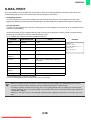
E-MAIL PRINT
An e-mail account can be configured in the machine to have the machine periodically check your mail server and
automatically print received e-mail attachments without using the printer driver.
• Configuring settings
To use E-mail Print, you must first configure an e-mail account in the machine. To configure an account, click
[Application Settings] and then [E-mail Print Settings] in the Web page menu. (Administrator rights are required.)
• Using E-mail Print
To print a file using E-mail Print, use your e-mail program on your computer to send the file as an attachment to the
machine's e-mail address.
Control commands can be entered in the message of the e-mail to specify the number of copies and print format.
Commands are entered in the format "command name=value".
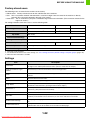
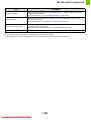
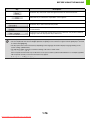
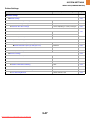
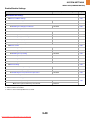
As an example, the control commands include the following:
Function
Command name
Values
Copies
COPIES
1-999
Staples*1
STAPLEOPTION
NONE, ONE
Output
COLLATE
OFF, ON
2-sided print
DUPLEX
OFF, TOP, LEFT, RIGHT
Account
number*2
ACCOUNTNUMBER
Number (5 to 8 digits)
File type
LANGUAGE
PCL, PCLXL, POSTSCRIPT, PDF, TIFF,
JPG, XPS
Paper
PAPER
Name of available paper (A4, LETTER, etc.)
Print hold
FILE
OFF, ON
Black & white
printing
B/W PRINT
OFF, ON
Fit to page
FITIMAGETOPAGE
OFF, ON
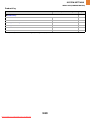
Example
COPIES=2
DUPLEX=LEFT
ACCOUNTNUMBER=11111
PAPER=A4
B/W PRINT=ON
*1 Only effective when a finisher is installed.
*2 Can be omitted except when authentication is by user number.
• Enter the commands in Plain Text format. If entered in Rich Text format (HTML), the commands will have no effect.
• To receive a list of the control commands, enter the command "Config" in the e-mail message.
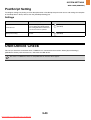
• If nothing is entered in the body text (message) of the e-mail, printing will take place according to the "Printer Default
Settings" (Web page only) in the system settings. If you printed a file (PCL, PS, or XPS) that includes print settings, the
settings will be applied.
• Only enter a "File type" when you are specifying a page-description language. Normally there is no need to enter a file
type.
2-78
Downloaded From ManualsPrinter.com Manuals