1
Cubase LE Installation Guide/ Control Surface Operation Guide
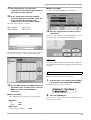
11. Use drag & drop to copy the folder
"CTRL_SF" from the "Factory Recover CD" to
the hard disk of the computer.
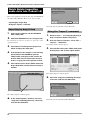
■ When using MIDI
Select the corresponding MIDI port of the interface.
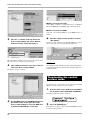
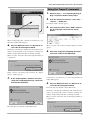
12. In the "Import Generic Remote"window,
select the setup file located in the "CTRL_SF"
folder copied to the hard disk of the
computer. Then click the "Open" button.
The name of the setup file is as follows.
HD8 setup file: . . . . . CBLE_8.xml
HD16 setup file: . . . . CBLE_16.xml
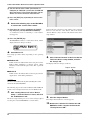
14. Click the "Apply" button and then click the
"OK" button.
The device setup window closes. The HD8/HD16 can now be
used to remotely control the Cubase LE application.
Click the "Open" button to load the Generic Remote setup file.
The contents of the file are reflected in the setup window.
HINT
The settings are automatically saved by Cubase LE. When you
start Cubase LE the next time, the setup procedure is no longer
necessary.
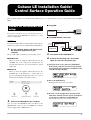
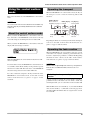
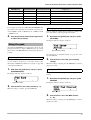
Terminating the control surface mode
To terminate the control surface mode and return the HD8/
HD16 to normal operation, proceed as follows.
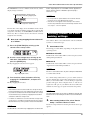
1.
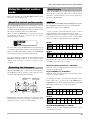
13. Use the MIDI input port and MIDI output port
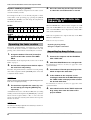
From the main screen, hold down the [SHIFT]
key and press pad 2 (CONTROL SURFACE).
The display indication changes as follows.
pull-down menus of Cubase LE to select the
MIDI port to which the HD8/HD16 is
connected.
■ When using USB
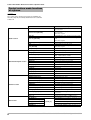
Select MIDI input and output port from the following.
●Windows
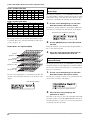
Control Surface
Terminate?
2.
Press the [ENTER] key.
The main screen appears again and the HD8/HD16 resumes
normal recorder operation.
XP . . . . . . . "USB"
VISTA . . . . "MIDI"
●Macintosh
Mac OS X 10.2 and later. . . . "MIDI"
Cubase LE Installation Guide/Control Surface Operation Guide
3