1
Cubase LE 4 Installation Guide/ Control Surface Operation Guide
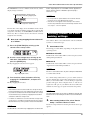
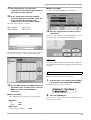
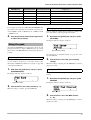
The HD8/HD16 is now set to Mackie Control mode, and the
display changes as follows.
Icon indicating Mackie Control mode
Currently loaded key mapping file
CUBASE
:Rec
Function assigned to status key
built in. Regarding files for other DAW software applications,
please visit the web site of ZOOM Corporation (http://
www.zoom.co.jp).
NOTE
• It is not possible to operate Cubase LE 4 in Generic Remote
mode. Be sure to select Mackie Control mode.
• If the above screen appears when selecting control surface
mode in step 2, Mackie Control mode is already selected. In this
case, steps 3 - 5 are not required.
The first line of the display shows the Mackie Control mode
icon and the currently loaded key mapping file (a setup file that
assigns the control keys of the HD8/HD16 to DAW software
functions). The second line shows the function currently
assigned to the status key.
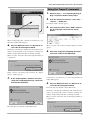
6.
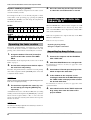
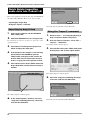
Next, load a key mapping file for Cubase LE
4, as follows.
(1) Press the [FUNCTION] key to bring up the
control surface setup screen.
CTRLR SETUP 1/2
>MODE SELECT
(2) Use the cursor left/right keys to bring up the
indication "FILE SELECT" on the display, and
press the [ENTER] key.
The key mapping file selection screen appears.
File Select
CUBASE.BDF
Key mapping file name
(3) Turn the dial to select the Cubase LE 4 key
mapping file "CUBASE.BDF", and press the
[ENTER] key.
The key mapping file is loaded.
NOTE
Starting Cubase LE 4 and
making settings
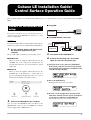
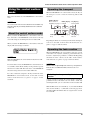
Start Cubase LE 4 as described below and select Mackie
Control as control surface type.
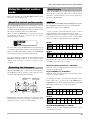
1.
Start Cubase LE 4.
The startup procedure differs, depending on the platform and
operating system.
■ Windows Vista/XP
Double-click on the Cubase LE 4 icon that was placed on the
desktop during installation.
■ MacOS X
Double-click on the Cubase LE 4 icon that was placed in the
"Applications" folder during installation.
NOTE
Be sure to start Cubase LE 4 only after setting the HD8/HD16
to control surface mode.
To continue using Cubase LE 4, a process called activation
(license authentication and product registration) is necessary.
When you start Cubase LE 4, a screen offering to register the
product will appear. Select "Register Now". A web site for
registration will open in your Internet browser. Follow the
instructions on that page to register and activate the product.
• When Mackie Control mode and USB mass storage mode are
being used simultaneously, a key mapping file cannot be loaded.
• If you want to use Mackie Control mode and USB mass storage
mode simultaneously, load the key mapping file first and then
activate the USB mass storage mode.
HINT
The subsequent steps are the same for Windows Vista/XP and
MacOS X. The screen examples shown here are from Windows
Vista.
• For details on simultaneous use of the USB mass storage mode,
see the section "Using Mass Storage Mode and Control Surface
Mode Simultaneously" in the operation manual of the HD8/HD16.
HINT
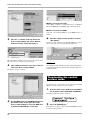
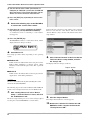
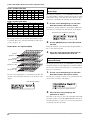
2.
After starting Cubase LE 4, select "Device
Setup..." from the "Devices" menu.
The device setup window for selecting the remote device type
appears.
The HD8/HD16 comes with a key mapping file for Cubase LE 4
Cubase LE 4 Installation Guide/Control Surface Operation Guide
3