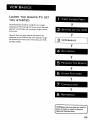
1
ADDITIONAL
PREFERENCES
SET
UP FEATURES
MENU
IN THE
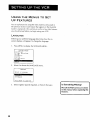
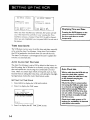
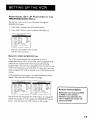
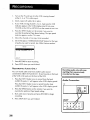
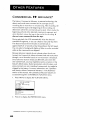
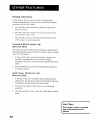
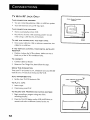
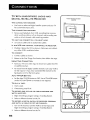
The features in this section are all accessed through
PREFERENCES menu.
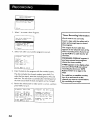
1.
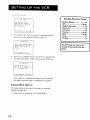
Press MENU
to display the VCR MAIN
2.
In the MAIN
MENU,
the
MENU.
press 6 to select PREFERENCES.
PREFERENCES
2
Auto
PLay:
OFF
3
Auto
TV/VCR:
OFF
4
5
EnergySaver:
Front
Panel:
2:00
BRIGHT
6
Tape
SLP
7
8
Set
Auto
Commercial
0
Exit
Speed:
Repeat
Advance
Now you are ready to select an item
from the menu to set up.
REMOTE
VCR
1/VCR2
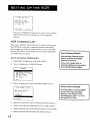
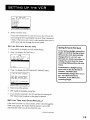
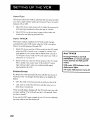
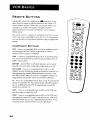
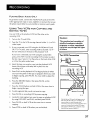
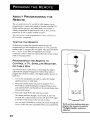
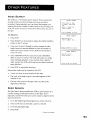
The VCR's remote control
compatible
automatically
programmed.
OPTION
unit can operate up to two
Proscan, RCA, or GE VCRs. Most compatible
VCRs
respond to the VCR1 button without being
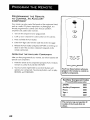
If you own two compatible VCRs, test them to see
if the VCR1 button turns on both VCRs. tf it does, then you may
want to program this VCR to respond to the VCR2 button on the
remote.
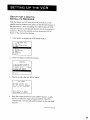
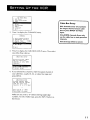
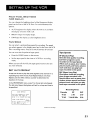
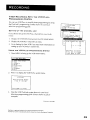
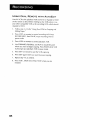
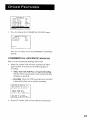
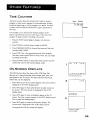
In the preferences
menu, press 1 to select the Remote Control
feature. Then press the VCR2 button to change.
PREFERENCES
PREFERENCES
2
Auto
Play:
ON
3
Auto
TV/VCR:
ON
2
3
Auto
Auto
4
EnergySaver:
2:00
A
EnergySaver:
2:00
BRIGHT
5
Front
BRIGHT
SLP
6
Tape
7
Set
8
0
Commercial
Exit
5
Front
6
Tape
Panel:
7
8
Set
Auto
Commercial
0
Exit
Speed:
Repeat
Advance
Play:
TV/VER:
OFF
OFF
Panel:
Speed:
Auto
SLP
Repeat
Advance
Remote
Control
Option
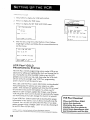
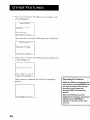
Remember
you must press VCR I
orVCR2
on the remot_
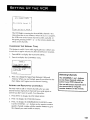
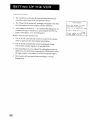
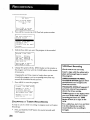
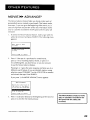
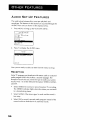
The VCR will only respond to the VCR2 button. To change the
remote setting back to VCR1, display the PREFERENCES menu,
whichever you selected in the
menu--before
the remote will
press 1, and then press the VCR1 button on the remote.
operate
theVCR.
]
19