1
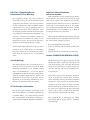
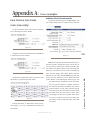
OLED Display
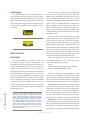
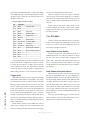
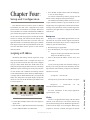
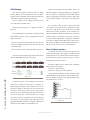
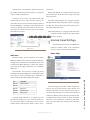
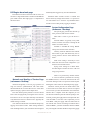
The OLED display will present the 10 character label or alternate label of the station or source assigned
to the key. Rackmount and desktop models will present
additional indicators on the display if the Talk button has
been disabled, if the trigger value is higher than the station, or if the call request has been issued but a response
is pending.
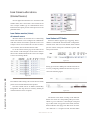
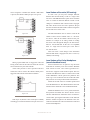
Talk Disabled
Call Pending
Other Controls
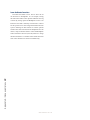
CALLSTACK
3: Operation • 8
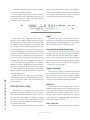
The CALLSTACK key is a flexible key used to allow additional station-to-station communication even
though that a station is not assigned. Select models have
a CALLSTACK. When one station calls another station
and the receiving station does not have the calling station assigned to a channel, the call is processed through
the CALLSTACK. If the trigger levels are set accordingly, the call will be heard by the receiving station and
the CALLSTACK will show an indication of the calling
station on the OLED. The button(s) of the CALLSTACK
can than be used to respond back. If the receiving station has a higher trigger value, then the receiving station
would need to press the button on the CALLSTACK to
acknowledge the call.
NOTE: On models without a CALLSTACK, a call
will still be received by the 2nd station by default,
but the station will have no indication of who
called. The receiving station will have no means
to engage with the caller. The caller would need
to establish a Talk/Listen state in order for twoway communication. Also be aware of trigger
levels. If the receiving station has a higher trigger value and no CALLSTACK, then the call will
not be processed because the receiver has no
acknowledge button.
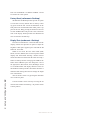
On select models, in addition to the CALLSTACK
are a Select knob, Assign button, and Group button. The
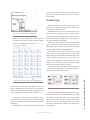
OLED of the CALLSTACK will display the last 4 processed calls. With the use of the Select knob, one of the
4 stations can be highlighted and the Talk button can be
used to engage in communication. With a station highlighted, pressing the Assign button will cause the Assign
LED to blink and allow for assigning the station to a
key by pressing a button of the key. Note that any Talk
or Listen settings associated with the key do not change
through this process.
The Group button enables the talk state to multiple
channels with a single button. Assigning channels to the
group is done by pressing the Assign button so that the
assign function is enabled (indicated by the assign LED
blinking) and then pressing the Group button. The Group
LED will blink to indicate the ability to define the group.
Pressing keys assign the keys to the group. The LED of
the key will illuminate to indicate assignment. Pressing
the button again will un-assign. Pressing the Group button again terminates the assignment to the group.
Other than showing the last processed calls, the
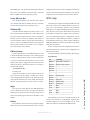
CALLSTACK OLED will also present some menu
items. The menu items are as follows:
Assign
Shift (if additional shift pages have been defined)
Status (for Rackmount/Desktop units)
The Select knob allows for highlighting a menu.
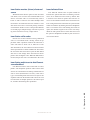
While a menu is highlighted, the Assign icon is shown
to the right of the menu title. Pressing the Assign button
enters into that menu. Note this behavior as highlighting
of a menu item changes the function of the Assign button.
Assign menu shows a listing of stations and defined
external sources which can be defined to keys. Scroll
through the list with the Select knob and pressing the
Assign button to enter into assign mode (indicated by
the Assign LED blinking). Pressing any key assigns the
selection to the channel and exits assign mode. At the
bottom of the list is a Back option which exits the menu.
Shift menu is shown if multiple Shift pages have
been defined. Shift pages allow for different collection
of key assignments. Entering into Shift menu shows the
listing of Shifts, selecting the shift and pressing the Assign button will change the channel assignments. If the
©2014 Axia Audio - Rev.1.3.8