1
AXIS Camera Station
Troubleshooting
Troubleshooting
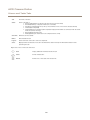
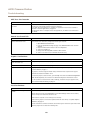
Audio Problems
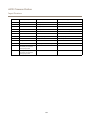
Problem
Solution
No audio in Live View
If there is no audio in Live View, check the following:
• Check that the camera has audio capabilities.
• Check that the computer has an audio card and that the card is enabled.
• Check that audio is enabled in Live View, see Enable Audio in Live View, on page 42.
• Make sure the user has access rights to audio.
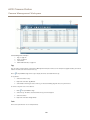
To check and modify user access rights:
Note: To follow these steps you must have administrator rights to AXIS Camera Station
1. Go to Configuration > User Permissions.
2. Select the user or group and click Edit
3. Click Advanced. Make sure that Audio is selected
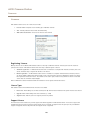
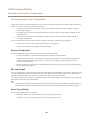
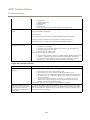
No audio in split views
When using default settings, audio is not available in split views. To change the default
settings:
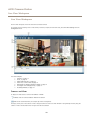
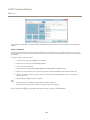
1. Go to Configuration > Live View Settings.
2. Select the camera and click Edit to open Live View Settings.
3. Click Large Splits.
4. Change the settings under Overrides. Enable audio by changing the media profiles
or clear the appropriate boxes to disable the overrides.
Note: Audio cannot be used with M-JPEG video. Select another video format.
No audio in sequence views
Make sure that audio is enabled in media profile used by the first view in the sequence. This
media profile is used for all views in the sequence. See Enable Audio in Live View, on page 42.
If the sequence is part of a split view, enable audio in the split view overrides, see “No audio
in split views”, above.
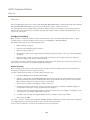
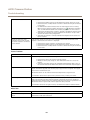
No audio in playback
Audio is available in playback if audio was enabled in the media profile used for the recording.
Note: Audio cannot be used with M-JPEG video. Select another video format.
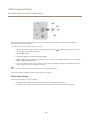
Continuous, motion detection and manual recordings
To enable audio:
1. Go to Configuration > Recording Settings.
2. Select the camera and click Continuous, Motion Detection or Manual.
3. Select a media profile where audio is enabled. If there is no such profile, click
Change and select the Audio box.
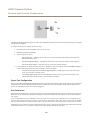
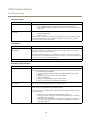
Rule-triggered recordings
To enable audio in an existing rule:
1.
2.
3.
4.
Go to Configuration > Event Configuration.
Select the rule and click Edit
In step Actions, select the Record action and click Edit.
Select a media profile where audio is enabled. If there is no such profile, click
Change and select the Audio box
5. Click Finish to save.
67