Download DVS Clipster User guide
Transcript
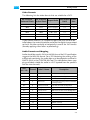
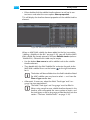
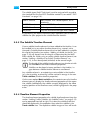
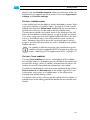
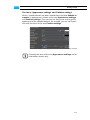
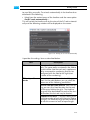
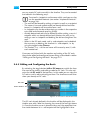
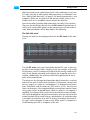
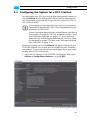
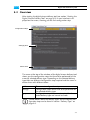
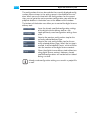
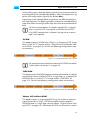
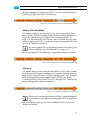
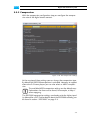
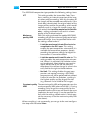
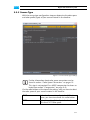
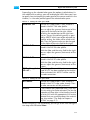
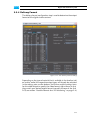
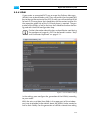
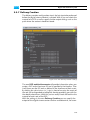
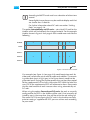
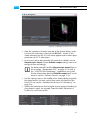
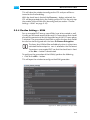
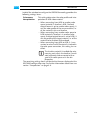
Getting Started Figure 2-6: The subtitles of the track Slip subtitle… Allows you to adjust the in- and outpoints of subtitles in a single step. It can be used either on one subtitle, a selection of subtitles or on all. Positioning Determines where the timeline cursor will be positioned when a subtitle is selected from the list (e.g. at time in/out, after its fade in, before its fade out, or in the middle of a subtitle). Select all Selects all subtitles in a single step. The Area ’Subtitle elements’ Once a subtitle has been selected from the table Track subtitles, its elements are displayed in the area Subtitle elements: Either the subtitle text(s) or the path to the PNG image(s). Additionally, you can use this area to add further elements to a subtitle with the button NEW IMAGE. Figure 2-7: The elements of a subtitle A mixing of MXF/XML subtitles with PNG images at one position is not allowed. Currently only PNG images can be added to a subtitle. 2-16