1
Varying Document Formatting Using Section Breaks
Use section breaks in your document wherever you want to separate your document
into sections with different layouts, numbering, or other document formatting. You
can use sections to make the following formatting elements different from one part of
your document to the next:
 Formatting and layout attributes
 Headers
 Footers
 Page numbering
 Margins
 Column layout
 Master objects (repeated background images)
Creating Sections
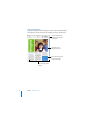
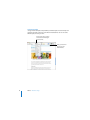
A section consists of one or more pages that end with a section break.
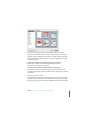
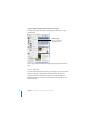
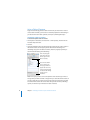
Each Pages template consists of one or more predefined sections. Every time you add
pages to the document by using the Pages button in the toolbar, you add a new
section.
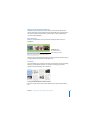
You can use the predefined sections as they are, or you can create or remove section
breaks to define your own sections.
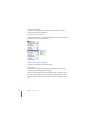
To create a section break:
m Choose Insert > Section Break.
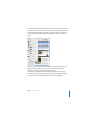
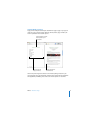
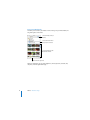
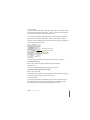
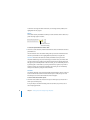
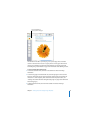
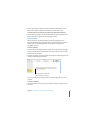
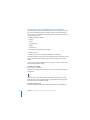
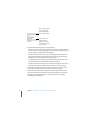
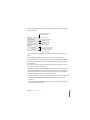
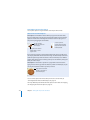
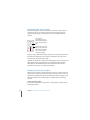
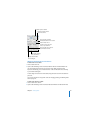
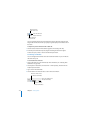
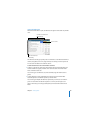
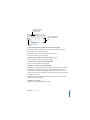
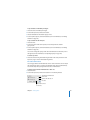
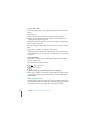
When you show invisibles in your document, you’ll see a section break symbol that
looks like this:
After you create a section break, changes made to the master objects (see “Using
Master Objects” on page 74), headers, footers, or page numbering will apply only to
the section in which you make the changes.
To remove a section break:
m Click at the beginning of the line that follows the break and press the Delete key.
72
Chapter 3 Formatting a Document’s Layout and Table of Contents