1
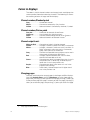
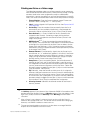
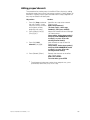
Modifying a recorded cue live
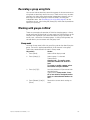
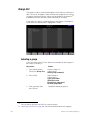
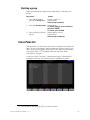
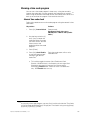
Previous examples in this chapter illustrated how to record new cues. If
you want to modify channels in a recorded cue, you can play back the cue
in Stage, make the changes, and then re-record the cue.51 The
modifications immediately affect the look on stage. You can also record
the live look you created to another cue.
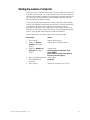
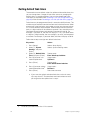
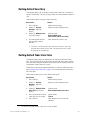
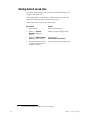
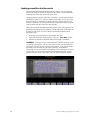
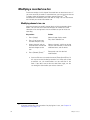
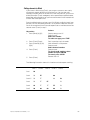
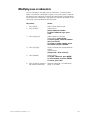
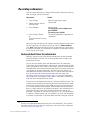
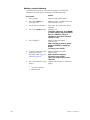
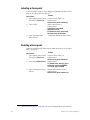
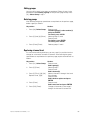
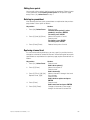
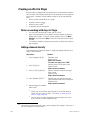
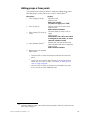
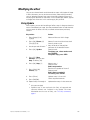
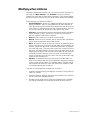
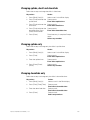
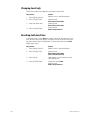
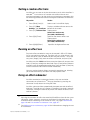
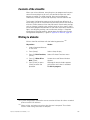
Modifying channels in a cue
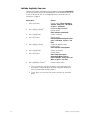
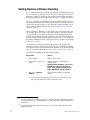
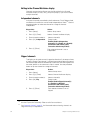
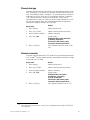
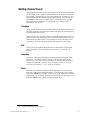
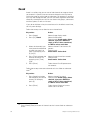
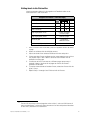
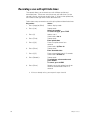
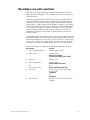
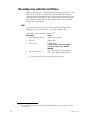
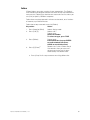
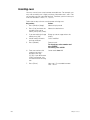
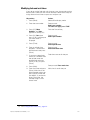
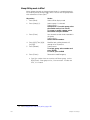
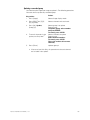
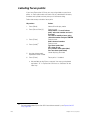
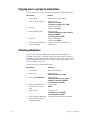
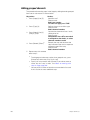
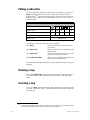
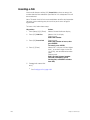
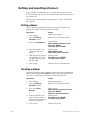
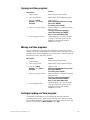
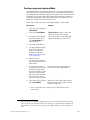
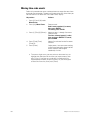
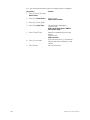
Add new channels or modify channel levels with the procedure given
below. You can use all the same techniques for channel or fixture
selection or for setting levels that are available to you for initial cue
recording.
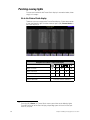
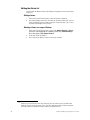
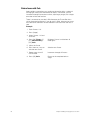
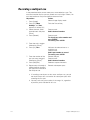
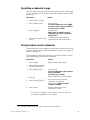
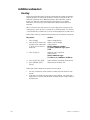
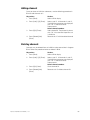
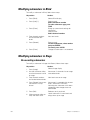
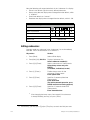
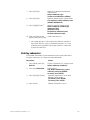
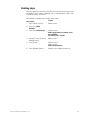
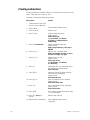
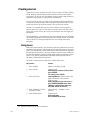
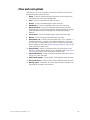
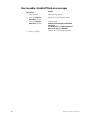
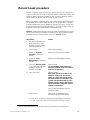
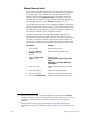
Keystrokes:
Action:
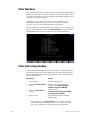
1. Press [Stage].
Selects Stage display mode
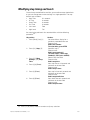
2. Press [Cue], enter cue
number and press [Go].
Plays back selected cue
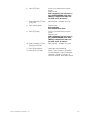
3. Select channels and set
channel levels to make the
desired changes to the
cue.
Selects channels, which can be the
same as those already in the cue or
additional ones, and set levels
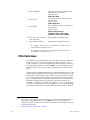
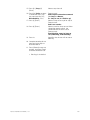
4. Press [Record] [Enter].a
Re-records cue with desired
modifications
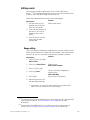
a. Insert a different cue number between [Record] and [Enter] in
this step to record the look to another cue. When you record
to another cue, the modifications are not reflected in the
fader. If you don’t want to lose the look from stage, run the
cue through a fader before you release channels.
51.
94
If you are not familiar with procedures for playing back cues, see Chapter 10
Playing back cues, page 119.
Chapter 7 Cues