1
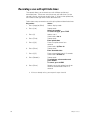
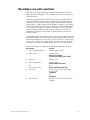
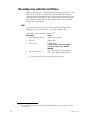
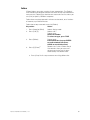
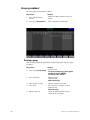
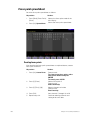
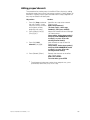
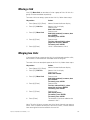
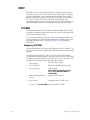
Editing a focus point in Blind
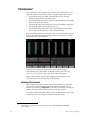
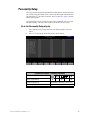
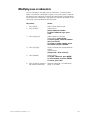
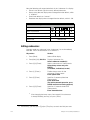
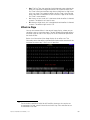
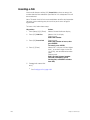
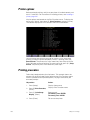
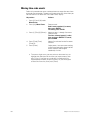
You may modify a focus point in Blind. For example, add or delete fixtures
or set levels of fixture attributes.
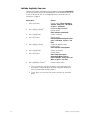
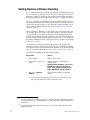
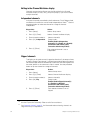
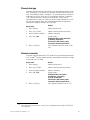
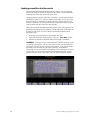
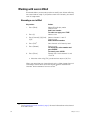
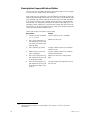
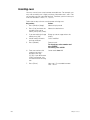
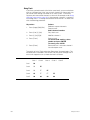
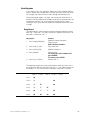
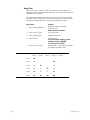
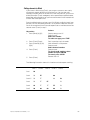
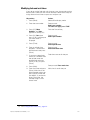
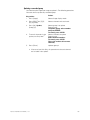
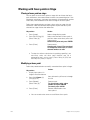
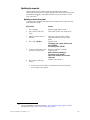
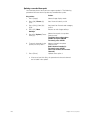
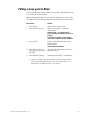
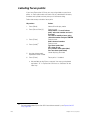
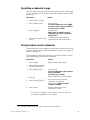
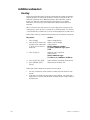
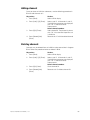
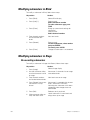
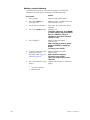
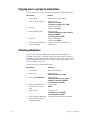
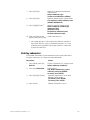
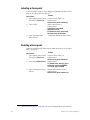
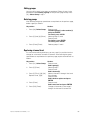
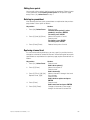
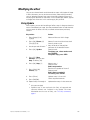
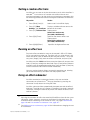
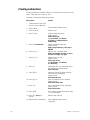
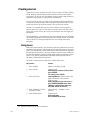
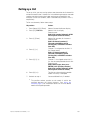
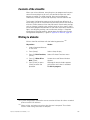
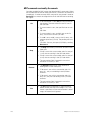
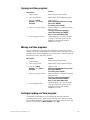
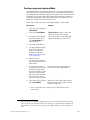
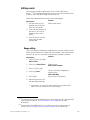
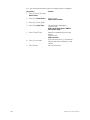
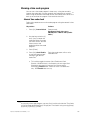
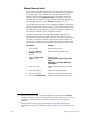
Follow the procedure below to set fixture attribute levels in a focus point.
The selected fixtures need not already be represented in the focus point.
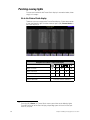
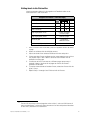
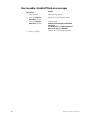
Keystrokes:
Action:
1. Press [Blind].
Selects Blind display mode
2. Press [Focus Point] [1].
Selects focus point 1’s channels
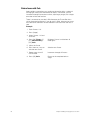
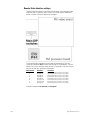
Prompt reads:
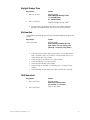
Group mode – To recall a focus
point, select the number and set it to
a level
To create or modify a focus point,
select the number and press ENTER
3. Press [Enter].
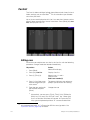
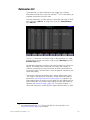
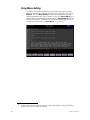
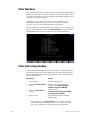
Displays non-zero levels of all focus
point channels
Prompt reads:
Select channel numbers
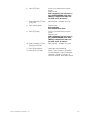
4. Press [S8], Fixture, [8]
[Thru] [1][2] [Only] [Color]
[At] [5][0].
Sets the color attribute(s) of fixtures 8
through 12 to 50
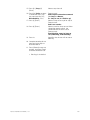
5. Press [Record] [Enter].a
Re-records focus point 1 as modified
a. Specify a number here to record to a different focus point,
such as [Record] [5][0] [Enter]. If that focus point exists, it is
overwritten. If it does not exist, it is created.
Express 125/250 User Manual, v.3.1
147