1
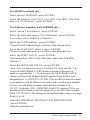
Select TRANSACTION TIME OUT <press ENTER>
(This controls how long the terminal will restrict between badge
swipes. Example: You want to keep your employees off the terminal
for at least 30 minutes for lunch, then set Transaction Time Out to 30.)
Select TERMINAL ID <press ENTER>
(default is 1, select the ID for terminal, each terminal MUST have a
unique ID)
The terminal MUST be powered down and back up to accept the
new TCPIP information.
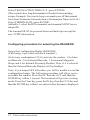
Configuring procedure for selecting the READERS:
Swipe the Configuration Badge 000000000
(This badge is provided with each terminal.)
(Select any combination 1234 to activate the readers. 1 for Internal Barcode, 2 for External Barcode, 3 for Internal Magnetic
Stripe and 4 for Internal Proximity Reader) Note, if 4 is selected
then the External Barcode Reader will be disabled.
Note, if you turned OFF all readers you will be unable to read the
configuration badge. The following procedure will allow you to
re-enable the readers. Press the IN, then the OUT and then the
ENTER key within 1 second. The terminal will go into a testing
mode. Press the Clear key, press the IN key, then the OUT key and
then the ENTER key within 1 second or before the time is displayed.
12 Ports and connections