1
Getting Started
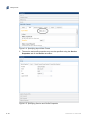
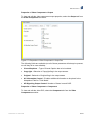
3. For seamless buffer delay, specify the Video Delay your application can
tolerate.
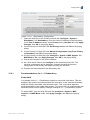
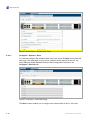
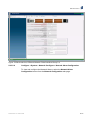
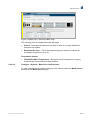
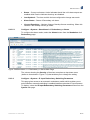
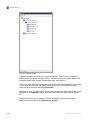
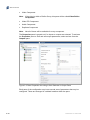
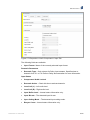
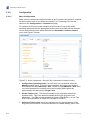
See Chapter 5, Web GUI Control for details of the Properties widget.
3.9
How to Change Settings across Multiple Profiles and/or
Services
This is useful when you want to change a single setting, e.g. Audio bit rate, and
want it to affect some, or all, current output services.
In general, changing a setting in the properties pane will apply to all entities at or
below the current selection in the Outputs pane. This is best illustrated by an
example.
Examples:
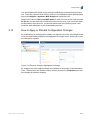
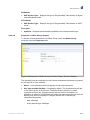
To change the audio bit rate for all your output services:
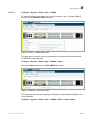
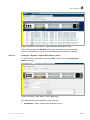
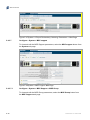
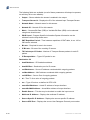
1. On the Configure > Services screen, select the IP Output Data Port in the
Outputs pane.
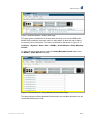
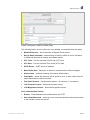
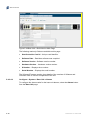
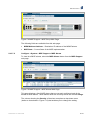
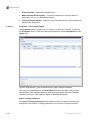
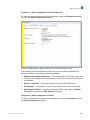
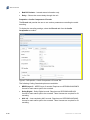
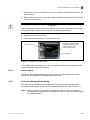
2. Select the Audio Component accordion. Notice that the bottom of the
Properties pane states how many audio components this will actually apply to.
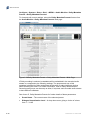
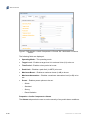
3. Select the Encode tab and change the bit rate.
4. Click Apply All to set the bit rate across all your Output Services.
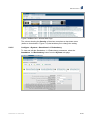
A similar effect can be achieved by using Ctrl-click to select multiple entities in the
Outputs pane, e.g. to change the video bit rate of all your 1280x720 profiles.
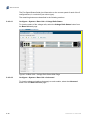
1. Expand all your services in the Outputs pane.
2. Hold Ctrl key down and highlight all the 1280x720 profiles.
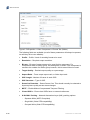
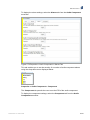
3. Expand the Video Component tab in the Properties pane.
4. Select the Encode tab and set the bit rate.
5. Click Apply All to set the bit rate across all your selected profiles.
3.10
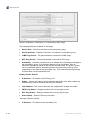
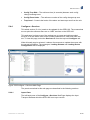
How to Make a Secondary Input
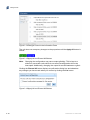
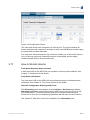
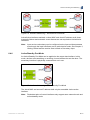
This is used when you want to make one of the inputs a Secondary (backup) for a
particular Primary input. This Secondary multicast input can be on the same
physical data interface or on the other physical data interface. Once this has been
set up then if the Primary TS fails then the Secondary will be switched into its place.
Note:
3-12
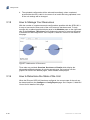
This is only useful if the Secondary has exactly the same line up of services
as in the Primary.
2/1553-FGC 101 1400 Uen B