1
Maximum I/O Configuration
Pro Tools|HD Native supports up to a maximum
combination of up to four total of the following
audio interfaces:
• HD OMNI (only one HD OMNI is supported in a single Pro Tools|HD system)
• HD I/O (up to four HD I/O can be used simultaneously)
• HD MADI (full connectivity with one
HD MADI is possible when both DigiLink
ports of the HD MADI are connected to
both DigiLink ports on the Pro Tools|HD
Native card)
• 192 I/O (up to four 192 I/O can be used simultaneously)
• 192 Digital I/O (up to four 192 Digital I/O
can be used simultaneously)
• 96 I/O (up to four 96 I/O can be used simultaneously)
• 96i I/O (up to two 96i I/O can be used simultaneously)
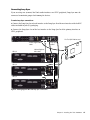
For an example of connecting multiple
Pro Tools|HD audio interfaces, see Figure 2 on
page 17.
Pro Tools|HD audio interfaces need room at
their sides to maintain proper air flow for
cooling. Do not block the sides of the unit or
disconnect the internal fan. If the units are
rack-mounted in a case, remove the case
lids or doors before operating the system.
Failure to do so can result in the units overheating very quickly, which can permanently damage sensitive components.
18
Pro Tools|HD Native User Guide
Installing and Authorizing
Pro Tools HD Software
Once you have installed your Pro Tools|HD Native hardware in your computer, you can install
and authorize your Pro Tools HD software.
For complete installation and authorization instructions, see the Pro Tools Installation Guide
that came with your Pro Tools Software package.
Configuring Your Pro Tools
System
After you have installed, authorized, and
launched Pro Tools software, you can configure
your Pro Tools system to meet the specific needs
of your studio. For detailed information on configuring your Pro Tools software, see the
Pro Tools Reference Guide (which is available
from the Help menu in Pro Tools).