1
Storing and Retrieving Test Results Chapter
5
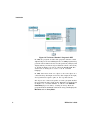
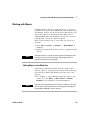
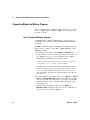
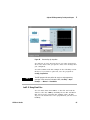
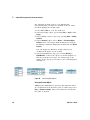
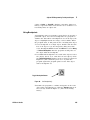
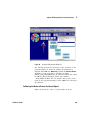
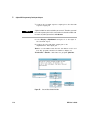
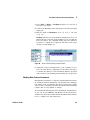
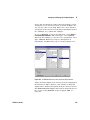
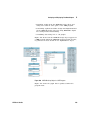
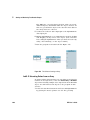
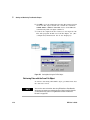
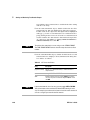
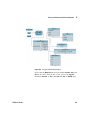
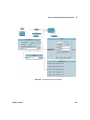
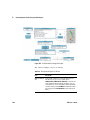
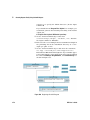
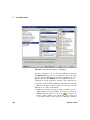
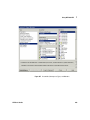
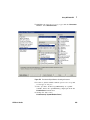
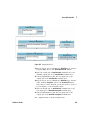
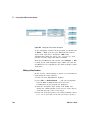
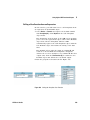
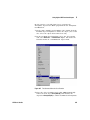
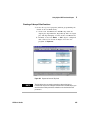
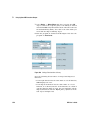
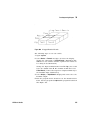
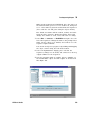
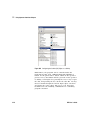
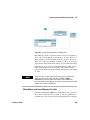
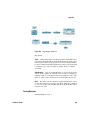
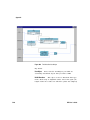
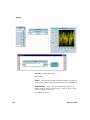
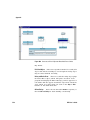
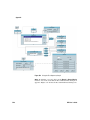
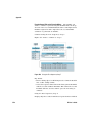
4 Select the Function & Object Browser icon from the tool bar.
a Choose Built- in Functions, Probability & Statistics, and
random to create the random (low, high) object. Place the
object below the Formula object.
b Delete the input terminals, and change the input
parameters from low to 0, and from high to 1.
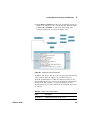
c Rename the object Random Number, and connect its data
output to the B terminal of Build Record.
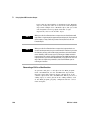
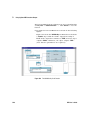
5 Connect the Formula sequence output pin to the sequence
input pin of Random Number. Connecting the sequence pins
ensures that each iteration of the program puts a new
random number into the B field of the particular record.
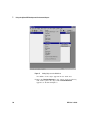
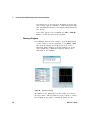
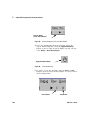
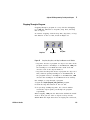
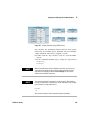
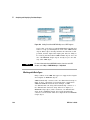
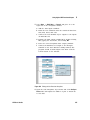
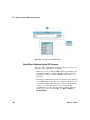
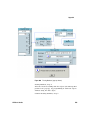
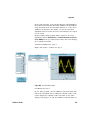
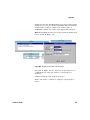
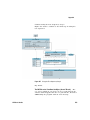
6 Select Data ⇒ Constant ⇒ Real64. Place the Real64 object
below the Formula object.
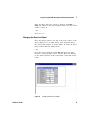
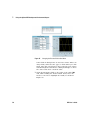
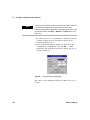
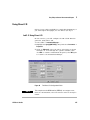
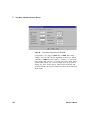
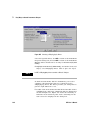
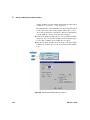
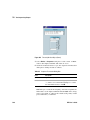
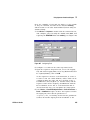
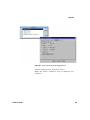
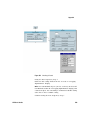
a Open the object menu and click Properties. Type Real
Array for the title, under Configuration click 1D Array, and
change the Size to 3. Click OK.
b Highlight each entry in the array by double- clicking and
typing in the numbers 1, 2, and 3.
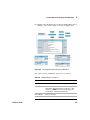
c Connect the Real Array data output to the C terminal on
Build Record.
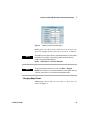
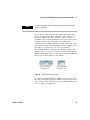
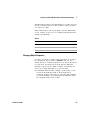
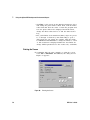
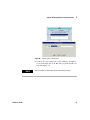
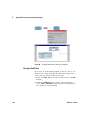
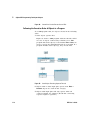
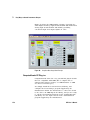
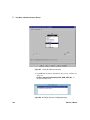
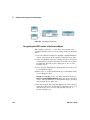
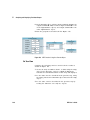
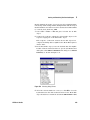
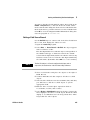
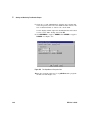
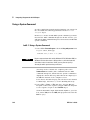
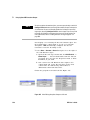
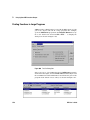
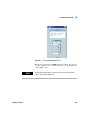
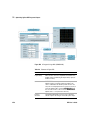
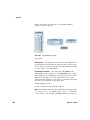
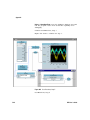
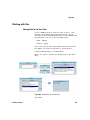
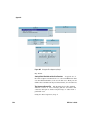
7 Select I/O ⇒ To ⇒ DataSet and place the object under Build
Record. Connect the data output of Build Record to its data
input. Leave the default file name myfile, and check Clear File
At PreRun.
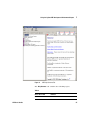
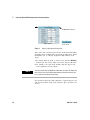
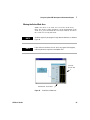
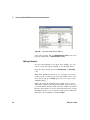
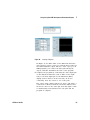
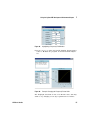
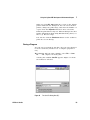
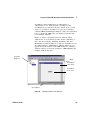
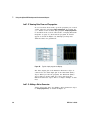
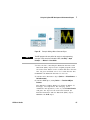
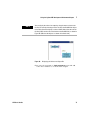
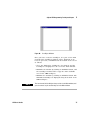
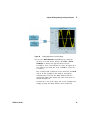
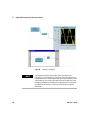
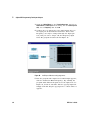
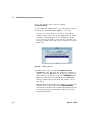
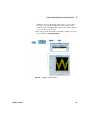
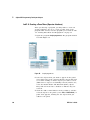
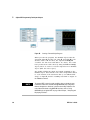
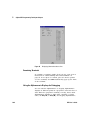
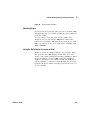
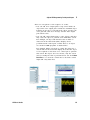
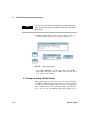
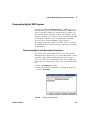
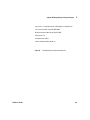
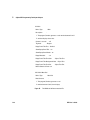
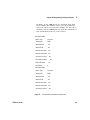
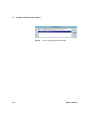
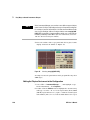
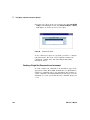
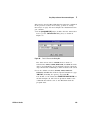
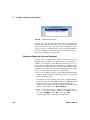
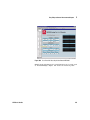
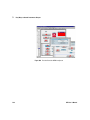
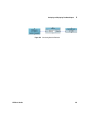
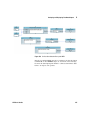
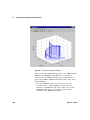
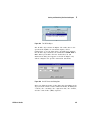
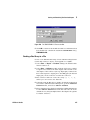
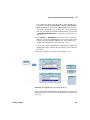
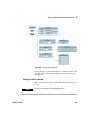
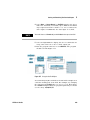
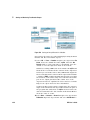
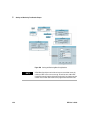
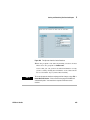
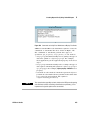
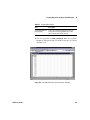
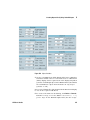
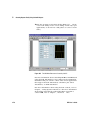
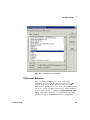
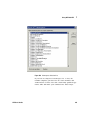
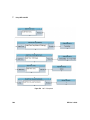
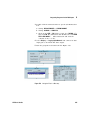
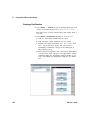
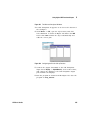
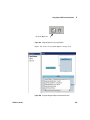
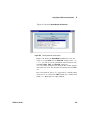
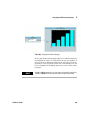
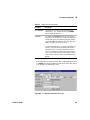
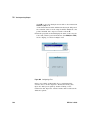
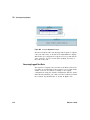
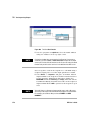
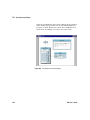
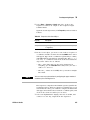
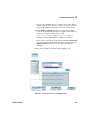
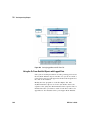
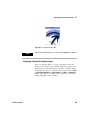
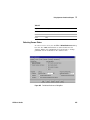
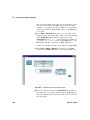
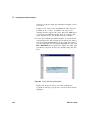
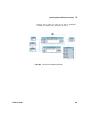
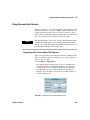
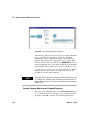
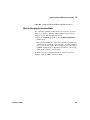
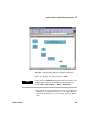
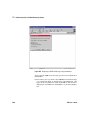
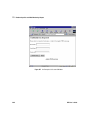
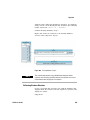
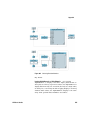
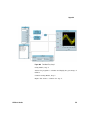
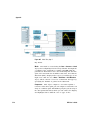
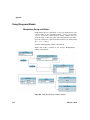
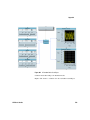
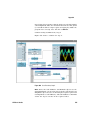
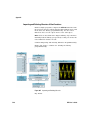
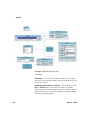
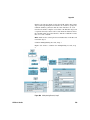
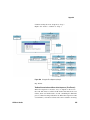
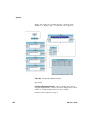
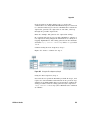
8 Run the program. It should put an array of ten records into
the DataSet called myFile, as shown in Figure 139.
VEE User’s Guide
233