1
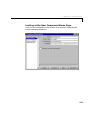
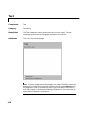
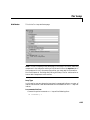
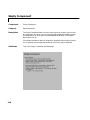
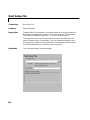
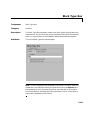
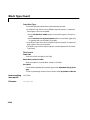
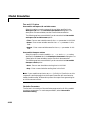
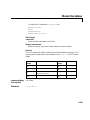
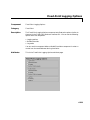
Stateflow Name (Chart)
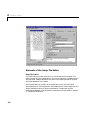
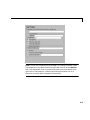
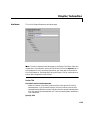
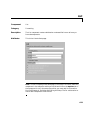
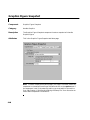
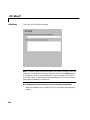
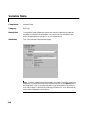
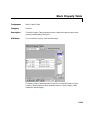
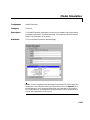
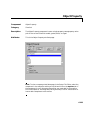
Note To view a component attribute page in the Setup File Editor, select the
component in the setup file outline on the left and click on the Options tab. If
the component is not in the setup file outline, you must add it to the outline
first. See Chapter 4, “Building and Editing the Setup File” for a discussion on
how to add a component to the outline.
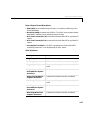
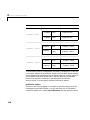
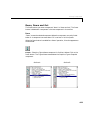
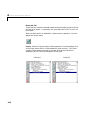
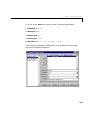
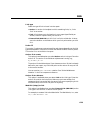
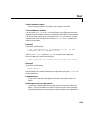
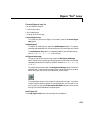
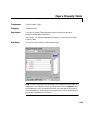
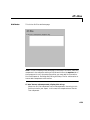
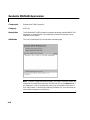
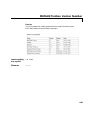
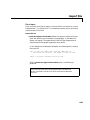
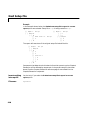
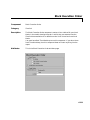
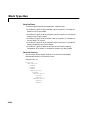
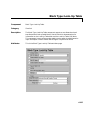
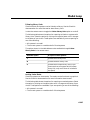
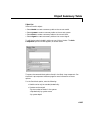
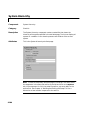
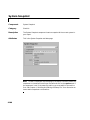
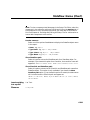
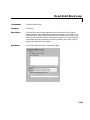
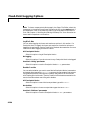
Render name as:
Select one of the options listed below to display the Stateflow object name
in the report:
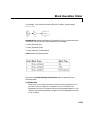
•Name - e.g., Object
•Type Name - e.g., Object <ObjectName>
•Type - Name - e.g., Object - <ObjectName>
•Type: Name - e.g., Object: <ObjectName>
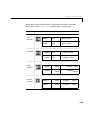
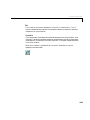
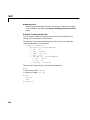
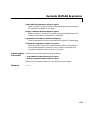
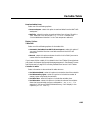
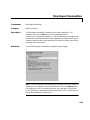
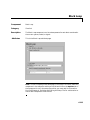
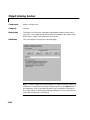
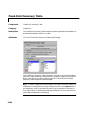
Show Stateflow path
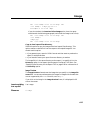
Select this option to show the Stateflow path for a Stateflow object. For
example, if you choose this option for a transition, the transition name will
appear as: <Machine Name>/<Chart Name>/<State Name>/<Transition>.
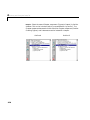
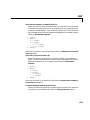
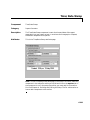
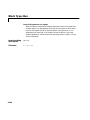
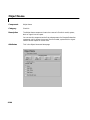
Show Simulink and Stateflow path
Select this option to show the full Simulink and Stateflow path name for a
Stateflow object. This option is only available if you choose the Show
Stateflow path option. If you choose this option for a state, the state name
will include the entire Simulink path and appear as:
<Model (or Machine) Name>/<System Name>/<Block (or Chart) Name>/
<State Name>.
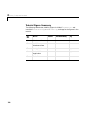
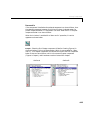
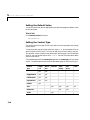
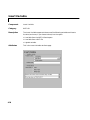
Insert anything
into report?
Yes. Text.
Filename
csfobjname
6-201