1
INSTALLATION AND
OPERATION MANUAL
Optimux-34
Fiber Optic Multiplexer
Version 2.81
The Access Company
Optimux-34
Fiber Optic Multiplexer
Version 2.81
Installation and Operation Manual
Notice
This manual contains information that is proprietary to RAD Data Communications Ltd. ("RAD").
No part of this publication may be reproduced in any form whatsoever without prior written
approval by RAD Data Communications.
Right, title and interest, all information, copyrights, patents, know-how, trade secrets and other
intellectual property or other proprietary rights relating to this manual and to the Optimux-34
and any software components contained therein are proprietary products of RAD protected
under international copyright law and shall be and remain solely with RAD.
The Optimux-34 product name is owned by RAD. No right, license, or interest to such trademark
is granted hereunder, and you agree that no such right, license, or interest shall be asserted by
you with respect to such trademark. The RAD name, logo, logotype, and the terms EtherAccess,
TDMoIP and TDMoIP Driven, and the product names Optimux and IPmux, are registered
trademarks of RAD Data Communications Ltd. All other trademarks are the property of their
respective holders.
You shall not copy, reverse compile or reverse assemble all or any portion of the Manual or the
Optimux-34. You are prohibited from, and shall not, directly or indirectly, develop, market,
distribute, license, or sell any product that supports substantially similar functionality as the
Optimux-34, based on or derived in any way from the Optimux-34. Your undertaking in this
paragraph shall survive the termination of this Agreement.
This Agreement is effective upon your opening of the Optimux-34 package and shall continue
until terminated. RAD may terminate this Agreement upon the breach by you of any term hereof.
Upon such termination by RAD, you agree to return to RAD the Optimux-34 and all copies and
portions thereof.
For further information contact RAD at the address below or contact your local distributor.
International Headquarters
RAD Data Communications Ltd.
North America Headquarters
RAD Data Communications Inc.
24 Raoul Wallenberg Street
Tel Aviv 69719, Israel
Tel: 972-3-6458181
Fax: 972-3-6498250, 6474436
E-mail: [email protected]
900 Corporate Drive
Mahwah, NJ 07430, USA
Tel: (201) 5291100, Toll free: 1-800-4447234
Fax: (201) 5295777
E-mail: [email protected]
© 1997–2009 RAD Data Communications Ltd.
Publication No. 326-200-03/09
Limited Warranty
RAD warrants to DISTRIBUTOR that the hardware in the Optimux-34 to be delivered hereunder
shall be free of defects in material and workmanship under normal use and service for a period
of twelve (12) months following the date of shipment to DISTRIBUTOR.
If, during the warranty period, any component part of the equipment becomes defective by
reason of material or workmanship, and DISTRIBUTOR immediately notifies RAD of such defect,
RAD shall have the option to choose the appropriate corrective action: a) supply a replacement
part, or b) request return of equipment to its plant for repair, or c) perform necessary repair at
the equipment's location. In the event that RAD requests the return of equipment, each party
shall pay one-way shipping costs.
RAD shall be released from all obligations under its warranty in the event that the equipment has
been subjected to misuse, neglect, accident or improper installation, or if repairs or
modifications were made by persons other than RAD's own authorized service personnel, unless
such repairs by others were made with the written consent of RAD.
The above warranty is in lieu of all other warranties, expressed or implied. There are no
warranties which extend beyond the face hereof, including, but not limited to, warranties of
merchantability and fitness for a particular purpose, and in no event shall RAD be liable for
consequential damages.
RAD shall not be liable to any person for any special or indirect damages, including, but not
limited to, lost profits from any cause whatsoever arising from or in any way connected with the
manufacture, sale, handling, repair, maintenance or use of the Optimux-34, and in no event shall
RAD's liability exceed the purchase price of the Optimux-34.
DISTRIBUTOR shall be responsible to its customers for any and all warranties which it makes
relating to Optimux-34 and for ensuring that replacements and other adjustments required in
connection with the said warranties are satisfactory.
Software components in the Optimux-34 are provided "as is" and without warranty of any kind.
RAD disclaims all warranties including the implied warranties of merchantability and fitness for a
particular purpose. RAD shall not be liable for any loss of use, interruption of business or
indirect, special, incidental or consequential damages of any kind. In spite of the above RAD
shall do its best to provide error-free software products and shall offer free Software updates
during the warranty period under this Agreement.
RAD's cumulative liability to you or any other party for any loss or damages resulting from any
claims, demands, or actions arising out of or relating to this Agreement and the Optimux-34 shall
not exceed the sum paid to RAD for the purchase of the Optimux-34. In no event shall RAD be
liable for any indirect, incidental, consequential, special, or exemplary damages or lost profits,
even if RAD has been advised of the possibility of such damages.
This Agreement shall be construed and governed in accordance with the laws of the State of
Israel.
Product Disposal
To facilitate the reuse, recycling and other forms of recovery of waste
equipment in protecting the environment, the owner of this RAD product is
required to refrain from disposing of this product as unsorted municipal
waste at the end of its life cycle. Upon termination of the unit’s use,
customers should provide for its collection for reuse, recycling or other form
of environmentally conscientious disposal.
General Safety Instructions
The following instructions serve as a general guide for the safe installation and operation of
telecommunications products. Additional instructions, if applicable, are included inside the
manual.
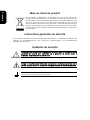
Safety Symbols
This symbol may appear on the equipment or in the text. It indicates potential
safety hazards regarding product operation or maintenance to operator or service
personnel.
Warning
Danger of electric shock! Avoid any contact with the marked surface while the
product is energized or connected to outdoor telecommunication lines.
Protective ground: the marked lug or terminal should be connected to the building
protective ground bus.
Warning
Some products may be equipped with a laser diode. In such cases, a label with the
laser class and other warnings as applicable will be attached near the optical
transmitter. The laser warning symbol may be also attached.
Please observe the following precautions:
•
Before turning on the equipment, make sure that the fiber optic cable is intact
and is connected to the transmitter.
•
Do not attempt to adjust the laser drive current.
•
Do not use broken or unterminated fiber-optic cables/connectors or look
straight at the laser beam.
•
The use of optical devices with the equipment will increase eye hazard.
•
Use of controls, adjustments or performing procedures other than those
specified herein, may result in hazardous radiation exposure.
ATTENTION: The laser beam may be invisible!
In some cases, the users may insert their own SFP laser transceivers into the product. Users are
alerted that RAD cannot be held responsible for any damage that may result if non-compliant
transceivers are used. In particular, users are warned to use only agency approved products that
comply with the local laser safety regulations for Class 1 laser products.
Always observe standard safety precautions during installation, operation and maintenance of
this product. Only qualified and authorized service personnel should carry out adjustment,
maintenance or repairs to this product. No installation, adjustment, maintenance or repairs
should be performed by either the operator or the user.
Handling Energized Products
General Safety Practices
Do not touch or tamper with the power supply when the power cord is connected. Line voltages
may be present inside certain products even when the power switch (if installed) is in the OFF
position or a fuse is blown. For DC-powered products, although the voltages levels are usually
not hazardous, energy hazards may still exist.
Before working on equipment connected to power lines or telecommunication lines, remove
jewelry or any other metallic object that may come into contact with energized parts.
Unless otherwise specified, all products are intended to be grounded during normal use.
Grounding is provided by connecting the mains plug to a wall socket with a protective ground
terminal. If a ground lug is provided on the product, it should be connected to the protective
ground at all times, by a wire with a diameter of 18 AWG or wider. Rack-mounted equipment
should be mounted only in grounded racks and cabinets.
Always make the ground connection first and disconnect it last. Do not connect
telecommunication cables to ungrounded equipment. Make sure that all other cables are
disconnected before disconnecting the ground.
Some products may have panels secured by thumbscrews with a slotted head. These panels may
cover hazardous circuits or parts, such as power supplies. These thumbscrews should therefore
always be tightened securely with a screwdriver after both initial installation and subsequent
access to the panels.
Connecting AC Mains
Make sure that the electrical installation complies with local codes.
Always connect the AC plug to a wall socket with a protective ground.
The maximum permissible current capability of the branch distribution circuit that supplies power
to the product is 16A (20A for USA and Canada). The circuit breaker in the building installation
should have high breaking capacity and must operate at short-circuit current exceeding 35A (40A
for USA and Canada).
Always connect the power cord first to the equipment and then to the wall socket. If a power
switch is provided in the equipment, set it to the OFF position. If the power cord cannot be
readily disconnected in case of emergency, make sure that a readily accessible circuit breaker or
emergency switch is installed in the building installation.
In cases when the power distribution system is IT type, the switch must disconnect both poles
simultaneously.
Connecting DC Power
Unless otherwise specified in the manual, the DC input to the equipment is floating in reference
to the ground. Any single pole can be externally grounded.
Due to the high current capability of DC power systems, care should be taken when connecting
the DC supply to avoid short-circuits and fire hazards.
Make sure that the DC power supply is electrically isolated from any AC source and that the
installation complies with the local codes.
The maximum permissible current capability of the branch distribution circuit that supplies power
to the product is 16A (20A for USA and Canada). The circuit breaker in the building installation
should have high breaking capacity and must operate at short-circuit current exceeding 35A (40A
for USA and Canada).
Before connecting the DC supply wires, ensure that power is removed from the DC circuit. Locate
the circuit breaker of the panel board that services the equipment and switch it to the OFF
position. When connecting the DC supply wires, first connect the ground wire to the
corresponding terminal, then the positive pole and last the negative pole. Switch the circuit
breaker back to the ON position.
A readily accessible disconnect device that is suitably rated and approved should be incorporated
in the building installation.
If the DC power supply is floating, the switch must disconnect both poles simultaneously.
Connecting Data and Telecommunications Cables
Data and telecommunication interfaces are classified according to their safety status.
The following table lists the status of several standard interfaces. If the status of a given port
differs from the standard one, a notice will be given in the manual.
Ports
Safety Status
V.11, V.28, V.35, V.36, RS-530, X.21,
10 BaseT, 100 BaseT, Unbalanced E1,
E2, E3, STM, DS-2, DS-3, S-Interface
ISDN, Analog voice E&M
SELV
xDSL (without feeding voltage),
Balanced E1, T1, Sub E1/T1
TNV-1 Telecommunication Network Voltage-1:
Ports whose normal operating voltage is within the
limits of SELV, on which overvoltages from
telecommunications networks are possible.
FXS (Foreign Exchange Subscriber)
TNV-2 Telecommunication Network Voltage-2:
Ports whose normal operating voltage exceeds the
limits of SELV (usually up to 120 VDC or telephone
ringing voltages), on which overvoltages from
telecommunication networks are not possible. These
ports are not permitted to be directly connected to
external telephone and data lines.
FXO (Foreign Exchange Office), xDSL
(with feeding voltage), U-Interface
ISDN
TNV-3 Telecommunication Network Voltage-3:
Ports whose normal operating voltage exceeds the
limits of SELV (usually up to 120 VDC or telephone
ringing voltages), on which overvoltages from
telecommunication networks are possible.
Safety Extra Low Voltage:
Ports which do not present a safety hazard. Usually
up to 30 VAC or 60 VDC.
Always connect a given port to a port of the same safety status. If in doubt, seek the assistance
of a qualified safety engineer.
Always make sure that the equipment is grounded before connecting telecommunication cables.
Do not disconnect the ground connection before disconnecting all telecommunications cables.
Some SELV and non-SELV circuits use the same connectors. Use caution when connecting cables.
Extra caution should be exercised during thunderstorms.
When using shielded or coaxial cables, verify that there is a good ground connection at both
ends. The grounding and bonding of the ground connections should comply with the local codes.
The telecommunication wiring in the building may be damaged or present a fire hazard in case of
contact between exposed external wires and the AC power lines. In order to reduce the risk,
there are restrictions on the diameter of wires in the telecom cables, between the equipment
and the mating connectors.
Caution
To reduce the risk of fire, use only No. 26 AWG or larger telecommunication line
cords.
Attention
Pour réduire les risques s’incendie, utiliser seulement des conducteurs de
télécommunications 26 AWG ou de section supérieure.
Some ports are suitable for connection to intra-building or non-exposed wiring or cabling only. In
such cases, a notice will be given in the installation instructions.
Do not attempt to tamper with any carrier-provided equipment or connection hardware.
Electromagnetic Compatibility (EMC)
The equipment is designed and approved to comply with the electromagnetic regulations of
major regulatory bodies. The following instructions may enhance the performance of the
equipment and will provide better protection against excessive emission and better immunity
against disturbances.
A good ground connection is essential. When installing the equipment in a rack, make sure to
remove all traces of paint from the mounting points. Use suitable lock-washers and torque. If an
external grounding lug is provided, connect it to the ground bus using braided wire as short as
possible.
The equipment is designed to comply with EMC requirements when connecting it with unshielded
twisted pair (UTP) cables. However, the use of shielded wires is always recommended, especially
for high-rate data. In some cases, when unshielded wires are used, ferrite cores should be
installed on certain cables. In such cases, special instructions are provided in the manual.
Disconnect all wires which are not in permanent use, such as cables used for one-time
configuration.
The compliance of the equipment with the regulations for conducted emission on the data lines
is dependent on the cable quality. The emission is tested for UTP with 80 dB longitudinal
conversion loss (LCL).
Unless otherwise specified or described in the manual, TNV-1 and TNV-3 ports provide secondary
protection against surges on the data lines. Primary protectors should be provided in the building
installation.
The equipment is designed to provide adequate protection against electro-static discharge (ESD).
However, it is good working practice to use caution when connecting cables terminated with
plastic connectors (without a grounded metal hood, such as flat cables) to sensitive data lines.
Before connecting such cables, discharge yourself by touching ground or wear an ESD preventive
wrist strap.
FCC-15 User Information
This equipment has been tested and found to comply with the limits of the Class A digital device,
pursuant to Part 15 of the FCC rules. These limits are designed to provide reasonable protection
against harmful interference when the equipment is operated in a commercial environment. This
equipment generates, uses and can radiate radio frequency energy and, if not installed and used
in accordance with the Installation and Operation manual, may cause harmful interference to the
radio communications. Operation of this equipment in a residential area is likely to cause harmful
interference in which case the user will be required to correct the interference at his own
expense.
Canadian Emission Requirements
This Class A digital apparatus meets all the requirements of the Canadian Interference-Causing
Equipment Regulation.
Cet appareil numérique de la classe A respecte toutes les exigences du Règlement sur le matériel
brouilleur du Canada.
Warning per EN 55022 (CISPR-22)
Warning
Avertissement
Achtung
This is a class A product. In a domestic environment, this product may cause radio
interference, in which case the user will be required to take adequate measures.
Cet appareil est un appareil de Classe A. Dans un environnement résidentiel, cet
appareil peut provoquer des brouillages radioélectriques. Dans ces cas, il peut être
demandé à l’utilisateur de prendre les mesures appropriées.
Das vorliegende Gerät fällt unter die Funkstörgrenzwertklasse A. In Wohngebieten
können beim Betrieb dieses Gerätes Rundfunkströrungen auftreten, für deren
Behebung der Benutzer verantwortlich ist.
Français
Mise au rebut du produit
Afin de faciliter la réutilisation, le recyclage ainsi que d'autres formes de
récupération d'équipement mis au rebut dans le cadre de la protection de
l'environnement, il est demandé au propriétaire de ce produit RAD de ne pas
mettre ce dernier au rebut en tant que déchet municipal non trié, une fois
que le produit est arrivé en fin de cycle de vie. Le client devrait proposer des
solutions de réutilisation, de recyclage ou toute autre forme de mise au rebut
de cette unité dans un esprit de protection de l'environnement, lorsqu'il aura
fini de l'utiliser.
Instructions générales de sécurité
Les instructions suivantes servent de guide général d'installation et d'opération sécurisées des
produits de télécommunications. Des instructions supplémentaires sont éventuellement
indiquées dans le manuel.
Symboles de sécurité
Ce symbole peut apparaitre sur l'équipement ou dans le texte. Il indique des risques
potentiels de sécurité pour l'opérateur ou le personnel de service, quant à
l'opération du produit ou à sa maintenance.
Avertissement
Danger de choc électrique ! Evitez tout contact avec la surface marquée tant que le
produit est sous tension ou connecté à des lignes externes de télécommunications.
Mise à la terre de protection : la cosse ou la borne marquée devrait être connectée
à la prise de terre de protection du bâtiment.
•
Avant la mise en marche de l'équipement, assurez-vous que le câble de fibre
optique est intact et qu'il est connecté au transmetteur.
•
Ne tentez pas d'ajuster le courant de la commande laser.
•
N'utilisez pas des câbles ou connecteurs de fibre optique cassés ou sans
terminaison et n'observez pas directement un rayon laser.
•
L'usage de périphériques optiques avec l'équipement augmentera le risque pour
les yeux.
•
L'usage de contrôles, ajustages ou procédures autres que celles spécifiées ici
pourrait résulter en une dangereuse exposition aux radiations.
ATTENTION : Le rayon laser peut être invisible !
Les utilisateurs pourront, dans certains cas, insérer leurs propres émetteurs-récepteurs Laser SFP
dans le produit. Les utilisateurs sont avertis que RAD ne pourra pas être tenue responsable de
tout dommage pouvant résulter de l'utilisation d'émetteurs-récepteurs non conformes. Plus
particulièrement, les utilisateurs sont avertis de n'utiliser que des produits approuvés par
l'agence et conformes à la réglementation locale de sécurité laser pour les produits laser de
classe 1.
Respectez toujours les précautions standards de sécurité durant l'installation, l'opération et la
maintenance de ce produit. Seul le personnel de service qualifié et autorisé devrait effectuer
l'ajustage, la maintenance ou les réparations de ce produit. Aucune opération d'installation,
d'ajustage, de maintenance ou de réparation ne devrait être effectuée par l'opérateur ou
l'utilisateur.
Manipuler des produits sous tension
Règles générales de sécurité
Ne pas toucher ou altérer l'alimentation en courant lorsque le câble d'alimentation est branché.
Des tensions de lignes peuvent être présentes dans certains produits, même lorsque le
commutateur (s'il est installé) est en position OFF ou si le fusible est rompu. Pour les produits
alimentés par CC, les niveaux de tension ne sont généralement pas dangereux mais des risques
de courant peuvent toujours exister.
Avant de travailler sur un équipement connecté aux lignes de tension ou de télécommunications,
retirez vos bijoux ou tout autre objet métallique pouvant venir en contact avec les pièces sous
tension.
Sauf s'il en est autrement indiqué, tous les produits sont destinés à être mis à la terre durant
l'usage normal. La mise à la terre est fournie par la connexion de la fiche principale à une prise
murale équipée d'une borne protectrice de mise à la terre. Si une cosse de mise à la terre est
fournie avec le produit, elle devrait être connectée à tout moment à une mise à la terre de
protection par un conducteur de diamètre 18 AWG ou plus. L'équipement monté en châssis ne
devrait être monté que sur des châssis et dans des armoires mises à la terre.
Branchez toujours la mise à la terre en premier et débranchez-la en dernier. Ne branchez pas des
câbles de télécommunications à un équipement qui n'est pas mis à la terre. Assurez-vous que
tous les autres câbles sont débranchés avant de déconnecter la mise à la terre.
Français
Certains produits peuvent être équipés d'une diode laser. Dans de tels cas, une
étiquette indiquant la classe laser ainsi que d'autres avertissements, le cas échéant,
sera jointe près du transmetteur optique. Le symbole d'avertissement laser peut
aussi être joint.
Avertissement
Veuillez observer les précautions suivantes :
Français
Connexion au courant du secteur
Assurez-vous que l'installation électrique est conforme à la réglementation locale.
Branchez toujours la fiche de secteur à une prise murale équipée d'une borne protectrice de mise
à la terre.
La capacité maximale permissible en courant du circuit de distribution de la connexion alimentant
le produit est de 16A (20A aux Etats-Unis et Canada). Le coupe-circuit dans l'installation du
bâtiment devrait avoir une capacité élevée de rupture et devrait fonctionner sur courant de
court-circuit dépassant 35A (40A aux Etats-Unis et Canada).
Branchez toujours le câble d'alimentation en premier à l'équipement puis à la prise murale. Si un
commutateur est fourni avec l'équipement, fixez-le en position OFF. Si le câble d'alimentation ne
peut pas être facilement débranché en cas d'urgence, assurez-vous qu'un coupe-circuit ou un
disjoncteur d'urgence facilement accessible est installé dans l'installation du bâtiment.
Le disjoncteur devrait déconnecter simultanément les deux pôles si le système de distribution de
courant est de type IT.
Connexion d'alimentation CC
Sauf s'il en est autrement spécifié dans le manuel, l'entrée CC de l'équipement est flottante par
rapport à la mise à la terre. Tout pôle doit être mis à la terre en externe.
A cause de la capacité de courant des systèmes à alimentation CC, des précautions devraient
être prises lors de la connexion de l'alimentation CC pour éviter des courts-circuits et des risques
d'incendie.
Assurez-vous que l'alimentation CC est isolée de toute source de courant CA (secteur) et que
l'installation est conforme à la réglementation locale.
La capacité maximale permissible en courant du circuit de distribution de la connexion alimentant
le produit est de 16A (20A aux Etats-Unis et Canada). Le coupe-circuit dans l'installation du
bâtiment devrait avoir une capacité élevée de rupture et devrait fonctionner sur courant de
court-circuit dépassant 35A (40A aux Etats-Unis et Canada).
Avant la connexion des câbles d'alimentation en courant CC, assurez-vous que le circuit CC n'est
pas sous tension. Localisez le coupe-circuit dans le tableau desservant l'équipement et fixez-le
en position OFF. Lors de la connexion de câbles d'alimentation CC, connectez d'abord le
conducteur de mise à la terre à la borne correspondante, puis le pôle positif et en dernier, le
pôle négatif. Remettez le coupe-circuit en position ON.
Un disjoncteur facilement accessible, adapté et approuvé devrait être intégré à l'installation du
bâtiment.
Le disjoncteur devrait déconnecter simultanément les deux pôles si l'alimentation en courant CC
est flottante.
Glossary
Address
A coded representation of the origin or destination of data.
Agent
In SNMP, this refers to the managed system.
Attenuation
Signal power loss through equipment, lines or other transmission
devices. Measured in decibels.
Balanced
A transmission line in which voltages on the two conductors are equal
in magnitude, but opposite in polarity, with respect to ground.
Bandwidth
The range of frequencies passing through a given circuit. The greater
the bandwidth, the more information can be sent through the circuit
in a given amount of time.
Baud
Unit of signaling speed equivalent to the number of discrete
conditions or events per second. If each signal event represents only
one bit condition, baud rate equals bps (bits per second).
Bit
The smallest unit of information in a binary system. Represents either
a one or zero (“1” or “0”).
Bridge
A device interconnecting local area networks at the OSI data link layer,
filtering and forwarding frames according to media access control
(MAC) addresses.
Byte
A group of bits (normally 8 bits in length).
Carrier
A continuous signal at a fixed frequency that is capable of being
modulated with a second (information carrying) signal.
Cell
The 53-byte basic information unit within an ATM network. The user
traffic is segmented into cells at the source and reassembled at the
destination. An ATM cell consists of a 5-byte ATM header and a 48byte ATM payload, which contains the user data.
Channel
A path for electrical transmission between two or more points. Also
called a link, line, circuit or facility.
Clock
A term for the source(s) of timing signals used in synchronous
transmission.
Control Signals
Signals passing between one part of a communications system and
another (such as RTS, DTR, or DCD), as part of a mechanism for
controlling the system.
Data
Information represented in digital form, including voice, text, facsimile
and video.
dBm
A measure of power in communications: the decibel in reference to
one milliwatt (0 dBm = 1 milliwatt and -30 dBm = .001 milliwatt).
Diagnostics
The detection and isolation of a malfunction or mistake in a
communications device, network or system.
E1 Line
A 2.048 Mbps line, common in Europe, that supports thirty-two 64
kbps channels, each of which can transmit and receive data or
digitized voice. The line uses framing and signaling to achieve
synchronous and reliable transmission. The most common
configurations for E1 lines are E1 PRI, and unchannelized E1.
E3
The European standard for high speed digital transmission, operating
at 34 Mbps.
Encapsulation
Encapsulating data is a technique used by layered protocols in which a
low level protocol accepts a message from a higher level protocol,
then places it in the data portion of the lower-level frame. The
logistics of encapsulation require that packets traveling over a physical
network contain a sequence of headers.
Ethernet
A local area network (LAN) technology which has extended into the
wide area networks. Ethernet operates at many speeds, including data
rates of 10 Mbps (Ethernet), 100 Mbps (Fast Ethernet), 1,000 Mbps
(Gigabit Ethernet), 10 Gbps, 40 Gbps, and 100 Gbps.
Fiber Optics
A transmission medium consisting of thin glass or plastic filaments.
Light beams (generated by an LED or laser) travel through the fiber
optic line, carrying large amounts of data over long distances.
Flow Control
A congestion control mechanism that results in an ATM system
implementing flow control.
Frame
A logical grouping of information sent as a link-layer unit over a
transmission medium. The terms packet, datagram, segment, and
message are also used to describe logical information groupings.
Full Duplex
A circuit or device permitting transmission in two directions (sending
and receiving) at the same time.
G.703
An ITU standard for the physical and electrical characteristics of
various digital interfaces, including those at 64 kbps and 2.048 Mbps.
Gateway
Gateways are points of entrance and exit from a communications
network. Viewed as a physical entity, a gateway is that node that
translates between two otherwise incompatible networks or network
segments. Gateways perform code and protocol conversion to
facilitate traffic between data highways of differing architecture.
Half Duplex
A circuit or device capable of transmitting in two directions, but not at
the same time.
Impedance
The combined effect of resistance, inductance and capacitance on a
transmitted signal. Impedance varies at different frequencies.
Interface
A shared boundary, defined by common physical interconnection
characteristics, signal characteristics, and meanings of exchanged
signals.
IP Address
Also known as an Internet address. A unique string of numbers that
identifies a computer or device on a TCP/IP network. The format of an
IP address is a 32-bit numeric address written as four numbers from 0
to 255, separated by periods (for example, 1.0.255.123).
Jitter
The deviation of a transmission signal in time or phase. It can
introduce errors and loss of synchronization in high speed
synchronous communications.
Laser
A device that transmits an extremely narrow and coherent beam of
electromagnetic energy in the visible light spectrum. Used as a light
source for fiber optic transmission (generally more expensive, shorter
lived, single mode only, for greater distances than LED).
Latency
The time between initiating a request for data and the beginning of
the actual data transfer. Network latency is the delay introduced when
a packet is momentarily stored, analyzed and then forwarded.
Loading
The addition of inductance to a line in order to minimize amplitude
distortion. Used commonly on public telephone lines to improve voice
quality, it can make the lines impassable to high speed data, and
baseband modems.
Loopback
A type of diagnostic test in which the transmitted signal is returned to
the sending device after passing through all or part of a
communications link or network.
Manager
An application that receives Simple Network Management Protocol
(SNMP) information from an agent. An agent and manager share a
database of information, called the Management Information Base
(MIB). An agent can use a message called a traps-PDU to send
unsolicited information to the manager. A manager that uses the
RADview MIB can query the RAD device, set parameters, sound alarms
when certain conditions appear, and perform other administrative
tasks.
Master Clock
The source of timing signals (or the signals themselves) that all
network stations use for synchronization.
Modular
Modular interfaces enable field-changeable conversion.
Multiplexer
At one end of a communications link, a device that combines several
lower speed transmission channels into a single high speed channel. A
multiplexer at the other end reverses the process. Sometimes called a
mux. See Bit Interleaving/Multiplexing.
Network
(1) An interconnected group of nodes. (2) A series of points, nodes,
or stations connected by communications channels; the collection of
equipment through which connections are made between data
stations.
parameters
Parameters are often called arguments, and the two words are used
interchangeably. However, some computer languages such as C define
argument to mean actual parameter (i.e., the value), and parameter to
mean formal parameter. In RAD CLI, parameter means formal
parameter, not value.
Parity Bit
An additional non-information bit added to a group of bits to ensure
that the total number of 1 bits in the character is even or odd.
Physical Layer
Layer 1 of the OSI model. The layer concerned with electrical,
mechanical, and handshaking procedures over the interface
connecting a device to the transmission medium.
Port
The physical interface to a computer or multiplexer, for connection of
terminals and modems.
prompt
One or more characters in a command line interface to indicate that
the computer is ready to accept typed input.
Protocol
A formal set of conventions governing the formatting and relative
timing of message exchange between two communicating systems.
Pseudowire
Point-to-point connections set up to emulate (typically Layer 2) native
services like ATM, Frame Relay, Ethernet, TDM, or SONET/SDH over an
underlying common packet-switched network (Ethernet, MPLS or IP)
core. Pseudowires are defined by the IETF PWE3 (pseudowire
emulation edge-to-edge) working group.
Routing
The process of selecting the most efficient circuit path for a message.
Single Mode
Describing an optical wave-guide or fiber that is designed to
propagate light of only a single wavelength (typically 5-10 microns in
diameter).
Space
In telecommunications, the absence of a signal. Equivalent to a binary
0.
Sync
See Synchronous Transmission.
T1
A digital transmission link with a capacity of 1.544 Mbps used in North
America. Typically channelized into 24 DS0s, each capable of carrying
a single voice conversation or data stream. Uses two pairs of twisted
pair wires.
T3
A digital transmission link with a capacity of 45 Mbps, or 28 T1 lines.
Telnet
The virtual terminal protocol in the Internet suite of protocols. It lets
users on one host access another host and work as terminal users of
that remote host. Instead of dialing into the computer, the user
connects to it over the Internet using Telnet. When issuing a Telnet
session, it connects to the Telnet host and logs in. The connection
enables the user to work with the remote machine as though a
terminal was connected to it.
Throughput
The amount of information transferred through the network between
two users in a given period, usually measured in the number of
packets per second (pps).
Quick Start Guide
If you are already familiar with the Optimux-34, use this guide to prepare the unit
for operation.
1.
Connecting the Interface Cables
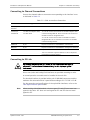
Connecting the Tributary E1 Interfaces
³
To connect the balanced E1 interface (RJ-45 connector)
•
³
Connect the RJ-45 connector of the cable to the E1 port.
To connect the unbalanced E1 interface (BNC connectors)
1. Connect the transmit cable to the coaxial connector of the E1 port marked IN.
2. Connect the receive cable to the coaxial connector of the E1 port marked
OUT.
Connecting the V.35 Interface
³
To connect the V.35 interface (Smart serial connector)
•
Connect the V.35 cable supplied with the product to the V.35 interface smart
serial connector.
Connecting the Uplink
³
To connect the uplink:
1. Clean the optical connectors using an approved solvent, and dry thoroughly
using optical tissue.
2. Connect to the two optical connectors designated TX (transmit output) and
RX (receive input) of the appropriate interface.
3. Pay attention to correct connection of the transmit and receive cables to the
corresponding connectors. Avoid sharp bends and twisting of the fiber-optic
cables.
Note
For WDM option, only one fiber optic cable per link should be connected.
Optimux-34 Ver. 2.81
Connecting the Interface Cables
1
Quick Start Guide
Installation and Operation Manual
2.
Warning
Connecting the Power
Before connecting or disconnecting any communication cable, the unit must be
earthed by connecting its power cord to a power outlet with an earth terminal,
and by connecting the earth terminal on the panel (if provided) to a protective
earth.
Any interruption of the protective (grounding) conductor (inside or outside the
instrument) or disconnecting of the protective earth terminal can make this unit
dangerous. Intentional interruption is prohibited.
Connecting to AC Power
AC power is supplied to the Optimux-34 through a standard 3-prong plug.
AC power should be supplied via a 1.5m (5 ft) standard power cable terminated
by a standard 3-prong socket. A cable is provided with the unit.
³
To connect to AC power:
1. Connect the power cable to the power connector on the Optimux-34 front
panel.
2. Connect the power cable to the mains outlet.
The unit will turn on automatically upon connection to the mains.
Connecting to DC Power
A special IEC 60320 adapter for -48/-60 VDC power connection is supplied with
the unit.
³
To connect to DC power:
•
Refer to the DC power supply connection supplement for instructions how to
wire the DC cables. The DC supplement is provided on the technical
documentation CD supplied with the unit.
Caution The DC installation procedure must be performed by a qualified technician.
3.
Configuring Optimux-34
Configure Optimux-34 to the desired operation mode via an ASCII terminal
connected to the front panel CONTROL port. The initial configuration of
Optimux-34 includes selection of the clock source and the link redundancy.
2
Configuring Optimux-34
Optimux-34 Ver. 2.81
Optimux-34 Installation and Operation Manual
Quick Start Guide
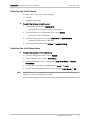
Selecting the Clock Source
The clock source can be one of the following:
³
•
Internal
•
Loopback timing (LBT)
To select the Optimux-34 clock source:
1. From the Main menu, select Configuration.
The Optimux-34 Configuration menu is displayed.
2. From the Optimux-34 Configuration menu, select System.
The System menu is displayed.
3. From the Clock Source menu, select Local Source or Remote Source.
The desired Clock Source is displayed.
4. From the following menu select Internal or Loopback Timing.
Selecting the Link Redundancy
³
To select the Optimux-34 link redundancy:
1. From the Configuration menu, choose System.
2. From the System menu, choose Redundancy.
3. From the Redundancy menu, choose either Local Redundancy or Remote
Redundancy.
4. Use the Force Link option to toggle between Link A and Link B.
5. Use the Redundancy Mode menu to choose between Auto, Manual or Off.
Note
When Optimux-34 is working opposite Optimux-XLE1, the Ethernet USER port on
Optimux-34 must be configured to 8 Mbps.
Configuring Optimux-34
3
Quick Start Guide
4
Configuring Optimux-34
Installation and Operation Manual
Optimux-34 Ver. 2.81
Contents
Chapter 1. Introduction
1.1
1.2
1.3
1.4
Overview.................................................................................................................... 1-1
Product Options...................................................................................................... 1-1
Link Interface Options ........................................................................................ 1-1
Power Supply Options ........................................................................................ 1-1
Applications ............................................................................................................ 1-2
Point-to-Point Application .................................................................................. 1-2
Backbone Data Network Application ................................................................... 1-3
Wireless Link Application .................................................................................... 1-3
Fan Out of E1 Channels Application .................................................................... 1-4
E1 Services from the Network to a Remote Site Extension Application ................ 1-4
Features ................................................................................................................. 1-4
Physical Description ................................................................................................... 1-5
Functional Description................................................................................................ 1-6
E3 Link Interface ..................................................................................................... 1-6
User Ethernet Port .................................................................................................. 1-6
E1/Ethernet Granularity........................................................................................... 1-6
V.35 Interface ......................................................................................................... 1-7
Redundancy Functions ............................................................................................ 1-7
Power Supply Redundancy .................................................................................. 1-7
Link Redundancy ................................................................................................ 1-7
Tributary Interface Characteristics ........................................................................... 1-7
Management Requirements .................................................................................... 1-8
Clocking .................................................................................................................. 1-8
Power Requirements ............................................................................................... 1-9
Technical Specifications.............................................................................................. 1-9
Chapter 2. Installation and Setup
2.1
2.2
2.3
2.4
2.5
2.6
2.7
Site Requirements and Prerequisites .......................................................................... 2-1
Package Contents ...................................................................................................... 2-1
Required Equipment ................................................................................................... 2-2
Mounting the Unit ...................................................................................................... 2-2
Identifying Optimux-34 Modules ................................................................................. 2-2
Connecting to Optimux-34 ......................................................................................... 2-3
Connecting to Channel Connections ........................................................................ 2-5
Connecting to E3 Link ............................................................................................. 2-5
Connecting to Alarm Relay ...................................................................................... 2-6
Connecting to Management Station ........................................................................ 2-6
Connecting to Power .................................................................................................. 2-7
Connecting to AC Power.......................................................................................... 2-7
Connecting to DC Power ......................................................................................... 2-7
Optimux-34 Ver. 2.81
i
Table of Contents
Installation and Operation Manual
Chapter 3. Operation
3.1
3.2
3.3
3.4
3.5
3.6
Turning On Optimux-34 .............................................................................................. 3-1
Optimux-34 Controls and Indicators ........................................................................... 3-1
Front Panel Controls ............................................................................................... 3-1
Normal Indications .................................................................................................. 3-4
Default Settings ......................................................................................................... 3-4
Configuration and Management Alternatives .............................................................. 3-6
Configuring Optimux-34 for Management ................................................................ 3-6
Managing a Local Optimux-34 via the ETH Management Port .............................. 3-6
Starting a Control Session .................................................................................. 3-7
Preparing Optimux-34 for Control Session ............................................................... 3-7
Choosing Options ............................................................................................... 3-7
Correcting Entries............................................................................................... 3-8
Navigating Data Forms ....................................................................................... 3-8
Entering the User Name and Password ............................................................... 3-8
Entering the Terminal Session ............................................................................ 3-9
Working with Web Browser ................................................................................... 3-10
Web Browser Requirements ............................................................................. 3-10
Login ............................................................................................................... 3-10
Navigating the ConfiguRAD Menus .................................................................... 3-10
Working with RADview .......................................................................................... 3-11
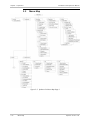
Menu Map ................................................................................................................ 3-12
Turning Off Optimux-34 ........................................................................................... 3-13
Chapter 4. Configuration
4.1
4.2
4.3
ii
Configuring Optimux-34 for Management ................................................................... 4-1
Configuring Management Parameters ...................................................................... 4-1
Configuring the Ethernet Management Port............................................................. 4-1
Configuring Optimux-34 for Operation ....................................................................... 4-2
Configuring the Master Clock Source ....................................................................... 4-2
Setting the Device Information................................................................................ 4-3
Setting the Network Parameters ............................................................................. 4-5
Setting up the Manager List .................................................................................... 4-6
Management Access ............................................................................................... 4-7
Configuring the Control Port ................................................................................... 4-8
Configuring Security Timeout ................................................................................ 4-10
Enabling and Disabling Pop-up Messages............................................................... 4-10
Setting the Fault Propagation ............................................................................... 4-10
Setting the Alarms ................................................................................................ 4-10
Configuring Redundancy between the Local and Remote Devices .......................... 4-11
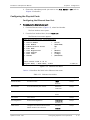
Configuring the Physical Ports ............................................................................... 4-13
Configuring the Ethernet User Port ................................................................... 4-13
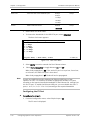
Configuring the E3 Port .................................................................................... 4-14
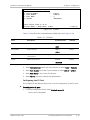
Configuring the E1 Port .................................................................................... 4-15
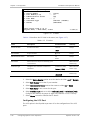
Configuring the V.35 Port ................................................................................. 4-16
Performing Additional Tasks ..................................................................................... 4-18
Setting the User Name and Password.................................................................... 4-18
Resetting to Factory Defaults................................................................................ 4-19
Viewing the Inventory ........................................................................................... 4-20
Viewing the Local Optimux-34 Inventory ........................................................... 4-20
Viewing the Remote Optimux-34 Inventory ....................................................... 4-21
Optimux-34 Ver. 2.81
Installation and Operation Manual
Table of Contents
Managing the License File ..................................................................................... 4-23
Checking the Firmware Version ......................................................................... 4-23
Downloading the License File ........................................................................... 4-23
Verifying that the User Ethernet Port is Active .................................................. 4-25
Viewing Software File Info and Swapping Software ................................................ 4-26
Chapter 5. Monitoring and Diagnostics
5.1
5.2
5.3
5.4
5.5
Monitoring Performance ............................................................................................. 5-1
Monitoring the Optimux-34 System ......................................................................... 5-1
Viewing the Active Alarms .................................................................................. 5-1
Event Log ........................................................................................................... 5-2
System Status .................................................................................................... 5-3
Interface Status ................................................................................................. 5-4
Monitoring the Physical Ports .................................................................................. 5-4
Detecting Errors ......................................................................................................... 5-6
Loop Connections ................................................................................................... 5-7
E1, V.35, and E3 Loops on the Remote Unit ....................................................... 5-8
Setting Loopbacks in the Optimux-34...................................................................... 5-8
Troubleshooting ....................................................................................................... 5-10
Frequently Asked Questions ..................................................................................... 5-11
Technical Support .................................................................................................... 5-12
Chapter 6. Software Upgrade
6.1
6.2
6.3
6.4
6.5
6.6
Compatibility Requirements ........................................................................................ 6-1
Impact ....................................................................................................................... 6-1
Software Upgrade Options ......................................................................................... 6-1
Prerequisites .............................................................................................................. 6-2
Software Files ......................................................................................................... 6-2
System Requirements ............................................................................................. 6-2
Upgrading Optimux-34 Software via the File Utilities Menu ......................................... 6-2
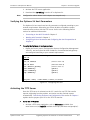
Verifying the Optimux-34 Host Parameters.............................................................. 6-3
Activating the TFTP Server ....................................................................................... 6-3
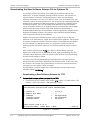
Downloading the New Software Release File to Optimux-34 .................................... 6-4
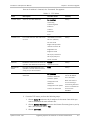
Downloading a New Software Release via TFTP................................................... 6-4
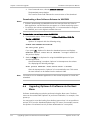
Downloading a New Software Release via XMODEM ............................................ 6-6
Upgrading Optimux-34 Software via the Boot Menu ................................................... 6-6
Using the XMODEM Protocol ................................................................................... 6-7
Using the TFTP ........................................................................................................ 6-9
Appendix A. Pinouts
Optimux-34 Ver. 2.81
iii
Table of Contents
iv
Installation and Operation Manual
Optimux-34 Ver. 2.81
Chapter 1
Introduction
1.1
Overview
Optimux-34 provides a simple, flexible, and cost-effective solution for
transporting multiple E1 channels and 10/100BaseT Ethernet over an E3 link to
distances of up to 110 km (68 miles). It provides 16 E1 channels, and is designed
for applications requiring the full E3 bandwidth multiple E1 connectivity. The E3
link is available with single mode fiber, single mode over single fiber, or coax
interface.
The unit includes optional modular hot-swappable redundant power supplies. The
optional second link provides backup using automatic switchover in case of link
failure and a second E3 link provides automatic backup. The optional second
power supply provides power redundancy for fail-safe operation.
Optimux-34 has various optical interfaces (based on SFP interfaces) available for
both active and backup E3 link(s). It transmits each E1 channel independently so
that the clock of each E1 channel is independent.
A user Ethernet port is supplied with the unit and is available for activation at any
time with a software key. Bandwidth can be allocated between Ethernet and E1
according to the requirements of the user.
An optional V.35 interface is also available.
Product Options
Link Interface Options
Optimux-34 is available with an electrical link interface or a variety of fiber optic
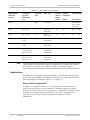
link options (see Table 1-1 for details). The unit can also be ordered with a
second redundant link (same as the first link).
Power Supply Options
Optimux-34 is available with one universal power supply, which is a
hot-swappable wide-range, universal power supply for AC and DC options. It
supports:
•
100–240 VAC power supply
•
-48 VDC power supply.
In addition, the unit can be ordered with a second redundant power supply (same
as the first power supply).
Optimux-34 Ver. 2.81
Overview
1-1
Chapter 1 Introduction
Installation and Operation Manual
Table 1-1. Main Link Interface Options
Typical
Output
Power
[dBm]
Receiver
Sensitivity
Typical Range
[dBm]
[km] [miles]
Coax cable
–
–
(According to
ITU-T G.703
standard)
LC
62.5/125
Multimode
-18
-31
6.5
4.0
Laser, 1310
LC
9/125
Single mode
-12
-31
38
23.6
SFP-3
Long haul laser,
1310
LC
9/125
Single mode
-2
-34
70
43.4
SFP-4
Long haul laser,
1550
LC
9/125
Single mode
-2
-34
110
68.3
SFP-10a
Laser WDM,
Transmit: 1310
Receive: 1550
LC
9/125
Single mode
(single fiber)
-12
-30
40
24.8
SFP-10b
Laser WDM,
Transmit: 1550
Receive: 1310
LC
9/125
Single mode
(single fiber)
-12
-30
40
24.8
Transmitter
Type and
Wavelength
[nm]
Connector
Type
SFP-12
–
SMB
SFP-1
LED, 1310
SFP-2
Module Name
(Ordering
Option)
Note
Fiber Type
Typical ranges are calculated according to attenuation of 0.4 dB/km for 1310 nm,
0.25 dB/km for 1550 nm and 3.5 dB/km for 850 nm multimode modules.
Applications
The Optimux-34 unit permits improved utilization of E3 links, both electrical and
optical, due to its capability to multiplex 16 channels. Five of the most frequently
used applications are depicted in Figure 1-1, to Figure 1-5.
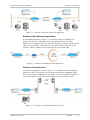
Point-to-Point Application
In Figure 1-1, a company campus line or a line leased from a local operator is
used to link two Optimux-34 units situated at a distance ranging from several
hundreds of meters to several tens of kilometers. A backup link is optionally used
to ensure uninterrupted data flow between the two sites. The Optimux-34 at
each site is connected to E1 access equipment like PBXs and 64 kbps
multiplexers.
1-2
Overview
Optimux-34 Ver. 2.81
Installation and Operation Manual
Chapter 1 Introduction
Figure 1-1. Optimux-34 Point-to-Point Link Application
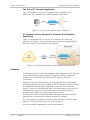
Backbone Data Network Application
In the application shown in Figure 1-2, a coax link module is installed in the
Optimux-34 unit that is physically close to the public network. The other
Optimux-34 is equipped with a fiber optic link interface to extend its transmission
range. The optical link is connected to a fiber optic modem (FOM) with an E3
interface, which is coupled to the public network via a coaxial cable.
Figure 1-2. Optimux-34 Backbone Access Application
Wireless Link Application
A wireless link application shown in Figure 1-3 is a wireless link connecting two
Optimux-34 units. The Optimux-34 unit can be connected to a Megaplex-2100
unit and a network management service (NMS). A coax link module is installed in
each of the Optimux-34 unit that is physically close to the wireless device.
Figure 1-3. Wireless Link Connecting Optimux-34 Units
Optimux-34 Ver. 2.81
Overview
1-3
Chapter 1 Introduction
Installation and Operation Manual
Fan Out of E1 Channels Application
Figure 1-4 illustrates a fan out of E1 channels from a standard E3. The
Optimux-34 unit is connected to a switch through a coaxial cable.
Figure 1-4. Fan out of E1 Channels from a Standard E3
E1 Services from the Network to a Remote Site Extension
Application
Figure 1-5 shows Optimux-34 a fan out of E1 channels on a remote site
extension. The Optimux-34 unit is connected to a fiber optic modem (FOM-E3)
with an E3 interface, to a distance of up to 110 km.
Figure 1-5. Extending E1 Services from the Network to a Remote Site
Features
A combination of 16 E1 ports and 10/100BaseT USER Ethernet and V.35 interface
can be combined into a single E3 uplink. It integrates multiple E1 links and is
suitable for E3 transmission over coax or various modes of fiber optic
transmission.
Optimux-34 features link redundancy (an optional backup link), which enables
coupling of fiber optics and coax modules to the link and has an optional modular
hot-swappable redundant power supply and a second E3 link for automatic
backup. It also has an optional alarm port. It can accommodate up to two (one
redundant power supply in case of power failure or disconnection) built-in
universal power supplies for a wide range of power sources.
The device offers user-selectable bandwidth allocation between E1 and USER
Ethernet ports. User Ethernet is activated by means of a license.
The V.35 interface is available on both the 1U and 2U devices. The V.35, when
selected, is fixed on channel 16 and has a rate fixed at E1.
The 2U box supports unbalanced E1 only on the tributaries.
1-4
Overview
Optimux-34 Ver. 2.81
Installation and Operation Manual
Chapter 1 Introduction
Optimux-34 provides various optical interfaces for both the active and the backup
E3 link(s) (see Table 1-1). If an incorrect SFP is inserted, an alarm is set and the
SFP vendor parameters are displayed.
Optimux-34 has internal and loopback timing for the uplink, and internal,
external, and loopback timing for the V.35 interface.
Management and diagnostics can be performed via an: ASCII terminal, supervisory
port, a Telnet terminal, Ethernet management port, an SNMP management
station via the Ethernet port, a dedicated separate Ethernet management port,
RADview-PC running in a Windows environment, RADview-HPOV for Unix
platforms, or ConfiguRAD web-based remote access terminal application.
An optional alarm port with dry relay contacts is available for interfacing major
and minor alarms.
Optimux-34 conforms to ITU G.703, G.742, G.751, G.823, G.955, and IEEE 802.3
standards.
1.2
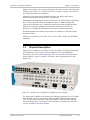
Physical Description
Optimux-34 is available as a compact 44 mm (1U) high or 2U high units intended
for installation in 19-inch racks using an adapter kit. For rack installation
instructions refer to the Rack Mounting Kit for 19-inch Racks Guide that comes
with the RM kit. Figure 1-6 shows a 3D view of the 1U-high and the 2U-high
Optimux-34.
Figure 1-6. Optimux-34 1U-high and 2-U high with V.35 Interface
The front panel of Optimux-34 includes the following connectors: E1 or E3 uplink
with SFP fiber optics or coax modules; Ethernet MNG, Ethernet USER; optional
V.35; RS-232 control port alarm, and power supply. Front panel LEDs indicate
system and link status. For details on the front panel, its connectors and LEDs,
see the Installation and Setup chapter.
Optimux-34 Ver. 2.81
Physical Description
1-5
Chapter 1 Introduction
Installation and Operation Manual
1.3
Functional Description
E3 Link Interface
Optimux-34 can be ordered with an E3 electrical or a fiber optic link interface.
The electrical interface provides short-range transmission according to ITU-T
G.703 via the coaxial cable infrastructure. The optical interface is used to extend
the transmission range to 110 km (68 miles), enhance transmission security and
achieve immunity against electrical interference.
User Ethernet Port
The 10/100BaseT module supports two queues for handling priority with 2:1
weighted fair priority scheme as follows:
•
Tagged frames with tagged fields 4-7 are ingressed into the high priority queue.
•
Tagged frames with tagged fields 0-3 are ingressed into the low priority queue.
The user Ethernet port has a fault propagation option, which causes the LAN link to
fall in case a signal loss, a frame loss, or an AIS is detected in the active E3 link.
The User Ethernet port supports the IEEE 802.3x flow control and backpressure
features, as well as automatic MDI/MDIX crossover.
Optimux-34 is supplied with a 10/100BaseT Ethernet that can be activated at any
time by purchasing, downloading, and installing a user-installable software key.
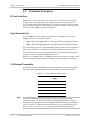
E1/Ethernet Granularity
E1 and Ethernet share bandwidth resources in Optimux-34. The following table
lists the possible options available when combining E1 and Ethernet services.
Table 1-2. E1 and Ethernet Combinations
Note
1-6
Available E1 ports
Ethernet Capacity
[Mbps]
16
0
12
8
8
16
4
24
0
32
In order to establish connection between the Ethernet USER ports of two
Optimux-34 units, it is necessary to disable an appropriate number of E1 ports
according to the required connection bandwidth of the Ethernet link starting from
the first E1 port. To enable the Ethernet USER port, you must disable the first E1
ports, 1 to X. (1-4, 1-8, 1-12 or 1-16) according to the required bandwidth.
Functional Description
Optimux-34 Ver. 2.81
Installation and Operation Manual
Chapter 1 Introduction
V.35 Interface
Channel 16 can be selected for E1 or for V.35. When selected for E1, channel 16
works as a regular E1 channel. If selected as V.35, the V.35 interface becomes
active and works at a fixed E1 rate.
V.35 is a DCE interface and supports both ISO 2110 and Telebras pinouts
according to the ordering options.
The V.35 module supports three clock modes: Internal, External and
Loopback Timing.
Redundancy Functions
The redundant power supply and the redundant link modules ensure that
Optimux-34 continues to operate even if one of these critical modules fails.
Power Supply Redundancy
In the redundant power supply mode, both supplies share the Optimux-34 power
consumption. If one of the power supply modules fails, the entire power
consumption of the unit is automatically drawn from a single power supply. In
this case, the respective PWR LED on the front panel indicates the active power
supply.
Link Redundancy
An additional link interface can be ordered for backup. The two link interfaces
must be either both electrical or both fiber optic. If they are fiber optic, they can
be of different types. The link interfaces are implemented by interchangeable link
modules plugged into two dedicated SFP slots at the front of the Optimux-34 unit
designated LINK A (MAIN) and LINK B (BACKUP). Front panel LEDs provide AIS and
signal loss (SYNC LOSS) indications on the link.
When two link modules are installed, the redundancy mechanism of the
Optimux-34 is used to do one of the following:
•
If LINK A fails, then the link interface automatically changes to LINK B.
•
Force transmission via the MAIN link using a software management tool for
maintenance purposes if the redundancy mode is OFF.
When the redundancy mode is MANUAL and the main link is disconnected or fails,
the backup link is forced into the active state. The main link will not resume
transmission as long as the redundancy mode is MANUAL.
Tributary Interface Characteristics
Optimux-34 supports 16 E1 channels. The E1 interfaces, both RJ-45 and BNC,
comply with the ITU-T Rec. G.703. Line coding is HDB3. Balanced transmit levels
are nominally ±3V for balanced termination and ±2.37V for unbalanced
termination. A pair of LEDs monitors loss-of-signal and AIS on each E1 receive
line.
Optimux-34 Ver. 2.81
Functional Description
1-7
Chapter 1 Introduction
Installation and Operation Manual
Management Requirements
The Optimux-34 features a V.24/RS-232 port to enable management using an
ASCII supervision terminal.
The management interface also includes an SNMP agent that enables SNMP
management of the Optimux-34, using the Ethernet protocol. The SNMP
management capability enables fully graphical, user-friendly management using
the RADview network management stations offered by RAD, as well as
management by other SNMP-based management systems.
Remote management is also possible using the Telnet communication protocol,
and ConfiguRAD web-based application that uses TCP/IP communication, without
the SNMP service. Telnet support enables a remote IP host to control the
operation of Optimux-34 using functions identical to those provided by a
supervision terminal. The Telnet management function can be protected by the
manager password feature.
The front-panel LEDs of the devices monitor system failure and tests (loop
connections). Alarms are monitored using the dry contacts of the Optimux-34
alarm relays on a dedicated D-type connector.
Clocking
Optimux-34 transmits each E1 channel separately so that the clock of each E1
channel is independent.
The E3 interface supports internal and loopback timing modes. The V.35 interface
supports internal, external, and loopback timing modes.
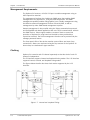
The figures below describe the three clock modes supported by the V.35
interface.
Figure 1-7. Internal and Loopback Timing
1-8
Functional Description
Optimux-34 Ver. 2.81
Installation and Operation Manual
Chapter 1 Introduction
Figure 1-8. External and Loopback Timing
Power Requirements
Optimux-34 has a hot-swappable, wide range, universal power supply for AC and
DC options.
A second power supply is optionally installed in the Optimux-34 to assure
continuous operation in case of supply failure. When the two supplies are turned
ON, they share the power consumption of the unit. If one of the power supplies
fails, the other provides the full power consumption.
1.4
Technical Specifications
Electrical Link
Interface (E3)
Optimux-34 Ver. 2.81
Electrical Interface
According to ITU-T Rec. G.751
Jitter
According to ITU-T Rec. G.823
Data Rate
34,368 kbps
Line Code
HDB3
Impedance
75Ω unbalanced
Range
According to ITU-T Rec. G.703
Connectors (2)
SMB-BNC
Redundancy
Additional electrical link is optional
Technical Specifications
1-9
Chapter 1 Introduction
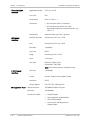
Fiber Optic Link
Interface
Installation and Operation Manual
Applicable Standard
ITU-T Rec. G.652
Line Code
CDP
Performance
Refer to Table 1-1
Connectors
• SFP interfaces with LC connectors
• SFP interface with SC/APC for single
wavelength single fiber interface options, see
Table 1-1.
E1Channel
Interface
Redundancy
Additional fiber optic link is optional
Electrical Interface
According to ITU-T Rec. G.703
Jitter
According to ITU-T Rec. G.823
Data Rate
2,048 kbps
Line Code
HDB3
Range
According to ITU-T G.703
Ports
16 E1 ports
Port Type
Balanced (120Ω), RJ-45
Unbalanced (75Ω), BNC
Note: The 2U box supports unbalanced only.
V.35 Channel
Interface
Management Ports
1-10
Data rate
2.048 Mbps
Timing
Internal, External and Loopback timing
Connector
DB-25
Control Signals
RTS, CTS, DTR, DSR and DCD
Physical Interface
10/100BaseT MNG-ETH ports
Data Rate
10/100 Mbps
Transmission Mode
•
Full/half-duplex
•
Autonegotiation enable/disable
•
Filter enable/disable
•
Flow Control and Backpressure
enable/disable
Technical Specifications
Optimux-34 Ver. 2.81
Installation and Operation Manual
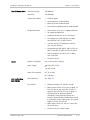
User Ethernet Port
Physical Interface
10/100BaseT
Data Rate
10/100 Mbps
Transmission Mode
•
Full/half-duplex
•
Autonegotiation enable/disable
•
Multicast frames enable/disable
•
Flow Control and Backpressure enable/disable
•
Data transfer rate: up to 32 Mbps maximum
•
2K supported addresses
•
Supported frame size: up to 1536 bytes
•
Throughput: up to 60,386 pps (32 Mbps
data transfer rate, 64-byte frames)
•
Latency: 30 μsec (32 Mbps data transfer
rate, 64-byte frames)
•
Compatible with IEEE 802.3, 802.3x, 802.3u,
802.1p and 802.1q (802.1D relevant parts)
•
Fault propagation in LAN in case of WAN
error (optional)
•
Connector: RJ-45
Bridge Parameters
Power
Chapter 1 Introduction
Number of Supplies
One or two (power sharing)
Power Supply
100-240 VAC, 0.25A
or
-48 VDC, 0.35A
Power Consumption
AC: 32 VA max
DC: 13W max
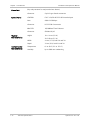
Unit Indications
and Alarms
Optimux-34 Ver. 2.81
Unit Indications
See Table 3-1.
Dry Contacts
•
Maximum Ratings: 1A, 60 VDC, 30 VAC
•
Major alarms: Power off; E1 loss of signal; E3
loss of frame on the active link; E3 loss of
signal on the main link; E3 loss of signal on
the backup link in Automatic/Manual
redundancy mode; backup link does not
install in Automatic/Manual redundancy mode.
In redundant power supply mode: one power
supply is faulty; self-test fail.
•
Minor alarm: Power off, AIS on E1 input line,
AIS on link input
•
Connector: 9-pin D-type female
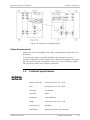
Technical Specifications
1-11
Chapter 1 Introduction
Alarm Port
Control Ports
Physical
Characteristics
Environmental
Characteristics
1-12
Installation and Operation Manual
(Dry relay contacts for major and minor alarms)
Connector
9-pin D-type female connector
CONTROL
ITU-T V.24/EIA RS-232 ASCII terminal port
Rate
9600-115200 bps
Connector
RS-232 DB-9 connector
MNG-ETH
10/100BaseT Fast Ethernet
Connector
Shielded RJ-45
Height
1U: 4.4 cm (1.8 in)
2U: 8.8 cm (3.5 in)
Width
44 cm (17 in) both 1U and 2U
Depth
24 cm (9 in) both 1U and 2U
Temperature
0° to 50°C (32° to 122°F)
Humidity
Up to 90% non-condensing
Technical Specifications
Optimux-34 Ver. 2.81
Chapter 2
Installation and Setup
Optimux-34 is delivered completely assembled. It is designed for installation as a
desktop unit or for mounting on a 19-inch rack. For rack installation instructions,
refer to the Rack Mounting Kit for 19-inch Racks Guide that comes with the RM kit.
After installing the unit, refer to the Chapter 3 for system operating instructions. In
case a problem arises, refer to the Chapter 5 for test and diagnostics instructions.
Warning
Note
No replacement of cards and cables or other repairs may be performed by either
the operator or the user. Such activities may be performed only by a skilled
technician who is aware of the hazards involved.
Always observe standard safety precautions during installation, operation, and
maintenance of this product.
Before installing the product, review Handling Energized Products in the Front
Matter of the manual.
2.1
Site Requirements and Prerequisites
Optimux-34 units should be installed within 1.5m (5 ft) of an easily accessible
grounded outlet for a hot-swap wide-range universal PS15 AC/DC power supply.
The input voltage at the end of the power cable 100 to 240 VAC and -40 to -72
VDC, should be within these limits.
Allow at least 90 cm (36 in) of frontal clearance for operator access.
When planning the routing of fiber optic cables, avoid sharp bends. The bending
radius should exceed 30 mm (1.2 in).
The ambient operating temperature of Optimux-34 should be 0°C to 50°C
(32°F to 122°F) at a relative humidity of up to 90%, non-condensing.
2.2
Package Contents
A preliminary inspection of the equipment contained in the shipping box should
be made before unpacking. Evidence of damage should be noted and reported
immediately. The Optimux-34 package includes the following items:
•
Optimux-34 unit
•
Technical Documentation CD
Optimux-34 Ver. 2.81
Package Contents
2-1
Chapter 2 Installation and Setup
Note
Installation and Operation Manual
•
AC power supply cable
•
Special DC power supply cable
•
CBL-SMB-BNC/M adapter cable (if an E3 electrical interface is ordered)
If the 1U Optimux-34 is ordered with an unbalanced E1 interface, then 16 cable
adapters CBL-RJ45/2BNC/E1/X are supplied.
2.3
Required Equipment
The following equipment is required to install Optimux-34:
•
Fiber optic cables (for optical uplink interface)
•
RJ-45 E1 connector cables (for balanced tributary interface)
•
RJ-45 Ethernet connector cable category 5
•
Philips screwdriver (for installation in 19-inch rack).
2.4
Mounting the Unit
Optimux-34 is designed for installation as a desktop or wall-mounted unit. It may
also be mounted in a 19" rack.
•
For rack mounting instructions, refer to the RM-34 Kit Installation Manual.
•
If Optimux-34 is to be used as a desktop unit, place and secure the unit on a
stable, non-movable surface.
Refer to the clearance and temperature requirements in Site Requirements and
Prerequisites.
2.5
Identifying Optimux-34 Modules
Table 2-1 lists the modular construction of the Optimux-34 unit. Use this to
identify the modules supplied.
2-2
Identifying Optimux-34 Modules
Optimux-34 Ver. 2.81
Installation and Operation Manual
Chapter 2 Installation and Setup
Table 2-1. List of Optimux-34 Modules
Module Designation
Fixed/
Optional
Location
Used to provide
E3 unbalance (coax) Link
Optional
Front slots LINK A/B
Unbalanced interface to the link.
E3 fiber optic Link
Optional
Front slots LINK A/B
Fiber optic interface to the link.
Power supply–PWR-A
Optional
On the front side
Optimux-34 supply voltages
Power supply–PWR-B
Optional
On the front side
Power supply redundancy - power
consumption sharing or full consumption in
case of power supply A failure.
Note
If the 16 E1 unbalanced interface option is needed, order the 2U Optimux-34.
If there is not enough space for the 2U-high device, the 1U device can be used
with the RJ-45 to BNC adapter cable (CBL-RJ45/2BNC/E1/X) and 2 BNC cables for
each channel.
2.6
Connecting to Optimux-34
The E1, USER Ethernet, MNG Ethernet, V.35 interface, alarm, power supplies,
tributary and link connectors are all located on the front panel of the unit as
shown in the following figures. Front panel LEDs indicate system and link status.
The management, alarm, and link connectors are detailed in Table 2-2.
The rear panel of the Optimux-34 unit is blank. All connectors are located on the
front panel.
Figure 2-1. Typical 1U-high Front Panel with Optional Alarm and V.35 Connectors
Figure 2-2. Typical 2U-high Front Panel with Optional Alarm and V.35 Connectors
Optimux-34 Ver. 2.81
20B19BConnecting to Optimux-34
2-3
Chapter 2 Installation and Setup
Installation and Operation Manual
Table 2-2. Management, Alarm and Link Connectors
Connector
Type
Used to Connect
POWER A
Standard 3-prong plug
Main power source
POWER B
Standard 3-prong plug
Redundant power source when the redundant power
supply option is selected
CONTROL
9-pin D-type female
RS-232 ASCII terminal
TRIBUTARY CHANNELS
1U: 16 RJ-45 or BNC (via
adapter cable)
16 E1 balanced or unbalanced channels
2U: BNC
USER-ETH
RJ-45
USER-ETH input
MNG-ETH
RJ-45
MNG-ETH input
ALARMS
9-pin D-type female straight Optimux-34 dry contacts of two alarm relays (major
and minor) to a remote monitoring site
LINK A, TX/RX
SMB-BNCx2
Electrical link
LINK B, TX/RX
SMB-BNCx2
Electrical link
LINK A, B TX/RX
LC or SC/APC
Fiber-optic link
V.35
DB25
V.35 Interface
For the pin assignment of the connectors, refer to the Appendix A.
ELECTRICAL SHOCK HAZARD: Access to the inside of the equipment is permitted
only to qualified and authorized service personnel.
Warning
Before disconnecting the unit from its cables, verify that the remote unit is
turned OFF. Disconnect the unit from the power line and from all the cables
before removing the cover.
Dangerous high voltages are present inside the Optimux-34 when it is connected
to power. Moreover, under external fault conditions, dangerous high voltages
may appear on the lines connected to the Optimux-34.
Capacitors inside the instruments may still be charged even after the unit has
been disconnected from the supply source.
Any setting or repair of the open unit under voltage should be avoided as much
as possible and, when inevitable, would be carried out only by a skilled technician
who is aware of the hazard involved.
Caution Optimux-34 contains components sensitive to electrostatic discharge (ESD).
To prevent ESD damage, avoid touching the internal components. The E1
channels are not protected against over voltages. Adequate surge suppressors
should be installed into the building wiring.
2-4
20B19BConnecting to Optimux-34
Optimux-34 Ver. 2.81
Installation and Operation Manual
Chapter 2 Installation and Setup
Connecting to Channel Connections
Connect the channel cables to connectors corresponding to the interface in use
as indicated in Table 2-3.
Table 2-3. Cable to Interface Connections
Interface
Connector Type
Note
Tributary E1
balanced
RJ-45
Channel numbers 1 to 16 for the Optimux-34 balanced
Tributary E1
unbalanced
1U: BNC (via adapter cable)
1U: The E1 receive line connects to the BNC adapter cable
connector designated IN. The E1 transmit line connects to
the BNC connector designated OUT.
2U: BNC direct
2U: The E1 receive line connects to the BNC connector
designated RX. The E1 transmit line connects to the BNC
connector designated TX.
USER-ETH
RJ-45
Physical connection of 10/100BaseT user Ethernet
MNG-ETH
RJ-45
Physical connection of 10/100BaseT management Ethernet
V.35
DB25
Physical connection of the V.35 interface.
The V.35 interface supports Telebras or ISO 2110 pinout
(according to ordering option.)
Connecting to E3 Link
Warning
Eye damage may be caused by a broken or non-terminated fiber-optic or
connector if the laser beam is viewed directly or with improper optical
instruments.
One or two (main and backup) link interfaces are provided according to order.
In normal operation a module must be installed in the main link.
The electrical interface is provided with a pair of SMB-BNC connectors and the
maximum line attenuation that is permitted according to ITU-T G.703 is 12 dB.
For the properties and specifications of the optical link interfaces, refer to the
Fiber Optic Interface Options table.
Note
When working with WDM modules, the two types SF1 and SF2 must work one
opposite the other. SF1 does not work opposite SF1 and SF2 does not work
opposite SF2.
Optimux-34 Ver. 2.81
20B19BConnecting to Optimux-34
2-5
Chapter 2 Installation and Setup
Installation and Operation Manual
Table 2-4. E3 Link Connections
Interface
Connector Type
Note
Optical
LC or SC/APC
Avoid sharp bends of the optical cables. The
minimum-bending radius should be 30 mm (1.2 in).
Cleanliness of the optical connectors: use an
approved solvent, and dry thoroughly using optical
tissue.
Connection of the receive cable to the optical
connector designated RX and the transmit cable to
the optical connector designated TX.
Electrical
SMB-BNC
Use the CBL-SMB-BNC/M adapter cable for
connecting to the regular BNC connectors
Connecting to Alarm Relay
The alarm cable is terminated with a 9-pin D-type male connector on the unit
side. The maximum rating of the alarm relay contacts for planning the monitoring
means and cabling is 1A, 60 VDC or 30 VAC.
The dry contacts of the Optimux-34 alarm relays (major and minor) are connected
to a remote monitoring site via the front panel ALARM connector.
Connecting to Management Station
The Optimux-34 can be managed via:
•
V.24/RS-232 terminal. The connection cable to the V.24/RS-232 interface on
the unit’s front panel should be terminated with a 9-pin D-type male
connector. The nominal length of the cable for a data rate of 19.2 kbps is
16m (50 ft).
Caution Terminal cables must have a frame ground connection. Use ungrounded cables
when connecting a supervisory terminal to a DC-powered unit with floating
ground. Using improper terminal cable may result in damage to supervisory
terminal port.
•
Note
Ethernet port. The connection cable to the MNG-ETH interface on the unit’s
front panel should be terminated with an RJ-45 connector.
The Ethernet cable should be straight (i.e., TX on pins 1,2 and RX on pins 3,6.)
There is no crossover at the PHY.
Connect the management cable to the required management port. The options
available are indicated in Table 2-5.
2-6
20B19BConnecting to Optimux-34
Optimux-34 Ver. 2.81
Installation and Operation Manual
Chapter 2 Installation and Setup
Table 2-5. Management Port Options
Interface
Connector Type
Note maximum cable length
RS-232
9-pin D-type
16m (50 ft) for a 115 kbps data rate
MNG-ETH
RJ-45
100m for a UTP cable, type 5
2.7
Connecting to Power
The Optimux-34 chassis ground is connected to the protective ground (middle)
pin of the power connectors, for the universal power supply version of the unit.
Intentional disconnection of the protective ground is prohibited since such an
action may expose personnel to electrical shock hazards.
Warning
Before connecting or disconnecting any communication cable, the unit must be
earthed by connecting its power cord to a power outlet with an earth terminal,
and by connecting the earth terminal on the panel (if provided) to a protective
earth.
Any interruption of the protective (grounding) conductor (inside or outside the
instrument) or disconnecting of the protective earth terminal can make this unit
dangerous. Intentional interruption is prohibited.
For the universal power supply ratings, refer to the Site Requirements and
Prerequisites section in this chapter.
Connecting to AC Power
AC power is supplied to the Optimux-34 through a standard 3-prong plug.
AC power should be supplied via a 1.5m (5 ft) standard power cable terminated
by a standard 3-prong socket. A cable is provided with the unit.
³
To connect to AC power:
1. Connect the power cable to the power connector on the Optimux-34 front panel.
2. Connect the power cable to the mains outlet.
The unit will turn on automatically upon connection to the mains.
Connecting to DC Power
A special IEC 60320 adapter for -48/-60 VDC power connection is supplied with
the unit.
³
To connect to DC power:
•
Optimux-34 Ver. 2.81
Refer to the DC power supply connection supplement for instructions how to
wire the DC cables. The DC supplement is provided on the technical
documentation CD supplied with the unit.
Connecting to Power
2-7
Chapter 2 Installation and Setup
2-8
Connecting to Power
Installation and Operation Manual
Optimux-34 Ver. 2.81
Chapter 3
Operation
3.1
³
Turning On Optimux-34
To turn ON the Optimux-34 unit:
Use a power cable to connect the Optimux-34 unit to the mains.
Note
For the first operation and before synchronization of two units, declare the link
redundancy in the same configuration for both units. In addition, declare the
timing for both units in a valid configuration (i.e., not both units on Loop Back
Timing – LBT).
3.2
Optimux-34 Controls and Indicators
This chapter presents information and description of the Optimux-34 front panel,
controls and how to turn on the Optimux-34 unit.
Front Panel Controls
The Optimux-34 front panel provides the LED indications and the connections to
the Ethernet LAN, V.35 interface and to the E1 channels as shown in Figure 3-1,
Figure 3-2. Table 3-1 lists the functions of the LEDs, switches, and connectors
located on the Optimux-34 front panel.
Optimux-34 is available in 1U and 2U-high models with optional alarm and V.35
interface connectors as shown in the following figures:
Figure 3-1. Typical 1U-high Front Panel with Optional Alarm and V.35 Connectors
Optimux-34 Ver. 2.81
Optimux-34 Controls and Indicators
3-1
Chapter 3 Operation
Installation and Operation Manual
Figure 3-2. Typical 2U-high Front Panel with Optional Alarm and V.35 Connectors
Table 3-1. Optimux-34 Front Panel Controls and Indicators
Name
Type
State
Function
PS A
Indicator
OFF
Indicates that the unit is not powered
ON (green)
Indicates that power supply A is ON and operates normally
ON (red)
Indicates that a malfunction was detected in PS A or it is not
powered on. If PS B is installed Optimux-34 will continue to
operate normally.
OFF
Indicates that the unit is not powered
ON (green)
Indicates that power supply B is ON and operates normally
ON (red)
Indicates that a malfunction was detected in PS B or it is not
powered on. If PS A is installed Optimux-34 will continue to
operate normally.
ON (yellow)
Indicates that the system is on loop test.
Blinking (yellow)
Indicates that the system is during Auto baud detect process.
Indicator
ON (red)
Indicates a control system fault or a failure detected during the
turn ON self test.
LINK A SYNC LOSS Indicator
ON (red)
Indicates that a loss-of-signal has been detected on the main
link.
Blinking (red)
Indicates that in Manual Redundancy mode, LINK A is the main
link and is available but the signal is received from the backup
link (LINK B)
ON (yellow)
Indicates that an alarm indication signaling has been detected
on the link
ON (red)
Indicates that a loss-of-signal has been detected on the backup
link
Blinking (red)
Indicates that in Manual Redundancy mode LINK B is the main
link and is available but the signal is received from the backup
link (LINK A)
ON (yellow)
Indicates that an alarm indication signaling has been detected
on the backup link
PS B
SYSTEM TST
SYSTEM FLT
LINK A AIS
Indicator
Indicator
Indicator
LINK B SYNC LOSS Indicator
LINK B AIS
3-2
Indicator
Optimux-34 Controls and Indicators
Optimux-34 Ver. 2.81
Installation and Operation Manual
Chapter 3 Operation
Table 3-1. Optimux-34 Front Panel Controls and Indicators (Cont.)
Name
Control
State
Function
MNG-ETH
LINK/ACT
Indicator
ON (yellow)
Indicates that the link is up on the Management port.
Blinking
(yellow)
Indicates that LAN traffic is actively being transferred via the
management port.
OFF
Indicates that the link is down on the Management port.
ON (green)
Indicates that actual traffic speed on the management port is
100 Mbps
OFF
Indicates that actual traffic speed on the management port is
10 Mbps
ON (yellow)
Indicates that the link is up on the USER Ethernet port.
Blinking
(yellow)
Indicates that LAN traffic (RX or TX) is actively being transferred
via the management port.
ON (green)
Indicates that actual traffic speed on the USER Ethernet port is
100 Mbps
OFF
Indicates that actual traffic speed on the USER Ethernet port is
10 Mbps
MNG-ETH
100
USER-ETH
LINK/ACT
USER-ETH
100
Indicator
Indicator
Indicator
SYNC LOSS 1-16
Indicator
ON (red)
Indicates that a loss-of-signal has been detected on the
respective channel of the E1 interface.
AIS 1-16
Indicator
ON (yellow)
Indicates that an alarm indication signaling has been detected
on E1 port
Ports1-16
Connector
–
Connects E1 port of the E1 module to the E1 network
V.35 Port
Connector
–
Connects V.35 port of the V.35 module to the V.35 line
SFP Slot A
Connector
-
Connects the SFP module to the main board at slot A
SFP Slot B
Connector
-
Connects the SFP module to the main board at slot B
ALARMS
Connector
–
Connects the dry contacts of the Major and Minor alarm relays
to a remote monitoring site
CONTROL/MNG
Connector
–
Connects the V.24/RS-232 management port to an ASCII
terminal
MNG-ETH
Connector
–
Connects the Ethernet port to the Management port
USER-ETH
Connector
–
Connects the Ethernet port to the USER port
PS A
Connector
–
Connects the Optimux-34 to the AC mains or to the DC power
source
PS B
Connector
–
Connects the Optimux-34 to the AC mains or to the main DC
power source
Optimux-34 Ver. 2.81
Optimux-34 Controls and Indicators
3-3
Chapter 3 Operation
Installation and Operation Manual
Normal Indications
During normal operation, the LED indications shown in Table 3-2 should appear:
Table 3-2. LED Indications
LED
State
Indicates
PWR
ON, green
Power supplies of the Optimux-34 unit active
FLT
OFF
–
TST
OFF
–
100
ON, green
ON if actual traffic speed is 100 Mbps
OFF if actual traffic speed is 10 Mbps
LINK/ACT
Blinking, yellow
Ethernet port traffic
SYNC LOSS
OFF, Red
Loss of receive signal on E1 ports
AIS
OFF, Yellow
AIS received on E1 ports
3.3
Default Settings
Table 3-3 lists the default settings of the Optimux-34 configuration parameters.
Table 3-3. Default Settings
Type
Parameter
Default Value
Name
Optimux-34
Location
The Location of the Device
Contact Person
Name of Contact Person
IP address
0.0.0.0
IP mask
0.0.0.0
Default gateway
0.0.0.0
Read Community
public
Write Community
private
Trap Community
public
Telnet
All
SNMP
All
Web
All
Baud rate
115200
Security timeout
10
System
Device Information
Host
Management Access
Control Port
3-4
Default Settings
Optimux-34 Ver. 2.81
Installation and Operation Manual
Type
Chapter 3 Operation
Parameter
Default Value
Pop alarms
Off
Fault Propagation
Alarms
Redundancy
Off
Device
Local
Alarms
Unmasked
Remote Connection Fall
Unmasked
Force Link
Link A
Mode
Auto
Device Number
Local
Port Number
MNG-ETH
Port Name
-
Auto Negotiation
Enable
Flow Control
Enable
Alarms
Unmasked
Device Number
Local
Administrative Status
Up
Port Name
-
Clock Source
Internal
DCD Status
Permanent ON
CTS Status
Permanent ON
DTE Loop Detection
Disable
Alarms
Unmasked
Device Number
Local
Port Number
Link A
Port Name
-
Alarms
Unmasked
Device Number
Local
Port Number
1
Port Name
-
Alarms
Unmasked
Device Number
Local
Link Loop type
No Loop
Link LLB loop timeout (min)
[1-255]
5
Channel’s Loops
No Loop
Physical Layer
Ethernet
V.35
Link
E1
Diagnostics
Optimux-34 Ver. 2.81
Default Settings
3-5
Chapter 3 Operation
Installation and Operation Manual
3.4
Configuration and Management Alternatives
If required, Optimux-34 can be reconfigured. The Optimux-34 configuration and
monitoring operations are performed using any of the following tools:
•
ASCII Terminal Connected to Supervisory Port (Command Line Interface or
menu driven)
•
ConfiguRAD, a Web-based management system, using a Web browser running
on a PC connected to the network
•
RADview, an SNMP-based management system with a Graphical User
Interface. See the RADview-TDM package and its manual, RADview-TDM
User's Manual, for details.
Detailed configuration procedures are given in Chapter 4.
The following functions are supported by the Optimux-34 management software:
•
Viewing system information
•
Modifying configuration and mode of operation, including setting system
default values
•
Monitoring Optimux-34 performance
•
Initiating diagnostic tests
•
Upgrading software.
Configuring Optimux-34 for Management
The Optimux-34 provides the following terminal management modes:
Monitor
A supervisory ASCII VT100 terminal or a PC emulating an ASCII VT100
terminal connected directly to the Optimux-34 CONTROL port.
Ethernet
A PC running terminal emulation software or a management
workstation connected to the Optimux-34 via the management ports.
Managing a Local Optimux-34 via the ETH Management Port
The configuration of Optimux-34 is performed via menu-driven embedded
software, using a standard ASCII terminal or PC running a terminal emulation
application connected to the CONTROL port. Alternatively, you can manage
Optimux-34 over Telnet, a PC running a Web browsing application or RADview
application via the MNG-ETH port.
³
To prepare Optimux-34 for network management:
1. Connect a LAN network management station to one of the Optimux-34
Ethernet ports.
2. Configure the Management Host parameters of the Optimux-34 units via an
ASCII terminal.
3. Run an SNMP management application, such as RAD’s RADview, or open a
Telnet session (for example, Windows Start menu | Run | Telnet
3-6
Configuration and Management Alternatives
Optimux-34 Ver. 2.81
Installation and Operation Manual
Chapter 3 Operation
<IP_address>), or open a Web Browser to: http://<IP_address>, where
<IP_address> is Optimux-34’s IP address.
Starting a Control Session
Once you have installed Optimux-34 and have completed the installation and
operation procedures as described in Chapters 2 and Chapter 3, you can start a
control session.
³
To set the terminal communication parameters:
1. Connect the terminal to the 9-pin CONTROL connector. Run a terminal
emulation program.
2. Set the default parameters of the terminal communication port to 8 bits per
character, one stop bit and no parity bit.
3. Disconnect Optimux-34 from the mains, and then reconnect it to the mains.
4. Wait for about half a minute while the software is unpacking. Afterwards the
System Test LED will be blinking in yellow.
5. While system test LED is blinking, press <.> at least four times until
Optimux-34 detects the correct baud rate
6. Optimux-34 automatically detects and adapts itself to terminal baud rates of:
9,600, 19,200, 38,400, 57,600, and 115200 bps. After detecting the correct
baud rate, Optimux-34 displays the user name and password entry form.
Preparing Optimux-34 for Control Session
This section describes how to prepare Optimux-34 and the supervisory terminal
for the control session.
Optimux-34 includes a V.24/RS-232 asynchronous DCE port, designated CONTROL
and terminated in a 9-pin D-type female connector. The control port continuously
monitors the incoming data stream and immediately responds to any input string
received through this port. The port requires straight cable for the ASCII terminal
connection. The Optimux-34 control port can be configured to communicate at
the following rates: 9.6, 19.2, 38.4, 57.6, or 115.2 kbps (default 115.2 kbps).
The word format consists of one or two stop bits and 8 data bits; parity is
disabled.
Any standard ASCII terminal (a “dumb” terminal or a personal computer running a
terminal emulation application) equipped with a V.24/RS-232 communication
interface can be used to configure Optimux-34. Appendix A details the pin
assignment and control signal directions of the Optimux-34 control connector.
Note
Up to three users can connect to Optimux-34 simultaneously.
Choosing Options
³
To choose an option:
1. Type the number corresponding to the option, and press <Enter>.
Optimux-34 Ver. 2.81
Configuration and Management Alternatives
3-7
Chapter 3 Operation
Installation and Operation Manual
Optimux-34 immediately updates its database with a new value or
displays a new menu for the selected option.
2. If a menu option has only two values, typing the option number and pressing
<Enter> will toggle between the available values. If an action requires
confirmation, a prompt line is added to the menu display.
Note
When using a Web browser, values that you enter are not saved unless you press
<Enter>. If you click a link before doing so, your changes are lost.
Correcting Entries
³
To correct an erroneous entry:
•
Press <Backspace> to clear the error, and then enter the correct characters.
or
•
Press <Esc> to exit the current menu, and then return to the menu to re
enter the required value.
Navigating Data Forms
Some of the Optimux-34 management software screens are data forms, which are
bigger than regular menus and require scrolling to navigate between parameters.
Use the following keys (case-sensitive) for the data form navigation:
Note
L
Move left, l – scroll left,
R
Move right, r – scroll right
U
Move up, u – scroll up
D
Move down, d – scroll down
<Tab>
Select next changeable cell
N
Display next part of menu,
P
Display previous part of menu.
!
Exit to the main menu
&
Exits to the log in screen
You can display these navigation keys by typing <?> from a data form.
Entering the User Name and Password
In the password prompt screen (below), you are required to enter a user name
and password in order to start the Optimux-34 management software.
To prevent unauthorized modification of the operating parameters, Optimux-34
supports two access levels:
3-8
Superuser
can perform all the activities supported by the Optimux-34
management facility, including defining new users.
User
has access rights (full control or read only) defined by the
superuser. Users are not allowed to create new users.
Configuration and Management Alternatives
Optimux-34 Ver. 2.81
Installation and Operation Manual
Chapter 3 Operation
1. After the SW finishes uploading, press Enter a few times.
"..." appears.
2. Press <.> a few times until the following Password Prompt screen appears.
(This synchronizes the baud rate of the terminal to the setup configuration).
Optimux-34
USER NAME:
PASSWORD:
SU
****
1
ESC - clear; & - exit
user(s)
Figure 3-3. Password Prompt Screen
Note
³
It is recommended to change default passwords to prevent unauthorized access
to the unit.
To enter as a superuser:
1. Enter su for user name.
2. Enter 1234 for password.
This allows you to configure all the parameters of Optimux-34, and to change the
su and user passwords.
³
To enter as a user:
1. Enter user for user name.
2. Enter 1234 for password.
³
To set all passwords to the default values (1234):
•
Log in as su and delete the unit’s configuration through the configuration
screens.
Entering the Terminal Session
Once you have logged into the system, the Optimux-34 main menu is displayed.
Optimux-34
Main Menu
1.
2.
3.
4.
5.
Inventory
Configuration
Monitoring
Diagnostics
Utilities
>
>
>
>
>
>
Please select item <1 to 5>
ESC-prev.menu; !-main menu; &-exit
1 user(s)
Figure 3-4. Main Menu
Optimux-34 Ver. 2.81
Configuration and Management Alternatives
3-9
Chapter 3 Operation
Installation and Operation Manual
Working with Web Browser
Web Browser Requirements
The following Web browsers can be used to access the Optimux-34 supervision
utility from any location that enables access to the Optimux-34 using Internet
protocols.
•
•
Note
Internet Explorer 6.0, running on Windows™ 98, Windows™ 2000,
Windows™ XP
Netscape Communicator 7.1, running on Windows™ NT or Unix.
Please enable pop-ups in your browser settings, if applicable.
Login
³
To login via Web browser:
1. Connect the MNG-ETH port of the Optimux-34 to the LAN.
2. Open the Web browser.
3. Disable any pop-up blocking software, such as Google Popup Blocker.
4. Enter the IP address of the Optimux-34 in the address field of the browser in
the following format: http://’IP address’ and then press <Enter> to command
the browser to connect (‘IP address’ stands for the actual Optimux-34 IP
address which has to be assigned via an ASCII terminal).
5. After the opening window is displayed, click LOGIN.
6. Enter your user name and password.
The Main menu is displayed.
Navigating the ConfiguRAD Menus
ConfiguRAD is a Web-based remote access terminal management software. It
provides a user-friendly interface for configuring, collecting statistics and
performing diagnostic tests on the Optimux-34 units.
³
To choose an option:
1. Click a link in the ConfiguRAD screen to display the next menu.
2. Once the target screen is displayed, select a value from the drop-down box or
enter it in a text box.
At the left-hand bottom corner, ConfiguRAD provides some auxiliary management
tools:
3-10
Status
Shows the number of users currently managing Optimux-34
Trace
Opens an additional pane for system messages, progress
indicators (ping, software and configuration file downloads)
and alarms. It is recommended to keep the trace pane open all
the time.
Refresh All
Refreshes performance registers.
Configuration and Management Alternatives
Optimux-34 Ver. 2.81
Installation and Operation Manual
Chapter 3 Operation
Working with RADview
RADview-EMS is a user-friendly and powerful SNMP-based application for
management and service provisioning. It offers pseudowire service provisioning,
as well as embedded element management capabilities.
RADview-EMS provides a dedicated graphical user interface (GUI) for monitoring
RAD products via their SNMP agents. RADview agent for Optimux-34 is bundled in
the RADview-EMS/TDM package for PC (Windows-based) or Unix.
The RADview Optimux-34 Element Manager main window provides a dynamically
updated representation of Optimux-34, allowing you to monitor and manage the
Optimux-34. The main window displays the device hardware configuration,
showing the system and existing ports.
For more details about this network management software, and for detailed
instructions on how to install, set-up and use RADview – contact your local
distributor or refer to the RADview-EMS/TDM documentation.
Optimux-34 Ver. 2.81
Configuration and Management Alternatives
3-11
Chapter 3 Operation
3.5
Installation and Operation Manual
Menu Map
Figure 3-5. Optimux-34 Menu Map Page 1
3-12
Menu Map
Optimux-34 Ver. 2.81
Installation and Operation Manual
Chapter 3 Operation
Figure 3-6. Optimux-34 Menu Map Page 2
3.6
³
Turning Off Optimux-34
To turn off Optimux-34:
•
Optimux-34 Ver. 2.81
Disconnect the Optimux-34 unit from the mains.
Turning Off Optimux-34
3-13
Chapter 3 Operation
3-14
Turning Off Optimux-34
Installation and Operation Manual
Optimux-34 Ver. 2.81
Chapter 4
Configuration
4.1
Configuring Optimux-34 for Management
Configuring Management Parameters
Optimux-34 can be managed from a workstation located on a LAN connected to
the unit's MNG-ETH port. To establish a proper connection, it is necessary to
configure the following parameters: host IP Address, IP Mask, Default Gateway,
Traps, Read community, and Write community.
Note
Changes made to SNMP parameters take effect immediately.
Configuring the Ethernet Management Port
The Ethernet option is for the configuration of the management Ethernet port in
the Optimux-34 device.
1. From the Configuration menu, select Physical Layer.
The Physical Layer menu is displayed.
2. From the Physical Layer menu, select Ethernet.
The Ethernet menu is displayed (Figure 4-1).
The Ethernet menu may display the configuration for either MNG-ETH or
USER-ETH depending on the Port Number selected. To toggle between
configurations, select Port Number and the Port Number Menu appears.
Configuration>Physical Layer>Ethernet
1.
2.
3.
4.
5.
Device Number
Port Number
Auto negotiation
Flow Control
Alarms
> (Local)
> (MNG-ETH)
(Enable)
(Enabled)
(Unmasked)
>
Please select item <1 to 5>
ESC-prev.menu; !-main menu; &-exit
1 user(s)
Figure 4-1. Ethernet Menu
Table 4-1 describes the fields in the Ethernet Management menu.
Optimux-34 Ver. 2.81
Configuring Optimux-34 for Management
4-1
Chapter 4 Configuration
Installation and Operation Manual
Table 4-1. Ethernet Management Values
Field
Description
Possible Values
Visibility
Device Number
The device value
Remote
Always
Local
Port Number
The Fast Ethernet port number
MNG-ETH
Always
USER-ETH
Autonegotiation
Enables autonegotiation
Disabled (2)
Always
Enabled (1)
Flow Control
Alarms
Configures the default
administrative PAUSE mode for
this interface.
Disabled
Masks MNG-ETH alarms.
Masked
Always
Enabled
Always
Unmasked
3. Select Device Number option and configure to either Local or Remote.
4. Select Port Number to set the Fast Ethernet port number to MNG-ETH or
USER-ETH.
5. Select Autonegotiation and toggle between the Enabled and Disabled
options.
6. Select Flow Control to toggle between the Enabled and Disabled options.
7. Select Alarms to Mask or Unmask the MNG-ETH alarms.
4.2
Configuring Optimux-34 for Operation
The Optimux-34 management software enables to perform the following:
•
Selecting the clock source
•
Configuring redundancy of uplink
•
Defining control port parameters.
Configuring the Master Clock Source
Optimux-34 features a number of Clock options. Refer to Chapter 1 for details.
³
To configure the master clock:
1. From the System menu, choose Clock Source.
The Clock Source menu is displayed.
4-2
Configuring Optimux-34 for Operation
Optimux-34 Ver. 2.81
Installation and Operation Manual
Chapter 4 Configuration
Optimux-34
Configuration>System>Clock Source
1. Local Source
2. Remote Source
> (Internal)
> (Loopback Timing)
>
Please select item <1 to 2>
ESC-prev.menu; !-main menu; &-exit
1 user(s)
Figure 4-2. Clock Source Menu
Table 4-2 describes the Local and Remote Source fields in the Clock Source menu
(see Figure 4-2).
Table 4-2. Clock Source Values
Field
Description
Possible Values
Visibility
Local Source
Local device clock souce
Internal
Always
Loopback Timing
Remote Source
Remote device clock souce
Internal
Loopback Timing
Notes
When connected to a
remote device
• The Remote Source option is available only when the Optimux-34 is connected
to a remote device.
• After resetting to the default values, the clock configuration is INTERNAL.
2. From the Clock Source menu, choose either Local Source or Remote Source.
The Local Source menu is displayed.
Optimux-34
Configuration>System>Clock Source>Local Source (Internal)
1. Internal
2. Loopback Timing
>
Please select item <1 to 2>
ESC-prev.menu; !-main menu; &-exit
1 user(s)
Figure 4-3. Local Source Menu
3. Choose either Internal timing or Loopback Timing).
Setting the Device Information
Each Optimux-34 unit can be configured to retain information about the unit,
such as its location and a name to easily identify the unit on the network.
Optimux-34 Ver. 2.81
Configuring Optimux-34 for Operation
4-3
Chapter 4 Configuration
³
Installation and Operation Manual
To set device information:
1. From the System menu, choose Management.
The Management menu is displayed.
Configuration>System>Management
1.
2.
3.
4.
5.
Device Information
Host
Managers List
Management Access
Remote Management Access
>
>
[]>
>
(High)
>
Please select item <1 to 5>
ESC-prev.menu; !-main menu; &-exit
1 user(s)
Figure 4-4. Management Menu
Table 4-3 describes the Remote Management Rate field in the Management menu
(see Figure 4-4).
Table 4-3. Management Values
Field
Description
Possible Values
Visibility
Remote
Management
Access
Management of the remote device. Devices
version 6.0 and before, the rate has to be set
to Low (300 bps). The rate has to be set to
High (1.2 kbps) for new devices.
Low (on Factory default)
Always
High
2. Select Device Information.
The Device Information menu is displayed.
The Description line identifies the device, along with the current hardware
and software version numbers.
Configuration>System>Management>Device Information
1.
2.
3.
4.
Description
Name
Location
Contact
Serial number
…
…
…
…
…
(Optimux-34 HW Version:1.00/B, SW Version:2.81)
(Optimux)
(The location of this device)
(Name of contact person)
()
>
Please select item <1 to 4>
ESC-prev.menu; !-main menu; &-exit
1 user(s)
Figure 4-5. Device Information Menu
3. To define a contact person, choose Contact and then enter the name, phone
and/or other details you want to save in this field, see Figure 4-5.
4-4
Configuring Optimux-34 for Operation
Optimux-34 Ver. 2.81
Installation and Operation Manual
Chapter 4 Configuration
Table 4-4 describes the Description, Name, Location, and Contact Person fields in
the Device Information menu (see Figure 4-5).
Table 4-4. Device Information Values
Field
Description
Possible Values
Visibility
Description
Description of the device including its software and
hardware versions
Name
Device containing up to 32 characters
Optimux
Always
Location
Device location containing up to 32 characters
The location of
the device
Always
Contact Person
A person’s name containing up to 32 characters
Name of contact
person
Always
Serial number
The serial number of this product.
Always
Always
4. To specify a name to identify the Optimux-34 device, choose Name and then
enter the name. It is easier to identify the device by a name than by its IP
address.
5. To specify a system location, choose Location and then enter the location of
the Optimux-34 unit.
Setting the Network Parameters
When you integrate Optimux-34 into your network, you need to set the network
parameters of Optimux-34.
³
To set network parameters:
1. From the Management menu choose Host.
The Host menu is displayed.
Configuration>System>Management>Host
1.
2.
3.
4.
5.
6.
IP Address
IP Mask
Default Gateway
Read Community
Write Community
Trap Community
…
…
…
…
…
…
(192.168.238.172)
(255.255.255.0)
(192.168.238.1)
(public)
()
()
>
Please select item <1 to 6>
ESC-prev.menu; !-main menu; &-exit
1 user(s)
Figure 4-6. Host Screen
Table 4-5 describes the fields in the Host screen (see Figure 4-6).
Optimux-34 Ver. 2.81
Configuring Optimux-34 for Operation
4-5
Chapter 4 Configuration
Installation and Operation Manual
Table 4-5. Host Values
Field
Description
Possible Values
Visibility
IP Address
The IP address of the host interface
0.0.0.0 to
255.255.255.255
Always on
IP Mask
The host inteface subnet mask
0.0.0.0 to
255.255.255.255
Always on
Default Gateway
The gateway IP address used for routing the
outgoing IP packets
0.0.0.0 to
255.255.255.255
Always on
Read Community
The read community containing up to 20 characters
Public
Always on
Write Community
The write community containing up to 20 characters
NULL
Always on
Trap Community
The trap community containing up to 20 characters
NULL
Always on
2. From the Host screen, select IP Address and enter the IP address to set the
IP address of the Optimux-34 unit.
3. Select IP Mask and enter an IP LAN mask.
4. Select Default Gateway and enter the IP address of the gateway.
5. Select Read Community to set the read community.
6. Select Write Community to set the write community.
7. Select Trap Community to set the trap community.
Setting up the Manager List
The manager list defines the network management stations that will receive traps
from the SNMP agent of the Optimux-34. Up to ten managers can be defined. A
manager can be masked to temporarily prevent it from receiving traps.
By default, any remote management terminal is allowed to change the
configuration of the Optimux-34. You may enhance the security of the site by
limiting remote management to specific management terminals or nodes. The
Manager List lists the network nodes from which management may take place.
³
To define the manager list:
1. From the Management menu, (see Figure 4-4), select Managers List.
The Managers List screen is displayed.
4-6
Configuring Optimux-34 for Operation
Optimux-34 Ver. 2.81
Installation and Operation Manual
Chapter 4 Configuration
Configuration>System>Management>Managers List
Num
IP address
Trap
1
0.0.0.0
Unmasked
2
0.0.0.0
Unmasked
|
3
0.0.0.0
Unmasked
v
4
0.0.0.0
Unmasked
5
0.0.0.0
Unmasked
1. Change cell
… (0.0.0.0)
>
ESC-prev.menu; !-main menu; &-exit
1 user(s)
Figure 4-7. Managers List Screen
Table 4-6 describes the IP address and the Trap mask fields in the Managers List
menu (see Figure 4-7).
Table 4-6. Managers List Values
Field
Description
Possible Values
Visibility
IP Address
The manager’s IP address
0.0.0.0 to
255.255.255.255
Always on
Trap Mask
Masks and unmasks traps to the Manager
Masked,
Unmasked
Always on but access is
only possible when the
IP address is provided.
2. The list contains 10 entries. Use the Tab key to select next changeable cell.
3. To change the IP value of a cell, select the field (it will appear highlighted),
then choose Change Cell and enter the new IP value.
4. To change the Trap Mask value of a cell, select the field (it will appear
highlighted), then choose <1> for Masked, or <2> for Unmasked.
Management Access
You can enable or disable access to the Optimux-34 management system via
SNMP, Telnet or Web-based applications. By disabling SNMP, Telnet, or Web, you
prevent unauthorized access to the system when security of the Optimux-34 IP
address has been compromised. When SNMP, Telnet and Web access is disabled,
Optimux-34 can be managed via an ASCII terminal only.
³
To configure Management Access parameters:
1. From the Management Menu, choose Management Access.
The Management Access Menu is displayed:
Optimux-34 Ver. 2.81
Configuring Optimux-34 for Operation
4-7
Chapter 4 Configuration
Installation and Operation Manual
Configuration>System>Management>Management Access
1.
2.
3.
4.
User Access
TELNET
WEB
SNMP
>
> (All)
> (All)
> (All)
>
Please select item <1 to 4>
ESC-prev.menu; !-main menu; &-exit
1 user(s)
Figure 4-8. The Management Access Menu
Table 4-7 describes the Telnet, Web, Web Trace Refresh and SNMP fields in the
Management Access menu (see Figure 4-8).
Table 4-7. Management Access Values
Field
Description
Possible Values
Visibility
Telnet
Defines access to Telnet
None – access is not permitted
Always
Managers Only – access only from stations
defined in the Managers list
All – for all users
Web
Defines access to the Web
None – access is not permitted
Alway
Managers Only – access only from stations
defined in the Managers list
All – for all users
SNMP
Defines access to SNMP
None – access is not permitted
Always
Managers Only – access only from stations
defined in the Managers list
All – for all users
2. Select Telnet for Telnet access by selecting All (default), None, or Managers
Only.
3. Select SNMP for SNMP access by selecting All (default), None, or Managers
Only.
4. Select Web Trace Refresh for Web access by selecting a number from 1-255.
Note
The device allows up to three users (Supervisory Terminal required, and two
additional users; Telnet, SNMP, or WEB).
Configuring the Control Port
The control port is used to connect a console terminal to the Optimux-34 device.
³
To configure the control port:
1. From the System menu, select Control Port.
4-8
Configuring Optimux-34 for Operation
Optimux-34 Ver. 2.81
Installation and Operation Manual
Chapter 4 Configuration
The Control Port menu is displayed.
Configuration>System>Control Port
1. Baud Rate
2. Security Timeout
3. Pop Alarms
>
>
>
(115200bps)
(10min)
(OFF)
>
Please select item <1 to 3>
ESC-prev.menu; !-main menu; &-exit
1 user(s)
Figure 4-9. Control Port Menu
Table 4-8 describes the Baud Rate, Security Timeout and Pop Alarms fields in the
Control Port menu (see Figure 4-9).
Table 4-8. Control Port Values
Field
Description
Possible Values
Visibility
Baud Rate
Terminal baud rate
9600 bps
Always
19200 bps
38400 bps
57600 bps
115200 bps
Security
Timeout
Gives an indication to exit the terminal after 10
minutes when a key is not pressed
Off
Pop Alarms
Displays the changes in the alarms on the lower
part of the terminal screen
On
Always
10 min
Always
Off
2. From the Control Port menu, select Baud Rate.
The Baud Rate menu is displayed.
Configuration>System>Control Port>Baud Rate (115200 bps)
1.
2.
3.
4.
5.
9600 bps
19200 bps
38400 bps
57600 bps
115200 bps
>
Please select item <1 to 5>
ESC-prev.menu; !-main menu; &-exit
1 user(s)
Figure 4-10. Baud Rate Menu
3. Choose the baud rate that matches your management terminal device.
Optimux-34 Ver. 2.81
Configuring Optimux-34 for Operation
4-9
Chapter 4 Configuration
Installation and Operation Manual
Configuring Security Timeout
The timeout specifies a time interval after which Optimux-34 automatically
disconnects from the supervisory terminal (or Telnet or Web application) if no
input from the user is detected. The timeout can be set to 10 minutes, or
disabled.
³
To Configure the Security Timeout:
From the Control Port menu, select Security Timeout to toggle between the two
available positions:
10 min
After 10 minutes the Optimux-34 automatically disconnects from the
management session. To reconnect, press <Enter> on the
management terminal and then log in again.
OFF
Security Timeout is not active.
Enabling and Disabling Pop-up Messages
When the pop-up function is enabled, Optimux-34 displays messages as they are
generated by the system or received by the interfaces. The messages are
displayed at the bottom of the terminal screen.
³
To enable or disable pop-up alarms:
•
From the Control Port Menu, select Pop alarms, to choose the pop-up
messages mode:
ON (pop-up messages are enabled)
OFF (pop-up messages are disabled).
Setting the Fault Propagation
³
To turn Fault Propagation On/Off:
•
Select Fault propagation to toggle between On and Off.
When fault propagation is On:
When signal loss or sync loss is detected on the active uplink, the
USER-ETH port on both local and remote units is shut down.
When the USER-ETH port detects that the link is down, the USER-ETH port
on the remote unit is automatically shut down.
When fault propagation is Off: Deactivates the Fault propagation functionality.
Setting the Alarms
The local system alarms have to be masked or unmasked to prevent setting the
alarm in the log file and dry contact activation. When the alarms are unmasked,
traps will not be sent to the alarms and dry contact will not activate.
³
To mask or unmask the alarms:
1. From the System Menu, select Alarms.
4-10
Configuring Optimux-34 for Operation
Optimux-34 Ver. 2.81
Installation and Operation Manual
Chapter 4 Configuration
The Alarms menu is displayed.
Configuration>System>Alarms
1. Device Number
2. Alarms
3. Remote connection fail
>
>
>
(Local)
(Unmasked)
(Unmasked)
>
Please select item <1 to 3>
ESC-prev.menu; !-main menu; &-exit
1 user(s)
Figure 4-11. Alarms Menu
Table 4-9 describes the Local and Remote Alarm fields in the Alarms menu (see
Figure 4-11).
Table 4-9. Alarms Values
Field
Description
Possible Values
Visibility
Alarms
Masks or Unmasks the local/remote system alarms.
It prevents setting the alarms in the log file so no
trap is sent for these alarms and the dry contact will
not be activated.
Masked
Always
Masks or Unmasks the remote connection fail
diagnostic.
Masked
Remote
connection fail
Unmasked
Always
Unmasked
2. From the Alarms menu, select Alarms to mask or unmask the local or remote
alarm.
Configuring Redundancy between the Local and Remote Devices
When the redundant link is installed and the redundancy mode is set to
AUTOMATIC, Optimux-34 starts using the main link. It automatically switches to
the backup link when the selected main link fails (signal loss/sync loss). The LINK
A/B SYNC LOSS LED on the front panel indicates the deactivated link.
Optimux-34 switches back to the main link, when the signal is recovered.
When the redundant link is installed and the redundancy mode is MANUAL,
Optimux-34 starts using the main link. It automatically switches to the backup link
when the main link fails (signal loss/sync loss). The LINK A/B SYNC LOSS LED on
the front panel indicates the deactivated link. The backup link remains active even
when the main link recovers. Switching back to the main link is performed by
setting the redundancy mode to AUTOMATIC from the terminal or by turning the
system OFF and then ON.
When the management link-redundancy is OFF, the redundancy function is not
available.
³
To configure the uplink redundancy mode for the local and remote devices:
•
Optimux-34 Ver. 2.81
From the System menu, choose Redundancy.
Configuring Optimux-34 for Operation
4-11
Chapter 4 Configuration
Installation and Operation Manual
The Redundancy menu is displayed.
Note
³
The Remote Redundancy option is available only when the Optimux-34 is
connected to a remote device.
To configure redundancy on the Optimux-34 or the active link:
1. From the Redundancy menu, select Local/Remote Redundancy.
The Local Redundancy menu is displayed.
Configuration>System>Local Redundancy
1. Force Link
2. Mode
>
>
(LINK A)
(AUTO)
>
Please select item <1 to 2>
ESC-prev.menu; !-main menu; &-exit
1 user(s)
Figure 4-12. Local Redundancy Menu
Table 4-10 describes the Force Link and Mode fields in the Local/Remote
Redundancy menu (see Figure 4-12).
Table 4-10. Local/Remote Redundancy Values
Field
Description
Possible Values
Visibility
Force Link
The active link
LINK A
Always
LINK B
Mode
The redundancy mode
Auto
Always
Manual
Off
2. Select Force Link to select Link A or Link B as the main link.
3. From the Local/Remote Redundancy menu, select Mode.
The Mode menu is displayed.
Configuration>System>Local Redundancy>Mode (AUTO)
1. AUTO
2. MANUAL
3. OFF
>
Please select item <1 to 3>
ESC-prev.menu; !-main menu; &-exit
1 user(s)
Figure 4-13. Redundancy Mode Menu
4-12
Configuring Optimux-34 for Operation
Optimux-34 Ver. 2.81
Installation and Operation Manual
Chapter 4 Configuration
4. Choose the redundancy mode you want to use: Auto, Manual or Off (refer to
Chapter 3 for details).
Configuring the Physical Ports
Configuring the Ethernet User Port
³
To configure the Ethernet User port:
1. From the Ethernet menu (Figure 4-1), select Port Number.
The Port Number menu opens.
2. From the Port Number Menu, choose USER-ETH.
The Ethernet User menu appears.
Configuration>Physical Layer>Ethernet
1.
2.
3.
4.
5.
6.
7.
8.
Device Number
Port Number
Administrative Status
Port Name
Auto Negotiation
Flow Control
Rate Limit
Alarms
>
>
(Local)
(USER-ETH)
(Up)
...()
> (Enable)
> (Enable)
> (0 Mbps)
> (Unmasked)
>
Please select item <1 to 8>
ESC-prev.menu; !-main menu; &-exit
1 user(s)
Figure 4-14. Ethernet User Menu
Table 4-11 describes the fields in the Ethernet User menu.
Table 4-11. Ethernet User Values
Field
Description
Possible Values
Visibility
Device Number
The device value
Local
Always
Remote
Port Number
The Fast Ethernet port number
MNG-ETH
Always
USER-ETH
Administrative Status
Port status
Up
Always
Down
Port Name
User chosen
Autonegotiation
Enables Autonegotiation
Always
Enabled (1)
Always
Disabled (2)
Flow Control
Optimux-34 Ver. 2.81
Configures the default administrative
PAUSE mode for this interface.
Disabled
Always
Enabled
Configuring Optimux-34 for Operation
4-13
Chapter 4 Configuration
Installation and Operation Manual
Field
Description
Possible Values
Visibility
Rate Limit
Limits the rate of the USER-ETH port.
0 Mbps
Always
6 Mbps
12 Mbps
18 Mbps
24 Mbps
Alarms
Masks USER-ETH alarms.
Masked
Always
Unmasked
3. Select values for all the fields.
4. To choose the bandwidth of the USER-ETH port, select Rate Limit.
The Rate Limit menu appears.
Configuration>Physical Layer>Ethernet>Rate Limit
1.
2.
3.
4.
5.
0 Mbps
8 Mbps
16 Mbps
24 Mbps
32 Mbps
>
ESC-prev.menu; !-main menu; &-exit
1 user(s)
Figure 4-15. Rate Limit Menu
5. Select Alarms to mask or unmask the Fast Ethernet alarms.
6.
Select Fault propagation to toggle between On and Off.
When fault propagation is On: if the active E3 port is at sync loss, frame loss,
or AIS status, the USER-ETH port is shut down.
When fault propagation is Off: faults will not be propagated.
Note
In order to establish connection between the Ethernet USER ports of two
Optimux-34 units, it is necessary to disable an appropriate number of E1 ports
according to the required connection bandwidth of the Ethernet link, starting from
the first E1 port. To enable the Ethernet USER port, you must disable the first E1
ports, 1 to X. (1-4, 1-8, 1-12 or 1-16) according to the required bandwidth.
Configuring the E3 Port
³
To configure the E3 port:
1. From the Configuration menu, select Physical Layer> E3.
The E3 menu is displayed.
4-14
Configuring Optimux-34 for Operation
Optimux-34 Ver. 2.81
Installation and Operation Manual
Chapter 4 Configuration
Configuration>Physical Layer>E3
1.
2.
3.
4.
Device Number
Port Number
Port Name
Alarms
>
(Local)
(LINK A)
... ()
(Unmasked)
>
Please select item <1 to 4>
ESC-prev.menu; !-main menu; &-exit
1 user(s)
Figure 4-16. E3 Menu
Table 4-12 describes the Local and Remote Uplink menu (see Figure 4-16).
Table 4-12. E3 Values
Field
Description
Possible Values
Visibility
Device Number
The device number
Remote
Always
Local
Port Number
E3 port number
LINK B
Always
LINK A
Port Name
Sets a name for the port containing up to
15 characters.
Alarms
Masks UpLink alarms
Masked
Always
Unmasked
2. Select Device Number option and set the device to either Local or Remote.
3. Select Port Number to set the E3 port number to either LINK A or LINK B.
4. Select Port Name to set a name for the port.
5. Select Alarms to mask or unmask the Uplink alarms.
Configuring the E1 Port
The E1 option in the Physical Layer menu is for the configuration of the E1 ports.
³
To configure the E1 port:
1. From the Configuration menu, select Physical Layer> E1.
The E1 menu is displayed.
Optimux-34 Ver. 2.81
Configuring Optimux-34 for Operation
4-15
Chapter 4 Configuration
Installation and Operation Manual
Configuration>Physical Layer>E1
1.
2.
3.
4.
5.
6.
Device Number
Port Number[1-16]
Administrative Status
Port Name
Interface Type
Alarms
>
(Local)
... (1)
(Up)
... ()
(Balance (120ohm))
(Unmasked)
>
Please select item <1 to 6>
ESC-prev.menu; !-main menu; &-exit
1 user(s)
Figure 4-17. E1 Menu
Table 4-13 describes the E1 fields in the menu (see Figure 4-17).
Table 4-13. E1 Values
Field
Description
Possible Values
Visibility
Device Number
The device number
Remote
Always
Local
Port Number
E1 port number
1 to 16
Always
Administrative Status
Port status
Up
Always
Down
Port Name
Sets a name for the port containing up to
15 characters.
Interface Type
Configures the interface to balance or
unbalance
Unbalance (75Ω)
Masks Tributary alarms
Masked
Alarms
Administrative
Status (Up)
Balance (120Ω)
Unmasked
Administrative
Status (Up)
Administrative
Status (Up)
2. Select the Device Number option to set the device to either Local or Remote.
3. Select Port Number to set the E1 port number.
4. Select Administrative Status and set the status to either Up or Down.
5. Select Port Name to set a name for the port.
6. Select Interface Type and set to either Balance (120Ω) or Unbalance (75Ω).
Configure the channels in groups of eight only: Channels 1-8 or 9-16 only.
7. Select Alarms to mask or unmask the E1 alarms.
Configuring the V.35 Port
The V.35 option in the Physical Layer menu is for the configuration of the V.35
ports.
4-16
Configuring Optimux-34 for Operation
Optimux-34 Ver. 2.81
Installation and Operation Manual
³
Chapter 4 Configuration
To configure the V.35 port:
1. From the Configuration menu, select Physical Layer> V.35.
The V.35 menu is displayed.
Configuration>Physical Layer>V.35
1.
2.
3.
4.
5.
6.
7.
8.
Device Number
Administrative Status
Port name
Clock Source
DCD Status
CTS Status
DTE Loop Detection
Alarms
>
(Local)
(Up)
... ()
>
(Internal)
>
(Permanent ON)
>
(Permanent ON)
>
(Disable)
(Unmasked)
>
Please select item <1 to 8>
ESC-prev.menu; !-main menu; &-exit
1 user(s)
Figure 4-18. V.35 Menu
Table 4-14 describes the V.35 fields in the menu (see Figure 4-18).
Table 4-14. V.35 Values
Field
Description
Possible Values
Visibility
Device Number
The device number
Remote
Always
Local
Administrative
Status
Port status
Up
Port Name
Sets a name for the port containing up to 15
characters.
Clock Source
Configures the interface Clock Source
Always
Down
Administrative
Status (Up)
Internal
LBT
Administrative
Status (Up)
External
DCD Status
CTS Status
DTE Loop
Detection
Configures the interface DCD Status
Permanent ON
When set to CONTROL, the DCD signal is set to
ON when the active link is good (no signal loss,
frame loss or AIS)
Control
Configures the interface CTS Status
Permanent ON
When set to CONTROL, the CTS signal is set ON
when RTS is ON.
Control
Configures the interface DTE Loop Detection
Enable
When set to Enable, loops originated by DTE are
enabled.
Disable
Optimux-34 Ver. 2.81
Administrative
Status (Up)
Administrative
Status (Up)
Administrative
Status (Up)
Configuring Optimux-34 for Operation
4-17
Chapter 4 Configuration
Installation and Operation Manual
Field
Description
Possible Values
Visibility
Alarms
Masks Tributary alarms
Masked
Administrative
Status (Up)
Unmasked
2. Select the Device Number option to set the device to Local or Remote.
3. Select Administrative Status option and set the status to Up or Down.
4. Select Port Name to set a name for the port.
5. Select Clock Source to set Internal or LBT (Loopback Timing) or External
timing.
6. Select the DCD option to set the interface to Permanent ON or Control.
7. Select the CTS option to set the interface to Permanent ON or Control.
8. Select the DTE Loop Detection to mask or unmask DTE Loops.
9. Select Alarms to mask or unmask the V.35 alarms.
4.3
Performing Additional Tasks
Setting the User Name and Password
To enhance security, you can specify a user name and password to control access
to the Optimux-34 management functions.
³
To set user name and password:
1. Follow the path: System > Management > Management Access > User Access.
The User Access menu is displayed.
2. From the User Access menu, select Change Password.
The Change Password screen is displayed.
3. To change the password, select Password and then enter the new password.
The new password may contain up to eight characters.
Configuration>System>Management>Management Access>User Access
>Change password
1.
2.
3.
4.
User name
Password
New password
Confirm new password
… ()
… (****)
… (****)
…
Please Confirm New Password (Up To 8 Characters)
ESC-prev.menu; !-main menu; &-exit
1 user(s)
Figure 4-19. Change Access Menu
4-18
Performing Additional Tasks
Optimux-34 Ver. 2.81
Installation and Operation Manual
Chapter 4 Configuration
4. To change the user name, select User name and then enter the new user
name.
³
To view the user’s access level:
1. From the Management Access menu, select User Access.
The User Access menu is displayed.
2. From the User Access menu, select User Info.
The User Info menu is displayed.
Configuration>System>Management>Management Access>User Access
>User info
1
2
User Name
USER
SU
Access level
RO
RW
Dynamic/Permanent
Permanent
Permanent
ESC-prev.menu; !-main menu; &-exit; ?-help
1 user(s)
Figure 4-20. User Info Menu
Resetting to Factory Defaults
You can reset all Optimux-34 configuration parameters to their default settings,
or you can reset all parameters except for the management settings (IP
addresses). The reset to default can be done in either of two ways:
³
•
All parameters back to default values, or
•
All parameters back to default values except for management parameters (IP
address, mask and default gateway).
To reset parameters to the factory defaults:
1. From the System menu, choose Factory Default.
The Factory Default menu is displayed.
Configuration>System>Factory Default
1. All
2. W/O Management
>
Please select item <1 to 2>
ESC-prev.menu; !-main menu; &-exit
1 user(s)
Figure 4-21. Factory Default Menu
2. To reset all parameters to the factory default, choose All. This will reset the
factory default parameters of the local device.
3. To reset all parameters except for the management information to the
factory default, choose W/O MNG. This will reset the factory default
parameters of the local device. The Managers List and access will be set to
Optimux-34 Ver. 2.81
Performing Additional Tasks
4-19
Chapter 4 Configuration
Installation and Operation Manual
default but will not reset the IP address, IP mask, default gateway and
communities.
A confirmation message is displayed.
4. Enter Y (Yes) to confirm the reset operation.
Viewing the Inventory
Optimux-34 provides details regarding the unit through the Inventory menu. It
provides information on the boot, software and hardware version, device type,
and information on the Optimux-34 interfaces.
Viewing the Local Optimux-34 Inventory
³
To view the local Optimux-34 inventory:
1. From the Main Menu, select Inventory.
The Inventory screen is displayed.
2. To see the next screen of the inventory press N.
3. To return to the previous page press P.
Optimux-34
Inventory
Device type
Boot version
SW Version
HW Version
Serial Number: ---
>
(Optimux-34)
... (1.13 mng 10.02)
... (2.81)
... (1.00/B Firmware: E1E0 Ver. 2.82)
, Asset Id: ---
INTERFACES INFORMATION
E3 Link A
... (LC 1310nm Inter. Reach SM, SFP)
Vendor: LUMINENTOIC; Part No.: SFP155IRIDA; Rev: A
E3 Link B
... (Module not installed)
E1 Ports 1-8
... (RJ-45, Balance (120ohm))
... (N)
>
Please select item <1 to 1>
ESC-prev.menu; !-main menu; &-exit
4-20
Performing Additional Tasks
1 user(s)
Optimux-34 Ver. 2.81
Installation and Operation Manual
Chapter 4 Configuration
Optimux-34
Inventory
... (P)
E1 Ports 9-16
V.35
USER-ETH
MNG-ETH
Alarm Port
Control Port
PS A Type
PS B Type
1. Device Number
...
...
...
...
...
...
>
>
>
(RJ-45, Balance (120ohm))
(ISO 2110)
(RJ-45, 10/100BaseT)
(RJ-45, 10/100BaseT)
(DB-9)
(DB-9, RS-232)
(AC/DC)
(AC/DC)
(Local)
>
Please select item <1 to 1>
ESC-prev.menu; !-main menu; &-exit
1 user(s)
Figure 4-22. Inventory Screen for a Local Optimux-34 Unit
Note
• If the SFP is not installed on the Optimux-34 unit, then the SFP information
line will not be displayed on the Inventory screen.
• The dry contact information line appears only if dry contact is installed.
• V.35 is displayed only if the port is installed.
Viewing the Remote Optimux-34 Inventory
³
To view the inventory of an Optimux-34 remote device:
1. From the Main Menu, select Inventory.
The Inventory screen is displayed.
2. To see the next screen of the inventory press N.
3. To return to the previous page press P.
4. Type 1 to change the Device Number to Remote.
Optimux-34 Ver. 2.81
Performing Additional Tasks
4-21
Chapter 4 Configuration
Installation and Operation Manual
Optimux-34
Inventory
Device type
SW version
HW version
>
(Optimux-34)
... (2.81)
... (1.00/B Firmware: E1E0 Ver. 2.82)
INTERFACES INFORMATION
E3 Link A
... (OPTICAL)
E3 Link B
... (Module not Installed)
E1 Ports 1-8
... (RJ-45, Balance (120ohm))
E1 Ports 9-16
... (RJ-45, Balance (120ohm))
V.35
... (ISO 2110)
USER-ETH
... (RJ-45, 10/100BaseT)
MNG-ETH
... (RJ-45, 10/100BaseT)
... (N)
>
Please select item <1 to 1>
ESC-prev.menu; !-main menu; &-exit
1 user(s)
Inventory
... (P)
Alarm Port
Control Port
PS A type
PS B type
1. Device Number
...
...
>
>
>
(DB-9)
(DB-9, RS-232)
(AC/DC)
(AC/DC)
(Remote)
>
Please select item <1 to 1>
ESC-prev.menu; !-main menu; &-exit
1 user(s)
Figure 4-23. Inventory Screen of an Optimux-34 Remote Device
Table 4-15 describes the Device Number field in the Inventory menus (see
Figure 4-22 and Figure 4-23).
Table 4-15. Inventory Values
Field
Description
Possible Values
Visibility
Device Number
The device number.
Remote
Always
Configurable if connected to a remote device
and unconfigurable when Optimux-34 is not
connected to a remote device or when the
remote device is not an Optimux device.
Local
4-22
Performing Additional Tasks
Optimux-34 Ver. 2.81
Installation and Operation Manual
Chapter 4 Configuration
Managing the License File
In order to activate the Ethernet User port, the license file must be downloaded
and activated. A permanent license purchased does not expire. A demo license
expires after 30 days.
Note
In order to establish connection between the Ethernet USER ports of two
Optimux-34 units, it is necessary to disable an appropriate number of E1 ports
according to the required connection bandwidth of the Ethernet link starting from
the first E1 port. To enable the Ethernet USER port, you must disable the first E1
ports, 1 to X. (1-4, 1-8, 1-12 or 1-16) according to the required bandwidth.
Checking the Firmware Version
From the Inventory, check the version of the firmware shown as 2.81 and
proceed according to the steps in the following table:
Table 4-16. Hardware Version Actions
Hardware Version
Action
Is less than 2.31
The device does not support an Ethernet User port.
Call RAD Technical Support, request an RMA, and return the
device to RAD for a hardware upgrade.
Do not continue with this procedure.
Equals 2.31
Upgrade the device software before downloading the license
key.
Press <Esc> to return to the Main Menu and go to Chapter 6
to upgrade software.
Is 2.41 or higher
“Fast ETH USER” appears in the inventory.
Press <Esc> to return to the Main Menu, skip to the section
below, and perform the steps listed.
Downloading the License File
You can download the license file in either of two ways:
•
TFTP when downloading over a network
•
XMODEM when downloading over a dumb terminal connected to the
Optimux-25 control port.
Downloading the License File Using TFTP
³
To download the license file using TFTP :
1. From the Main menu, select Utilities> File Utilities> to observe the
downloaded files and enable download and upload.
2. From the File Utilities menu, select SW & File Transfer> TFTP to download the
key using TFTP.
3. Select Server IP and enter the IP address of the server to which the upload or
download is operating.
Optimux-34 Ver. 2.81
Performing Additional Tasks
4-23
Chapter 4 Configuration
Installation and Operation Manual
4. Select Remote File Name and enter the license file name given to you by RAD.
(The file name ends in .txt.)
5. Select Command and the Command Menu appears:
Utilities>File Utilities>SW & File Transfer>TFTP>Command
1.
2.
3.
4.
5.
6.
No Operation
Software Download
Software Upload
Configuration File Download
Configuration File Upload
License File Download
>
Please select item <1 to 6>
ESC-prev. menu; !-main menu; &-exit
1 user(s)
Figure 4-24. Command Menu
6. Select License File Download.
The license file downloads from RAD to the device.
7. Press <Esc> to return to the TFTP menu. The Transfer Status field tracks the
progress of the downloading file.
Downloading the License File Using XMODEM
³
To download the License File using XMODEM:
1. From the Main menu, select Utilities> File Utilities> S/W & File Transfer.
2. From the S/W & File Transfer menu, select License File Download.
The license file downloads from RAD to the device.
Activating the License File
³
To Activate License File:
1. After downloading the file as described above, go to the Utilities menu, select
License Management.
The License Management menu appears:
2. Select Feature Status to show the status of the Ethernet User port.
The Feature Status menu appears:
Utilities>License Management>Feature Status
USER-ETH Data Port
... (Enabled)
>
ESC-prev.menu; !-main menu; &-exit
1 user(s)
Figure 4-25. Feature Status Menu
4-24
Performing Additional Tasks
Optimux-34 Ver. 2.81
Installation and Operation Manual
Chapter 4 Configuration
Table 4-17. USER-ETH port status
Status
Description
Enabled
the USER-ETH port is open and enabled
Disable
the USER-ETH port is disabled
Expired
the license for this port has expired. New license is needed to enable this port
N day
the number of days left for the present license to expire. This option is for
demo license
Verifying that the User Ethernet Port is Active
³
To verify that the User Ethernet port is active:
1. In the Utilities menu, select License Management.
The License Management menu appears:
Utilities>License Management
1. Feature Status
>
Please select item <1 to 1>
ESC-prev. menu; !-main menu; &-exit
1 user(s)
Figure 4-26. License Management Menu
2. Select Feature Status to display the status of the Ethernet User port.
The Feature Status screen appears:
Utilities>License Management>Feature Status
ETH Data Port
... (Enabled)
>
ESC-prev. menu; !-main menu; &-exit
1 user(s)
Figure 4-27. Feature Status Screen
The status of the Ethernet User port is explained in Table 4-18:
Table 4-18. ETH-USER Port Status
Optimux-34 Ver. 2.81
Status
Description
Enabled
The ETH-USER port is open and enabled
Disabled
The ETH-USER port is disabled
Expired N day
The number of days left for the present license to expire. This status
is for a demo license.
Performing Additional Tasks
4-25
Chapter 4 Configuration
Note
Installation and Operation Manual
If you have purchased and downloaded a license and the Ethernet User port
status is not Enabled or you have downloaded a demo license and the status is
not Expired N day, contact RAD Technical Support.
Viewing Software File Info and Swapping Software
³
To view information about the file system:
1. From the Utilities menu, select File Utilities > File System.
The File System menu is displayed.
The File System Options are:
SW Files – displays the stored software files
Swap SW Files – is the command to SWAP between the stored software
files.
2. From the File System menu, select SW Files.
The SW Files screen is displayed, showing information about the main and
backup versions.
Utilities>File Utilities>File System>SW Files
Software active version
Software active partition
Code size
Date <dd-mm-yy>
Software backup version
Software backup partition
Code size
Date <dd-mm-yy>
Boot version
Boot mng version
2.81
0
470716
dd-mm-yy
0.00n00
1
0
dd-mm-yy
1.13
10.02
>
ESC-prev. menu; !-main menu; &-exit
1 user(s)
Figure 4-28. SW Files Screen
³
To swap the active and backup software partitions:
1. From the File System menu, select SWAP SW Files.
2. Enter Y (Yes) to confirm the software files swap operation.
Note
4-26
After swapping files, the system will reset itself.
Performing Additional Tasks
Optimux-34 Ver. 2.81
Chapter 5
Monitoring and
Diagnostics
5.1
Monitoring Performance
Monitoring the Optimux-34 System
Aspects of both the local and the remote Optimux-34 systems can be monitored.
³
To access the monitoring options:
1. From the Main menu, select Monitoring.
The Monitoring menu is displayed.
2. To monitor the system, select System.
The System menu is displayed.
Monitoring>System
1.
2.
3.
4.
5.
MAC address
Sys Up Time
(0020D222E15F)
(0 days 05:06:34)
Active Alarms
Event Log
Status
Interface Status
Clear Log file
[]
[]
>
[]
>
Please select item <1 to 5>
ESC-prev.menu; !-main menu; &-exit
1 user(s)
Figure 5-1. System Menu
Viewing the Active Alarms
The Active Alarms details can be displayed. Active masked alarms are displayed
with masked status but the trap is not sent and dry contact is not activated.
³
To view the active alarms:
•
From the System menu, select Active Alarms.
The Monitoring menu is displayed.
Optimux-34 Ver. 2.81
Monitoring Performance
5-1
Chapter 5 Monitoring and Diagnostics
Installation and Operation Manual
Monitoring>System>Active Alarms
|
V
1
2
3
4
Source
Local Device
Local Device
Local E3 A
Remote port 5
Description
PS A FAIL
Redundancy not available
Signal Loss
RX AIS
>
ESC-prev.menu; !-main menu; &-exit; ?-help
Status
Unmasked
Unmasked
Unmasked
Unmasked
1 user(s)
Figure 5-2. Active Alarms Screen
Table 5-1 describes the source values in the Active Alarms screen (see Figure 5-2).
Table 5-1. Active Alarms Source Values
Field
Description
Device
For system level alarms
Local E3 #
For local device uplink
Remote E3 #
For remote device uplink
Local port #
For local device E1 port
Remote port #
For remote device E1 port
Local USER-ETH
For local device USER-ETH port
Remote USER-ETH
For remote device USER-ETH port
Local MNG-ETH
For local device MNG-ETH port
Remote MNG-ETH
For remote device MNG-ETH port
Event Log
³
To view the Event Log:
•
From the System menu, select Event Log.
The Event Log menu is displayed.
5-2
Monitoring Performance
Optimux-34 Ver. 2.81
Installation and Operation Manual
Chapter 5 Monitoring and Diagnostics
Monitoring>System>Event Log
Source
1 LOC device
2 LOC MNG-ETH
| 3 LOC device
V 4 LOC port 1
5 LOC port 2
6 LOC port 3
7 LOC port 4
8 LOC port 6
9 LOC port 7
10 LOC port 8
->>
Alarm
PS A FAIL
Integrity Loss
Redundancy not available
Signal Loss
Signal Loss
Signal Loss
Signal Loss
Signal Loss
Signal Loss
Signal Loss
>
ESC-prev.menu; !-main menu; &-exit; ?-help
Status
ON
ON
ON
ON
ON
ON
ON
ON
ON
ON
Severity
MAJOR
MAJOR
MAJOR
MAJOR
MAJOR
MAJOR
MAJOR
MAJOR
MAJOR
MAJOR
1 user(s)
Figure 5-3. Event Log Screen
There can be up to 200 entries stored in the log file.
System Status
³
To view the system status:
•
From the System menu, select Status.
The Status screen is displayed.
Monitoring>System>Status
1. Device Number
Device Type
Force Link
Active Link
Redundancy mode
Redundancy status
Clock source
PS A Status
PS B Status
Alarm indication
Test indication
>
>
>
>
>
>
>
>
>
>
>
(Local)
(Optimux-34)
(LINK A)
(LINK A)
(AUTO)
(Available)
(Internal)
(OK)
(Not mounted)
(Major)
(Off)
ESC-prev.menu; !-main menu; &-exit
1 user(s)
Figure 5-4. Status Screen
•
Optimux-34 Ver. 2.81
Device Number - The Optimux-34 device number. The number is configurable
if connected to a remote device and not configurable when Optimux-34 is not
connected to a remote device or when the remote device is not an Optimux
device. The device number is always visible with one of the following values:
Local (default)
Remote.
Monitoring Performance
5-3
Chapter 5 Monitoring and Diagnostics
Installation and Operation Manual
Interface Status
³
To view the interface status:
1. From the System menu, select Interface Status.
The Interface Status screen is displayed.
Monitoring>System>Interface Status
1
2
| 3
v 4
5
6
7
8
9
10
Description
Loc uplink A
Loc uplink B
Loc Port 1
Loc Port 2
Loc Port 3
Loc Port 4
Loc Port 5
Loc Port 6
Loc Port 7
Loc Port 8
Type
E3
E3
E1
E1
E1
E1
E1
E1
E1
E1
Admin
NA
NA
Up
Up
Up
Up
Up
Up
Up
Up
Operation
Down
Down
Down
Down
Down
Down
Down
Down
Down
Down
>
ESC-prev.menu; !-main menu; &-exit; ?-help
Speed
34368000
34368000
2048000
2048000
2048000
2048000
2048000
2048000
2048000
2048000
1 user(s)
Figure 5-5. Interface Status Screen
2. To clear the log file, select from system screen “Clear log file”.
3. Enter Y (Yes) to confirm.
Monitoring the Physical Ports
You can monitor the following physical ports of the Optimux-34:
³
•
Ethernet
•
E3
•
E1
•
V.35.
To monitor the physical ports:
•
From the Monitoring menu, choose Physical Layer.
The Physical Layer menu is displayed.
Note
³
V.35 is visible only when the port is installed.
To display the status of the Ethernet port:
1. From the Monitoring menu, select Physical Layer>Ethernet.
The Ethernet screen is displayed.
5-4
Monitoring Performance
Optimux-34 Ver. 2.81
Installation and Operation Manual
Chapter 5 Monitoring and Diagnostics
Monitoring>Physical Layer>Ethernet
1. Device Number
2. Port Number
Operation
Autonegotiation Status
Speed & Duplex Status
Alarms
>
>
>
>
>
>
(Local)
(MNG-ETH)
(Up)
(Complete)
(100Base-TX Full Duplex)
(Unmasked)
>
Please select item <1 to 2>
ESC-prev.menu; !-main menu; &-exit
1 user(s)
Figure 5-6. Physical Layer Ethernet Screen
2. To see the USER-ETH status, select 2 and then USER-ETH port (2).
3. To see the remote Ethernet status, select 1 and then Remote (2).
Table 5-2. Physical Layer Ethernet Fields
³
Field
Description
Device number
Local or remote device information
Port number
Ethernet Management or Ethernet User port information
Operation
Link up or down
Autonegotiation
Auto Negotiation status Complete, Not Complete, or Disable
Speed and Duplex
10Base-T or 100Base-TX and Full Duplex or Half Duplex
Alarms
the Alarms to the ETH port status (Masked/Unmasked).
To display the status of the E3 port:
•
From the Physical Layer menu, select E3.
The E3 screen is displayed.
Monitoring>Physical Layer>E3
1. Device Number
2. Port Number
Operation
Alarm Indication
Test Indication
Alarms
>
>
>
>
>
>
(Local)
(LINK A)
(Up)
(Normal)
(Off)
(Unmasked)
>
Please select item <1 to 2>
ESC-prev.menu; !-main menu; &-exit
1 user(s)
Figure 5-7. Physical Layer E3 Screen
³
To display the status of the E1 port:
•
Optimux-34 Ver. 2.81
From the Physical Layer menu, select E1.
Monitoring Performance
5-5
Chapter 5 Monitoring and Diagnostics
Installation and Operation Manual
The E1 screen is displayed.
Monitoring>Physical Layer>E1
1. Device Number
2. Port Number[1 – 16]
Administrative Status
Operation
Alarm Indication
Test Indication
Alarms
>
>
>
>
>
>
>
(Local)
(1)
(Up)
(Up)
(Normal)
(Off)
(Unmasked)
>
Please select item <1 to 2>
ESC-prev.menu; !-main menu; &-exit
1 user(s)
Figure 5-8. Physical Layer E1 Screen
³
To display the status of the V.35 port:
•
From the Physical Layer menu, select V.35.
The V.35 screen is displayed.
Monitoring>Physical Layer>V.35
1. Device Number
Administrative Status
Operation
Alarm Indication
Test Indication
Alarms
>
>
>
>
>
>
(Local)
(Up)
(Up)
(Normal)
(Off)
(Unmasked)
>
Please select item <1 to 1>
ESC-prev.menu; !-main menu; &-exit
1 user(s)
Figure 5-9. Physical Layer V.35 Screen
Note
V.35 is visible only if the port is installed.
5.2
³
Detecting Errors
To perform diagnostic loops:
•
From the Main menu (see Figure 4-2), choose Diagnostics.
The Diagnostics menu is displayed (see Figure 5-10).
5-6
Detecting Errors
Optimux-34 Ver. 2.81
Installation and Operation Manual
Chapter 5 Monitoring and Diagnostics
Optimux-34
Diagnostics
1.
2.
3.
4.
5.
Device Number
E3 Loop Type
E3 LLB Loop timeout(min)[1 – 255]
Port Loops
Clear all Port loops
>
(Local)
>
(No Loop)
... (5)
[]>
>
Please select item <1 to 5>
ESC-prev.menu; !-main menu; &-exit
1 user(s)
Figure 5-10. Diagnostics Menu
Loop Connections
Optimux-34 supports loop connections necessary for isolating a failure to a
particular component of the transmission system. The loop connections are set
using a management tool connected to one of the management ports of the unit.
The available Optimux-34 loop connections are shown in Figure 5-11, and the
diagnostic loops are shown in Table 5-3.
Figure 5-11. Optimux-34 Loops
Optimux-34 Ver. 2.81
Detecting Errors
5-7
Chapter 5 Monitoring and Diagnostics
Installation and Operation Manual
Table 5-3. Diagnostic Loops
Loop
Function
E1 local
An incoming E1 signal is looped back to the E1 line. AIS is injected towards the E13.
E1 remote
The received E1 signal is looped back towards the link. AIS is injected in the E1 signal towards
the E1 line.
E3 local
The outgoing E3 signal is looped back towards the E1 port. Unframed AIS (all 1’s) is injected in the
outgoing E3 signal towards the link and propagated to the E1 signals in the remote Optimux-34.
E3 remote
The received E3 signal is looped back towards the link. AIS is injected in the E1 signal towards
the E1 line.
V.35 local
An incoming V.35 signal is looped back to the V.35 line.
Note: This loop can be activated by the user or from the external DTE connected to the V.35
interface.
V.35 remote The received V.35 signal is looped back towards the link.
Note: This loop can be activated by the user or from the external DTE connected to the V.35
interface.
Notes
•
• Before setting the E3 local loop, set the clock source to INT.
• V.35 loops can be set via the supervisory terminal/MNG station or by the
external DTE connected to the V.35 interface. When set by external DTE, this
loop can be deactivated only by the DTE.
E1, V.35, and E3 Loops on the Remote Unit
E1, V.35, and E3 loops can be performed on the remote unit in the same way as
on the local unit.
³
To perform an E1, V.35, or E3 loop on the remote unit:
•
Notes
Set the Device Number as Remote from the Diagnostics menu, while the
terminal or network management station (NMS) is connected to the local unit.
•
• Before initiating loops using the DCE, Optimux-34 must be in No Loop state.
Otherwise, the command will be cancelled.
• Once the DCE initiates the loop, it must also cancel it. Any attempt to cancel
the loop using the Optimux-34 will be ignored.
• If a loop is initiated via the DCE pins, it can be deactivated only by the DCE.
Optimux-34 ignores any attempt to deactivate this loopback via the
supervisory terminal.
Setting Loopbacks in the Optimux-34
The local loopback (LLB) timeout can be set for the local device and for the
remote device.
5-8
Detecting Errors
Optimux-34 Ver. 2.81
Installation and Operation Manual
³
Chapter 5 Monitoring and Diagnostics
To set the timeout for the Local Loopback:
1. Select Loop Timeout.
2. Enter the timeout value in minutes. The value you specify is the duration of
the link loopback test. The maximum timeout duration value is 255 minutes.
³
To perform E1 or V.35 loopbacks:
1. Select the Port Loops option to access the set up screen for the Loopback tests.
The Port Loops screen is displayed.
Diagnostics>Port Loops
|
v
1
2
3
4
5
6
Number
Loop
Number
Loop
E1
E1
E1
E1
E1
E1
LLB
No loop
No loop
No loop
No loop
No loop
E1
E1
E1
E1
E1
E1
No
No
No
No
No
No
-
1
3
5
7
9
11
-
2
4
6
8
10
12
loop
loop
loop
loop
loop
loop
1. No Loop
2. LLB
3. RLB
>
Please select item <1 to 3>
ESC-prev.menu; !-main menu; &-exit
1 user(s)
Figure 5-12. E1/V.35 Loop Screen
2. Use the Tab key to select next changeable cell to highlight the Loop status
field of the channel you want to change.
3. Enter the loopback status you want to set:
<1> No Loop
No loopback on the channel
<2> LLB
Local Loopback on the channel
<3> RLB
Remote Loopback on the channel
See Chapter 5 for definitions of E1 and E3 link loopbacks.
•
Caution
Note
Setting the E3 link local loopback in the local Optimux-34 disconnects the E3 link
to the remote device.
Port 16 can be set to either E1 or V.35. When the V.35 port is activated, loops for
the V.35 port can only be set to port 16.
Optimux-34 Ver. 2.81
Detecting Errors
5-9
Chapter 5 Monitoring and Diagnostics
5.3
Installation and Operation Manual
Troubleshooting
In case a problem arises, check the displayed indications and using this section
and the Optimux-34 Front Panel Controls table attempt to interpret and solve.
Identify the trouble symptoms and perform the actions listed under "Corrective
Measures" in the order given in Table 5-4, until the problem is solved.
Table 5-4. Troubleshooting Chart
Trouble Symptoms
Probable Cause
Corrective Measures
Optimux-34 is "dead".
No power
Check that both ends of the power cable are properly
connected.
Blown fuse
1. Disconnect the power cable from both ends.
2. Replace the fuse with another fuse of the same rating.
One of the PWR LEDs is
red.
The LINK SYNC LOSS LED
is ON
Defective Optimux-34
Replace Optimux-34.
Power connection
Check the connection of the power cable.
Blown fuse.
Replace the fuse with another fuse of the same rating.
Defective power supply
If the PWR LED is still RED, have the Optimux-34 repaired
as soon as possible.
Defective Optimux-34
1. Set the clock source to INT.
2. Loop the link connection with a short fiber / coax.
3. If the LED is still ON replace the link.
4. If the LED is still ON have the Optimux-34 repaired.
The LINK AIS LED is ON
External problem
Check the link connections. Use loopback connections to
isolate the faulty unit (see Loop Connections on page 5-7).
External problem
The remote equipment connected to the E3 link of
Optimux-34 sends an AIS sequence. Check the remote
equipment.
Defective Optimux-34
1. Set the clock source to INT.
2. Loop the link connection with a short fiber/coax.
3. If the LED is still ON have the Optimux-34 repaired.
All the units connected
to a local Optimux-34 do
not receive signal from
the remote equipment.
External problem
1. Activate the E3 local loop on the Optimux-34.
2. Check that all the SYNC LOSS and AIS indicators turn
OFF, and that the equipment connected to the local
channels receives their own transmissions.
3. If the indicators turn OFF, the problem is external.
Troubleshoot the remote unit, and the E3
transmission path.
Defective Optimux-34
5-10
17BTroubleshooting
Replace Optimux-34
Optimux-34 Ver. 2.81
Installation and Operation Manual
Only one of the units
connected to a local
Optimux-34 does not
receive signal from the
remote equipment.
Chapter 5 Monitoring and Diagnostics
Connection problem
Check the equipment connected to the local channel
External problem
1. Activate the port local loop on the Optimux-34.
2. Check that any previously lit alarm indicators related
to the channel turn OFF.
3. If the indicators turn OFF, the problem is external.
Check the remote equipment.
Defective Optimux-34
Replace Optimux-34
SYSTEM FLT indicator is
ON
Defective Optimux-34
Replace Optimux-34
V.35 interface does not
transfer data
External problem
Check the interface connections.
Configuration problem
1. Check that the V.35 port is activated and set to Up.
2. Check clock settings on both ends.
5.4
Frequently Asked Questions
Q: What is the relationship between the main link (E3) and the tributary clock?
A: In PDH technology, the E1 clock and the main link clock are not related at all.
This means that a product can multiplex several E1s with completely different
timings over any kind of main link (E2, E3, T3, etc.), while the E1 clock is
regenerated at the other end, no matter what the main link clock is. This is by
definition PDH technology.
Since the Optimux is a PDH multiplexer, you can work an Internal clock opposite
an Internal clock (a frame clock such as E3) without any problem. The E1 is
transmitted transparently from one side to the other. The purpose of internal,
external, and loopback timing is only to synchronize the framer (that is the main
link).
Internal, external, and loopback timing clocks are needed to create the framer
clock. However, they have no influence on the E1 but only on the E3 framer rate.
It means that no clock relation is needed between two Optimux units.
Both Optimux units can work in Internal clock without affecting the E1 clock. This
means that the E1 on side B will be exactly the same as on side A (the same
synchronization, the same timing). Actually, the loopback timing option is not
needed for a point-to-point application.
You can always configure both Optimux units in the Internal clock, and the E1/T1
will always pass through the remote Optimux transparently. In other words, we
can see the Optimux family as a cable. No special configuration is required to
work with the Optimux, it is a plug-and-play product.
Q: How long does it take to switch between the Main and Backup links?
A: Officially less than 50 ms. According to our tests, the switching time between
links is less than 40 ms.
Optimux-34 Ver. 2.81
Frequently Asked Questions
5-11
Chapter 5 Monitoring and Diagnostics
5.5
Installation and Operation Manual
Technical Support
Technical support for this product can be obtained from the local authorized RAD
partner from whom it was purchased.
For further information, please contact the authorized RAD partner nearest you
or one of RAD's offices worldwide. This information can be found at
www.rad.com (Offices – About RAD > Worldwide Offices; distributors – Where to
Buy > End Users).
5-12
Technical Support
Optimux-34 Ver. 2.81
Chapter 6
Software Upgrade
Software upgrade is required to fix product limitations, enable new features, or
to make the unit compatible with other devices that are already running the new
software version.
The Optimux-34 stores up to two versions of the software – each one is a
separate partition.
The information includes the following:
•
Detailed conditions required for the upgrade
•
Any impact the upgrade may have on the system
•
Overview of downloading options
•
Upgrade via the File Utilities menu
•
Upgrade via the Boot menu.
6.1
Compatibility Requirements
Following are the software releases that can be upgraded to a new version. The
hardware revisions that can accept the new software version are also listed.
•
Software – 2.0 and above
•
Hardware – 1.0 and above.
6.2
Impact
Optimux-34 resets automatically after the software upgrade, resulting into up to
two minutes of downtime. Upgrade to the new version does not affect any user
settings.
6.3
Software Upgrade Options
Application software can be downloaded to Optimux-34 via the TFTP menu (Main
Menu>Utilities>File Transfer>TFTP), or via the Boot menu, using XMODEM or TFTP.
Optimux-34 Ver. 2.81
Software Upgrade Options
6-1
Chapter 6 Software Upgrade
6.4
Installation and Operation Manual
Prerequisites
This section details the Optimux-34 software and versions compatible with the
new version. It also lists the software file names and outlines system
requirements needed for the upgrade procedure.
Software Files
The new version releases are distributed as software files named OP-34.img. The
files can be obtained from the local RAD business partner from whom the device
was purchased.
System Requirements
Before starting the upgrade, verify that you have the following:
•
•
For upgrade via TFTP:
Operational Optimux-34 unit with valid IP parameters configured for the
host
Connection to a PC with a TFTP server application (such as 3Cdaemon or
PumpKIN), and a valid IP address
Software file (OP-34.img) stored on the PC
For upgrade via XMODEM:
Operational Optimux-34 unit
Connection to a PC with a terminal emulation application (such as
HyperTerminal)
Software file (OP-34.img) stored on the PC.
6.5
Upgrading Optimux-34 Software via the File
Utilities Menu
The recommended software downloading method is downloading by means of
the TFTP, using the Download/upload using TFTP menu reached from the File
Utilities menu.
Network administrators can use this procedure to distribute new software
releases to all the managed Optimux-34 units in the network from a central
location.
Use the following procedure to download the new software release to
Optimux-34 via the File Utilities menu.
1. Verify that the (OP-34.img) is stored on the PC with the TFTP server
application.
2. Verify that the Optimux-34 host has valid IP parameters.
3. Ping the PC to verify the connection.
6-2
Upgrading Optimux-34 Software via the File Utilities Menu
Optimux-34 Ver. 2.81
Installation and Operation Manual
Chapter 6 Software Upgrade
4. Activate the TFTP server application.
5. Download the (OP-34.img) from the PC to Optimux-34.
Note
Configuration values shown in this chapter are examples only.
Verifying the Optimux-34 Host Parameters
The Optimux-34 host must have host IP parameters configured according to your
network requirements. Otherwise you will not be able to establish a proper
communication session with the TFTP server. Refer to the following manual
section for additional information:
³
•
Connecting to the ASCII Terminal in Chapter 2
•
Working with Terminal in Chapter 3
•
Configuring IP Host Parameters and Configuring the Host Encapsulation in
Chapter 4.
To verify the Optimux-34 host parameters:
•
Display the Host IP menu (Configuration>System Configuration>Management
>Host IP), and verify that the host IP address, IP mask and default gateway
are configured according to your network requirements.
Optimux-34
Host IP
Host IP address
Host IP mask
Host default gateway
Read community
Write community
Trap community
(172.17.161.73)
(255.255.255.0)
(172.17.161.1)
(public)
(public)
(public)
>
ESC-prev. menu; !-main menu; &-exit; @-scroll
Figure 6-1. Configuring the Host
Activating the TFTP Server
Once the TFTP server is activated on the PC, it waits for any TFTP file transfer
request originating from the product, and carries out the received request
automatically. Transferring Software and Configuration Files section in Chapter 4
explains how to prepare your PC for the TFTP file transfer.
³
To run the TFTP server:
•
Optimux-34 Ver. 2.81
Activate a TFTP server application, such as 3Cdaemon (available from
www.3com.com) or PumpKIN (available from http://kin.klever.net/pumpkin/).
Upgrading Optimux-34 Software via the File Utilities Menu
6-3
Chapter 6 Software Upgrade
Installation and Operation Manual
Downloading the New Software Release File to Optimux-34
This section presents procedures for installing new software releases into
Optimux-34, as well as swapping existing software versions. The Optimux-34
system software is stored in nonvolatile memory. There are two memory
partitions (referred to as 0 and 1) in which to store a set of software files. The
software is stored in compressed format. The active version is decompressed and
loaded into the Optimux-34 RAM upon power-up. The passive software is kept
for backup purposes. The user can select which partition is active and which
serves as backup. Optimux-34 is shipped with one active partition and a backup
partition with the same software. Each time software is downloaded, it
automatically becomes the active software, while the previously installed version
becomes the backup software. The previous active partition becomes backup
(with its previous version of the software).
Optimux-34 stores two software versions, each of them in one of the two
partitions of its flash memory, which also contains a boot program. The software
is stored in compressed format. The active version is decompressed and loaded
into the Optimux-34 RAM upon power-up. The passive software is kept for
backup purposes. By default, Optimux-34 is delivered with the active software
only.
New software releases as an *.img file, which is downloaded to the local
Optimux-34 using the TFTP or XMODEM protocol. Upon downloading, the new
software release becomes active, the former active software turns into backup,
and the former backup is erased.
If a failure occurs during downloading or decompression, the new version is
erased from the flash and the backup version becomes active. In this case, only
one version is left stored in the flash memory. If the active software becomes
corrupted, you can replace it with its backup.
This procedure is used to replace the current software version with the new
software release (OP-34.img).
Downloading a New Software Release via TFTP
³
To download the new software release file via TFTP:
1. From the SW & File Transfer menu, select TFTP (Figure 6-3) (Main menu > File
Utilities > SW & File Transfer > SW Download > TFTP).
Optimux-34
Utilities>File Utilities>SW & File Transfer>TFTP
1. Server IP
2. Remote File Name
3. Command
Transfer Status
Transfer Error
...
...
>
>
>
(0.0.0.0)
(-)
(No Operation)
(No operation)
(No error)
>
Please select item <1 to 3>
ESC-Previous menu; !-Main Menu; &-Exit
1 User(s)
Figure 6-2. TFTP Menu
6-4
Upgrading Optimux-34 Software via the File Utilities Menu
Optimux-34 Ver. 2.81
Installation and Operation Manual
Chapter 6 Software Upgrade
Once an IP address is inserted, the “Command” line appears.
Table 6-1. TFTP Values
Field
Description
Possible Values
Visibility
Transfer Status
Status of the TFTP download.
No operation
Always
Connecting
Transferring data
Ended on
Timeout
Ended OK
Error
Transfer Error
Error code when the TFTP status has
an error.
Unavailable (no hot IP)
Always
No error (default)
File not found
Illegal TFTP operation
Unknown transfer ID
Illegal PDU size
Illegal file mode
No empty connection
No empty UDP port
Server overflow
Server IP
IP address of the server to which the
upload or the download is operating.
0.0.0.0 to
255.255.255.255
Always
Remote File
Name
File name to download from or to
upload to. The file name can have a
string of up to 40 characters.
NULL
Always
Command
Command menu to select upload or
download.
No operation
Only when the user
sets an IP address
and a file name.
Software download
Software upload
Configuration file
download
Configuration file upload
License file download
When the Status is
not Connecting or
Transferring data and
there is no download
active via the
XMODEM
2. From the TFTP menu, perform the following steps:
1. Choose Server IP and enter the IP address of the server from which you
want to download the new software file.
2. Choose Remote File Name and enter the license file name given to you by
RAD. (The file name ends in .txt.).
3. Choose Command.
Optimux-34 Ver. 2.81
Upgrading Optimux-34 Software via the File Utilities Menu
6-5
Chapter 6 Software Upgrade
Installation and Operation Manual
4. From Command menu, choose Software download.
The download process begins.
The Transfer Status field indicates the current status of the download.
Downloading a New Software Release via XMODEM
Notes
•
• Software downloading via XMODEM cannot be executed from the Telnet or
Web application, and will therefore not appear on a Telnet monitoring screen.
• To minimize the software downloading time, it is recommended to configure
the CONTROL port to the highest available data rate.
³
To download a new software release via XMODEM:
1. From the Main menu, follow the path Utilities> File Utilities> SW & File
Transfer > XMODEM.
Optimux-34 responds with the following string:
PLEASE OPEN XMODEM APPLICATION.
For exit press Q(uit)
If you press <Q>, Optimux-34 aborts the download process and displays
Download failure. Press Esc to continue. message in addition to
the previous display.
2. Send the *.img file to Optimux-34 using the XMODEM protocol of your
terminal application.
Once downloading is complete, Optimux-34 decompresses the release
file, displaying the following message:
Final process download. Reset device after 5 seconds
After the decompression, Optimux-34 is automatically reset. This causes
the new software to be loaded into the modem's RAM.
Note
You need to run an X-Modem application on the remote computer to invoke the
download.
6.6
Upgrading Optimux-34 Software via the Boot
Menu
Software downloading may also be performed using the Boot menu. The Boot
menu can be reached while Optimux-34 performs initialization, for example, after
power-up.
You may need to start the loading from the Boot menu when it is not possible to
activate TFTP from the Download/upload using TFTP menu (for example, because
the Optimux-34 software has not yet been downloaded or is corrupted).
6-6
Upgrading Optimux-34 Software via the Boot Menu
Optimux-34 Ver. 2.81
Installation and Operation Manual
Chapter 6 Software Upgrade
Caution The Boot menu procedures are recommended only for use by authorized
personnel, because this menu provides many additional options that are intended
for use only by technical support personnel.
Two software downloading options are available from the Boot menu:
•
Downloading using the XMODEM protocol. This is usually performed by
downloading from a PC directly connected to the CONTROL port of the unit.
•
Downloading using the TFTP. This is usually performed by downloading from a
remote location that provides an IP communication path to an Ethernet port
of Optimux-34.
Using the XMODEM Protocol
Use the following procedure to download the new software release to
Optimux-34 via XMODEM.
Verify that the *.img file is stored on the PC with the terminal application.
1. Configure the communication parameters of the selected PC serial port for
asynchronous communication for 115.2 kbps, no parity, one start bit, eight
data bits and one stop bit. Turn all types of flow control off.
2. Turn off Optimux-34.
3. Activate the terminal application.
4. Turn on Optimux-34 and immediately start pressing the <Enter> key several
times in sequence until you see the Boot screen. A typical screen is shown
below (the exact version and date displayed by your Optimux-34 may be
different).
Note
If you miss the timing, Optimux-34 performs a regular reboot process (this
process starts with Loading and ends with a message to press <Enter> a few
times to display the log in screen).
RAD Optimux-34 Boot Version 1.00 (Nov 9 2004)
RAD Boot Manager Version 7.01 (Nov 9 2004)
0 - Exit Boot-Manager
1 - Dir
2 - Set Active Software Copy
3 - Delete Software Copy
4 - Download Files or an Application by XMODEM
5 - Format flash
6 - Show basic hardware information
7 - Reset board
8 - System Configuration.
9 - Download an Application by TFTP
Press the ESC key to go back to the Main Menu.
Select:
Figure 6-3. Boot Manager Menu
Optimux-34 Ver. 2.81
Upgrading Optimux-34 Software via the Boot Menu
6-7
Chapter 6 Software Upgrade
³
Installation and Operation Manual
To download software release via XMODEM:
1. From the Boot menu, select Download an Application by XMODEM. You will
see a message that requests the partition number to which the new software
is to be downloaded, and offers a recommended value.
2. If there is no special reason to select a different value, type the
recommended number and then press <Enter>. A typical display is shown
below:
Select Copy number for download ( 1 )
Select: 1
3. The process starts, and you will see:
Erasing Partition please wait ....
Please start the XMODEM download.
4. Start the transfer in accordance with the program you are using. For example,
if you are using the Windows HyperTerminal utility:
Select Transfer in the HyperTerminal menu bar, and then select Send File
on the Transfer menu.
The Send File window is displayed:
Note
Select the prescribed Optimux-34 software file name (you may use
the Browse function to find it).
In the Protocol field, select XMODEM.
When ready, press Send in the Send File window. You can now monitor
the progress of the downloading in the Send File window.
If downloading fails, repeat the whole procedure.
5. When the downloading process is successfully completed, you will see a
sequence of messages similar to the following:
Loading ...
Decompressing to RAM.
Processing archive: FLASH
Extracting OPTIMUX.BIN
..........................................................
.................................................................... CRC OK
Running ...
*******************************************************************
* In order to start working - press the ENTER button for few times*
*******************************************************************
6. At this stage, press the <Enter> key several times to go to the log in screen.
6-8
Upgrading Optimux-34 Software via the Boot Menu
Optimux-34 Ver. 2.81
Installation and Operation Manual
Chapter 6 Software Upgrade
Using the TFTP
Use the following procedure to download software release to Optimux-34 via
TFTP.
1. Verify that the *.img file is stored on the PC with the TFTP server application.
2. Define IP parameters via the Boot Manager menu.
3. Activate the TFTP server application.
4. Download the *.img file from the PC to Optimux-34.
³
To define IP parameters via the Boot Manager menu:
1. From the Boot Manager menu (Figure 6-4), select System Configuration to
start the configuration of the Optimux-34 IP communication parameters, as
needed for TFTP transfer.
The parameters are displayed in consecutive lines. For each parameter,
you can accept the current values by simply pressing <Enter> to continue,
or type a new value:
IP Address: used to select the IP address of Optimux-34. To change
the current value, type the desired IP address in the dotted quad
format, and then <Enter> to continue.
IP Mask: used to select the IP subnet mask of Optimux-34. To change
the current value, type the IP subnet mask address in the dotted
quad format, and then <Enter> to continue.
Default Gateway Address: when the TFTP server is located on a
different LAN, you must define the IP address of the default gateway
to be used by Optimux-34. Make sure to select an IP address within
the subnet of the assigned Optimux-34 IP address. To change the
current value, type the desired IP address in the dotted quad format,
and then <Enter> to end the configuration.
If no default gateway is needed, for example, because the TFTP
server is attached to the same LAN as Optimux-34 being loaded,
enter 0.0.0.0.
2. Press <Enter> to display the Boot menu.
3. Select Perform Reset to the board to reset Optimux-34. The new parameters
take effect only after the resetting is completed.
³
To download software from the Boot menu using TFTP:
1. From the Boot menu, select Download an Application by TFTP and then press
<Enter> to start the TFTP transfer.
Please Enter the Target File Name message is displayed.
2. Enter the name of the desired software distribution file (make sure to include
the path, when necessary). When done, press <Enter> to continue.
Please Enter the Server IP address message is displayed.
Optimux-34 Ver. 2.81
Upgrading Optimux-34 Software via the Boot Menu
6-9
Chapter 6 Software Upgrade
Installation and Operation Manual
3. Enter the IP address of the server on which the software distribution file
resides and then <Enter> to continue.
If no errors are detected, the downloading process starts, and the screen
displays its relative progress.
4. After the transfer is successfully completed, return to the Boot menu and
select Exit Boot-Manager.
When the Optimux-34 initialization is ended, the unit loads the new
software.
Note
6-10
If downloading failed, repeat the whole procedure.
Upgrading Optimux-34 Software via the Boot Menu
Optimux-34 Ver. 2.81
Appendix A
Pinouts
A.1
E1 Interface
RJ-45 Pinouts
The E1 module has two types of connectors: RJ-45 and BNC using the RJ-45 to
BNC adapter cable (CBL-RJ45/2BNC/E1/X). The RJ-45 E1 pin assignment is
indicated in Table A-1. Each of the tributary E1 connectors has the same pinout.
Table A-1. E1 RJ-45 Connector Pin Assignment
Pin
Designation
Function
Direction
1
RRING1
Receive Data (Ring) 1
Input
2
RTIP1
Receive Data (Tip) 1
Input
4
TRING1
Transmit Data (Ring) 1
Output
5
TTIP1
Transmit Data (Tip) 1
Output
CBL-RJ45/2BNC/E1/X Adapter Cable
When Optimux-34 is ordered with an unbalanced E1 interface, the RJ-45
connector is converted to the standard pair of unbalanced E1 BNC female
connectors. For this purpose, RAD offers a 150-mm long adapter cable,
CBL-RJ45/2BNC/E1/X, wired in accordance with Figure A-1.
Optimux-34 Ver. 2.81
E1 Interface
A-1
Appendix A Pinouts
Installation and Operation Manual
Receive
(Green)
Transmit
(Red)
RJ-45
RX Ring
1
RX Tip
2
NC
3
TX Ring
4
TX Tip
5
NC
6
NC
7
NC
8
.
.
.
Receive
(Green BNC)
.
..
Transmit
(Red BNC)
BNC
Female
Shielded
RJ-45
Figure A-1. CBL-RJ45/2BNC/E1/X Cable Wiring Diagram
A.2
Ethernet MNG and USER Connectors
The pin assignment of the MNG and USER Ethernet RJ-45 connectors is listed in
Table A-2.
Table A-2. Ethernet Connector Pinouts
A-2
Pin
Number
Pin Name
Pin Description
Direction
1
TXP
TX Data Positive
Output
2
TXN
TX Data Negative
Output
3
RXP
RX Data Positive
Input
4
NC
Conncted to GND via 75 ohm
resistor and 1000PF/2KV capacitor
5
NC
Conncted to GND via 75 ohm
resistor and 1000PF/2KV capacitor
6
RXN
RX Data Negative
7
NC
Conncted to GND via 75 ohm
resistor and 1000PF/2KV capacitor
8
NC
Conncted to GND via 75 ohm
resistor and 1000PF/2KV capacitor
Ethernet MNG and USER Connectors
Input
Optimux-34 Ver. 2.81
Installation and Operation Manual
A.3
Appendix A Pinouts
Alarm Connector
The Optimux-34 ALARM connector is a 9-pin female connector, which includes
three contacts for each of the alarm relays. Figure A-2 shows the pin functions.
The relay positions are shown in the non-energized (alarm active) state.
ALARM CONNECTOR
MINOR ALARM RELAY
1
2
6
4
MAJOR ALARM RELAY
5
9
MINOR-NO
MINOR-NC
MINOR-COM
MAJOR-NO
MAJOR-NC
MAJOR-COM
Figure A-2. Alarm Connector Wiring
The pin assignment of the Alarm connector is depicted in Table A-3.
Table A-3. Dry Contact Alarm Connector Pin Assignment
Pin Number
Pin Name
Pin Description
1
MINOR alarm
Normally Open
Connected to Pin 6 when Minor alarm is OFF
(MINOR alarm relay is active).
2
MINOR alarm
Normally Closed
Connected to Pin 6 when Minor alarm is ON
(MINOR alarm relay is not active).
3
No Connection
Unused
4
MAJOR alarm
Normally Open
Connected to Pin 9 when Major alarm is OFF
(MAJOR alarm relay is active).
5
MAJOR alarm
Normally Closed
Connected to Pin 9 when Major alarm is ON (MAJOR
alarm relay is not active).
6
MINOR alarm
Common Pin
See Pin 1 and 2 descriptions.
7
No Connection
Unused
8
No Connection
Unused
9
MAJOR alarm
Common Pin
See Pin 4 and 5 descriptions.
Optimux-34 Ver. 2.81
Alarm Connector
A-3
Appendix A Pinouts
Installation and Operation Manual
The pin assignment of the Terminal connector is listed in Table A-4.
Table A-4. Terminal Connector Pin Assignment
Pin
Number
Pin Name
Pin Description
1
NC
Not connected
2
TXD
TXD Data to Terminal
Output
3
RXD
RXD Data from Terminal
Input
4
NC
Not connected
5
GND
Ground
6
NC
Not connected
7
NC
Not connected
8
NC
Not connected
9
NC
Not connected
A.4
Type
(Input/Output)
GND
Control Connector
The optional RS-232 control port has a standard ITU-T V.24 DCE interface. The
physical interface is a 9-pin female connector, designated CONTROL/MNG.
A.5
Power Connectors
The power connector used for AC powering is a standard square 3-prong female
connector.
A.6
V.35 Connectors
The pin assignments for the V.35 connector (DB-25) are listed below.
Table A-5 lists the V.35 interface that supports ISO-2110 pinout.
Table A-6 lists the V.35 interface that supports Telebras pinout (ordering option).
A-4
V.35 Connectors
Optimux-34 Ver. 2.81
Installation and Operation Manual
Appendix A Pinouts
Table A-5. V.35/ISO-2110 Pinout
Optimux-34 Ver. 2.81
Pin
Number
Pin Name
Pin Description
Type
(Input/Output)
1
GND
Ground
GND
2
TDA
Transmit data A
Input
3
RDA
Receive data A
Output
4
RTS
Request To Send
Input
5
CTS
Clear To Send
Output
6
DSR
Data Set Ready
Output
7
GND
Ground
GND
8
DCD
Data and Carrier Detect
Output
9
RXCB
Receive clock B
Output
10
NC
Not connected
11
EXTCB
External clock B
Input
12
TXCB
Transmit clock B
Output
13
NC
Not connected
14
TDB
Transmit data B
Input
15
TXCA
Transmit clock A
Output
16
RDB
Receive data B
Output
17
RXCA
Receive clock A
Output
18
LLB
Local Loopback
Input
19
NC
Not connected
20
DTR
Data Terminal Ready
Input
21
RLB
Remote Loopback
Input
22
NC
Not connected
23
NC
Not connected
24
EXTCA
External clock A
Input
25
TEST_MODE
Test Mode
Output
V.35 Connectors
A-5
Appendix A Pinouts
Installation and Operation Manual
Table A-6. V.35/Telebras Pinout
A-6
Pin Number
Pin Name
Pin Description
Type
(Input/Output)
1
GND
Ground
GND
2
TDA
Transmit data A
Input
3
TXCA
Transmit clock A
Output
4
RDA
Receive data A
Output
5
RTS
Request To Send
Input
6
RXCA
Receive clock A
Output
7
CTS
Clear To Send
Output
8
LLB
Local Loopback
Input
9
DSR
Data Set Ready
Output
10
DCD
Data and Carrier Detect
Output
11
EXTCA
External clock A
Input
12
TEST_MODE
Test Mode
Output
13
GND
Ground
GND
14
NC
Not connected
15
TDB
Transmit data B
Input
16
TXCB
Transmit clock B
Output
17
RDB
Receive data B
Output
18
NC
Not connected
19
RXCB
Receive clock B
20
NC
Not connected
21
NC
Not connected
22
NC
Not connected
23
RLB
Remote Loopback
Input
24
EXTCB
External clock B
Input
25
NC
Not connected
V.35 Connectors
Output
Optimux-34 Ver. 2.81
24 Raoul Wallenberg Street, Tel Aviv 69719, Israel
Tel: +972-3-6458181, Fax +972-3-6483331, +972-3-6498250
E-mail: [email protected], Web site: http://www.rad.com
Customer Response Form
RAD Data Communications would like your help in improving its product documentation.
Please complete and return this form by mail or by fax or send us an e-mail with your
comments.
Thank you for your assistance!
Manual Name:
Optimux-34 Ver. 2.81
Publication Number:
326-200-03/09
Please grade the manual according to the following factors:
Excellent
Installation instructions
Operating instructions
Manual organization
Illustrations
The manual as a whole
What did you like about the manual?
Good
Fair
Poor
Very Poor
Error Report
Type of error(s) or
problem(s):
Incompatibility with product
Difficulty in understanding text
Regulatory information (Safety, Compliance, Warnings, etc.)
Difficulty in finding needed information
Missing information
Illogical flow of information
Style (spelling, grammar, references, etc.)
Appearance
Other
Please list the exact page numbers with the error(s), detail the errors you found (information missing,
unclear or inadequately explained, etc.) and attach the page to your fax, if necessary.
Please add any comments or suggestions you may have.
You are:
Distributor
End user
VAR
Other
Who is your distributor?
Your name and company:
Job title:
Address:
Direct telephone number and extension:
Fax number:
E-mail:
Publication No. 326-200-03/09
Order this publication by Catalog No. 801526
International Headquarters
24 Raoul Wallenberg Street
Tel Aviv 69719, Israel
Tel. 972-3-6458181
Fax 972-3-6498250, 6474436
E-mail [email protected]
North America Headquarters
900 Corporate Drive
Mahwah, NJ 07430, USA
Tel. 201-5291100
Toll free 1-800-4447234
Fax 201-5295777
E-mail [email protected]
www.rad.com
The Access Company