1
Working with Drums
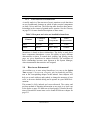
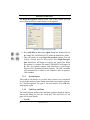
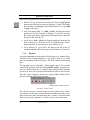
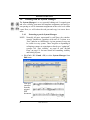
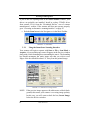
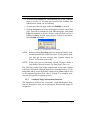
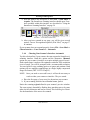
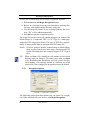
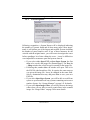
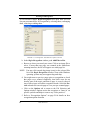
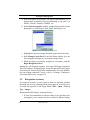
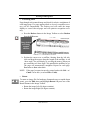
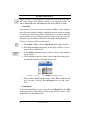
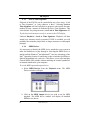
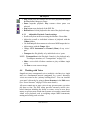
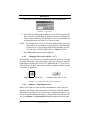
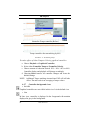
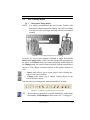
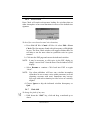
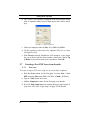
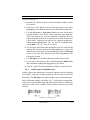
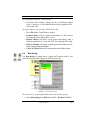
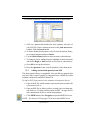
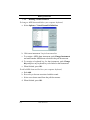
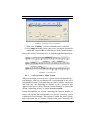
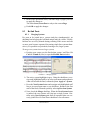
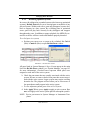
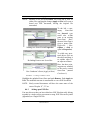
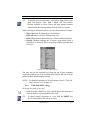
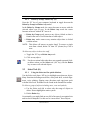
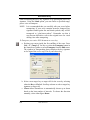
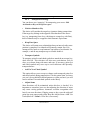
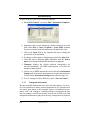
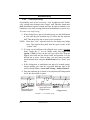
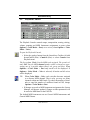
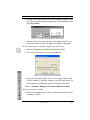
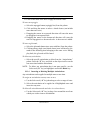
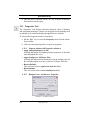
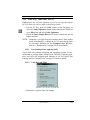
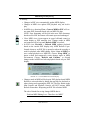
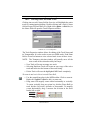
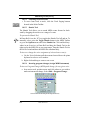
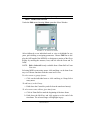
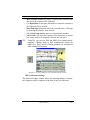
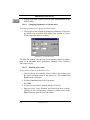
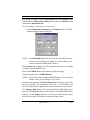
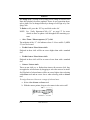
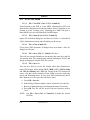
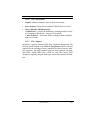
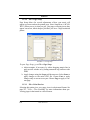
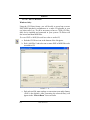
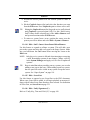
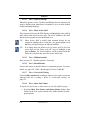
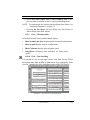
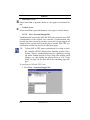
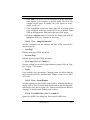
d. Select Edit > Create Automatic Drum Pattern.
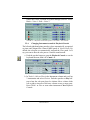
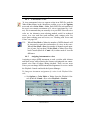
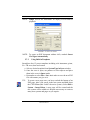
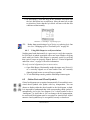
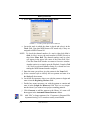
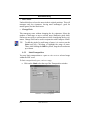
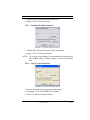
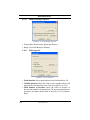
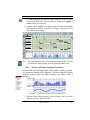
FIGURE 7 - 4: Creating a drum pattern from a MIDI file
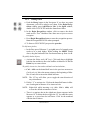
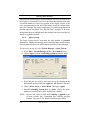
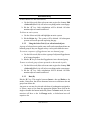
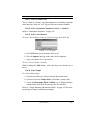
e. Locate the track in which the drum is played and select it in the
Track field. Note that MIDI drums will sound only if they are
assigned to MIDI Channel 10.
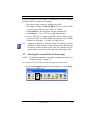
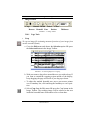
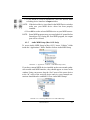
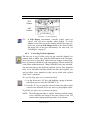
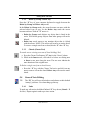
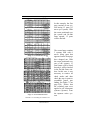
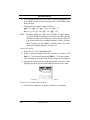
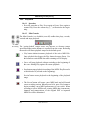
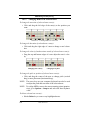
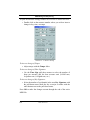
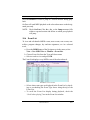
NOTE: To check the channel number of a track, right-click (Ctrl +
click for Mac) next to the track number in MIDI Overview
then select Piano Roll. The channel number (and its color)
will appear in the upper left corner of the Piano Roll View.
Close the Piano Roll window to return to Overview window.
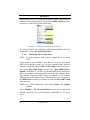
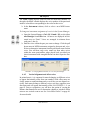
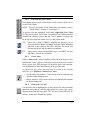
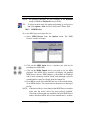
Another option is to simply open the Playback Console (Ctrl
+ 9). Next to each track number listing is a colored box containing the MIDI channel number assigned.
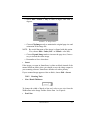
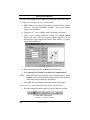
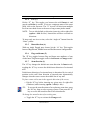
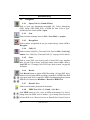
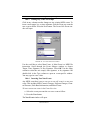
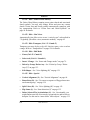
f. Enter the name you wish to give the pattern in the Name field.
g. Select a musical style to classify the new pattern and enter it in
the Style pull-down menu.
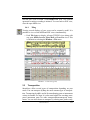
h. Locate the first measure where you wish the pattern to begin and
enter it into the Beginning Measure field.
i. Decide how many measures you wish the pattern to contain and
enter it in the Length (in Measures) field. This is a very important decision if you want to have proper-sounding patterns.
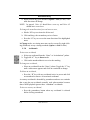
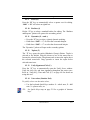
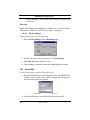
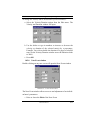
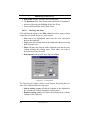
j. Click Generate to add the pattern to the library. It’s name will
then appear in the Automatic Drum Pattern window.
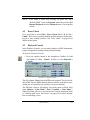
TIP:
110
Add “fills” to longer patterns (8 or 12 measures). Repeated fills
in patterns having 1 or 2 measures usually sound dumb.
USING SmartScore