1
MIDI Editing and Sequencing
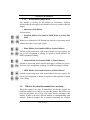
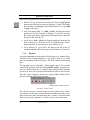
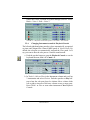
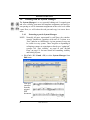
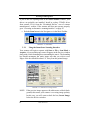
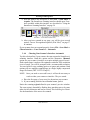
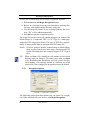
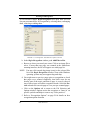
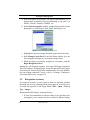
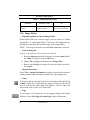
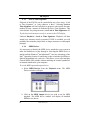
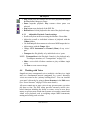
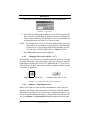
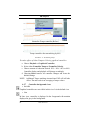
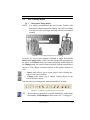
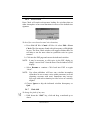
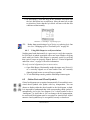
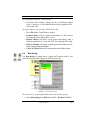
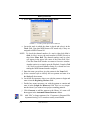
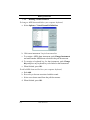
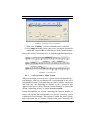
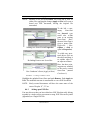
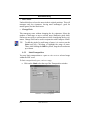
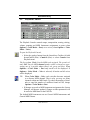
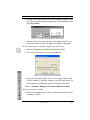
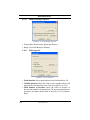
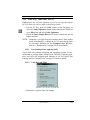
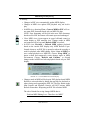
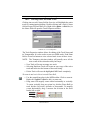
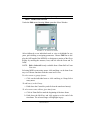
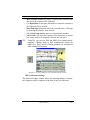
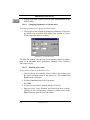
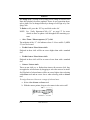
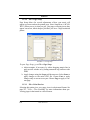
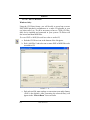
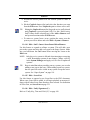
b. Select the MIDI Port of the MIDI instrument you will be adjusting with the MIDI Port pull-down menu.
c. Choose a specific Instrument Bank or all Banks from the selected
MIDI Port if numerical banks are supported by your MIDI
device.
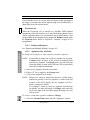
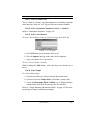
d. Select the type of MIDI Instrument (GM, MT32, GS, Yamaha
XG, Numeric or Custom) from the Instrument pull-down menu.
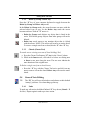
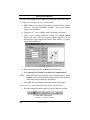
e. Use the radio buttons to activate or deactivate specific MIDI
channels for selected Instrument set and Drum set. The default
MIDI channel for drums is 10.
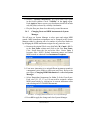
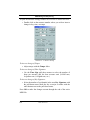
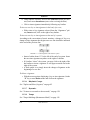
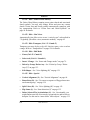
f. Use the Drum pull-down menu to select the type of MIDI Drum
set your device supports (GM, No Drums, Roland GS Drums,
Yamaha XG Drums, Numeric or Custom).
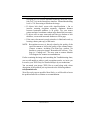
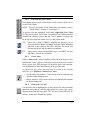
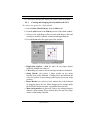
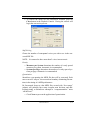
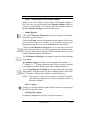
g. Push Custom to create a formatted text document for displaying
custom instrument names for your MIDI device. Edit to change.
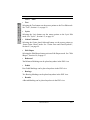
h. Save will save Custom patch names as a formatted text document (.TXT). Save this file then open it in a word processing
application and enter your patch names. Then save as a text document.
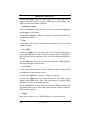
i. Load will allow you to load the Custom text file. Your custom
patch names will display throughout SmartScore’s MIDI patch
selection windows (Instrument Templates and Playback Console).
188
USING SmartScore