1
Scanning and Recognition
•
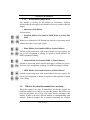
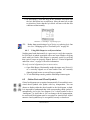
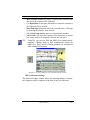
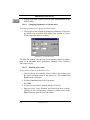
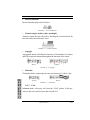
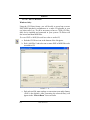
Manual or Automatic Source (Document feeder)
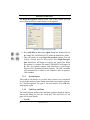
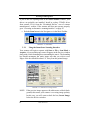
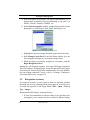
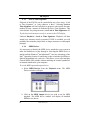
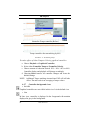
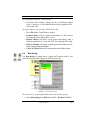
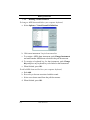
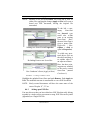
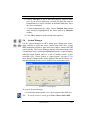
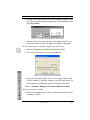
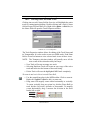
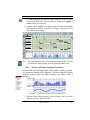
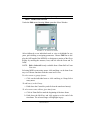
Normally, you will preview and scan one page at a time. Some scanners have automatic document feeders. If you choose Automatic
option, you will be able to scan multiple pages at once. However, you
will only be able to preview the first page. If you select Automatic,
make sure when you preview the first page that the entire page is
selected and not cropped. Remaining pages will be scanned and fed
without preview checking.
3.2.4
Choosing an alternative scanning interface
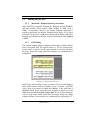
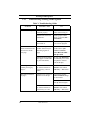
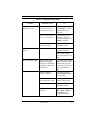
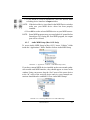
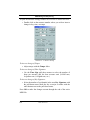
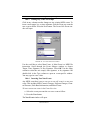
If your scanner does not respond to the Scan command in the SmartScore interface or your scanned image is unacceptable (partially
scanned, grey, color, etc.)...
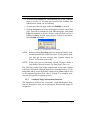
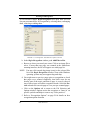
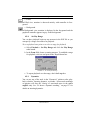
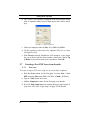
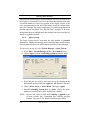
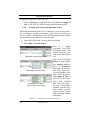
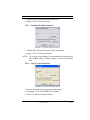
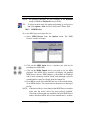
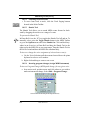
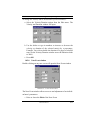
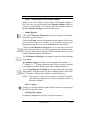
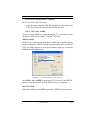
a. Check that your scanner is on and that the proper driver is
installed (File > Scan Music > Select Scanner). If a compatible
driver is not present, you will have to reinstall your scanner’s
software either from the original CD or by downloading the most
recent scanner driver from your scanner manufacturer’s web site.
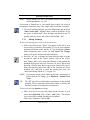
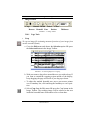
If the above is true and pushing the Scan button in the Navigator
still causes problems, your TWAIN driver is probably incompatible with SmartScore’s own scanning interface.
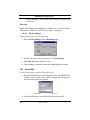
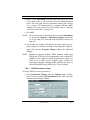
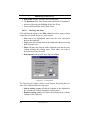
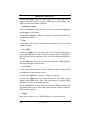
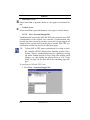
b. Switch to the scanning software that was installed with your
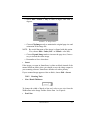
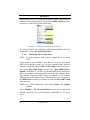
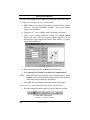
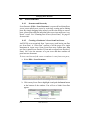
scanner. To do this, go to File > Scan Music > Choose Interface
> Your Scanner’s. When you push the Scan button, you will
then be handed off to your scanner’s interface.
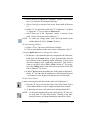
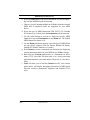
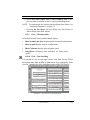
If you are using your scanner’s interface, follow the following guides:
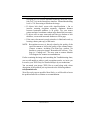
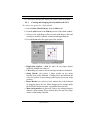
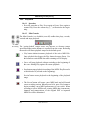
• Place music in the scanner as squarely as possible.
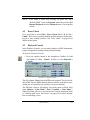
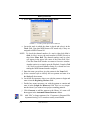
• Scan in Black & White (Line Art, 1 bit or OCR). Do not scan in
color or in greyscale. “Black & White Document” may be grey.
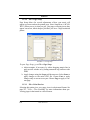
• Crop in the music to be scanned by dragging mouse in preview.
• Scan between 300-400 dpi (average printed music).
30
USING SmartScore