1
Installation and Quick Tour
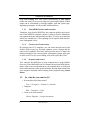
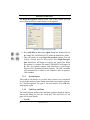
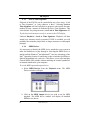
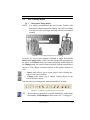
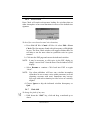
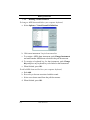
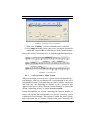
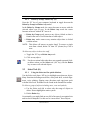
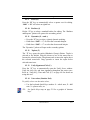
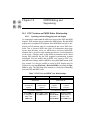
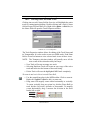
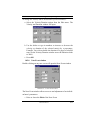
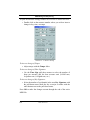
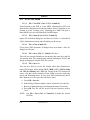
b. Remove “Visibility checkmarks” for PianoR and PianoL parts
in the far-left column. Check “Visibility” in the Apply region.
Push Apply to New to create a new document which will include
only the part(s) selected by visibility checkmarks.
c. Play the flute part, then close this newly created document.
2.4.2
Changing Parts and MIDI instruments in System
Manager
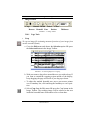
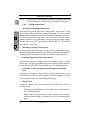
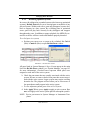
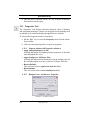
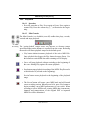
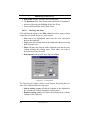
We will now use System Manager to select parts and assign MIDI
sounds. MIDI instrument assignments can be changed in the System
Manager either by choosing one of a number of preset Part Names or
by changing the MIDI instruments assigned to any particular voice.
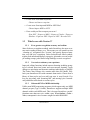
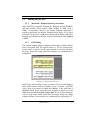
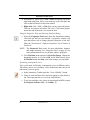
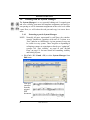
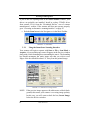
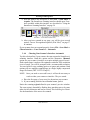
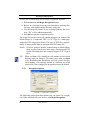
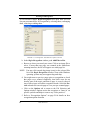
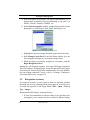
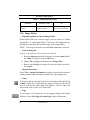
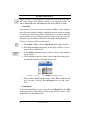
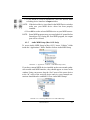
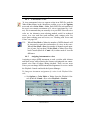
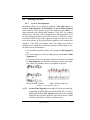
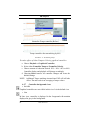
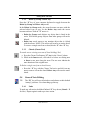
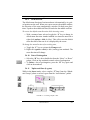
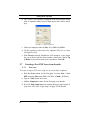
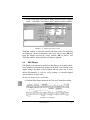
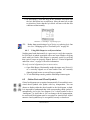
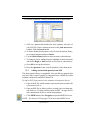
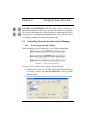
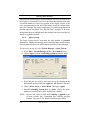
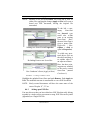
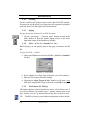
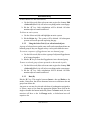
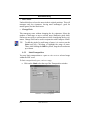
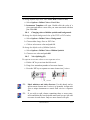
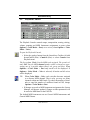
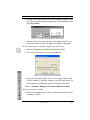
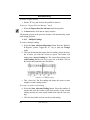
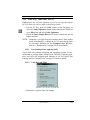
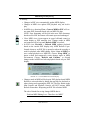
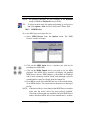
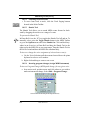
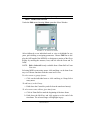
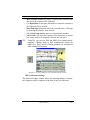
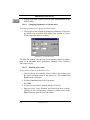
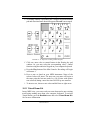
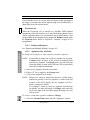
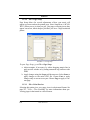
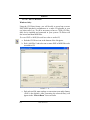
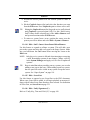
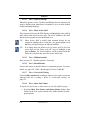
a. Return to the original Gluck score, hit Ctrl + M / Cmnd + M. Go
to the Part Name column and click on the first Part Name,
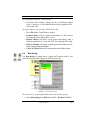
Flute. Scroll down the list and select Oboe. Notice Voice 1
becomes Oboe. NOTE: Default instrument names and linked
MIDI sounds are obtained from Instrument Templates.
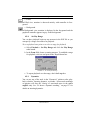
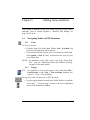
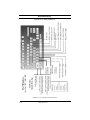
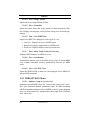
FIGURE 2 - 8: Changing MIDI instruments by selecting new Part Name
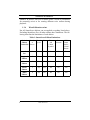
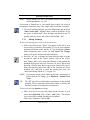
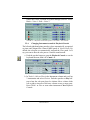
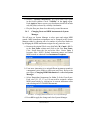
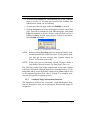
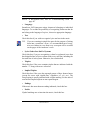
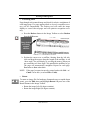
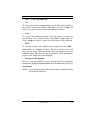
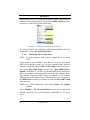
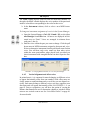
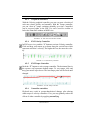
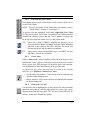
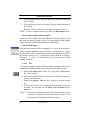
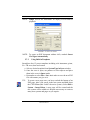
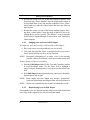
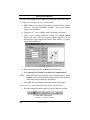
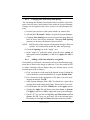
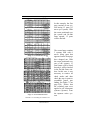
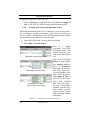
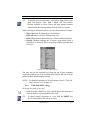
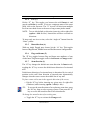
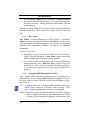
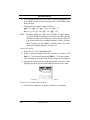
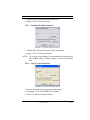
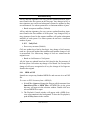
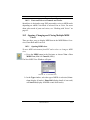
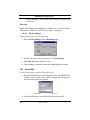
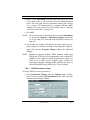
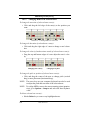
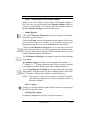
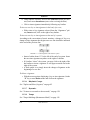
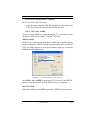
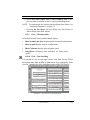
b. Even more interesting is to assign different instrument sounds to
contrapuntal voices within a single part (staff line). Refer to the
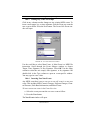
next figure, Changing MIDI Instrument of a voice in System
Manager.
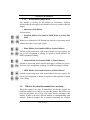
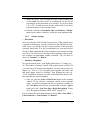
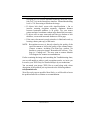
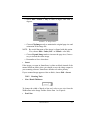
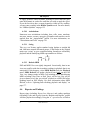
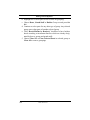
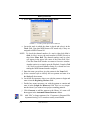
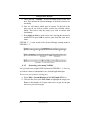
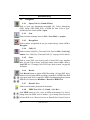
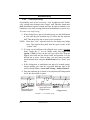
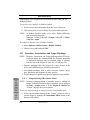
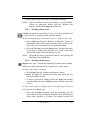
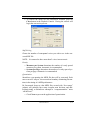
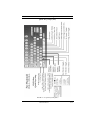
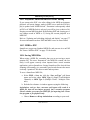
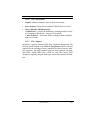
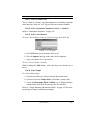
c. Select Harpsichord instrument for Voice 2 of the PianoR part.
Each voice (V1, V2, V3 or V4) can each be assigned a unique
MIDI sound simply by clicking on its current instrument name
and selecting one of 128 MIDI instruments.
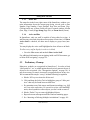
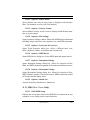
FIGURE 2 - 9: Changing MIDI instrument of a voice in System Manager
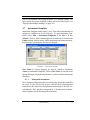
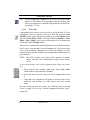
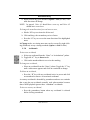
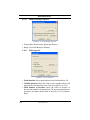
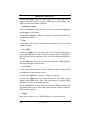
d. Press OK to apply the change and close System Manager.
USING SmartScore
19