1
32
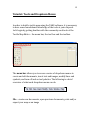
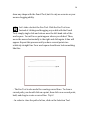
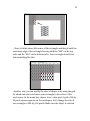
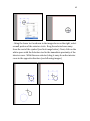
copied symbol is directly on top of the original symbol. Select the
symbol and move it, revealing the duplicated symbol.
Tip:
Want to keep your sizes consistent?
Hold down the shift key while you drag to re-size
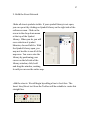
3. Add Unique Features to Your Map
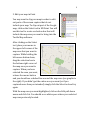
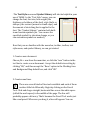
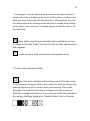
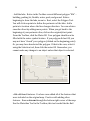
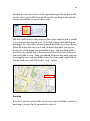
Add the railroad tracks. Select the Pen Tool in the
Toolbox. Position your cursor in the upper-left corner at the
beginning of the railroad. Click at various points along the path of the
railroad. Remove points as necessary to create a line that runs along
the railroad. When you are satisfied with your line, select it with the
Selection Tool and click on the Rail-Line Tool in the toolbox.
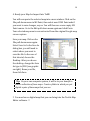
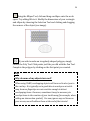
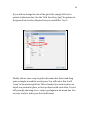
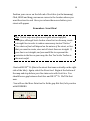
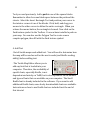
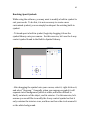
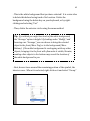
- Edit the railroad tracks. The following example reveals a rail line in
need of editing. If you drew your rail line perfectly, draw another rail
line in a different location on the page to practice this editing. Make
sure the railroad line is selected. Now click and hold the
Move/Add/Remove Point tool until Remove Points is highlighted.
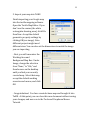
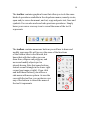
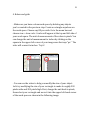
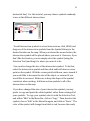
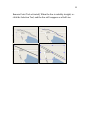
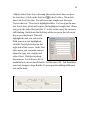
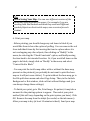
You will see the Rail Line turn back into a Pen Line, with all of the
points revealed (see second graphic below). By removing the points
in the curve, the line will straighten and better resemble the correct
path of the rail line. To remove points, simply click on them (with the