1
Core Features
121
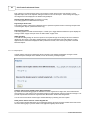
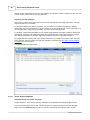
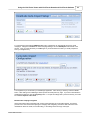
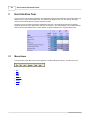
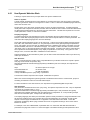
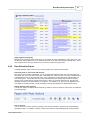
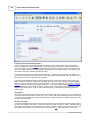
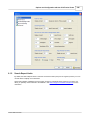
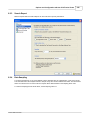
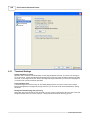
Processed Date Range
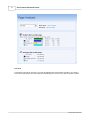
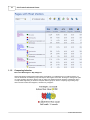
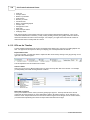
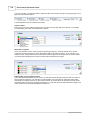
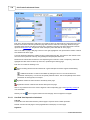
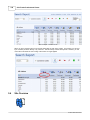
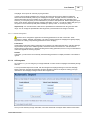
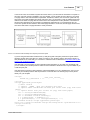
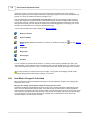
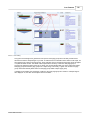
The processed date range is the complete set of data received from the Pro Processor when you synchronize
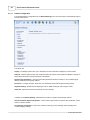
the client. This date range is not explicitly listed anywhere in the Pro Client, but it is evident from the dates along
the top of the Timeline. This is all of the data available for analysis.
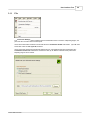
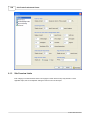
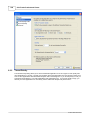
Analyzed Date Range
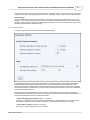
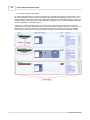
The analyzed date range is the set of data that will be analyzed each time you need to do a re-analysis, such as
when you create a segment. This date range can be made smaller than the processed date range, because you
may literally have years of data available for analysis, but you don't need to look at much of the historical data
very often. So you can set the analyze date range to something more relevant, like the last three months. The
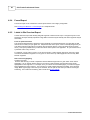
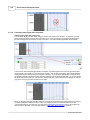
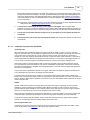
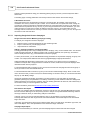
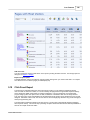
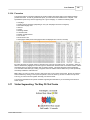
Analyzed date range can be recognized as everything to the right of the grey vertical control bar in the timeline.
That is, everything in the dark grey area to the left of that bar is processed data that is available for analysis, but
is not set to be analyzed. It will have a white background except for the light blue area that represents the
counted area.
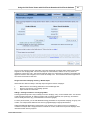
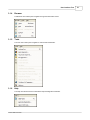
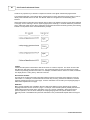
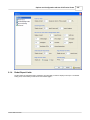
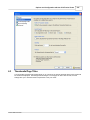
Counted Date Range
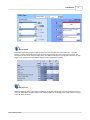
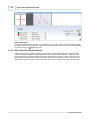
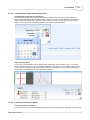
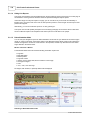
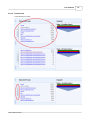
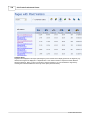
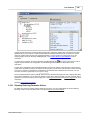
The counted date range is the light blue area between the two blue control lines. This is the date range
displayed at the top of the report, and it is the date range that all report numbers are base on. The blue vertical
control lines can be moved back and forth within the white 'analyzed' date range, and when changed the metrics
for the adjusted date range will be almost instantly counted up.
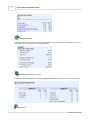
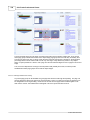
Thus, the 'counted' date range is always a subset of the 'analyzed' date range, and the 'analyzed' date range is
always a subset of the 'processed' date range.
5.1.2.1
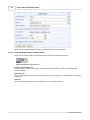
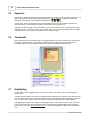
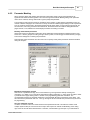
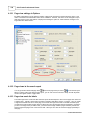
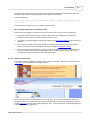
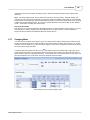
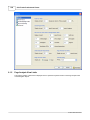
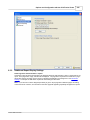
Moving the date range
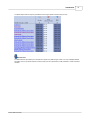
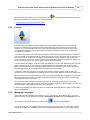
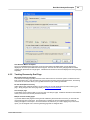
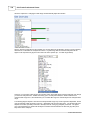
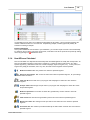
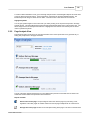
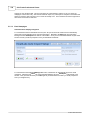
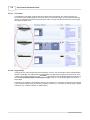
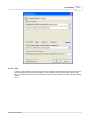
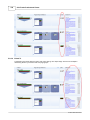
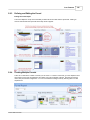
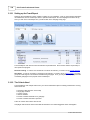
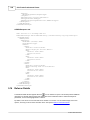
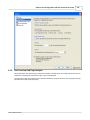
When you mouse over the blue 'counted' area, you will see the crossed arrows symbol that means you can
move the entire date range. Just click and drag to move the counted date range within the white analyzed date
range. This will maintain the number of days analyzed, but simply move the time frame forward or back in time.
© 2001-2008 ClickTracks