1
Real World Analysis Examples
111
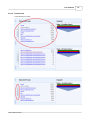
View reports
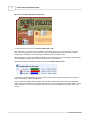
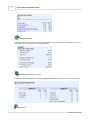
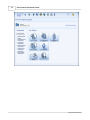
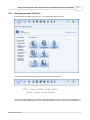
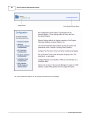
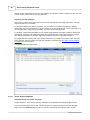
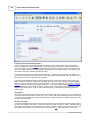
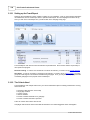
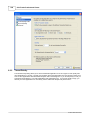
Once you've selected a dataset, report icons will become active and you can click in to view the reports. If you
do not have permission to view a particular report, the icon for that report will simply not appear on the screen.
Ad hoc analysis is not possible
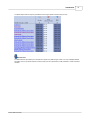
When you are viewing datasets through a web browser, you will not be able to perform ad hoc analysis. That is,
you won't be able to create segments, import campaigns, create funnels, or set other settings.
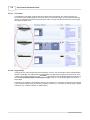
Different views of the data
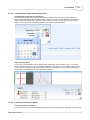
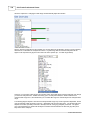
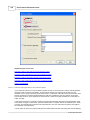
Although you can't do ad hoc analysis, you still have the ability to explore the data in other ways. Change the
date range from the drop-down list at the top-left of each report. These date selections include full time ranges,
e.g. last month, last quarter, this week, etc. They also include sets of date ranges, e.g. last quarter by months,
last month by days, etc.
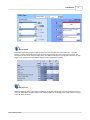
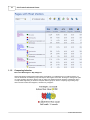
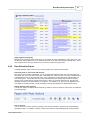
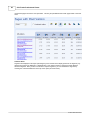
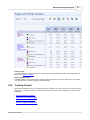
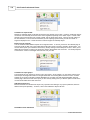
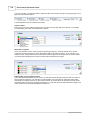
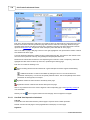
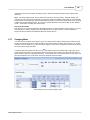
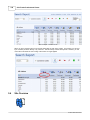
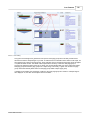
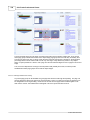
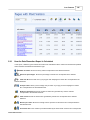
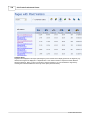
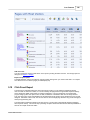
You can also move through various views of the data. Several of the reports have multiple views, (such as the
Search report, with views for total visits, revenue, time on site, etc.), which you can pull up instantly by clicking on
the corresponding icon.
4.13.3 Client Installations
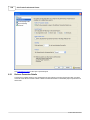
Some users need to just see some specific reports while others need to do full-blown ad hoc analysis. Those in
the second group will need to download and install their own version of the Professional Viewer application. This
application allows the user to download a complete dataset from the Pro Processor, including all the raw data,
and do tasks that require complete re-analysis of the data, such as creating segments, analyzing campaigns,
and creating funnels.
Meet computer requirements
The application should be installed on a computer that meets the minimum requirements for operation,
specifically a Pentium 4 processor with at least 1 Ghz speed and 1 GB of RAM. Multi-processor chips will not
improve performance with this application. It should also be understood that when the application begins
analyzing data that it will use large amounts of CPU cycles and RAM, and significantly impact the performance
of other applications.
Download and install application
The ClickTracks Pro product includes an unlimited number of client installations. These applications can be
downloaded at http://www.clicktracks.com/pro_files/. This is a secured web site, so if you don't know the login,
contact [email protected]. Installation of the application is generally a very simple matter.
Deal with firewalls and antivirus programs
The Pro Viewer application acquires data from the Pro Processor via HTTP or HTTPS protocols. In some cases
adjustments may need to be made to firewalls and/or antivirus programs to allow all the data in a dataset to be
downloaded. This will probably involve putting the Reporting Engine server address on a whitelist.
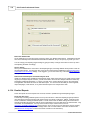
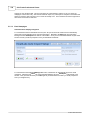
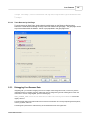
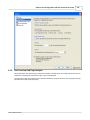
Connect to Reporting Engine
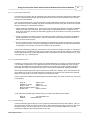
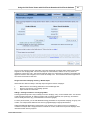
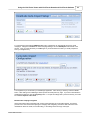
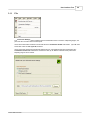
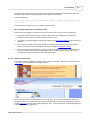
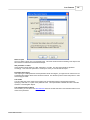
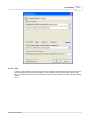
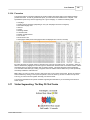
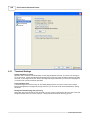
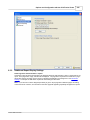
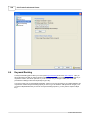
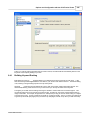
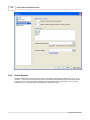
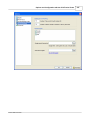
Before you can create a dataset, you need to connect to the Reporting Engine application that serves the
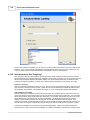
processed datasets. When you open the Viewer application for the first time, a dialog will open prompting you to
make that connection. If the Reporting Engine is located on the same local area network, you could reference it
by its network IP address (e.g. 192.168.0.113). You could also connect to it with a public IP address or a fully
qualified domain, such as http://demo.clicktracks.com that have been specifically assigned to the Reporting
Engine. If the Reporting Engine is serving files on a port other than the default port 80 (probably because
another web server on that box is using port 80), you will need to specify the port number as well.
© 2001-2008 ClickTracks