1
| Knowledge Base | 198
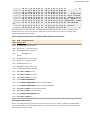
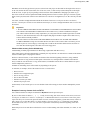
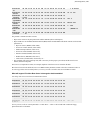
Because a normally functioning system relies on the boot sector to access a volume, it is highly recommended that
you run disk-scanning tools such as Chkdsk regularly, as well as back up all of your data files to protect against data
loss in case you lose access to the volume.
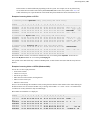
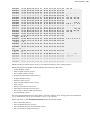
Tools like Active@ Partition Recovery and Active@ UNERASER allow you to create backup of MBR, Partition
Table and Volume Boot Sectors so that if for some reason it fails to boot, you can always restore your partition
information and have an access to files/folders on that partition.
What to do if this sector is damaged?
•
•
•
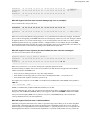
If we do have backup of the whole disk or MBR/Boot Sectors we can try to restore it from there.
If we do not have backup, in case of NTFS we could try to locate a duplicate of Partition Boot Sector and get
information from there.
If duplicate boot sector is not found, only virtual partition recovery might be possible if we can determine critical
partition parameters such as Sectors per Cluster, etc..
How can we fix NTFS boot sector using standard Windows NT/2000/XP tools?
On NTFS copy of boot sector is stored at the middle or at the end of the Volume.
You can boot from start-up floppy disks or CD-ROM, choose repair option during setup, and run Recovery Console.
When you are logged on, you can run FIXBOOT command to try to fix boot sector.
How can recovery software help you in this situation?
•
•
•
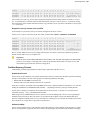
It can backup MBR, Partition Table and Boot Sectors and restore them in case of damage
It can try to find out duplicate boot sector on the drive and re-create the original one or perform virtual data
recovery based on found partition parameters
Some advanced techniques allow assuming drive parameters even if duplicate boot sector is not found (i.e.
perform virtual partition recovery) and give the user virtual access to the data on the drive to be able to copy them
to the safer location.
Missing or Corrupted System Files
Understanding of underlying mechanisms of data storage, organization and data recovery.
For Operating System to boot properly, system files required to be safe.
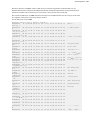
In case of Windows 95 / 98 / ME, these files are msdos.sys, config.sys, autoexec.bat, system.ini, system.dat, user.dat,
etc.
In case of Windows NT / 2000 / XP these files are: NTLDR, ntdetect.com, boot.ini,located at the root folder of
the bootable volume, Registry files (i.e., SAM, SECURITY, SYSTEMand SOFTWARE), etc.
If these files have been deleted, corrupted, damaged by virus, Windows will be unable to boot. You'll see error
messages like "NTLDR is missing ...".
So, the next step in recovery process is to check the existence and safety of system files (for sure, you won't able to
check them all, but you must check at least NTLDR, ntdetect.com, boot.ini which cause most of problems).
To do it in Windows 95 / 98 / ME - you can boot in Command Prompt Mode, or from the bootable floppy and
check system files in the command line or with a help of third party recovery software.
To do it in Windows NT / 2000 / XP, you can use Emergency Repair Process, Recovery Console or third party
recovery software.
Emergency Repair Process
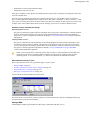
To proceed with Emergency Repair Process, you need Emergency Repair Disk (ERD). This disk is recommended to
create after you install and customize Windows. To create it, use the "Backup" utility from System Tools. You
can use the ERD to repair damaged boot sector, damaged MBR, repair or replace missing or damaged NT Loader
(NTLDR) and ntdetect.com files.