1
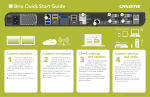
Welcome to Brio Enterprise
Security Securing Brio prevents unauthorized devices from connecting to it and it also limits
Brio Enterprise is a presentation and collaboration solution that makes it easy to share up to five
presentations. With a few quick keystrokes or taps on your Mac, PC, iPad, or wired / wireless
device, you can share your audio, high definition video, whiteboards, and other information in a
single room or in multiple locations.
access to the Meeting Manager. When Brio is secured, the password must be shared with users
who need to view the Meeting Manager or share sources in a meeting.
When a secure session is started or ended, all sources (except DVI sources) are disconnected.
On a touch display, tap the security icon
Meeting Manager The Meeting Manager is the user interface for Brio. It can be accessed
.
From the web Meeting Manager, click Security.
from a touch display or the web. On a touch display, tap the Touch Control.
The Touch Control has three states: whiteboard
, annotation on
, and annotation off
.
Flick down (touch, move down, and release) on the Touch Control to toggle the state. To browse
to the Meeting Manager, connect your browser-capable device to the same network as Brio, and
enter the Brio IP address/meeting in your web browser address field.
Auto-show
Select to automatically show the source when the source is connected to Brio.
Use numbers
Select to display the source numbers on the sources in the presentation area.
Duplicate #1
Select to duplicate source #1 on both outputs.
To change presenter, select the change presenter icon
Select primary To change your primary output, use the Select primary buttons.
box is updated), and then tap the start meeting
Pen / Eraser / Pen thickness - Sm / Md / Lg
/ Annotation Mode / Load sketch
Color palette - 7 (of 10)
Undo / Redo / Color palette - 3 (of 10)
/ Clear sketch / Screenshot
Attendee has not responded
.
From the web, click
Attendee declined invite
.
http://10.10.30.143 or http://Brio72) and follow the steps.
Meeting host
Attendee accepted invite
Start
Connect Sources Browse to the Brio IP address or DNS name (for example
On a touch display, tap the Touch
Tap the attendees you want to invite (the check
to open the menu. Tap the annotation icon
From the web Meeting Manager, click the start button
Rearranges the sources in the presentation using drag/drop in the list.
.
to
to toggle to whiteboard.
Disconnects the source from Brio and removes the source from the list.
Control, and tap the meeting icon
.
Whiteboarding/Annotating Whiteboarding and annotating require a touch display.
From a touch display, tap the Touch Control
Toggle to turn audio on/off for sources.
Start . Select the attendees
Current presenter in the meeting
(click Name or Location to sort) you want to
Brio is disconnected
invite, and then select Start.
Brio is not licensed for meetings
Page 2
request to the host asking to be the presenter and share your presentation area.
invite additional attendees or remove existing attendees.
Toggle to show/hide the source.
icon
be a presenter and share their presentation area. If you are attending a meeting, you can send a
Update Meeting Attendees Host selects the invite / remove attendees icon
Source List The source list contains the following options:
Meetings
Share Presentation Area When you are hosting a meeting, you can invite another Brio to
Learn More This is a Quick Start Guide. See the Brio User Manual (020-101758) for more details.
Technical Support
Contact Christie Technical Support at +1-519-744 -7986.
LIT GUID START Brio Enterprise 020-101703-02 Rev. 1 (7-2015)