1
Document: Learning Management System (LMS) User Guide
Last updated: 7/3/14
Getting Started
Navigation
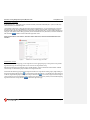
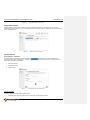
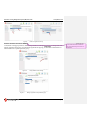
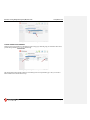
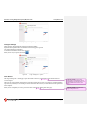
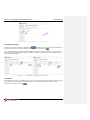
Home Page (My Courses - Recently Accessed Courses)
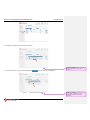
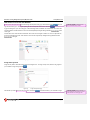
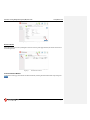
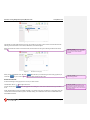
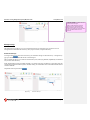
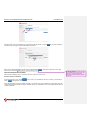
After logging in, the first page you’ll see is My Courses. This page opens to a list of your Recently Accessed Courses. If you
haven’t worked on courses within the last XXXXX MONTHS, the list will be empty.
Comment [ovhw1]: Studies show that
documents with a familiar writing style are
more easily understood and remembered.
Comment [ovhw2]: How long?
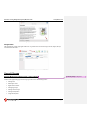
Figure 1:
Home/My Courses/Recently Accessed Courses page.
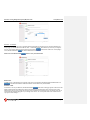
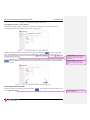
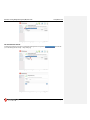
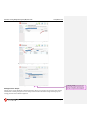
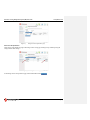
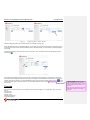
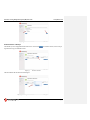
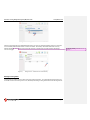
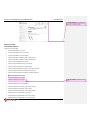
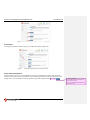
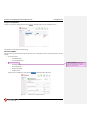
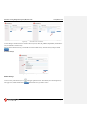
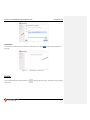
Engage Manager Mode
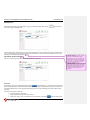
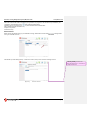
Figure 2:
To engage Manager Mode, click the drop-down
box on the bottom right of the screen.
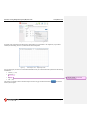
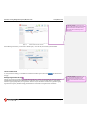
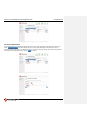
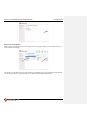
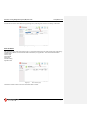
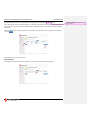
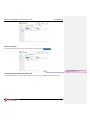
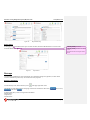
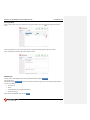
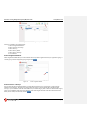
Next/Back Buttons
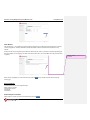
To move ahead or back while taking a class, click on the Next
of the screen. Each click advances or retreats one page.
button or the Back
button on the bottom right
Page 4