1
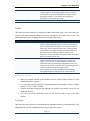
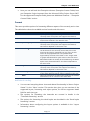
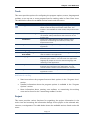
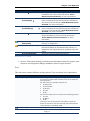
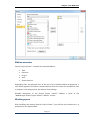
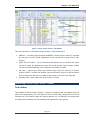
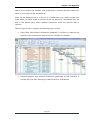
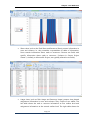
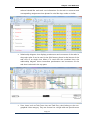
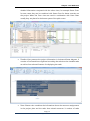
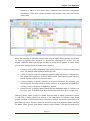
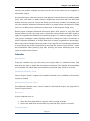
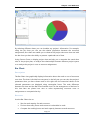
Chapter : User Reference Proxy Settings Proxy Settings button opens a new dialog box where you must make the necessary adjustments in order to access ProjectOffice.net. You can use this functionality if proxy servers exist in your working environment. By default, Detect proxy automatically radio button is selected. If the IT department provides you with additional information regarding the proxy server in your company, you must select the Use the following proxy radio button and enter the parameters. Combined views Combination views are views that contain two views. The bottom pane view shows detailed information about the tasks or resources in the top pane view. Combination views can be created in Seavus Project Viewer™ by using the Split action on the Window menu. Alternatively, you can activate the combined view functionality by dragging the split bar up, as shown on the figure below, which can be found in the bottom down corner of the application window, between the horizontal and vertical scrollbars. Combination views can be useful when you are interested to view more detailed information about a selection of task or resources in one of the available views. By activating a different view in the bottom pane of the combination view window, you can select one or more tasks in the top view and view the associated task, resources, or assignments in the bottom view. Here are few useful examples when you can use combination views to help you better analyse the project information and schedule: When you display any resource view in the top pane and the Calendar view in the bottom pane, the view in the bottom pane shows the assigned tasks for the resources selected in the top pane, presenting them as they are scheduled on particular days, weeks, or months When you display any resource view in the top pane and the Gantt Chart view in the bottom pane, the view in the bottom pane shows the assigned tasks for the resources selected in the top pane, along with information about those tasks. Page | 124 Seavus Project Viewer User Manual