1
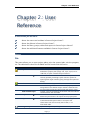
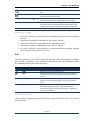
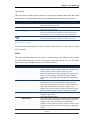
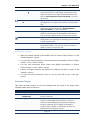
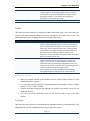
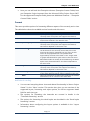
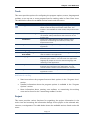
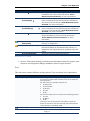
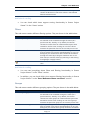
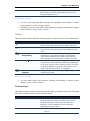
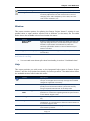
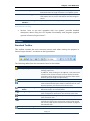
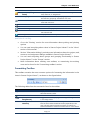
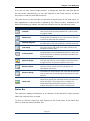
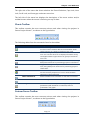
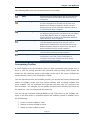
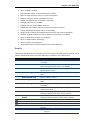
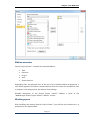
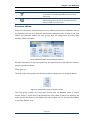
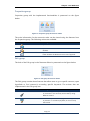
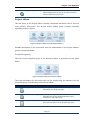
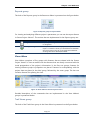
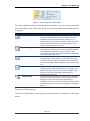
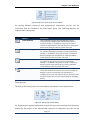
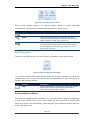
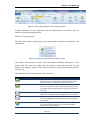
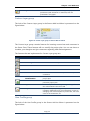
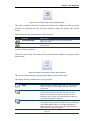
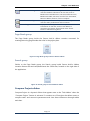
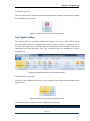
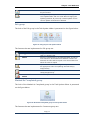
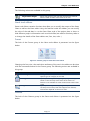
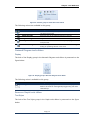
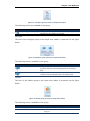
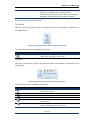
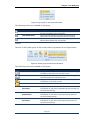
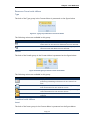
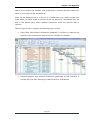
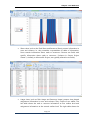
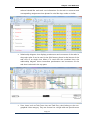
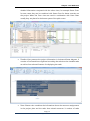
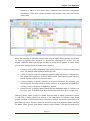
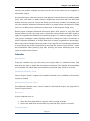
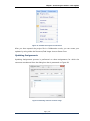
Chapter : Seavus Project Viewer™ Task Update Insert Comments – You can insert comment for the appropriate update, or give reply to the project manager’s comment Delete Comments – Deleting all comments that are inserted for the appropriate updates Clear Value – You will delete entire set of information that is connected for the appropriate assignment (updates and comments) The dialog that wills pop-up after you select the Insert Comments feature is presented on the figure below. Figure 70. Insert Comment dialog In case when comments exist for the assignment you can edit the comments by selecting the Edit comments from the Comment contextual menu. Note: You can’t insert comment until you don’t update the assignment. Indicators Column By clicking on the icon in the indicators column, you can: Reset to referent values – Your updates will be reset to the referent values they had before making any changes; Clear all values – All of you updates that you made, but did not saved, will be cleared and you will have the possibility to create new updates; Mark assignment as completed – If you finish you task earlier, you can always mark it as completed. This option will not add hours or percent complete to you task, but will notify your project manager that your task is finished. Change update method – If you started to update an assignment with %Work complete, the editing fields in the right usage panel will be disabled. Page | 148 Seavus Project Viewer User Manual