1
Chapter : User Reference
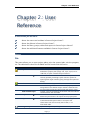
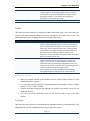
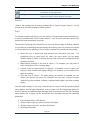
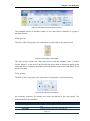
Hyperlink
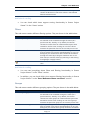
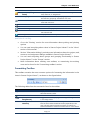
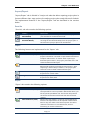
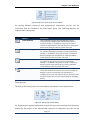
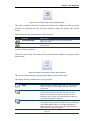
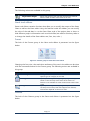
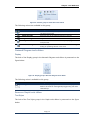
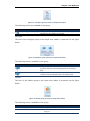
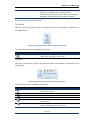
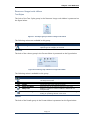
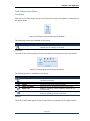
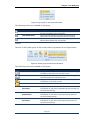
This sub-menu provides several options to work with hyperlinks associated with tasks
and resources. The table below shows the available actions found under this menu.
Feature
Open
Open in New Window
Copy Hyperlink
Add to Favorites…
Description
Opens the hyperlink associated with the selected task or
resource in the current view
Like the previous action, this one opens the hyperlink as
well, but in a new window
Copies the hyperlink (e.g. the URL it points to) associated
with the selected task or resource in the current view to
the clipboard, so it can be pasted in other applications
Adds a link in the favorites list to the hyperlink associated
with the selected task or resource in the current view
Additional reading
You can read everything about views in Seavus Project Viewer™ in the “Views” section
of this manual.
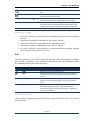
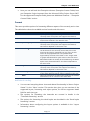
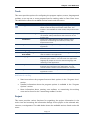
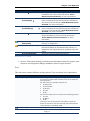
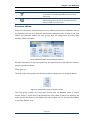
View
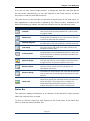
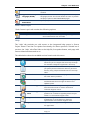
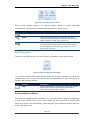
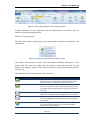
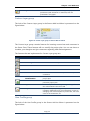
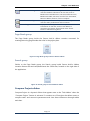
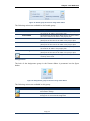
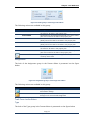
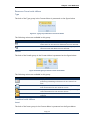
This menu provides options for the user to switch between the different views, switch
the tables associated with a view, view reports, zoom the current view, etc. The table
below shows the available actions found under this menu.
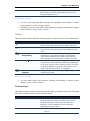
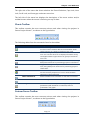
Feature
[Task Views]
[Resource Views]
Chart View…
More Views…
Description
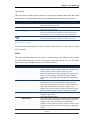
In this section of the View menu, a list of task views (views
showing tasks in different ways) which are selected to be
shown in the menu for a quick access (e.g. most
frequently used ones) is listed. Usually, i.e. by default, this
group of views contains the following views: Calendar,
Gantt Chart, Task Usage, Network Diagram, and Tracking
Gantt.
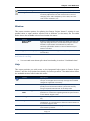
In this section of the View menu, a list of resource views
(views showing resources in different ways) which are
selected to be shown in the menu for a quick access (e.g.
most frequently used ones) is listed. Usually, i.e. by
default, this group of views contains the following views:
Resource Graph, Resource Sheet, and Resource Usage.
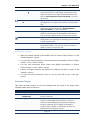
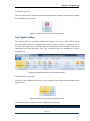
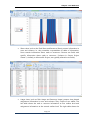
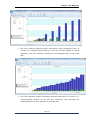
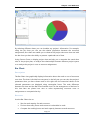
Opens up a dialog with selection of charts organized in 3
categories (Bar Charts,
Line Charts and Pie Chart).
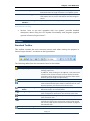
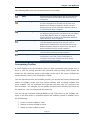
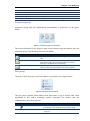
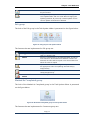
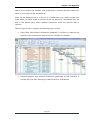
Opens up a dialog that lists all available views, regardless
if they are visible in the menu or not. You can choose to
display a view in the View menu by checking the
checkbox next to the view name in the list or show a view
by selecting the view in the list and clicking on the Apply
button.
Page | 9
Seavus Project Viewer User Manual