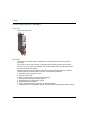
1
Compact CANopen Logic Controller M241 EIO0000001677 06/2014 Compact CANopen Logic Controller M241 System User Guide EIO0000001677.01 06/2014 www.schneider-electric.com The information provided in this documentation contains general descriptions and/or technical characteristics of the performance of the products contained herein. This documentation is not intended as a substitute for and is not to be used for determining suitability or reliability of these products for specific user applications. It is the duty of any such user or integrator to perform the appropriate and complete risk analysis, evaluation and testing of the products with respect to the relevant specific application or use thereof. Neither Schneider Electric nor any of its affiliates or subsidiaries shall be responsible or liable for misuse of the information contained herein. If you have any suggestions for improvements or amendments or have found errors in this publication, please notify us. No part of this document may be reproduced in any form or by any means, electronic or mechanical, including photocopying, without express written permission of Schneider Electric. All pertinent state, regional, and local safety regulations must be observed when installing and using this product. For reasons of safety and to help ensure compliance with documented system data, only the manufacturer should perform repairs to components. When devices are used for applications with technical safety requirements, the relevant instructions must be followed. Failure to use Schneider Electric software or approved software with our hardware products may result in injury, harm, or improper operating results. Failure to observe this information can result in injury or equipment damage. © 2014 Schneider Electric. All rights reserved. 2 EIO0000001677 06/2014 Table of Contents Safety Information . . . . . . . . . . . . . . . . . . . . . . . . . . . . . About the Book. . . . . . . . . . . . . . . . . . . . . . . . . . . . . . . . Chapter 1 General Information . . . . . . . . . . . . . . . . . . . . . . . . . . . . Introduction . . . . . . . . . . . . . . . . . . . . . . . . . . . . . . . . . . . . . . . . . . . . . Deliverables . . . . . . . . . . . . . . . . . . . . . . . . . . . . . . . . . . . . . . . . . . . . . Chapter 2 System Architecture. . . . . . . . . . . . . . . . . . . . . . . . . . . . Architecture Related Safety Information . . . . . . . . . . . . . . . . . . . . . . . System Architecture . . . . . . . . . . . . . . . . . . . . . . . . . . . . . . . . . . . . . . Chapter 3 Safety & Safety Requirements . . . . . . . . . . . . . . . . . . . Safety Evolution Structure for the System User Guides . . . . . . . . . . . Evolution of Legal Framework . . . . . . . . . . . . . . . . . . . . . . . . . . . . . . . Risk Assessment . . . . . . . . . . . . . . . . . . . . . . . . . . . . . . . . . . . . . . . . . Functional Safety Standards . . . . . . . . . . . . . . . . . . . . . . . . . . . . . . . . Standard EN ISO 13849-1 Machinery Safety - Safety-Related Parts of Control System . . . . . . . . . . . . . . . . . . . . . . . . . . . . . . . . . . . . . . . . . . Standard EN/IEC 62061 Machinery Safety - Safety-Related Parts of Control System . . . . . . . . . . . . . . . . . . . . . . . . . . . . . . . . . . . . . . . . . . Selecting the Applicable Standard. . . . . . . . . . . . . . . . . . . . . . . . . . . . More Information Regarding Safety. . . . . . . . . . . . . . . . . . . . . . . . . . . Functional Safety Measures Implemented in this Architecture . . . . . . Chapter 4 Hardware . . . . . . . . . . . . . . . . . . . . . . . . . . . . . . . . . . . . . 4.1 Electrical Distribution and Monitoring . . . . . . . . . . . . . . . . . . . . . . . . . PowerPact H-Frame Circuit Breaker - Hardware . . . . . . . . . . . . . . . . Multi-9 C60 (UL 1077) Circuit Breaker - Hardware . . . . . . . . . . . . . . . Multi-9 C60 (UL 489) Circuit Breaker - Hardware . . . . . . . . . . . . . . . . Phaseo Power Supply Universal - Hardware . . . . . . . . . . . . . . . . . . . iEM31xx Energy Meter Series - Hardware . . . . . . . . . . . . . . . . . . . . . 4.2 Safety Modules . . . . . . . . . . . . . . . . . . . . . . . . . . . . . . . . . . . . . . . . . . Modicon TM3 Embedded Safety Module - Hardware . . . . . . . . . . . . . Preventa Detection and Dialog - Hardware . . . . . . . . . . . . . . . . . . . . . 4.3 HMI . . . . . . . . . . . . . . . . . . . . . . . . . . . . . . . . . . . . . . . . . . . . . . . . . . . Magelis HMI STU . . . . . . . . . . . . . . . . . . . . . . . . . . . . . . . . . . . . . . . . Harmony ZBRN1/ZBRN2 Access Point - Hardware . . . . . . . . . . . . . . Harmony Control and Signaling - Hardware . . . . . . . . . . . . . . . . . . . . EIO0000001677 06/2014 7 11 15 16 17 19 20 22 25 26 27 30 34 35 43 50 51 54 57 58 59 61 63 64 66 69 70 73 74 75 78 81 3 4.4 Controller . . . . . . . . . . . . . . . . . . . . . . . . . . . . . . . . . . . . . . . . . . . . . . . Modicon M241 Logic Controller - Hardware. . . . . . . . . . . . . . . . . . . . . Modicon TM3 Modules - Hardware . . . . . . . . . . . . . . . . . . . . . . . . . . . 4.5 Communication . . . . . . . . . . . . . . . . . . . . . . . . . . . . . . . . . . . . . . . . . . ConneXium Ethernet Switch (Unmanaged) - Hardware . . . . . . . . . . . 4.6 Motor Control . . . . . . . . . . . . . . . . . . . . . . . . . . . . . . . . . . . . . . . . . . . . TeSys D Contactor - Hardware . . . . . . . . . . . . . . . . . . . . . . . . . . . . . . TeSys GV2 Motor Circuit Breakers - Hardware . . . . . . . . . . . . . . . . . . Altivar 32 Variable Speed Drive - Hardware . . . . . . . . . . . . . . . . . . . . Altivar 71 Variable Speed Drive - Hardware . . . . . . . . . . . . . . . . . . . . Lexium 32A Servo Drive - Hardware . . . . . . . . . . . . . . . . . . . . . . . . . . Lexium BSH/BMH Servo Motors - Hardware . . . . . . . . . . . . . . . . . . . . 4.7 Detection . . . . . . . . . . . . . . . . . . . . . . . . . . . . . . . . . . . . . . . . . . . . . . . OsiSense XCC Encoder - Hardware . . . . . . . . . . . . . . . . . . . . . . . . . . OsiSense Industrial Sensors - Hardware . . . . . . . . . . . . . . . . . . . . . . . Chapter 5 Communication Topology and Wiring Guide . . . . . . . 5.1 Introduction to System Communication . . . . . . . . . . . . . . . . . . . . . . . . Introduction . . . . . . . . . . . . . . . . . . . . . . . . . . . . . . . . . . . . . . . . . . . . . 5.2 CANopen Network . . . . . . . . . . . . . . . . . . . . . . . . . . . . . . . . . . . . . . . . CANopen Network Topology . . . . . . . . . . . . . . . . . . . . . . . . . . . . . . . . CANopen Network Wiring . . . . . . . . . . . . . . . . . . . . . . . . . . . . . . . . . . Modicon M241 Logic Controller - CANopen Wiring . . . . . . . . . . . . . . . Altivar 32 Variable Speed Drive - CANopen Wiring . . . . . . . . . . . . . . . Altivar 71 Variable Speed Drive - CANopen Wiring . . . . . . . . . . . . . . . Lexium 32A Servo Drive - CANopen Wiring . . . . . . . . . . . . . . . . . . . . 5.3 Ethernet Network . . . . . . . . . . . . . . . . . . . . . . . . . . . . . . . . . . . . . . . . . Ethernet Network Topology . . . . . . . . . . . . . . . . . . . . . . . . . . . . . . . . . Ethernet Wiring . . . . . . . . . . . . . . . . . . . . . . . . . . . . . . . . . . . . . . . . . . Modicon M241 Logic Controller - Ethernet Wiring . . . . . . . . . . . . . . . . Magelis HMI STU 655/855 - Ethernet Wiring . . . . . . . . . . . . . . . . . . . . 5.4 Modbus Serial Line Network . . . . . . . . . . . . . . . . . . . . . . . . . . . . . . . . Modbus SL Network Topology . . . . . . . . . . . . . . . . . . . . . . . . . . . . . . . Modbus SL Wiring . . . . . . . . . . . . . . . . . . . . . . . . . . . . . . . . . . . . . . . . Modicon M241 Logic Controller - Modbus SL Wiring. . . . . . . . . . . . . . iEM31xx Energy Meter - Modbus SL Wiring . . . . . . . . . . . . . . . . . . . . Harmony ZBRN2 Access Point - Modbus SL Wiring . . . . . . . . . . . . . . 4 82 83 88 90 90 92 93 95 97 101 104 108 110 111 113 115 116 116 117 118 119 124 125 127 129 131 132 133 135 137 138 139 140 141 144 146 EIO0000001677 06/2014 Chapter 6 Implementation . . . . . . . . . . . . . . . . . . . . . . . . . . . . . . . . 6.1 Access the SoMachine Project Template . . . . . . . . . . . . . . . . . . . . . . Access the SoMachine Project Template . . . . . . . . . . . . . . . . . . . . . . 6.2 Software Requirements . . . . . . . . . . . . . . . . . . . . . . . . . . . . . . . . . . . . Software Requirements . . . . . . . . . . . . . . . . . . . . . . . . . . . . . . . . . . . . 6.3 Project . . . . . . . . . . . . . . . . . . . . . . . . . . . . . . . . . . . . . . . . . . . . . . . . . Controller . . . . . . . . . . . . . . . . . . . . . . . . . . . . . . . . . . . . . . . . . . . . . . . HMI . . . . . . . . . . . . . . . . . . . . . . . . . . . . . . . . . . . . . . . . . . . . . . . . . . . Devices . . . . . . . . . . . . . . . . . . . . . . . . . . . . . . . . . . . . . . . . . . . . . . . . Application . . . . . . . . . . . . . . . . . . . . . . . . . . . . . . . . . . . . . . . . . . . . . . Vijeo-Designer . . . . . . . . . . . . . . . . . . . . . . . . . . . . . . . . . . . . . . . . . . . Chapter 7 System Setup . . . . . . . . . . . . . . . . . . . . . . . . . . . . . . . . . 7.1 Setup Controller and HMI . . . . . . . . . . . . . . . . . . . . . . . . . . . . . . . . . . Setup Controller and HMI . . . . . . . . . . . . . . . . . . . . . . . . . . . . . . . . . . 7.2 Setup Other Devices . . . . . . . . . . . . . . . . . . . . . . . . . . . . . . . . . . . . . . Network and Device Parameter Settings. . . . . . . . . . . . . . . . . . . . . . . Altivar 32 Variable Speed Drive - CANopen Setup . . . . . . . . . . . . . . . Altivar 71 Variable Speed Drive - CANopen Setup . . . . . . . . . . . . . . . Lexium 32A Servo Drive - CANopen/CANmotion Setup . . . . . . . . . . . iEM3150 Energy Meter - Modbus SL Setup . . . . . . . . . . . . . . . . . . . . Harmony ZBRN2 Access Point - Setup . . . . . . . . . . . . . . . . . . . . . . . . Chapter 8 Adapt TVDA Template . . . . . . . . . . . . . . . . . . . . . . . . . . 8.1 Adapt SoMachine Project Template . . . . . . . . . . . . . . . . . . . . . . . . . . Introduction . . . . . . . . . . . . . . . . . . . . . . . . . . . . . . . . . . . . . . . . . . . . . Device Modules in General . . . . . . . . . . . . . . . . . . . . . . . . . . . . . . . . . Device Modules Used in This Project Template . . . . . . . . . . . . . . . . . Add Device Modules . . . . . . . . . . . . . . . . . . . . . . . . . . . . . . . . . . . . . . Remove Device Module . . . . . . . . . . . . . . . . . . . . . . . . . . . . . . . . . . . 8.2 Adapt HMI Application . . . . . . . . . . . . . . . . . . . . . . . . . . . . . . . . . . . . . Introduction . . . . . . . . . . . . . . . . . . . . . . . . . . . . . . . . . . . . . . . . . . . . . Chapter 9 Bill of Material (BOM) . . . . . . . . . . . . . . . . . . . . . . . . . . . Bill of Material (BOM) . . . . . . . . . . . . . . . . . . . . . . . . . . . . . . . . . . . . . Glossary Index EIO0000001677 06/2014 ......................................... ......................................... 147 148 148 149 149 150 151 153 154 158 159 161 163 163 166 167 168 171 175 178 180 185 186 187 188 189 190 192 193 193 195 195 201 207 5 6 EIO0000001677 06/2014 Safety Information Important Information NOTICE Read these instructions carefully, and look at the equipment to become familiar with the device before trying to install, operate, or maintain it. The following special messages may appear throughout this documentation or on the equipment to warn of potential hazards or to call attention to information that clarifies or simplifies a procedure. EIO0000001677 06/2014 7 PLEASE NOTE Electrical equipment should be installed, operated, serviced, and maintained only by qualified personnel. No responsibility is assumed by Schneider Electric for any consequences arising out of the use of this material. A qualified person is one who has skills and knowledge related to the construction and operation of electrical equipment and its installation, and has received safety training to recognize and avoid the hazards involved. BEFORE YOU BEGIN Do not use this product on machinery lacking effective point-of-operation guarding. Lack of effective point-of-operation guarding on a machine can result in serious injury to the operator of that machine. WARNING UNGUARDED EQUIPMENT Do not use this software and related automation equipment on equipment which does not have point-of-operation protection. Do not reach into machinery during operation. Failure to follow these instructions can result in death, serious injury, or equipment damage. This automation equipment and related software is used to control a variety of industrial processes. The type or model of automation equipment suitable for each application will vary depending on factors such as the control function required, degree of protection required, production methods, unusual conditions, government regulations, etc. In some applications, more than one processor may be required, as when backup redundancy is needed. Only you, the user, machine builder or system integrator can be aware of all the conditions and factors present during setup, operation, and maintenance of the machine and, therefore, can determine the automation equipment and the related safeties and interlocks which can be properly used. When selecting automation and control equipment and related software for a particular application, you should refer to the applicable local and national standards and regulations. The National Safety Council’s Accident Prevention Manual (nationally recognized in the United States of America) also provides much useful information. In some applications, such as packaging machinery, additional operator protection such as pointof-operation guarding must be provided. This is necessary if the operator’s hands and other parts of the body are free to enter the pinch points or other hazardous areas and serious injury can occur. Software products alone cannot protect an operator from injury. For this reason the software cannot be substituted for or take the place of point-of-operation protection. 8 EIO0000001677 06/2014 Ensure that appropriate safeties and mechanical/electrical interlocks related to point-of-operation protection have been installed and are operational before placing the equipment into service. All interlocks and safeties related to point-of-operation protection must be coordinated with the related automation equipment and software programming. NOTE: Coordination of safeties and mechanical/electrical interlocks for point-of-operation protection is outside the scope of the Function Block Library, System User Guide, or other implementation referenced in this documentation. START-UP AND TEST Before using electrical control and automation equipment for regular operation after installation, the system should be given a start-up test by qualified personnel to verify correct operation of the equipment. It is important that arrangements for such a check be made and that enough time is allowed to perform complete and satisfactory testing. CAUTION EQUIPMENT OPERATION HAZARD Verify that all installation and set up procedures have been completed. Before operational tests are performed, remove all blocks or other temporary holding means used for shipment from all component devices. Remove tools, meters, and debris from equipment. Failure to follow these instructions can result in injury or equipment damage. Follow all start-up tests recommended in the equipment documentation. Store all equipment documentation for future references. Software testing must be done in both simulated and real environments. Verify that the completed system is free from all short circuits and temporary grounds that are not installed according to local regulations (according to the National Electrical Code in the U.S.A, for instance). If high-potential voltage testing is necessary, follow recommendations in equipment documentation to prevent accidental equipment damage. Before energizing equipment: Remove tools, meters, and debris from equipment. Close the equipment enclosure door. Remove all temporary grounds from incoming power lines. Perform all start-up tests recommended by the manufacturer. EIO0000001677 06/2014 9 OPERATION AND ADJUSTMENTS The following precautions are from the NEMA Standards Publication ICS 7.1-1995 (English version prevails): Regardless of the care exercised in the design and manufacture of equipment or in the selection and ratings of components, there are hazards that can be encountered if such equipment is improperly operated. It is sometimes possible to misadjust the equipment and thus produce unsatisfactory or unsafe operation. Always use the manufacturer’s instructions as a guide for functional adjustments. Personnel who have access to these adjustments should be familiar with the equipment manufacturer’s instructions and the machinery used with the electrical equipment. Only those operational adjustments actually required by the operator should be accessible to the operator. Access to other controls should be restricted to prevent unauthorized changes in operating characteristics. 10 EIO0000001677 06/2014 About the Book At a Glance Document Scope This document describes a generic architecture based on Modicon M241 Logic Controller. This document is intended to provide a quick introduction to the described system. It is not intended to replace any specific product documentation, nor any of your own design documentation. On the contrary, it offers additional information to the product documentation for installing, configuring, and implementing the system. The architecture described in this document is not a specific product in the normal commercial sense. It describes an example of how Schneider Electric and third-party components may be integrated to fulfill an industrial application. A detailed functional description or the specification for a specific user application is not part of this document. Nevertheless, the document outlines some typical applications where the system could be implemented. Your specific application requirements may be different and will require additional and/or different components. In this case, you will have to adapt the information provided in this document to your particular needs. To do so, you will need to consult the specific product documentation of the components that you are substituting in this architecture. Pay particular attention in conforming to any safety information, different electrical requirements, and normative standards that would apply to your adaptation. There are some major components in the architecture described in this document that cannot be substituted without completely invalidating the architecture, descriptions, instructions, wiring diagrams, and compatibility between the various software and hardware components specified herein. Be aware of the consequences of component substitution in the architecture described in this document as substitutions may impair the compatibility and interoperability of software and hardware. Validity Note This document has been updated with the release of SoMachine V4.1. EIO0000001677 06/2014 11 Related Documents Title of Documentation Reference Number PowerPact Multistandard, Catalogue LVPED212023EN The essential guide for power supplies and transformers DIA3ED2070412EN Multi 9 System, Catalog 0860CT0201 Phaseo power supplies and transformers, Catalogue Pages 14082-EN iEM3100 series / iEM3200 series, Energy Meters, User Manual DOCA0005EN Control and protection components MKTED210011EN Preventa, Machine Safety Products MKTED208051EN The essential guide: Preventa machine safety DIA4ED2041204EN ATV32 - Safety integrated functions manual S1A45606 Magelis HMI STU 655/855, User Manual EIO0000000614 Magelis XBT GC/XBT GK/XBTGT, SoMachine - Combo and Network EIO00000000219 (ENG) Drivers Harmony XB5R, ZBRN1/ZBRN2, User Manual EIO0000001177 (EN) Harmony XB5R, Expert Instruction Sheet EIO0000000812 (EN) Control and signaling components MKTED208031EN Modicon M241 Logic Controller, Hardware Guide EIO0000001456 (ENG) Modicon M241 Logic Controller, Programming Guide EIO0000001432 (ENG) Modicon TM3, Digital I/O Modules, Hardware Guide EIO0000001408 Modicon TM3, Expansion Modules Configuration, Programming Guide EIO0000001402 ConneXium Ethernet Switches, TCSESU0••F•N0, Quick Reference Guide 31007950 CANopen, Hardware Setup Manual 35010857 Altivar 32, Variable speed drives for synchronous and asynchronous S1A28686 (ENG) motors, Installation manual Altivar 32, Variable speed drives for synchronous and asynchronous S1A28692 (ENG) motors, Programming manual Altivar 61 / 71, CANopen, User’s manual 1755865 (ENG) Altivar 71, Variable speed drives for synchronous motors and asynchronous motors, Installation Manual (55 - 630 kW) 1755849 (ENG) Altivar 71, Variable speed drives for synchronous motors and asynchronous motors, Installation Manual (0.37 - 90 kW) 1755843 (ENG) Altivar 71, Variable speed drives for synchronous and asynchronous 1755855 (ENG) motors, Programming manual 12 EIO0000001677 06/2014 Title of Documentation Reference Number Altivar 71, Variable speed drives for synchronous and asynchronous AAV49426 motors, Programming manual, Specification 383 Altivar 71, Communication parameters, User manual 1755861 (ENG) LXM32A, AC servo drive, Product manual 0198441113755 (ENG) LXM32A CANopen, Fieldbus interface, Fieldbus manual 0198441113779 (ENG) BMH, Servo motor, Motor manual 0198441113749 (ENG) BSH, Servo motor, Motor manual 0198441113837 (ENG) Detection for automation solutions OsiSense MKTED210041EN OsiSense XCC, Rotary Encoders, Catalog 9006CT1101 The essential guide of Detection DIA4ED2041203EN Transparent Ready, User Guide 31006929 Modbus Serial Line, Planning and Installation Guide 33003925 SoMachine Programming Guide EIO0000000067 (ENG) You can download these technical publications and other technical information from our website at www.schneider-electric.com. Product Related Information DANGER HAZARD OF ELECTRIC SHOCK, EXPLOSION OR ARC FLASH Disconnect all power from all equipment including connected devices prior to removing any covers or doors, or installing or removing any accessories, hardware, cables, or wires except under the specific conditions specified in the appropriate hardware guide for this equipment. Always use a properly rated voltage sensing device to confirm the power is off where and when indicated. Replace and secure all covers, accessories, hardware, cables, and wires and confirm that a proper ground connection exists before applying power to the unit. Use only the specified voltage when operating this equipment and any associated products. Failure to follow these instructions will result in death or serious injury. This equipment has been designed to operate outside of any hazardous location. Only install this equipment in zones known to be free of a hazardous atmosphere. EIO0000001677 06/2014 13 DANGER POTENTIAL FOR EXPLOSION Install and use this equipment in non-hazardous locations only. Failure to follow these instructions will result in death or serious injury. WARNING LOSS OF CONTROL The designer of any control scheme must consider the potential failure modes of control paths and, for certain critical control functions, provide a means to achieve a safe state during and after a path failure. Examples of critical control functions are emergency stop and overtravel stop, power outage and restart. Separate or redundant control paths must be provided for critical control functions. System control paths may include communication links. Consideration must be given to the implications of unanticipated transmission delays or failures of the link. Observe all accident prevention regulations and local safety guidelines.1 Each implementation of this equipment must be individually and thoroughly tested for proper operation before being placed into service. Failure to follow these instructions can result in death, serious injury, or equipment damage. 1 For additional information, refer to NEMA ICS 1.1 (latest edition), "Safety Guidelines for the Application, Installation, and Maintenance of Solid State Control" and to NEMA ICS 7.1 (latest edition), "Safety Standards for Construction and Guide for Selection, Installation and Operation of Adjustable-Speed Drive Systems" or their equivalent governing your particular location. WARNING UNINTENDED EQUIPMENT OPERATION Only use software approved by Schneider Electric for use with this equipment. Update your application program every time you change the physical hardware configuration. Failure to follow these instructions can result in death, serious injury, or equipment damage. 14 EIO0000001677 06/2014 Compact CANopen Logic Controller M241 General Information EIO0000001677 06/2014 Chapter 1 General Information General Information What Is in This Chapter? This chapter contains the following topics: Topic Page Introduction 16 Deliverables 17 EIO0000001677 06/2014 15 General Information Introduction Overview With Tested Validated Documented Architectures (TVDAs), Schneider Electric provides complete controlling system proposals applicable for a wide range of applications. TVDAs are meant to help you to quickly find cost efficient controlling solutions, optimize the system implementation time, gain a competitive advantage and optimize overall costs for your machine. With detailed component lists, wiring diagrams, commissioning guides, controller, and HMI applications the effort to assemble and setup the system becomes significantly reduced. For a high level of reliability and robustness each TVDA is subjected to extensive system validation. Full functional tests are performed on real machines to verify that the control system meets the machine requirements it is recommended for. Specific performance requirements as well as installation constraints are considered in the system design. TVDAs provide a high level of openness for adaptations. With a clear separated project template structure and dedicated functions embedded in SoMachine required modifications can be realized quickly. WARNING UNINTENDED EQUIPMENT OPERATION Thoroughly read and understand any and all device manuals for the characteristics and properties of the devices employed before attempting to modify parameters that may alter those characteristics and properties. Failure to follow these instructions can result in death, serious injury, or equipment damage. 16 EIO0000001677 06/2014 General Information Deliverables SoMachine Project Template Ready-to-use controller project covers the complete system configuration, with preconfigured application code to operate field devices to monitor the system status and to handle detected errors. HMI Application Ready-to-use HMI application as interface to control the system in its main functionalities, indicate the system status, visualize the detected system faults. System User Guide (SUG) System documentation with focus on installation, commissioning, and adaptation of the system Bill of Material (BOM), including power distribution components Detailed installation information for each component Guidance on how to commission the complete system Introduction of available ranges and key features of each component used within the architecture Guide on how to adapt the system efficiently by making use of dedicated functions provided within SoMachine software Wiring Diagram Detailed guidance on the system wiring, reusable as a base to generate final technical wiring documentation of the controlling system. The wiring diagrams are provided for download on the Schneider Electric web page www.schneider-electric.com and are available in the following file formats: EPLAN P8 V2.1 project archive *.pdf (generated with EPLAN) *.dwg (generated with EPLAN) EIO0000001677 06/2014 17 General Information 18 EIO0000001677 06/2014 Compact CANopen Logic Controller M241 System Architecture EIO0000001677 06/2014 Chapter 2 System Architecture System Architecture What Is in This Chapter? This chapter contains the following topics: Topic Page Architecture Related Safety Information 20 System Architecture 22 EIO0000001677 06/2014 19 System Architecture Architecture Related Safety Information Remote Devices Remote control operating devices may lead to unintended equipment operation by: incorrect operation insufficient view on the machine during operation unintentional manipulation The manufacturer or the operating company of the machine must take precautions to avoid unintentional equipment operation that may be caused by remote control. WARNING UNINTENDED EQUIPMENT OPERATION Place operator devices of the control system near the machine or in a place where you have full view of the machine. Protect critical operator commands against unauthorized access (for example, by access control, password protection, or key switch). Ensure that unintended equipment operation (for example by remote control) is prohibited at machine site. If remote control is a necessary design aspect of the application, ensure that there is a local, competent, and qualified observer present when operating from a remote location. Configure and install the RUN/STOP input for the application so that local control over the starting or stopping of the controller can be maintained regardless of the remote commands sent to any controller. Failure to follow these instructions can result in death, serious injury, or equipment damage. Wireless Devices Data transmission between wireless devices can be influenced by environmental conditions. Especially for portable devices, such as wireless and batteryless push-buttons, the quality of the wireless communication is changing depending on the position of the device to the receiver. 20 EIO0000001677 06/2014 System Architecture WARNING LOSS OF CONTROL Do not use wireless equipment as the only means of control for critical control functions such as motor start/stop or power disconnect. Provide separate or redundant control paths for critical control functions. Provide a means to achieve a safe state during and after a path failure for critical control functions such as emergency stop and overtravel stop. Improve the reliability of the wireless network by the use of repeater(s). Failure to follow these instructions can result in death, serious injury, or equipment damage. Communication Fieldbusses or network communication may lead to loss of control by: Communication disturbance by external influences (for example wiring or EMC) Delay during communication Interruption of communication Inaccurate communication WARNING LOSS OF CONTROL The designer of any control scheme must consider the potential failure modes of control paths and, for certain critical control functions, provide a means to achieve a safe state during and after a path failure. Examples of critical control functions are emergency stop and overtravel stop, power outage and restart. Separate or redundant control paths must be provided for critical control functions. System control paths may include communication links. Consideration must be given to the implications of unanticipated transmission delays or failures of the link. Observe all accident prevention regulations and local safety guidelines.1 Each implementation of this equipment must be individually and thoroughly tested for proper operation before being placed into service. Failure to follow these instructions can result in death, serious injury, or equipment damage. 1 For additional information, refer to NEMA ICS 1.1 (latest edition), "Safety Guidelines for the Application, Installation, and Maintenance of Solid State Control" and to NEMA ICS 7.1 (latest edition), "Safety Standards for Construction and Guide for Selection, Installation and Operation of Adjustable-Speed Drive Systems" or their equivalent governing your particular location. EIO0000001677 06/2014 21 System Architecture System Architecture Overview The architecture is arranged into the optimized performance class and is distinguished by the following characteristics: Modicon M241 Logic Controller Magelis touch-panel HMI STU 855 Energy metering CANopen fieldbus with 6 nodes Modbus serial line communication Ethernet connectivity Application of machine safety Wireless and batteryless operator push-buttons 30 digital inputs - 10 digital outputs 4 analog inputs 2 analog outputs The following devices are linked to the CANopen fieldbus and are controlled and monitored by the controller: 6 coordinated drives: 2 Altivar 32 2 Altivar 71 2 Lexium 32A 22 EIO0000001677 06/2014 System Architecture Layout Optimized Compact CANopen logic controller M241 p 1 PowerPact circuit breaker 13 Harmony wireless push-buttons 2 iEM3150 energy meter 14 TeSys D GV2P motor circuit-breaker 3 TeSys D LC1D contactor 15 Altivar 32 variable speed drive 4 Multi-9 C60 (UL 1077) circuit breaker 16 Multi-9 C60 (UL 489) circuit breaker 5 Phaseo power supply 17 Altivar 71 variable speed drive 6 TM3 Preventa safety module 18 Altivar 71 variable speed drive + optional encoder card 7 Modicon M241 Logic Controller 19 OsiSense XCC encoder EIO0000001677 06/2014 23 System Architecture 24 8 Ethernet switch (unmanaged) 20 Lexium 32A servo drive 9 TM3 I/O expansion module 21 Lexium BSH/BHM servo motor 10 Magelis HMI S5T+S85 touch panel 22 CANopen TAP 11 Harmony wireless receiver (Modbus SL) 23 OsiSense sensors and switches 12 Harmony signaling/control devices - - * Conformance to UL standards requires that fuses are used for the branch circuit protection in place of the motor circuit breakers depicted above in front of the Lexium servo drives. For more information, refer to LXM32A, AC servo drive, Product manual, 0198441113755 (ENG). EIO0000001677 06/2014 Compact CANopen Logic Controller M241 Safety & Safety Requirements EIO0000001677 06/2014 Chapter 3 Safety & Safety Requirements Safety & Safety Requirements What Is in This Chapter? This chapter contains the following topics: Topic Page Safety Evolution Structure for the System User Guides 26 Evolution of Legal Framework 27 Risk Assessment 30 Functional Safety Standards 34 Standard EN ISO 13849-1 Machinery Safety - Safety-Related Parts of Control System 35 Standard EN/IEC 62061 Machinery Safety - Safety-Related Parts of Control System 43 Selecting the Applicable Standard 50 More Information Regarding Safety 51 Functional Safety Measures Implemented in this Architecture 54 EIO0000001677 06/2014 25 Safety & Safety Requirements Safety Evolution Structure for the System User Guides Overview 1. 2. 3. 4. 5. 6. 7. Evolution of legal framework (see page 27) Risk assessment (see page 30) Functional safety standards overview (see page 34) Standard EN ISO 13849-1 machinery safety (see page 35) Standard EN/IEC 62061 machinery safety (see page 43) Selecting the applicable standard (see page 50) Where to get more information regarding safety (see page 51) a. Safety guide b. Sistema c. Sistema library 8. Concept used on specific TVDA 26 EIO0000001677 06/2014 Safety & Safety Requirements Evolution of Legal Framework EC Directive Legal instrument to harmonize the legislation of the European member states Defines the essential health and safety requirements (EHSRs). Transposed into national law (act, decree, order, regulations). Standard A standard is a technical specification approved by a recognized standardization body for repeated or continuous application, with which compliance is not compulsory. Harmonized Standard A standard becomes harmonized when published throughout the member states. Presumption of Conformity When a product conforms to a harmonized European standard, the reference to which has been published in the official journal of the European Union for a specific directive, and which covers one or more of the essential safety requirements, the product is presumed to comply with those essential safety requirements of the directive. In many cases European standards (ENs) are technically similar to international (IEC or ISO) standards. However only European standards include a list of which EHSRs are covered, so only European standards can confer a presumption of conformity. European Directives and Safety Standards Link between some of the main safety standards and the European directives according with the sectors of activity. EIO0000001677 06/2014 27 Safety & Safety Requirements A list of such standards can be accessed at: http://www.newapproach.org/Directives/DirectiveList.asp A, B and C Standards When a type C standard deviates from one or more provisions dealt with by a type A standard or by a type B standard, the type C standard takes precedence. EN ISO 12100 is type A standards. European standards for the machinery safety form the following structure: Type A standards Basic safety standards giving basic concepts, principles for design, and general aspects that can be applied to all machinery. Type B standards Generic safety standards dealing with one safety aspect or one type of safeguard that can be used across a wide range of machinery: Type B1 standards on particular safety aspects (for example, safety distances, surface temperature, noise) Type B2 standards on safeguards (for example, two-hand controls, interlocking devices, pressure sensitive devices, guards) Type C standards Machine safety standards dealing with detailed safety requirements for a particular machine or group of machines. Some examples of these types of standards are: 28 Name Type Description EN ISO 12100 A 2010 Safety of machinery - General principles for design - Risk assessment and risk reduction EN ISO 13850 B Emergency stop - Principles for design EN/IEC 62061 B Functional safety of safety-related electrical, electronic, and electronic programmable control systems EN ISO 13849-1 B Safety of machinery - safety-related parts of control systems - Part 1 general principles for design EN 349 B Minimum gaps to avoid crushing of parts of the human body EN ISO 13857 B Safety of machinery - safety distances to prevent hazard zones being reached by upper and lower limbs EN 60204-1 B Safety of machinery - Electrical equipment of machines - Part 1: General requirements EN 1088/ISO 14119 B Interlocking devices associated with guards - Principles for design and selection EIO0000001677 06/2014 Safety & Safety Requirements Manufacturers’ Responsibilities Manufacturers placing machines on the market within the European Economic Area (EEA) must comply with the requirements of the machinery directive. Note that "placing on the market" includes an organization supplying a machine to itself, that is, building or modifying machines for its own use, or importing machines into the EEA. Users’ Responsibilities Users of machines need to ensure that newly purchased machines are CE marked, and accompanied by a declaration of conformity to the machinery directive. Machines must be used in accordance with the manufacturer’s instructions. Existing machines taken into service before the machinery directive came into force do not need to comply, although they need to comply with the regulations resulting from the use of work equipment directive and be safe and fit for purpose. Modification of machines can be considered as manufacture of a new machine, even if for use inhouse, and the company modifying a machine needs to be aware that it might need to issue a declaration of conformity and CE marking. EIO0000001677 06/2014 29 Safety & Safety Requirements Risk Assessment European Legislation Machines are sources of potential risk and the machinery directive requires a risk assessment to ensure that any potential risk is reduced to less than the acceptable risk. Standard EN/ISO 12100 defines risk as follows: risk is the severity multiplied by the possibility of occurrence. It defines an iterative process for achieving machine safety, which states that the risks for each potential hazard can be determined in 4 stages. 1. 2. 3. 4. Risk assessment Determination of machine limits Identification of the potential hazard Risk evaluation This method provides the basis for the requisite risk reduction. Risk Assessment Risk assessment consists of a series of logic steps which make it possible to analyze and evaluate machinery-related risks systematically. Risk assessment is followed, whenever necessary, by a reduction of the risk. This definition taken from standard EN/ISO 12100 is based on an iterative process represented in the diagram opposite. Definition of risk 30 EIO0000001677 06/2014 Safety & Safety Requirements Determination of Machine Limits Risk assessment starts by determining the limits of the machine at all stages of its life cycle: Transport, assembly, installation Commissioning Use De-commissioning, dismantling The use limitations must then be specified: Operating modes Level of training required Space limits (amplitude, movement...) Time limits (life cycle, frequency of maintenance...) Logic steps for risk analysis EIO0000001677 06/2014 31 Safety & Safety Requirements Identification of the Potential Hazard If a potential hazard exists, a hazardous phenomenon will cause harm if measures are not taken. All the tasks associated with the life cycle of a machine must be identified, such as: Assembly, transport, and installation Adjustment, testing Learning, programming Tool changing Feeding, removal of product from the machine Starting, stopping Emergency stops, restarting after an unexpected stop Maintenance, cleaning, and so on. The risk is a function of the severity of the harm and the probability that this harm will occur. The severity of the harm takes into account: The severity of injuries (slight, serious, death) The extent of the harm (number of persons) The probability of the harm occurring takes into account: Exposure to the hazard (nature of access, time spent in the hazardous zone, number of persons exposed, frequency of access) The occurrence of a hazardous event (accident history, comparison of risks, ...) The possibility of avoiding or limiting the harm (experience, awareness of the risk, ...) Elements of the risk Risk Evaluation Based on the risk assessment, the designer has to define the safety-related control system. To achieve that, the designer will choose one of the 2 standards appropriate to the application: either standard EN ISO 13849-1, which defines performance levels (PL) or standard EN/IEC 62061, which defines safety integrity level (SIL) 32 EIO0000001677 06/2014 Safety & Safety Requirements Risk Reduction The process of risk reduction for dangerous events starts by: intrinsic prevention (inherently safe design) definition of the appropriate protective means (guards, carters, fix fences, ...) personnel training If the selected preventive measure depends on a safety-related control system, the designer has to perform an iterative process for the design of the safety relative control system. The first stage is to define the necessary safety-related control functions: either through the choice of components or by adapting the control system architecture. Redundancy (double circuit components), for example, significantly increases the reliability of the solution Once the limits of available technologies have been reached; it will not be possible to further reduce the rate of dangerous failures. To achieve the required level of safety, it will be necessary to use a diagnostic system that allows dangerous failures to be detected. EIO0000001677 06/2014 33 Safety & Safety Requirements Functional Safety Standards Overview The functional safety standards are intended to encourage designers to focus more on the functions that are necessary to reduce each individual risk, and on the performance required for each function, rather than simply relying on particular components. These standards make it possible to achieve greater levels of safety throughout the life of a machine. 34 Under the previous standard, EN 954-1, categories (B, 1, 2, 3 and 4) dictated how a safetyrelated electrical control circuit must behave under fault conditions. Designers can follow either EN ISO 13849-1 or EN/IEC 62061 to demonstrate conformity with the machinery directive. These 2 standards consider not only whether a fault will occur, but also how likely it is to occur. This means that there is a quantifiable, probabilistic element in compliance: machine builders must be able to determine whether their safety circuit meets the required safety integrity level (SIL) or performance level (PL). Panel builders and designers should be aware that manufacturers of the components used in safety circuits (such as safety detection components, safety logic solvers, and output devices like contactors) must provide detailed data on their products. EIO0000001677 06/2014 Safety & Safety Requirements Standard EN ISO 13849-1 Machinery Safety - Safety-Related Parts of Control System Overview Standard EN ISO 13849-1 is an evolution of standard EN 954-1. Field of Application of the Standard This standard gives safety requirements and advice relating to principles for the design and integration of safety-related parts of control systems (SRP/CS), including software design. For these parts, it specifies the characteristics, including the performance level, needed to achieve these safety functions. It applies to the SRP/CS of all types of machine, regardless of the technology and type of energy used (electric, hydraulic, pneumatic, mechanical, and so on). Process The risk assessment leads to decisions on risk reduction measures. It defines a 6-stage design process: 1. Selection of the essential safety functions that SRP/CS must perform. For each safety function, specify the required characteristics. 2. Determine the required performance level (PLr). 3. Design and technical creation of safety functions: identify the parts that perform the safety function. 4. Evaluate the performance level PL for each safety-related part. 5. Check that the performance level PL achieved is greater than or equal to the required level (PLr). 6. Check that all requirements are satisfied. The above 6 stages will be illustrated taking as an example a safety function where a severe injury can be caused by a horizontal movement on a machine not stopping where an operator maybe exposed to this dangerous situation. The machine is sometimes accessed by production workers and monitored during operation. EIO0000001677 06/2014 35 Safety & Safety Requirements Stage 1 - Selection of Safety Functions The diagram below shows a safety function which consists of several parts: The input actuated by opening of the guard (SRP/CSa) The control logic, limited in this example to opening or closing of a contactor coil (SRP/CSb) The power output that controls the motor (SRP/CSc) The connections (Iab, Ibc) Representation of the safety function 36 EIO0000001677 06/2014 Safety & Safety Requirements Stage 2 - Estimation of Required Performance Level (PLr) Considering the example of the person coming into area where the machine is operating, the risk is estimated using the risk graph. The parameters to be considered are: S: Severity of the injury S1: Slight injury, normally reversible S2: Serious, normally irreversible, including death F: Frequency and/or duration of exposure to the hazardous phenomenon F1: Rare to fairly frequent and/or short duration of exposure F2: Frequent to permanent and/or long duration of exposure P: Possibility of avoiding the hazardous phenomena or limiting the harm P1: Possible under certain circumstances P2: Virtually impossible Start Starting point for the evaluation PLr Required performance level L Low contribution to risk reduction H High contribution to risk reduction For the example: a serious injury S2 can be caused by being exposed near the machine as if there is no safe guarding to ensure that the movement will stop the horizontal movement with a load may continue until collision. After considering the severity of the injury investigate the frequency and/or duration of the possible entry to the dangerous area. Here you define the frequency of exposure to the hazard is low F1 (occasional presence). The last step is based upon the possibility to avoid the hazard and limiting the harm. To evaluate this, take into consideration that it is possible to avoid the harm as the visibility around the dangerous machine is monitored by the operator and in this case there is a possibility to avoid the harm under certain conditions so define it as P1. The result of the estimation gives a required performance level PLr = c. EIO0000001677 06/2014 37 Safety & Safety Requirements Stage 3 - Design and Creation of the Safety Functions There is a need to describe the PL (performance level) calculation method. For a SRP/CS (or a combination of SRP/CS), PL could be estimated with the figure after estimation of several factors such as: Hardware and software system structure (categories) Mechanism of failures, diagnostic coverage (DC) Components reliability, mean time to dangerous failure (MTTFd) Common cause failure (CCF) Categories (Cat.) and designated architectures Summarized system behavior in the event of a failure and the principles used to achieve the safety, for the 5 categories defined. Category 38 System Behavior B A fault can lead to loss of the safety function. 1 As for category B but the probability of this occurrence is lower than for the category B. 2 A fault can lead to loss of the safety function between 2 periodic inspections and loss of the safety function is detected by the control system at the next test. 3 For a single fault, the safety function is always ensured. Only some faults will be detected. The accumulation of undetected faults can lead to loss of the safety function. 4 When faults occur, the safety function is always ensured. Faults will be detected in time to prevent loss of the safety function. Designated Architecture EIO0000001677 06/2014 Safety & Safety Requirements Category System Behavior Designated Architecture Im Interconnecting means C Cross monitoring I, I1, I2 Input device, for example sensor L, L1, L2 Logic m Monitoring O, O1, O2 Output device, for example main contactor TE Test equipment OTE Output of TE MTTFd (mean time to dangerous failure) The value of the MTTFd of each channel is given in 3 levels (see table below) and shall be taken into account for each channel (for example, single channel, each channel of a redundant system) individually. Reliability levels of components Index Range Low 3 years ≤MTTFd < 10 years Medium 10 years ≤MTTFd < 30 years High 30 years ≤MTTFd < 100 years A MTTFd of less than 3 years should never be found, because this would mean that after 1 year in operation, 30% of all those components in use would have failed to a dangerous state. The maximum value is limited to 100 years because devices dealing with a significant risk should not depend on the reliability of a single component. Additional measures such as redundancy and tests are required. Diagnostic coverage (DC) This term is expressed as a percentage and quantifies the ability to diagnose a dangerous failure. For example, in the event of welding of a N/C contact in a relay, the state of the N/O contact could incorrectly indicate the opening of the circuit, unless the relay has mechanically linked N/O and N/C contacts, when the fault can be detected. The standard recognizes 4 levels: Denotation Range Nil DC < 60% Low 60% ≤DC <90% Medium 90% ≤DC < 99% High 99% ≤DC EIO0000001677 06/2014 39 Safety & Safety Requirements The relationship between categories, DC and MTTFd of each channel and PL. Using the above chart you can now select the most appropriate architecture, the required diagnostic coverage as well as ensure the products selected have the right MTTFd values. As the example requires PL=c the chart states as a minimum a category 1 architecture with a diagnostic coverage of 0 (Nil) and a MTTFd of high is required. It is possible to use architectures with higher categories to solve the safety function needs. You start with determining the architecture required to solve the function. Use the following category 1 architecture: Category System Behavior 1 As for category B but the probability of this occurrence is lower than for the category B. 40 Designated Architecture EIO0000001677 06/2014 Safety & Safety Requirements Knowing the architecture it is now possible to select the most appropriate products. Using the offer catalogs you define the products as illustrated below. The selection of the right products may take several iterations as it is only possible to ensure that the right products are selected after calculations have been made. Stage 4 - Evaluate the Performance Level (PL) for Each Safety-Related Part Typically the data needed for the calculation of the performance level is being provided by the components supplier. For safety processing devices the MTTFd, DC and performance level values are provided. For other non-safety components such as contactors, limit switches, and so on, which wear primary as a result of their mechanical actuation, B10d values are provided by the supplier in some cases. When the B10d values are not available, the annex C from the 13849-1 standard can be used. Example B10d (Where 10% of the Population MTTFd DC Fail to Dangerous Failure Mode) SRP/CSa: Magnetic switch 50000000 1578.28 - SRP/CSb: XPS AXE safety module - 457 99.99% SRP/CSc: TeSys contactor 1369863 194 99% To estimate the performance level of a safety function, the condition is that the MTTFd, the DC, and the category from each component are known. The procedure to follow: Calculation of MTTFd and DC of the complete system Analysis of the category For electromechanical products: The MTTFd is calculated based on the total number of operations that the product can perform, using B10d values. In this case, the machine operates for 220 days per year, 8 hours per day with a cycle of 90 s N = 220 x 8 x (3600 / 90) = 70,400 operations/year MTTFd = B10d / (0.1 x N) EIO0000001677 06/2014 41 Safety & Safety Requirements For the magnetic switch: The MTTFd= 1578 years For the contactors: The MTTFd = (1,369,863) / (0.1) x 70,400 = 194 yearsThe MTTFd for each channel will then be calculated using the formula: that is, 284 years A similar formular is used to calculate the diagnostic capability: The DC in the example is < 60%, for example nil. Stage 5 - Checking That Required Performance Level Is Achieved The result of the above calculations is summarized below: An architecture: category 1 A mean time to failure > 30 years: high MTTFd >> a diagnostic capability < 60% (nil) Looking at this table, confirms that PL level c is achieved: Stage 6 - Validation of the Required Performance Level The design of SRP/CS must be validated and must show that the combination of SRP/CS performing each safety function satisfies all the applicable requirements of EN/ISO 13849. 42 EIO0000001677 06/2014 Safety & Safety Requirements Standard EN/IEC 62061 Machinery Safety - Safety-Related Parts of Control System Overview This standard is specific to the machine sector according to EN/IEC 61508. It gives rules for the integration of subsystems designed in accordance with EN/ISO 13849. It does not specify the operating requirements of non-electrical control components in machines (for example: hydraulic, pneumatic). Functional Approach to Safety As with EN/ISO 13849-1, the process using the EN/IEC 62061 starts with analysis of the risks (EN/ISO 12100) in order to be able to determine the safety requirements. A particular feature of this standard is that it prompts you to make a functional analysis of the architecture; then split it into subfunctions and analyze their interactions before deciding on a hardware solution for them (the SRECS). A functional safety plan must be drawn up and documented for each design project. It must include a specification of the safety requirements for the safety functions (SRCF) that is in 2 parts: Description of the functions and interfaces, operating modes, function priorities, frequency of operation, and so on. Specification of the safety integrity requirements for each function, expressed in terms of SIL (safety integrity level). The structured and documented design process for safety-related electrical control systems (SRECS): The procedures and resources for recording and maintaining appropriate information. The process for management and modification of the configuration, taking into account organization and authorized personnel. The verification and validation plan The decisive advantage of this approach is that of being able to offer a failure calculation method that incorporates all the parameters that can affect the reliability of electrical systems, whatever the technology used. The method consists of assigning a SIL to each function, taking into account the following parameters: 1. The probability of a dangerous failure of the components (PFHd) 2. The type of architecture; with or without redundancy, with or without diagnostic device making it possible to avoid some of the dangerous failures 3. Common cause failures (power cuts, overvoltage, loss of communication network, and so on) (CCF) 4. The probability of a dangerous transmission error where digital communication is used 5. Electromagnetic interference (EMC) EIO0000001677 06/2014 43 Safety & Safety Requirements Process Designing a system is split into 5 stages after having drawn up the functional safety plan: 1. Based on the safety requirements specification (SRS), assign a safety integrity level (SIL) and identify the basic structure of the safety-related electrical control system (SRECS), describe each related function (SRCF) 2. Break down each function into a function block structure (FB) 3. List the safety requirements for each function block and assign the function blocks to the subsystems within the architecture 4. Select the components for each subsystem 5. Design the diagnostic function and check that the specified safety integrity level (SIL) is achieved 44 EIO0000001677 06/2014 Safety & Safety Requirements Stage 1 - Assign a Safety Integrity Level (SIL) and Identify the Structure of the SRECS Based on the risk assessment performed in accordance with standard EN/ISO 12100, estimation of the required SIL is performed for each hazardous phenomenon and is broken down into parameters, see illustration below. Severity Se The severity of injuries or damage to health can be estimated by taking into account reversible injuries, irreversible injuries, and death. Consequence Severity Se Irreversible: death, loss of an eye or an arm 4 Irreversible: shattered limb, loss of a finger 3 Reversible: requires the attention of a medical practitioner 2 Reversible: requires first aid 1 Probability of the harm occurring Each of the 3 parameters Fr, Pr, Av must be estimated separately using the most unfavorable case. It is strongly recommended that a task analysis model is used in order to ensure that estimation of the probability of the harm occurring is correctly taken into account. EIO0000001677 06/2014 45 Safety & Safety Requirements Frequency and duration of exposure Fr The level of exposure is linked to the need to access the hazardous zone (normal operation, maintenance ...) and the type of access (manual feeding, adjustment...). It must then be possible to estimate the average frequency of exposure and its duration. Frequency of Dangerous Exposure Fr ≤1 hour 5 > 1 hour...≤1 day 4 >1 day=< 2 weeks 3 2 weeks ≤1 year 2 > 1 year 1 Probability of occurrence of a hazardous event Pr 2 basic concepts must be taken into account: The predictability of the dangerous components in the various parts of the machine in its various operating modes (normal, maintenance, troubleshooting), paying particular attention to unexpected restarting The behavior of the persons interacting with the machine, such as stress, fatigue, inexperience, and so on. Probability of Occurrence of a Dangerous Event Pr Very High 5 Probable 4 Possible 3 Almost impossible 2 Negligible 1 Probability of avoiding or limiting the harm Av This parameter is linked to the design of the machine. It takes into account the suddenness of the occurrence of the hazardous event, the nature of the dangerous component (cutting, temperature, electrical) and the possibility for a person to identify a hazardous phenomenon. Probability of Avoiding or Limiting the Harm 46 Av Impossible 5 Almost impossible 3 Probable 1 EIO0000001677 06/2014 Safety & Safety Requirements Assignment of the SIL Estimation is made with the help of the table below. In the example, the degree of severity is 4 because there is a risk of death; this value is shown in the first column of the table. All the other parameters must be added together in order to select one of the classes (vertical columns in the table below), which gives: Fr = 5; access between 1 hour and a day Pr = 2; low probability of occurrence of the hazardous event (for example, operator monitoring) Av = 3; probability of avoiding almost impossible Therefore a class CI = 5 + 2 + 3 = 10 A level of SIL 2 must be achieved by the safety-related electrical control systems (SRECS) on the machine. Basic structure of the SRECS Without going into detail about the hardware components to be used, the system is broken down into subsystems. In the example, you find the 3 subsystems that will perform the input, processing, and output functions. The figure below illustrates this stage, using the terminology given in the standard. Stage 2 - Break down Each Function into a Function Block Structure (FB) A function block (FB) is the result of a detailed breakdown of a safety-related function. The function block structure gives an initial concept of the SRECS architecture. The safety requirements of each block are deduced from the specification of the safety requirements of the system’s function. EIO0000001677 06/2014 47 Safety & Safety Requirements Stage 3 - List the Safety Requirements for Each Function Block and Assign the Function Blocks to the Subsystems Each function block is assigned to a subsystem in the SRECS architecture. A failure of any subsystem will lead to the failure of the safety-related control function. More than one function block may be assigned to each subsystem. Each subsystem may include subsystem elements and, if necessary, diagnostic functions in order to ensure that anomalies can be detected and the appropriate action taken. These diagnostic functions (D) are considered as separate functions; they may be performed within the subsystem, by another internal or external subsystem. Types of subsystem architectures Stage 4 - Select the Components for Each Subsystem As the safety integrity level required in the example mentioned above is SIL 2, each of the components must achieve this level.Once the targeted SIL is determined, the components constructing the system from safety-related subsystems (sensor/switch, logic, actuator) have to be selected. The components must have PFHd (probability of dangerous failure per hour) equal to the required SIL rating needed. 48 EIO0000001677 06/2014 Safety & Safety Requirements Stage 5 - Design the Diagnostic Function The SIL of the subsystem depends not only on the components, but also on the architecture selected. In EN 62061, a safety integrity requirement is expressed as a target failure value for the probability of dangerous failure per hour (PFHd) of each safety-related control function (SRCF). This can be calculated from reliability data for each component or subsystem, and is related to the SIL as shown in table 3 of the standard. Relationship between SIL and PFHd values SIL Probability of Dangerous Failures Per Hour (PFHd) 3 ≥10-8<10-7 2 ≥10-7<10-6 1 ≥10-6<10-5 For each of the 4 logical architectures A to D presented above, there is a different formula to calculate the PFHd. The calculation method is complex and will not be presented here (see EN/IEC 62061 for the formula and the parameters taken into account). EIO0000001677 06/2014 49 Safety & Safety Requirements Selecting the Applicable Standard Overview In order to be able to select the applicable standard, a common table in both standards gives indications which are summarized below: Technology Used EN ISO 13849-1 Maximum PL EN/IEC 62061 Maximum SIL Non-electric only, for example, hydraulic e Not covered Including some electromechanical, example: relays, and/or complex electronics e (for designated architectures only) 3 Including complex electronics, for example programmable D 3 Relationship between the performance level (PL) and the safety integrity level (SIL): 50 PL SIL Probability of Dangerous Failures Per Hour (1/h) a No correspondence ≥10-5<10-4 b 1 ≥3x10⁻⁶<10-5 c 1 ≥10-6<3x10⁻⁶ d 2 ≥10-7<10-6 e 3 ≥10-8<10-7 EIO0000001677 06/2014 Safety & Safety Requirements More Information Regarding Safety Overview To know more about the relevant regulations, take a look to the safety guide: http://www.schneider-electric.com/download/ww/en/details/10101698-Machine-safetyguide/?reference=DIA4ED1100102EN Sistema For support in creating the safety-related calculations in accordance to EN ISO 13849-1, refer to the free software as well as the related Schneider Electric Sistema offer library. Sistema: http://www.dguv.de/bgia/en/pra/softwa/sistema/index.jsp Sistema library: http://www2.schneider-electric.com/documents/original-equipment-manufacturers/SCHNEIDERELECTRIC-SAFETY-EN_2012_09.zip EIO0000001677 06/2014 51 Safety & Safety Requirements Safety Chain Solutions Schneider Electric offers a library of certified safety chain solutions. Safety chain solutions provide you with a complete document explaining the concept, the used cases, the architecture, wiring diagram as well the complete calculation. Each of the safety chain solutions is certified by TÜV enabling you to reuse the architectures for your machine and reusing the Sistema calculations as well as the documentation to help certify the machine to the European legislation. To find more information regarding the safety chain solutions: http://www2.schneider-electric.com/sites/corporate/en/solutions/oem/machine-safety/safetyselector.page Using the safety chain solutions provided by Schneider Electric to solve the existing architecture: Step Action Comment 1 Perform a risk assessment of your machine. A required performance level (PLr) must be specified for each intended safety function following a risk assessment in accordance to the standard EN ISO 12100. 2 Use the Safety Chain Selector* to find the most appropriated pre-certified architecture. By answering the questions the most appropriated architectures will be proposed by the tool. 3 Adapt the proposed architecture to meet Select other devices to substitute those in the proposed architecture by examining the safety the needs of your machine risk catalog. assessment. 4 Create the Systema file based on the used architecture within the Systema tool. Each architecture, which is provided with the Safety Chain Selector is available as a template in the Systema tool. 5 Adapt the template in the Systema tool based on the adaptations to the architecture and/or substitution of devices done in step 3. The safety library within the Systema tool contains numerous devices with all required parameters for the calculation. * Safety Chain Selector: http://www2.schneider-electric.com/sites/corporate/en/solutions/oem/machinesafety/safety-selector.page 52 EIO0000001677 06/2014 Safety & Safety Requirements Step Action Comment 6 Adapt the number of machine operations Within the template, default values were set and these within the Systema file for your machine. have to be adapted in order to match the machine requirements. 7 Re-evaluate the achieved performance level. Verify that the attained performance level by the control system is greater than or equal to the required performance level resulting from the risk assessment in step 1. 8 Document the relevant changes in the Systema file. Specific information about the machine, the author, and so on, must be documented. 9 Print the Systema file to be used as part It is necessary to provide the documentation about the of the machine documentation. risk assessment and the calculation of the machine. * Safety Chain Selector: http://www2.schneider-electric.com/sites/corporate/en/solutions/oem/machinesafety/safety-selector.page EIO0000001677 06/2014 53 Safety & Safety Requirements Functional Safety Measures Implemented in this Architecture Overview Within the described architecture, there are 2 safety functions covering different risks. These will be described in the following sections. NOTE: The safety functions proposed in this architecture do not provide a preferred safety chain solution for your machine. These are proposals as to how a safety function could be realized. WARNING UNINTENDED EQUIPMENT OPERATION Ensure that a risk assessment is conducted and respected according to EN/ISO 12100 during the design of your machine. Failure to follow these instructions can result in death, serious injury, or equipment damage. Emergency Stop In this TVDA, the safety function emergency stop is applied to disconnect the main power supply of all drives. This safety architecture is conforming to category 4 EN ISO 13849-1:2008 and is using the stop category 0 in accordance with the standard IEC/EN 60204-1. The architecture achieves a performance level (PL) of e and a safety integrity level (SIL) of 3. Used devices: 54 Device Description Input 2 channel emergency stop button Harmony XAL K Logic Preventa safety module TM3 SAF5R Output 2 redundant contactors with feedback loop LC1D EIO0000001677 06/2014 Safety & Safety Requirements Interlocking Guard for Door Monitoring In this TVDA, the safety function interlocking guard for door monitoring is applied to stop the motor driven by an Altivar 71. The uncontrolled stop of the motor is realized using the safety-related input PWR (Power removal) of the Altivar 71. The safety function PWR (Power removal) only removes power to the motor. However, the drive itself remains under power. Further, the DC bus voltage is still present. If the door monitoring has been triggered because of, for example, the intention to do maintenance, you will need to remove main power even though power has been removed from the motor. DANGER ELECTRIC SHOCK, EXPLOSION OR ARC FLASH Turn off the mains voltage using an appropriate switching device to remove power from the drive. After removing power, wait for 15 minutes to allow the DC bus capacitors to discharge in the drives. Failure to follow these instructions will result in death or serious injury. This architecture is conforming to category 3 EN ISO 13849-1:2008 and is using the stop category 0 in accordance with the standard IEC/EN 60204-1. The architecture achieves a performance level (PL) of c and a safety integrity level (SIL) of 2. Used devices: Device Description Comment Input 2 channel guard switch Preventa XCS - Logic Preventa safety module TM3 SAF5R - Output Variable speed drive Altivar 71 with safetyrelated input PWR (Power removal) input of Altivar 71 to disconnect the power stage of the drive when the motor is stopped NOTE: The Altivar 71 contains a single channel input with safety function. In order to reach a category 3 architecture, it is necessary to use a shielded cable for the wiring. The cable shield must be connected to the protective earth ground. Follow the wiring guidelines from the drive user manual. EIO0000001677 06/2014 55 Safety & Safety Requirements 56 EIO0000001677 06/2014 Compact CANopen Logic Controller M241 Hardware EIO0000001677 06/2014 Chapter 4 Hardware Hardware Overview This chapter provides general information about the hardware. What Is in This Chapter? This chapter contains the following sections: Section Topic Page 4.1 Electrical Distribution and Monitoring 58 4.2 Safety Modules 69 4.3 HMI 74 4.4 Controller 82 4.5 Communication 90 4.6 Motor Control 92 4.7 Detection EIO0000001677 06/2014 110 57 Hardware Section 4.1 Electrical Distribution and Monitoring Electrical Distribution and Monitoring What Is in This Section? This section contains the following topics: Topic 58 Page PowerPact H-Frame Circuit Breaker - Hardware 59 Multi-9 C60 (UL 1077) Circuit Breaker - Hardware 61 Multi-9 C60 (UL 489) Circuit Breaker - Hardware 63 Phaseo Power Supply Universal - Hardware 64 iEM31xx Energy Meter Series - Hardware 66 EIO0000001677 06/2014 Hardware PowerPact H-Frame Circuit Breaker - Hardware Front View PowerPact H-Frame circuit breaker (15...150 A) Description The PowerPact multistandard circuit breakers are designed to help protect electrical systems from damage caused by overloads and short circuits. Multistandard circuit breakers are available with either thermal-magnetic or Micrologic electronic trip units. Multistandard circuit breakers with thermal-magnetic trip units contain individual thermal (overload) and immediate (short circuit) sensing elements in each pole. PowerPact multistandard circuit breakers offer high performance and a wide range of interchangeable trip units to protect most applications. Electronic trip units provide highly accurate protection with wide setting ranges and can integrate measurement, metering, and communication functions. They can be combined with the front display module (FDM121) to provide functions similar to a power meter. Industry-leading multistandard-compliant circuit breakers provide unrivalled reliability for heavyduty applications. Common catalog numbers, standardized ratings, and a full range of fieldinstallable accessories make product selection, installation, and maintenance easier than ever. EIO0000001677 06/2014 59 Hardware Features Rated current 15...600 A Breaking capacity from 18...65 kA at 480 Vac 3-pole versions 3 frame sizes: PowerPact H (15...150 A), PowerPact J (150...250 A), and PowerPact L (250...600 A) Thermal-magnetic and electronic protection available for the entire range Common accessories and auxiliaries with Compact NSX range Suitable for isolation Switch-disconnector versions available Compliance with IEC 60947-2 and UL 489 Certifications: UL, CSA, CCC Multistandard compliant: IEC, UL, CSA, CCC Worldwide available with unique global part numbers Flexible and simple offer, with proven performance With direct access to energy metering and energy efficiency thanks to the Micrologic control units Benefits Applications Feeder protection and circuit disconnect solutions when a multistandard approach for one global design machine is needed. International & global multi-site OEMs applications Regional OEMs exporting to USA, with production in different countries, and in need of local support/maintenance. For more information, refer to PowerPact Multistandard, Catalogue, LVPED212023EN. 60 EIO0000001677 06/2014 Hardware Multi-9 C60 (UL 1077) Circuit Breaker - Hardware Front View Multi-9 C60 (UL 1077) miniature supplementary protectors Description The Multi-9 supplementary protector line from Schneider Electric is a modular system of supplementary protectors, accessories, and installation equipment that makes up the most complete product offering in its class. These UL 1077 recognized supplementary protectors provide overcurrent protection in applications where branch circuit protection is either already provided or is not required. 0.5...63 A at 480Y/277 Vac Up to 10 k AIR 1-, 2-, 3-, and 4-pole versions Common tripping of all poles B-curve 3...5 in. (76.2...127 mm), C-curve 7...10 in.(177.8...254 mm), D-curve 10...14 in. (254...355.6 mm) Current limiting capability is standard Full line of accessories Only 0.71 in. (18 mm) width per pole Flush, surface, or DIN rail mountable UL 1077, IEC 60947-2, and CE marked EIO0000001677 06/2014 61 Hardware New accessories with UL ratings include the following: Comb bus bars - UL recognized comb bus bars for UL 1077 supplementary protectors simplify wiring. They are available in 1-, 2-, and 3-phase versions. They are fixed length of 12 poles and cannot be cut. (A wide variety of IEC rated comb bus bars is also available). Tooth caps for the unused teeth of the comb bus Bar are also available. They come in bags of 4 strips of 5 (for a total of 20 poles), but can be snapped apart to be used individually. Ring tongue terminal Kit: A field-installable kit provides isolation barriers and ring terminals to convert a standard box lug Multi-9 C60 (UL 1077) miniature supplementary protector. For more information, refer to Multi 9 System, Catalog, 0860CT0201. 62 EIO0000001677 06/2014 Hardware Multi-9 C60 (UL 489) Circuit Breaker - Hardware Front View Multi-9 C60 (UL 489) miniature circuit breakers Description The Multi-9 C60 (UL 489) miniature circuit breaker is a UL 489 version of the Schneider Electric Multi-9 C60 family of DIN rail mountable circuit protection devices. UL 489 devices provide branch circuit protection while UL 1077 supplementary protectors do not. Designed to meet global applications and code requirements, the UL listed Multi-9 breakers are the first product to carry UL 489, IEC 947-2, and CSA C22.2 ratings as well as the CE mark. The Multi-9 breaker family features an extensive array of accessories. 1-, 2-, and 3-pole configurations 17 UL 489 ratings 0.5 A...35 A 2 trip curves available: C curve (7...10 times handle rating); D curve (10...14 times handle rating) Small size: less than 19.05 mm (0.75 in.) wide per pole Interrupting ratings 10K AIR standard System voltages include 120/240 Vac and 240 Vac; also DC ratings of 60 Vdc (1P) and 125 Vdc (2P) Ring terminals available (with finger-safe option) Padlock attachments for locking in the "OFF" position only Common tripping of all poles Variety of accessories including shunt trip, auxiliary switch, and under-voltage release. Same accessories can be used on both UL 1077 and UL 489 devices. Mounting base for 12...60 poles. For more information, refer to Multi 9 System, Catalog, 0860CT0201. EIO0000001677 06/2014 63 Hardware Phaseo Power Supply Universal - Hardware Front View Phaseo ABL8RPS24100 power supply Description The Phaseo electronic switch mode power supply is designed to provide the DC voltage necessary for the controller and automation system equipment control circuits. Conforming to IEC standards and UL, CSA, TÜV and C-Tick certified, they are suitable for industrial use. The ABL8RPS/8WPS range of Phaseo power supplies covers power ratings 72...960 W in 24 Vdc and adapts to most power distribution systems used throughout the world. The same power supply can thus be connected phase to neutral or phase to phase for line supplies ranging 100...500 Vac nominal. Local or remote diagnostic functions Current limiting or stop in event of an overload Function modules to ensure continuity of service Power reserve for absorbing the transient current peaks Standards and certifications 64 UL, CSA, TÜV, C-Tick Power range 72…960 W Voltage range Input: 100…500 Vac Output: 24 Vdc Degree of protection IP 20 conforming to IEC 60529 Dimensions 6 different types (W x H x D): 44…165 x 143 x 120…155 mm (1.73…6.5 x 5.63 x 4.72…6.1 in.) EIO0000001677 06/2014 Hardware For more information, refer to : The essential guide for power supplies and transformers, DIA3ED2070412EN Phaseo power supplies and transformers, Catalogue Pages, 14082-EN Wiring Connection overview ABL8RPS24100 Wiring example: 200…500 V single phase EIO0000001677 06/2014 65 Hardware iEM31xx Energy Meter Series - Hardware Front View The graphic shows the front view of the energy meter iEM3110: Description The Acti 9 iEM3100 Energy Meter series offers a cost-attractive, competitive range of DIN railmounted energy meters ideal for subbilling and cost allocation applications. Combined with communication systems such as Smart Link, the Acti 9 iEM3100 series makes it easy to integrate electrical distribution measurements into your facility management systems. The Acti 9 iEM3100 series contains 8 versions of energy meter (for example, iEM3110 and iEM3150) to satisfy basic to advanced applications for buildings and industry, data centers, and networks, infrastructure, and so on. Graphical display for easy viewing Self-powered meters Direct measurement up to 63 A Onboard Modbus, LON, M-Bus or BACnet communication Commissioning safely with ease Compact size Standards and certifications 66 IEC 61557-12, IEC 61036, IEC 61010, IEC 62053-21/22 class 1 and 0.5S, IEC 62053-23, EN50470-3 Current (max) 63 A Models iEM3100, iEM3110, iEM3115, iEM3135, iEM3150, iEM3155, iEM3165, iEM3175 EIO0000001677 06/2014 Hardware Functions (depending on the model Active energy measurement Electrical measurements such as I, V, P, and so on. Alarm Digital output for pulse MID (legal metrology certification) Degree of protection front panel: IP40 casing: IP20 Dimensions W x H x D: 90 x 95 x 69 mm (3.54 x 3.74 x 2.72 in.) For more information, refer to iEM3100 series / iEM3200 series, Energy Meters, User Manual, DOCA0005EN. Wiring The graphic shows the wiring on three-phase systems for direct measurement of iEM31•• The graphic shows the connection diagram of iEM3100 / iEM3110 / iEM3115: EIO0000001677 06/2014 67 Hardware The figure shows the connection diagram of iEM3150 / iEM3155: 68 EIO0000001677 06/2014 Hardware Section 4.2 Safety Modules Safety Modules What Is in This Section? This section contains the following topics: Topic Page Modicon TM3 Embedded Safety Module - Hardware 70 Preventa Detection and Dialog - Hardware 73 EIO0000001677 06/2014 69 Hardware Modicon TM3 Embedded Safety Module - Hardware Front View Modicon TM3 embedded safety module Description The Modicon TM3 modular I/O system provides flexible and scalable configuration of expansions by direct connection with M221, M241, and M251 controllers. Characterized by easy wiring and maintenance, this modular I/O system offers a wide variety of modules that enables you to meet your desired configuration for reduced costs and simplification. The Modicon TM3 modular I/O system contains a range of TM3 embedded safety modules. These Modicon TM3 embedded safety modules contain inputs and relay outputs to manage one safety function at any one time. The safety function is realized in the module itself and the monitor and control functions are processed by the controller via the TM3 I/O bus. There are several types of Modicon TM3 embedded safety modules supporting multiple functions. The achievable Performance Level (PL) according to EN/ISO 13849-1:2008 reaches from PL d up to PL e and is dependent on the selected module type and the application. The module used in the described architecture is the TM3SAF5R. The main characteristics are described in the table below. Category 4, PL "e" according to EN/ISO 13849-1: 2008, SIL 3 according to Max. Performance Level (PL) / Safety Integrity Level IEC/EN 61508-1:2010 (SIL) 70 Safety function 2 channel operation with cross circuit detection either with monitored or nonmonitored start Standards and certifications CE For more information on the standards and certifications, refer to the Modicon TM3 Safety Modules, Hardware Guide. Power supply 24 Vdc (-15...+20 %) Power consumption 3.6 W (power supply), 0.2 W (TM3 I/O bus) EIO0000001677 06/2014 Hardware Input channels 2 safety inputs and 1 start input (monitored or non-monitored) Output channels 3 relay outputs normally open controlled together, AC-15: 230 V, 5 A per output DC-13: 24 V, 4 A per output Degree of protection IP 20 Components Modicon TM3 safety module with removable screw or spring terminal block 1 Locking device for attachment to the previous module 2 Status LEDs 3 Expansion connector for I/O bus (one on each side) 4 Power supply and input removable screw terminal block with a 3.81 mm (0.15 in) pitch 5 Relay output removable screw terminal block with a 5.08 mm (0.20 in) pitch 6 Clip-on lock for 35 mm (1.38 in.) DIN-rail 7 Power supply and input removable spring terminal block with a 3.81 mm (0.15 in) pitch 8 Relay output removable spring terminal block with a 5.08 mm (0.20 in) pitch For more information, refer to Modicon TM3 Safety Modules, Hardware Guide, EIO0000001831. EIO0000001677 06/2014 71 Hardware Wiring Wiring example of emergency stop connection to a TM3SAF5R• module 72 S1 Emergency stop switch S2 Start switch (1) Safety outputs (2) Monitored start (3) Non-monitored start (4) For automatic start, directly connect [S33] and [S39] terminals (5) Second external device monitoring channel. Connect [S41] and [S42] terminals if not used. (6) Fuses: Power supply max. 4 A (gG), output max. 4 A (gG) or 6 A (F) (7) Non-safety related I/O bus communication with logic controller EIO0000001677 06/2014 Hardware Preventa Detection and Dialog - Hardware Front View Preventa product range Description The Preventa product range, offered under the Telemecanique Sensors brand, consists of safety detection products, safety dialog products, safety motor control products, safety automation products, and so on. Preventa modules help to easily reach the required safety machinery and standards level in conformance with directives and standards. The Preventa product range includes: Safety switches, limit switches, light curtains, emergency stop, foot switches, safety modules, and so on. For more information, refer to Preventa, Machine Safety Products, MKTED208051EN The essential guide: Preventa machine safety, DIA4ED2041204EN EIO0000001677 06/2014 73 Hardware Section 4.3 HMI HMI What Is in This Section? This section contains the following topics: Topic 74 Page Magelis HMI STU 75 Harmony ZBRN1/ZBRN2 Access Point - Hardware 78 Harmony Control and Signaling - Hardware 81 EIO0000001677 06/2014 Hardware Magelis HMI STU Front View The graphic shows the front of the Magelis HMI STU: Description The Magelis STU panels enhance the Magelis small panel range and thus provide more flexibility, more communication, and easy and fast revolutionary mounting system.The Magelis STU panels are powered by Vijeo-Designer software and bring a cost-effective solution to all machine builders. Magelis STU terminals are available in 2 sizes and help to enhance the productivity of your machine. Magelis STU provides the following features: High definition color screen TFT QVGA with LED backlight 2 screen sizes: 3.5" (HMI STU655) and 5.7" (HMI STU855) Tool free mounting with the Schneider Electric 22 mm (0.86 in.) push-button system Connectivity via Ethernet (Modbus TCP, Ethernet IP, and PROFINET protocols) Interfaces to allow easy maintenance and good peripheral links Remote access via WebGate browser and e-mail service Conformity to standards EN, IEC, UL 508, ISA 12, CSA, Marine Bridge & Deck, GOST Power supply 24 Vdc with removable connector Degree of protection IP 65 EIO0000001677 06/2014 75 Hardware Interfaces Ethernet port: 1x RJ45 Serial line: 1x RJ45 (COM1: RS 232C / RS-485) USB: 1x mini-B (2.0) + 1x Type-A (2.0) Protocols Display 320 x 240 pixels, 65,536-color TFT Memory Application/Backup: 32 Mb/64 Kb Extension: via USB stick only Functions Real time clock: Access to controller real-time clock Variables: max. 8000 Dimensions (W x H x D) Modbus TCP Ethernet IP Modbus SL Uni-Telway Front 3.5": 98 x 81 x 6 mm (3.858 x 3.188 x 0.629 in.) Front 5.7": 163 x 129.5 x 17.5 mm (6.42 x 5.09 x 0.69 in.) Rear module: 118 x 98 x 30 mm (4.64 x 3.85 x 1.18 in.) Cut-out (diameter: 22 mm / 0.86 in.) For more information, refer to , Magelis HMI STU 655/855, User Manual, EIO0000000614. Wiring Bottom view of the connector: 1 2 3 4 76 Standard A USB port connector Serial I/F (host I/F 8-pin RJ45) Ethernet interface (LAN) Power input terminal block EIO0000001677 06/2014 Hardware Side view of the connector: 1 Mini-B USB port connector The graphic shows the power plug: 1 2 3 4 + / 24 Vdc - / 0 Vdc FG / grounded terminal connected to the unit chassis Insertion direction EIO0000001677 06/2014 77 Hardware Harmony ZBRN1/ZBRN2 Access Point - Hardware Front View Harmony ZBRN1 access point Description Harmony XB5R wireless and batteryless push buttons are used for remote control with an access point. This allows more flexibility and simplicity in the installation. The control is realized via radio transmission. Each transmitter is equipped with a "dynamo" generator that converts the mechanical energy produced by pressing the push button into electrical energy. A radio-coded message with a unique ID code will be sent in a single pulse to one or more receiver(s). These receivers can be located several tens of meters away. The access points process the received radio frequency inputs and provide these via various communication protocols. They operate as intermediate equipment between a transmitter and a controller. Based on the model the receiver is linked to the controller via RS-485 2 wire serial line (Modbus RTU) or Ethernet (Modbus/TCP). Wireless and batteryless push-button technology reduces the wiring and hence the cost of installation. They have a wide range of industrial and building applications such as: packing lines automatic doors in logistic centers automobile industries bag filling in cement industries office lighting for efficient usage of the power 78 Standards and certifications R&TTE 1995/EC, LVD2006/95/EC, EMC 2004/108/EC EN/IEC 60947-1, EN/IEC 60947-5-1, EN/IEC 60950-1, IEC 61131-2, EN 300440-2, EN 300489-3, EN 300328, EN 62311 UL 508 (USA), CSA C22-2 n° 14 (Canada), CCC (China), GOST (Russia) Radio certifications FCC (USA), CSA, RSS (Canada), C-Tick (Australia), ANATEL (Brazil), SRRC (China), MIC (Japan) EIO0000001677 06/2014 Hardware Agencies UL508, 17th edition, CSA C22.2 No. 142-M2000 Rated voltage 24...240 Vac/Vdc Degree of protection IP 20 Dimensions W x H x D: 122 x 89 x 63 mm (4.8 x 3.5 x 2.48 in.) Options Wide range of wireless and batteryless push buttons, external antennas (active or passive) For more information, refer to : Harmony XB5R, ZBRN1/ZBRN2, User Manual, EIO0000001177 (EN) Harmony XB5R, Expert Instruction Sheet, EIO0000000812 (EN) Components Harmony ZBRN1 1 Four 7-segment displays with 5 LEDs 6 External antenna (optional) connector 2 Power LED 7 External antenna (optional) connector protective plug 3 Communication LED 8 ZBRN1: Communication module inserted with 2 RJ45 Ethernet connectors ZBRN2: 2 RJ45 Modbus RS 485 2 wire serial line connectors 4 Radio signal strength LED 9 Jog dial 5 Power input terminal block 10 SD memory card slot EIO0000001677 06/2014 79 Hardware Wiring The power supply voltage allows any common supply connection from 24...240 Vac/Vdc. 80 EIO0000001677 06/2014 Hardware Harmony Control and Signaling - Hardware Front View Harmony product range Description Schneider Electric offers a comprehensive range for control and signaling in industrial and commercial applications. All aspects of control and signaling needs are catered for including pilot devices such as push-buttons, indicator lamps, selector switches, and joysticks for standard hole cutouts. For more information, refer to Control and signaling components, MKTED208031EN. EIO0000001677 06/2014 81 Hardware Section 4.4 Controller Controller What Is in This Section? This section contains the following topics: Topic 82 Page Modicon M241 Logic Controller - Hardware 83 Modicon TM3 Modules - Hardware 88 EIO0000001677 06/2014 Hardware Modicon M241 Logic Controller - Hardware Front View Modicon M241 Logic Controller Description The Modicon M241 Logic Controller is a control system that offers an all-in-one solution with optimized configurations and an expandable architecture. The Modicon M241 Logic Controller has various powerful features and can service a wide range of applications. Software configuration, programming, and commissioning are accomplished with the SoMachine software. Thanks to the SoMachine software platform it offers optimized solutions for speed control, counting, axis control and communication functions. The SoMachine software, used to configure and program the Modicon M241 Logic Controller, supports the following IEC61131-3 programming languages for use with these controllers: LD: Ladder Diagram ST: Structured Text FBD: Function Block Diagram SFC: Sequential Function Chart CFC: Continuous Function Chart The following communication functions, depending on the model, are supported by the controllers: Ethernet USB programming Serial line CANopen Master EIO0000001677 06/2014 83 Hardware The following embedded I/O types are available, depending on the controller reference: Regular inputs Fast inputs associated with counters Regular transistor outputs Fast sink/source transistor outputs associated with pulse generators All controllers support up to 21 application program tasks with the following limits: 4 cyclic tasks: one is configured by default (MAST) 1 freewheeling task 8 software event driven tasks 8 hardware event driven tasks Standards and certifications IEC/EN 61131-2, UL 508 Rated voltage 24 Vdc Degree of protection IP 20 with protective covers in place Memory RAM: 64 Mbytes (to execute the application) Flash: 128 Mbytes (to save in case of power outage) Dimensions Device-dependent (W x H x D): 150/190 x 94.5 x 87.5 mm (5.9/7.48 x 3.72 x 3.45 in.)] Options TM2 modules TM3 modules For more information, refer to : Modicon M241 Logic Controller, Hardware Guide, EIO0000001456 (ENG) Modicon M241 Logic Controller, Programming Guide, EIO0000001432 (ENG) Interfaces Device 84 CAN USB Prg Ethernet Serial Line TM241C24T 0 1 0 2 TM241C24U 0 1 0 2 TM241CEC24T 1 1 1 2 TM241CE24U 0 1 1 2 TM241C40T 0 1 0 2 TM241CE40U 0 1 0 2 TM241CE40T 0 1 1 2 TM241CE40U 0 1 1 2 TM241CE24T 0 1 1 2 TM241CEC24U 1 1 1 2 EIO0000001677 06/2014 Hardware Embedded I/Os Device Fast Inputs Fast Outputs Digital Regular Inputs Digital Regular Transistor Outputs TM241C24T 8 4 6 6 TM241C24U 8 4 6 6 TM241CEC24T 8 4 6 6 TM241CE24U 8 4 6 6 TM241C40T 8 4 16 12 TM241CE40U 8 4 16 12 TM241CE40T 8 4 16 12 TM241CE40U 8 4 16 12 TM241CE24T 8 4 6 6 TM241CEC24U 8 4 6 6 You can expand the number of I/Os for your controller by adding expansion I/O modules. Controller Components TM241CEC24T EIO0000001677 06/2014 85 Hardware 1 Run/Stop switch 11 CANopen / screw terminal block type 2 SD card slot 12 Ethernet / type RJ45 (RS-232 or RS-485) 3 Battery 13 Status LED 4 Removable cartridge cover 14 TM4 bus connector 5 I/Os status LEDs 15 Serial line port 1 / type RJ45 (RS-232 or RS-485) 6 USB mini-B programming port / for terminal connection to a programming PC (SoMachine) 16 Serial line port 2 / screw terminal block type (RS-485) 7 Clip-on lock for 35 mm (1.38 in.) top hat section rail (DIN-rail 17 Embedded digital inputs, input removable terminal block 8 Embedded digital outputs Output removable terminal block 18 TM3/TM2 bus connector 9 Link termination switch 19 SD card slot, Run/Stop switch, and USB mini-B programming port protective cover 10 24 Vdc power supply - - Wiring Connection of the inputs of the controller to the sensors * (1) A B 86 Type T fuse The COM0, COM1, and COM2 terminals are not connected internally Sink wiring (positive logic) Source wiring negative logic EIO0000001677 06/2014 Hardware Fast input wiring for I0…I8 Connection of the outputs of the controller to the pre-actuators * Type T fuse (1) The V0+, V1+ and V2+ terminals are not connected internally. (2) The V0-, V1-, and V2- terminals are not connected internally Fast output wiring for Q0…Q3 EIO0000001677 06/2014 87 Hardware Modicon TM3 Modules - Hardware Front View Modicon TM3 Modules Description The Modicon TM3 modular I/O system provides flexible and scalable configuration of expansions by direct connection with M221, M241, and M251 controllers. Characterized by easy wiring and maintenance, this modular I/O system offers a wide variety of modules that enables you to meet your desired configuration for reduced costs and simplification. Flexible and scalable I/O configuration: Local or remote expansion via the local TM3 expansion bus on M221, M241, and M251 controllers. Wide range of I/O expansion modules: Digital I/O modules Analog I/O modules Expert I/O modules Safety I/O modules Transmitter and receiver modules 88 EIO0000001677 06/2014 Hardware Simplified maintenance installation: Embedded diagnostics for local and distant supervision Wiring simplicity: spring terminals, removable terminal blocks Standards and certifications IEC/EN 61131-2 ed. 3 2007, UL 508, CSA 22.2 No. 142, CE Power supply 24 Vdc or 120 Vac* * only TM3DI8A Degree of protection IP 20 Dimensions One assembled integral module (W x H x D): 21.4…42.9 x 94.5…95 x 81.3…88.1 mm (0.84…1.69 x 3.72…3.74 x 3.2…3.47 in.) For more information, refer to Modicon TM3, Expansion Modules Configuration, Programming Guide, EIO0000001402. Wiring Wiring example TM3DM8R * Type T fuse (1) The COM0 and COM1 terminals are not connected internally. (2) To improve the life time of the contacts, and to protect from potential inductive load damage, you must connect a free wheeling diode in parallel to each inductive DC load or an RC snubber in parallel of each inductive AC load. A Sink wiring (positive logic) B Source wiring (negative logic) C Source wiring (positive logic) D Sink wiring (negative logic) EIO0000001677 06/2014 89 Hardware Section 4.5 Communication Communication ConneXium Ethernet Switch (Unmanaged) - Hardware Front View 5-port TCSESU053FN0 Ethernet switch (unmanaged) Description The ConneXium unmanaged Ethernet switch range offers you a smart and flexible way to integrate Ethernet solutions into your operation, from the device level to the control network and to your corporate network. Unmanaged devices are those which there is no possibility to configure or control any of the parameters of the devices. They support Ethernet 10 Mbit/s and Fast Ethernet 100 Mbit/s. Furthermore the switch modules support switched Ethernet networks in accordance with IEEE standard 802.3 or 802.3u using copper and fiber optic technology. All switches are mounted on a standard DIN rail. 90 Multi-address capability Storage and rerouting of received data Data packets with VLAN tags are transmitted unchanged (IEEE 802.1 Q) Automatic negotiation of 10/100 Mbit/s and duplex mode Automatic change of polarity Low-cost wiring solution EIO0000001677 06/2014 Hardware Standards and certifications UL508, CSA 22.2 No.142, CE Power supply 24 Vdc Operating voltage 9.6...32 Vdc Ports 3, 4, 5,8 Degree of protection IP 30 Dimensions W x H x D: 25 x 114 x 79 mm (0.98 x 4.49 x 3.1 in.) (TCSESU053FN0) For more information, refer to ConneXium Ethernet Switches, TCSESU0••F•N0, Quick Reference Guide, 31007950. Wiring TCSESU053FN0 connector overview 1 2 3 4 3-pin terminal block for power supply Power indicator 10/100 base-TX (RJ45 connectors) Port ACT/LNK LEDs EIO0000001677 06/2014 91 Hardware Section 4.6 Motor Control Motor Control What Is in This Section? This section contains the following topics: Topic 92 Page TeSys D Contactor - Hardware 93 TeSys GV2 Motor Circuit Breakers - Hardware 95 Altivar 32 Variable Speed Drive - Hardware 97 Altivar 71 Variable Speed Drive - Hardware 101 Lexium 32A Servo Drive - Hardware 104 Lexium BSH/BMH Servo Motors - Hardware 108 EIO0000001677 06/2014 Hardware TeSys D Contactor - Hardware Front View TeSys D-LC1D contactor Description TeSys D-LC1D contactors are designed for all power switching, control applications, and integration into control systems. They conform to standard IEC 60947-4-1, for utilization categories AC6b, as well as to UL/CSA standards. This product constitutes a ready-to-use solution and offers you quick simple setup. TeSys D contactors can be used to create motor starters for any type of application. AC, DC, and low-consumption DC control circuit All types of starter: reversing or non-reversing, star/delta, by auto-transformer, and so on. Various connectors: spring terminal, EverLink terminal block, screw clamp, ring-type connection, faston connector Easy and simple direct mounting between contactor and circuit breaker, according to EverLink terminal block (40...65 A) Standards and certifications IEC/EN 60947-4-1, IEC/EN 60947-5-1, UL 508, CSA C22.2 n° 14, UL, CSA, CCC, GOST, GL, DNV, RINA, VB, LROS Rated operational current (Ie)I in 9…150 A AC-3 (Ue max. 440 V) Rated control circuit voltage (Uc) 12(24*)…690(500*) Vac 12(24*)…440 Vdc *D115 and D150 Degree of protection (front face) IP 20 (conforming to IEC 60529) Protective treatment "TH" (conforming to IEC 60068-2-30) EIO0000001677 06/2014 93 Hardware Dimensions 19 different types without add-on blocks or cover (WxHxD): 45…155 x 77…158 x 84…132 mm (1.77…6.1 x 3.0…6.22 x 3.3…5.2 in.) Options Various connector types, wide range of auxiliary contact blocks and modules, power connection accessories, suppressor modules For more information, refer to Control and protection components, MKTED210011EN. Wiring TeSys D09…150 3-pole contactors wiring diagram 94 EIO0000001677 06/2014 Hardware TeSys GV2 Motor Circuit Breakers - Hardware Front View TeSys GV2 P motor circuit breaker Description The large TeSys motor circuit-breakers range GV2, GV3 and GV7 is categorized according to their level of performance and functions. Due to diverse characteristics following is presented only the GV2 P, which is integrated into the TVDA. The TeSys GV2 P motor circuit-breakers are 3-pole thermal-magnetic circuit-breakers designed for the control and protection of motors. The motor protection is provided by the thermal-magnetic elements incorporated in the industrial motor circuit-breaker. The magnetic elements (short-circuit protection) have a non-adjustable tripping threshold, which is equal to 13 times the maximum setting current of the thermal trips. The thermal elements (overload protection) include automatic compensation for ambient temperature variations. The addition of an under voltage trip allows the circuit-breaker to be deenergized in the event of an under voltage condition. Motor and personnel protection Live parts are protected from direct finger contact Compact size Easy to install: screw mounting or clip-on mounting Control by rotary knob Connection by screw clamps Standards and certifications IEC 60947-1, 60947-2, 60947-4-1, EN 60204, UL508, CSA C 22.2 n° 14-05, NF C 63-650, 63-120, 79-130, VDE 0113, 0660, UL*, CSA, PTB, EZU, GOST, TSE, DNV, LROS, GL, BV, RINA, CCC, ATEX Operational voltage 690 V *UL508 type E for GV2 P••H7 (line spacer included) EIO0000001677 06/2014 95 Hardware Degree of protection IP 20 Dimensions W x H x D: 44.5 x 89 x 97 mm (1.75 x 3.5 x 3.82 in.) Options Combination block Sets of 3-pole busbars Protective end cover Terminal blocks Padlock able external operator Contact blocks: Fault signaling contact and immediate auxiliary contacts Undervoltage/Shunt trips Padlocking devices For more information, refer to Control and protection components, MKTED210011EN. Wiring TeSys GV2 P contactors wiring diagram 96 EIO0000001677 06/2014 Hardware Altivar 32 Variable Speed Drive - Hardware Front View Altivar 32 variable speed drive Description The Altivar 32 drive is a frequency inverter for 200…500 V three-phase asynchronous and synchronous motors rated from 0.18 kW to 15 kW which includes a various motor control profile. In combination with synchronous motors, Altivar 32 variable speed drives offer optimized energy efficiency. It features more than 150 functions. It is robust, compact, and easy to install. The Altivar 32 drive incorporates functions which are suitable for the most common applications, including: hoisting, material handling, packaging, and special machines (like wood working machines, metal processing, and so on). Compact book format Integrated Modbus SL RS-485 2-wire Open: communication cards available as options integrated protection Simple setup Integrated programmable logic functions EIO0000001677 06/2014 97 Hardware Energy saving: control of energy efficient permanent magnet synchronous motors Standards and certifications IEC 61800-5-1, IEC 61800-3 (environments 1 and 2, category C2), ISO/EN13849-1/-2 (category 3, PL d), IEC 61508 (parts 1 & 2), IEC 60721-3-3 (environments 3C3 and 3S3, classes 3C3 and 3S2), UL508c, CSA, NOM, GOST, C-Tick Power range 0.18…15 kW Voltage range single-phase 200…240 V (0.18 to 2.2 kW) three-phase 380…500 V (0.37 to 15 kW) Output frequency 0.1…599 Hz Transient overtorque 170…200 % of the nominal motor torque Communication integrated: Modbus SL RS-485 2-wire and CANopen, Bluetooth link optional: DeviceNet, PROFIBUS DP V1, Modbus SL RS-485 2-wire, EtherNet/IP, Modbus TCP, EtherCAT Functions Protections STO: Safe Torque Off SLS: Safely Limited Speed SS1: Safe Stop 1 I/Os Degree of protection IP 20 EMC filter integrated: C2 EMC optional: C1 EMC Dimensions 4 types (WxHxD) 45 x 317 x 245 mm (1.77 x 12.48 x 9.65 in.) 60 x 317 x 245 mm (2.36 x 12.48 x 9.65 in.) 150 x 308 (232*) x 232 mm (5.9 x 12.13 (9.13*) x 9.13 in.) 180 x 404 (330*) x 232 mm (7.1 x 15.9 (13*) x 9.13 in.) standard or customizable configurations factory or OEM settings application-specific functions adjustable switching frequency HMI and dialog or configuration tools uploads and downloads with drive on or off 3 analog inputs - response time: 3 ms, resolution 10 bits 6 logic inputs - response time: 8 ms, configurable in PTC and IN PWM 1 analog input - updating time: 2 ms 1 logic output - sampling time: 2 ms, configurable as voltage or current 2 relay outputs * = EMC plate not installed Options 98 SoMove and SoMove Mobile setup software simple and multi-loader configuration tool remote display terminals communication cards in cassette format optimized offer for connection to the CANopen bus quick connect for a TeSys GV2 circuit breaker EIO0000001677 06/2014 Hardware For more information, refer to : Altivar 32, Variable speed drives for synchronous and asynchronous motors, Installation manual, S1A28686 (ENG). Altivar 32, Variable speed drives for synchronous and asynchronous motors, Programming manual, S1A28692 (ENG). Wiring Altivar 32 connector overview 1 2 3 4 5 6 7 Power terminals Protective cover RJ45 Modbus SL RS-485 2-wire Protective cover Control terminals Removable motor power terminal block EMC mounting plate EIO0000001677 06/2014 99 Hardware Wiring example power supply and motor (1) Line choke (if used) (2) Fault detected relay contacts Wiring example control terminals (1) Reference potentiometer SZ1RV1202 (2.2 kΩ) or similar (10 kΩ maximum) 100 EIO0000001677 06/2014 Hardware Altivar 71 Variable Speed Drive - Hardware Front View Altivar 71 variable speed drive The Altivar 71 drive is a frequency inverter for 200…690 V three-phase asynchronous and synchronous motors. With its different types of motor control and numerous integrated functions, the Altivar 71 range of drives meets the most stringent requirements. In combination with the wide voltage range for a 690 V line supply, the Altivar 71 drive’s advanced functions boost performance levels and make machines more versatile. It features more than 150 functions. The Altivar 71 drive incorporates functions which are suitable for the most common applications, including: hoisting, material handling, packaging, and special machines (like wood working machines, textile machines, and so on). Motor control: high-performance in open-loop and closed loop-mode Protection of motor and of drive Integrated safety Integrated Modbus SL RS-485 2-wire and CANopen I/O extension cards, interface cards for encoder Communication cards: Fipio, Ethernet, Modbus Plus, PROFIBUS DP, DeviceNet, Uni-Telway; Interbus Integrated machine controller (IMC) programmable card EIO0000001677 06/2014 101 Hardware Standards and certifications IEC 61800-5-1, IEC 61800-2, IEC/EN 61800-3, EN 55011, EN 55022, UL, CSA, DNV, NOM 117, GOST, C-Tick, CE, RoHS, WEEE Power range 0.37…630 kW 0.75…75 kW * * = IP 54 drives single-phase 200…240 V (0.37 to 5.5 kW) three-phase 220…240 V (0.37 to 75 kW) three-phase 380…480 V (0.75 to 500 kW) three-phase 500…600 V (1.5 to 7.5 kW) three-phase 500…690 V (1.5 to 630 kW) Voltage range Output frequency 0.1…599 Hz* * = 500 Hz for drives with 45...630 kW Transient overtorque 220 % of the nominal motor torque for 2 s and 170 % for 60 s Communication integrated: Modbus SL RS-485 2-wire and CANopen optional: DeviceNet, PROFIBUS DP, PROFIBUS DP V1, EtherNet/IP, Modbus TCP, Uni-Telway, Interbus S, CCLink 102 Cards Encoder interface cards, I/O extension cards, integrated machine controller (IMC) Functions application-specific functions maintenance, monitoring, and diagnostic functions quick start-up PID controller brake control suited to traveling hoisting and slewing movements Protections power removal function (ATEX certification) category 3 of the ISO 13849 machine safety standard SIL2 of IEC/EN 61508 IEC/EN 61800-5-2 I/Os 2…4 analog inputs 6…20 logic inputs 1…3 analog inputs 0…8 logic output 2…4 relay outputs 1 safety input Degree of protection IP 20 for unprotected drives and IP 41 on the upper part UL Type12(1) / IP 54 EMC filter integrated: C2 EMC up to 4 kW C3 EMC for 5.5...500 kW optional: C1 EMC for 0.75...500 kW Dimensions 16 types (W x H x D) min: 130 x 230 x 175 mm (5.12 x 9.1 x 6.9 in.) max: 1120 x 1390 x 377 mm (44.1 x 54.72 x 14.85 in.) EIO0000001677 06/2014 Hardware Options option cards SoMove and SoMove Mobile setup software simple and multi-loader configuration tool remote display terminals network braking units active front end DC chokes, line chokes, and passive filters For more information, refer to : Altivar 71, Variable speed drives for synchronous motors and asynchronous motors, Installation Manual (0.37 - 90 kW), 1755843 (ENG) Altivar 71, Variable speed drives for synchronous motors and asynchronous motors, Installation Manual (55 - 630 kW), 1755849 (ENG) Altivar 71, Variable speed drives for synchronous and asynchronous motors, Programming manual, Specification 383, AAV49426 Wiring Wiring example power supply and motor 1 2 Line chock (if used) Fault detected relay contacts for remote signaling of drive status Wiring example control terminals EIO0000001677 06/2014 103 Hardware Lexium 32A Servo Drive - Hardware Front View Lexium 32A servo drive Description The Lexium 32 is a drive system for applications involving high-precision and/or dynamic positioning. The Lexium 32 servo range consists of 3 high-performance book-size servo drive models Lexium 32 (C, A, M) and 2 motor families - the versatile medium inertia Lexium BMH and the dynamic low inertia Lexium BSH. Preferred machines for the integration of the Lexium 32 are: packaging machines, material handling machines, material working machines, and assembling machines. 104 Integrated "Safe Torque Off" function Extra slim book format Easy to configure and set up with SoMove software Homogeneous mounting and wiring systems High-performance communication system Built in Bluetooth as standard Can be configured with the power off in its original packaging. Configurations can be transferred remotely via mobile phone using SoMove Mobile software. EIO0000001677 06/2014 Hardware Standards and certifications IEC 61800-5-1, IEC 61800-3 (environments 1 and 2, categories C2 and C3) IEC 61000-4-2/4-3/4-4/4-5, ISO/EN13849-1 (PL e), IEC 61508 SIL 3 level, CE, UL, CSA Power range 0.15…7 kW Voltage range 115…240 Vac, 400…480 Vac Speed up to 8000 rpm Torque up to 84 Nm Communication Modbus SL RS-485 2-wire CANopen, CANmotion machine bus built in Bluetooth as standard Operating modes Functions auto-tuning, monitoring, stopping, conversion stop window rapid entry of position values I/Os 3 logic inputs (24 Vdc) 1 capture input (24 Vdc) 2 logic outputs (24 Vdc) Protections "Safe Torque Off" STO Sensor SinCos Hiperface sensor Degree of protection IP 20 Dimensions 3 types (WxHxD) 48 x 270 x 225 mm (1.89 x 10.63 x 8.86 in.) 68 x 270 x 225 mm (2.68 x 10.63 x 8.86 in.) 108 x 274 x 225 mm (4.25 x 10.79 x 8.86 in.) Options homing manual mode (JOG) speed control current control position control SoMove setup software Multi-Loader configuration tool IP 54 remote graphic display terminal filters, braking resistors, line chokes For more information, refer to LXM32A, AC servo drive, Product manual, 0198441113755 (ENG). EIO0000001677 06/2014 105 Hardware Wiring Lexium 32A connector overview Connector 106 Description CN1 power stage supply CN2 24 controller power supply and STO function CN3 motor encoder (encoder 1) CN4 CAN CN5 CAN CN6 digital inputs/outputs CN7 Modbus SL RS-485 2-wire (commissioning interface) CN8 external braking resistor CN9 DC bus connection for parallel operation CN10 motor phases CN11 holding brake EIO0000001677 06/2014 Hardware Wiring example Lexium 32A on CANopen 1 2 3 4 5 Emergency stop PLC Commissioning accessories External braking resistor CANopen fieldbus device EIO0000001677 06/2014 107 Hardware Lexium BSH/BMH Servo Motors - Hardware Front View Lexium BSH/BMH servo motors Description The Lexium BSH/BMH servo motor movements are controlled by Lexium 32 servo drives. BSH servo motors are the ideal choice to meet requirements for dynamics and precision. With 4 flange sizes and various lengths, there is a suitable solution for most applications, covering a continuous stall torque range from 0.5 Nm to 33.4 Nm for speeds up to 9000 rpm. BMH servo motors provide unequaled power density values to meet the requirements of most compact machines. With 5 flange sizes and 3 different lengths for each flange size, they are suitable for most applications, covering a continuous stall range from 1.2 Nm to 84 Nm for speeds up to 8000 rpm. With their medium inertia motor, the BMH servo motors are ideal for high-load applications and enable more robust adjustment of the movement, making for easier installation and adjustment. BSH and BMH servo motors are certified as "Recognized" by the UL (underwriters laboratories) and conform to UL 1004 standards as well as to European directives (CE marking). They are available with the following variants: 4 (BSH) and 5 (BMH) flange sizes (mm): 55, 70, 100, 140 and 205 (BMH) 2 degrees of protection for the shaft end: IP 50 or IP 65 in accordance with standard IEC/EN 60529 The degree of protection of the casing is IP 65 (IP 67 with the conformity kit, which is available as an option). With or without holding brake Straight or angled connectors for power and encoder connection Integrated SinCos Hiperface single turn or multiturn encoder (medium or high resolution) Untapped or keyed shaft end 108 EIO0000001677 06/2014 Hardware BSH and BMH servo motors have been developed to comply with the following main specifications: The ambient operating temperature is –20...+ 40 ° C (–4...+ 104 ° F) without derating, in accordance with standard IEC 60721-3-3, category 3K3 and up to 55 ° C (131 ° F) with derating of 1% of the nominal output power per additional 1 ° C (1.8 ° F) above 40 ° C (104 ° F). The maximum operating altitude is 1000 m (3281 ft) without derating, 2000 m (6562 ft) with k = 0.86 and 3000 m (9843 m) with k = 0.8. The relative humidity that the servo motor can withstand is in line with standard IEC 60721-3-3, categories 3K3, 3Z12 and 3Z2. The windings are insulation class F (maximum temperature for windings 155 ° C/311 ° F) in accordance with standard IEC 60034-1. All mounting positions are permitted (horizontal mounting (IMB5) or vertical mounting (IMV1 with shaft end at the top and IMV3 with shaft end at the bottom) in accordance with standard IEC 60034-7. For more information, refer to : BMH, Servo motor, Motor manual, 0198441113749 (ENG) BSH, Servo motor, Motor manual, 0198441113837 (ENG) Wiring Schneider Electric provides a wide range of preformed cables for motor and encoder connections between the servo motor and the Lexium 32 drive. An overview about the offer is provided in the appropriate catalog and in the product manual of the Lexium BSH respectively BMH servo motors. EIO0000001677 06/2014 109 Hardware Section 4.7 Detection Detection What Is in This Section? This section contains the following topics: Topic 110 Page OsiSense XCC Encoder - Hardware 111 OsiSense Industrial Sensors - Hardware 113 EIO0000001677 06/2014 Hardware OsiSense XCC Encoder - Hardware Front View OsiSense XCC encoders Description The rotary encoder is an angular position sensor, which is mechanically coupled to a driving spindle of a machine. A wide range of opto-electronic rotary encoder types is offered under the Telemecanique Sensors brand. These are the incremental encoders and the absolute encoders in single-turn and multi-turn model. Incremental encoders provide counting indication (A, B and index signal) and can be applied for counting, positioning by counting and speed evaluation. Absolute encoders provide an absolute position within each revolution in terms of binary or Gray code. The multi-turn encoders indicate in addition to the position value the number of revolutions. They can be applied for absolute positioning. Encoders are offered with M23 connectors or as pre-cabled versions with 2 m long shielded cables. Preferred machines for the integration of the encoders are: Packaging, cranes, automatic dispensers, and so on. Certifications CE Output type Incremental encoders: 5 Vdc output driver RS422 Push-pull output driver (based on supply voltage) Single-turn absolute encoders: Push-pull output driver, 11…30 Vdc, binary code, or gray code SSI output without parity, 13-bit clock, 11…30 Vdc, binary code, or gray code Multi-turn absolute encoders: SSI output without parity, 25-bit clock, 11…30 Vdc, binary code, or gray code EIO0000001677 06/2014 111 Hardware Supply voltage Incremental encoders: Push-pull: 5 or 11…30 Vdc RS422: 4.5...5.5 Vdc or 4.75...30 Vdc Absolute encoders: 11…30 Vdc Degree of protection Maximum resolution Based on the selected type:IP 52, IP 54, IP 66, IP 67 or IP 69 K Incremental encoders: 100…10.000 points Absolute encoders: 8192 points/4096 turns 4096 points/8192 turns Maximum rotational speed Diameter of shaft <12 mm (0.47 in.): 9000 rpm Diameter of shaft ≥12 mm (0.47 in.): 6000 rpm Type of shaft Solid shaft or through shaft Diameter of shaft 6…30 mm (0.24…1.18 in.) Diameter of housing 40 mm*, 58 mm, or 90 mm (1.57 in.*, 2.28 in., or 3.54 in.) *only incremental encoders Options Cables, connectors, deserialization jumper cables, mounting and mounting accessories For more information, refer to OsiSense XCC, Rotary Encoders, Catalog, 9006CT1101. 112 EIO0000001677 06/2014 Hardware OsiSense Industrial Sensors - Hardware Front View OsiSense industrial sensors product range Description Under the Telemecanique Sensors brand, the latest innovations in the field of sensors for industrial detection operations are offered. The OsiSense product range consists of safety and limit switches, pressure control sensors, ultrasonic sensors, inductive and capacitive proximity sensors, and so on. For more information, refer to Detection for automation solutions OsiSense, MKTED210041EN. EIO0000001677 06/2014 113 Hardware 114 EIO0000001677 06/2014 Compact CANopen Logic Controller M241 Communication and Wiring EIO0000001677 06/2014 Chapter 5 Communication Topology and Wiring Guide Communication Topology and Wiring Guide What Is in This Chapter? This chapter contains the following sections: Section Topic Page 5.1 Introduction to System Communication 116 5.2 CANopen Network 117 5.3 Ethernet Network 131 5.4 Modbus Serial Line Network 138 EIO0000001677 06/2014 115 Communication and Wiring Section 5.1 Introduction to System Communication Introduction to System Communication Introduction Overview The TVDA (Tested Validated Documented Architecture) includes 3 different communication networks. CANopen The CANopen fieldbus is defined with the Modicon M241 Logic Controller as CANopen master. The Altivar drives and Lexium drives are CANopen slave nodes. The CANopen transmission rate is 500 kbps. Ethernet The Ethernet network is used for the communication between the Modicon M241 Logic Controller and the Magelis panel HMI STU. The communication is based on the SoMachine network protocol. In addition, a PC can be connected to the Ethernet for downloading and online monitoring of the application. Both devices are connected via an Ethernet switch. Modbus SL The Modbus SL RS-485 2-wire network is used for the communication between the Modicon M241 Logic Controller (master), the energy meter iEM3150 (slave) and the Harmony wireless receiver ZBRN 2 (slave). 116 EIO0000001677 06/2014 Communication and Wiring Section 5.2 CANopen Network CANopen Network What Is in This Section? This section contains the following topics: Topic Page CANopen Network Topology 118 CANopen Network Wiring 119 Modicon M241 Logic Controller - CANopen Wiring 124 Altivar 32 Variable Speed Drive - CANopen Wiring 125 Altivar 71 Variable Speed Drive - CANopen Wiring 127 Lexium 32A Servo Drive - CANopen Wiring 129 EIO0000001677 06/2014 117 Communication and Wiring CANopen Network Topology CANopen Topology The baud rate used is 500 kbps. #... node address 118 EIO0000001677 06/2014 Communication and Wiring CANopen Network Wiring CANopen Overview For the position numbers, refer to table below. For more information, refer to CANopen, Hardware Setup Manual, 35010857. CANopen Wiring Reference Designation Description Position Cable Length TSX CAN CADD03 one 9-way female SUB-D connector at each end 1 0.3 m (0.98 ft) TSX CAN CADD5 preformed cordset standard, CE marking: low smoke emission, zero halogen. flameretardant (IEC 60332-1) TCS CCN 4F3M05T preformed cordset one 9-way SUB-D connector, one RJ 45 connector 2 one RJ 45 connector at each end 3 TSX CAN CADD1 TSX CAN CADD3 TCS CCN 4F3M1T TCS CCN 4F3M3T VW3 CAN CARR03 VW3 CAN CARR01 TSX CAN TDM4 EIO0000001677 06/2014 preformed cordset 1.0 m (3.28 ft) 3.0 m (9.84 ft) 5.0 m (16.40 ft) 0.5 m (1.64 ft) 1.0 m (3.28 ft) 3.0 m (9.84 ft) 4 IP20 CANopen tap junction 4 SUB-D ports, screw terminal block for connecting the trunk cables, line termination 0.3 m (0.98 ft) 1.0 m (3.28 ft) - 119 Communication and Wiring Reference Designation Description Position Cable Length TSX CAN CA••• dedicated to the European market low smoke emission, zero halogen, fire retarding CANopen cable 5 50 m (164 ft) TSX CAN CB••• dedicated to the American market, UL and CSA certified, fire retarding 100 m (328 ft) TSX CAN CD••• flexible cable for severe environments, good chemical resistance to oil and grease, low smoke emission, zero halogen, fire retarding and ready for mobile applications 300 m (984 ft) FTX CN 3203 preformed cordset FTX CN 3206 FTX CN 3210 two 5-way M12 A-coded angled connectors (one male connector and one female connector) 6 0.3 m (0.98 ft) 0.6 m (1.96 ft) 1.0 m (3.28 ft) FTX CN 3220 2.0 m (6.56 ft) FTX CN 3230 3.0 m (9.84 ft) FTX CN 3250 5.0 m (16.40 ft) FTX CN 12F5 IP67 M12 connectors 5-way M12 A-coded connectors female 7 – FTX CNTL12 IP67 line terminator equipped with one M12 connector (for end of bus) 8 – TCS CAR 013M120 IP20 line terminator RJ 45 termination resistor (for end of bus) 9 – TSX CAN KCDF90T IP20 connectors CANopen female 9-way SUB-D, switch for line termination 90° angled – – TSX CAN KCDF180T TSX CAN KCDF90TP 120 straight right angle with 9-way SUBD for connecting a PC or diagnostic tool EIO0000001677 06/2014 Communication and Wiring IP67 M12 Cable Connector Schneider Electric provides 2 types of IP67 M12 connectors: male FTX CN 12M5 female FTX CN 12F5 IP67 M12 cable connector (5-pin M12 male BUS IN, female BUS OUT): Pin assignment of the BUS IN and BUS OUT connector pins: Pin Signal Meaning 1 (CAN_SHLD) optional CAN shield 2 (CAN_V+) optional CAN external positive supply 3 CAN_GND CAN ground 4 CAN_H CAN_H bus line 5 CAN_L CAN_L bus line The wiring connections have to comply with the combinations described in the table above. SUB-D 9 Cable Connectors Schneider Electric provides the following types of SUB-D 9 cable connectors: Schneider Electric Cable Connector Characteristics TSX CAN KCDF90T 90° cable TSX CAN KCDF180T 180° cable TSX CAN KCDF90TP 90° lead male connector available for temporary connection of a diagnostic tool EIO0000001677 06/2014 121 Communication and Wiring The figure below shows the wiring of TSX CAN KCDF90T, TSX CAN KCDF180T and TSX CAN KCDF90TP: When using the Schneider Electric standard CANopen cable (TSX CAN CA•••, TSX CAN CB••• or TSX CAN CD•••),comply with the wiring combinations (signal, wire color) described in the table below. The table shows terminal block wiring depending on the signal: Pin Signal Terminal Block 1, Incoming Cable Terminal Block 2, Outgoing Cable Wire Color Meaning 1 N.C. – – – not connected 2 CAN_L CL1 CL2 blue CAN_L bus line 3 CAN_GND CG1 CG2 black CAN ground 4 N.C. – – – not connected 5 (CAN_SHLD) – – – optional CAN shield 6 GND – – – ground, connection to pin 3 7 CAN_H CH1 CH2 white CAN_H bus line 8 N.C. – – – not connected 9 (CAN_V+) V+1 V+2 red optional CAN external positive supply The wiring connections have to comply with the combinations described in the table above. 122 EIO0000001677 06/2014 Communication and Wiring TSX CAN TDM4 The TSX CAN TDM4 tap allows connection of 4 devices by branching the drop cable to the 4 male SUB-D 9 plugs. A line termination switch is provided to switch a built-in termination resistor. If the line termination switch is switched ON, the signals CAN_H and CAN_L of the outgoing cable are disconnected. TSX CAN TDM4 with line termination switch The wiring connections have to comply with the combinations described in the following table. The table shows terminal block wiring depending on the signal: Signal Terminal Block 1 Terminal Block 2 Wire Color Description CAN_H CH1 CH2 white CAN_H bus line CAN_L CL1 CL2 blue CAN_L bus line CAN_GND CG1 CG2 black CAN ground CAN_V+ V+1 V+2 red optional CAN external positive supply NOTE: When using devices which require a 24 Vdc power supply on CANopen line (such as TeSys U) the 24 Vdc power has to be wired (V+1: 24 Vdc, CG1: 0 Vdc). EIO0000001677 06/2014 123 Communication and Wiring Modicon M241 Logic Controller - CANopen Wiring CANopen Port Pin Assignment Pin Designation Description 1 N.C. not connected 2 CAN_H CAN_H bus line (high) 3 CAN_SHLD CAN shield 4 CAN_L CAN_L bus line (low) 5 CAN_GND CAN ground For more information, refer to Modicon M241 Logic Controller, Hardware Guide, EIO0000001456 (ENG). 124 EIO0000001677 06/2014 Communication and Wiring Altivar 32 Variable Speed Drive - CANopen Wiring Altivar 32 with Dual RJ45 Connector (VW3 A36 08) For this architecture, the Altivar 32 variable speed drive has been equipped with the CANopen communication adapter VW3 A36 08 (dual RJ45 connector). Using this adapter allows to daisy chain the CAN bus between the Altivar 32 drives. NOTE: Maximum bus length are divided by 2 with the communication adapter (VW3 A36 08) Both RJ45 are interconnected internally as on the diagram below: EIO0000001677 06/2014 125 Communication and Wiring Pin Assignment Pin Signal Description 1 CAN_H CAN_H bus line 2 CAN_L CAN_L bus line 3 CAN_GND CAN ground 4 N.C. not connected 5 N.C. not connected 6 N.C. not connected 7 N.C. not connected 8 N.C. not connected Communication Settings The Altivar 32 has to be configured for the operation on the CANopen fieldbus (node address, baud rate, and control channel). This can be done either via the local HMI on the front or via a commissioning software, for example, SoMove Lite. 126 EIO0000001677 06/2014 Communication and Wiring Altivar 71 Variable Speed Drive - CANopen Wiring Altivar 71 with CANopen and Modbus Port 1 2 CANopen/Modbus port Modbus terminal port (HMI) NOTE: In case of CANopen, the CANopen tap TSX CAN TDM4 is used to connect the VSD drive to the CANopen bus via RJ45 socket. Pin Assignment RJ45 socket Pin Signal Description 1 CAN_H CAN_H bus line 2 CAN_L CAN_L bus line 3 CAN_GND CAN ground 4 D1 Modbus SL: D1 (+/B) RS-485 2-wire 5 D0 Modbus SL: D0 (-/A) RS-485 2-wire 6 N.C. Not connected 7 VP10S power over Modbus SL: 10 V / max. 150 mA supplier 8 SNG Modbus SL signal ground / reference to VP 10S EIO0000001677 06/2014 127 Communication and Wiring Communication Settings The Altivar 71 has to be configured for the operation on the CANopen fieldbus (node address, baud rate, and control channel). This can be done either via the local HMI on the front or via a commissioning software, for example, SoMove Lite. 128 EIO0000001677 06/2014 Communication and Wiring Lexium 32A Servo Drive - CANopen Wiring Overview Pin Assignment Pin Signal Description 1 CAN_H CAN_H bus line 2 CAN_L CAN_L bus line 3 CAN_GND CAN ground 4 N.C. not connected 5 N.C. not connected 6 N.C. not connected 7 N.C. not connected 8 N.C. not connected EIO0000001677 06/2014 129 Communication and Wiring Communication Settings The Lexium 32A has to be configured for the operation on the CANmotion bus (node address, baudrate, and control channel). This can be done either via the local HMI on the front or via a commissioning software, for example, SoMove Lite. 130 EIO0000001677 06/2014 Communication and Wiring Section 5.3 Ethernet Network Ethernet Network What Is in This Section? This section contains the following topics: Topic Page Ethernet Network Topology 132 Ethernet Wiring 133 Modicon M241 Logic Controller - Ethernet Wiring 135 Magelis HMI STU 655/855 - Ethernet Wiring 137 EIO0000001677 06/2014 131 Communication and Wiring Ethernet Network Topology Ethernet Topology #... node address The subnet mask is: 255.255.255.0. Optionally a PC can be linked to the Ethernet network. 132 EIO0000001677 06/2014 Communication and Wiring Ethernet Wiring Overview Ethernet For more information, refer to Transparent Ready, User Guide, 31006929. Wiring Accessories Reference Designation 490NTW00002 Ethernet ConneXium cable one RJ45 connector at each 1 end - shielded twisted-pair straight cord 2.0 m (6.56 ft) TCSEAAF11F13F00 ConneXium M12 to RJ45 Ethernet adapter 3 - TCSECL1M3M3S2 Ethernet ConneXium cable 1 x IP 67, M12, 4-pin (D- shielded twisted pair coded) connector and 1 x RJ45 connector 4 3.0 m (9.84 ft) 490NTW00005 Description adapter for panel mounting Position Cable Length 5.0 m (16.40 ft) Switch Reference Designation Description TCSESU053FN0 Ethernet TCP/IP unmanaged switch 10BASE-T/100BASE-TX - 5x RJ45 ports copper 2 cable EIO0000001677 06/2014 Position 133 Communication and Wiring ConneXium Ethernet Adapter TCSECL1M3M3S2 M12 Connector (D-Coded) M12 Pin Signal Description RJ45 Pin 1 TD+ transmit data + 1 2 RD+ received data + 3 3 TD- transmit data - 2 4 RD- received data - 6 - - not connected 4 - - not connected 5 - - not connected 7 - - not connected 8 RJ45 Connector ConneXium Ethernet Cable 134 EIO0000001677 06/2014 Communication and Wiring Modicon M241 Logic Controller - Ethernet Wiring Ethernet Port Characteristic Description Standard Ethernet Connector type RJ45 Baud rate Supports Ethernet "10BaseT" and "100BaseTX" with auto-negotiation Automatic cross-over MDI / MDIX Services supported IP address negotiation type supported DHCP BOOTP Fixed IP Power over Ethernet No Modbus TCP client/server Ethernet/IP device FTP server Web server SNMP Modbus TCP slave device IEC VAR ACCESS For more information, refer to Modicon M241 Logic Controller, Hardware Guide, EIO0000001456 (ENG). EIO0000001677 06/2014 135 Communication and Wiring Pin Assignment RJ45 Ethernet connector RJ45 Pin Signal Description 1 TD+ transmit data + 2 TD- transmit data - 3 RD+ received data + 4 - no connection 5 - no connection 6 RD- received data - 7 - no connection 8 - no connection NOTE: The controller supports the MDI/MDIX auto-crossover cable function. It is not necessary to use special Ethernet crossover cables to connect devices directly to this port (connections without an Ethernet hub or switch). 136 EIO0000001677 06/2014 Communication and Wiring Magelis HMI STU 655/855 - Ethernet Wiring Ethernet Port The HMI STU 655/855 comes equipped with an IEEE802.3 compliant Ethernet interface that transmits and receives data at 10 Mbit/s or 100 Mbit/s. The graphic shows the Ethernet port of Magelis HMI STU: Do not confuse the RJ45 Ethernet connector with the RJ45 COM1/COM2 serial port. 1:1 connections must be made with a hub or a switch. It is possible to use the 1:1 connection with a cross cable depending on the connected PCs and network cards For more information, refer to Magelis HMI STU 655/855, User Manual, EIO0000000614. EIO0000001677 06/2014 137 Communication and Wiring Section 5.4 Modbus Serial Line Network Modbus Serial Line Network What Is in This Section? This section contains the following topics: Topic 138 Page Modbus SL Network Topology 139 Modbus SL Wiring 140 Modicon M241 Logic Controller - Modbus SL Wiring 141 iEM31xx Energy Meter - Modbus SL Wiring 144 Harmony ZBRN2 Access Point - Modbus SL Wiring 146 EIO0000001677 06/2014 Communication and Wiring Modbus SL Network Topology Modbus SL Topology #... node address EIO0000001677 06/2014 139 Communication and Wiring Modbus SL Wiring Modbus SL Overview For more information, refer to Modbus Serial Line, Planning and Installation Guide, 33003925. Cable Reference Designation Description Position Cable Length VW3A8306D30 Modbus SL drop cable 1 RJ45 connector and one end stripped 1 3.0 m (9.8 ft) 140 EIO0000001677 06/2014 Communication and Wiring Modicon M241 Logic Controller - Modbus SL Wiring Modbus SL Port (Serial Line 1) The serial line 1 is used to communicate with devices supporting the Modbus protocol as either master or slave, ASCII protocol (printer, modem...), and SoMachine protocol (HMI,...) provides a 5 Vdc power distribution For more information, refer to Modicon M241 Logic Controller, Hardware Guide, EIO0000001456 (ENG). EIO0000001677 06/2014 141 Communication and Wiring Pin Assignment (Serial Line 1) For this architecture, the port is configured as an RS-485. Pins for RS-485 and RS-232 Pin Signal RS-485 Signal RS-232 Description 1 - RxD RS-232: Receive data line 2 - TxD RS-232: Transmit data line 3 - - - 4 D1 - Modbus SL: D1 (+/B) RS-485 2-wire 5 D0 - Modbus SL: D0 (-/A) RS-485 2-wire 6 - - - 7 VP5S - power over Modbus SL: 5 V / max. 200 mA supply 8 SNG Common Modbus SL signal ground / reference to VP5S WARNING UNINTENDED EQUIPMENT OPERATION Do not connect wires to unused terminals and/or terminals indicated as “No Connection (N.C.)”. Failure to follow these instructions can result in death, serious injury, or equipment damage. 142 EIO0000001677 06/2014 Communication and Wiring Modbus SL Port (Serial Line 2) The serial line 2 is used to communicate with devices supporting the Modbus protocol as either master or slave and ASCII protocol (printer, modem...), and supports RS-485 only. Pin Assignment (Serial Line 2) Pin assignment of the removable terminal block EIO0000001677 06/2014 143 Communication and Wiring iEM31xx Energy Meter - Modbus SL Wiring Modbus SL Port 1 Modbus SL RS-485 2-wire port For more information, refer to iEM3100 series / iEM3200 series, Energy Meters, User Manual, DOCA0005EN. 144 EIO0000001677 06/2014 Communication and Wiring Pin Assignment Item Signal Description 1 SNG Modbus SL signal ground 2 D0 Modbus SL: D0 (-/A) RS-485 2-wire 3 D1 Modbus SL: D1 (+/B) RS-485 2-wire 4 SHLD Modbus SL shield Communication Settings The Modbus SL port of the energy meter has to be configured via the local HMI on the front. EIO0000001677 06/2014 145 Communication and Wiring Harmony ZBRN2 Access Point - Modbus SL Wiring Modbus SL Port The Modbus serial line connection is used to exchange data between several devices connected together on a network. The ZBRN2 wireless access point is equipped with 2 RJ45 plugs which support the Modbus SL protocol. It enables wiring between the devices without using a hub. 1 Serial line connectors For more information, refer to Harmony XB5R, ZBRN1/ZBRN2, User Manual, EIO0000001177 (EN). 146 EIO0000001677 06/2014 Compact CANopen Logic Controller M241 Implementation EIO0000001677 06/2014 Chapter 6 Implementation Implementation What Is in This Chapter? This chapter contains the following sections: Section Topic Page 6.1 Access the SoMachine Project Template 148 6.2 Software Requirements 149 6.3 Project 150 EIO0000001677 06/2014 147 Implementation Section 6.1 Access the SoMachine Project Template Access the SoMachine Project Template Access the SoMachine Project Template Overview The SoMachine project related to the described architecture is available in terms of a project template. It is tested and validated and includes the complete and executable application with program code and device configurations. Also part of the SoMachine project is the Vijeo-Designer application which is ready to run on the defined Magelis panel for this architecture. You can use the project template as basis for your own application. Procedure You can access the project template as described below. Step 148 Action 1 Launch SoMachine. The Get started dialog box of SoMachine Central is displayed. 2 Click New. The New Project dialog box is displayed. 3 Click Templates. The New Project Assistant - Templates dialog box is displayed. 4 Enter a Project Name. 5 Select a template from the list. 6 Click the Create Project button. A new project based on the selected template is opened in SoMachine Logic Builder. 7 Now you can adapt (see page 186) your new project according to your requirements. EIO0000001677 06/2014 Implementation Section 6.2 Software Requirements Software Requirements Software Requirements Overview The software required to open and to edit the project template is SoMachine V4.1 or later. The following components must be installed together with SoMachine: SoMachine components SoMachine Logic Builder Vijeo-Designer Gateway Auxiliary tools Controller assistant Controllers M241 Devices Advantys (DTM) Harmony (DTM) Modbus (DTM) Repository Optimized repository Documentation Tested, Validated and Documented Architecture The SoMachine Configuration Manager, which is part of the SoMachine installation, allows you to verify the current installation. In addition you can add, remove, or update components of your SoMachine installation. EIO0000001677 06/2014 149 Implementation Section 6.3 Project Project What Is in This Section? This section contains the following topics: Topic 150 Page Controller 151 HMI 153 Devices 154 Application 158 Vijeo-Designer 159 EIO0000001677 06/2014 Implementation Controller Overview The controller in this architecture is the TM241CEC24T, which is assigned to the category of optimized logic controller of Schneider Electric. The mandatory settings for the controller are described below. All parameter values depicted in this document relate to the template project and the test equipment used during development. Ethernet The Ethernet network in this architecture is used for the communication between the HMI and the controller. In addition, the network provides the possibility for a remote connection with the controller and the HMI. The Ethernet settings for this architecture are: Fixed IP address IP address: 172.20.10.184 Subnet mask: 255.255.0.0 For all other parameters, the default settings have been kept. For more information about the Ethernet settings, refer to the document Modicon M241 Logic Controller, Programming Guide, EIO0000001432 (ENG). Serial Line 1 The serial line 1 in this architecture is used for the communication between the controller and the Harmony wireless access point. Therefore, the Modbus IOScanner has been added under the serial line 1 of the controller. NOTE: Per default the SoMachine network manager is placed here, but this can be removed. The serial line 1 settings for this architecture are: Baud rate: 19200 Parity: even Data bits: 8 Stop bits: 1 Physical medium: Modbus SL RS-485 2-wire Polarization resistor: Yes The configuration of the Modbus I/O scanner serial line 1 is: Response timeout (ms): 1000 Time between frames: 10 ms EIO0000001677 06/2014 151 Implementation Serial Line 2 The serial line 2 in this architecture is used for the communication between the controller and the energy meter. Therefore, a Modbus manager has been added under the serial line 2 of the controller. NOTE: Per default the SoMachine network manager is placed here, but this can be removed. For more information about the serial line configuration, refer to the document Modicon M241 Logic Controller, Programming Guide, EIO0000001432 (ENG). The serial line 2 settings for this architecture are: Baud rate: 19200 Parity: even Data bits: 8 Stop bits: 1 Physical medium: Modbus SL RS-485 2-wire Polarization resistor: Yes The configuration of the Modbus manager is: Response timeout (ms): 1000 Addressing: Master Time between frames: 10 ms For more information about the serial line configuration, refer to the document Modicon M241 Logic Controller, Programming Guide, EIO0000001432 (ENG). CANopen This architecture includes a CANopen fieldbus which has to be configured in the project. Therefore, the CANopen manager CANopen_Performance has been added under the CAN interface. The settings for the CAN interface are: Baud rate: 500,000 Activate the checkbox labeled Block SDO, DTM and NMT access while application is running. The settings for the CANopen manager CANopen_Performance are: Node ID: 127 Heartbeat: Activate the checkbox Enable Heartbeat Producing. Node ID: 127 Producer time: 200 ms Bus cycle options Bus cycle task: MAST For more information about the CANopen configuration, refer to the document Modicon M241 Logic Controller, Programming Guide, EIO0000001432 (ENG). 152 EIO0000001677 06/2014 Implementation HMI Overview The HMI in this architecture is a Magelis panel of type HMIS5T. The mandatory settings for the HMI device are described below. All parameter values depicted in this document relate to the template project and the test equipment used during development. Ethernet The Ethernet network in this architecture is used for the communication between the HMI and the controller. In addition, the network provides the possibility for a remote connection with the controller and the HMI. The Ethernet settings for the panel are: Fixed IP address IP address: 172.20.10.185 Subnet mask: 255.255.0.0 For all other parameters, the default settings have been kept. I/O Manager The communication between HMI and controller is realized via SoMachine network protocol based on Ethernet. The SoMachine network driver on the panel accesses variables in the controller by a named reference. Therefore, the node name (equipment address) of the connected controller must be set in the SoMachine network configuration dialog in Vijeo-Designer. The node name of the controller is per default a combination of controller type and MAC address, but you can change it to a user-defined name like machine 1. In this application, the default node name of the controller has been set within the Vijeo-Designer configuration. For more information about the SoMachine network driver, refer to the document Magelis XBT GC/XBT GK/XBTGT, SoMachine - Combo and Network Drivers, EIO00000000219 (ENG). EIO0000001677 06/2014 153 Implementation Devices Overview In this chapter, all devices configured within the SoMachine project are described. TM3 Embedded Safety Modules The TM3 embedded safety modules are handled as I/O expansion modules and must be linked to the TM3 bus of the controller. The safety function is managed in the module itself and via the TM3 bus the diagnostic and the administrative control functions are provided. The diagnostic and control signals are provided as I/Os in the controller configuration and can be processed in the application program which is running on the controller. In this architecture, the following modules were added to the TM3 bus (IO_Bus). Module Name Module Type Comment Module_1 TM3SAF5R Safety emergency stop Cat. 4. Module_2 TM3SAF5R Safety emergency stop Cat. 4. For more information, refer to Modicon TM3 Safety Modules, Hardware Guide, EIO0000001831. TM3 I/O Expansion Modules The controller provides the possibility to expand the embedded I/Os by adding TM3 expansion modules to the left of the controller. The expansion modules must be configured within the SoMachine project. In this architecture, the following modules were added to the TM3 bus (IO_Bus). Module Name Module Type Comment Configuration Module_3 TM3DI16 24 Vdc digital input expansion module, default with 1 common line Module_4 TM3AM6 Expansion module with 4 analog inputs and 2 analog outputs default For more information about the TM3 configuration, refer to the documents: Modicon M241 Logic Controller, Programming Guide, EIO0000001432 (ENG) Modicon TM3, Expansion Modules Configuration, Programming Guide, EIO0000001402 154 EIO0000001677 06/2014 Implementation Energy Meter iEM3150 The architecture implements 1 energy meter of type iEM3150 for energy measurement. The energy data are read from the device via Modbus serial line. The device itself is not configured in the application. The Modbus communication is realized by system functions as part of the function block FB_PowerMeter out of the ModbusEnergyEfficiencyToolbox library. The program code to read and to process the data of the power meter was created in the application by adding the Device Module MED_iEM3150_ModbusSL which is represented as a function template within the TVDA Device Module Library. The only configuration is the assignment of the slave address and the network ID to the associated variables (CONSTANTS) within the Add Function From Template dialog box. Harmony ZBRN2 Wireless Access Point The architecture implements 1 Harmony wireless access point of type ZBRN2 for receiving the signals from the wireless and batteryless push-buttons. The data are read from the device via Modbus serial line. The Harmony ZBRN2 must be configured within the SoMachine project. Therefore, the device was added under the Modbus IOScanner as a generic slave. The device was added with the use of the Device Module Harmony_Wireless_ModbusSL, which is represented as a function template within the TVDA Device Module Library. The name of the device corresponds with the name which was assigned within the Add Function From Template dialog box. The device is preconfigured, so the only configuration is the selection of the slave address within the Add Function From Template dialog box. The following device was added under the Modbus IOScanner of the SL2 interface: Device Name Slave Address HarmonyWireless_MdbSL 1 EIO0000001677 06/2014 155 Implementation Altivar 32 The architecture implements 2 variable speed drives of type Altivar 32 which are controlled via CANopen. These devices must be configured within the SoMachine project. Therefore, the devices were added under the CANopen manager CANopen Performance. Each device was added with the use of the Device Module ATV32_CANopen, which is represented as a function template within the TVDA Device Module Library. The name of each device corresponds with the name which was assigned within the Add Function From Template dialog box. The devices are preconfigured, so the only configuration is the selection of the node ID within the Add Function From Template dialog box. The following devices were added under the CANopen manager of the CAN0 interface: Device Name Node ID Configuration ATV32_Node01 1 ATV32_Node02 2 Altivar 71 The architecture implements 2 variable speed drives of type Altivar 71 which are controlled via CANopen. Each Altivar 71 drive is equipped with an optional encoder card. These devices must be configured within the SoMachine project. Therefore, the devices were added under the CANopen manager CANopen Performance. Depending on the connected encoder, one device was added with the use of the Device Module ATV71_CANopen and one with the Device Module ATV71_CANopen_Enc, which are represented as a function template within the TVDA Device Module Library. The name of each device corresponds with the name which was assigned within the Add Function From Template dialog box. The devices are preconfigured, so the only configuration is the selection of the node ID within the Add Function From Template dialog box. The following devices were added under the CANopen manager of the CAN0 interface: Device Name Node ID Configuration ATV71_Node03 3 ATV71_Node04 4 NOTE: The device provided with the Device Module ATV71_CANopen_Enc differs to the standard device Altivar 71 provided with the device repository of SoMachine. The device in this example uses the object PUC of the first transmit PDO. This object indicates the counted pulses of the connected encoder. 156 EIO0000001677 06/2014 Implementation For more information about the PDO configuration, refer to the documents: SoMachine online help Programming with SoMachine →Device Editors →CAN bus Configuration Editor →CANopen Device →PDO Mapping Altivar 61 / 71, CANopen, User’s manual, 1755865 (ENG) Altivar 71, Communication parameters, User manual, 1755861 (ENG) Lexium 32A The architecture implements 2 servo drives of type Lexium 32A which are controlled via CANopen. This device must be configured within the SoMachine project. Therefore the devices were added under the CANopen manager CANopen Performance. Each device was added with the use of the Device Module Lexium_32A_CANopen, which is represented as a function template within the TVDA Device Module Library. The name of each device corresponds with the name which was assigned within the Add Function From Template dialog box. The devices are preconfigured, so the only configuration is the selection of the node ID within the Add Function From Template dialog box. The following devices were added under the CANopen manager of the CAN0 interface: Device Name Node ID Configuration LXM32A_Node05 5 LXM32A_Node06 6 NOTE: The device provided with the Device Module Lexium_32A_CANopen differs to the standard device Lexium 32A provided with SoMachine device repository. The device in this example uses the second and third transmit PDO (TPDO). The actual position value (second TPDO) and the actual velocity value (third TPDO) of the drive are transmitted in an event driven way. The event time for these TPDOs is set per default to 100 ms. In addition, the inhibit time for both TPDOs is set to 10 ms. These additional PDOs increase the bus load. Consider this fact for your own application. For more information about the PDO configuration, refer to the documents: SoMachine online help: Programming with SoMachine →Device Editors →CAN bus Configuration Editor →CANopen Device →PDO Mapping LXM32A CANopen, Fieldbus interface, Fieldbus manual, 0198441113779 (ENG) EIO0000001677 06/2014 157 Implementation Application Library Manager The library manager is a standard object of the application. Within the library manager, you can add or remove libraries. All libraries in this example application were loaded automatically on adding devices or Device Modules. Symbol Configuration The symbol configuration functionality allows to create symbol descriptions, via which project variables can be accessed from external, for example by the Magelis HMI. All variables for control and monitor functions on the Magelis HMI were mapped within the symbol configuration editor. For more information, refer to Symbol Configuration Editor (see SoMachine, Programming Guide). Task Configuration The Task Configuration defines one or several tasks for controlling the processing of an application program. Thus it is a basic resource object for an application and is automatically added to the application node. In this example application 1 task is configured: Task Type Comment MAST Cyclic: 10 ms This task includes all program calls related to the CANopen devices, Modbus communication and general application code. For more information, refer to Task Configuration Editor (see SoMachine, Programming Guide). Program Code The program code is divided into several POUs (Program Organization Units) of type program and GVLs (Global Variable Lists). Each POU is called separately within the associated task. The POUs and GVLs which are related to the devices or functional units were created on adding the Device Modules. Hence, they are placed in folders (with the corresponding names) under the Application node. For the general programming part one additional POU is available: MAIN: Processing of summary information about device, communication, and safety state. 158 EIO0000001677 06/2014 Implementation Vijeo-Designer Overview The HMI application is created with the configuration software Vijeo-Designer, which is integrated in SoMachine. This architecture implements a Magelis HMI panel of type HMI S5T. The application is executed on this panel and provides extensive monitoring and control functions of the architecture. Start Page The start page provides general information about the state of the architecture: Device state Communication state Safety state Alarm Page The alarm page provides detailed alarm messages sorted by time of occurrence. CANopen Overview The CANopen overview provides information about the fieldbus topology and the state of CANopen devices. Date and Time Page The date and time page provides the current value of the real time on the controller. In addition, it allows you to set real time clock of the controller and the HMI. Energy Pages The energy pages provide information about the energy data of the architecture. Device Pages The device pages provide monitor and control functions for each device grouped by products: Altivar Lexium I/Os EIO0000001677 06/2014 159 Implementation 160 EIO0000001677 06/2014 Compact CANopen Logic Controller M241 System Setup EIO0000001677 06/2014 Chapter 7 System Setup System Setup Overview This chapter describes the steps necessary to set the architecture in operational mode. It is not intended to replace any specific product documentations or manuals. The setup procedure depicted in this document is relevant only for the proposed architecture. Before using any device in this application, perform the following steps: Thoroughly read this manual and the respective related documents before running this application. Install the drives according to their usage and configure the connected motors. Thoroughly verify your installation. Set up the communication parameters of the devices. WARNING LOSS OF CONTROL The designer of any control scheme must consider the potential failure modes of control paths and, for certain critical control functions, provide a means to achieve a safe state during and after a path failure. Examples of critical control functions are emergency stop and overtravel stop, power outage and restart. Separate or redundant control paths must be provided for critical control functions. System control paths may include communication links. Consideration must be given to the implications of unanticipated transmission delays or failures of the link. Observe all accident prevention regulations and local safety guidelines.1 Each implementation of this equipment must be individually and thoroughly tested for proper operation before being placed into service. Failure to follow these instructions can result in death, serious injury, or equipment damage. 1 For additional information, refer to NEMA ICS 1.1 (latest edition), "Safety Guidelines for the Application, Installation, and Maintenance of Solid State Control" and to NEMA ICS 7.1 (latest edition), "Safety Standards for Construction and Guide for Selection, Installation and Operation of Adjustable-Speed Drive Systems" or their equivalent governing your particular location. EIO0000001677 06/2014 161 System Setup What Is in This Chapter? This chapter contains the following sections: Section 162 Topic Page 7.1 Setup Controller and HMI 163 7.2 Setup Other Devices 166 EIO0000001677 06/2014 System Setup Section 7.1 Setup Controller and HMI Setup Controller and HMI Setup Controller and HMI Overview You must download the applications from the PC to the controller and to the HMI to run the applications. There are several possibilities to perform the application download: Via an USB cable (linked to the integrated mini USB port on the devices). With an USB key (linked to the integrated USB port on the HMI). Via an SD card (plugged into the SD card slot on the front of the controller). Via an Ethernet connection (linked to the Ethernet network). By using a USB connection or an Ethernet connection between controller and PC, additional features like monitoring of the application in online mode are available. NOTE: SoMachine V4.1 and the associated Vijeo-Designer configuration software are required on the PC. Communication Settings To set up the communication between controller and HMI, it is mandatory to configure the communication settings in both applications (controller and HMI) using SoMachine and VijeoDesigner. To set up an Ethernet communication between controller and HMI, following configurations are mandatory: Ethernet configuration of the controller Ethernet configuration of the HMI Controller equipment address (node name) in the HMI application EIO0000001677 06/2014 163 System Setup To configure these settings, proceed as follows: Step Action Comment 1 In the Devices tree of the SoMachine Logic The Ethernet device editor opens. Builder, double-click the Ethernet node of the controller. 2 Configure the Ethernet settings of the controller. The Ethernet configuration is required to set up a connection between controller and HMI. The 2 devices have to be in the same sub network. 3 In the Tools tree of the SoMachine Logic Builder, double-click the HMI Application node. The Vijeo-Designer opens and the HMI application is displayed. 4 In the Vijeo-Designer, click HMI device → Network. - 5 Configure the Ethernet settings of the HMI. The Ethernet configuration is required to set up a connection between controller and HMI. The 2 devices have to be in the same sub network. 6 In the Vijeo-Designer, double-click I/O Manager →SoMachineNetwork01 → SoM_MyController. The Network Equipment Configuration dialog box opens. 7 Set the address of the associated controller. When the PC is connected to the controller, the required information can be found in the device editor of the controller in the SoMachine Logic Builder. Download Procedure For the download procedure described in this section, an USB connection between PC and controller is used. To set up a communication between a controller and a PC via USB, use one of the following cables: TCSXCNAMUM3P BMXXCAUSBH045 If HMI and controller are successfully connected via the Ethernet network, the HMI application can be transferred to the HMI using the USB connection between PC and controller. The controller is routing between the mini USB and the Ethernet interface. Using the established USB connection between PC and controller and the Ethernet connection between controller and HMI, proceed as follows to download the SoMachine Logic Builder and HMI application. 164 EIO0000001677 06/2014 System Setup Precondition for this workflow is a working Ethernet connection between controller and HMI. Step Action Comment 1 In the Devices tree of the SoMachine Logic Builder, double-click the controller. The controller device editor opens. 2 Select the Controller selection tab. The compatible controllers detected by the gateway on the PC are listed. 3 Double-click a list entry to select a controller. The selected controller is displayed in bold and the address is displayed at the bottom of the device editor. 4 In the Devices tree of the SoMachine Logic Builder, double-click the HMI device. The HMI device editor opens. 5 Select the Controller selection tab. The compatible HMIs detected by the gateway on the PC are listed. 6 Double-click a list entry to select an HMI. The selected HMI is displayed in bold and the address is displayed at the bottom of the device editor. 7 Click Online →Multiple Download... to download the applications. The Multiple Download dialog box opens. You can choose which application should be downloaded. Using the Additional operations a start of all applications after download can be performed. NOTE: The firmware version of the controller has to correspond with the firmware version of the controller in the SoMachine project. If the versions of the devices mismatch, you have to upgrade the version of the controller. The procedure to update the firmware of the controller is described in the SoMachine online help and in the product manual of the controller. NOTE: For the initial download, the HMI requires the latest version of the runtime kernel. This is accomplished by using Vijeo-Designer for the initial download. Alternatively you can use the Runtime Installer to download the runtime on the HMI. NOTE: The Runtime Installer is accessible via the tool access bar (see SoMachine Central, User Guide) in SoMachine Central (Tool Access Bar →Maintenance →Download Firmware HMI). EIO0000001677 06/2014 165 System Setup Section 7.2 Setup Other Devices Setup Other Devices What Is in This Section? This section contains the following topics: Topic 166 Page Network and Device Parameter Settings 167 Altivar 32 Variable Speed Drive - CANopen Setup 168 Altivar 71 Variable Speed Drive - CANopen Setup 171 Lexium 32A Servo Drive - CANopen/CANmotion Setup 175 iEM3150 Energy Meter - Modbus SL Setup 178 Harmony ZBRN2 Access Point - Setup 180 EIO0000001677 06/2014 System Setup Network and Device Parameter Settings Overview This section describes the steps required to initialize and configure the different devices required to attain the described system function. The following devices are configured by using the local control panel on the device itself: Lexium 32 Altivar 32 Altivar 71 NOTE: If a device has already been configured for some other use, re-establish the factory settings. Instructions on how to do this can be found in the respective documentation. NOTE: Be sure that the controller is in a STOP state before parameterizing the drives. WARNING UNINTENDED EQUIPMENT OPERATION Never assume that your controller is in a certain controller state before commanding a change of state, configuring your controller options, uploading a program, or modifying the physical configuration of the controller and its connected equipment. Before performing any of these operations, consider the effect on all connected equipment. Before acting on a controller, always positively confirm the controller state by viewing its LEDs, confirming the condition of the Run/Stop input (if so configured) and/or the Run/Stop switch (if so equipped), checking for the presence of output forcing, and reviewing the controller status information via SoMachine (1). Failure to follow these instructions can result in death, serious injury, or equipment damage. (1) The controller states can be read in the SEC.PLC_GVL.PLC_R.i_wStatus system variable of the M241 PLCSystem Library (see Modicon M241 Logic Controller, System Functions and Variables, PLCSystem Library Guide). EIO0000001677 06/2014 167 System Setup Altivar 32 Variable Speed Drive - CANopen Setup Overview To operate the Altivar 32 via CANopen fieldbus, the communication parameters have to be set for the device. In addition to this, it is mandatory to set the parameter of the connected motor in the drive. Further configuration settings are dependent on your application and on the installation. There are several options to configure the drive: by the local HMI on the front of the drive by a graphic display terminal* by a remote display terminal* by the configuration software SoMove installed on a PC* by the FDT/DTM integrated in SoMachine installed on a PC* by the software SoMove Mobile installed on a mobile phone linked via Bluetooth (* linked to the integrated communication port on the front of the drive) DANGER UNINTENDED EQUIPMENT OPERATION Verify that both wiring and mounting are correct before you start to configure the drive. Verify that an unintentional start of the connected motor will not endanger personnel or equipment in any way. Failure to follow these instructions will result in death or serious injury. If necessary, disconnect the motor from the drive to prevent an unintentional motor start. 168 EIO0000001677 06/2014 System Setup Basic Configuration NOTE: The parameter or menu items which are mentioned within the table could be located under unmentioned menu items. This is dependent to the method of configuration. Step Action Comment 1 Switch on the power supply. Do not give a run command to the drive. 2 Configure the motor parameters under the menu [Motor Control] (drc-): [Standard mot. freq] (bFr) [Max frequency] (tFr) [Motor control type] (Ctt) Refer to the motor rating plate. Values have to be adjusted if the factory settings differ with your application. If the drive shall apply the brake control logic, the parameter [Motor control type] (Ctt) has to be set either to [SVC V] (UUC) or [Energy sav.] (nLd). 3 Configure the motor parameters under the menu [ASYNC. Motor] (ASY-): [Rated motor power] (nPr) [Motor 1 Cosinus Phi] (COS) [Rated motor volt.] (UnS) [Rated motor current] (nCr) [Rated motor freq.] (FrS) [Rated motor speed] (nSP) Refer to the motor rating plate. Values have to be adjusted if the factory settings differ with your application. 4 Configure the parameters under the menu [SETTINGS] (Set-): [Acceleration] (ACC) [Deceleration] (dEC) [Low Speed] (LSP) [High Speed] (HSP) [Mot. Therm. current] (ItH) In most cases, the factory settings can be maintained for a quick start. But nevertheless, you have to verify the values. 5 Configure the I/O assignment under the menu The I/O configuration depends on your [INPUTS/OUTPUTS CFG] (I_O-). architecture and the activated application functions of the drive. In most cases, the factory settings can be maintained for a quick start. But nevertheless, you have to verify the values. 6 Configure the command channel under the menu [COMMAND] (Ctl-): [Ref. 1 channel]] (Fr1) If the drive is operated via CANopen fieldbus, the parameter [Ref. 1 channel] (Fr1) has to be set either to [CANopen] (CAn) or [Com.card] (net). This depends on the used communication port. 7 Configure the communication parameter under the menu [COMMUNICATION] (COM-): [CANopen] (CnO-) [CANopen address] (AdCO) [CANopen bit rate] (bdCO) The communication parameter for the CANopen network is dependent on your architecture and the settings of the CANopen master which is usually the controller. EIO0000001677 06/2014 169 System Setup Step Action Comment 8 Set the access level to enable further application functions under the menu [ACCESS LEVEL] (LAC) To enable the settings for the brake control logic, the parameter [ACCESS LEVEL] (LAC) has to be set to [Expert] (EPr). 9 Configure the parameter for the brake control under the menu [BRAKE LOGIC CONTROL] (bLC-): [Brake assignment] (bLC) By the parameter [Brake assignment] (bLC) you select the logic output or control relay to control the contactor to release the electro magnetic brake on the motor. Further parameter can be set dependent to your application. Power cycle the drive. If the configuration is finished, do a power cycle of the drive, because some parameters only become effective after a power cycle. 10 WARNING UNINTENDED EQUIPMENT OPERATION Power cycle the drive after any configuration changes or adjustments (power removal followed by power reapplied). Failure to follow these instructions can result in death, serious injury, or equipment damage. 170 EIO0000001677 06/2014 System Setup Altivar 71 Variable Speed Drive - CANopen Setup Overview To operate the Altivar 71 via CANopen fieldbus, the communication parameters have to be set for the device. In addition to this, it is mandatory to set the parameter of the connected motor in the drive. Further configuration settings are dependent on your application and on the installation. There are several options to configure the drive: by the integrated display terminal on the front of the drive (dependent on type) by a graphic display terminal* by the configuration software SoMove installed on a PC* (* linked to the integrated communication port on the front of the drive) NOTE: If a device has already been configured for some other use, re-establish the factory settings. Instructions on how to do this can be found in the respective documentation. DANGER UNINTENDED EQUIPMENT OPERATION Verify that both wiring and mounting are correct before you start to configure the drive. Verify that an unintentional start of the connected motor will not endanger personnel or equipment in any way. Failure to follow these instructions will result in death or serious injury. If necessary, disconnect the motor from the drive to prevent an unintentional motor start. CANopen Settings The following steps to set up the drive are based on the configuration by the graphic display terminal. Step Action 1 Select 1 DRIVE MENU and press ENT key of the jog dial. 2 Select 1.9 COMMUNICATION and press ENT key of the jog dial. EIO0000001677 06/2014 Graphic/Comment - 171 System Setup Step Action Graphic/Comment 3 Select CANopen and press ENT key of the jog dial. - 4 The parameters are set to: CANopen address: 5 CANopen bit rate: 500 kbps Error code is a read-only parameter. 5 Select ESC to go back to 1 DRIVE MENU and switch to the 1.6 COMMAND menu. To operate the drive via CANopen, set Ref. 1 Channel to CANopen. NOTE: For high-power drives, (more than 90 kW) it is recommended to do an automatic reboot with the local control panel (refer to drive user manual for details). Brake Settings Step 172 Action 1 Select 1 DRIVE MENU and press ENT key of the jog dial. 2 Select 1.7 APPLICATION FUNCT. and press ENT key of the jog dial. Graphic/Comment - EIO0000001677 06/2014 System Setup Step Action Graphic/Comment 3 Select BRAKE LOGIC CONTROL and press ENT key of the jog dial. 4 In the sub menu of BRAKE LOGIC CONTROL the following parameter are set in the example: Brake assignment: R2 Movement type: Hoisting Brake contact: No Brake impulse: No Brake release I FW: 0 A Brake release time: 0 s Brake release freq.: 0 Hz Brake engage freq.: 0 Hz 5 Restart the drive. The changes become effective only after a restart of the drive. - NOTE: These parameters are for the machine described in this example only. In all likelihood, you will need to adapt these parameters for your specific machine. EIO0000001677 06/2014 173 System Setup Encoder Configurations If an optional encoder interface card is installed on the drive and an encoder is connected to it, the parameters for the encoder configuration have to be set. Step Action Graphic/Comment 1 Select 1 DRIVE MENU and press ENT key of the jog dial. - 2 Select 1.5 INPUTS/OUTPUTS CFG and press ENT key of the jog dial. 3 Select ENCODER CONFIGURATION and press ENT key of the jog dial. - 4 In the sub menu of ENCODER CONFIGURATION the following parameters are set in the example: Encoder usage:: no Encoder type: AABB Number of Pulses: 1024 Reference type: n.a. Freq. min. value: n.a. Freq. max. value: n.a. Freq. signal filter: n.a. The configuration of the encoder depends on your application. The appearance of the parameter in this sub menu varies based on other settings. 5 Restart the drive. The changes become effective only after a restart of the drive. WARNING UNINTENDED EQUIPMENT OPERATION Power cycle the drive after any configuration changes or adjustments (power removal followed by power reapplied). Failure to follow these instructions can result in death, serious injury, or equipment damage. For more information, refer to Altivar 61 / 71, CANopen, User’s manual, 1755865 (ENG). 174 EIO0000001677 06/2014 System Setup Lexium 32A Servo Drive - CANopen/CANmotion Setup Overview To operate the Lexium 32A via CANopen fieldbus, the communication parameters have to be set for the device. There are several options to configure the drive: by the local HMI on the front of the drive by a graphic display terminal by the configuration software SoMove Light installed on a PC NOTE: If a device has already been configured for some other use, re-establish the factory settings. Instructions on how to do this can be found in the respective documentation. DANGER UNINTENDED EQUIPMENT OPERATION Verify that both wiring and mounting are correct before you start to configure the drive. Verify that an unintentional start of the connected motor will not endanger personnel or equipment in any way. Failure to follow these instructions will result in death or serious injury. If necessary, disconnect the motor from the drive to prevent an unintentional motor start. EIO0000001677 06/2014 175 System Setup Communication Settings If the drive is being started for the first time, the FSu (first setup) is invoked. Only the CANopen address (CoAd) and the baud rate (Cobd) are initially needed. If the FSu is not displayed after switching on, the drive has been started once before. In this case follow the depicted menu structure below to change the address and the baud rate. To adjust the parameters, use the following path and values Step 1 2 Action Graphic/Comment Set the CANaddress (node number): FSu -> CoAd or ConF -> CoM -> CoAd Every device in the CAN network has a unique address/node ID (1...127). Set the CANbaud: The baud rate for the CAN network is dependent on your architecture and the settings of the CAN master, usually the controller. 500 for CANopen or 1000 for CANmotion (1000 = 1000 kbps = 1 MBaud) FSu -> Cobd or ConF -> CoM -> Cobd 3 WARNING UNINTENDED EQUIPMENT OPERATION Power cycle the drive after any configuration changes or adjustments (power removal followed by power reapplied). Failure to follow these instructions can result in death, serious injury, or equipment damage. 176 EIO0000001677 06/2014 System Setup When the device is switched on and if an encoder is connected to the drive, the device automatically reads technical information on the motor (nominal torque and peak torque, nominal current, nominal velocity and number of pole pairs). Without this information, the device is not ready for operation. You can configure further limit values and basic parameters like digital inputs/outputs on basis of the system and motor data. As long as the motor is operated without loads, the default settings do not need to be changed. For more information, refer to LXM32A, AC servo drive, Product manual, 0198441113755 (ENG). EIO0000001677 06/2014 177 System Setup iEM3150 Energy Meter - Modbus SL Setup Overview The energy meter features a sophisticated and intuitive human machine interface (HMI) with signaling LEDs, a graphic display, and contextual menu buttons for accessing the information required to operate the energy meter and modify parameter settings. The navigation menu allows displaying, configuring, and resetting parameters. The graphic shows the general display: 1 2 3 4 5 6 7 8 9 configuration mode values / parameters unit cancellation confirmation selection date and time (except for iEM3100 / iEM3200 ) Tariff currently used (iEM3115 / iEM3155 / iEM3215 / iEM3255) functions / measurements In addition to this system user guide the product manual for the iEM3150 energy meter has to be read carefully. For more information, refer to iEM3100 series / iEM3200 series, Energy Meters, User Manual, DOCA0005EN. 178 EIO0000001677 06/2014 System Setup Basic Configuration Before starting the configuration of the energy meter,check the correct installation. Step Action Comment 1 Set date and time. When the power is interrupted, the iEM3150 automatically resets the date and time. The start screen after power-on prompts you to set the date and time. 2 Enter the configuration mode. Press and hold ESC + OK for at least 2 seconds. The display switches to configuration mode. 3 Select the submenu Wiring and set the parameter for it. The default wiring parameter is set to 3PH4W. 4 Select the submenu Frequency and set the parameter for it. The default frequency parameter is set to 50 Hz. 5 Select the submenu Communication and set the slave address, baud rate, and parity for it. 6 Leave the setup menu by pressing ESC . The default values of the parameters are set to: slave address = 1 baud rate = 19200 parity = even – NOTE: Further configurations can be done depending on your application needs. For more information, refer to iEM3100 series / iEM3200 series, Energy Meters, User Manual, DOCA0005EN. EIO0000001677 06/2014 179 System Setup Harmony ZBRN2 Access Point - Setup Overview This section describes the configuration of the Harmony wireless access point. The configuration includes 2 main topics: the wireless sensors must be bound with the Harmony wireless access point the communication parameter must be set. There are several options to configure the access point: by the local HMI on the front of the access point by saving and loading the configuration with an SD card by the FDT/DTM integrated in SoMachine installed on a PC* (* linked to the communication port on the bottom of the access point) The configuration of the access point described below includes both options for configuration. The communication parameters are set by the local HMI on the device itself and the binding of the wireless sensors is done using the associated DTM (Device Type Manager) name ZBRN2 Advanced Settings in SoMachine. In general, it is recommended to do the communication settings on the access point directly because if you change the communication parameters online the current connection will be lost. In addition, before you can go online, you need to ascertain the communication parameter of the device using the user interface on the front. While doing this, you can set the parameters to the desired values. Serial Line Settings The user interface of the device consists of a jog dial and a 4x 7-segment display with 5 LEDs. Step 1 180 Action Comments Navigate to the serial line setting menu on the local HMI of the ZBRN2 device. Ready Mode [rdy] Configuration [ConF] - Serial Line settings [SL] The value between the [ ] brackets is shown on the display. Use the jog dial (turn and push) for navigation. Turn the jog dial for menu navigation and parameter setting. Push short the jog dial to call the menu or to validate the entered value. Push twice the jog dial to return to the previous menu. Push long (> 3 s) the jog dial to return immediately to the Ready Mode or to lock/unlock the user interface in Ready Mode. EIO0000001677 06/2014 System Setup Step 2 Action Comments Set the slave address of the device. Serial Line settings [SL] Slave Address menu [A•••] The slave address menu allows you to set the slave address of the device. The range is 1...247. Save your settings. 3 Set the baud rate and frame setting. Serial Line settings [SL] [Auto] or [Man] - Baud Rate menu [b••.•] - Frame settings menu [F8••] In auto detection mode [Auto] all the parameters (baud rate and frame setting) are set automatically. Select [Man] when you want to set the baud rate and frame settings manually. For example: [b19.2] = 19,200 bps [F8E1] = even parity Binding of Wireless Sensors Binding of the wireless sensors (for example wireless and batteryless push-buttons) is done using the associated DTM inside your SoMachine project. The advantage is that you have the application and the configuration of your devices combined in one file. You need to connect your PC to the Harmony access point ZBRN2 to use the DTM feature. The Modbus serial line cables with 1 RJ45 connector and 1 USB connector to connect the device to a PC are specified in the table: Reference Description Length TCSMCNAM3M002P USB to RS-485 converter 2.5 m (8.2 ft) TSXCUSB485 VW3A8306R03 USB to RS-485 converter and Modbus serial line cable 3.0 m (9.84 ft) EIO0000001677 06/2014 181 System Setup The configuration using the DTM feature inside SoMachine is described in the table. In this example one wireless and batteryless push-button has been assigned to a channel. Step 182 Action Comment 1 Add the device FDT Connections to the Devices The device must be added directly under the project tree in the Logic Builder of SoMachine. node of the Devices tree. 2 Add the device Modbus Serial Line Manager to The device must be added under the device node of the Devices tree in the Logic Builder. the device FDT Connections. 3 Add the device DTM ZBRN2 Advanced Settings The device must be added under the device node of to the Devices tree. the device Modbus Serial Line Manager. 4 Make the configuration settings in the device editor of the Modbus Serial Line Manager. 5 Set the address of the device you want to connect In the Address Table of the Modbus Serial Line Manager (Device Editor →Configuration → in the device editor of the Modbus Serial Line Address Table) you need to edit the address of the Manager. connected device. The changes must be validated by the Apply button. 6 Now you have 3 opportunities to proceed: Offline configuration (proceed with step 7) Upload the configuration from the device (proceed with step 11) Online configuration (proceed with step 12) - 7 Assign the wireless sensors via MAC address (radio device identifier) to the channels in the device editor of the DTM ZBRN2 Advanced Settings. Skip this step if you want to use the online autoteach function. In the Teach Screen tab of the DTM ZBRN2 Advanced Settings (Device Editor →Configuration →Teach Screen) you can enter the teach information manually or you can import an existing configuration. 8 Make the serial line configuration in the device editor of the DTM ZBRN2 Advanced Settings. In the Protocol Information tab of the DTM ZBRN2 Advanced Settings (Device Editor →Configuration →Protocol Information) you need to make the serial line settings for the device. Use the same parameter as set on the device because on download the settings in the device are overwritten by the values in this editor. 9 Set the input holding time in the device editor of the DTM ZBRN2 Advanced Settings. In the I/O Screen tab of the DTM ZBRN2 Advanced Settings (Device Editor →Configuration →I/O Screen) you can select the input holding time. This time determines the time how long the channel indicates TRUE after a received signal from the bound sensor. In the Configuration tab of the Modbus Serial Line Manager (Device Editor →Configuration → Configuration) you need to edit the Connection Type, the COM Port, and the Link Parameters. The changes must be validated by the Apply button. EIO0000001677 06/2014 System Setup Step Action Comment 10 Download the configuration to the device. Rightclick on the device ZBRN2 Advanced Settings and select Download to Device. After download the DTM stays online, go to step 13. The download overwrites the actual configuration on the device. 11 Upload the configuration from the device. Right- The upload overwrites the actual configuration of the click on the device ZBRN2 Advanced Settings DTM. and select Upload from Device. After upload the DTM stays online, go to step 13. 12 Connect to the device. Right-click on the device ZBRN2 Advanced Settings and select Connect. When the device is connected, you can monitor the parameters on the device. Using download or upload command you can synchronize the data. 13 Enable the online auto-teach function in the device editor of the DTM ZBRN2 Advanced Settings. In the Teach Screen tab of the DTM ZBRN2 Advanced Settings (Device Editor →Configuration →Teach Screen), enable the check box Online autoteach. 14 Select the channel you want to bind with a sensor In the Teach Screen tab of the DTM ZBRN2 in the Teach list in the device editor of the DTM Advanced Settings (Device Editor →Configuration →Teach Screen), select the channel which shall be ZBRN2 Advanced Settings. bound with a wireless sensor. 15 Activate the wireless sensor 3 times successively. 16 Verify the assignment of the bound sensors in the In the I/O Screen tab of the DTM ZBRN2 Advanced Settings (Device Editor →Configuration →I/O device editor of the DTM ZBRN2 Advanced Settings. Activate the sensor and check the state Screen) you can monitor the state of the channels. of the channel. 17 Disconnect the ZBRN2 Advanced Settings. Right-click on the device and select Disconnect. 18 Disconnect the Modbus Serial Line Manager. Right-click on the device and select Disconnect. If the Harmony access point detects the 3 signals in auto-teach mode, the sensor is automatically bound with the selected channel. The result will be visible in the Teach list immediately. For more information, refer to : Harmony XB5R, ZBRN1/ZBRN2, User Manual, EIO0000001177 (EN) SoMachine Online Help →Programming with SoMachine →Device Type Configuration (DTM) - User Guide EIO0000001677 06/2014 183 System Setup 184 EIO0000001677 06/2014 Compact CANopen Logic Controller M241 Adapt TVDA Template EIO0000001677 06/2014 Chapter 8 Adapt TVDA Template Adapt TVDA Template What Is in This Chapter? This chapter contains the following sections: Section Topic Page 8.1 Adapt SoMachine Project Template 186 8.2 Adapt HMI Application 193 EIO0000001677 06/2014 185 Adapt TVDA Template Section 8.1 Adapt SoMachine Project Template Adapt SoMachine Project Template What Is in This Section? This section contains the following topics: Topic 186 Page Introduction 187 Device Modules in General 188 Device Modules Used in This Project Template 189 Add Device Modules 190 Remove Device Module 192 EIO0000001677 06/2014 Adapt TVDA Template Introduction Overview The structure of a TVDA project template has a modular design which is based on Device Module (see page 188). This allows you to create your customized project in an easy and flexible way by adapting the TVDA project template. EIO0000001677 06/2014 187 Adapt TVDA Template Device Modules in General Overview The Device Modules out of the TVDA Device Module Library are represented by Function Templates (see SoMachine, Programming Guide) within SoMachine. They are especially created for the TVDA project template. Device Modules are available for all functional units implemented in the different TVD architectures. By definition functional units in the extent of Device Modules are all sorts of field devices controlled (connected) in various ways by the controller. All required SoMachine application content, beginning with integrating the device to the hardware configuration up to integration of all needed program code is provided. Each Device Module comes with its own global variable definition and helps to ensure consistency within the application. During the device module insertion process, the software prompts you to assign the required configuration such as addresses, names, variable assignment to I/Os, and parameter assignment. (Refer to Add Device Module (see page 190).) Each Device Module provides a ready to use interface within the application program to control the device and to monitor its status. 188 EIO0000001677 06/2014 Adapt TVDA Template Device Modules Used in This Project Template Used Device Modules The following Device Modules of the TVDA Device Module Library are used in this project template. Device Module ATV32_CANopen ATV71_CANopen_Enc Lexium_32A_CANopen MED_iEM3150_ModbusSL Harmony_Wireless_ModbusSL Refer to TVDA Device Module Library (see TVDA Device Module Library, Function Template Library Guide). EIO0000001677 06/2014 189 Adapt TVDA Template Add Device Modules Procedure To add a Device Module, proceed as follows: Step Action 1 Right-click the Application node in the Tools tree and select Add Function From Template from the context menu. The Add Function From Template dialog box is displayed. 2 Enter a Function Name that is used for the new folder of the Device Module and for the naming of the elements it contains (GVL, POU, POU call, device, and so on). 3 Click the ... button and select a Device Module (Function Template) from the TVDA Device Module Library. Confirm with OK. 4 Now you can edit the different properties. Which properties can be edited depends on the selected Device Module. 5 For some Device Modules, it is possible to configure the device addresses. In Address column of the I/O Devices field, click the ... button to open the Select Device Address dialog box and select a free address. (Free addresses are displayed in black and can be selected. Already applied addresses are grayed/disabled). 6 In Master column of the I/O Devices field, click the ... button to open the Select Fieldbus Master dialog box and select the fieldbus master for your Device Module. Confirm with OK. If an appropriate fieldbus master is available, it is preselected in the dialog box. 7 The I/O Mapping field is an optional feature and not mandatory. For some Device Modules, it is possible to map variables directly to I/Os of current I/O configuration. In Mapping column of the I/O Mapping field, click the ... button to open the Select I/O Mapping dialog box and map the variable to a Channel of your I/O configuration. Confirm with OK. 8 In New Value column of the Parameters field, you can enter an initial value for the displayed variables (for example constants). If you do not enter a value, the Default value is used in your project. NOTE: For Device Modules associated with a fieldbus, the appropriate fieldbus master has to be available in your project. For example, the Device Module ATV32_CANopen requires a CANopen manager in the project configuration. 190 EIO0000001677 06/2014 Adapt TVDA Template Objects Added If you add a Device Module, all associated objects are added to the project at the appropriate position. Information on what was done during adding the Device Module, is displayed in the Messages window. Potential objects and actions are listed in the table. Object Description root folder A new folder is added under the Application node in the Tools tree that is named as defined in the Function Name text box in the Add Function From Template dialog box. GVL (global variable list) The global variable list that is included in the Device Module is added below the root folder using the Function Name. For example GVL_ATV32_CANopen. POU (program organization unit) The POU that is included in the Device Module is added below the root folder using the Function Name. For example Prg_ATV32_CANopen (PRG). POU call The call of the POU that is included in the Device Module is added below Task Configuration →MAST using the Function Name. For example Prg_ATV32_CANopen. device A device (if included in the Device Module) is added below the respective fieldbus (for example CAN0 →CANopen_Performance (CANopen Performance)) as selected in the Select Fieldbus Master dialog box. For example ATV32_CANopen (Altivar 32). I/O mapping Variables mapped in the Add Function From Template dialog box (I/O Mapping field), appear in the device editor of the respective device. libraries Libraries referenced by the Device Module are automatically added to the Library Manager of your project. EIO0000001677 06/2014 191 Adapt TVDA Template Remove Device Module Procedure By adding (see page 190) a Device Module, various objects are added to your project. To remove a functional unit (based on a Device Module) from your project, you have to remove the following objects manually from your project. Objects to be Removed 192 Object Description root folder Remove the folder of the Device Module under the Application node in the Tools tree. GVL (global variable list) As the GVL is part of the root folder, it is removed with the root folder. variables Remove the variables coming from your Device Module and being used in the project. For example in the Symbol configuration or in the I/O mapping. POU (program organization unit) As the POU is part of the root folder, it is removed with the root folder. POU call Remove the POU call of the Device Module from Task Configuration. device Remove the device (if included in the Device Module) from the respective fieldbus (for example CAN0 →CANopen_Performance (CANopen Performance)). libraries Remove the libraries referenced by the Device Module from the Library Manager of your project (if not referenced by other objects in your project). EIO0000001677 06/2014 Adapt TVDA Template Section 8.2 Adapt HMI Application Adapt HMI Application Introduction Overview The provided HMI application is a general solution. Since every machine needs its own specific interface, the provided HMI application will in all likelihood not match exactly your requirements. Therefore, you will need to modify the provided HMI application using the Vijeo-Designer configuration software. Vijeo-Designer is an efficient and flexible tool. It provides numerous functions to facilitate the creation or adaptation of the HMI application. Especially for an easy adaptation, the following features are highlighted: Objects can be saved as templates in tool chest. Placeholder in variable expressions can be used. Resources for object design can be used. Export/import function is available. Master panels can be used. If desired, the provided HMI application can be used as pattern for your solution. EIO0000001677 06/2014 193 Adapt TVDA Template 194 EIO0000001677 06/2014 Compact CANopen Logic Controller M241 Bill of Material EIO0000001677 06/2014 Chapter 9 Bill of Material (BOM) Bill of Material (BOM) Bill of Material (BOM) Overview In this chapter, a Bill of Materials (BOM) for the main components of the architecture is provided. Components and component combinations of the protection system of this architecture are marked with additional information about the conformity to standards IEC and UL. Those which are marked as UL can be considered as a multistandard solution. Nonetheless, you must consider and respect the local standards and codes, as well as the electrical and environmental conditions, where the system is installed and operated. For more information on this topic, refer to the associated product manuals and on the Schneider Electric webpage. Regardless of the industrial application of a control panel, its protection systems and devices must comply with applicable international standards: IEC 60-204 safety of machinery UL 508A industrial control panel Components and component combinations that meet multiple standards are equally important to design and size for ensuring that control panels meet legal requirements across international markets. WARNING REGULATORY INCOMPATIBILITY Ensure that all equipment applied and systems designed comply with all applicable local, regional, and national regulations and standards. Failure to follow these instructions can result in death, serious injury, or equipment damage. Schneider Electric offers UL 508A support on the website at www.Schneider-Electric.us. A number of educational and product search tools are available on the website, including overview information, a UL 508A SCCR (Short Circuit Current Rating) determination flow chart, and information on Schneider Electric individual or product combination SCCRs. Underwriters Laboratories also publish SCCR tested combination ratings on its website. Updated tested combination ratings of Schneider Electric can be found on both websites and are free to download. The UL 508A support website of Schneider Electric is located at: http://www.schneider-electric.us/sites/us/en/support/product-support-resources/ul-508asupport/ul-508a-support.page EIO0000001677 06/2014 195 Bill of Material The UL 508A combination motor controller website of UL is located at: http://www.ul.com/global/eng/pages/offerings/industries/powerandcontrols/industrialcontrolequipment Main Switch Quantity Description Reference IEC UL 1 PowerPact H-Frame multistandard circuit breaker, NHGF36015TW main switch, 3pin, 35 kA x x 1 Lug kit 15...150 A AL150HDS x x 1 Short lug shield S37446 x x 1 Extended rotary handle LV429502 x x 1 Red rotary handle on yellow bezel LV429340 x x Quantity Description Reference IEC UL 1 Energy meter iEM3150, direct measurement up to 63 A, Modbus communication A9MEM3150 x x Energy meter Emergency Stop 196 Quantity Description Reference 1 TM3 expert I/O module safety, emergency stop cat. 4 TM3SAF5R 1 Emergency stop push-button, 2 NC, 22 mm, complete unit XB5AS8444 1 Emergency stop push-button, complete plastic control station, yellow/ red, 2 NC XALK178G 1 Illuminated push-button, blue, 1 NO + 1 NC, integral LED, complete XB5AW36B5 unit 1 Circular yellow legend for emergency stop push-button "emergency ZBY8330 stop" 2 TeSys D contactor, AC-3 400 V / 7.5 kW LC1D18BD EIO0000001677 06/2014 Bill of Material Door Guard Quantity Description Reference 1 TM3 expert I/O module safety, emergency stop cat. 4 TM3SAF5R 1 Door guard switch XCSPA792 1 Actuator for door guard switch XCSZ12 1 Illuminated push-button, blue, 1 NO + 1 NC, integral LED, complete XB5AW36B5 unit 1 Plastic control station, empty, 1 cut-out, IP 66 XALD01 Display and Indicators Quantity Description 1 Pilot light with integral LED 24Vac/dc, white, complete unit XB5AVB1 1 Harmony Wireless access point ZBRN2 1 Plastic control station, empty, 2 cut-outs, IP 66 XALD02 1 Wireless push-button green ZB5RTA3 1 Wireless push-button red ZB5RTA4 1 Empty plastic box for mobile transmitter, 1 cut-out ZBRM01 1 Wireless push-button blue ZB5RTA6 1 Plastic control station, empty, 3 cut-outs, IP 66 XALD03 2 Push-button, green, 1 NO, complete unit XB5AA31 1 Push-button, red, 1 NC, complete unit XB5AA42 5 Legend holder and blank label (white or yellow) 18x27 mm ZBY6102 1 Fixing plate for use on vertical support of tower light XVBC12 1 Fixing base with support tube 80 mm, black XVBZ02 1 Base unit for tower light XVBC21 1 Set of 6 colored markers for the position XVBC22 1 Signal element for tower light, green XVBC2B3 1 Signal element for tower light, red XVBC2B4 1 Signal element for tower light, blue XVBC2B6 1 Signal element for tower light, clear XVBC2B7 EIO0000001677 06/2014 Reference 197 Bill of Material Automation Components Quantity Description Reference 1 Modicon M241 Logic Controller 24 Vdc, 24I/Os, 2xSL, CANopen, Ethernet TM241CEC24T 1 TM3 expansion module 16 DI TM3DI16 1 TM3 expansion module 4AI / 2AO TM3AM6 Quantity Description Reference 1 Magelis HMI small panel with touch screen 5.7" HMI STU855 Magelis HMI Control Voltage Power Supply and Distribution Quantity Description 1 1 2 5 1 Reference IEC UL Circuit breaker Multi9 UL1077 2P, C, 3 A (~230 V) 24444 x x Power supply 230 Vac / 24 Vdc, 10 A x x Circuit breaker Multi9 UL1077 1P, C, 1 A (24 Vdc) 24425 x x Circuit breaker Multi9 UL1077 1P, C, 2 A (24 Vdc) 24426 x x Ground disconnect terminal 9760 U/8 TKE 48 57.110.1655.0 (Wieland) x x Description Reference IEC UL 2 Altivar 32 variable speed drive, 0.37 kW ATV32H037N4 x x 2 Magnetic circuit breaker, 2.5 A (3~400 V) GV2L07 x - 2 Auxiliary contacts for circuit breaker, 1 NO, 1 NC GVAE11 x - 2 Thermal-magnetic circuit breaker, 1.6...2.5 A (3~480 V) GV2P07 - x 2 Insulating barrier for motor circuit breaker GV2GH7 - x 2 Auxiliary contacts for circuit breaker, 1 NO, 1 NC GVAN11 - x 2 CANopen communication card for daisy chain VW3A3608 x x 1 Circuit breaker Multi9 UL489 2P, C, 2 A (~230 V) 60137 x x 1 Auxiliary contact for Multi9 circuit breaker, 1 C/O 26925 x x 1 TeSys D contactor, AC-3 400 V / 4 kW (brake) LC1D09BD x x ABL8RPS24100 Drives and Power Quantity Altivar 32 198 EIO0000001677 06/2014 Bill of Material Quantity Description Reference IEC UL 2 Altivar 71 variable speed drive, 0.75 kW ATV71H075N4 x x 2 Magnetic circuit breaker, 4 A (3~400 V) GV2L08 x - 2 Auxiliary contact for circuit breaker, 1 NO, 1 NC GVAE11 x - 2 Thermal-Magnetic circuit breaker, 2.5 A...4 A (3~480 V) GV2P08 - x 2 Insulating barrier for motor circuit breaker GV2GH7 - x 2 Auxiliary contact for circuit breaker, 1 NO, 1 NC GVAN11 - x 1 Circuit breaker Multi9 UL489 2P, C, 2 A (~230 V) 60137 x x 1 Auxiliary contact for Multi9 circuit breaker, 1 C/O 26925 x x 1 TeSys D contactor, AC-3 400 V / 4 kW (brake) LC1D09BL x x 2 Lexium 32A servo drive 1~230 V/1 kW LXM32AD18M2 x x 2 Magnetic circuit breaker, 10 A (1~230 V) GV2L14 x - 2 Auxiliary contact for circuit breaker, 1 NO, 1 NC GVAE11 x - 2 TeSys DFCC fuse holders + class CC fuses 10 (fuses to be ordered separately - no Schneider Electric product) DFCC2 - x 2 Servo motor BSH0702T02F2A x x 2 Motor cable, 5 m VW3M5101R50 x x 2 Encoder cable, 5 m VW3M8102R50 x x Altivar 71 Lexium 32 Encoder The encoders are designed for compatibility with the UL standard, but they are not certified. Quantity Description Reference 1 Encoder interface card for ATV71, 5 Vdc, RS422 VW3A3401 1 Incremental encoder, 5 Vdc, RS422 XCC1510PS11X 1 Cable for incremental encoder, 5 m XCCPM23121L5 1 Encoder mounting bracket XCCRE5SN EIO0000001677 06/2014 199 Bill of Material CANopen/CANmotion Wiring Quantity Description Reference 1 IP20 CANopen tap junction, 4 SUB-D ports, screw terminal block for connecting the trunk cables, line termination TSX CAN TDM4 1 CANopen cable, dedicated to the American market, UL and CSA certified, fire retarding 50 m (164 ft) TSXCANCB50 4 preformed cordset, one 9-way SUB-D connector, one RJ 45 connector 1.0 m (3.28 ft) TCS CCN 4F3M1T 2 preformed cordset, one RJ 45 connector at each end 0.3 m (0.98 ft) VW3CANCARR03 2 CANopen terminal resistor RJ45 TCSCAR013M120 Quantity Description Reference 1 Ethernet TCP/IP unmanaged switch, 10BASET/100BASE-TX, 5x RJ45 ports copper cable TCSESU053FN0 3 Ethernet ConneXium cable,shielded twisted- 2.0 m (6.56 ft) pair straight cord,RJ45 connector at each end 490NTW00002 1 ConneXium M12 to RJ45 Ethernet adapter TCSEAAF11F13F00 Quantity Description Reference 1 Modbus SL drop cable, 1 RJ45 connector and 3.0 m (9.8 ft) 1 end stripped VW3A8306D30 Ethernet Wiring Modbus SL Wiring Software Tools 200 Quantity Description Reference 1 SoMachine (includes Vijeo-Designer) on DVD SOMNACS41 1 Single user license for SoMachine SOMNACCZXSPA41 1 Programming cable (USB) TCSXCNAMUM3P 1 Ethernet cable M12 - RJ45 TCSECL1M3M3S2 EIO0000001677 06/2014 Compact CANopen Logic Controller M241 Glossary EIO0000001677 06/2014 Glossary A A coded Connectors that have 1 raised key on the male connector and 1 mating slot on the female connector. This is the standard coding used for sensors and distribution box applications. B bps (bit per second) A definition of transmission rate, also given in conjunction with multiplicator kilo (kbps) and mega (mbps). BSH A Lexium servo motor from Schneider Electric. C CANmotion A CANopen-based motion bus with an additional mechanism that provides synchronization between the motion controller and the drives. CANopen An open industry-standard communication protocol and device profile specification (EN 50325-4). CFC (continuous function chart) A graphical programming language (an extension of the IEC 61131-3 standard) based on the function block diagram language that works like a flowchart. However, no networks are used and free positioning of graphic elements is possible, which allows feedback loops. For each block, the inputs are on the left and the outputs on the right. You can link the block outputs to the inputs of other blocks to create complex expressions. CSA (Canadian standards association) The Canadian standard for industrial electronic equipment in hazardous environments. EIO0000001677 06/2014 201 Glossary D DTM (device type manager) Classified into 2 categories: Device DTMs connect to the field device configuration components. CommDTMs connect to the software communication components. The DTM provides a unified structure for accessing device parameters and configuring, operating, and diagnosing the devices. DTMs can range from a simple graphical user interface for setting device parameters to a highly sophisticated application capable of performing complex real-time calculations for diagnosis and maintenance purposes. E encoder A device for length or angular measurement (linear or rotary encoders). Ethernet A physical and data link layer technology for LANs, also known as IEE 802.3. EtherNet/IP (Ethernet industrial protocol) An open communications protocol for manufacturing automation solutions in industrial systems. EtherNet/IP is in a family of networks that implement the common industrial protocol at its upper layers. The supporting organization (ODVA) specifies EtherNet/IP to accomplish global adaptability and media independence. expansion bus An electronic communication bus between expansion I/O modules and a controller. F FBD (function block diagram) One of 5 languages for logic or control supported by the standard IEC 61131-3 for control systems. Function block diagram is a graphically oriented programming language. It works with a list of networks, where each network contains a graphical structure of boxes and connection lines, which represents either a logical or arithmetic expression, the call of a function block, a jump, or a return instruction. FDT (field device tool) The specification describing the standardized data exchange between the devices and control system or engineering or asset management tools. 202 EIO0000001677 06/2014 Glossary H HMI (human machine interface) An operator interface (usually graphical) for human control over industrial equipment. I I/O (input/output) IEEE 802.3 A collection of IEEE standards defining the physical layer, and the media access control sublayer of the data link layer, of wired Ethernet. IP 20 (ingress protection) The protection classification according to IEC 60529 offered by an enclosure, shown by the letter IP and 2 digits. The first digit indicates 2 factors: helping protect persons and for equipment. The second digit indicates helping protect against water. IP 20 devices help protect against electric contact of objects larger than 12.5 mm, but not against water. IP 67 (ingress protection) The protection classification according to IEC 60529. IP 67 modules are protected against ingress of dust, contact, and water up to an immersion depth of 1 m. L LD (ladder diagram) A graphical representation of the instructions of a controller program with symbols for contacts, coils, and blocks in a series of rungs executed sequentially by a controller (refer to IEC 61131-3). M Magelis The commercial name for Schneider Electric’s range of HMI terminals. Modbus The protocol that allows communications between many devices connected to the same network. Modbus SL (Modbus serial line The implementation of the protocol over a RS-232 or RS-485 serial connection. EIO0000001677 06/2014 203 Glossary P Profibus DP (Profibus decentralized peripheral) An open bus system uses an electrical network based on a shielded 2-wire line or an optical network based on a fiber-optic cable. DP transmission allows for high-speed, cyclic exchange of data between the controller CPU and the distributed I/O devices. R RJ-45 A standard type of 8-pin connector for network cables defined for Ethernet. RS-232 A standard type of serial communication bus, based on 3 wires (also known as EIA RS-232C or V.24). RS-485 A standard type of serial communication bus, based on 2 wires (also known as EIA RS-485). S SFC (sequential function chart) A language that is composed of steps with associated actions, transitions with associated logic condition, and directed links between steps and transitions. (The SFC standard is defined in IEC 848. It is IEC 61131-3 compliant.) SL (serial line) SoMachine A comprehensive controller development system software tool for configuring and programming the Modicon logic controller and devices compliant with IEC 61131-3. ST (structured text) A language that includes complex statements and nested instructions (such as iteration loops, conditional executions, or functions). ST is compliant with IEC 61131-3. T TCP (transmission control protocol) A connection-based transport layer protocol that provides a simultaneous bi-directional transmission of data. TCP is part of the TCP/IP protocol suite. terminal block (terminal block) The component that mounts in an electronic module and provides electrical connections between the controller and the field devices. 204 EIO0000001677 06/2014 Glossary TVDA (tested validated documented architectures) Control system proposals based on Schneider Electric components.TVDAs cover a wide range of machine types and consider machine performance requirements, installation constraints, and target costs. To optimize the implementation effort, each TVDA comes with a detailed component list, wiring diagrams, and commissioning guide, as well as controller and HMI applications to control components of the system. V VSD (variable speed drive) An equipment that makes a variable and regulates the speed and rotational force, or torque output, of an electric motor. EIO0000001677 06/2014 205 Glossary 206 EIO0000001677 06/2014 Compact CANopen Logic Controller M241 Index EIO0000001677 06/2014 Index H HMI application TVDA, 185 TVDA M241 CANopen system architecture, 22 M M241 CANopen SUG, 11 TVDA, 11 S setup devices TVDA, 161 SUG (system user guide) M241 CANopen, 11 system setup TVDA, 161 system user guide (SUG) M241 CANopen, 11 T template TVDA, 147 template, adapt TVDA, 185 TVDA adapt template, 185 communication, 115 hardware, 57 HMI application, 185 implementation, 147 M241 CANopen, 11 safety requirements, 25 setup devices, 161 template, 147 wiring, 115 TVDA 16 Optimized CANopen M241 bill of material (BOM), 195 EIO0000001677 06/2014 207 Index 208 EIO0000001677 06/2014