1
Graphical Geometry Input
7.5.2
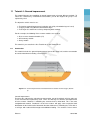
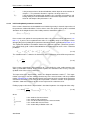
Deletion of elements
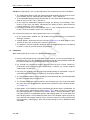
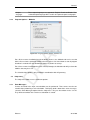
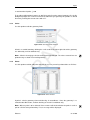
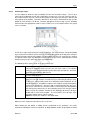
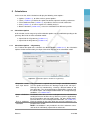
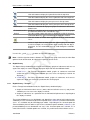
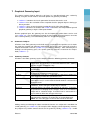
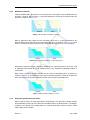
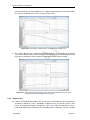
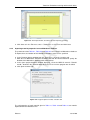
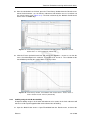
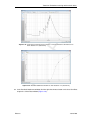
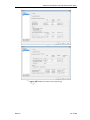
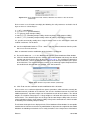
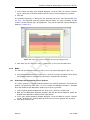
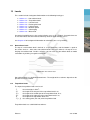
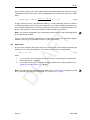
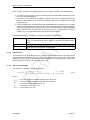
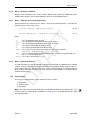
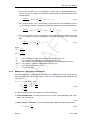
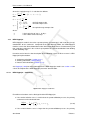
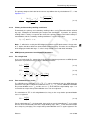
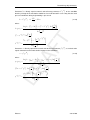
to delete a selected element. This button is only available when an
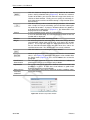
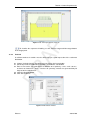
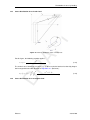
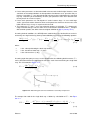
Click the Delete button
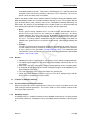
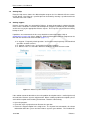
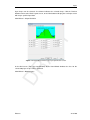
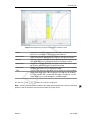
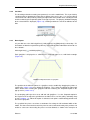
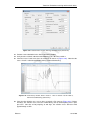
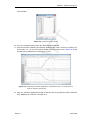
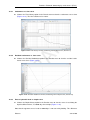
element is selected. When a point is selected and deleted, it and all lines connected to it are
deleted as shown in Figure 7.16.
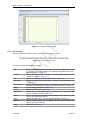
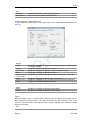
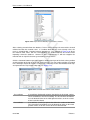
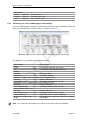
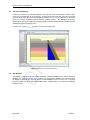
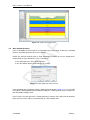
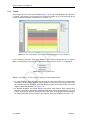
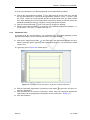
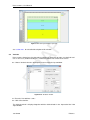
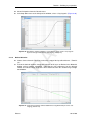
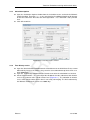
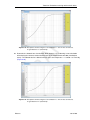
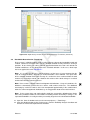
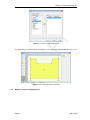
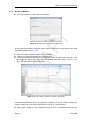
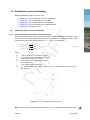
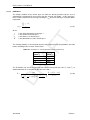
Before
After
T
Figure 7.16: Example of deletion of a point
DR
AF
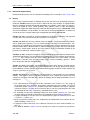
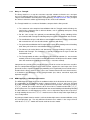
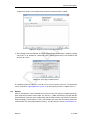
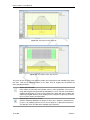
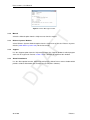
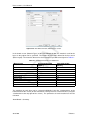
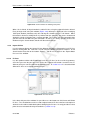
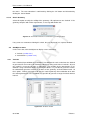
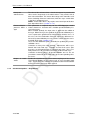
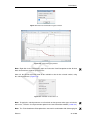
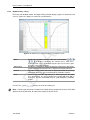
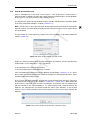
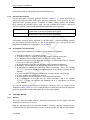
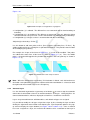
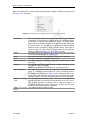
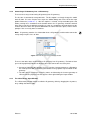
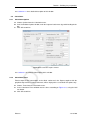
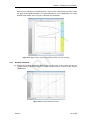
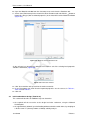
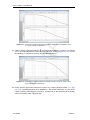
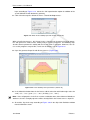
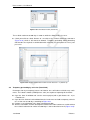
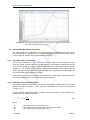
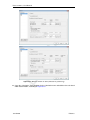
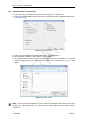
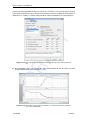
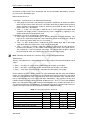
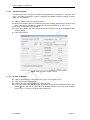
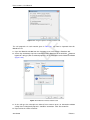
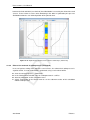
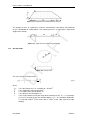
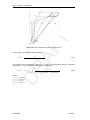
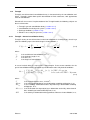
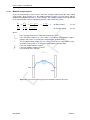
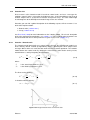
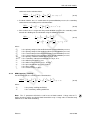
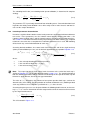
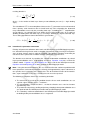
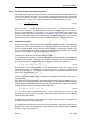
When a geometry point (a point used in a boundary or PL-line) is selected and deleted, the
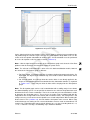
program deletes the point and its connected boundary lines as shown in Figure 7.17. It then
inserts a new boundary that reconnects the remaining boundary lines to a new boundary.
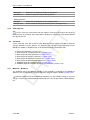
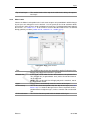
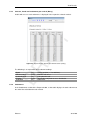
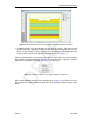
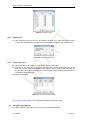
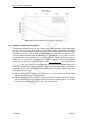
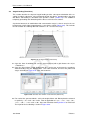
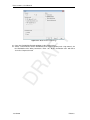
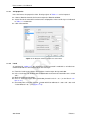
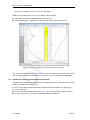
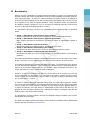
Before
After
Figure 7.17: Example of deletion of a geometry point
Deletion of a geometry element (boundary, boundary line, geometry point, PL-line) can result
in automatic regeneration of a new valid geometry, if the Automatic regeneration option is
switched on.
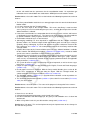
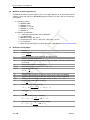
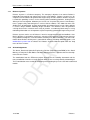
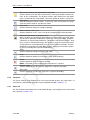
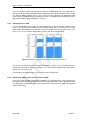
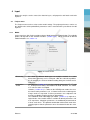
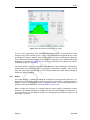
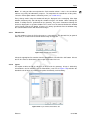
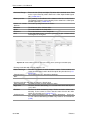
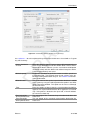
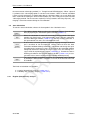
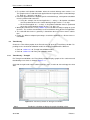
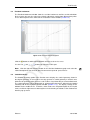
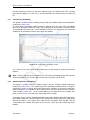
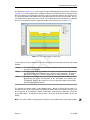
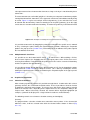
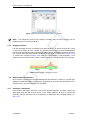
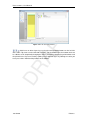
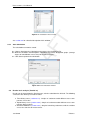
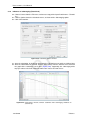
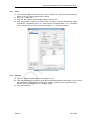
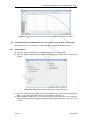
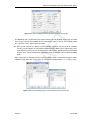
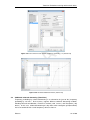
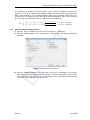
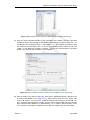
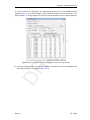
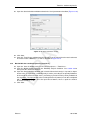
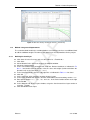
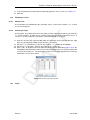
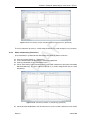
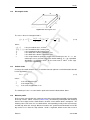
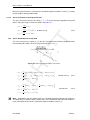
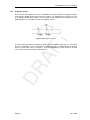
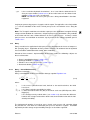
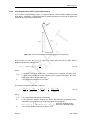
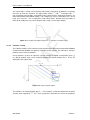
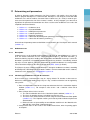
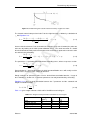
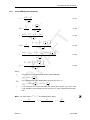
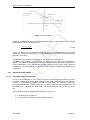
When a line is selected and then deleted, the line and its connecting points are deleted as
shown in Figure 7.18. In addition the layer just beneath that boundary is deleted. All other line
parts that are not part of other boundaries will be converted to construction lines.
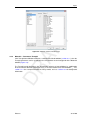
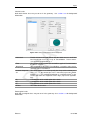
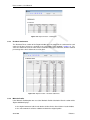
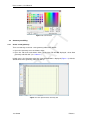
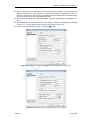
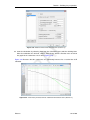
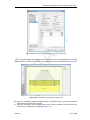
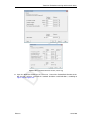
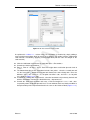
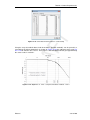
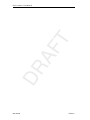
Before
After
Figure 7.18: Example of deletion of a line
7.5.3
Using the right-hand mouse button
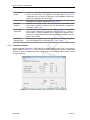
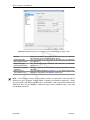
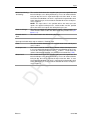
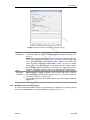
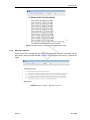
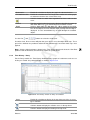
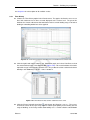
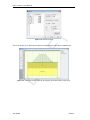
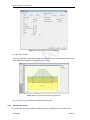
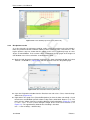
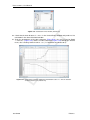
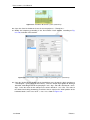
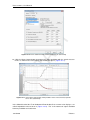
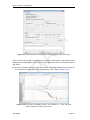
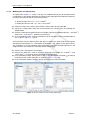
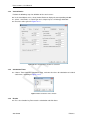
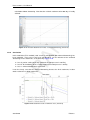
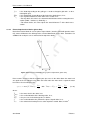
When using the mouse to make geometrical manipulations, the right mouse button enables
full functionality in a pop-up menu, while the left button implies the default choice. The options
available in the pop-up menu depend on the selected geometrical element and the active
mode. Right mousse button
Deltares
121 of 290